> ## Documentation Index
> Fetch the complete documentation index at: https://infisical.com/docs/llms.txt
> Use this file to discover all available pages before exploring further.
# Rotating the Encryption Key
> Replace the ENCRYPTION_KEY protecting your Infisical instance
This guide is for instances that use `ENCRYPTION_KEY`. If you use an
[HSM](/docs/self-hosting/guides/hsm-integration), rotate the key on the HSM
instead.
[`ENCRYPTION_KEY`](/docs/self-hosting/configuration/envars#param-encryption-key) protects every secret in your
instance. Rotating it means a key that leaks stops being useful once you finish, and some compliance
programs require it on a fixed schedule.
Infisical generates the new key. **The rotation takes effect when an instance first starts with the new
value**, so generating a key changes nothing until you deploy it.
Secrets remain encrypted throughout the rotation process. Both the previous
and new keys remain valid simultaneously until all instances have completed
the transition, ensuring continuous availability with no scheduled downtime.
## Before you start
* You need **server admin** access.
* Have somewhere to store two keys. You hold both the new and the old key until you finish.
* Know which rotation you are doing. A scheduled rotation can take its time. If you are responding to a
leaked key, your exposure is not reduced until you remove the old key in step 5.
## Rotate
Go to **Admin > Encryption** and select **Generate new key** under **Root encryption key**.
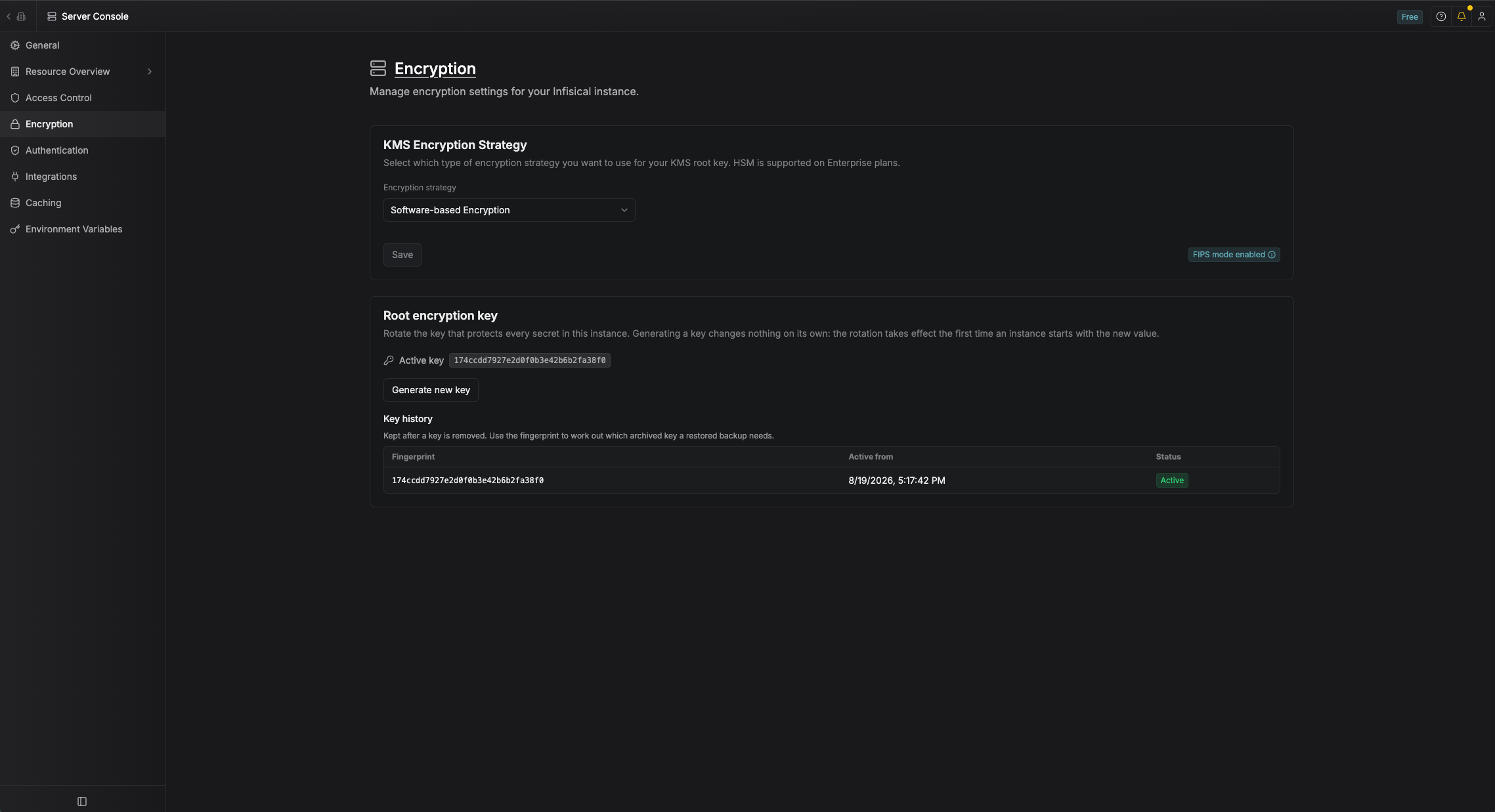 The key is shown once and is never recoverable. Copy it into your secret store before closing the
dialog, together with the **label** shown beside it.
If the key may have been exposed while you copied it, select **Discard generated key**. It can no
longer be applied, and you can generate another.
Set `ENCRYPTION_KEY` to the new value and restart your instances as you normally would. A rolling
restart works and needs no downtime.
The first instance that starts with the new key applies the rotation. Instances that have not restarted
yet keep serving normally, and instances that restart on the old key still start.
Return to **Admin > Encryption** and check **Key history**. The new key is listed as `Active` and the
old one as `Expiring`.
If the new key is not listed yet, no instance has started with the new value. Check that
`ENCRYPTION_KEY` reached your instances, then restart one.
Until you remove it, the old key still opens your database, so the rotation has not reduced your
exposure yet.
The panel tells you when an instance last started on the old key. When every instance has restarted
on the new key, select **Remove old key**.
The key is shown once and is never recoverable. Copy it into your secret store before closing the
dialog, together with the **label** shown beside it.
If the key may have been exposed while you copied it, select **Discard generated key**. It can no
longer be applied, and you can generate another.
Set `ENCRYPTION_KEY` to the new value and restart your instances as you normally would. A rolling
restart works and needs no downtime.
The first instance that starts with the new key applies the rotation. Instances that have not restarted
yet keep serving normally, and instances that restart on the old key still start.
Return to **Admin > Encryption** and check **Key history**. The new key is listed as `Active` and the
old one as `Expiring`.
If the new key is not listed yet, no instance has started with the new value. Check that
`ENCRYPTION_KEY` reached your instances, then restart one.
Until you remove it, the old key still opens your database, so the rotation has not reduced your
exposure yet.
The panel tells you when an instance last started on the old key. When every instance has restarted
on the new key, select **Remove old key**.
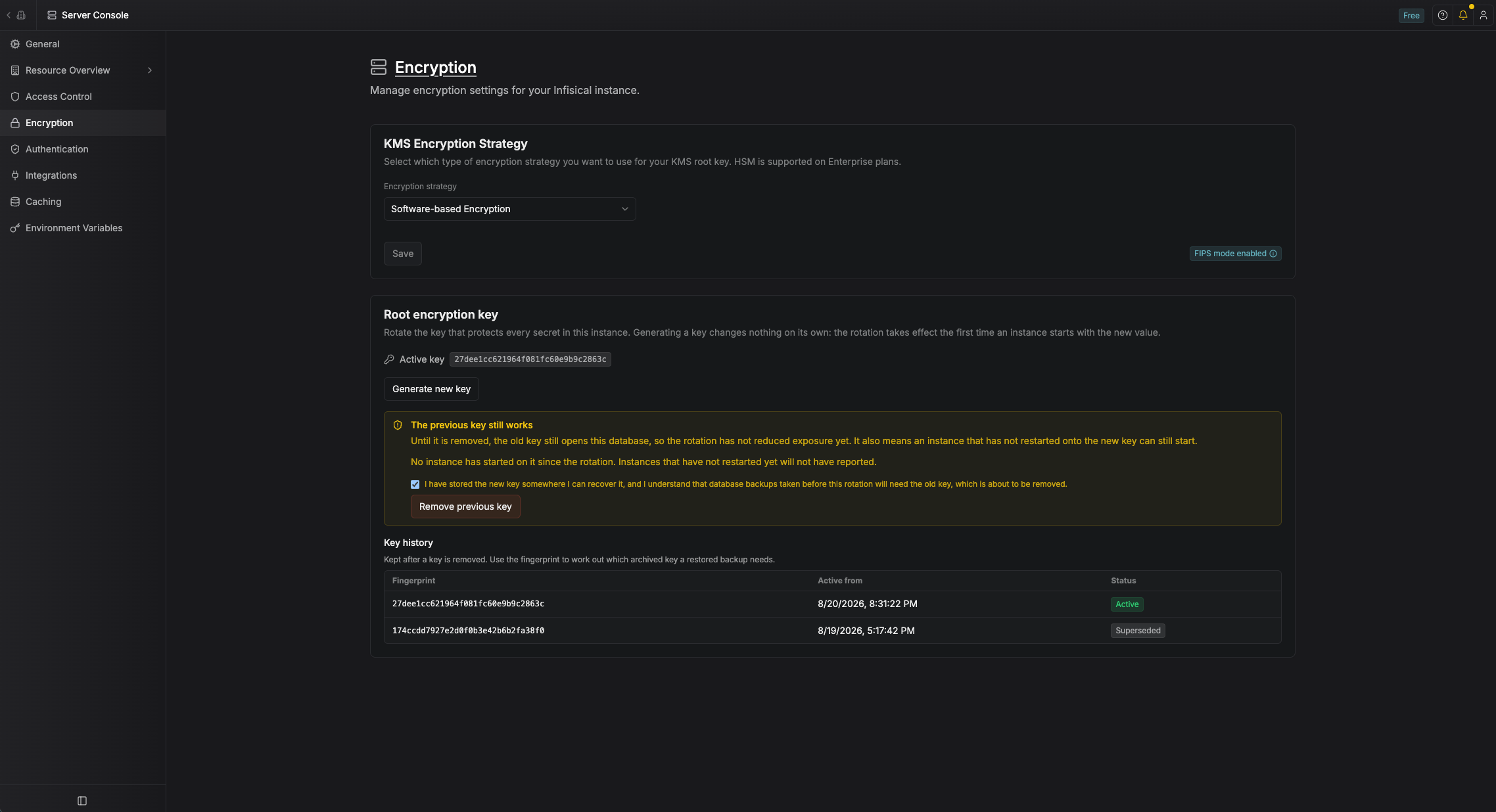 This cannot be undone. Afterwards, losing the new key means losing access to every secret in the
instance, and any database backup taken before the rotation needs the old key to restore.
Infisical only sees instances that have restarted, so confirm your rollout is complete yourself
rather than relying on the panel alone. If you do nothing, Infisical removes the old key on the first
weekly cleanup after it has been superseded for `KMS_ROOT_KEY_RETENTION_DAYS` (7 by default).
Rotating again before you remove the old key removes it for you, at the moment the new key is first
used. Infisical warns you about this when it generates the key. Only one old key is ever kept, so an
instance two rotations behind will not be able to restart.
## After the rotation
Do one of these:
* **Archive the old key.** Keep it in your secret store for at least as long as your oldest restorable
backup, tagged with the label from the **Key history** table. That table is kept permanently, so
a restored backup can always be matched to the key it needs.
* **Crypto-shred.** Remove the old key, take a fresh full backup immediately, and expire backups taken
before the rotation. A backup nobody can decrypt is also a backup that cannot leak.
The **Key history** table lists every key the instance has used and when. If an instance ever fails to
start with "the configured encryption key does not decrypt this database's root key", the error names the
label it needs, which you can look up there.
## What is reversible when
There is no rollback once a rotation has been applied. What reverting `ENCRYPTION_KEY` does depends on how
far you have got.
| When you revert `ENCRYPTION_KEY` | What happens |
| ----------------------------------------------------------- | -------------------------------------------------------------------------------------------------------------------------------- |
| Before any instance restarts | Nothing has changed. The generated key is still waiting, so select **Discard generated key** if you are abandoning the rotation. |
| After an instance applied it, before you remove the old key | Instances boot on the old key and keep serving. The rotation is not undone: the new key is still the active one. |
| After you removed the old key | Those instances will not start. Give them the new key to bring them back. |
The window in the middle row exists so instances can finish rolling over. It is not a way to undo the
rotation.
This cannot be undone. Afterwards, losing the new key means losing access to every secret in the
instance, and any database backup taken before the rotation needs the old key to restore.
Infisical only sees instances that have restarted, so confirm your rollout is complete yourself
rather than relying on the panel alone. If you do nothing, Infisical removes the old key on the first
weekly cleanup after it has been superseded for `KMS_ROOT_KEY_RETENTION_DAYS` (7 by default).
Rotating again before you remove the old key removes it for you, at the moment the new key is first
used. Infisical warns you about this when it generates the key. Only one old key is ever kept, so an
instance two rotations behind will not be able to restart.
## After the rotation
Do one of these:
* **Archive the old key.** Keep it in your secret store for at least as long as your oldest restorable
backup, tagged with the label from the **Key history** table. That table is kept permanently, so
a restored backup can always be matched to the key it needs.
* **Crypto-shred.** Remove the old key, take a fresh full backup immediately, and expire backups taken
before the rotation. A backup nobody can decrypt is also a backup that cannot leak.
The **Key history** table lists every key the instance has used and when. If an instance ever fails to
start with "the configured encryption key does not decrypt this database's root key", the error names the
label it needs, which you can look up there.
## What is reversible when
There is no rollback once a rotation has been applied. What reverting `ENCRYPTION_KEY` does depends on how
far you have got.
| When you revert `ENCRYPTION_KEY` | What happens |
| ----------------------------------------------------------- | -------------------------------------------------------------------------------------------------------------------------------- |
| Before any instance restarts | Nothing has changed. The generated key is still waiting, so select **Discard generated key** if you are abandoning the rotation. |
| After an instance applied it, before you remove the old key | Instances boot on the old key and keep serving. The rotation is not undone: the new key is still the active one. |
| After you removed the old key | Those instances will not start. Give them the new key to bring them back. |
The window in the middle row exists so instances can finish rolling over. It is not a way to undo the
rotation.