> ## Documentation Index
> Fetch the complete documentation index at: https://infisical.com/docs/llms.txt
> Use this file to discover all available pages before exploring further.
# Snowflake Sync
> Learn how to configure a Snowflake Sync for Infisical.
**Prerequisites:**
* Set up and add secrets to [Infisical Cloud](https://app.infisical.com)
* Create a [Snowflake Connection](/integrations/app-connections/snowflake)
* An existing Snowflake **database** and **schema** that secrets should be written to
* The Snowflake user behind the connection must have the following privileges on the target schema: `USAGE` on the database, `USAGE` on the schema, and `CREATE SECRET` (plus `OWNERSHIP` on the synced secrets to support deletions)
* Ensure your network security policies allow incoming requests from Infisical to your Snowflake account, if network restrictions apply
Snowflake Sync writes Infisical secrets as native Snowflake secrets of type
`GENERIC_STRING` (created via `CREATE OR REPLACE SECRET`).
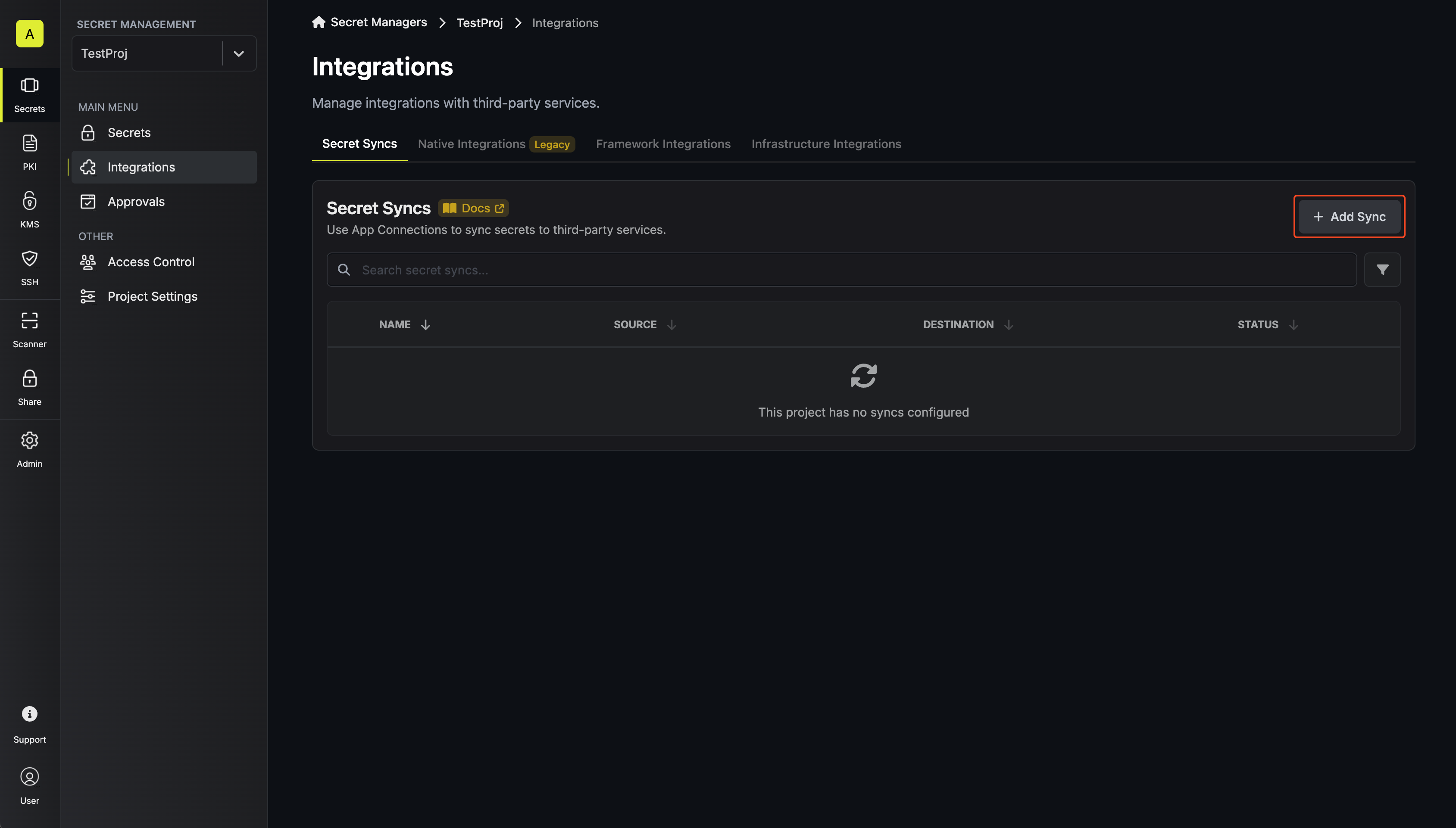
1. Navigate to **Project** > **Integrations** and select the **Secret Syncs** tab. Click on the **Add Sync** button.
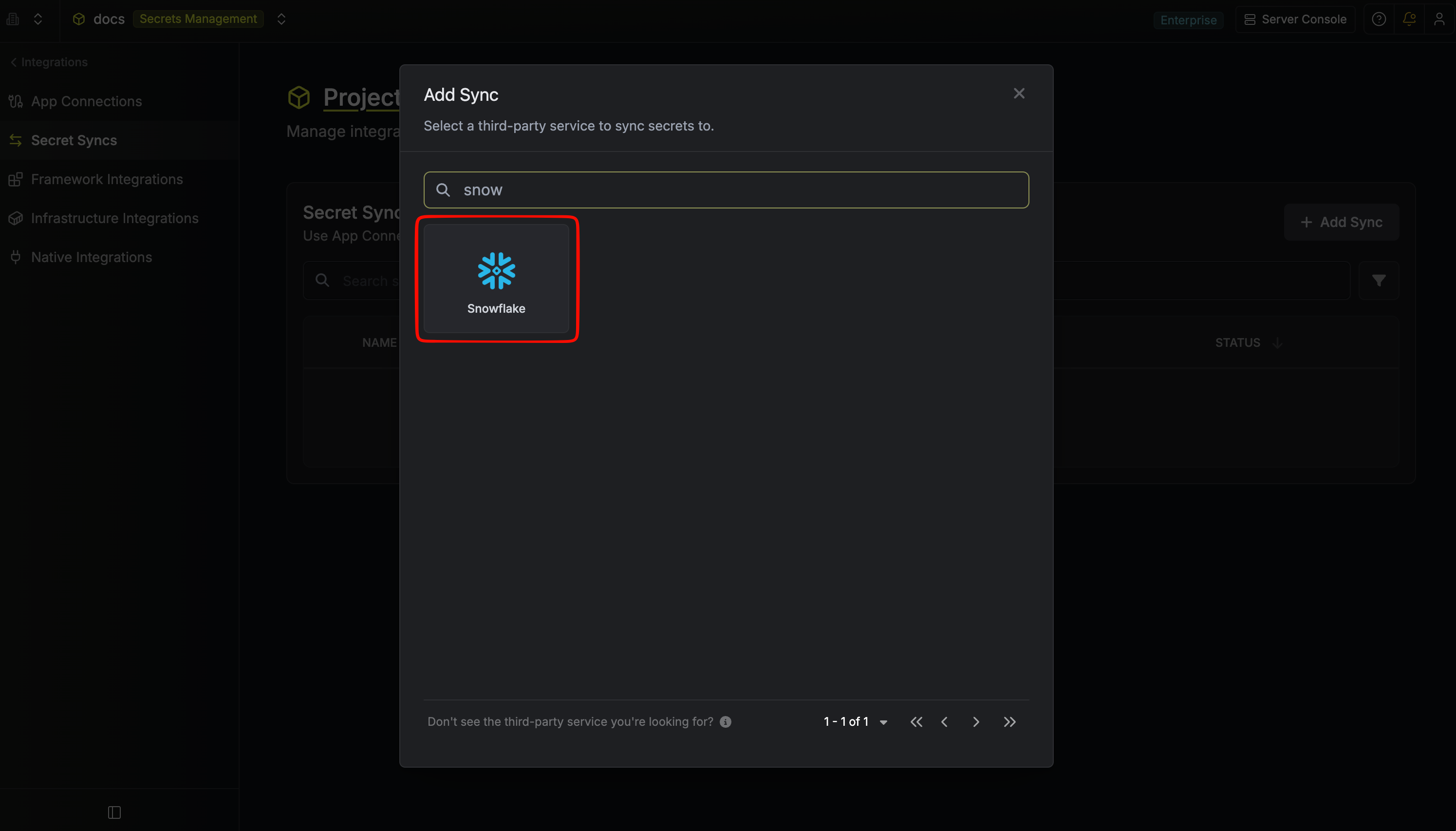
 2. Select the **Snowflake** option.
 3. Configure the **Source** from where secrets should be retrieved, then click **Next**.
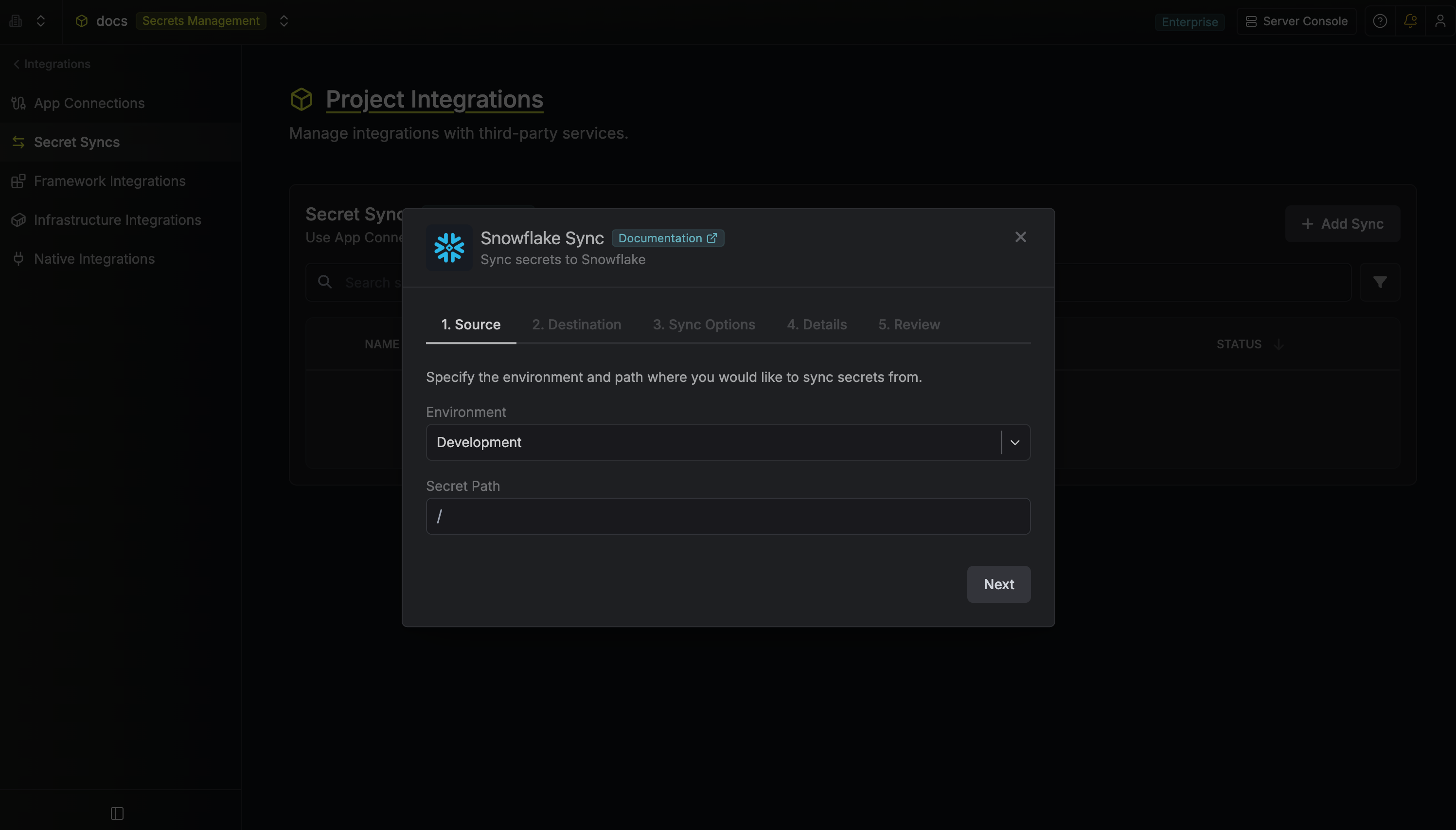 * **Environment**: The project environment to retrieve secrets from.
* **Secret Path**: The folder path to retrieve secrets from.
If you need to sync secrets from multiple folder locations, check out [secret imports](/documentation/platform/secret-reference#secret-imports).
4. Configure the **Destination** to where secrets should be deployed, then click **Next**.
* **Environment**: The project environment to retrieve secrets from.
* **Secret Path**: The folder path to retrieve secrets from.
If you need to sync secrets from multiple folder locations, check out [secret imports](/documentation/platform/secret-reference#secret-imports).
4. Configure the **Destination** to where secrets should be deployed, then click **Next**.
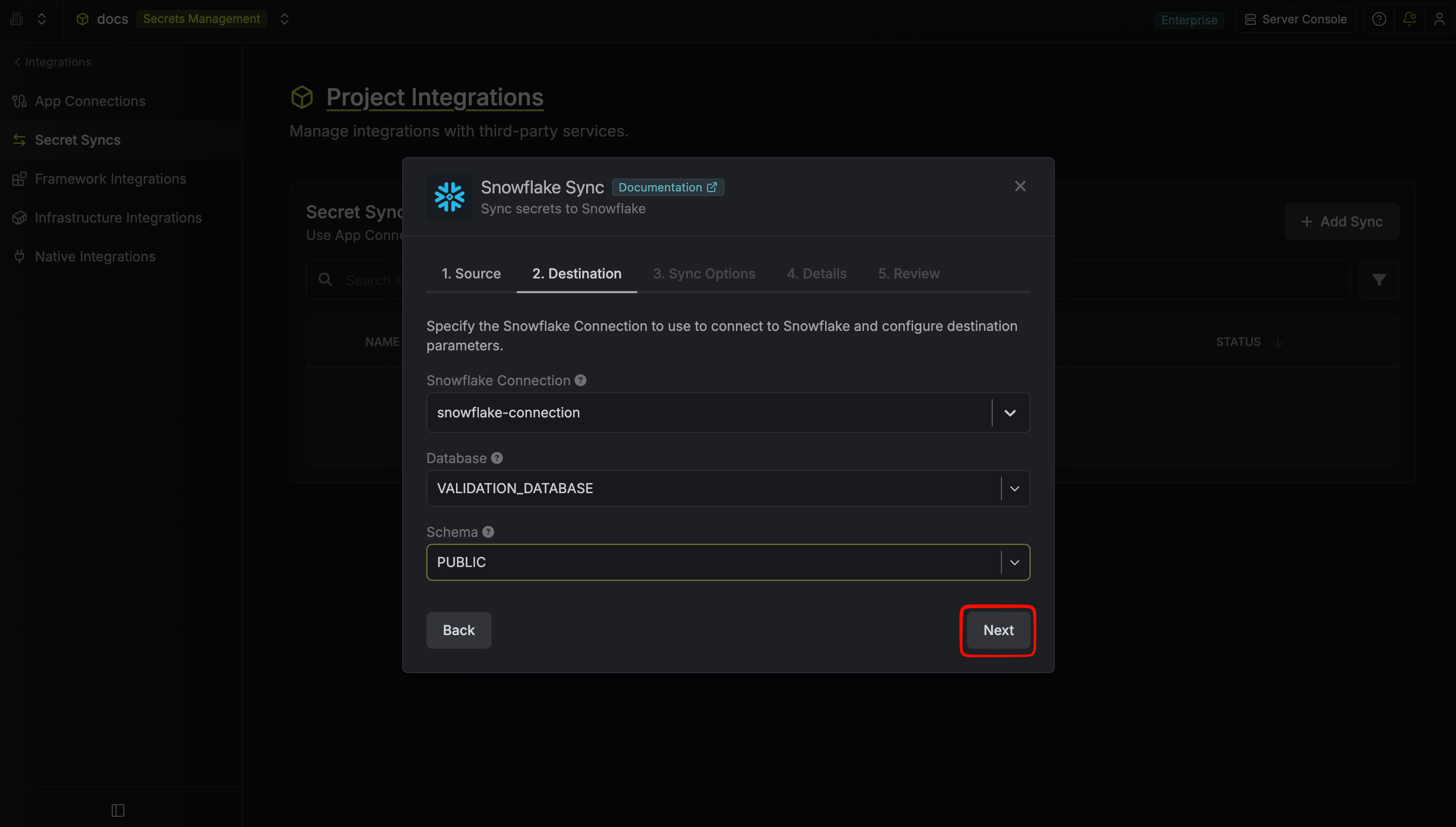 * **Snowflake Connection**: The Snowflake Connection to authenticate with.
* **Database**: The name of the Snowflake database to write secrets to. The database must already exist.
* **Schema**: The name of the Snowflake schema (within the selected database) where secrets will be created. The schema must already exist.
Infisical validates that the database and schema exist before creating any secrets. If either is missing or the connected Snowflake user lacks access, the sync fails with a descriptive error and no changes are written.
Databases and schemas in the selectors are returned in lexicographic (A–Z) order by name. See [Snowflake's `SHOW DATABASES` reference](https://docs.snowflake.com/en/sql-reference/sql/show-databases) for details.
5. Configure the **Sync Options** to specify how secrets should be synced, then click **Next**.
* **Snowflake Connection**: The Snowflake Connection to authenticate with.
* **Database**: The name of the Snowflake database to write secrets to. The database must already exist.
* **Schema**: The name of the Snowflake schema (within the selected database) where secrets will be created. The schema must already exist.
Infisical validates that the database and schema exist before creating any secrets. If either is missing or the connected Snowflake user lacks access, the sync fails with a descriptive error and no changes are written.
Databases and schemas in the selectors are returned in lexicographic (A–Z) order by name. See [Snowflake's `SHOW DATABASES` reference](https://docs.snowflake.com/en/sql-reference/sql/show-databases) for details.
5. Configure the **Sync Options** to specify how secrets should be synced, then click **Next**.
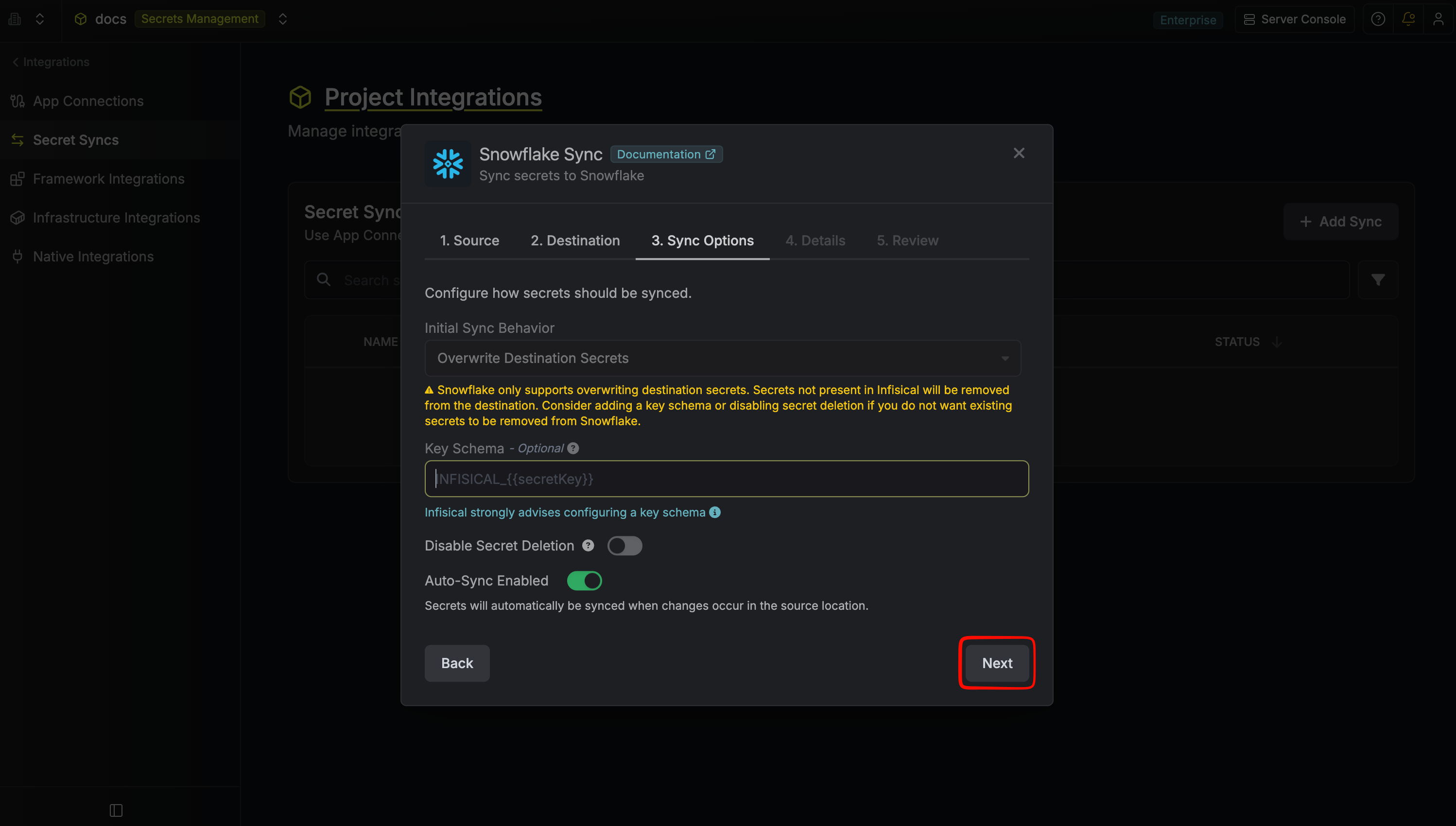 * **Initial Sync Behavior**: Determines how Infisical should resolve the initial sync.
* **Overwrite Destination Secrets**: Removes any secrets at the destination endpoint not present in Infisical.
Snowflake does not support importing secrets.
* **Key Schema**: Template that determines how secret names are transformed when syncing, using `{{secretKey}}` as a placeholder for the original secret name and `{{environment}}` for the environment.
We highly recommend using a Key Schema to ensure that Infisical only manages the specific keys you intend, keeping everything else in the schema untouched.
* **Auto-Sync Enabled**: If enabled, secrets will automatically be synced from the source location when changes occur. Disable to enforce manual syncing only.
* **Disable Secret Deletion**: If enabled, Infisical will not remove secrets from the sync destination. Enable this option if you intend to manage some secrets manually outside of Infisical.
6. Configure the **Details** of your Snowflake Sync, then click **Next**.
* **Initial Sync Behavior**: Determines how Infisical should resolve the initial sync.
* **Overwrite Destination Secrets**: Removes any secrets at the destination endpoint not present in Infisical.
Snowflake does not support importing secrets.
* **Key Schema**: Template that determines how secret names are transformed when syncing, using `{{secretKey}}` as a placeholder for the original secret name and `{{environment}}` for the environment.
We highly recommend using a Key Schema to ensure that Infisical only manages the specific keys you intend, keeping everything else in the schema untouched.
* **Auto-Sync Enabled**: If enabled, secrets will automatically be synced from the source location when changes occur. Disable to enforce manual syncing only.
* **Disable Secret Deletion**: If enabled, Infisical will not remove secrets from the sync destination. Enable this option if you intend to manage some secrets manually outside of Infisical.
6. Configure the **Details** of your Snowflake Sync, then click **Next**.
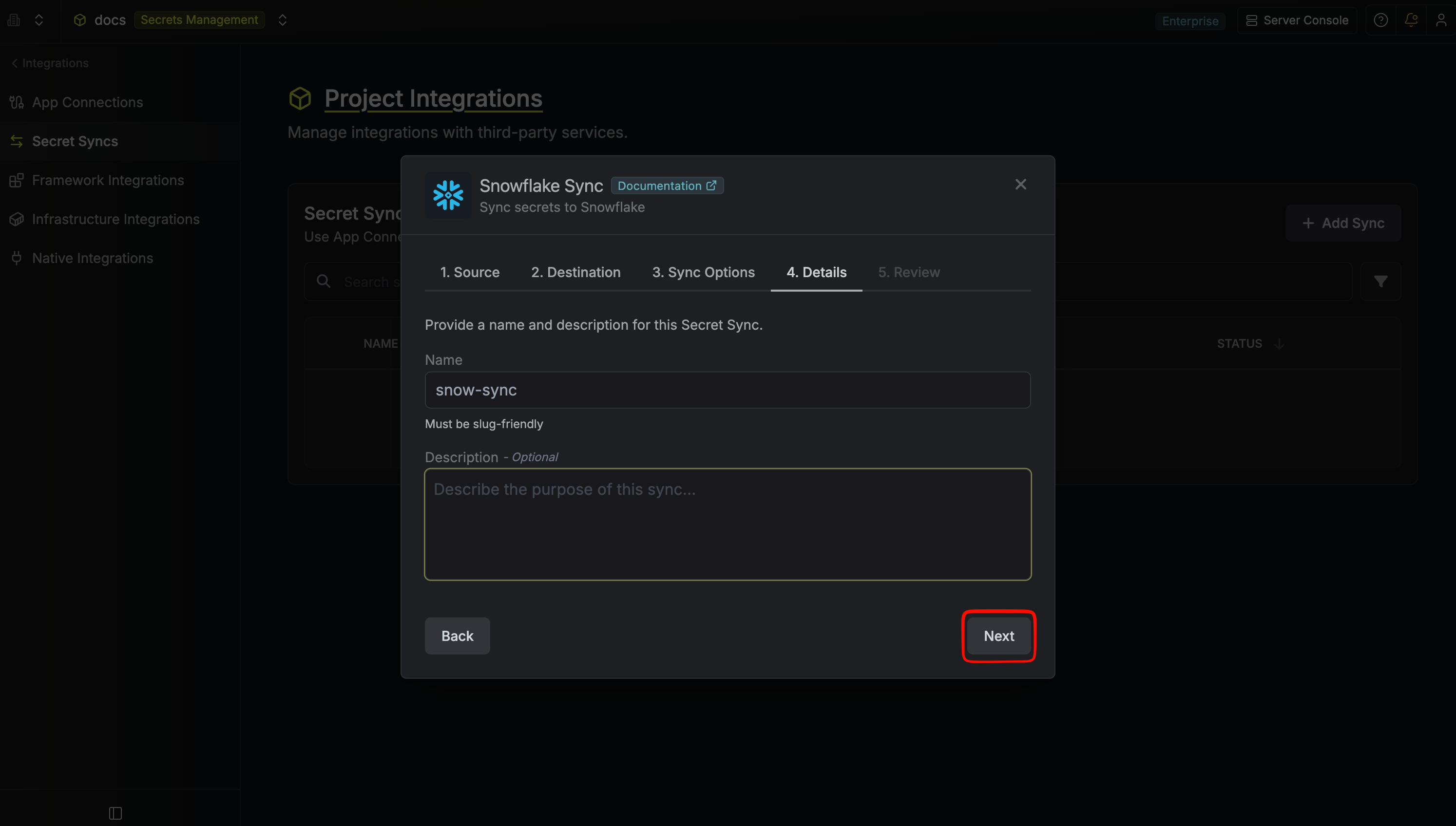 * **Name**: The name of your sync. Must be slug-friendly.
* **Description**: An optional description for your sync.
7. Review your Snowflake Sync configuration, then click **Create Sync**.
* **Name**: The name of your sync. Must be slug-friendly.
* **Description**: An optional description for your sync.
7. Review your Snowflake Sync configuration, then click **Create Sync**.
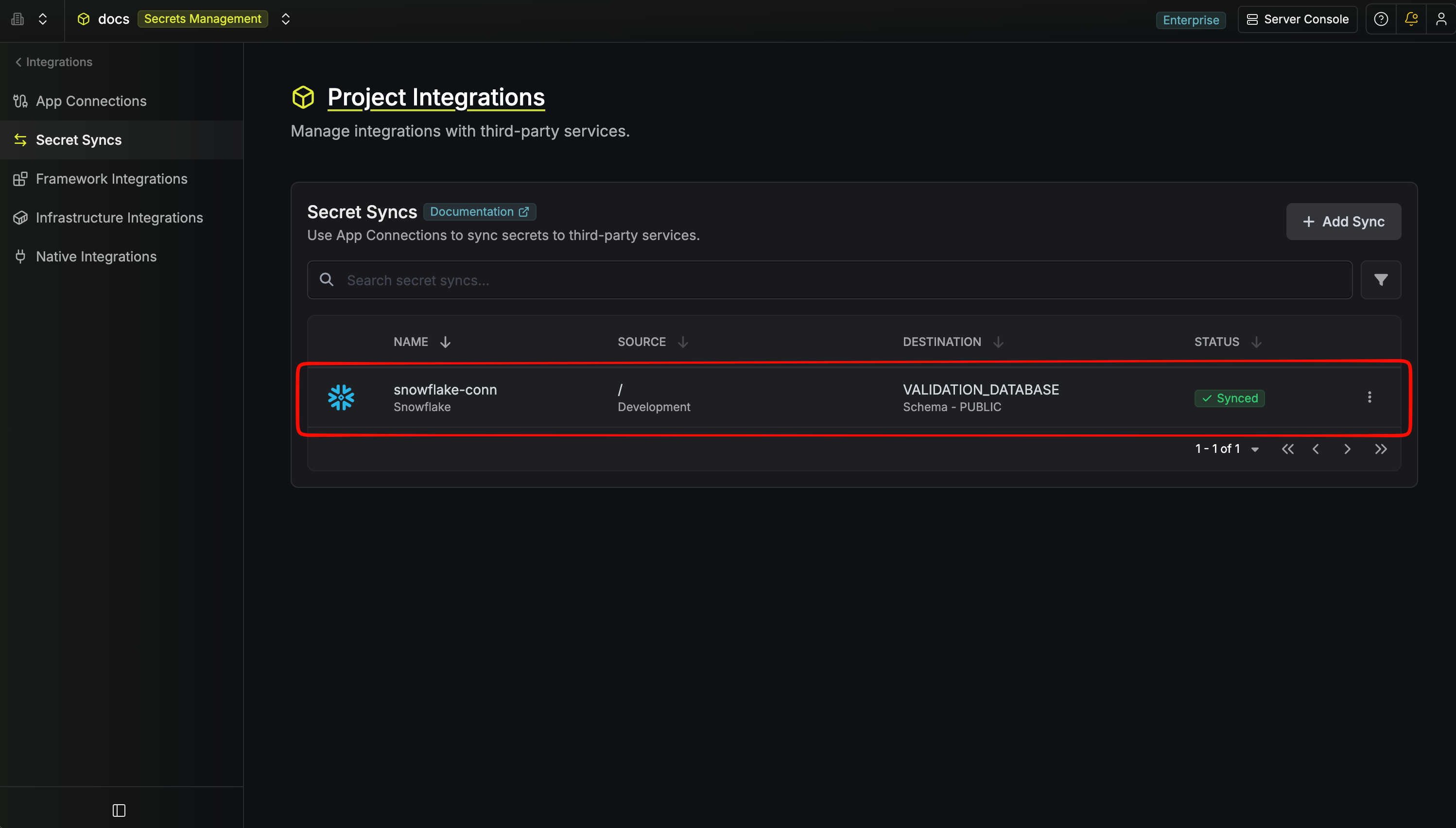
 8. If enabled, your Snowflake Sync will begin syncing your secrets to the destination schema.
 To create a **Snowflake Sync**, make an API request to the [Create Snowflake Sync](/api-reference/endpoints/secret-syncs/snowflake/create) API endpoint.
### Sample request
```bash Request theme={"dark"}
curl --request POST \
--url https://app.infisical.com/api/v1/secret-syncs/snowflake \
--header 'Content-Type: application/json' \
--data '{
"name": "my-snowflake-sync",
"projectId": "3c90c3cc-0d44-4b50-8888-8dd25736052a",
"description": "sync to snowflake schema",
"connectionId": "3c90c3cc-0d44-4b50-8888-8dd25736052a",
"environment": "dev",
"secretPath": "/",
"isAutoSyncEnabled": true,
"syncOptions": {
"initialSyncBehavior": "overwrite-destination",
"disableSecretDeletion": false
},
"destinationConfig": {
"database": "MY_DATABASE",
"schema": "MY_SCHEMA"
}
}'
```
### Sample response
```bash Response theme={"dark"}
{
"secretSync": {
"id": "3c90c3cc-0d44-4b50-8888-8dd25736052a",
"name": "my-snowflake-sync",
"description": "sync to snowflake schema",
"folderId": "3c90c3cc-0d44-4b50-8888-8dd25736052a",
"connectionId": "3c90c3cc-0d44-4b50-8888-8dd25736052a",
"createdAt": "2026-04-29T12:00:00Z",
"updatedAt": "2026-04-29T12:00:00Z",
"syncStatus": "succeeded",
"lastSyncJobId": "job-1234",
"lastSyncMessage": null,
"lastSyncedAt": "2026-04-29T12:00:00Z",
"syncOptions": {
"initialSyncBehavior": "overwrite-destination",
"disableSecretDeletion": false
},
"projectId": "3c90c3cc-0d44-4b50-8888-8dd25736052a",
"connection": {
"app": "snowflake",
"name": "my-snowflake-connection",
"id": "3c90c3cc-0d44-4b50-8888-8dd25736052a"
},
"environment": {
"slug": "dev",
"name": "Development",
"id": "3c90c3cc-0d44-4b50-8888-8dd25736052a"
},
"folder": {
"id": "3c90c3cc-0d44-4b50-8888-8dd25736052a",
"path": "/"
},
"destination": "snowflake",
"destinationConfig": {
"database": "MY_DATABASE",
"schema": "MY_SCHEMA"
}
}
}
```
To create a **Snowflake Sync**, make an API request to the [Create Snowflake Sync](/api-reference/endpoints/secret-syncs/snowflake/create) API endpoint.
### Sample request
```bash Request theme={"dark"}
curl --request POST \
--url https://app.infisical.com/api/v1/secret-syncs/snowflake \
--header 'Content-Type: application/json' \
--data '{
"name": "my-snowflake-sync",
"projectId": "3c90c3cc-0d44-4b50-8888-8dd25736052a",
"description": "sync to snowflake schema",
"connectionId": "3c90c3cc-0d44-4b50-8888-8dd25736052a",
"environment": "dev",
"secretPath": "/",
"isAutoSyncEnabled": true,
"syncOptions": {
"initialSyncBehavior": "overwrite-destination",
"disableSecretDeletion": false
},
"destinationConfig": {
"database": "MY_DATABASE",
"schema": "MY_SCHEMA"
}
}'
```
### Sample response
```bash Response theme={"dark"}
{
"secretSync": {
"id": "3c90c3cc-0d44-4b50-8888-8dd25736052a",
"name": "my-snowflake-sync",
"description": "sync to snowflake schema",
"folderId": "3c90c3cc-0d44-4b50-8888-8dd25736052a",
"connectionId": "3c90c3cc-0d44-4b50-8888-8dd25736052a",
"createdAt": "2026-04-29T12:00:00Z",
"updatedAt": "2026-04-29T12:00:00Z",
"syncStatus": "succeeded",
"lastSyncJobId": "job-1234",
"lastSyncMessage": null,
"lastSyncedAt": "2026-04-29T12:00:00Z",
"syncOptions": {
"initialSyncBehavior": "overwrite-destination",
"disableSecretDeletion": false
},
"projectId": "3c90c3cc-0d44-4b50-8888-8dd25736052a",
"connection": {
"app": "snowflake",
"name": "my-snowflake-connection",
"id": "3c90c3cc-0d44-4b50-8888-8dd25736052a"
},
"environment": {
"slug": "dev",
"name": "Development",
"id": "3c90c3cc-0d44-4b50-8888-8dd25736052a"
},
"folder": {
"id": "3c90c3cc-0d44-4b50-8888-8dd25736052a",
"path": "/"
},
"destination": "snowflake",
"destinationConfig": {
"database": "MY_DATABASE",
"schema": "MY_SCHEMA"
}
}
}
```