> ## Documentation Index
> Fetch the complete documentation index at: https://infisical.com/docs/llms.txt
> Use this file to discover all available pages before exploring further.
# Keeper Password Manager sync
> Learn how to configure a Keeper Password Manager sync for Infisical.
A Keeper Password Manager Secret Sync pushes secrets from Infisical into a Keeper shared folder, where the users and teams you share the folder with can read them. Each Infisical secret becomes a login record whose title is the secret's name and whose password field holds the secret's value. The title matches the secret's name unless you customize key names to add a prefix or suffix.
The Keeper Password Manager Secret Sync requires a [Keeper app
connection](/docs/integrations/app-connections/keeper). This guide walks you
through creating a project-scoped app connection.
## Prerequisites
* A [project with secrets configured](/docs/documentation/platform/secrets-mgmt/quick-starts/deliver-first-secret)
* Keeper Commander running in Service Mode and its API key (see [Set up Keeper Commander](/docs/integrations/app-connections/keeper#step-1-set-up-keeper-commander))
## Step 1: Configure a shared folder
The sync writes secrets to a Keeper shared folder that the Infisical user can manage. The Infisical user is the Keeper user you created when you [set up Keeper Commander](/docs/integrations/app-connections/keeper#step-1-set-up-keeper-commander).
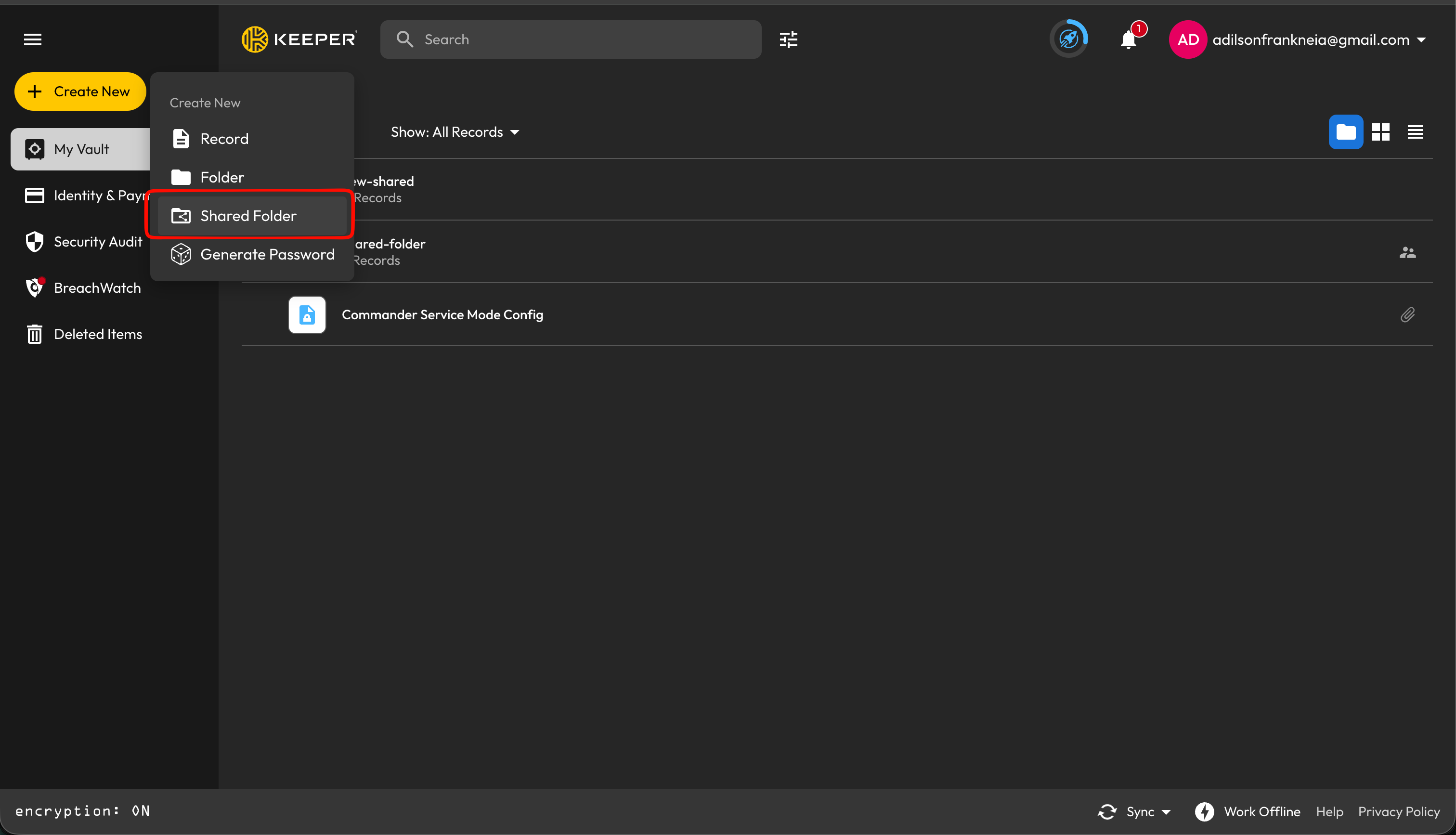
In your Keeper vault, choose the shared folder Infisical syncs secrets to. To create a new shared folder, select **Create New**, then select **Shared Folder**.
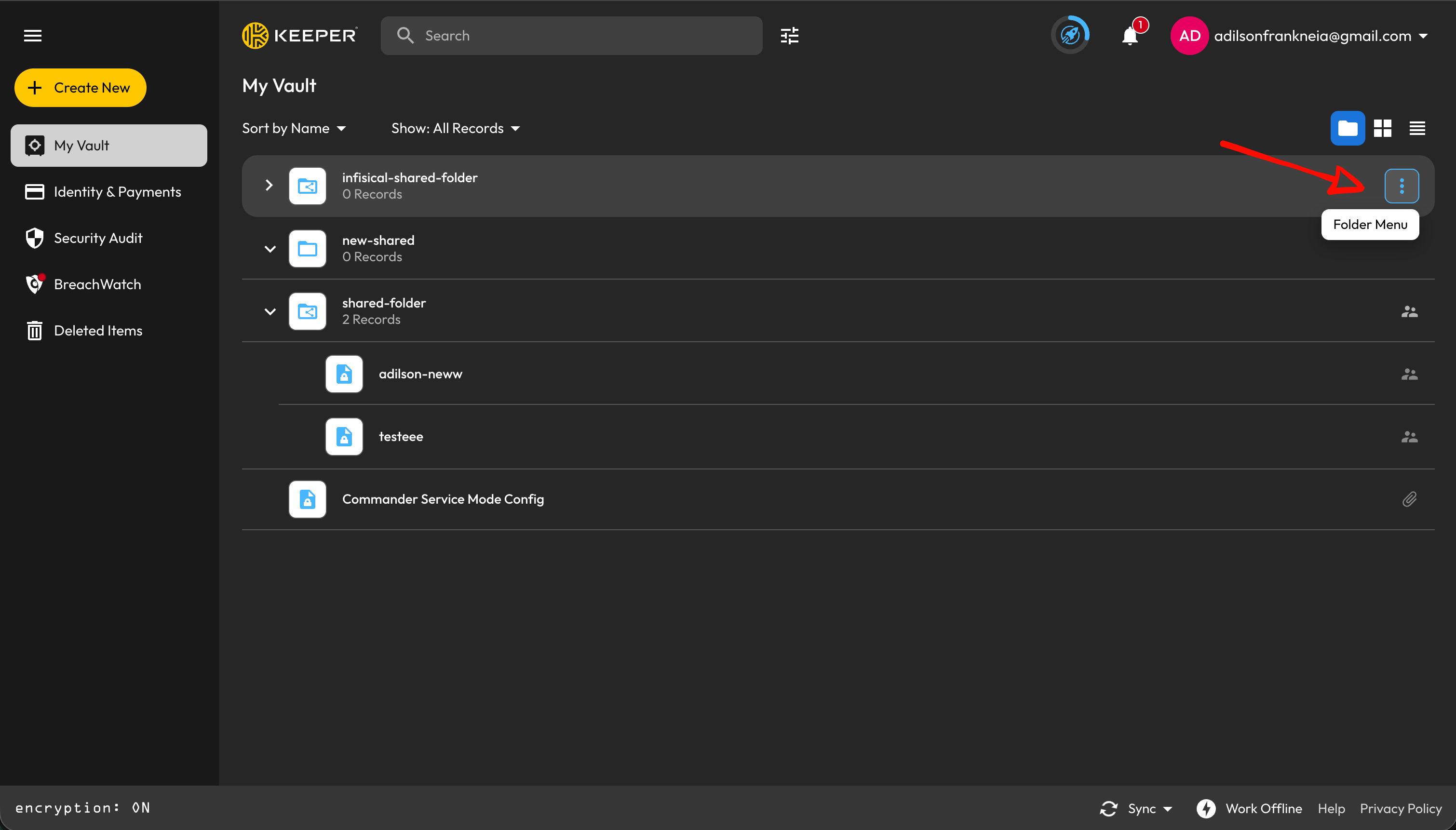
 In **My Vault**, select the three dot menu next to the shared folder.
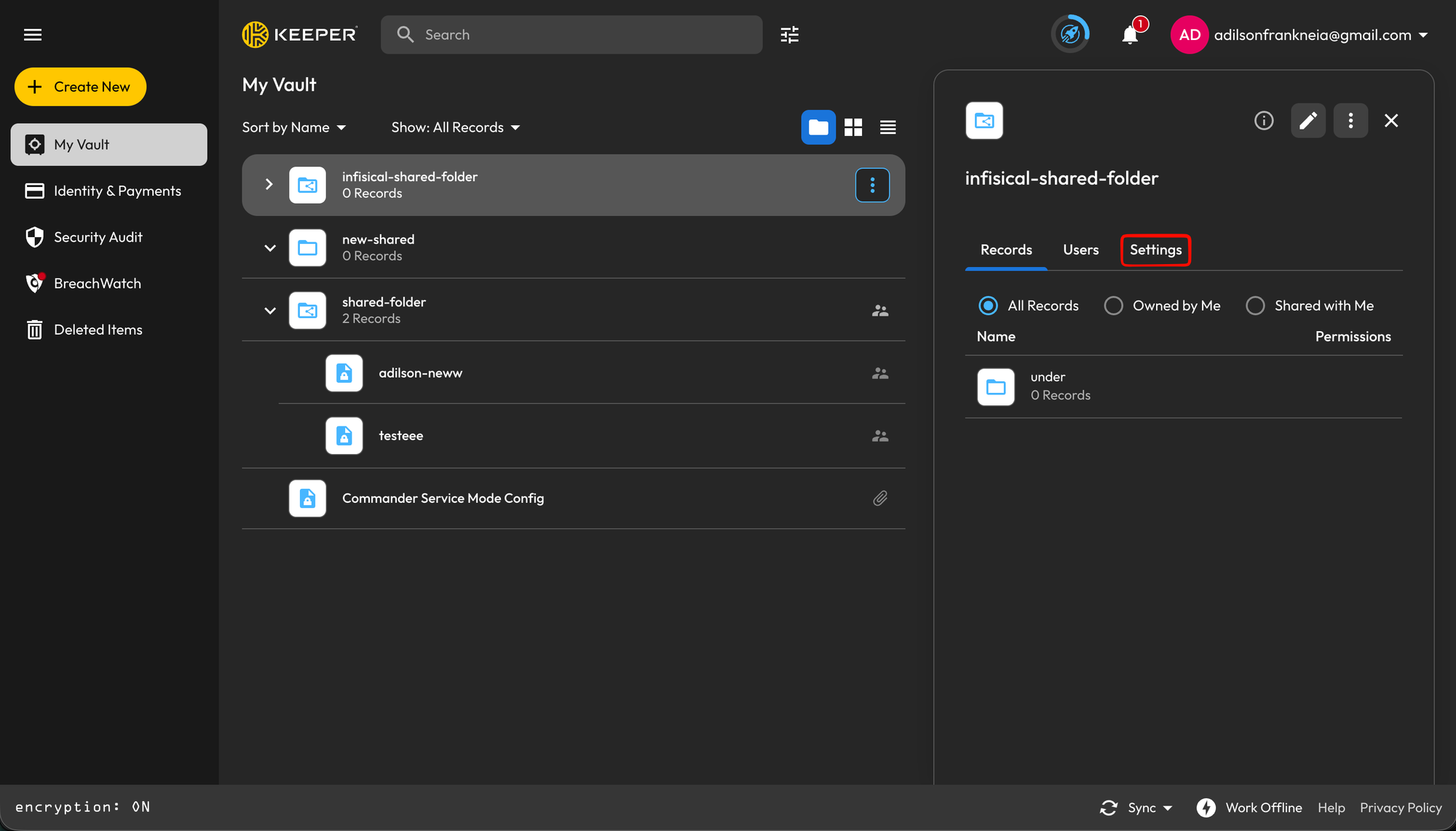
 In the folder panel, select the **Settings** tab.
 Select **Edit Folder** (the pencil icon).
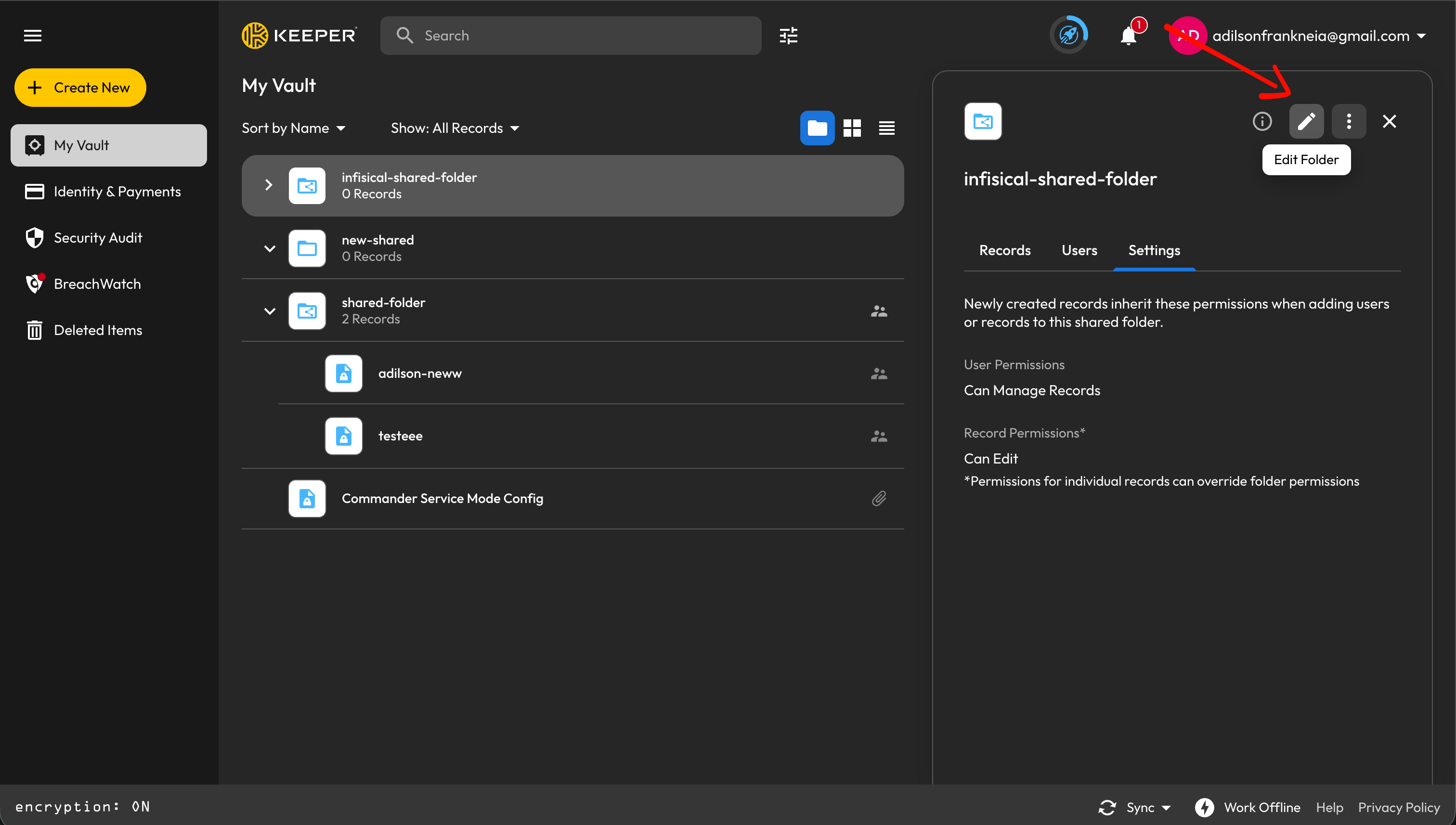 On the **Settings** tab, set these permissions:
* **User Permissions**: **Can Manage Records**, so Infisical can create and delete records
* **Record Permissions**: **Can Edit**, so Infisical can update record values
If the folder already has records, select **Apply permissions to existing records** so the sync can update them. Then select **Save**.
On the **Settings** tab, set these permissions:
* **User Permissions**: **Can Manage Records**, so Infisical can create and delete records
* **Record Permissions**: **Can Edit**, so Infisical can update record values
If the folder already has records, select **Apply permissions to existing records** so the sync can update them. Then select **Save**.
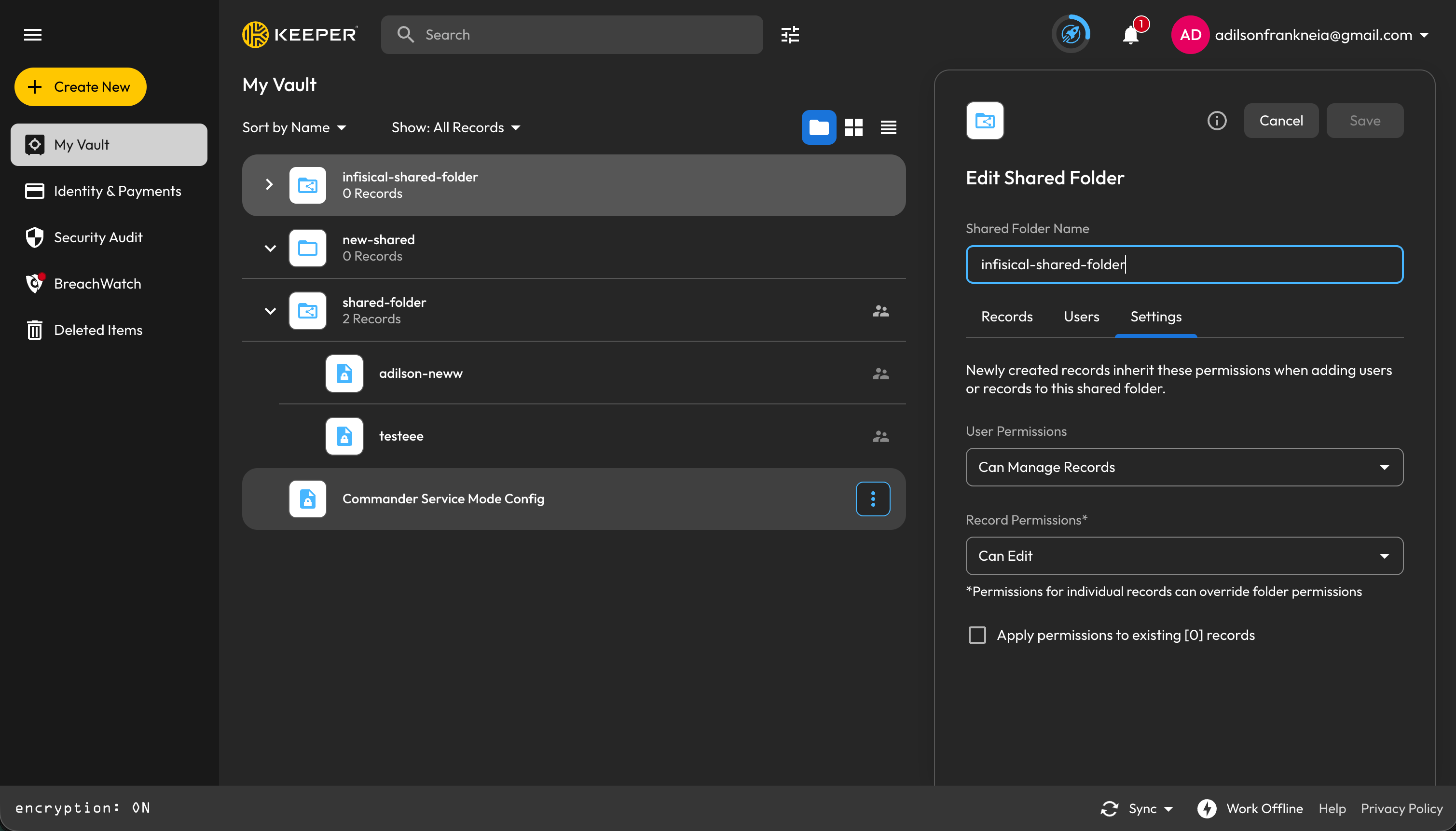 Keeper gives these permissions only to the users and records you add to the folder after you save the settings.
Share the folder with the Infisical user. Select **Edit Folder** again, then select the **Users** tab. In **Email or Team Name**, enter the Infisical user's email address, select **Add**, then select **Save**.
Keeper gives these permissions only to the users and records you add to the folder after you save the settings.
Share the folder with the Infisical user. Select **Edit Folder** again, then select the **Users** tab. In **Email or Team Name**, enter the Infisical user's email address, select **Add**, then select **Save**.
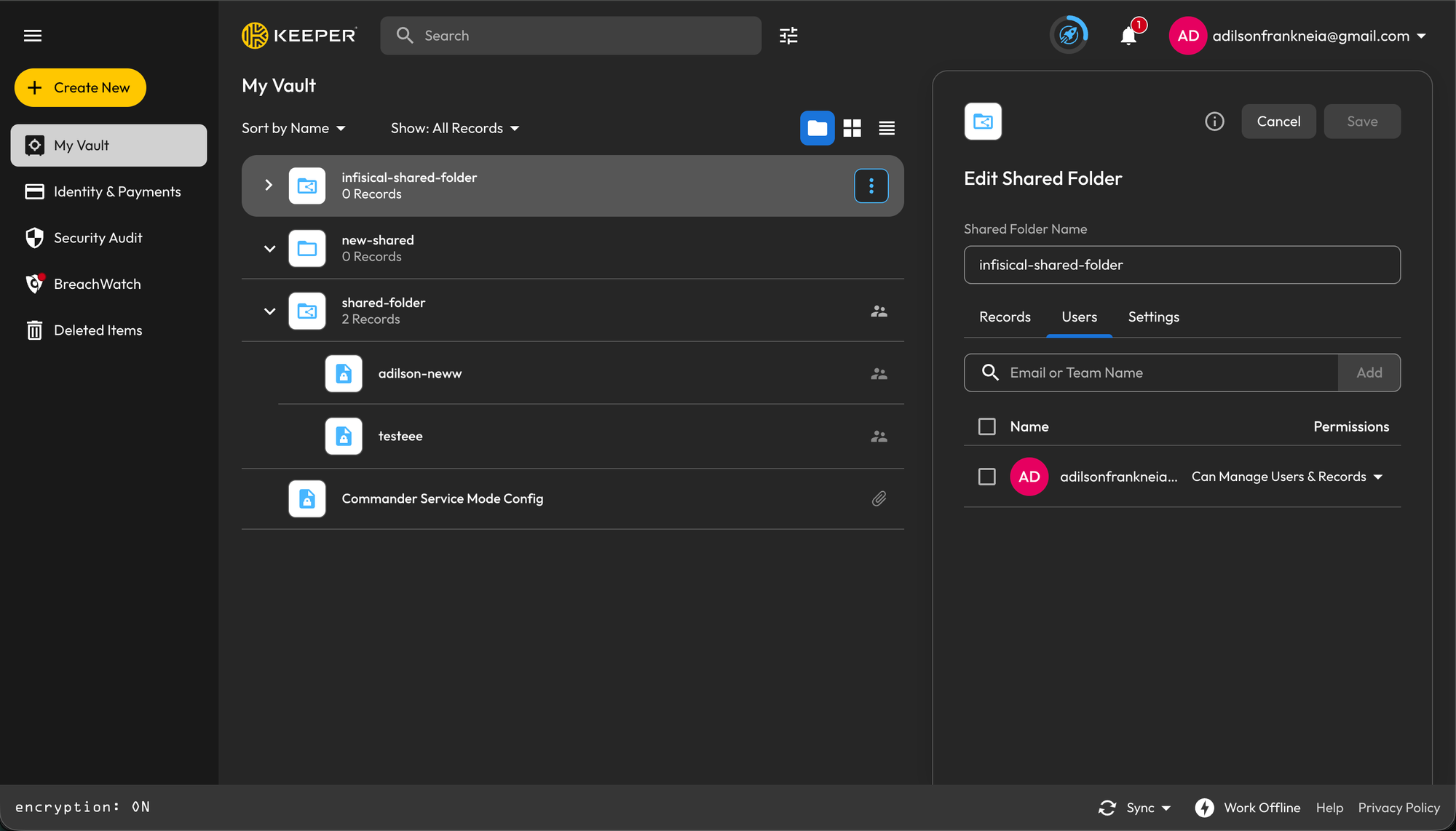 The Infisical user gets the permissions you set in the previous step. In the **Permissions** column, check that the Infisical user has **Can Manage Records**.
To share the folder from Commander instead, run this command as a user who manages the folder:
```bash theme={"dark"}
share-folder -e infisical-sync-user@company.com -a grant -p on -o off -d on -s off
```
If you'll create the sync through the API, note the folder's UID. The API identifies the folder by its UID, not its name.
## Step 2: Set up the sync in Infisical
To create the sync using the API, use the [Create Keeper Password Manager
Sync](/docs/api-reference/endpoints/secret-syncs/keeper-password-manager/create)
endpoint.
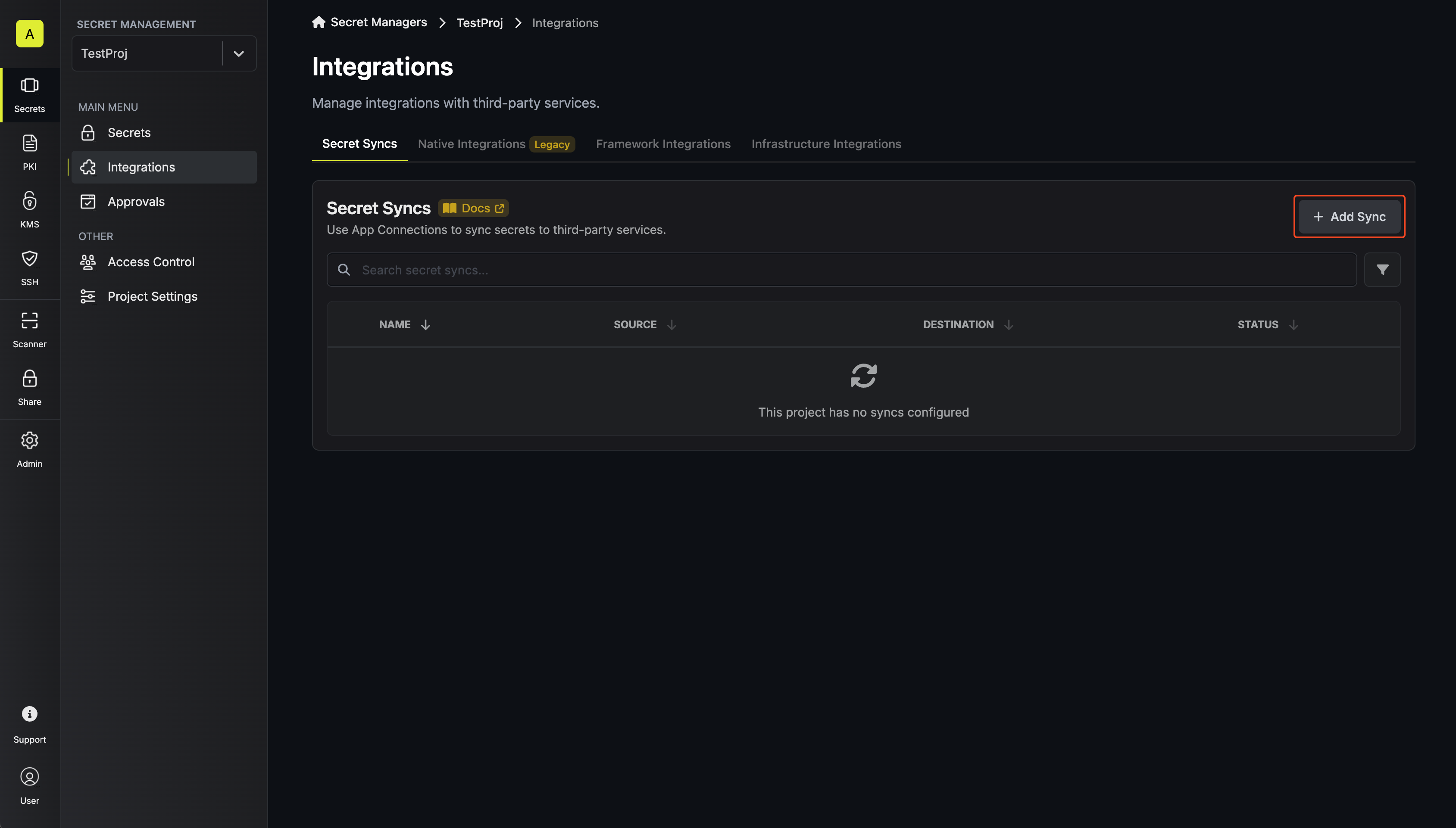
In your project, go to **Integrations** and open the **Secret Syncs** tab. Select **+ Add Sync**.
The Infisical user gets the permissions you set in the previous step. In the **Permissions** column, check that the Infisical user has **Can Manage Records**.
To share the folder from Commander instead, run this command as a user who manages the folder:
```bash theme={"dark"}
share-folder -e infisical-sync-user@company.com -a grant -p on -o off -d on -s off
```
If you'll create the sync through the API, note the folder's UID. The API identifies the folder by its UID, not its name.
## Step 2: Set up the sync in Infisical
To create the sync using the API, use the [Create Keeper Password Manager
Sync](/docs/api-reference/endpoints/secret-syncs/keeper-password-manager/create)
endpoint.
In your project, go to **Integrations** and open the **Secret Syncs** tab. Select **+ Add Sync**.
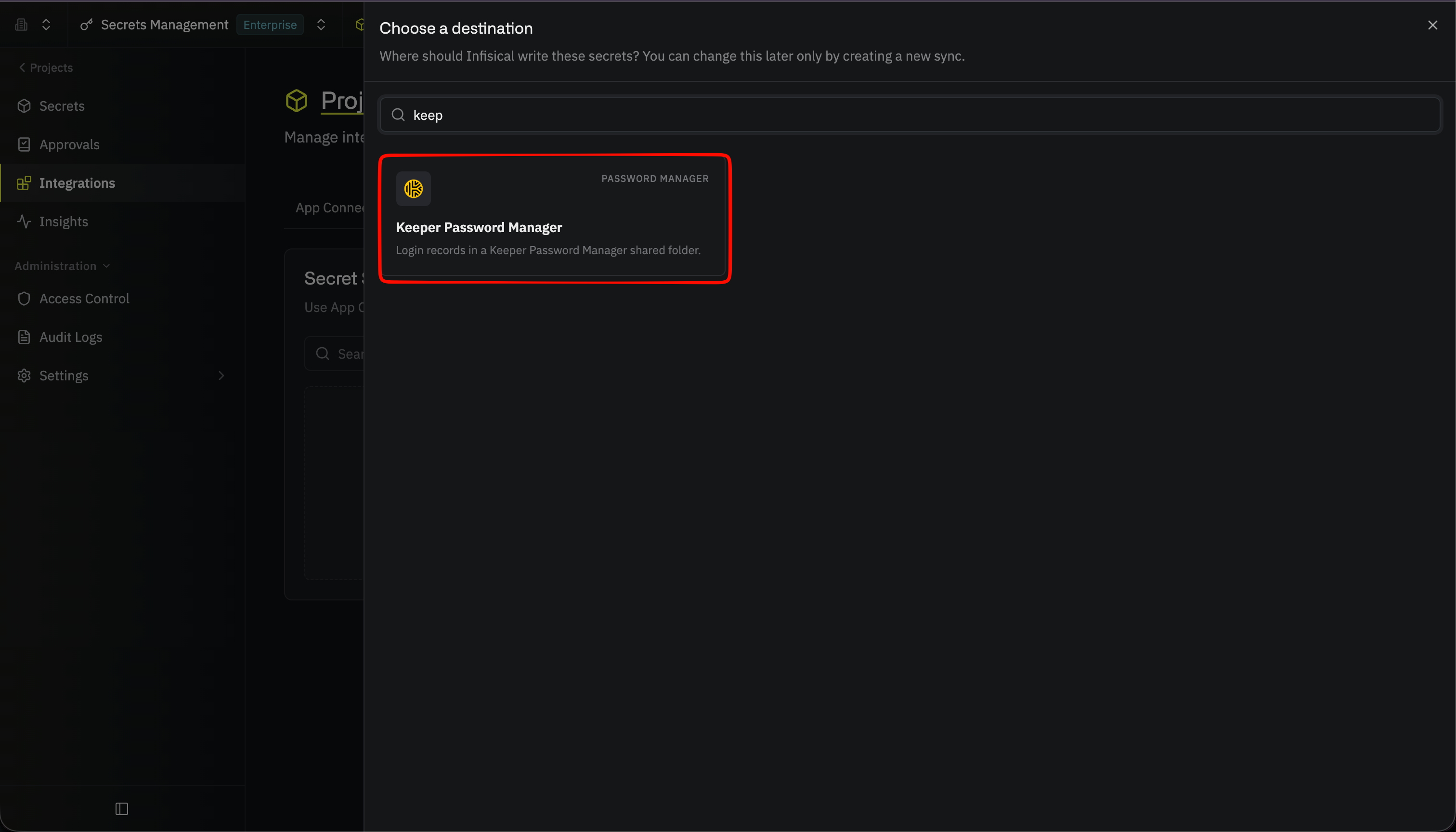
 Then, select the **Keeper Password Manager** sync.
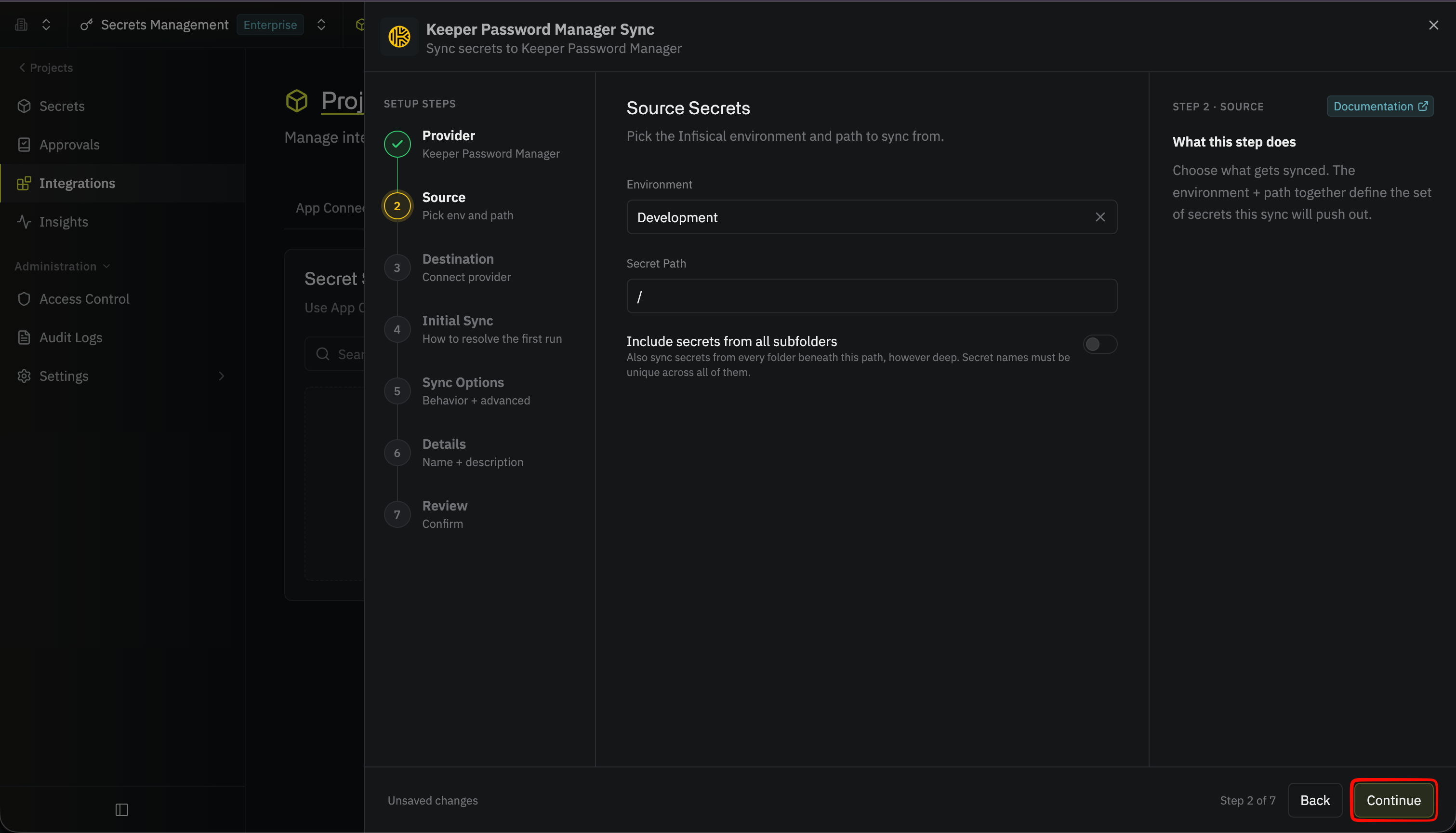
 Under **Source**, choose which secrets to sync from Infisical:
* **Environment**: The project environment to retrieve secrets from
* **Secret Path**: The folder path to retrieve secrets from
* **Include secrets from all subfolders**: When enabled, also syncs [secrets from every folder under the secret path](/docs/integrations/secret-syncs/overview#include-all-subfolders) (secret names must be unique across those folders)
Under **Source**, choose which secrets to sync from Infisical:
* **Environment**: The project environment to retrieve secrets from
* **Secret Path**: The folder path to retrieve secrets from
* **Include secrets from all subfolders**: When enabled, also syncs [secrets from every folder under the secret path](/docs/integrations/secret-syncs/overview#include-all-subfolders) (secret names must be unique across those folders)
 Commander reads `${` in a record title as the start of a variable. If any secret at this path has a name that contains `${`, the sync fails without writing any secrets, and the error names each rejected key.
If you need to sync secrets from multiple folder locations, use [secret imports](/docs/documentation/platform/secret-reference#secret-imports).
Then select **Continue**.
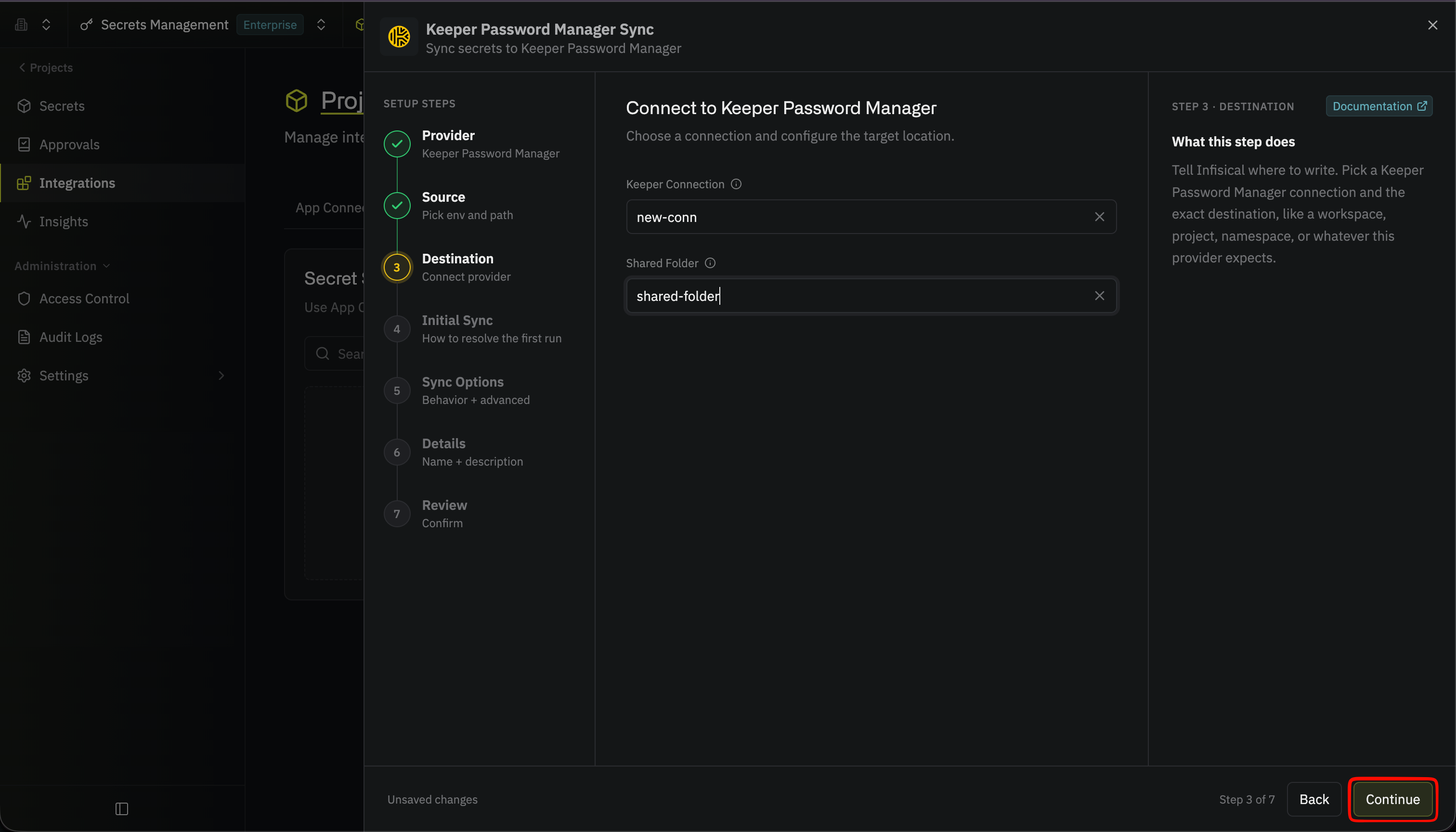
Under **Destination**, create or select the Keeper app connection the sync will use, then choose the shared folder secrets go to.
Under **Keeper Connection**, select **Create Connection** in the dropdown, then fill in:
* **Name**: A descriptive name for the connection, such as `keeper-prod`
* **Description** (optional): A note for future reference
* **Instance URL**: The base URL of your Commander Service Mode instance, such as `https://keeper.company.com`, without an `/api` path
* **API Key**: The key you copied when you [set up Keeper Commander](/docs/integrations/app-connections/keeper#step-1-set-up-keeper-commander)
Select **Connect to Keeper**. Infisical returns you to the sync form with the new connection selected.
This creates a connection scoped to the current project. To share the connection across other projects, [create it at the organization level](/docs/integrations/app-connections/keeper#step-2-create-the-app-connection) first, then select it here.
Under **Keeper Connection**, select the app connection you'd like to use.
* **Shared Folder**: The Keeper shared folder to sync secrets to, chosen from the shared folders you've shared with the Infisical user
Commander reads `${` in a record title as the start of a variable. If any secret at this path has a name that contains `${`, the sync fails without writing any secrets, and the error names each rejected key.
If you need to sync secrets from multiple folder locations, use [secret imports](/docs/documentation/platform/secret-reference#secret-imports).
Then select **Continue**.
Under **Destination**, create or select the Keeper app connection the sync will use, then choose the shared folder secrets go to.
Under **Keeper Connection**, select **Create Connection** in the dropdown, then fill in:
* **Name**: A descriptive name for the connection, such as `keeper-prod`
* **Description** (optional): A note for future reference
* **Instance URL**: The base URL of your Commander Service Mode instance, such as `https://keeper.company.com`, without an `/api` path
* **API Key**: The key you copied when you [set up Keeper Commander](/docs/integrations/app-connections/keeper#step-1-set-up-keeper-commander)
Select **Connect to Keeper**. Infisical returns you to the sync form with the new connection selected.
This creates a connection scoped to the current project. To share the connection across other projects, [create it at the organization level](/docs/integrations/app-connections/keeper#step-2-create-the-app-connection) first, then select it here.
Under **Keeper Connection**, select the app connection you'd like to use.
* **Shared Folder**: The Keeper shared folder to sync secrets to, chosen from the shared folders you've shared with the Infisical user
 Then select **Continue**.
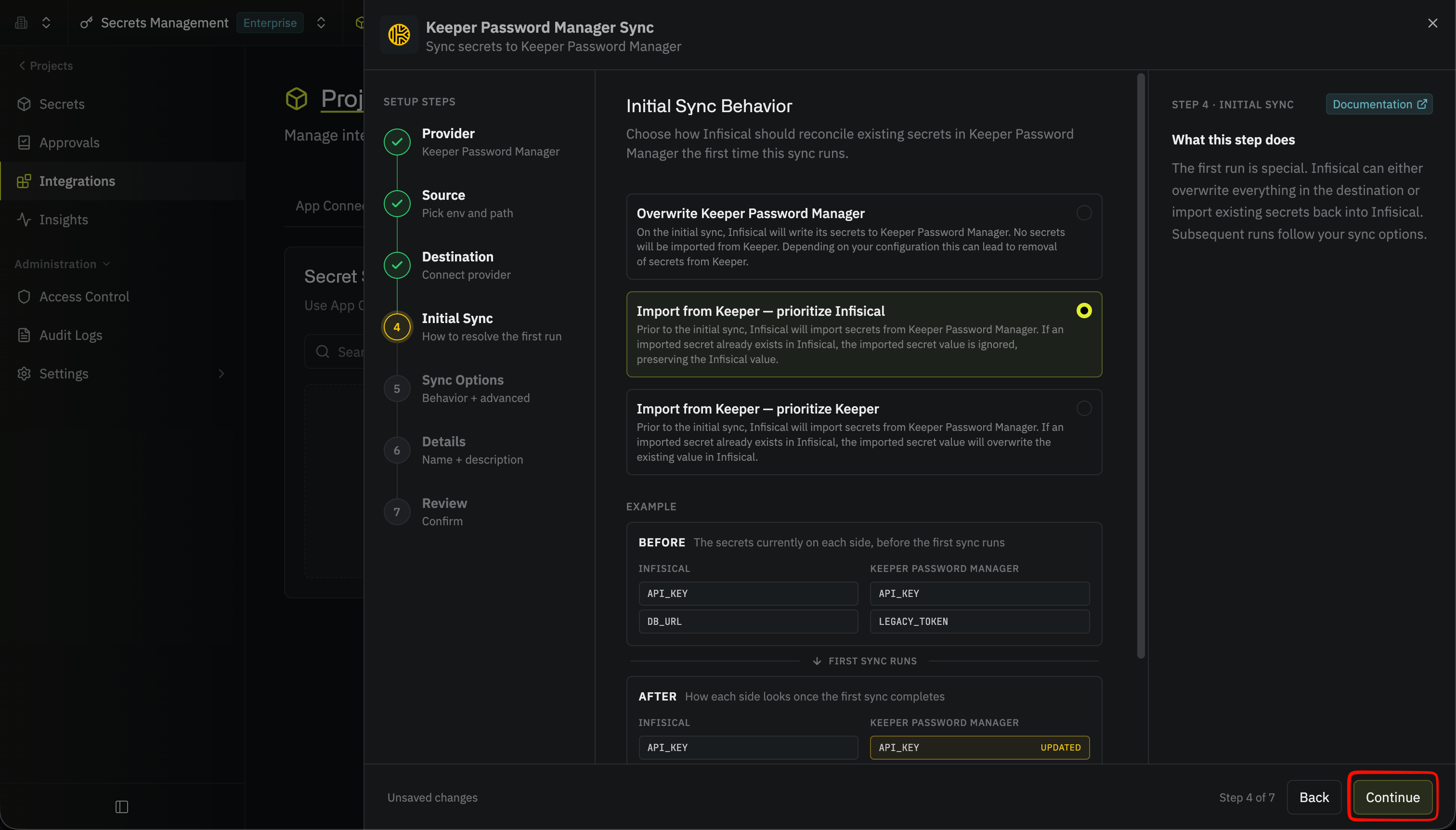
Under **Initial Sync Behavior**, choose how Infisical handles login records that already exist in the shared folder on the first sync:
* **Overwrite Keeper Password Manager**: Infisical imports nothing, and writes its secrets to the shared folder
* **Import from Keeper, prioritize Infisical**: Infisical first imports the title and password of each login record in the folder; if a secret exists in both places, Infisical keeps its own value
* **Import from Keeper, prioritize Keeper**: Infisical first imports the title and password of each login record in the folder; if a secret exists in both places, the Keeper value replaces the Infisical value
If you turned on **Include secrets from all subfolders**, **Overwrite Keeper Password Manager** is the only option.
Then select **Continue**.
Under **Initial Sync Behavior**, choose how Infisical handles login records that already exist in the shared folder on the first sync:
* **Overwrite Keeper Password Manager**: Infisical imports nothing, and writes its secrets to the shared folder
* **Import from Keeper, prioritize Infisical**: Infisical first imports the title and password of each login record in the folder; if a secret exists in both places, Infisical keeps its own value
* **Import from Keeper, prioritize Keeper**: Infisical first imports the title and password of each login record in the folder; if a secret exists in both places, the Keeper value replaces the Infisical value
If you turned on **Include secrets from all subfolders**, **Overwrite Keeper Password Manager** is the only option.
 Then select **Continue**.
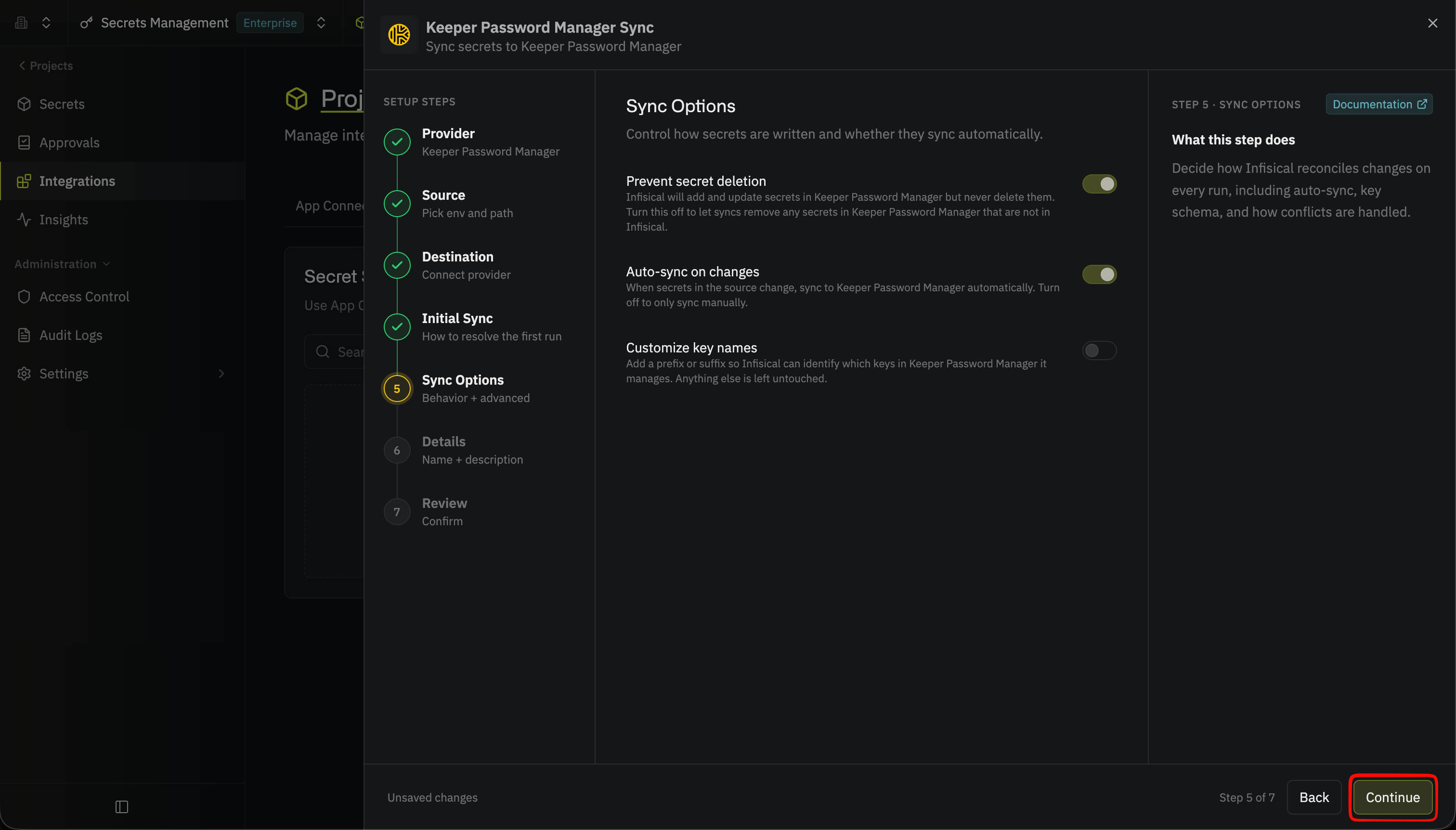
Under **Sync Options**, choose how secrets are synced:
* **Prevent secret deletion**: When enabled, Infisical adds and updates login records in the shared folder but never deletes them; enable this if you manage some records in the folder outside of Infisical
* **Auto-sync on changes**: When enabled, secrets sync to Keeper automatically as the source changes; turn it off to sync manually only
* **Customize key names**: Adds a prefix or suffix to every synced name, using `{{secretKey}}` for the original name and `{{environment}}` for the environment slug
Anyone with access to the shared folder can add login records to it, so a sync can change records that were created outside Infisical. If you don't customize key names, the sync treats every login record in the folder as one it manages:
* If a login record has the same title as an Infisical secret, the sync overwrites the record's password
* If **Prevent secret deletion** is off, the sync permanently deletes every login record whose title isn't the name of an Infisical secret
With customized key names, the sync writes only titles with your prefix or suffix, and deletes only login records whose titles match it.
Before the first sync, use a shared folder that holds only Infisical's secrets, customize key names, or keep **Prevent secret deletion** on. **Prevent secret deletion** is on by default when you create the sync in the UI, but off unless you set `disableSecretDeletion` when you create it through the API.
Then select **Continue**.
Under **Sync Options**, choose how secrets are synced:
* **Prevent secret deletion**: When enabled, Infisical adds and updates login records in the shared folder but never deletes them; enable this if you manage some records in the folder outside of Infisical
* **Auto-sync on changes**: When enabled, secrets sync to Keeper automatically as the source changes; turn it off to sync manually only
* **Customize key names**: Adds a prefix or suffix to every synced name, using `{{secretKey}}` for the original name and `{{environment}}` for the environment slug
Anyone with access to the shared folder can add login records to it, so a sync can change records that were created outside Infisical. If you don't customize key names, the sync treats every login record in the folder as one it manages:
* If a login record has the same title as an Infisical secret, the sync overwrites the record's password
* If **Prevent secret deletion** is off, the sync permanently deletes every login record whose title isn't the name of an Infisical secret
With customized key names, the sync writes only titles with your prefix or suffix, and deletes only login records whose titles match it.
Before the first sync, use a shared folder that holds only Infisical's secrets, customize key names, or keep **Prevent secret deletion** on. **Prevent secret deletion** is on by default when you create the sync in the UI, but off unless you set `disableSecretDeletion` when you create it through the API.
 Then select **Continue**.
Give the sync a **Name** and an optional **Description**. The name must be slug-friendly.
Then select **Continue**.
Give the sync a **Name** and an optional **Description**. The name must be slug-friendly.
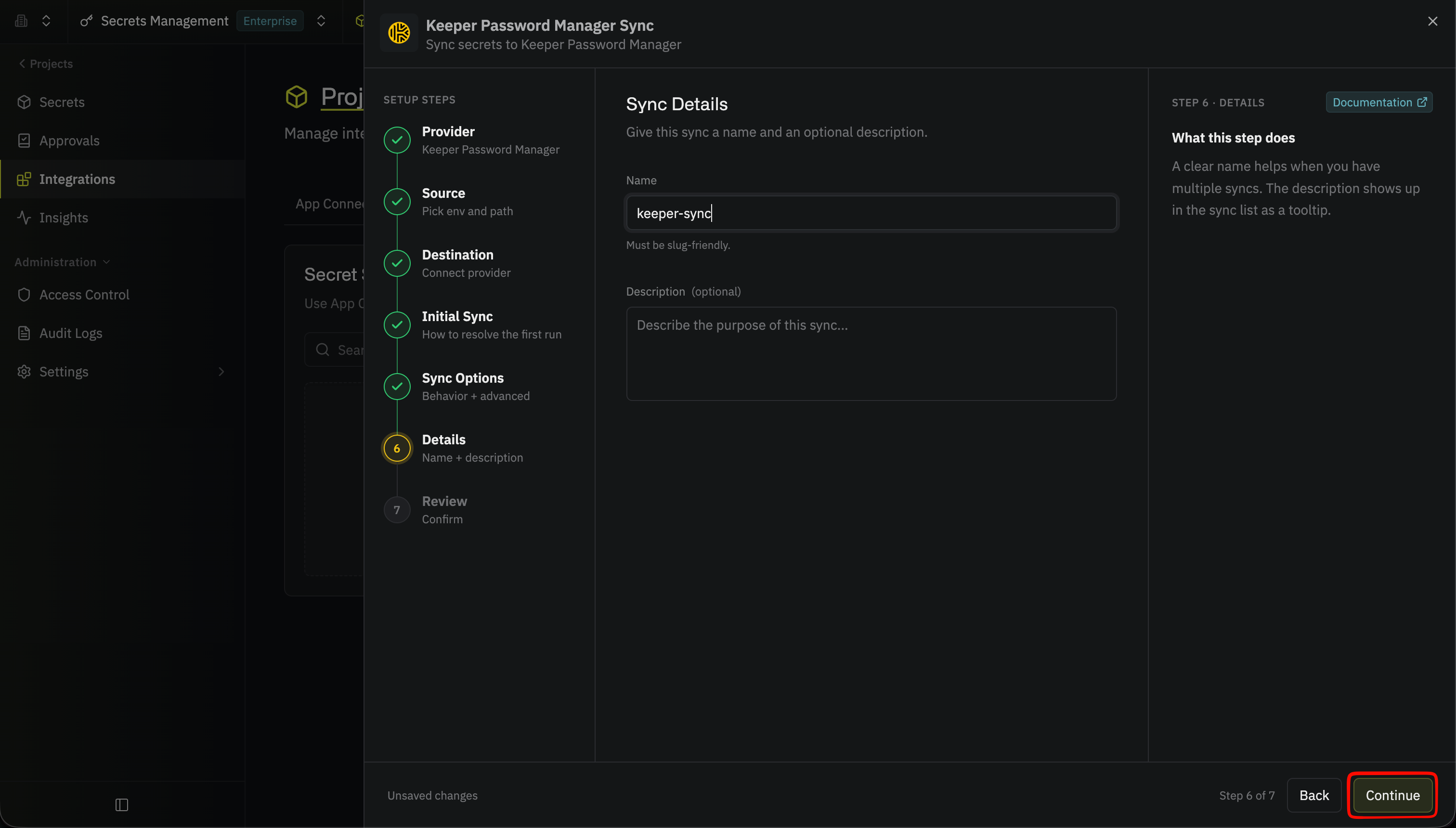 Then select **Continue**.
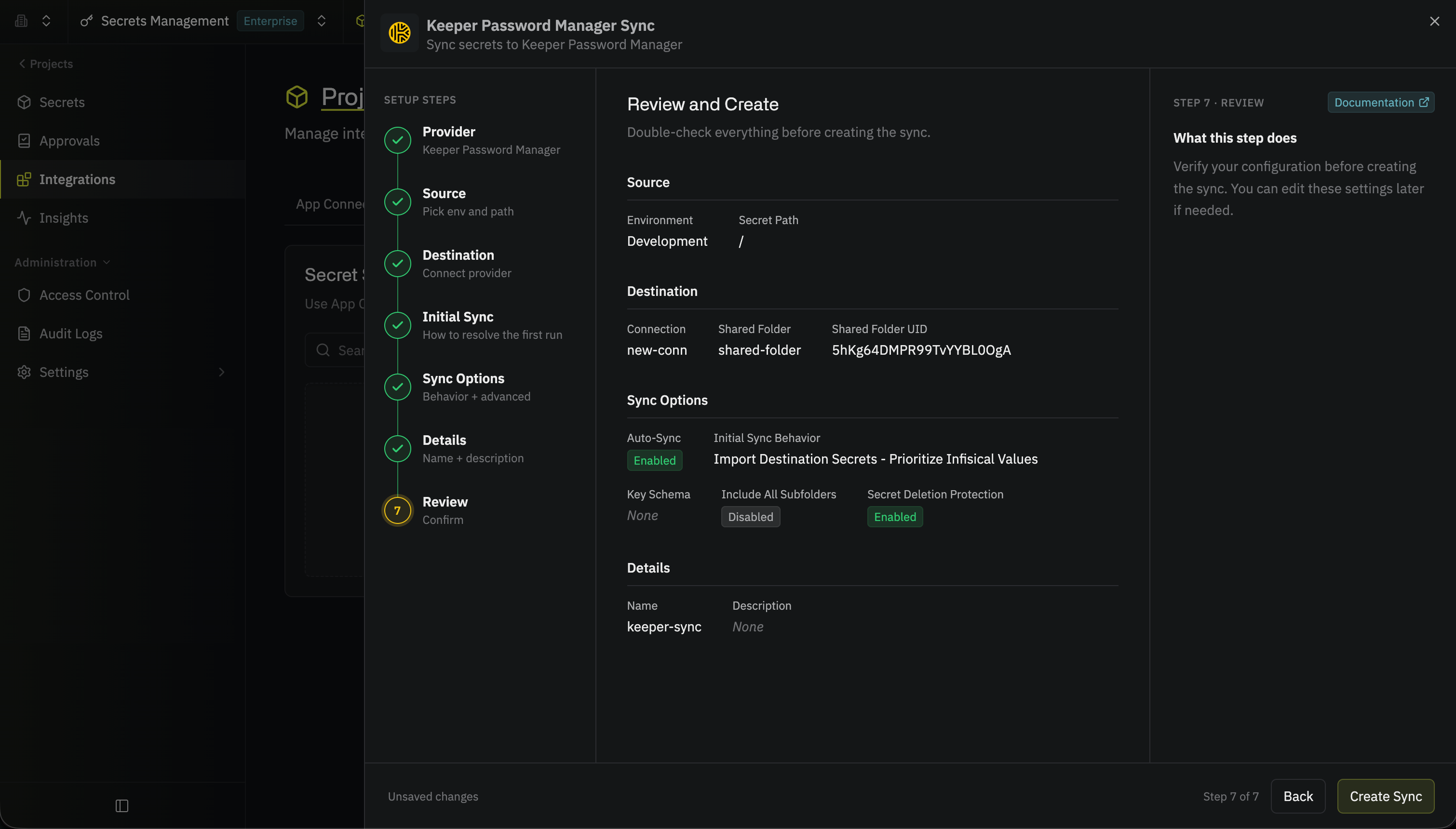
Review your Keeper Password Manager Sync configuration, then select **Create Sync**.
Then select **Continue**.
Review your Keeper Password Manager Sync configuration, then select **Create Sync**.
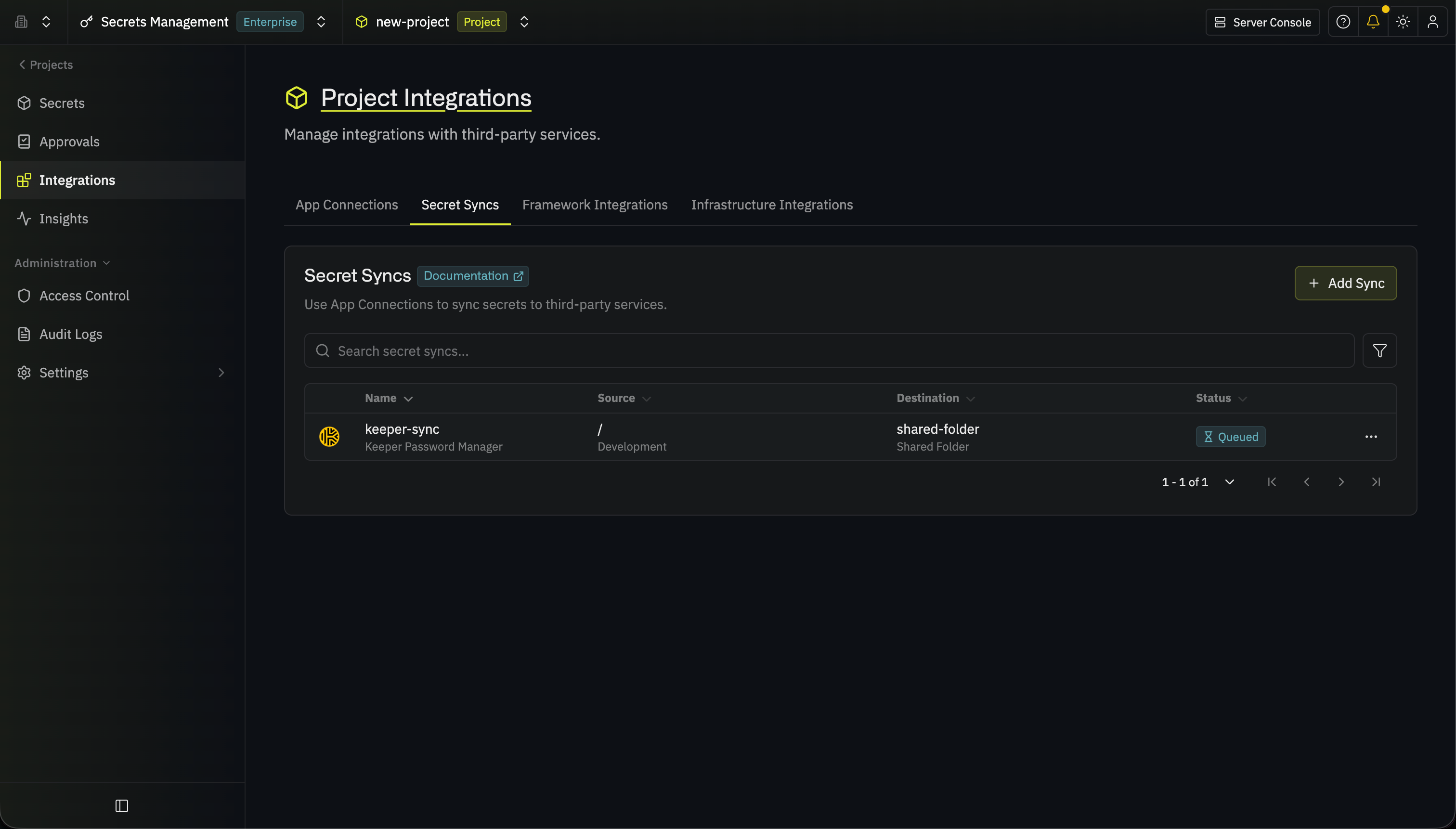
 The sync is created and appears in the **Secret Syncs** tab. If **Auto-sync on changes** is enabled, it begins syncing secrets to your Keeper shared folder right away.
 The sync only reads and writes login records. If someone changes a synced record to another record type in Keeper, the next sync creates a new login record with the same title.
## FAQ
The sync only reads and changes login records directly inside the shared
folder. It never reads, changes, or deletes other record types or records in
subfolders. If two or more login records have the same title, the sync
updates the first one and, unless **Prevent secret deletion** is on, deletes
the others.
The sync also skips login records whose UID starts with `-`, because
Commander Service Mode can't run commands on them. Records that the sync
creates never have a UID that starts with `-`. If a skipped record has the
same title as a synced secret, the sync creates a separate login record with
that title, so delete the skipped record in Keeper if you don't need it.
Every sync reads the whole shared folder: one request to list the folder,
one request per record in the folder, and one more request for each secret
that changed. With `-rl 120/minute`, a folder with about 100 records or more
can go over the limit. Start the container with a higher `-rl` value, or
split your secrets across several shared folders.
Commander rejects every command, and the sync shows Commander's error. Sign
in to Commander on the host again, as in [Set up Keeper
Commander](/docs/integrations/app-connections/keeper#step-1-set-up-keeper-commander),
then restart the container with `docker restart keeper-service`.
Commander Service Mode can't run commands on a folder whose UID starts with
`-`, so Infisical rejects that folder. [Configure a different shared
folder](#step-1-configure-a-shared-folder) for the sync.
## Next steps
Create a Keeper connection at the organization level to share it across
projects.
See every destination you can sync secrets to.
This documentation is built and hosted on [Mintlify](https://mintlify.com), a developer documentation platform.
The sync only reads and writes login records. If someone changes a synced record to another record type in Keeper, the next sync creates a new login record with the same title.
## FAQ
The sync only reads and changes login records directly inside the shared
folder. It never reads, changes, or deletes other record types or records in
subfolders. If two or more login records have the same title, the sync
updates the first one and, unless **Prevent secret deletion** is on, deletes
the others.
The sync also skips login records whose UID starts with `-`, because
Commander Service Mode can't run commands on them. Records that the sync
creates never have a UID that starts with `-`. If a skipped record has the
same title as a synced secret, the sync creates a separate login record with
that title, so delete the skipped record in Keeper if you don't need it.
Every sync reads the whole shared folder: one request to list the folder,
one request per record in the folder, and one more request for each secret
that changed. With `-rl 120/minute`, a folder with about 100 records or more
can go over the limit. Start the container with a higher `-rl` value, or
split your secrets across several shared folders.
Commander rejects every command, and the sync shows Commander's error. Sign
in to Commander on the host again, as in [Set up Keeper
Commander](/docs/integrations/app-connections/keeper#step-1-set-up-keeper-commander),
then restart the container with `docker restart keeper-service`.
Commander Service Mode can't run commands on a folder whose UID starts with
`-`, so Infisical rejects that folder. [Configure a different shared
folder](#step-1-configure-a-shared-folder) for the sync.
## Next steps
Create a Keeper connection at the organization level to share it across
projects.
See every destination you can sync secrets to.
This documentation is built and hosted on [Mintlify](https://mintlify.com), a developer documentation platform.