> ## Documentation Index
> Fetch the complete documentation index at: https://infisical.com/docs/llms.txt
> Use this file to discover all available pages before exploring further.
# 1Password Sync
> Learn how to configure a 1Password Sync for Infisical.
**Prerequisites:**
* Create an [1Password Connection](/integrations/app-connections/1password)
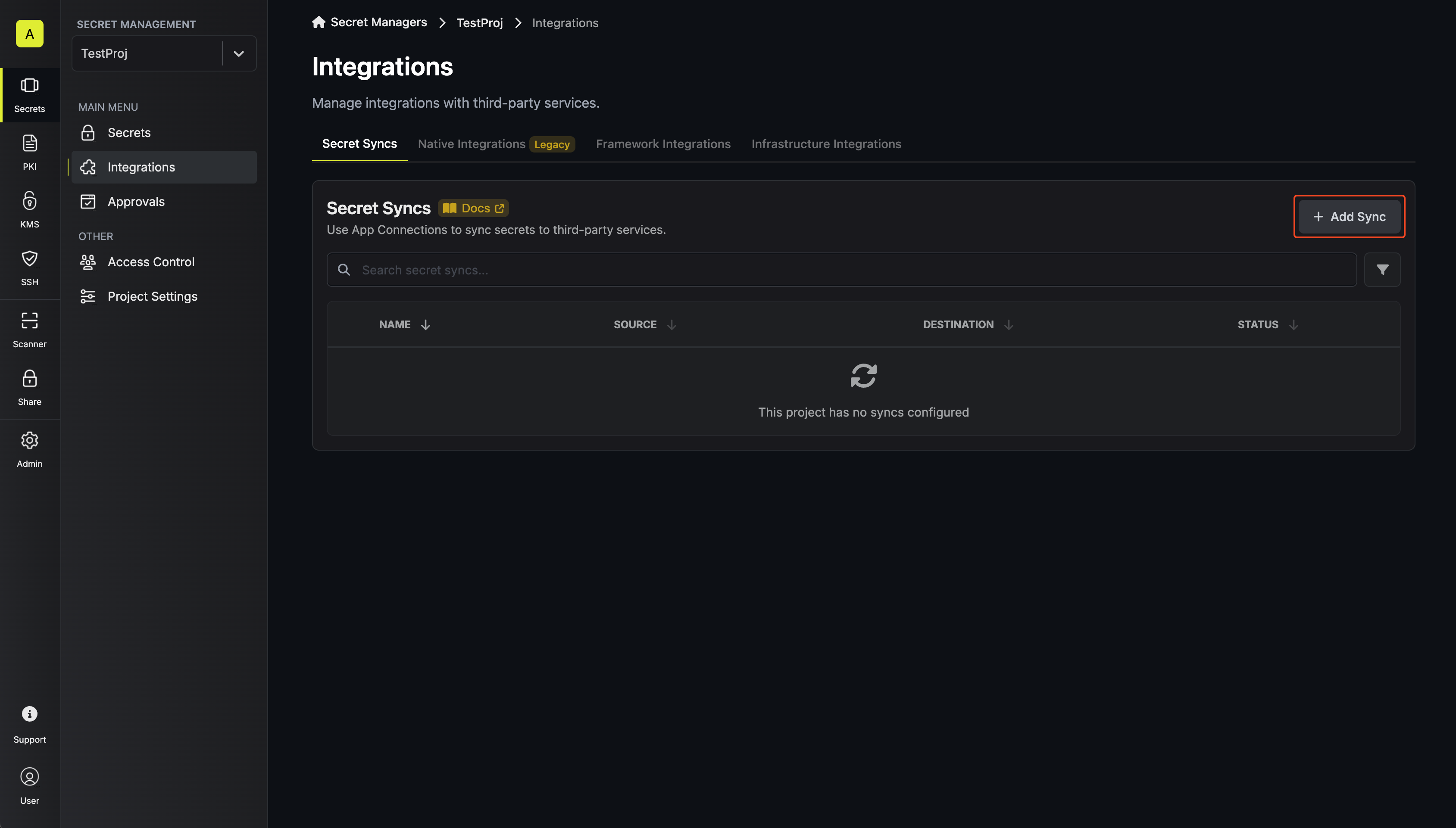
Navigate to **Project** > **Integrations** and select the **Secret Syncs** tab. Click on the **Add Sync** button.
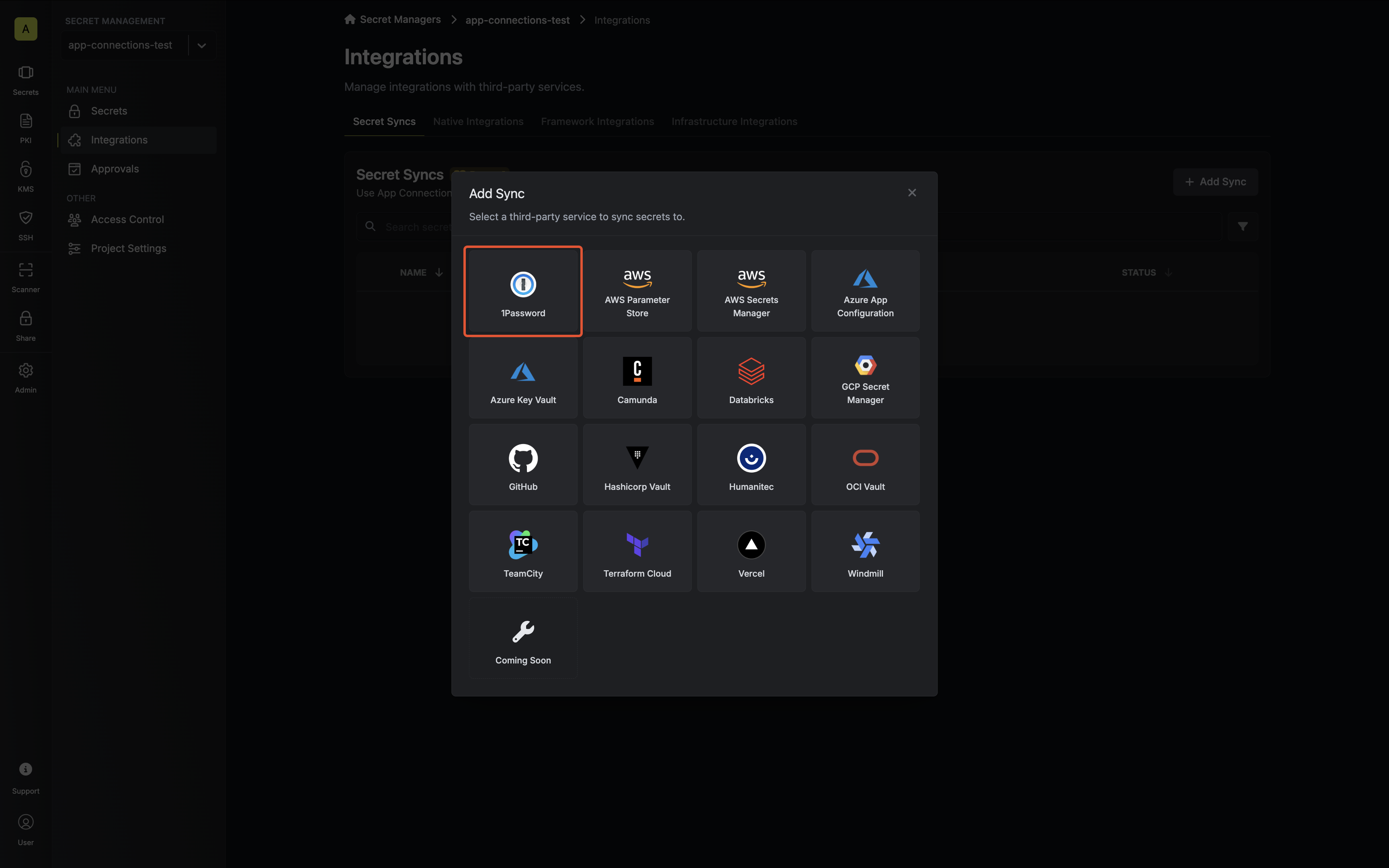 Configure the **Source** from where secrets should be retrieved, then click **Next**.
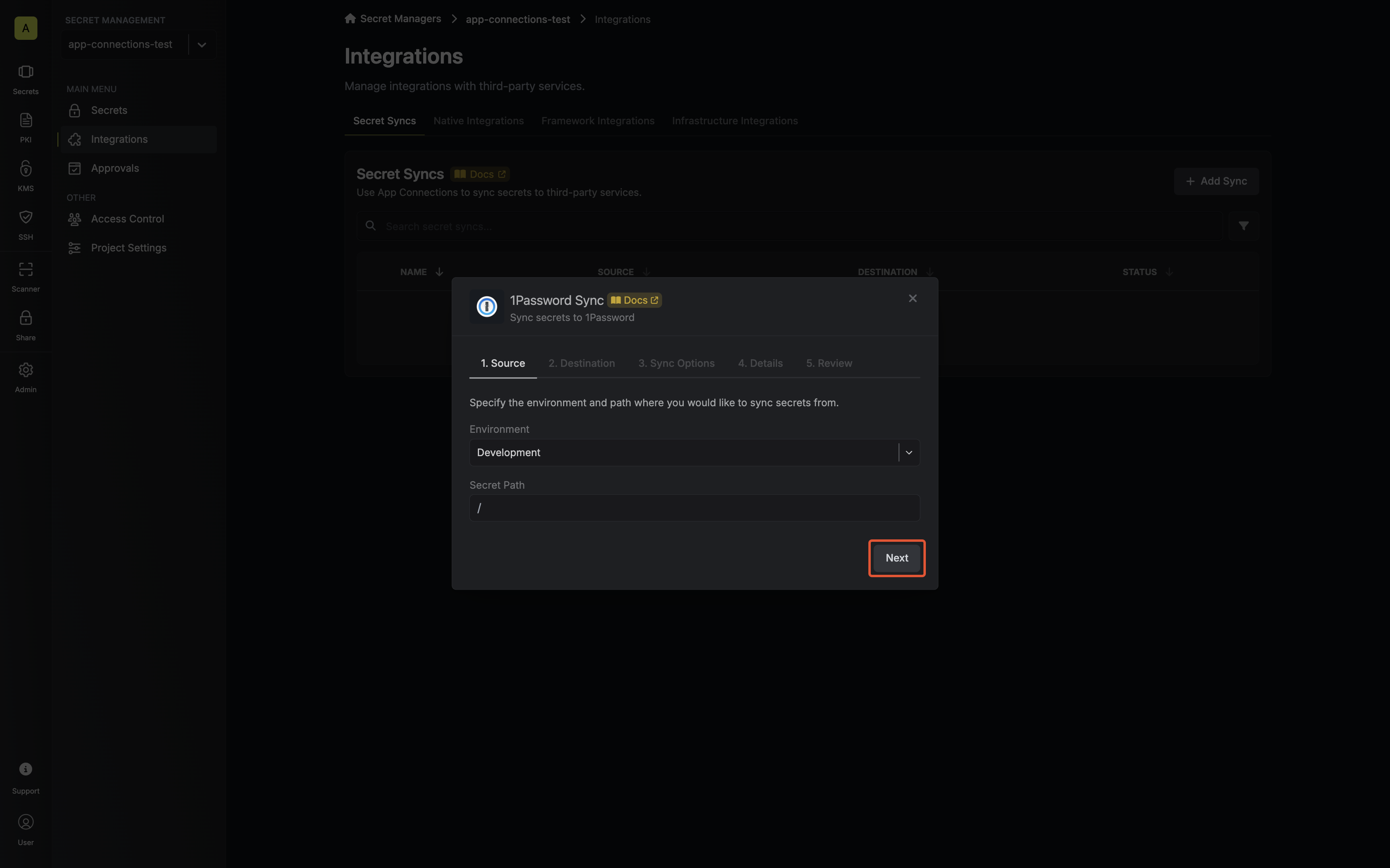 * **Environment**: The project environment to retrieve secrets from.
* **Secret Path**: The folder path to retrieve secrets from.
If you need to sync secrets from multiple folder locations, check out [secret imports](/documentation/platform/secret-reference#secret-imports).
Configure the **Destination** to where secrets should be deployed, then click **Next**.
* **Environment**: The project environment to retrieve secrets from.
* **Secret Path**: The folder path to retrieve secrets from.
If you need to sync secrets from multiple folder locations, check out [secret imports](/documentation/platform/secret-reference#secret-imports).
Configure the **Destination** to where secrets should be deployed, then click **Next**.
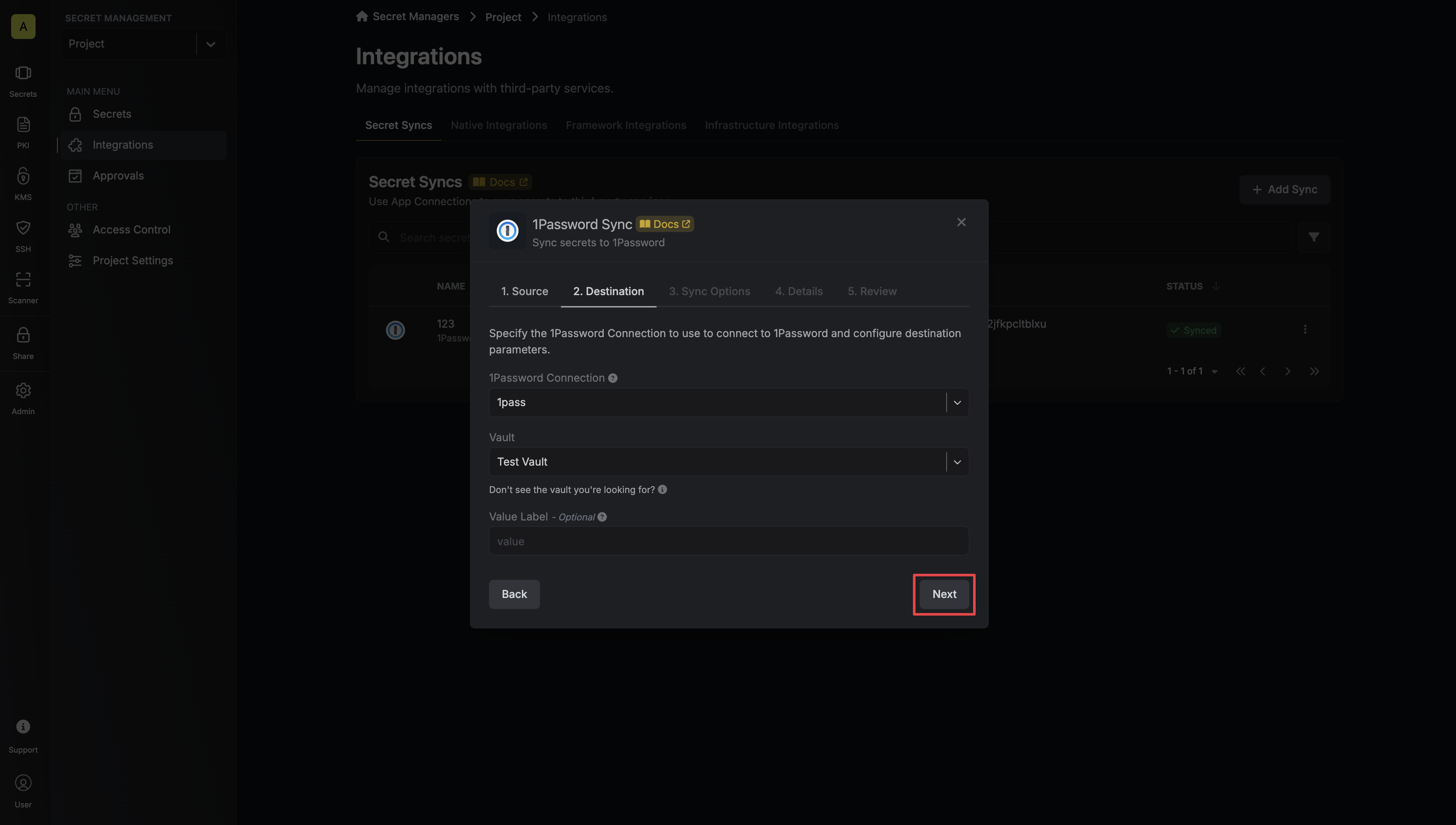 * **1Password Connection**: The 1Password Connection to authenticate with.
* **Vault**: The 1Password vault to sync secrets to.
* **Value Label**: The label of the 1Password item field that will hold your secret value.
Configure the **Sync Options** to specify how secrets should be synced, then click **Next**.
* **1Password Connection**: The 1Password Connection to authenticate with.
* **Vault**: The 1Password vault to sync secrets to.
* **Value Label**: The label of the 1Password item field that will hold your secret value.
Configure the **Sync Options** to specify how secrets should be synced, then click **Next**.
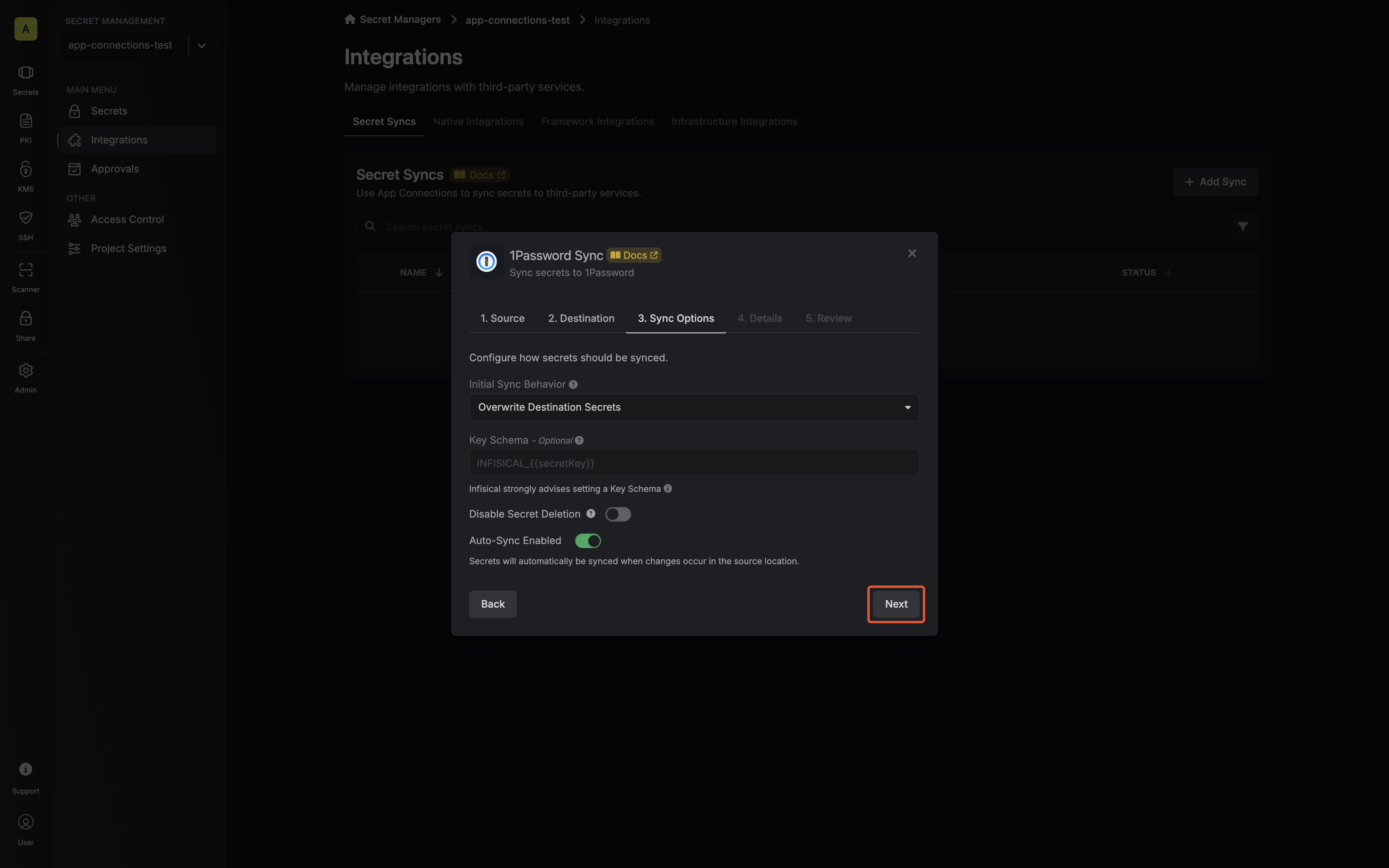 * **Initial Sync Behavior**: Determines how Infisical should resolve the initial sync.
* **Overwrite Destination Secrets**: Removes any secrets at the destination endpoint not present in Infisical.
* **Import Secrets (Prioritize Infisical)**: Imports secrets from the destination endpoint before syncing, prioritizing values from Infisical over 1Password when keys conflict.
* **Import Secrets (Prioritize 1Password)**: Imports secrets from the destination endpoint before syncing, prioritizing values from 1Password over Infisical when keys conflict.
* **Key Schema**: Template that determines how secret names are transformed when syncing, using `{{secretKey}}` as a placeholder for the original secret name and `{{environment}}` for the environment.
We highly recommend using a Key Schema to ensure that Infisical only manages the specific keys you intend, keeping everything else untouched.
* **Auto-Sync Enabled**: If enabled, secrets will automatically be synced from the source location when changes occur. Disable to enforce manual syncing only.
* **Disable Secret Deletion**: If enabled, Infisical will not remove secrets from the sync destination. Enable this option if you intend to manage some secrets manually outside of Infisical.
Configure the **Details** of your 1Password Sync, then click **Next**.
* **Initial Sync Behavior**: Determines how Infisical should resolve the initial sync.
* **Overwrite Destination Secrets**: Removes any secrets at the destination endpoint not present in Infisical.
* **Import Secrets (Prioritize Infisical)**: Imports secrets from the destination endpoint before syncing, prioritizing values from Infisical over 1Password when keys conflict.
* **Import Secrets (Prioritize 1Password)**: Imports secrets from the destination endpoint before syncing, prioritizing values from 1Password over Infisical when keys conflict.
* **Key Schema**: Template that determines how secret names are transformed when syncing, using `{{secretKey}}` as a placeholder for the original secret name and `{{environment}}` for the environment.
We highly recommend using a Key Schema to ensure that Infisical only manages the specific keys you intend, keeping everything else untouched.
* **Auto-Sync Enabled**: If enabled, secrets will automatically be synced from the source location when changes occur. Disable to enforce manual syncing only.
* **Disable Secret Deletion**: If enabled, Infisical will not remove secrets from the sync destination. Enable this option if you intend to manage some secrets manually outside of Infisical.
Configure the **Details** of your 1Password Sync, then click **Next**.
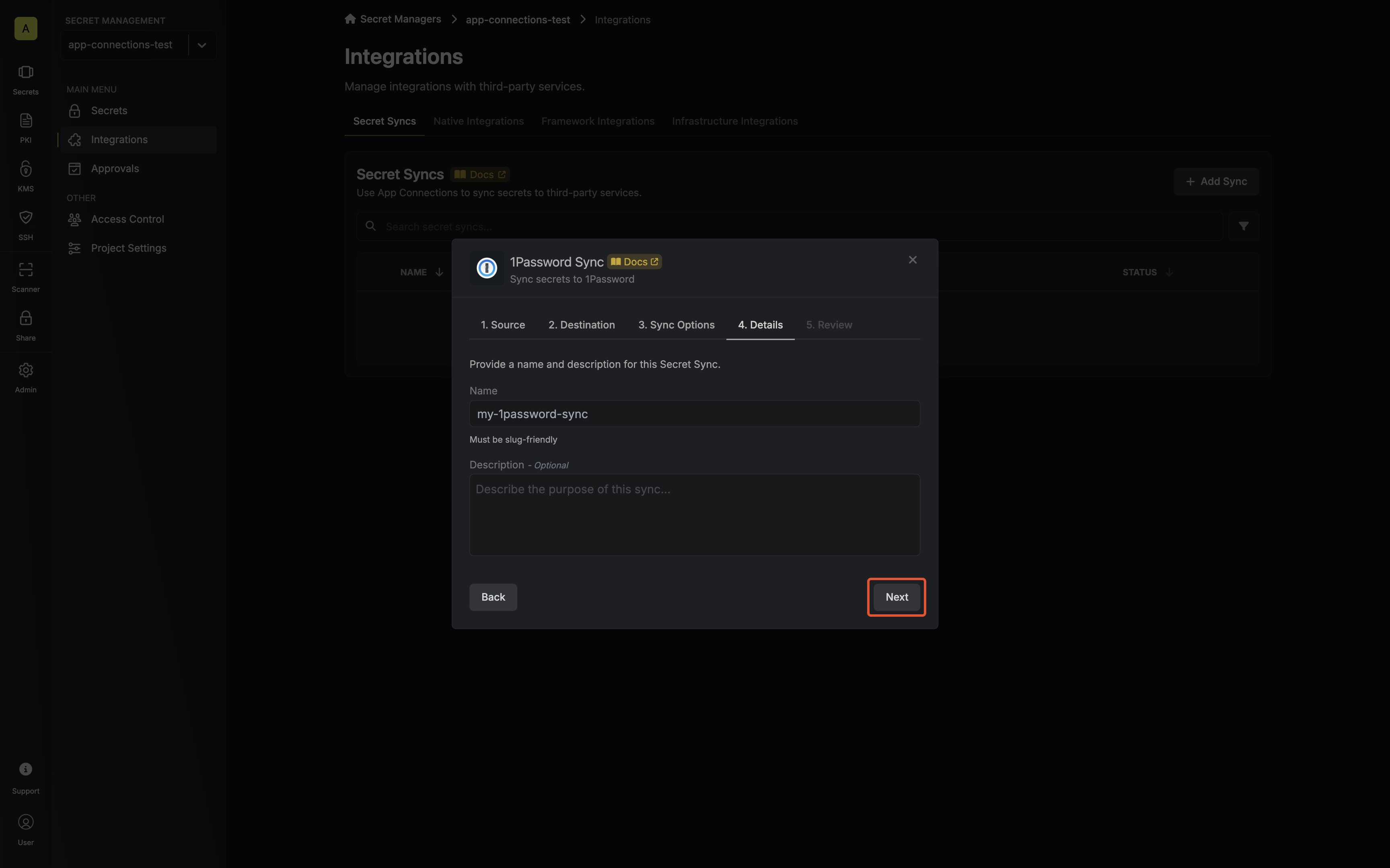 * **Name**: The name of your sync. Must be slug-friendly.
* **Description**: An optional description for your sync.
Review your 1Password Sync configuration, then click **Create Sync**.
* **Name**: The name of your sync. Must be slug-friendly.
* **Description**: An optional description for your sync.
Review your 1Password Sync configuration, then click **Create Sync**.
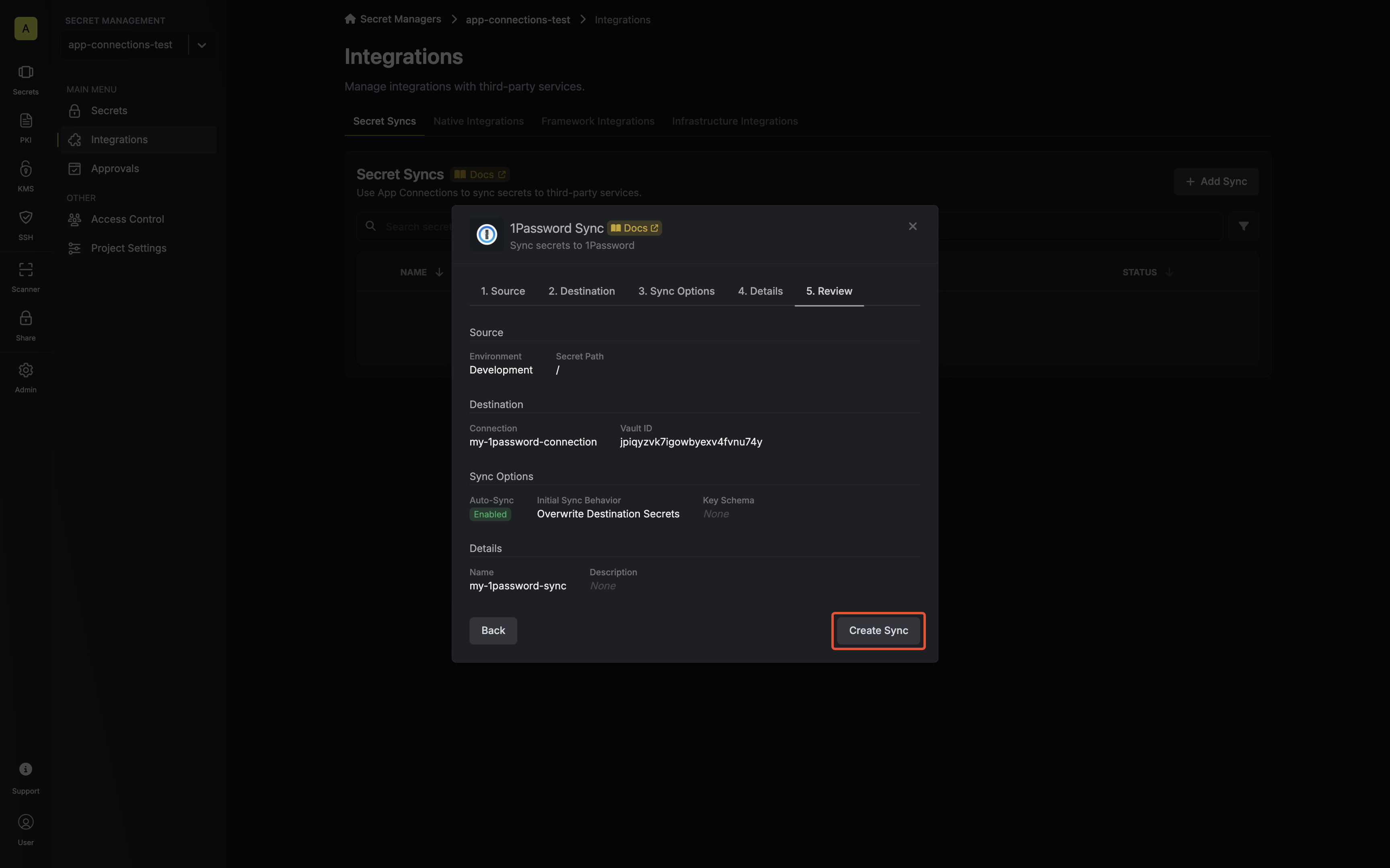 If enabled, your 1Password Sync will begin syncing your secrets to the destination endpoint.
 To create an **1Password Sync**, make an API request to the [Create 1Password Sync](/api-reference/endpoints/secret-syncs/1password/create) API endpoint.
### Sample request
```bash Request theme={"dark"}
curl --request POST \
--url https://app.infisical.com/api/v1/secret-syncs/1password \
--header 'Content-Type: application/json' \
--data '{
"name": "my-1password-sync",
"projectId": "3c90c3cc-0d44-4b50-8888-8dd25736052a",
"description": "an example sync",
"connectionId": "3c90c3cc-0d44-4b50-8888-8dd25736052a",
"environment": "dev",
"secretPath": "/my-secrets",
"isEnabled": true,
"syncOptions": {
"initialSyncBehavior": "overwrite-destination"
},
"destinationConfig": {
"vaultId": "...",
"valueLabel": "value"
}
}'
```
### Sample response
```bash Response theme={"dark"}
{
"secretSync": {
"id": "3c90c3cc-0d44-4b50-8888-8dd25736052a",
"name": "my-1password-sync",
"description": "an example sync",
"isEnabled": true,
"version": 1,
"folderId": "3c90c3cc-0d44-4b50-8888-8dd25736052a",
"connectionId": "3c90c3cc-0d44-4b50-8888-8dd25736052a",
"createdAt": "2023-11-07T05:31:56Z",
"updatedAt": "2023-11-07T05:31:56Z",
"syncStatus": "succeeded",
"lastSyncJobId": "123",
"lastSyncMessage": null,
"lastSyncedAt": "2023-11-07T05:31:56Z",
"importStatus": null,
"lastImportJobId": null,
"lastImportMessage": null,
"lastImportedAt": null,
"removeStatus": null,
"lastRemoveJobId": null,
"lastRemoveMessage": null,
"lastRemovedAt": null,
"syncOptions": {
"initialSyncBehavior": "overwrite-destination"
},
"projectId": "3c90c3cc-0d44-4b50-8888-8dd25736052a",
"connection": {
"app": "1password",
"name": "my-1password-connection",
"id": "3c90c3cc-0d44-4b50-8888-8dd25736052a"
},
"environment": {
"slug": "dev",
"name": "Development",
"id": "3c90c3cc-0d44-4b50-8888-8dd25736052a"
},
"folder": {
"id": "3c90c3cc-0d44-4b50-8888-8dd25736052a",
"path": "/my-secrets"
},
"destination": "1password",
"destinationConfig": {
"vaultId": "...",
"valueLabel": "value"
}
}
}
```
## FAQ
Infisical can only perform CRUD operations on the following item types:
* API Credentials
It's the label of the 1Password item field which will hold your secret value. For example, if you were to sync Infisical secret 'foo: bar', the 1Password item equivalent would have an item title of 'foo', and a field on that item 'value: bar'. The field label 'value' is what gets changed by this option.
To create an **1Password Sync**, make an API request to the [Create 1Password Sync](/api-reference/endpoints/secret-syncs/1password/create) API endpoint.
### Sample request
```bash Request theme={"dark"}
curl --request POST \
--url https://app.infisical.com/api/v1/secret-syncs/1password \
--header 'Content-Type: application/json' \
--data '{
"name": "my-1password-sync",
"projectId": "3c90c3cc-0d44-4b50-8888-8dd25736052a",
"description": "an example sync",
"connectionId": "3c90c3cc-0d44-4b50-8888-8dd25736052a",
"environment": "dev",
"secretPath": "/my-secrets",
"isEnabled": true,
"syncOptions": {
"initialSyncBehavior": "overwrite-destination"
},
"destinationConfig": {
"vaultId": "...",
"valueLabel": "value"
}
}'
```
### Sample response
```bash Response theme={"dark"}
{
"secretSync": {
"id": "3c90c3cc-0d44-4b50-8888-8dd25736052a",
"name": "my-1password-sync",
"description": "an example sync",
"isEnabled": true,
"version": 1,
"folderId": "3c90c3cc-0d44-4b50-8888-8dd25736052a",
"connectionId": "3c90c3cc-0d44-4b50-8888-8dd25736052a",
"createdAt": "2023-11-07T05:31:56Z",
"updatedAt": "2023-11-07T05:31:56Z",
"syncStatus": "succeeded",
"lastSyncJobId": "123",
"lastSyncMessage": null,
"lastSyncedAt": "2023-11-07T05:31:56Z",
"importStatus": null,
"lastImportJobId": null,
"lastImportMessage": null,
"lastImportedAt": null,
"removeStatus": null,
"lastRemoveJobId": null,
"lastRemoveMessage": null,
"lastRemovedAt": null,
"syncOptions": {
"initialSyncBehavior": "overwrite-destination"
},
"projectId": "3c90c3cc-0d44-4b50-8888-8dd25736052a",
"connection": {
"app": "1password",
"name": "my-1password-connection",
"id": "3c90c3cc-0d44-4b50-8888-8dd25736052a"
},
"environment": {
"slug": "dev",
"name": "Development",
"id": "3c90c3cc-0d44-4b50-8888-8dd25736052a"
},
"folder": {
"id": "3c90c3cc-0d44-4b50-8888-8dd25736052a",
"path": "/my-secrets"
},
"destination": "1password",
"destinationConfig": {
"vaultId": "...",
"valueLabel": "value"
}
}
}
```
## FAQ
Infisical can only perform CRUD operations on the following item types:
* API Credentials
It's the label of the 1Password item field which will hold your secret value. For example, if you were to sync Infisical secret 'foo: bar', the 1Password item equivalent would have an item title of 'foo', and a field on that item 'value: bar'. The field label 'value' is what gets changed by this option.