> ## Documentation Index
> Fetch the complete documentation index at: https://infisical.com/docs/llms.txt
> Use this file to discover all available pages before exploring further.
# Spacelift Connection
> Learn how to configure a Spacelift Connection for Infisical.
Infisical supports connecting to Spacelift using an API key ID and API key secret for secure access to your Spacelift account.
## Create an API Key in Spacelift
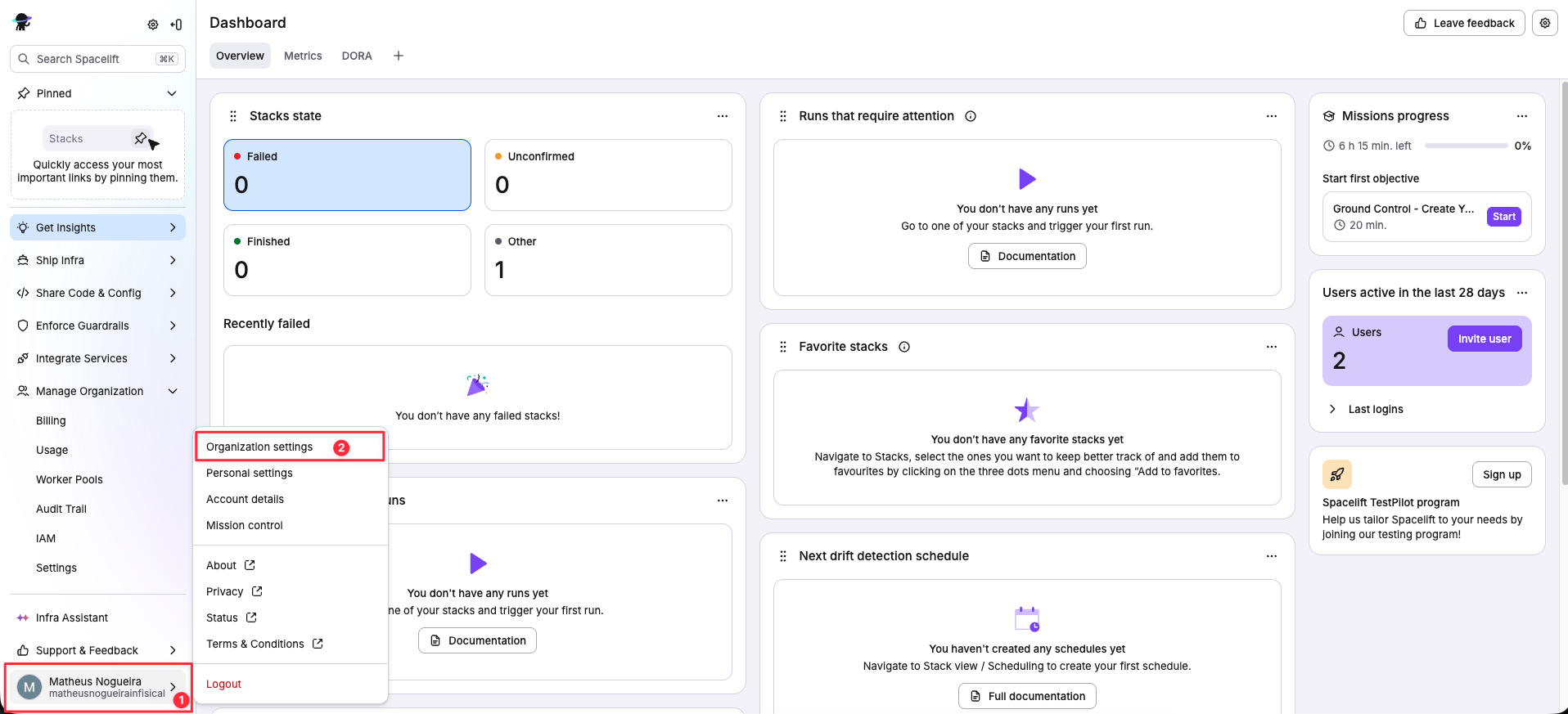
Click on your profile name and select **Organization Settings** at the bottom left side of the Spacelift dashboard.
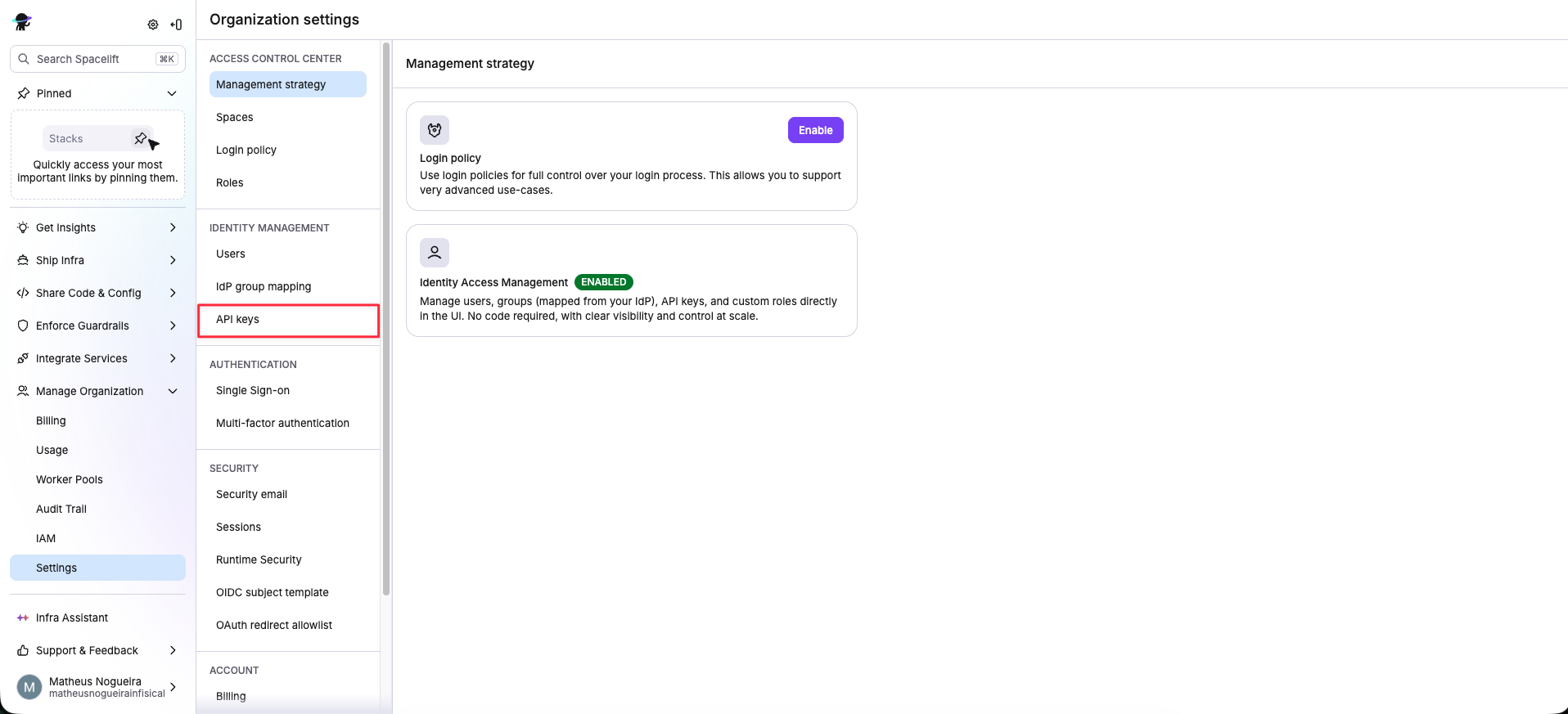
 Click on **API Keys** under the identity management section.
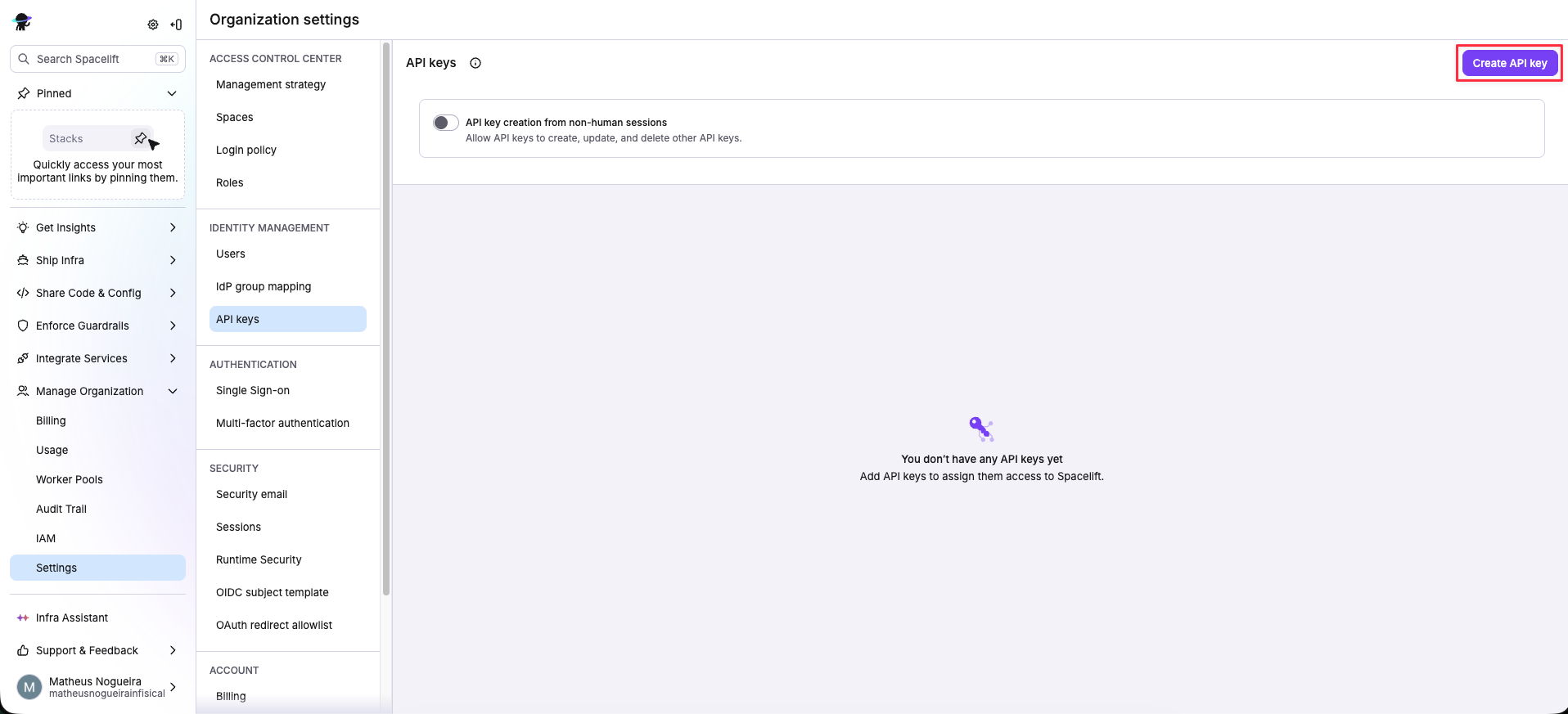
 Click on **Create API Key**.
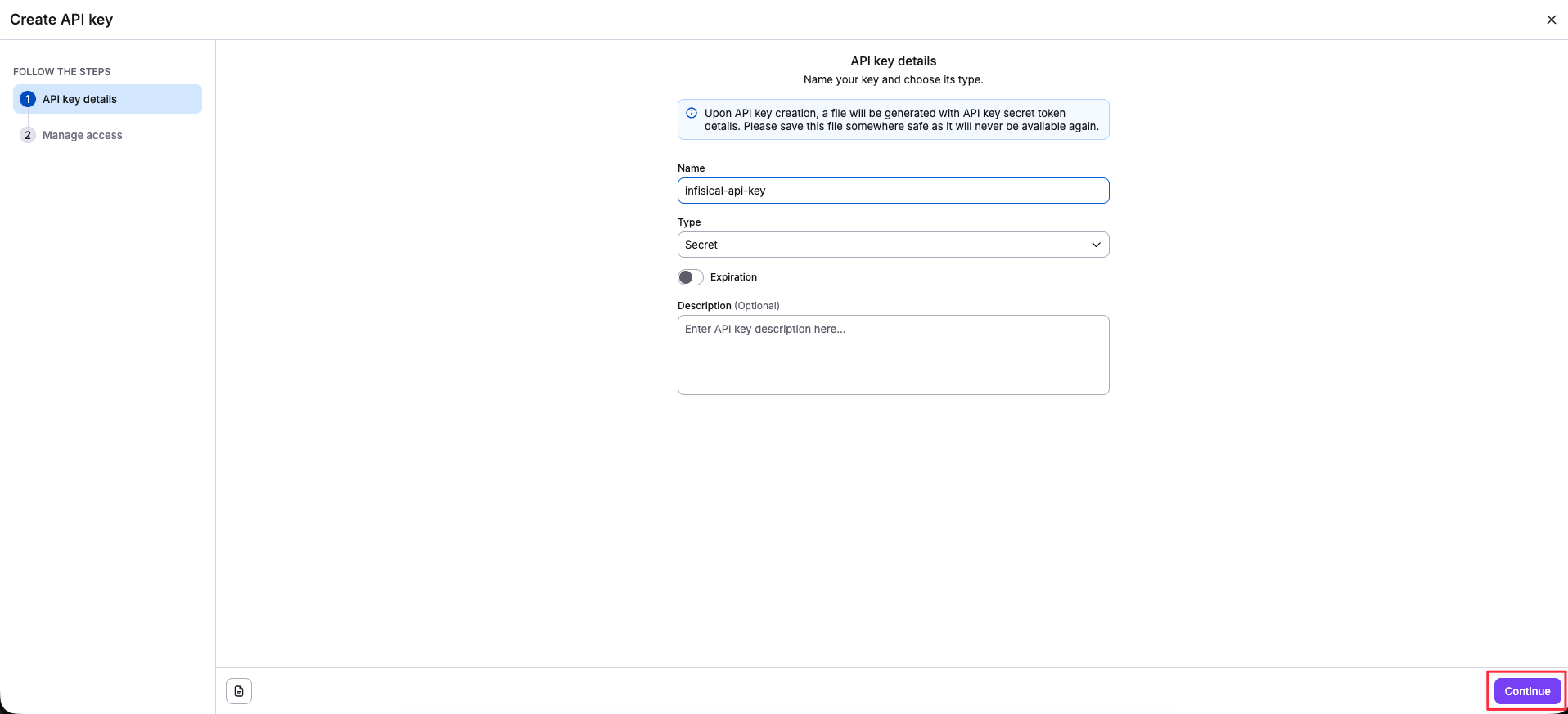
 Set a name for the API key, choose the type **Secret** and click **Continue**.
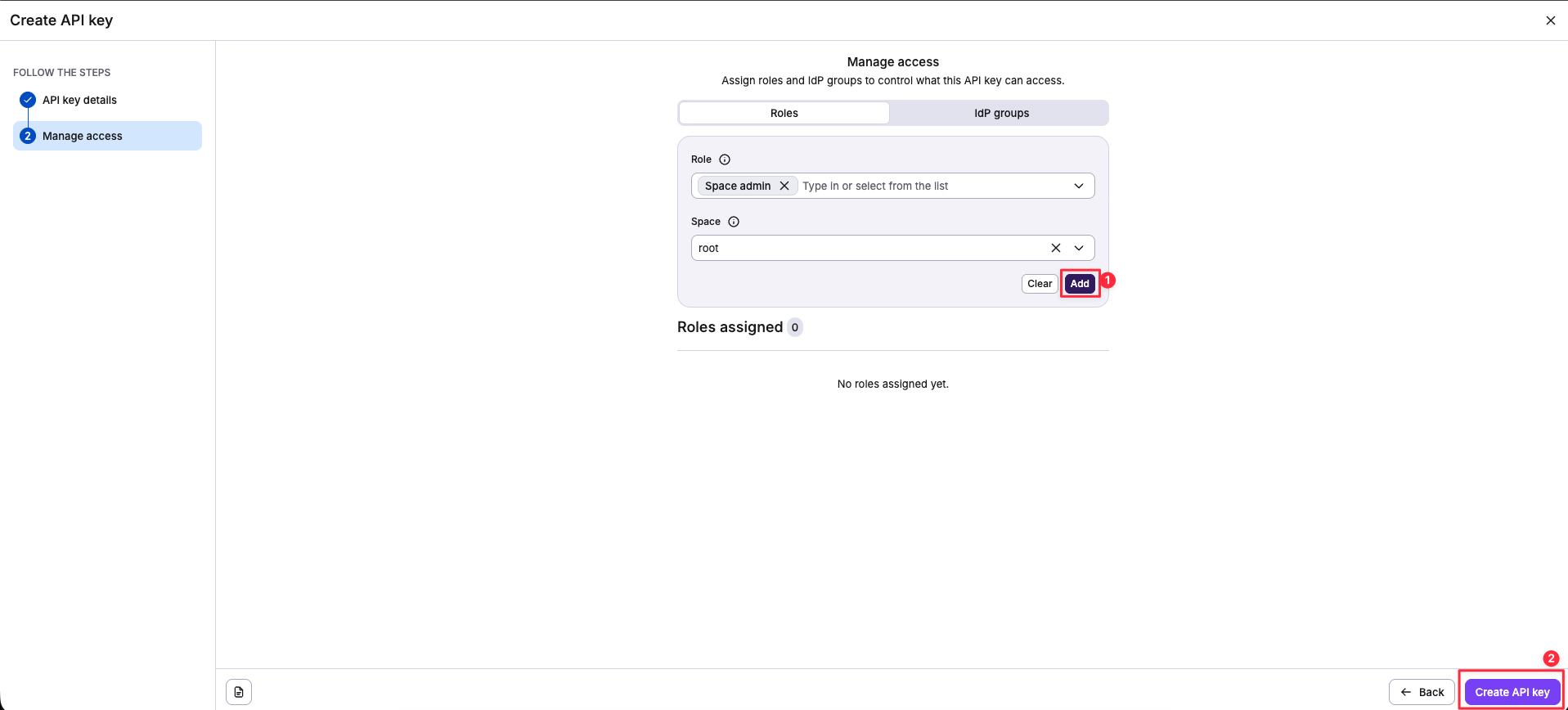
 Select the **Space admin** role (or a custom role with at least **Space reader**, **Space writer**, and **Context update** permissions), choose the Space that will be managed by this credential, then click **Add** and **Create API Key**. A file will be downloaded containing your credentials.
 Open the downloaded file and extract the `api_key_id` and `api_key_secret` values.
## Setup Spacelift Connection in Infisical
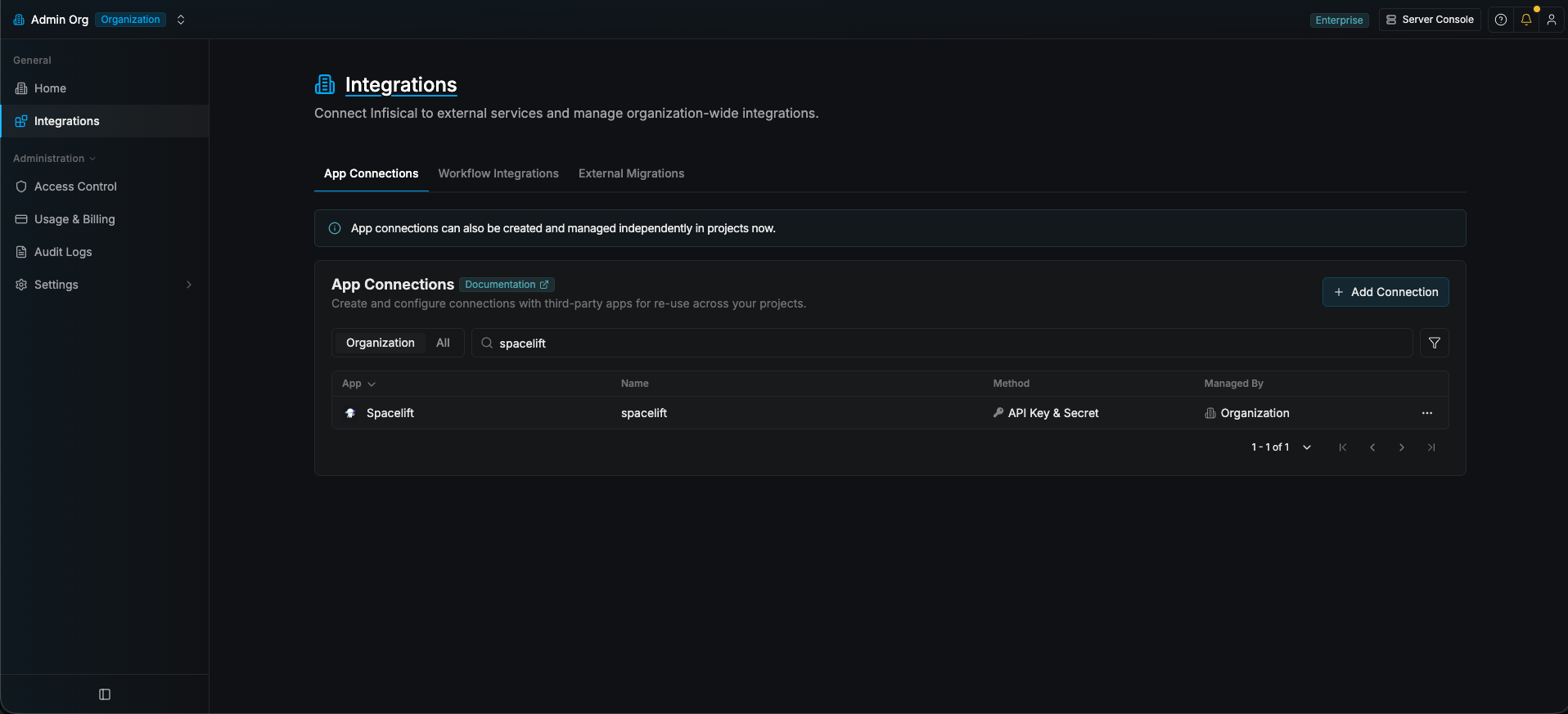
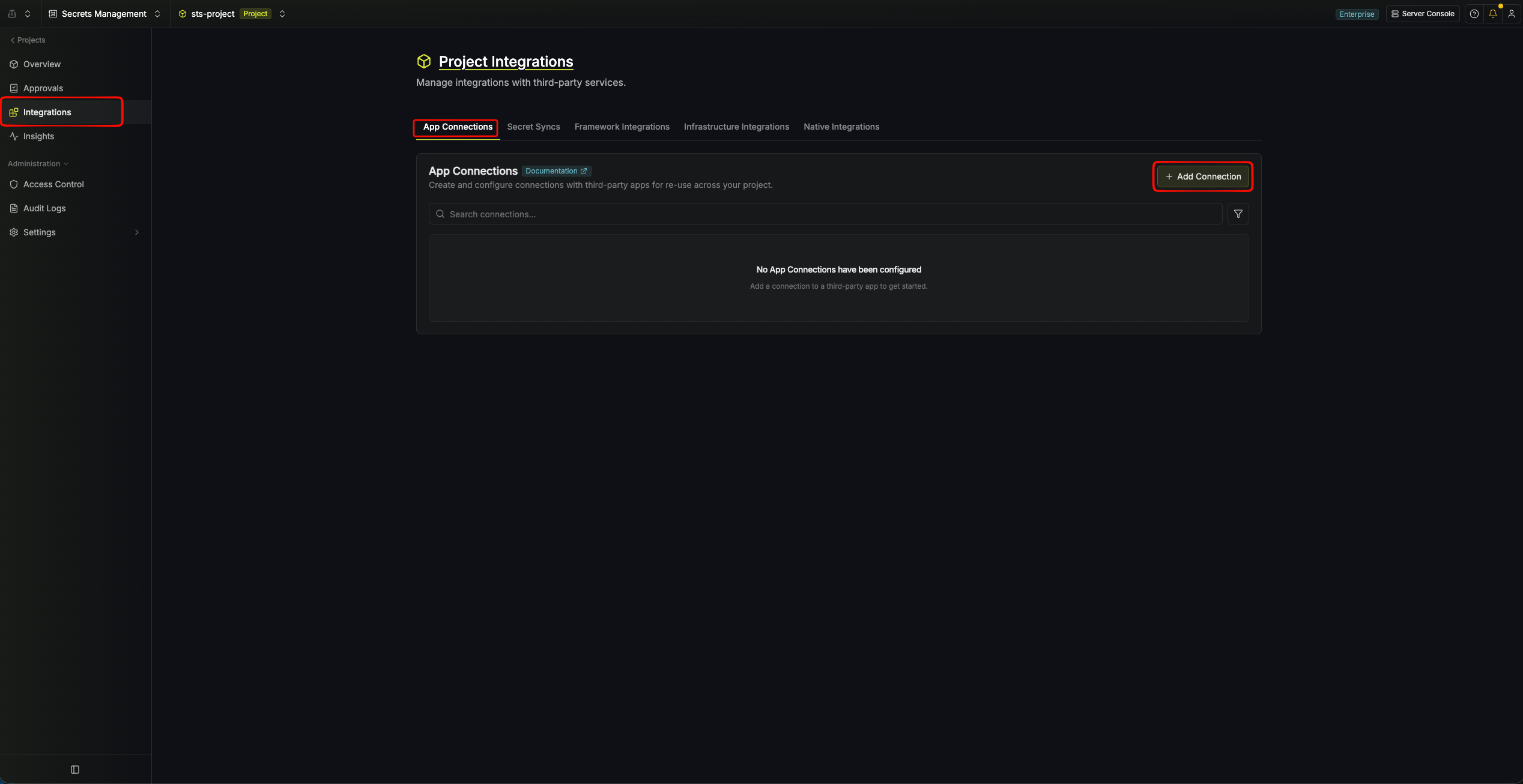
Navigate to the **Integrations** tab in the desired project, then select **App Connections**.
Open the downloaded file and extract the `api_key_id` and `api_key_secret` values.
## Setup Spacelift Connection in Infisical
Navigate to the **Integrations** tab in the desired project, then select **App Connections**.
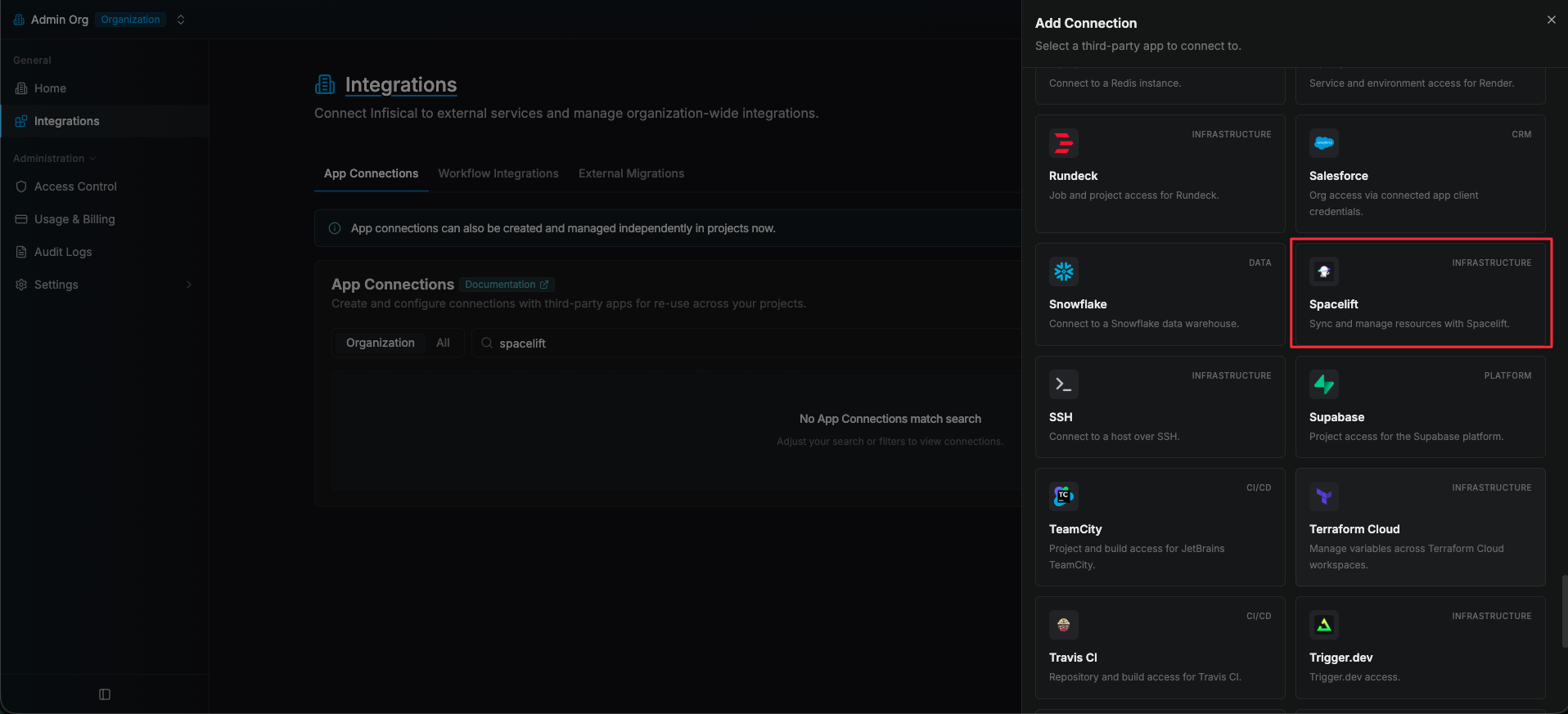
 Select the **Spacelift Connection** option from the connection options modal.
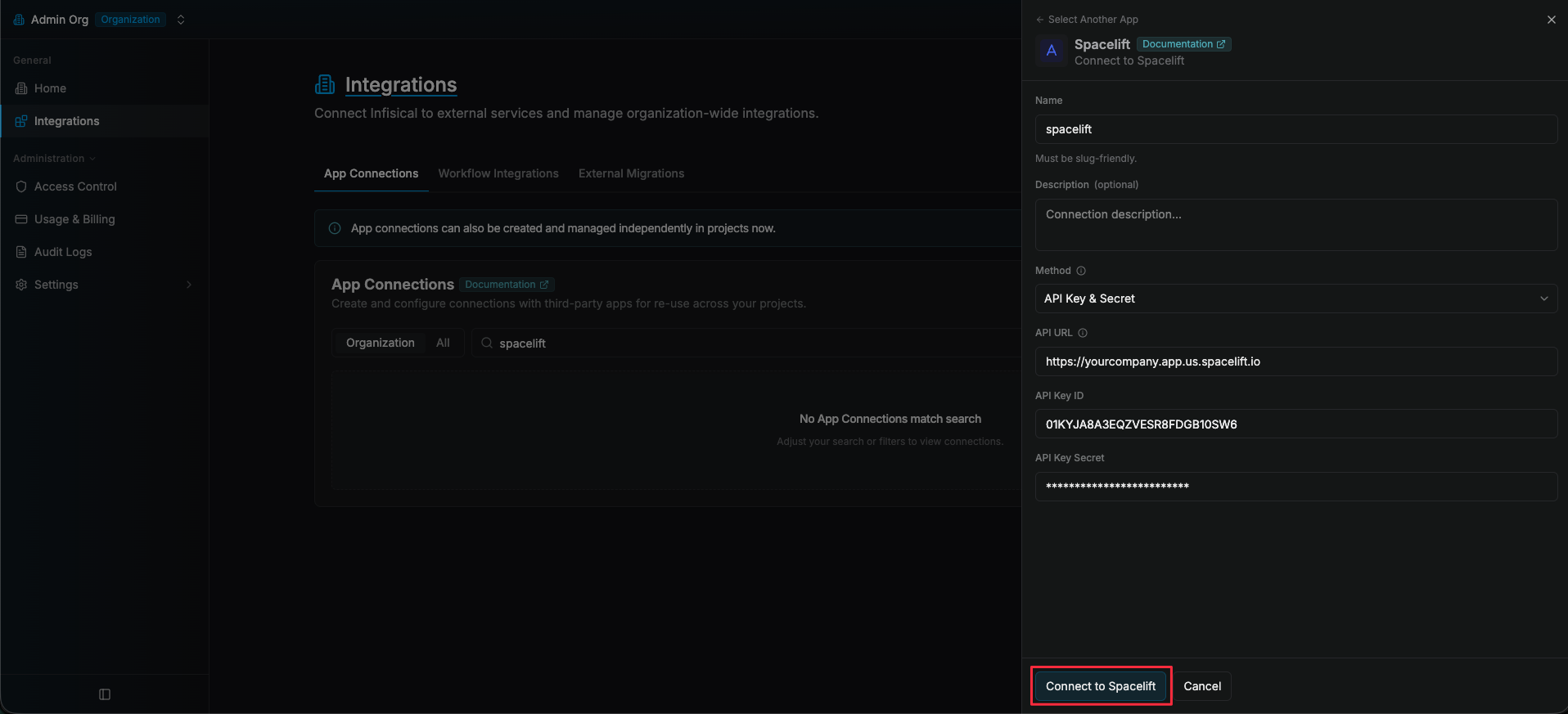
 Enter your Spacelift API URL, API Key ID, and API Key Secret in the provided fields and
click **Connect to Spacelift** to establish the connection.
The API URL is the base URL of your Spacelift account (e.g., `https://myorgname.app.us.spacelift.io/`).
Enter your Spacelift API URL, API Key ID, and API Key Secret in the provided fields and
click **Connect to Spacelift** to establish the connection.
The API URL is the base URL of your Spacelift account (e.g., `https://myorgname.app.us.spacelift.io/`).
 Your **Spacelift Connection** is now available for use in your Infisical projects.