> ## Documentation Index
> Fetch the complete documentation index at: https://infisical.com/docs/llms.txt
> Use this file to discover all available pages before exploring further.
# Rundeck Connection
> Learn how to configure a Rundeck Connection for Infisical.
Infisical supports connecting to Rundeck using an **API Token**.
## Generate a Rundeck API Token
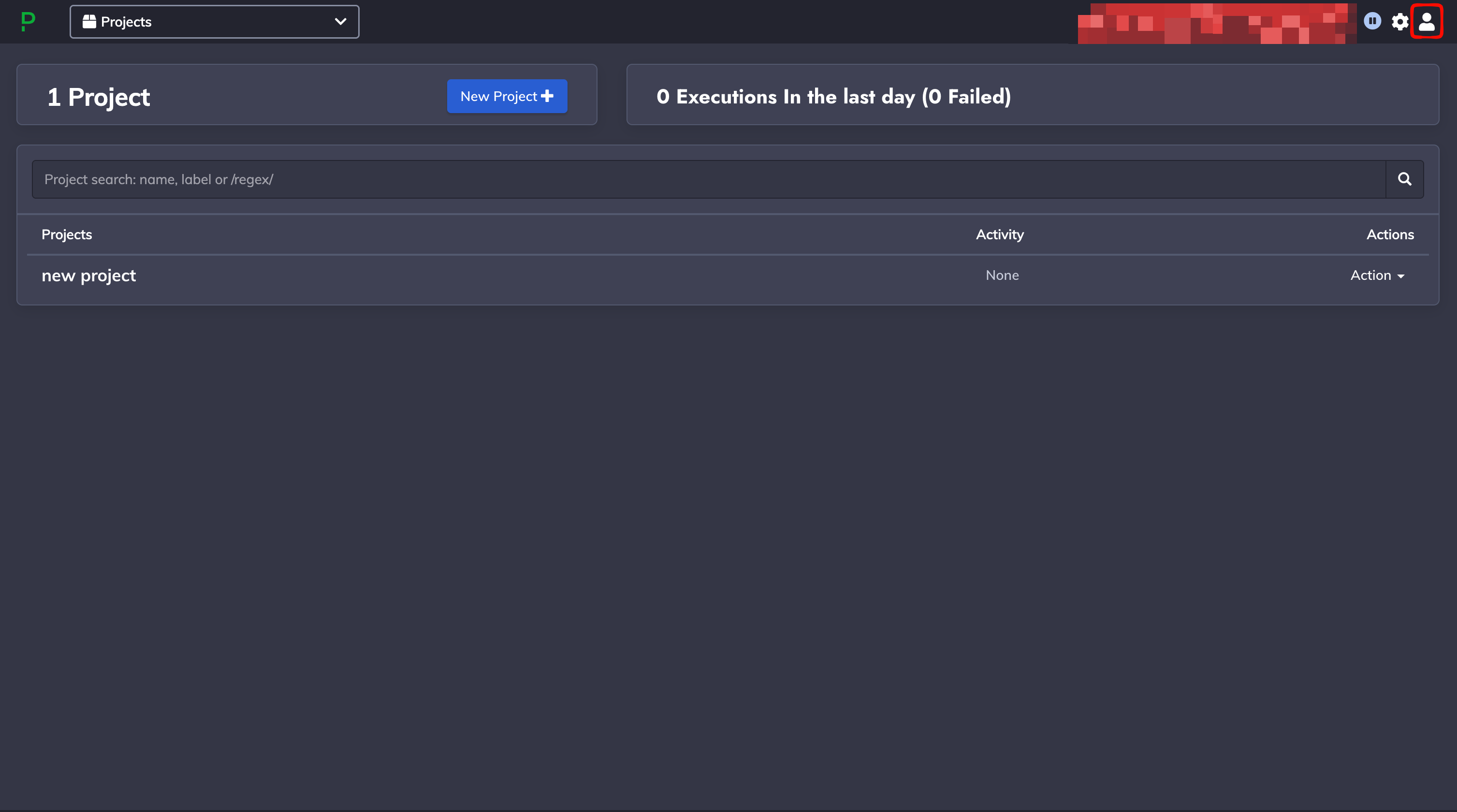
Log in to your Rundeck instance and click the user icon in the top-right corner.
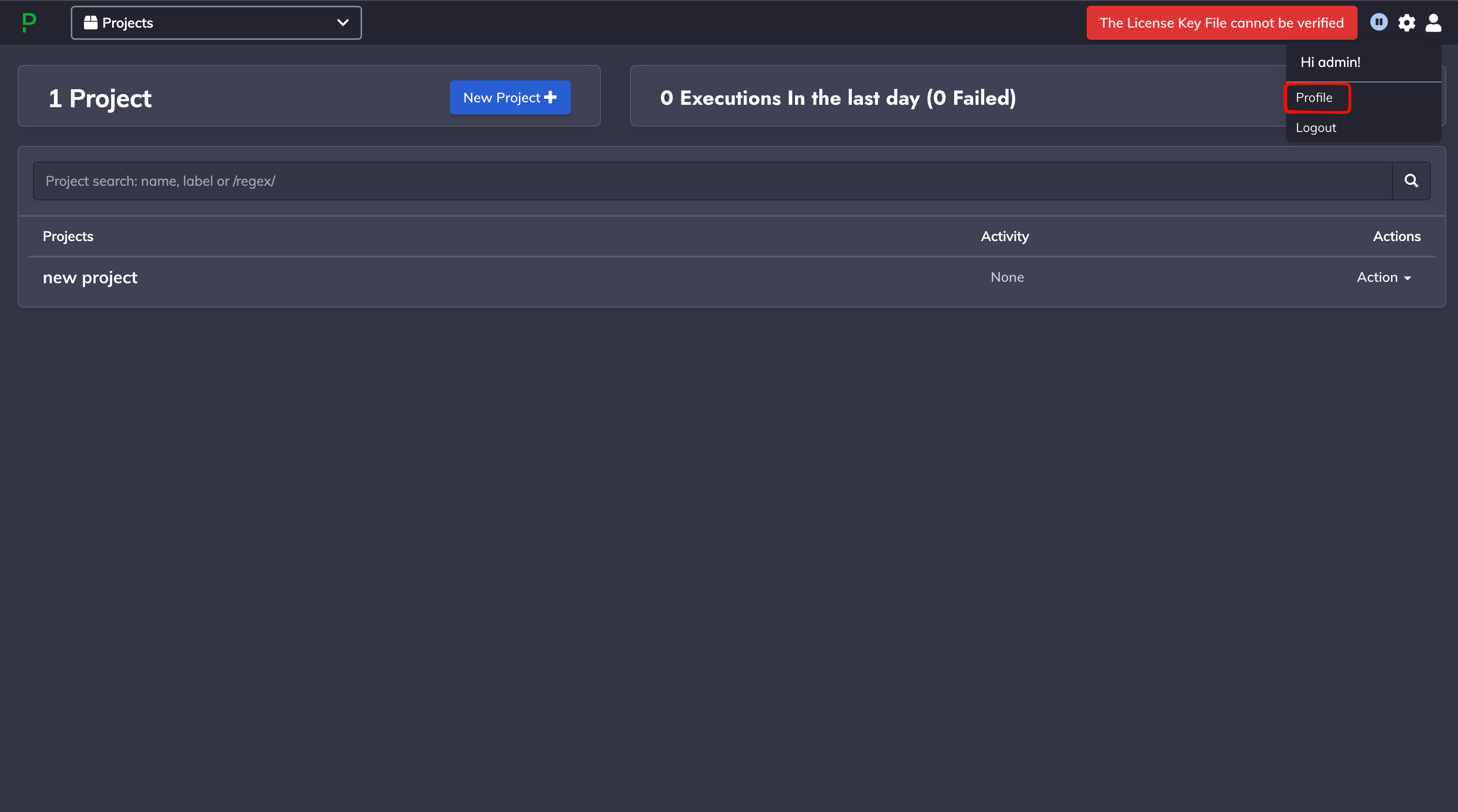
 Select **Profile** from the dropdown.
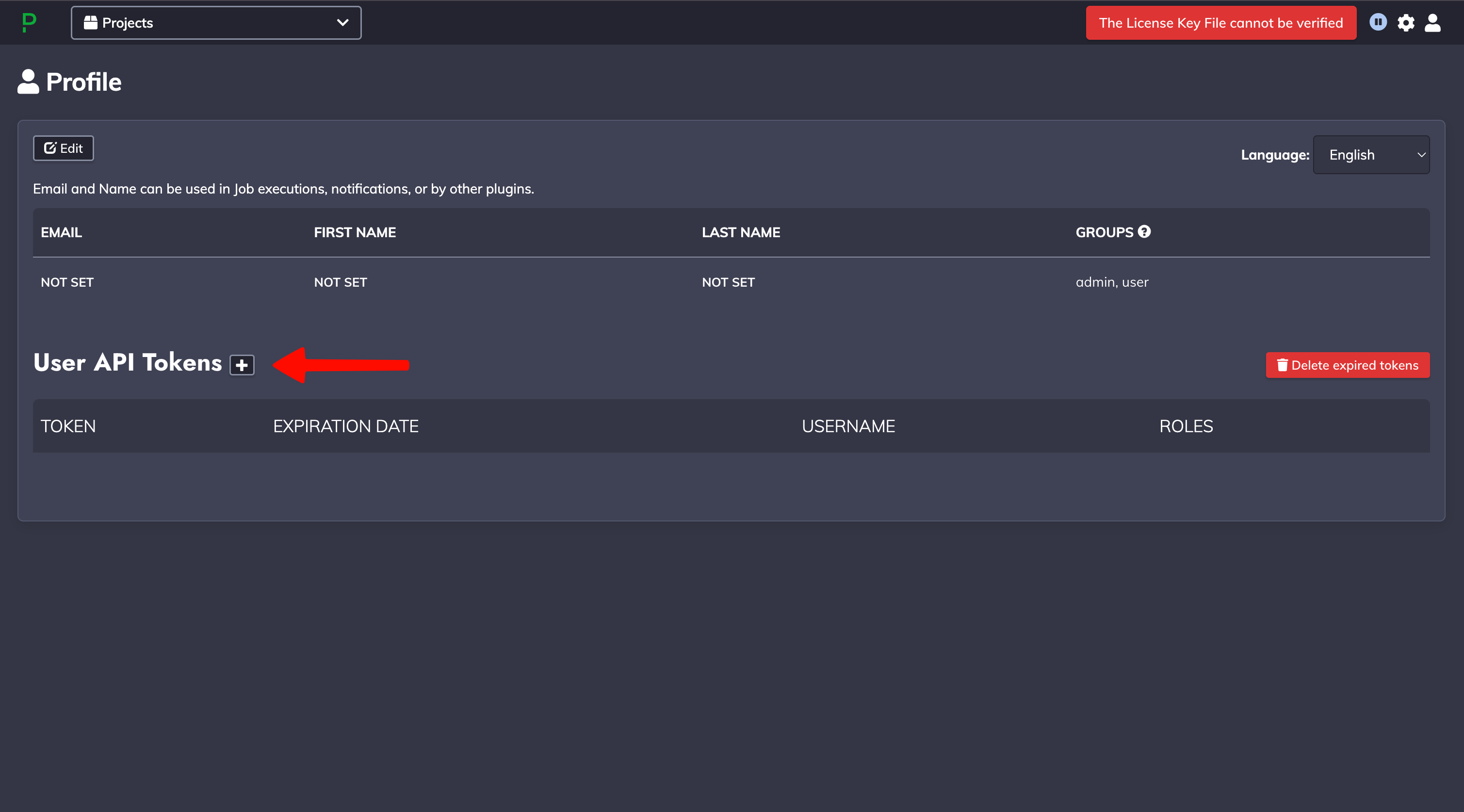
 In the **User API Tokens** section, click the **+** button.
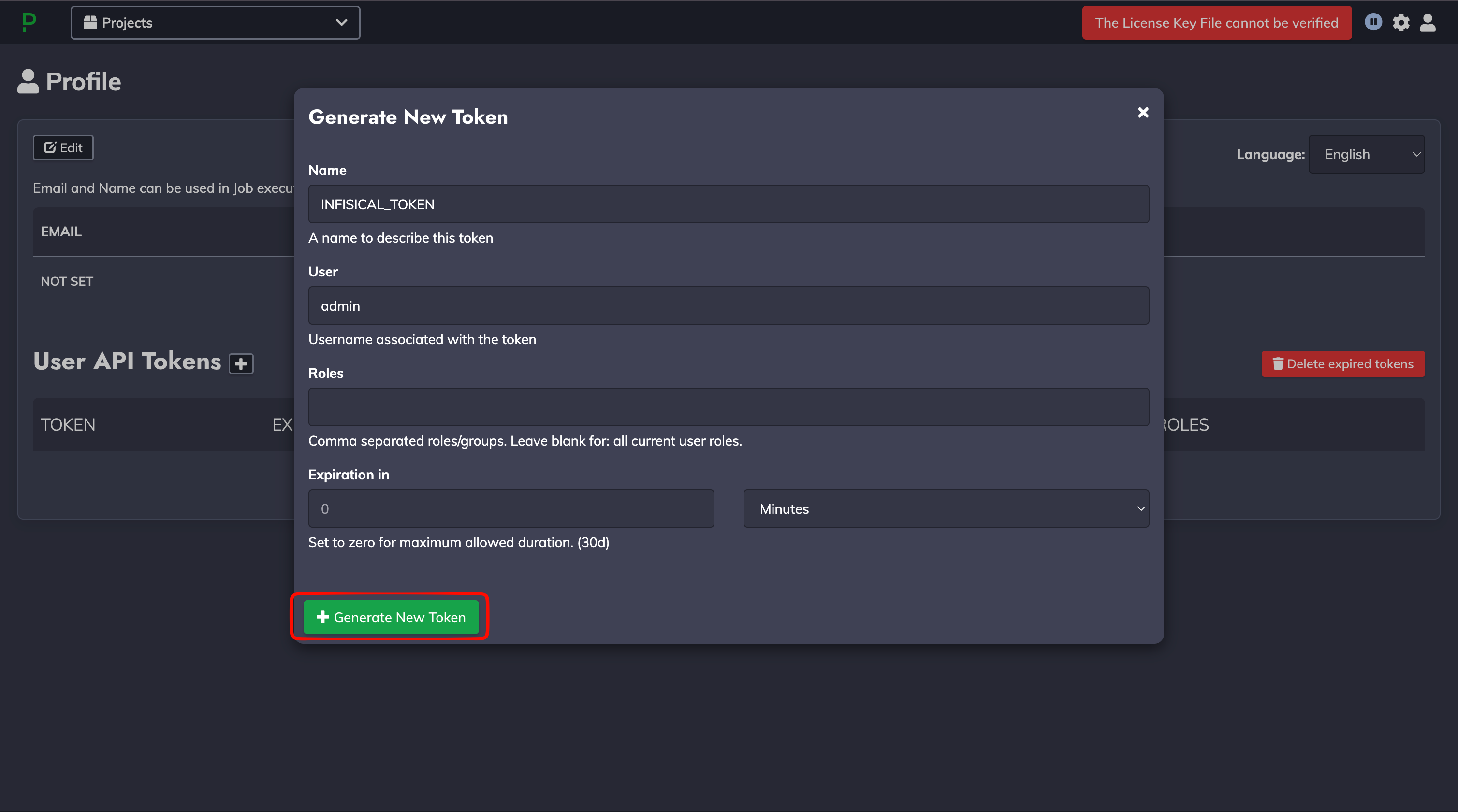
 In the **Generate New Token** dialog, enter:
* **Name**: a label to identify the token (e.g., `INFISICAL_TOKEN`)
* **User**: the username associated with the token
* **Roles**: comma-separated roles/groups, or leave blank to use all of your current roles
* **Expiration in**: an optional lifetime; set to `0` for the maximum allowed duration
Click **Generate New Token**.
In the **Generate New Token** dialog, enter:
* **Name**: a label to identify the token (e.g., `INFISICAL_TOKEN`)
* **User**: the username associated with the token
* **Roles**: comma-separated roles/groups, or leave blank to use all of your current roles
* **Expiration in**: an optional lifetime; set to `0` for the maximum allowed duration
Click **Generate New Token**.
 The API token inherits the access of the user and roles it is generated with. Grant only the
permissions required to read projects and manage Key Storage for your target projects.
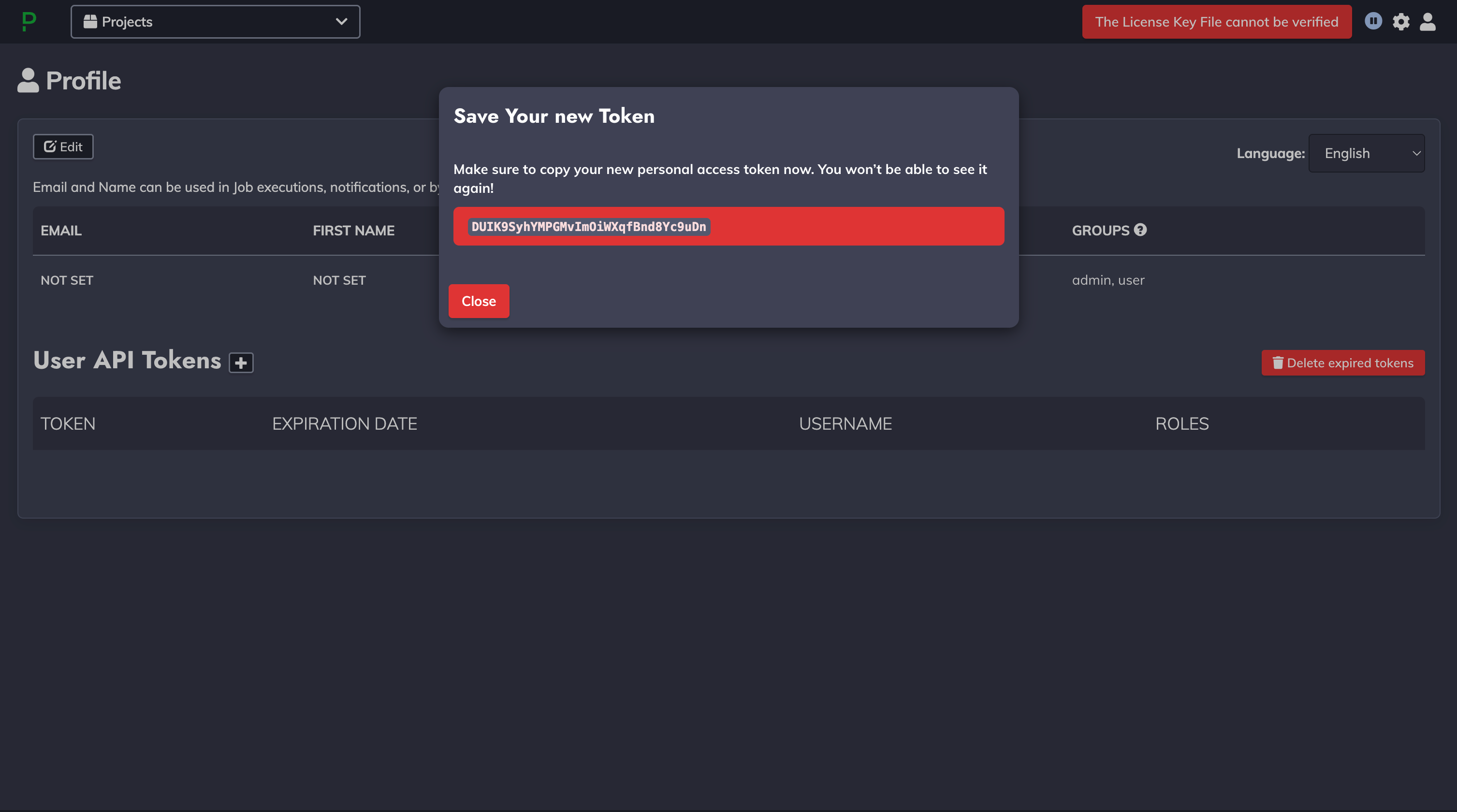
Copy the generated token and store it securely, as you won't be able to view it again after
closing the dialog. Click **Close** when done.
The API token inherits the access of the user and roles it is generated with. Grant only the
permissions required to read projects and manage Key Storage for your target projects.
Copy the generated token and store it securely, as you won't be able to view it again after
closing the dialog. Click **Close** when done.
 If you configure an expiration for your API token, you must manually rotate to a new token
before it expires to prevent service interruption.
## Setup Rundeck Connection in Infisical
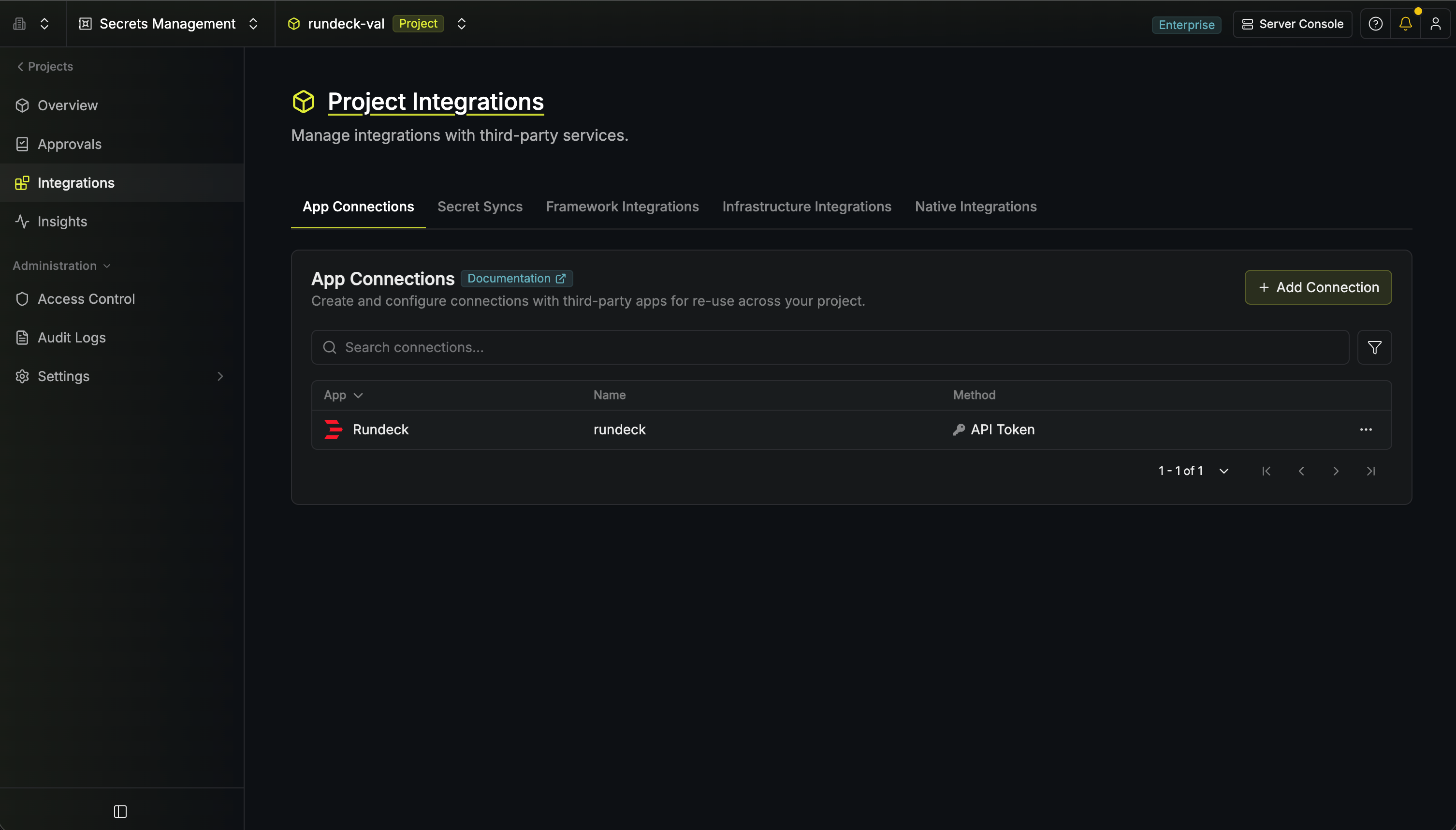
In your Infisical dashboard, navigate to the **Integrations** tab in the desired project,
select **App Connections**, and click **+ Add Connection**. Search for and select the
**Rundeck** option.
If you configure an expiration for your API token, you must manually rotate to a new token
before it expires to prevent service interruption.
## Setup Rundeck Connection in Infisical
In your Infisical dashboard, navigate to the **Integrations** tab in the desired project,
select **App Connections**, and click **+ Add Connection**. Search for and select the
**Rundeck** option.
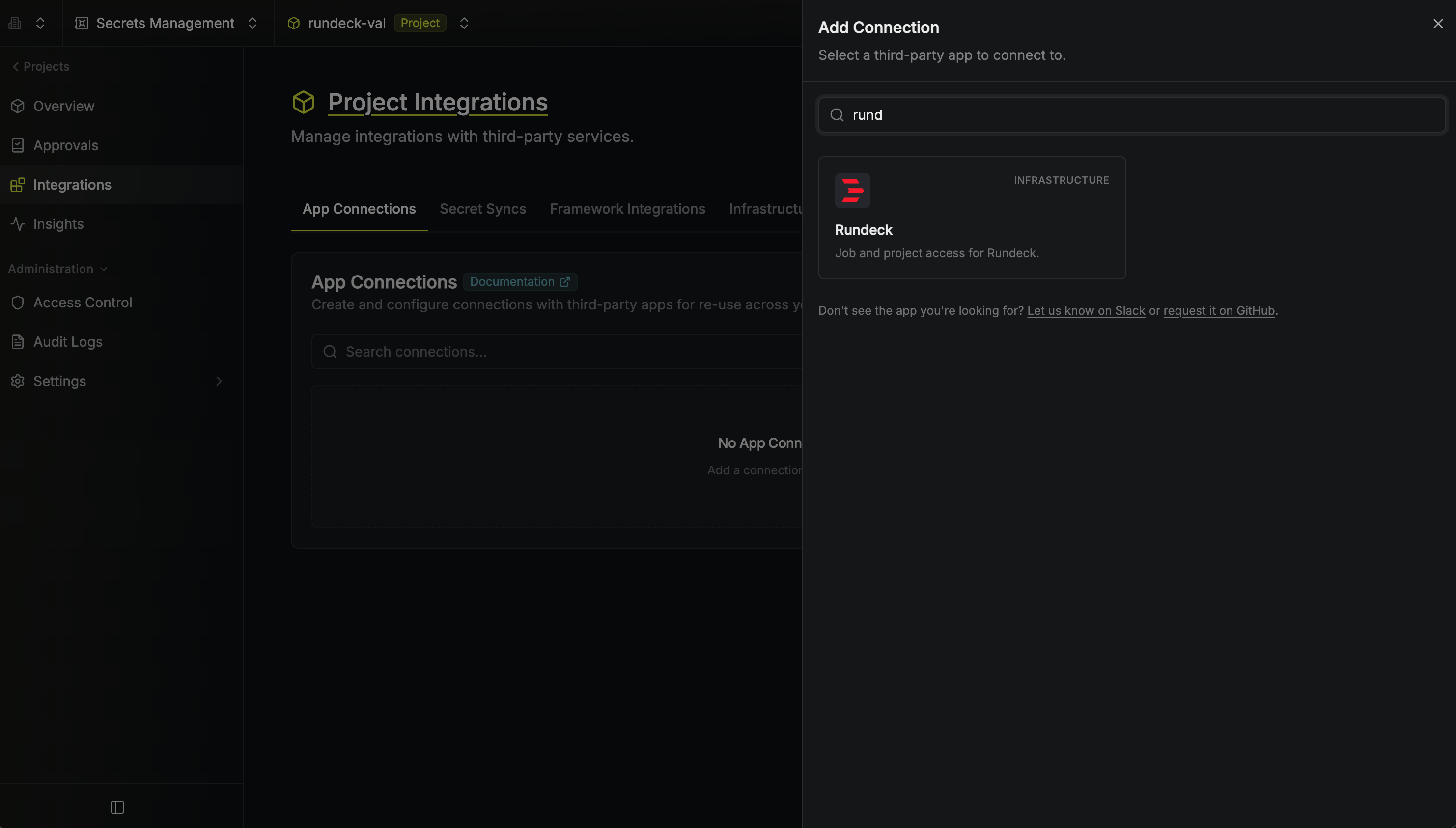 Complete the connection form by entering:
* A descriptive **Name** for the connection (must be slug-friendly)
* An optional **Description** for future reference
* The **Method** (**API Token**)
* The **Rundeck Instance URL** (e.g., `https://rundeck.example.com`)
* The **Rundeck API Token** you generated above
Click **Connect to Rundeck**.
Complete the connection form by entering:
* A descriptive **Name** for the connection (must be slug-friendly)
* An optional **Description** for future reference
* The **Method** (**API Token**)
* The **Rundeck Instance URL** (e.g., `https://rundeck.example.com`)
* The **Rundeck API Token** you generated above
Click **Connect to Rundeck**.
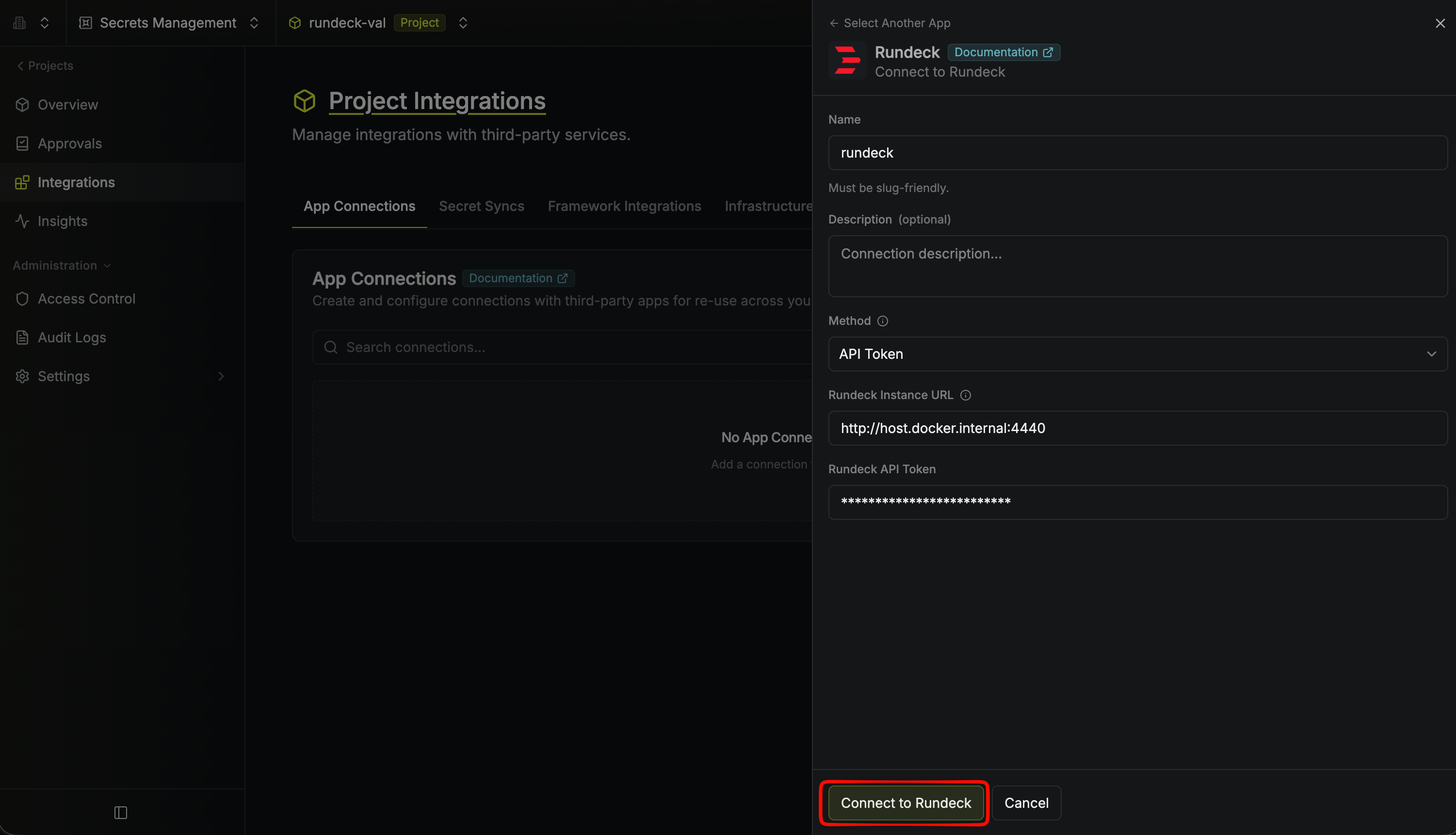 Your **Rundeck Connection** is established and ready to use with your Infisical project.
 To create a Rundeck Connection, make an API request to the [Create Rundeck
Connection](/api-reference/endpoints/app-connections/rundeck/create) API endpoint.
### Sample request
```bash Request theme={"dark"}
curl --request POST \
--url https://app.infisical.com/api/v1/app-connections/rundeck \
--header 'Content-Type: application/json' \
--data '{
"name": "my-rundeck-connection",
"method": "api-token",
"projectId": "3c90c3cc-0d44-4b50-8888-8dd25736052a",
"credentials": {
"instanceUrl": "https://rundeck.example.com",
"apiToken": "..."
}
}'
```
### Sample response
```bash Response theme={"dark"}
{
"appConnection": {
"id": "e5d18aca-86f7-4026-a95e-efb8aeb0d8e6",
"name": "my-rundeck-connection",
"projectId": "3c90c3cc-0d44-4b50-8888-8dd25736052a",
"description": null,
"version": 1,
"orgId": "6f03caa1-a5de-43ce-b127-95a145d3464c",
"createdAt": "2025-04-23T19:46:34.831Z",
"updatedAt": "2025-04-23T19:46:34.831Z",
"isPlatformManagedCredentials": false,
"credentialsHash": "7c2d371dec195f82a6a0d5b41c970a229cfcaf88e894a5b6395e2dbd0280661f",
"app": "rundeck",
"method": "api-token",
"credentials": {
"instanceUrl": "https://rundeck.example.com"
}
}
}
```
To create a Rundeck Connection, make an API request to the [Create Rundeck
Connection](/api-reference/endpoints/app-connections/rundeck/create) API endpoint.
### Sample request
```bash Request theme={"dark"}
curl --request POST \
--url https://app.infisical.com/api/v1/app-connections/rundeck \
--header 'Content-Type: application/json' \
--data '{
"name": "my-rundeck-connection",
"method": "api-token",
"projectId": "3c90c3cc-0d44-4b50-8888-8dd25736052a",
"credentials": {
"instanceUrl": "https://rundeck.example.com",
"apiToken": "..."
}
}'
```
### Sample response
```bash Response theme={"dark"}
{
"appConnection": {
"id": "e5d18aca-86f7-4026-a95e-efb8aeb0d8e6",
"name": "my-rundeck-connection",
"projectId": "3c90c3cc-0d44-4b50-8888-8dd25736052a",
"description": null,
"version": 1,
"orgId": "6f03caa1-a5de-43ce-b127-95a145d3464c",
"createdAt": "2025-04-23T19:46:34.831Z",
"updatedAt": "2025-04-23T19:46:34.831Z",
"isPlatformManagedCredentials": false,
"credentialsHash": "7c2d371dec195f82a6a0d5b41c970a229cfcaf88e894a5b6395e2dbd0280661f",
"app": "rundeck",
"method": "api-token",
"credentials": {
"instanceUrl": "https://rundeck.example.com"
}
}
}
```