> ## Documentation Index
> Fetch the complete documentation index at: https://infisical.com/docs/llms.txt
> Use this file to discover all available pages before exploring further.
# Render Connection
> Learn how to configure a Render Connection for Infisical.
Infisical supports connecting to Render using API keys for secure access to your Render services.
## Configure API Key for Infisical
Navigate to your Render dashboard and click on **Account Settings** in the
top right corner. 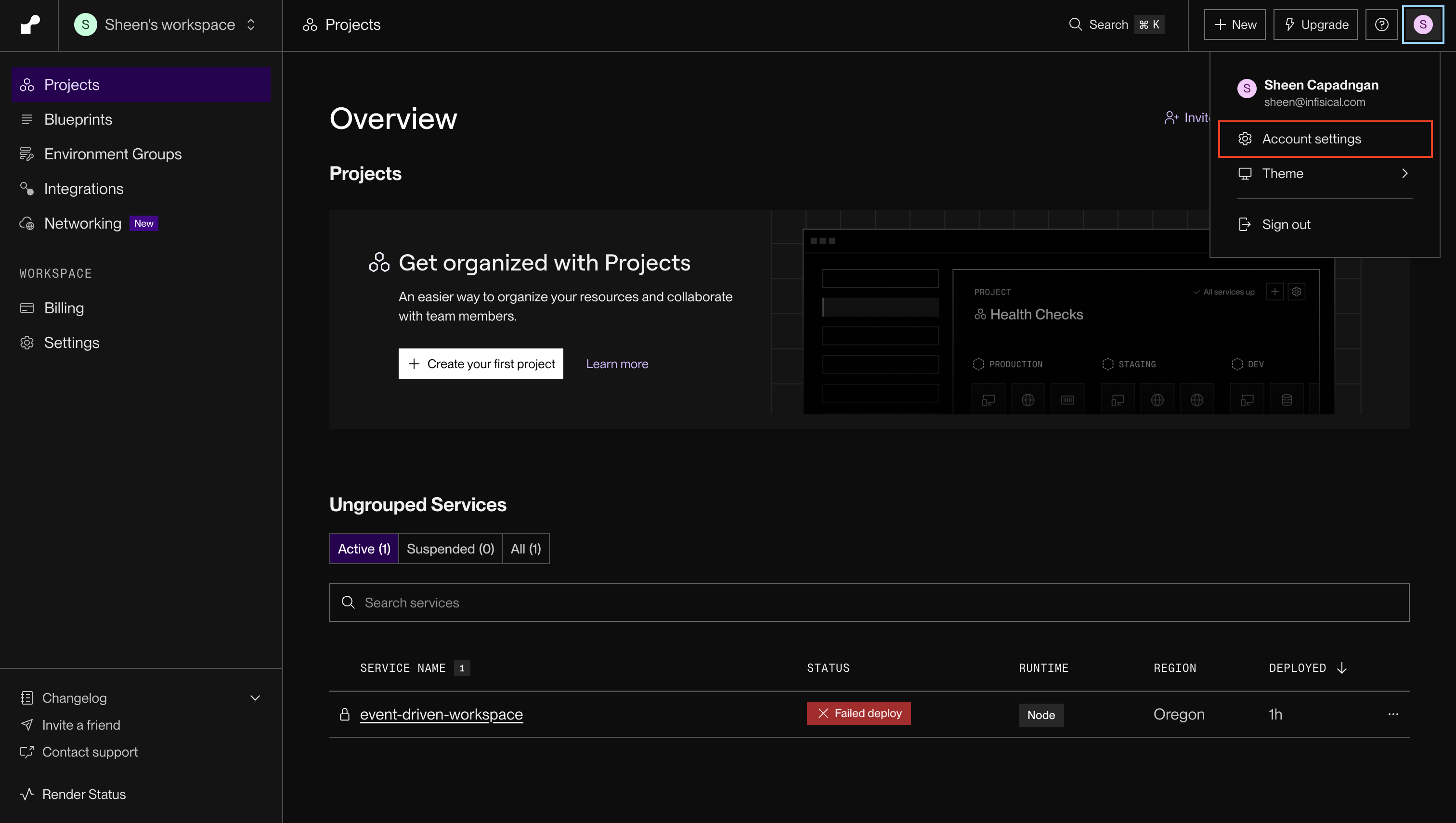 In the Account Settings page, scroll down to the **API Keys** section and
click **Create API Key**.
In the Account Settings page, scroll down to the **API Keys** section and
click **Create API Key**. 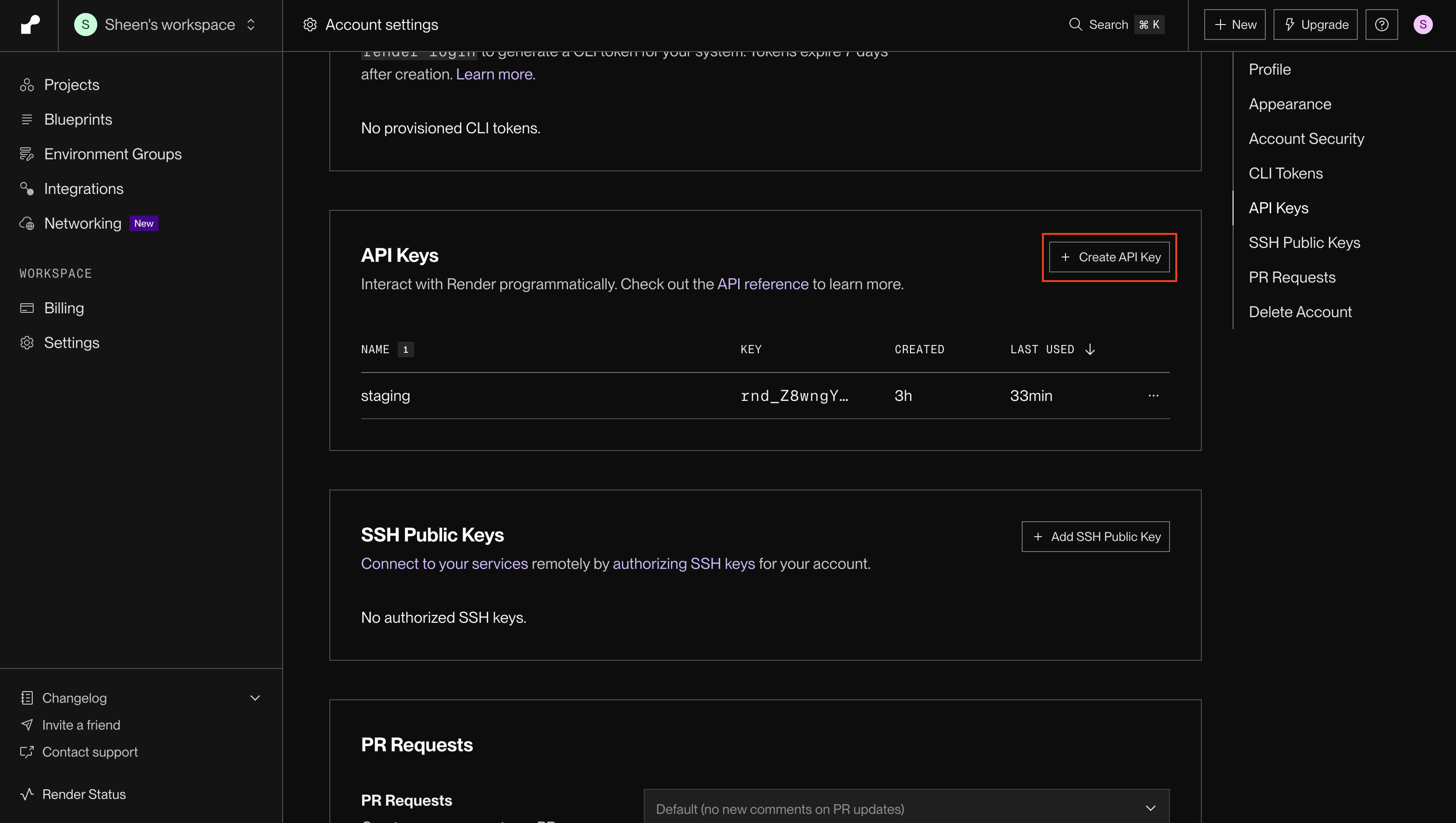 Enter a descriptive name for your API key (e.g., "production")
and click **Create API Key**.
Enter a descriptive name for your API key (e.g., "production")
and click **Create API Key**. 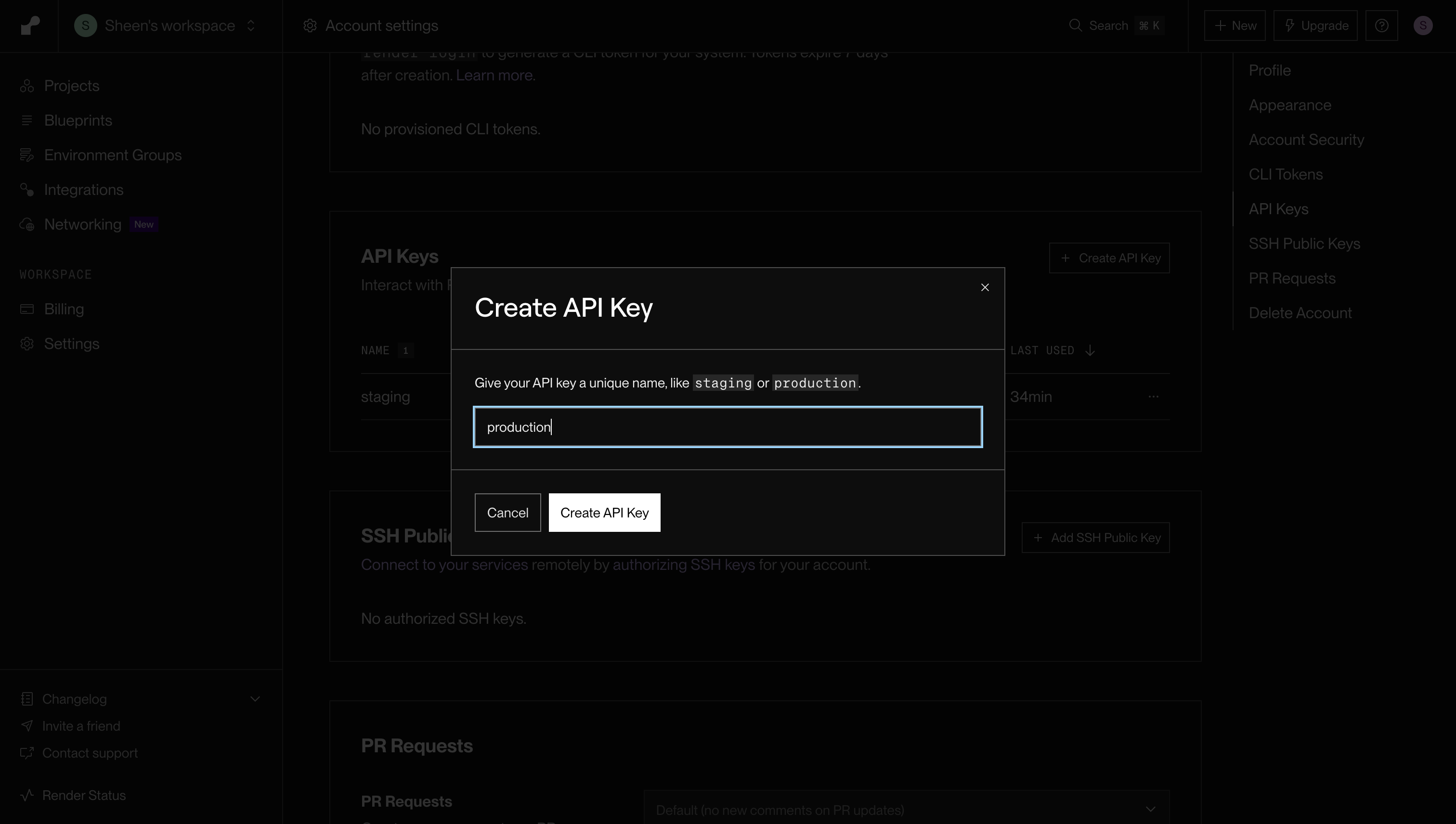 After creation, you'll be shown your API key. Make sure to copy and securely
store this key as it will not be shown again.
## Setup Render Connection in Infisical
Navigate to the **Integrations** tab in the desired project, then select **App Connections**.
After creation, you'll be shown your API key. Make sure to copy and securely
store this key as it will not be shown again.
## Setup Render Connection in Infisical
Navigate to the **Integrations** tab in the desired project, then select **App Connections**.  Select the **Render Connection** option from the connection options modal.
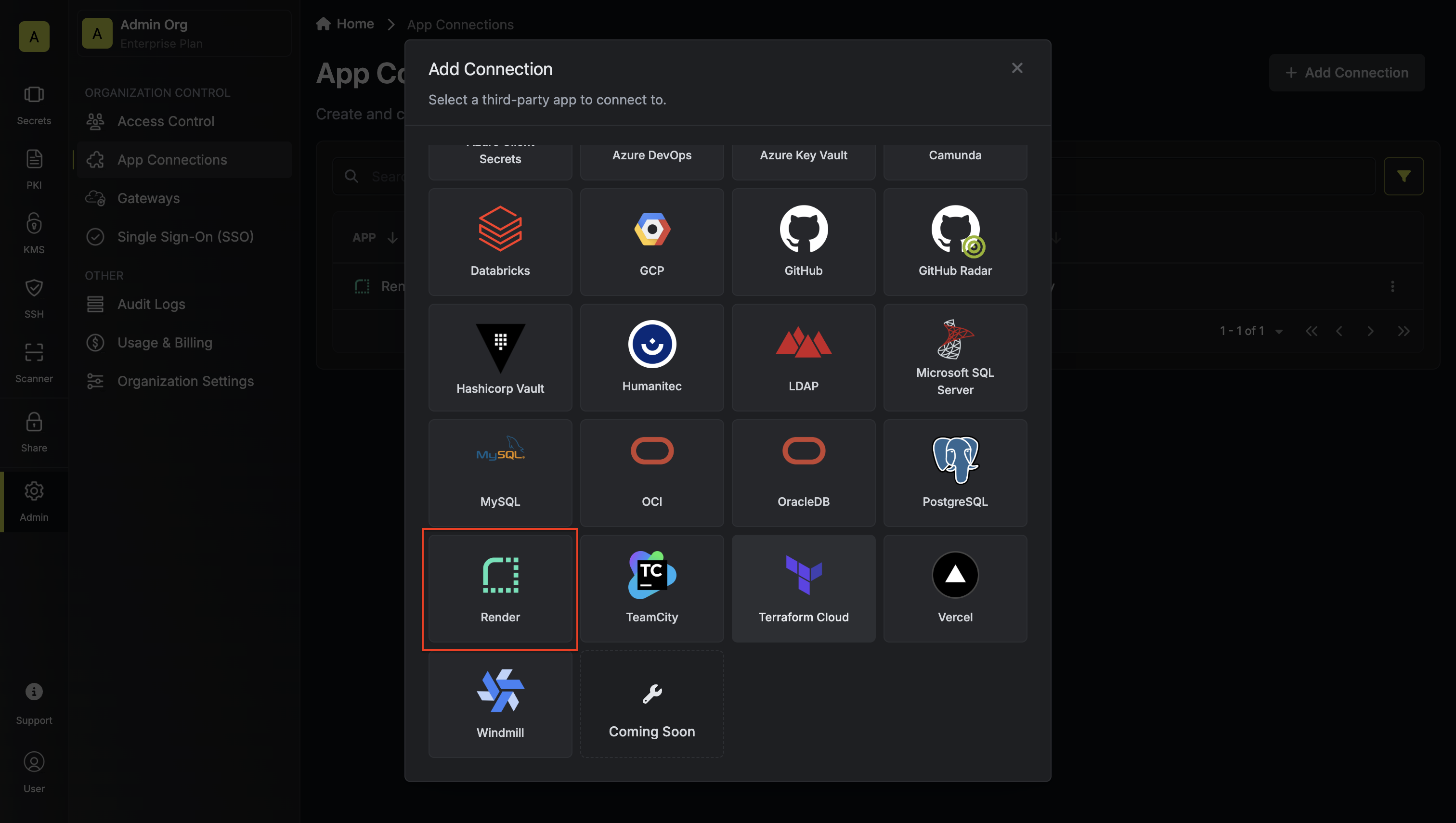 Enter your Render API key in the provided field and click **Connect to
Render** to establish the connection.
Enter your Render API key in the provided field and click **Connect to
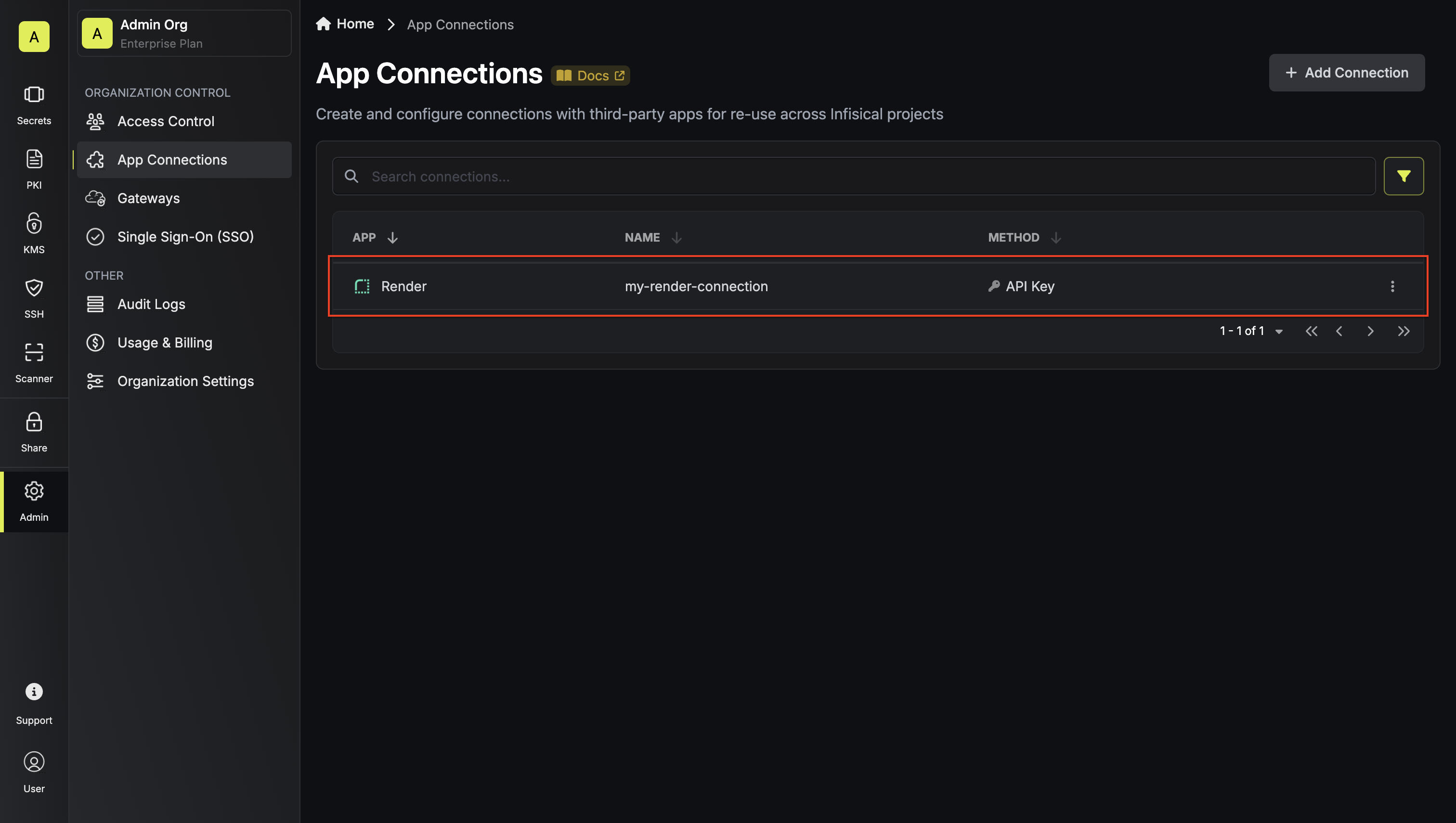
Render** to establish the connection. 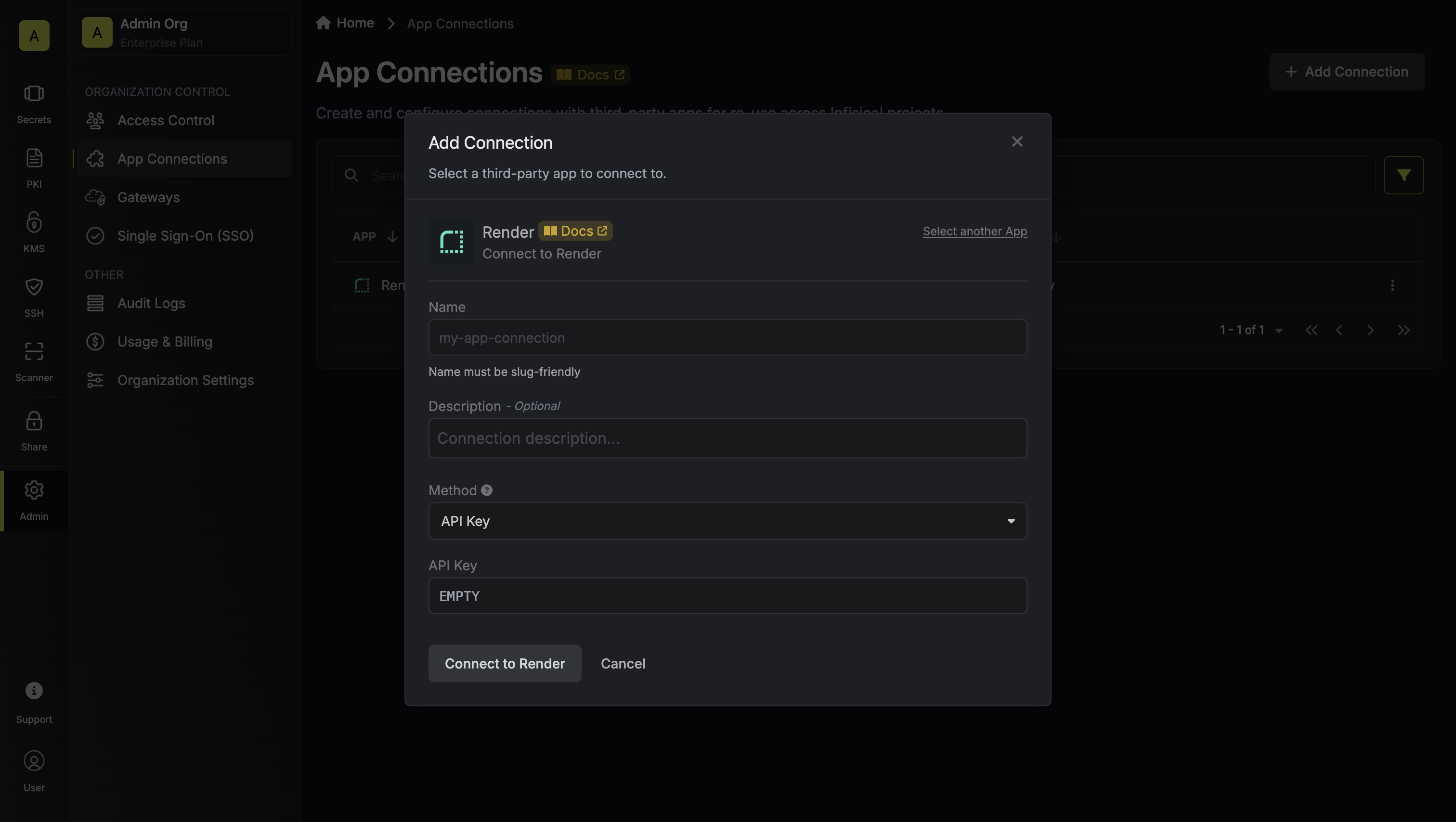 Your **Render Connection** is now available for use in your Infisical
projects.
Your **Render Connection** is now available for use in your Infisical
projects.