> ## Documentation Index
> Fetch the complete documentation index at: https://infisical.com/docs/llms.txt
> Use this file to discover all available pages before exploring further.
# Redis Connection
> Learn how to configure a Redis Connection for Infisical.
Infisical supports the use of Username & Password authentication to connect with Redis databases
## Configure a Redis user for Infisical
Infisical recommends creating a designated user in your Redis database for your connection.
```bash theme={"dark"}
ACL SETUSER user_manager on >[ENTER-YOUR-USER-PASSWORD]
```
Depending on how you intend to use your Redis connection, you'll need to grant one or more of the following permissions.
To learn more about Redis's permission system, please visit their [documentation](https://redis.io/docs/latest/operate/oss_and_stack/management/security/acl/).
For Secret Rotations, your Infisical user will require the ability to set and delete users:
```bash theme={"dark"}
ACL SETUSER user_manager +acl|setuser +acl|deluser ~*
```
## Create Redis Connection in Infisical
In your Infisical dashboard, navigate to the **Integrations** tab in the desired project, then select **App Connections**.
 Click the **+ Add Connection** button and select the **Redis Connection** option from the available integrations.
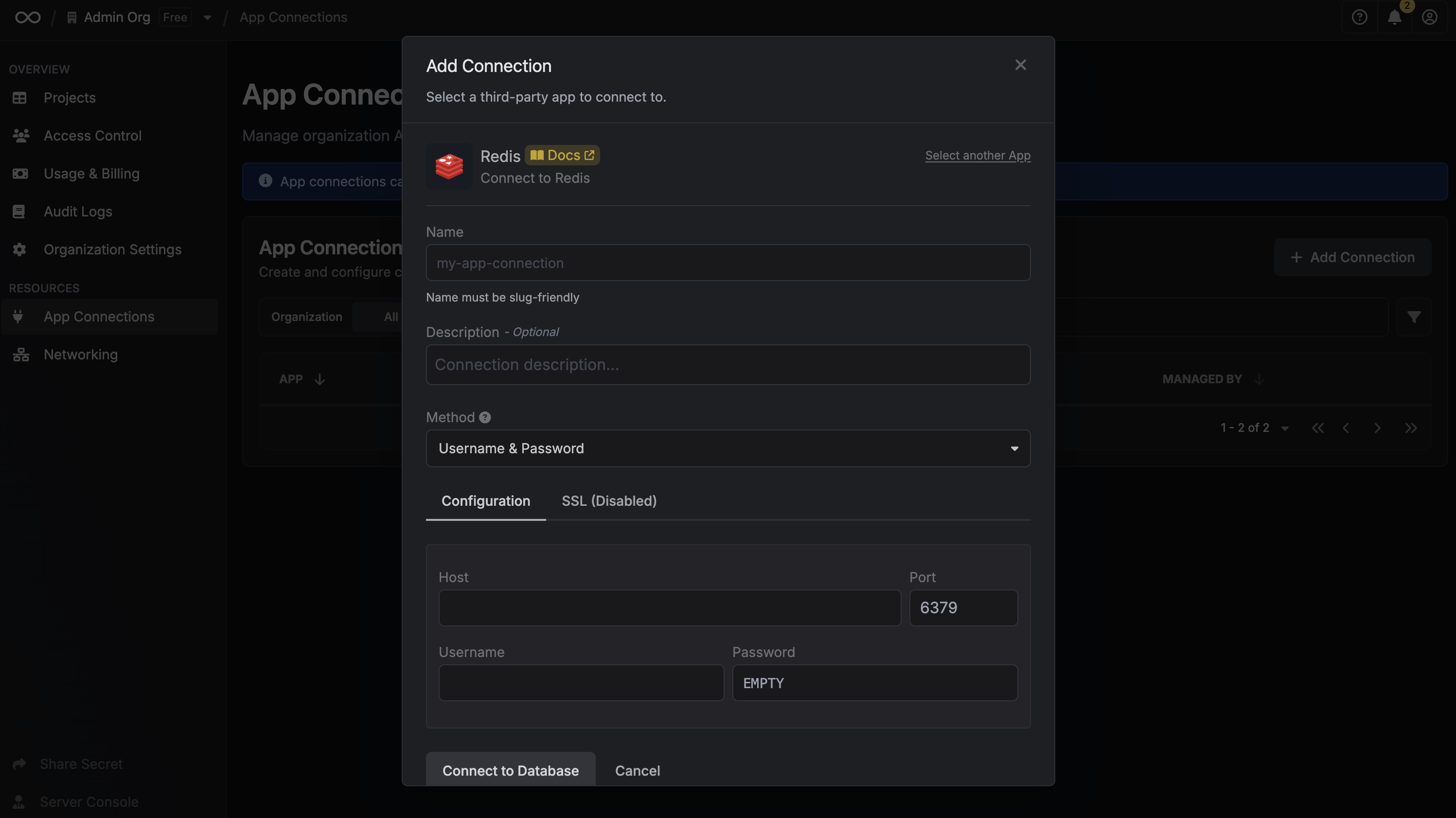
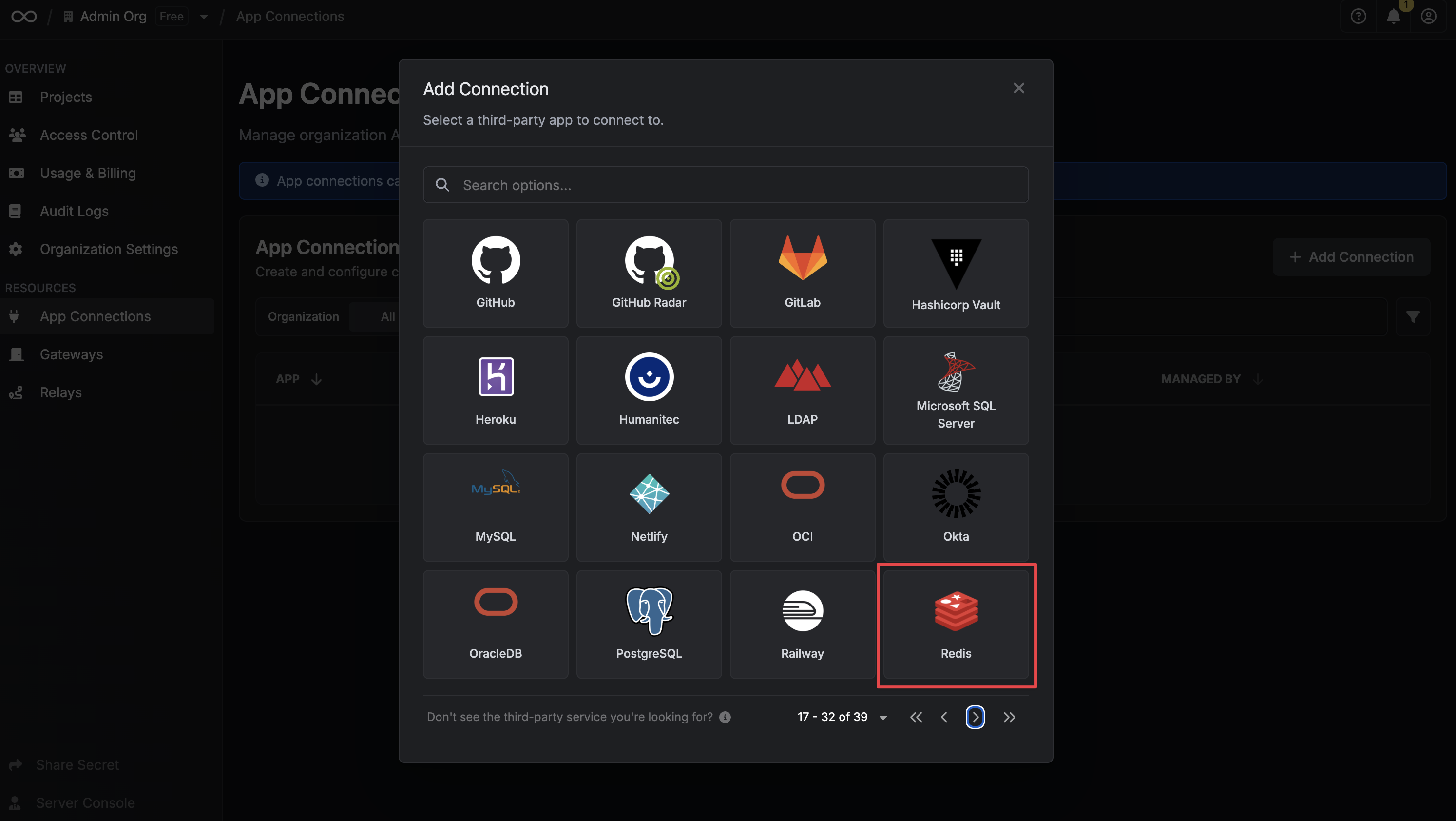 Complete the Redis Connection form by entering:
* A descriptive name for the connection
* An optional description for future reference
* The Redis host URL for your database
* The Redis port for your Redis database
* The Redis username for your Redis database
* The Redis password for your Redis database
You can optionally configure SSL/TLS for your Redis connection in the **SSL** section.
Complete the Redis Connection form by entering:
* A descriptive name for the connection
* An optional description for future reference
* The Redis host URL for your database
* The Redis port for your Redis database
* The Redis username for your Redis database
* The Redis password for your Redis database
You can optionally configure SSL/TLS for your Redis connection in the **SSL** section.
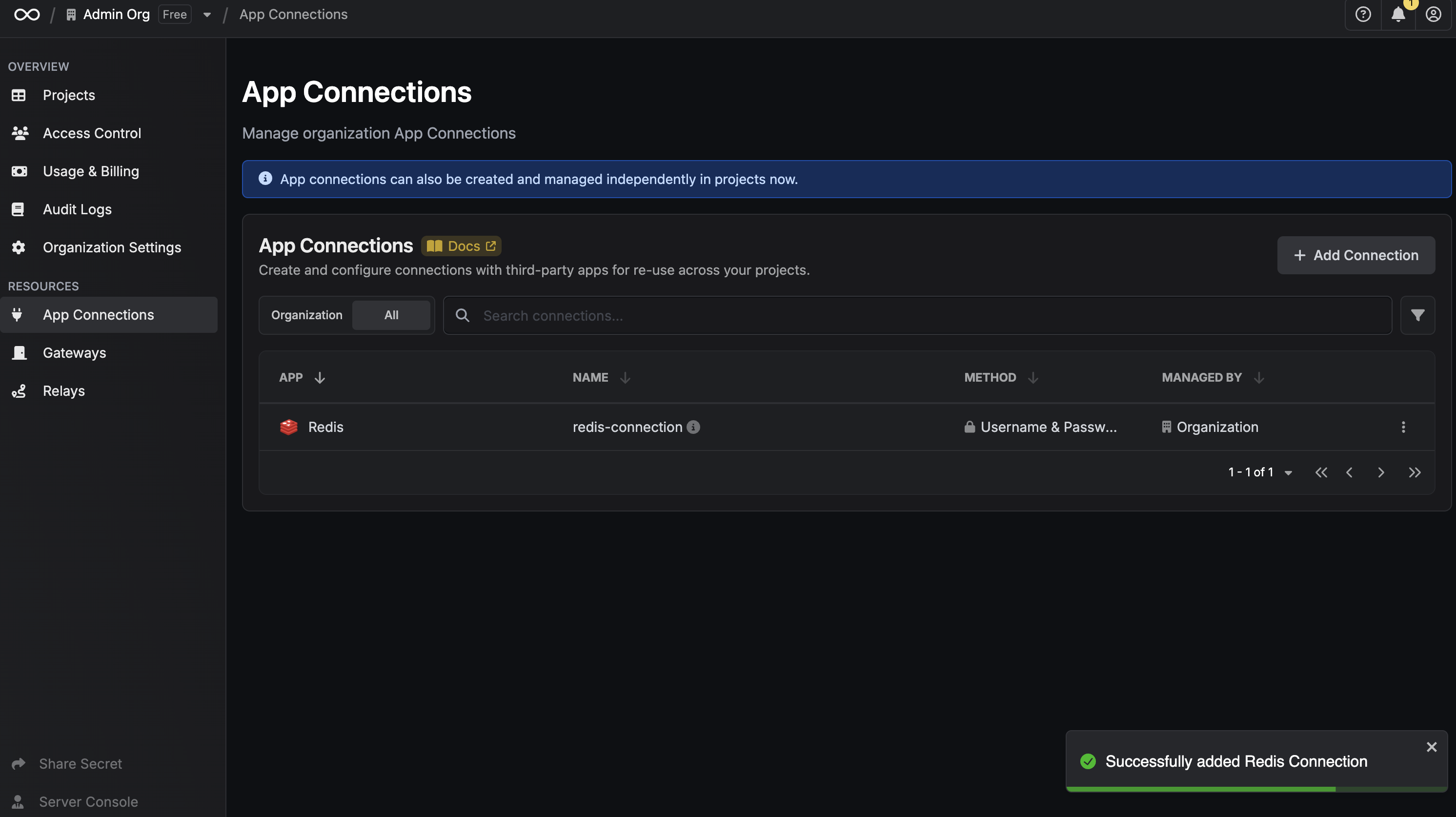
 After clicking Create, your **Redis Connection** is established and ready to use with your Infisical project.
 To create a Redis Connection, make an API request to the [Create Redis Connection](/api-reference/endpoints/app-connections/redis/create) API endpoint.
### Sample request
```bash Request theme={"dark"}
curl --request POST \
--url https://app.infisical.com/api/v1/app-connections/redis \
--header 'Content-Type: application/json' \
--data '{
"name": "my-redis-connection",
"method": "username-and-password",
"projectId": "7ffbb072-2575-495a-b5b0-127f88caef78",
"credentials": {
"host": "[REDIS HOST]",
"port": 6379,
"username": "[REDIS USERNAME]",
"password": "[REDIS PASSWORD]",
}
}'
```
### Sample response
```bash Response theme={"dark"}
{
"appConnection": {
"id": "e5d18aca-86f7-4026-a95e-efb8aeb0d8e6",
"name": "my-redis-connection",
"projectId": "7ffbb072-2575-495a-b5b0-127f88caef78",
"description": null,
"version": 1,
"orgId": "6f03caa1-a5de-43ce-b127-95a145d3464c",
"createdAt": "2025-04-23T19:46:34.831Z",
"updatedAt": "2025-04-23T19:46:34.831Z",
"isPlatformManagedCredentials": false,
"credentialsHash": "7c2d371dec195f82a6a0d5b41c970a229cfcaf88e894a5b6395e2dbd0280661f",
"app": "redis",
"method": "username-and-password",
credentials: {
"host": "",
"port": 6379,
"username": "",
"sslEnabled": true,
"sslRejectUnauthorized": false,
"sslCertificate": ""
}
}
}
```
To create a Redis Connection, make an API request to the [Create Redis Connection](/api-reference/endpoints/app-connections/redis/create) API endpoint.
### Sample request
```bash Request theme={"dark"}
curl --request POST \
--url https://app.infisical.com/api/v1/app-connections/redis \
--header 'Content-Type: application/json' \
--data '{
"name": "my-redis-connection",
"method": "username-and-password",
"projectId": "7ffbb072-2575-495a-b5b0-127f88caef78",
"credentials": {
"host": "[REDIS HOST]",
"port": 6379,
"username": "[REDIS USERNAME]",
"password": "[REDIS PASSWORD]",
}
}'
```
### Sample response
```bash Response theme={"dark"}
{
"appConnection": {
"id": "e5d18aca-86f7-4026-a95e-efb8aeb0d8e6",
"name": "my-redis-connection",
"projectId": "7ffbb072-2575-495a-b5b0-127f88caef78",
"description": null,
"version": 1,
"orgId": "6f03caa1-a5de-43ce-b127-95a145d3464c",
"createdAt": "2025-04-23T19:46:34.831Z",
"updatedAt": "2025-04-23T19:46:34.831Z",
"isPlatformManagedCredentials": false,
"credentialsHash": "7c2d371dec195f82a6a0d5b41c970a229cfcaf88e894a5b6395e2dbd0280661f",
"app": "redis",
"method": "username-and-password",
credentials: {
"host": "",
"port": 6379,
"username": "",
"sslEnabled": true,
"sslRejectUnauthorized": false,
"sslCertificate": ""
}
}
}
```