> ## Documentation Index
> Fetch the complete documentation index at: https://infisical.com/docs/llms.txt
> Use this file to discover all available pages before exploring further.
# Railway Connection
> Learn how to configure a Railway Connection for Infisical.
Infisical supports the use of [API Tokens](https://docs.railway.com/guides/public-api#creating-a-token) to connect with Railway.
## Create a Railway API Token
A team token provides access to all resources within a team. It cannot be used to access personal resources in Railway.
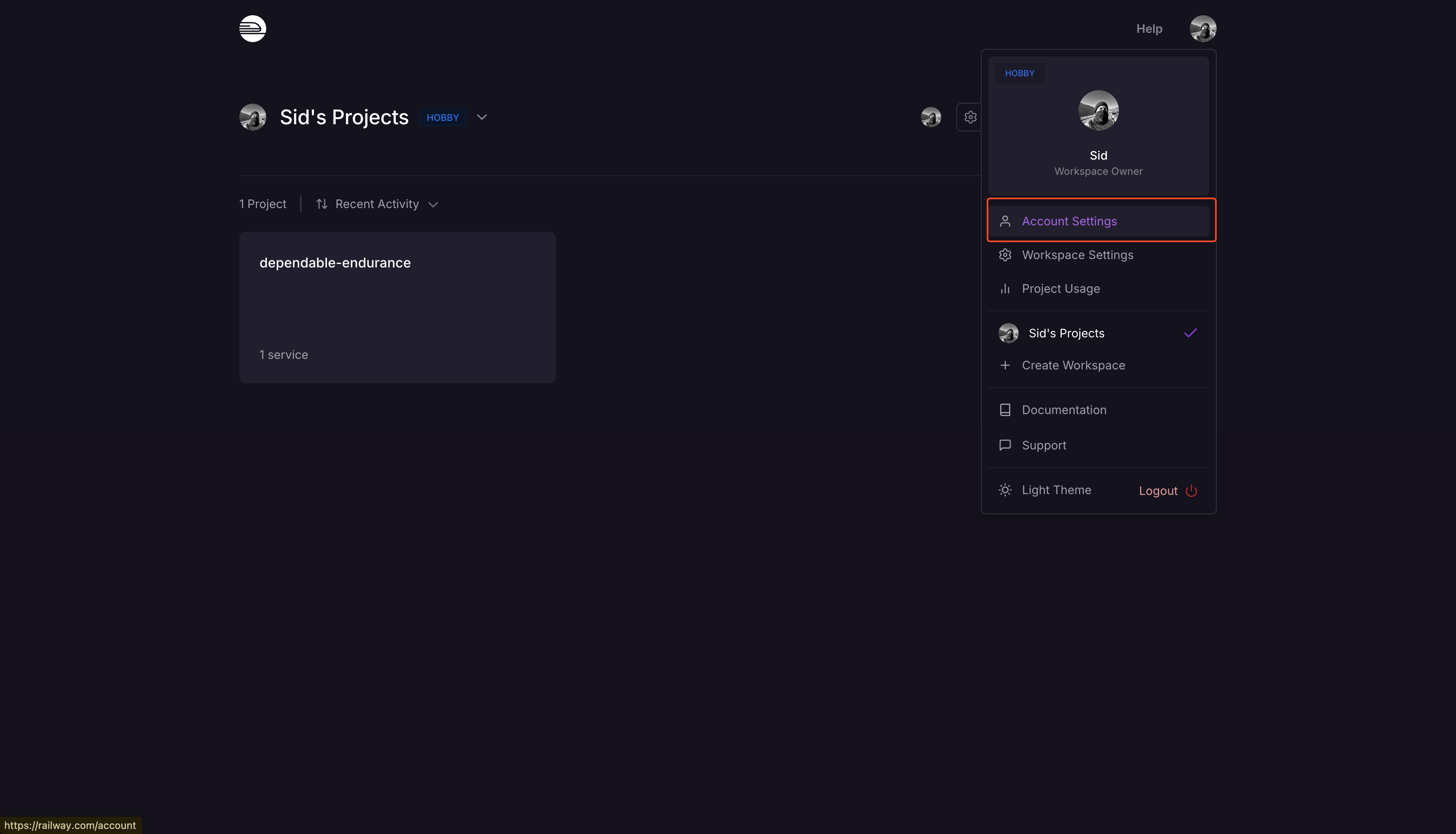
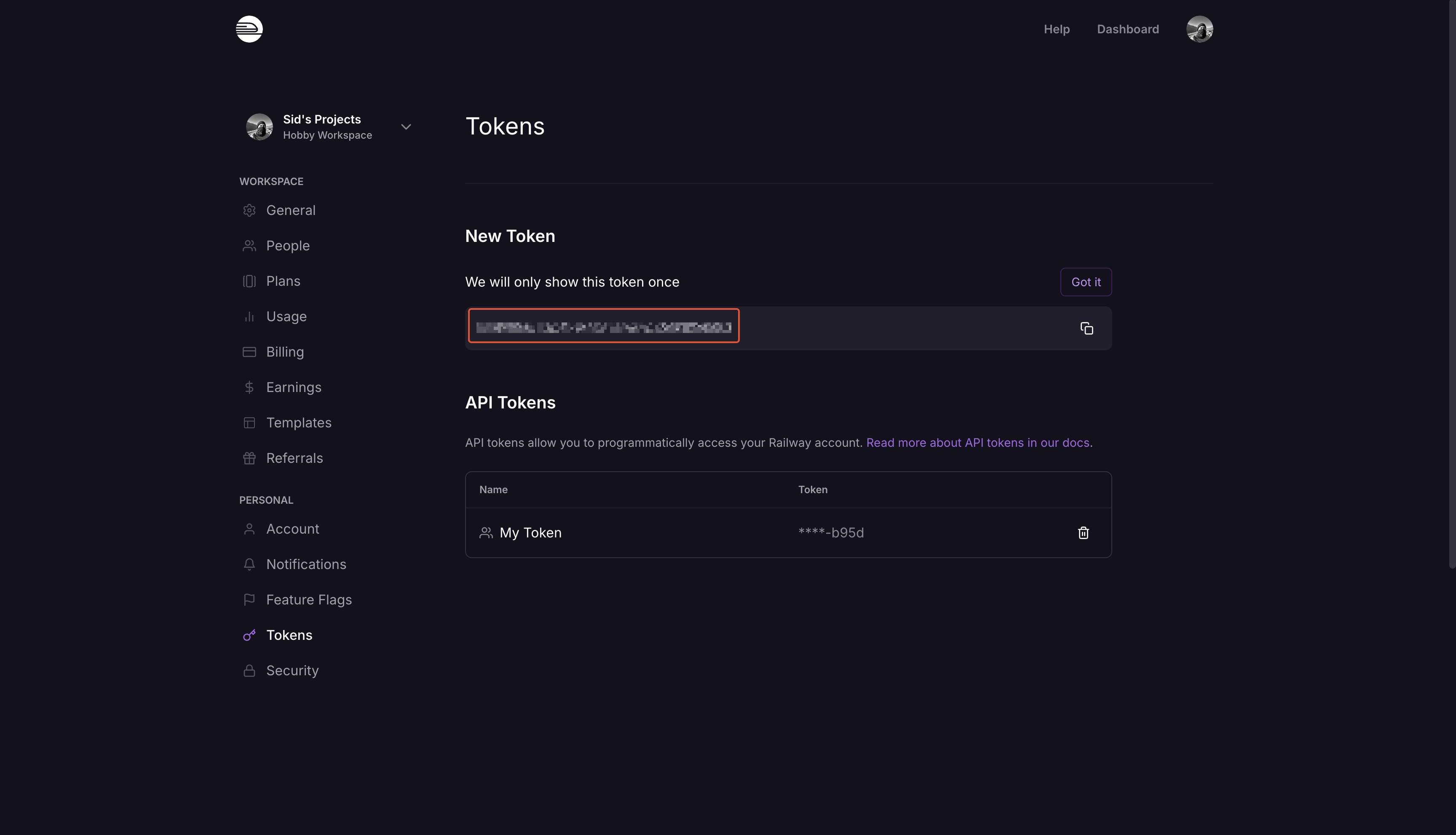
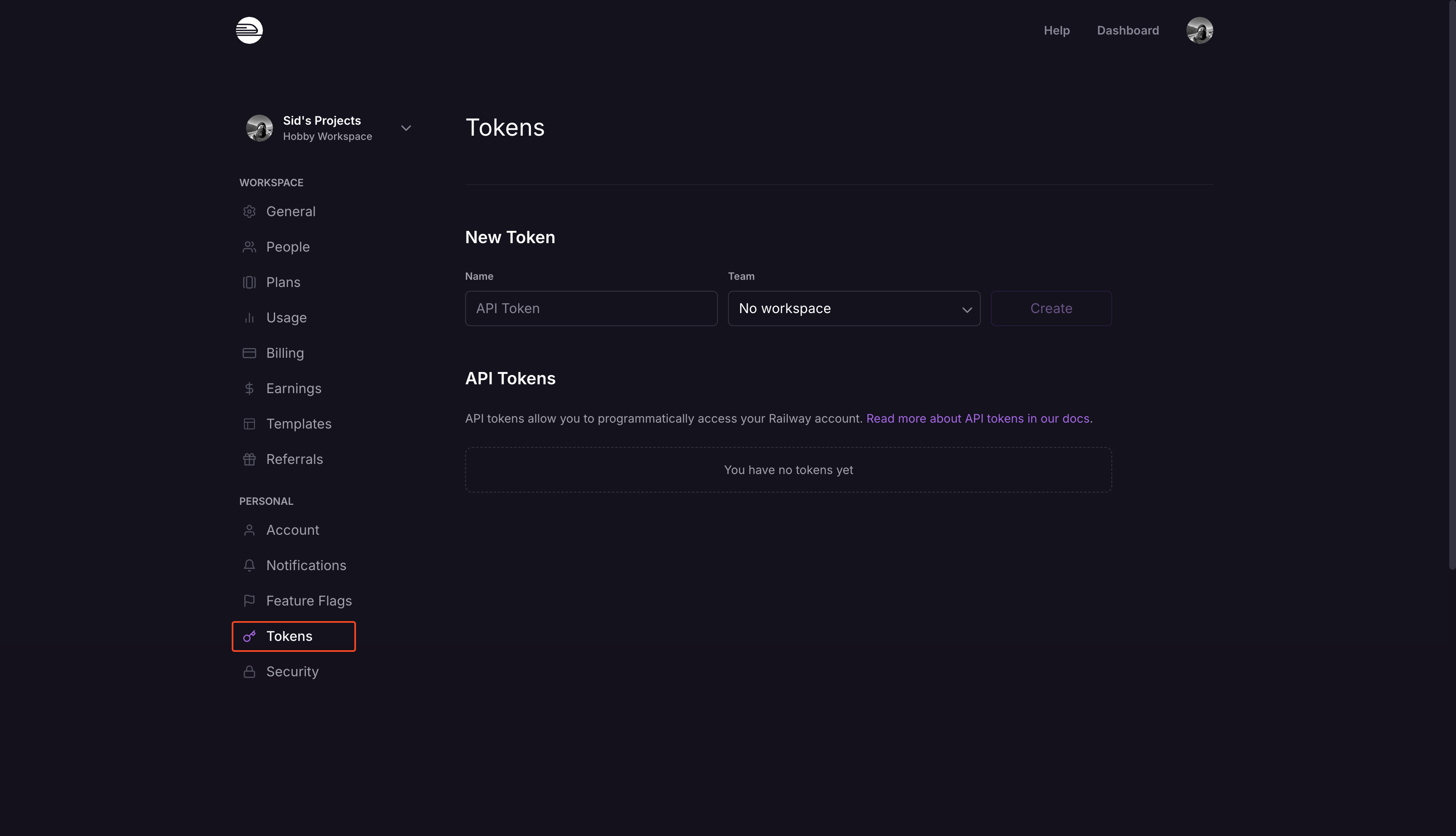 Make sure to provide a descriptive name and select the correct team.
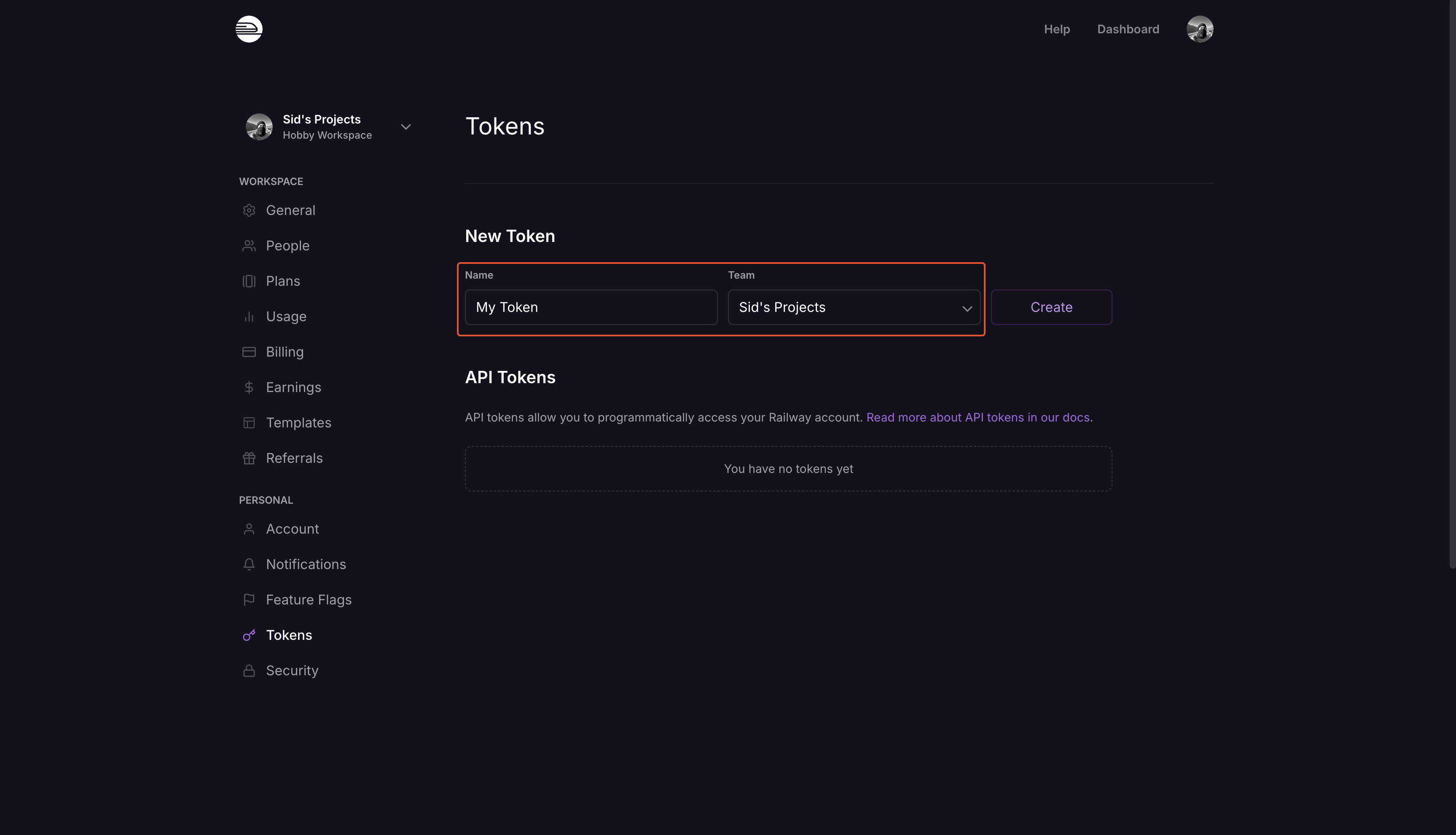
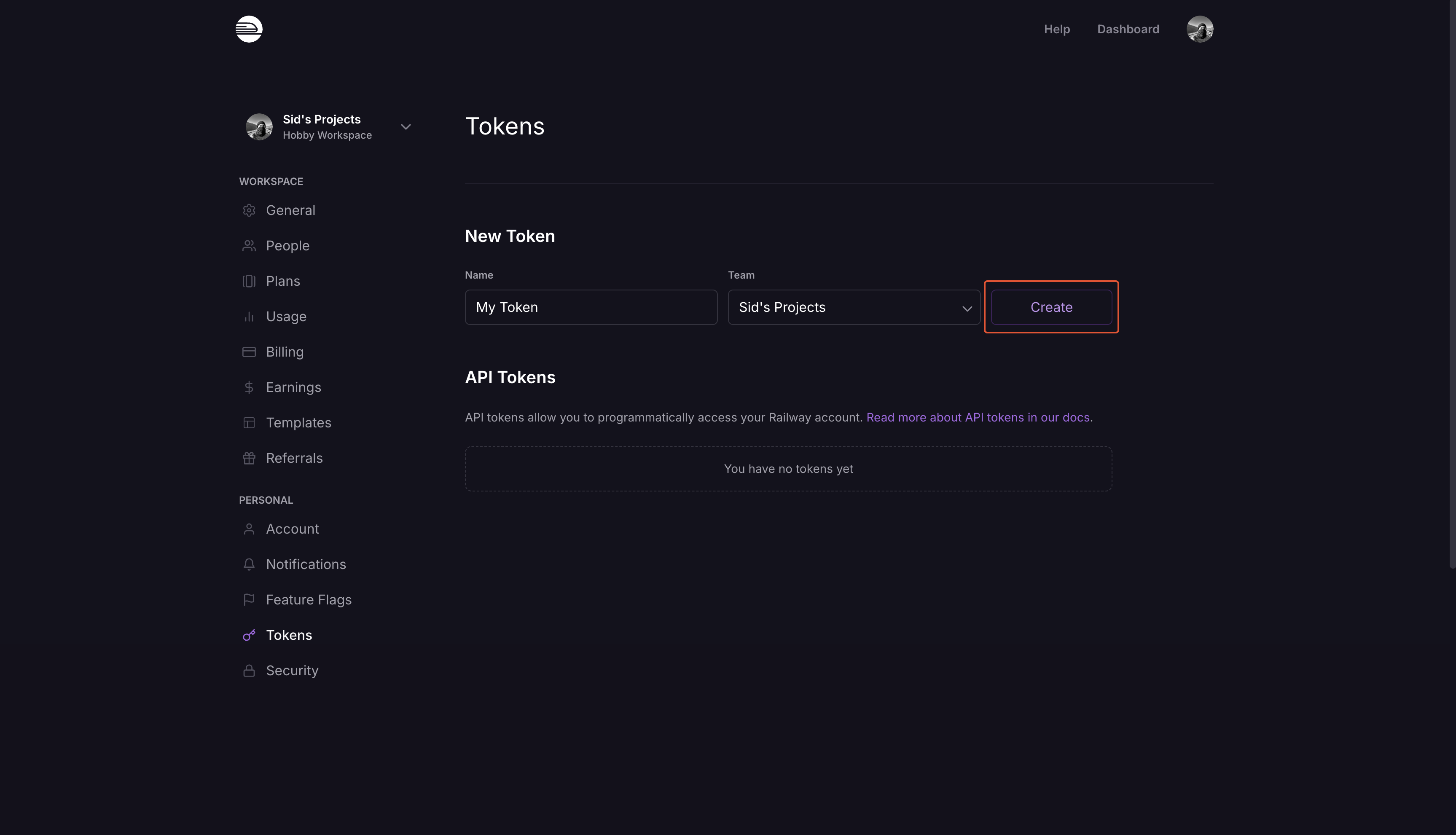 After clicking 'Create', your access token will be displayed. Save it securely for later use.
 If no team is selected, the token will be associated with your personal Railway account and will have access to all your individual and team resources.
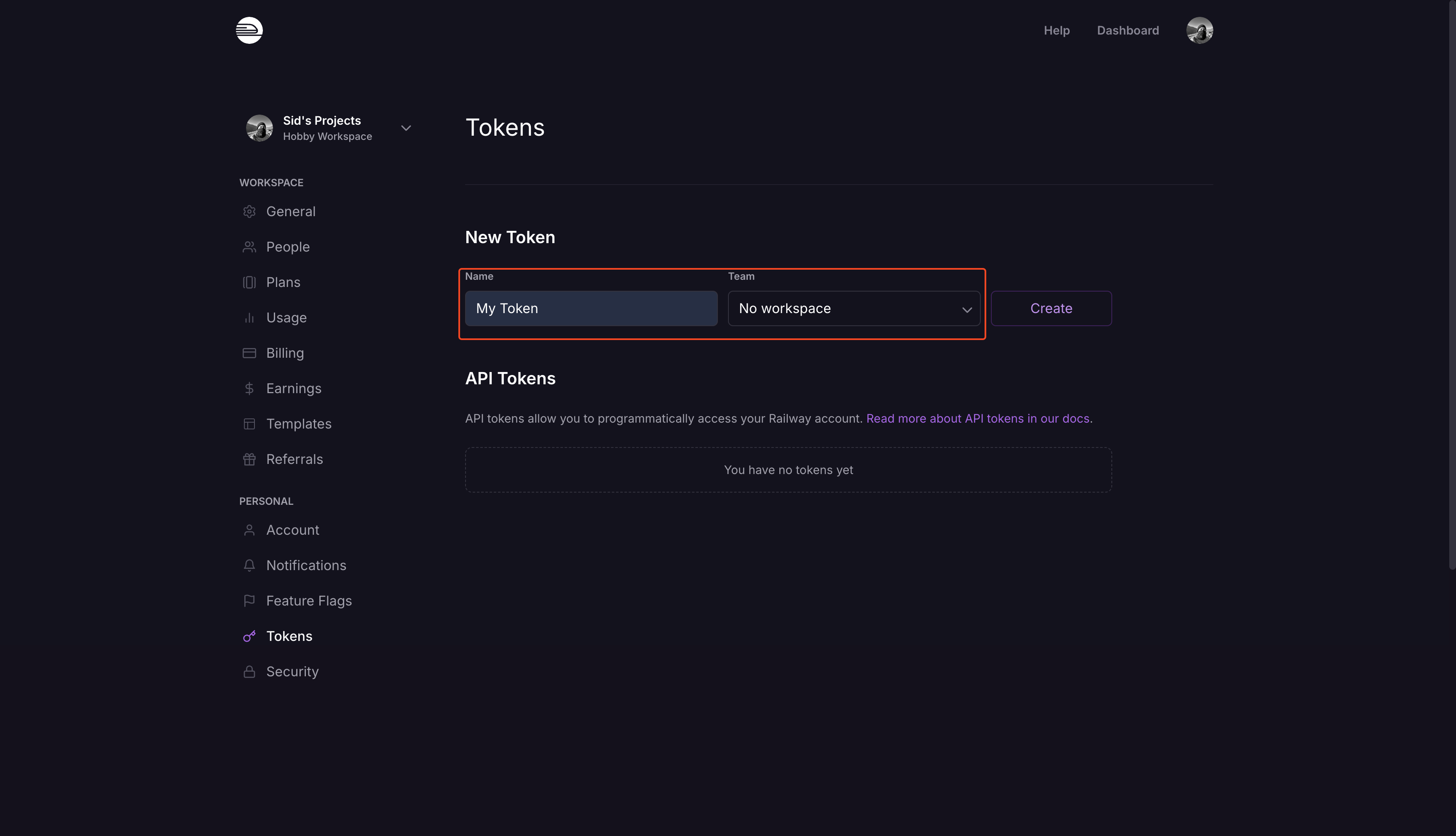
Provide a descriptive name and ensure no team is selected. This will create an account-level token.
If no team is selected, the token will be associated with your personal Railway account and will have access to all your individual and team resources.
Provide a descriptive name and ensure no team is selected. This will create an account-level token.
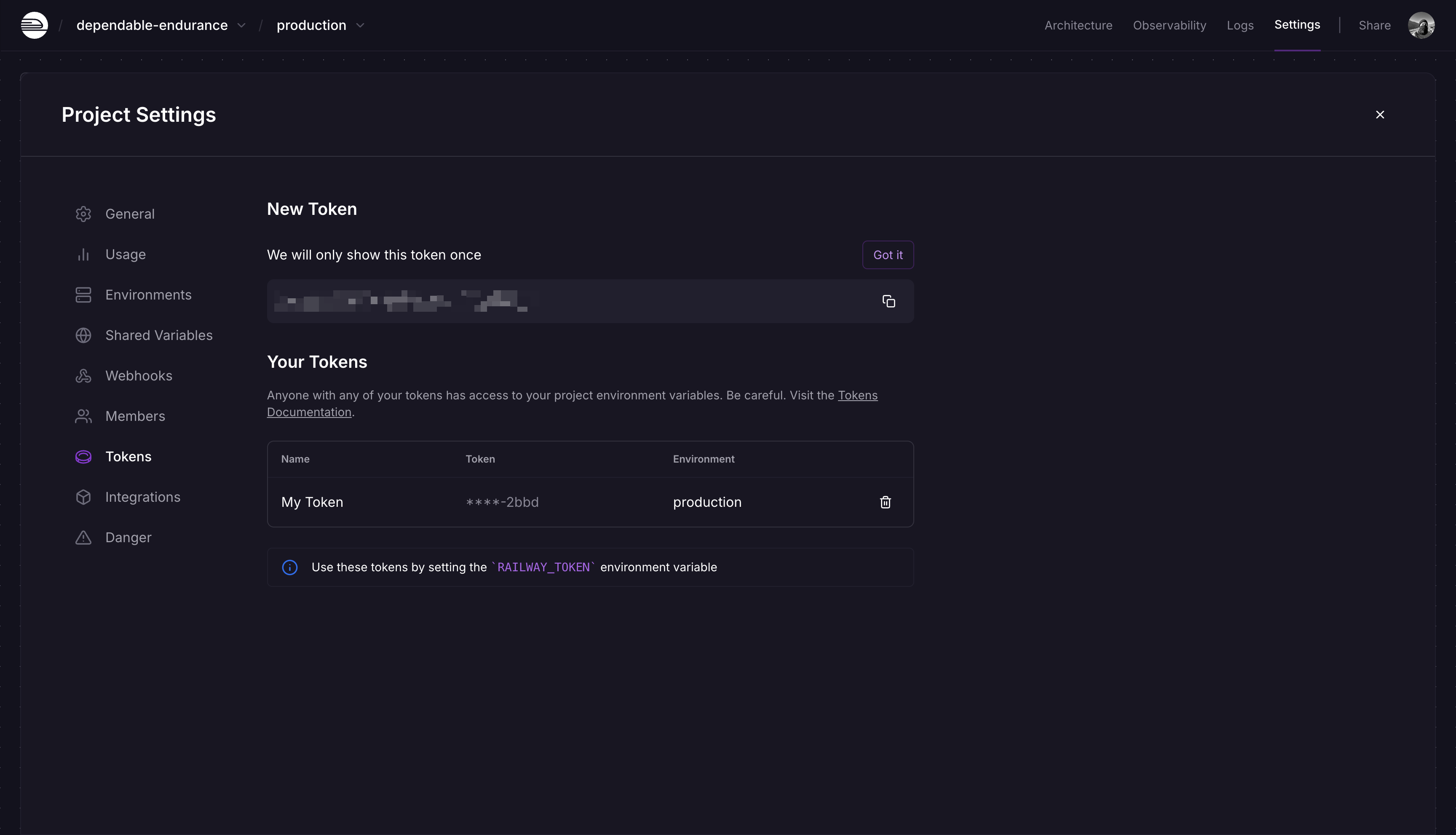
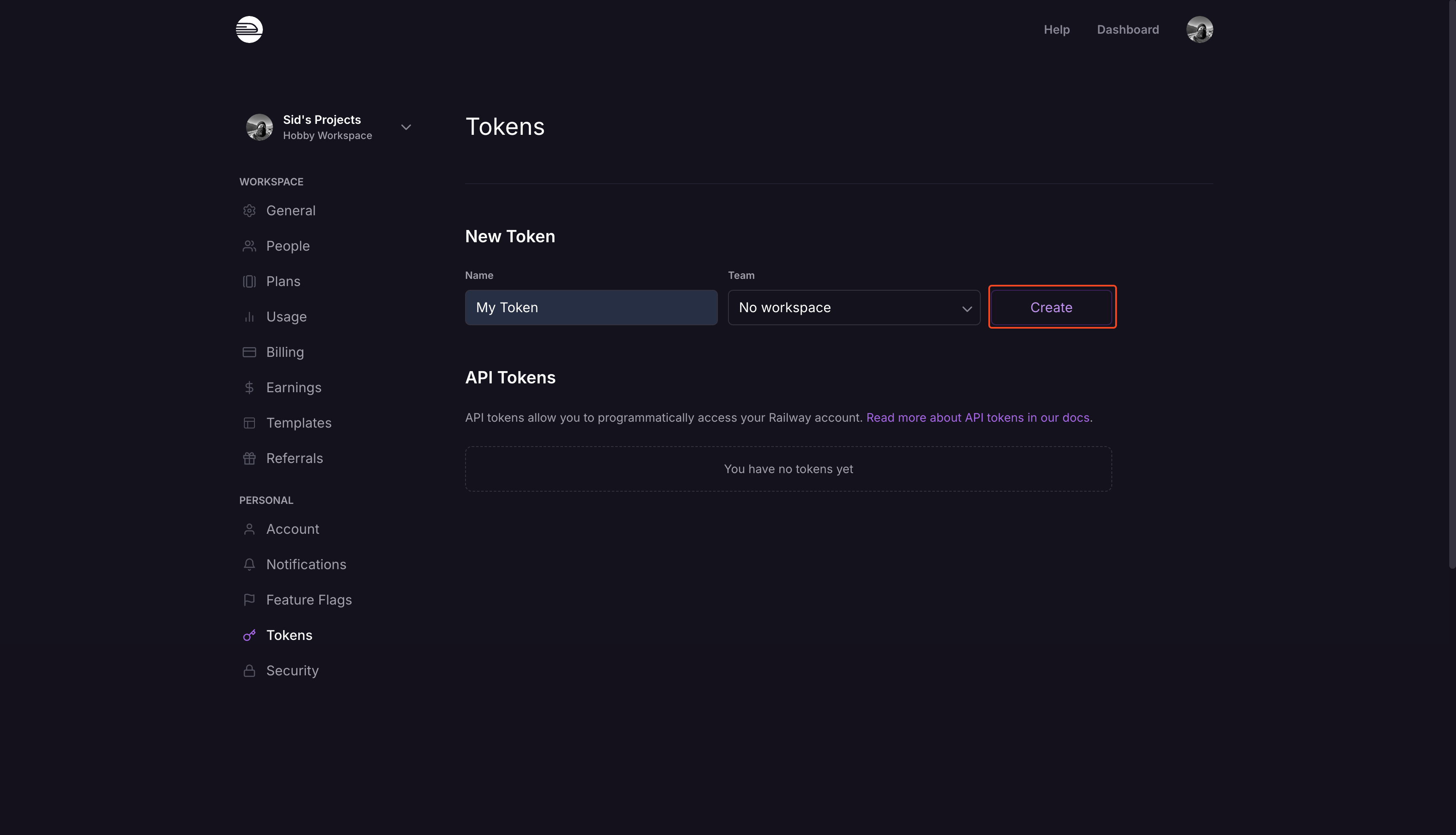 After clicking 'Create', your access token will be shown. Save it for future use.
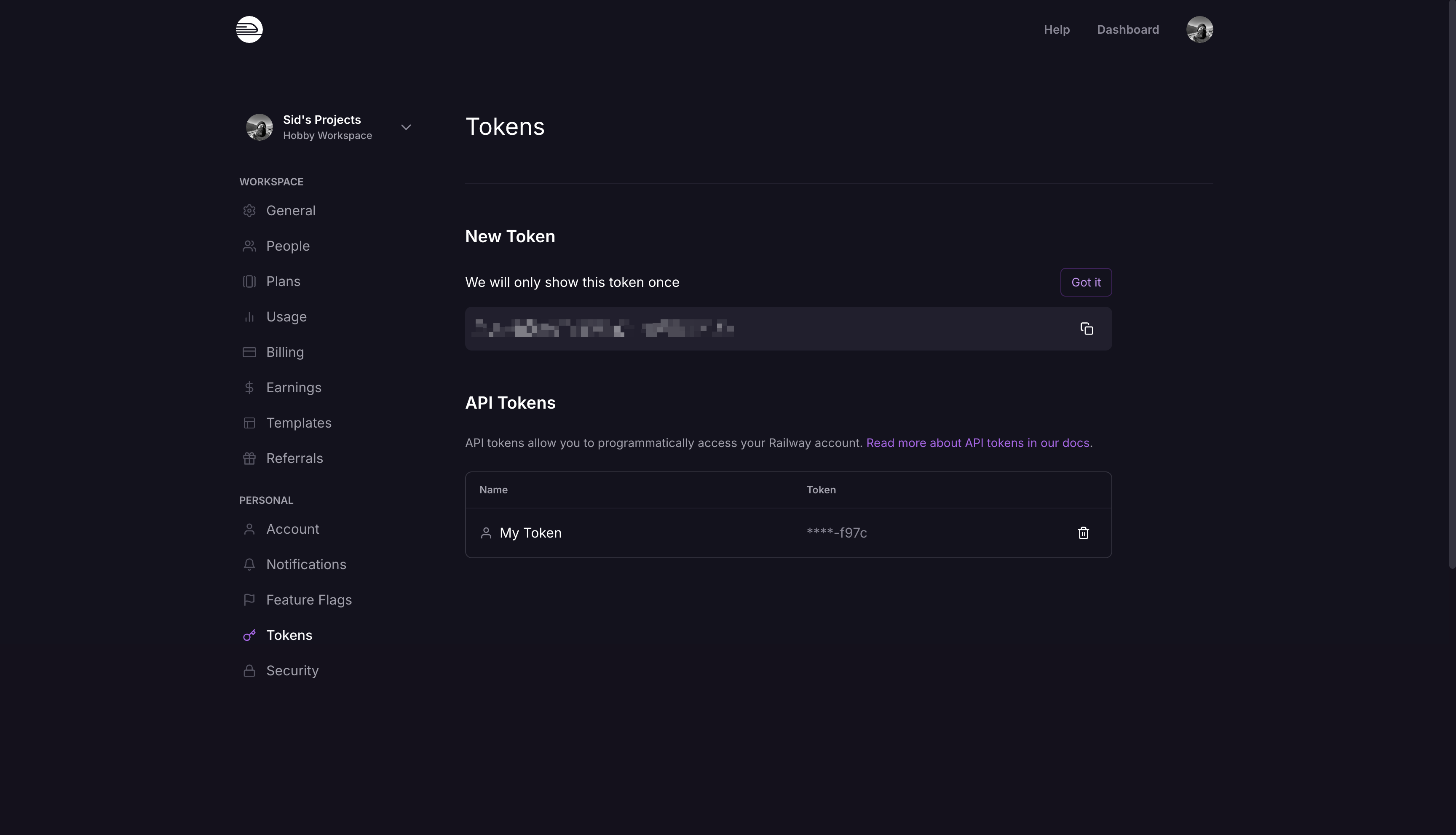 Project tokens are limited to a specific environment within a project and can only be used to authenticate requests to that environment.
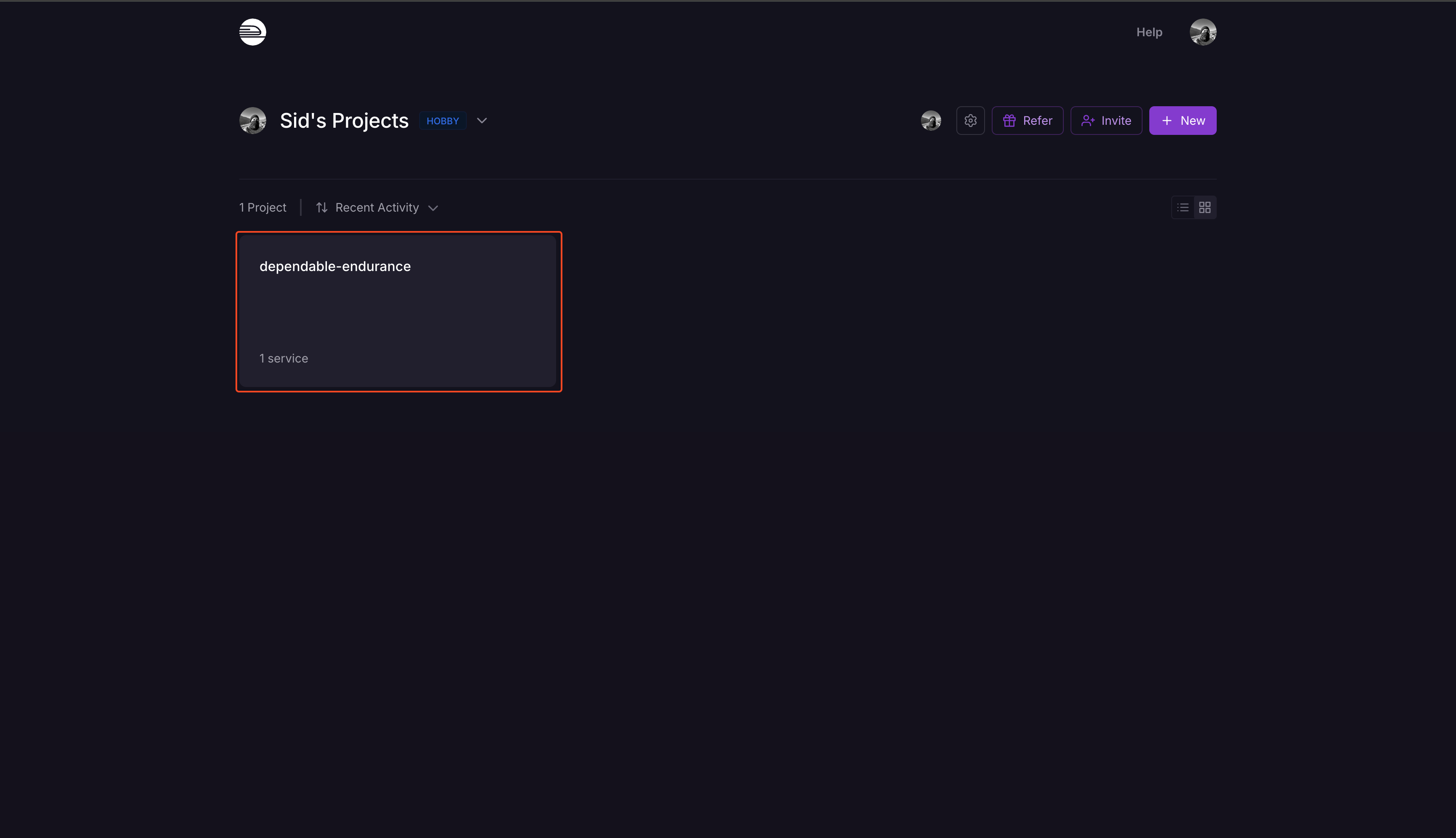
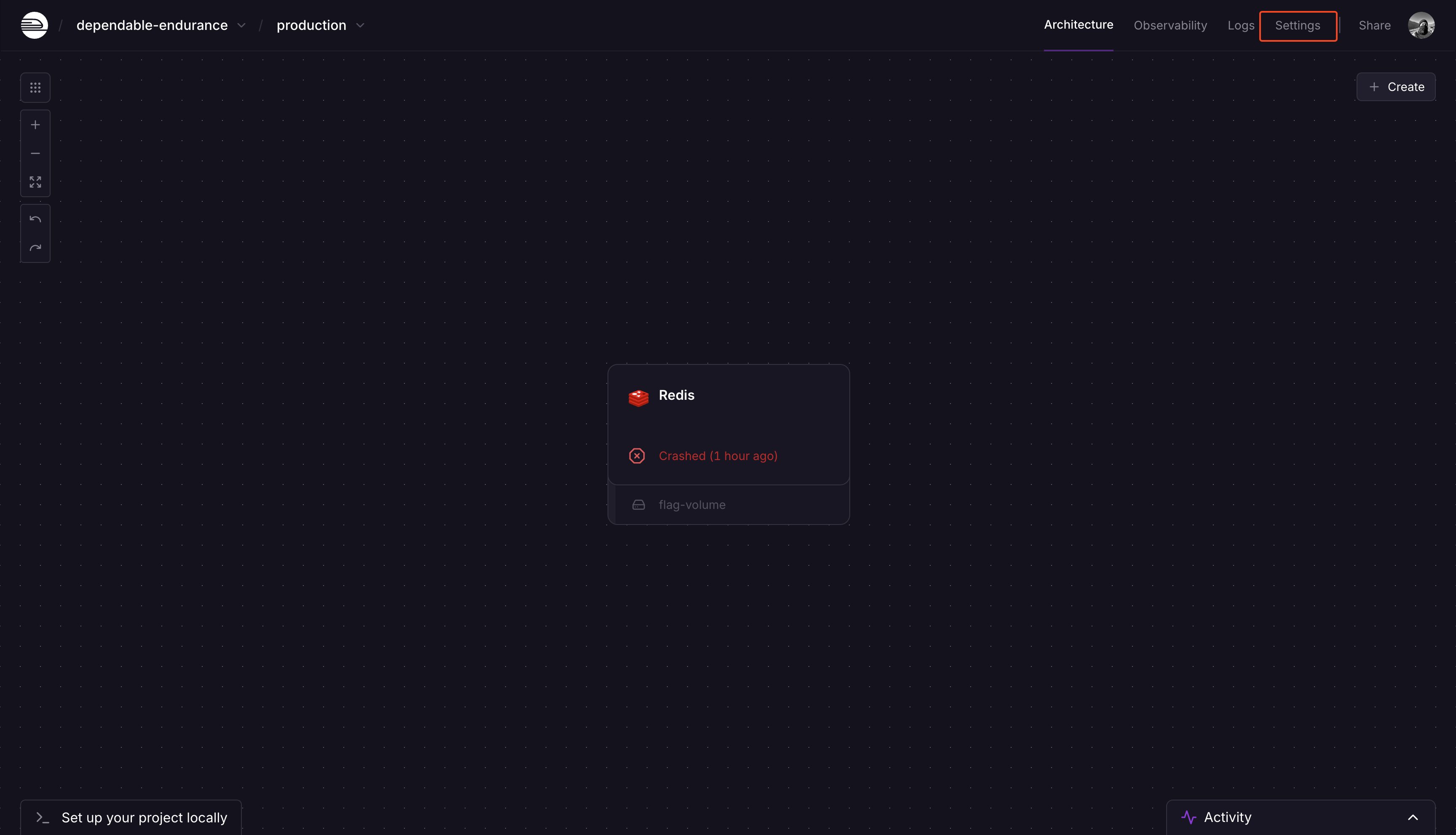
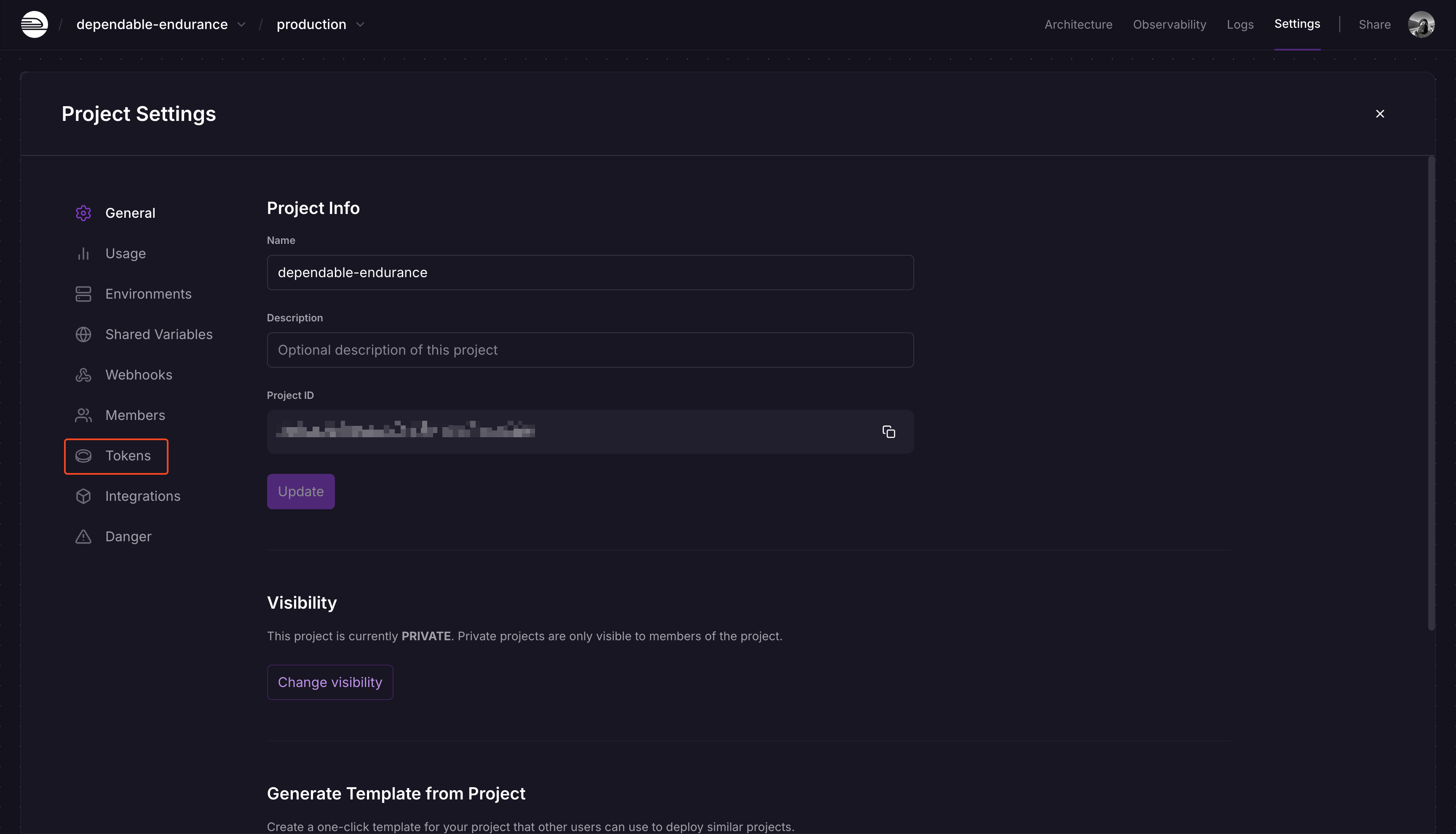 Provide a descriptive name and select the appropriate environment for the token.
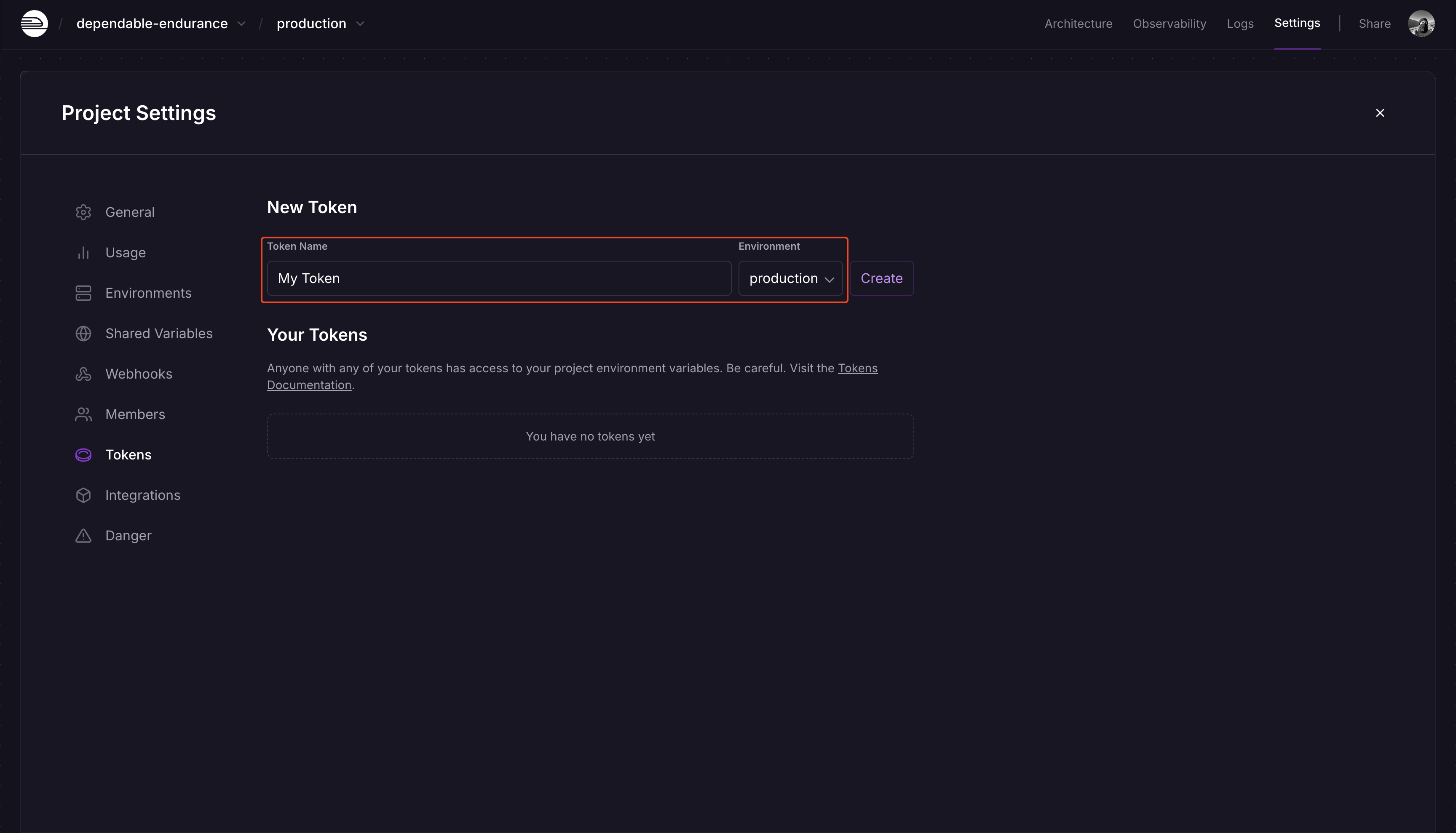
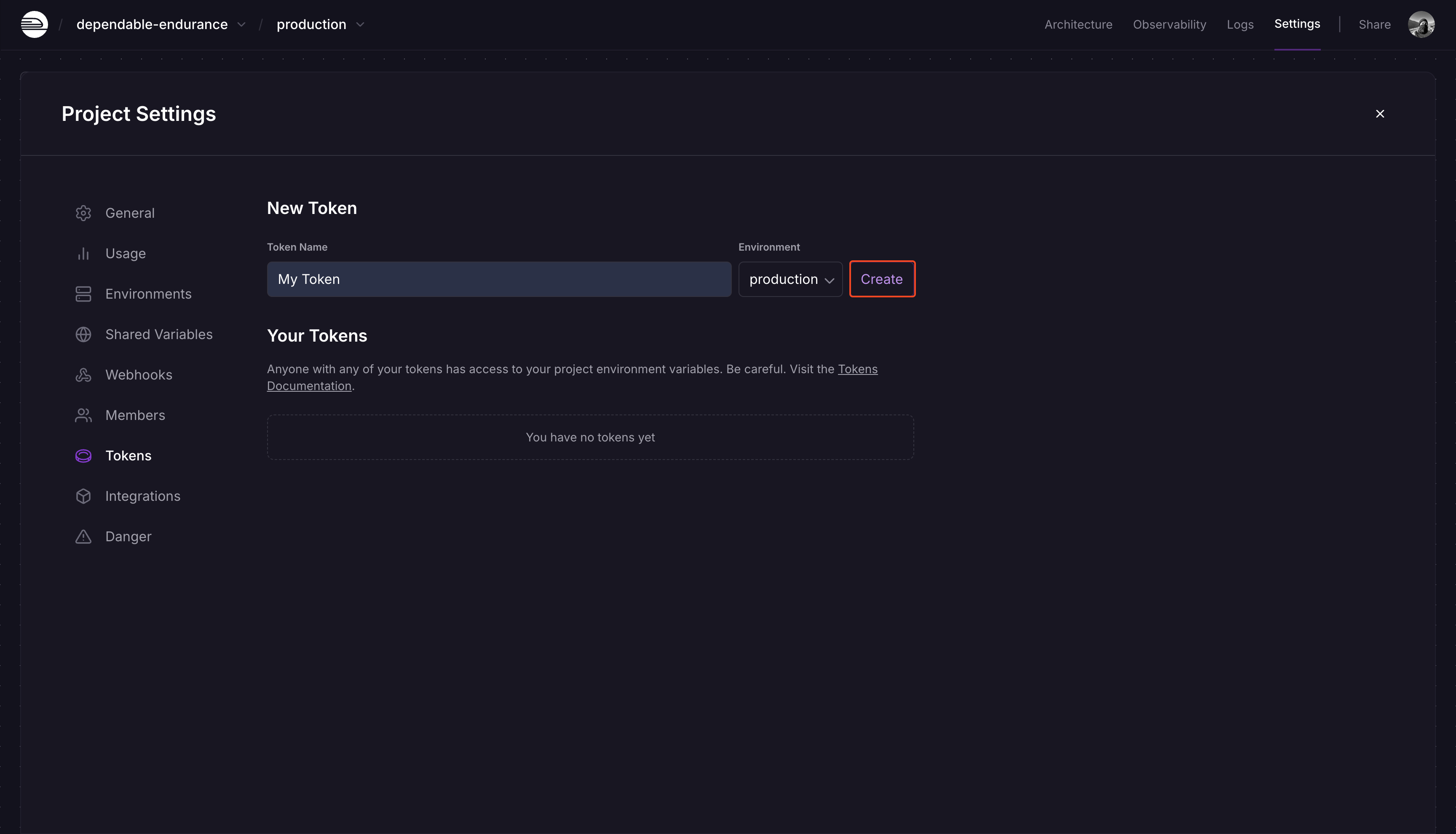 After clicking 'Create', the access token will be displayed. Be sure to save it for later use.
 ## Create a Railway Connection in Infisical
In your Infisical dashboard, navigate to the **Integrations** tab in the desired project, then select **App Connections**.
## Create a Railway Connection in Infisical
In your Infisical dashboard, navigate to the **Integrations** tab in the desired project, then select **App Connections**.
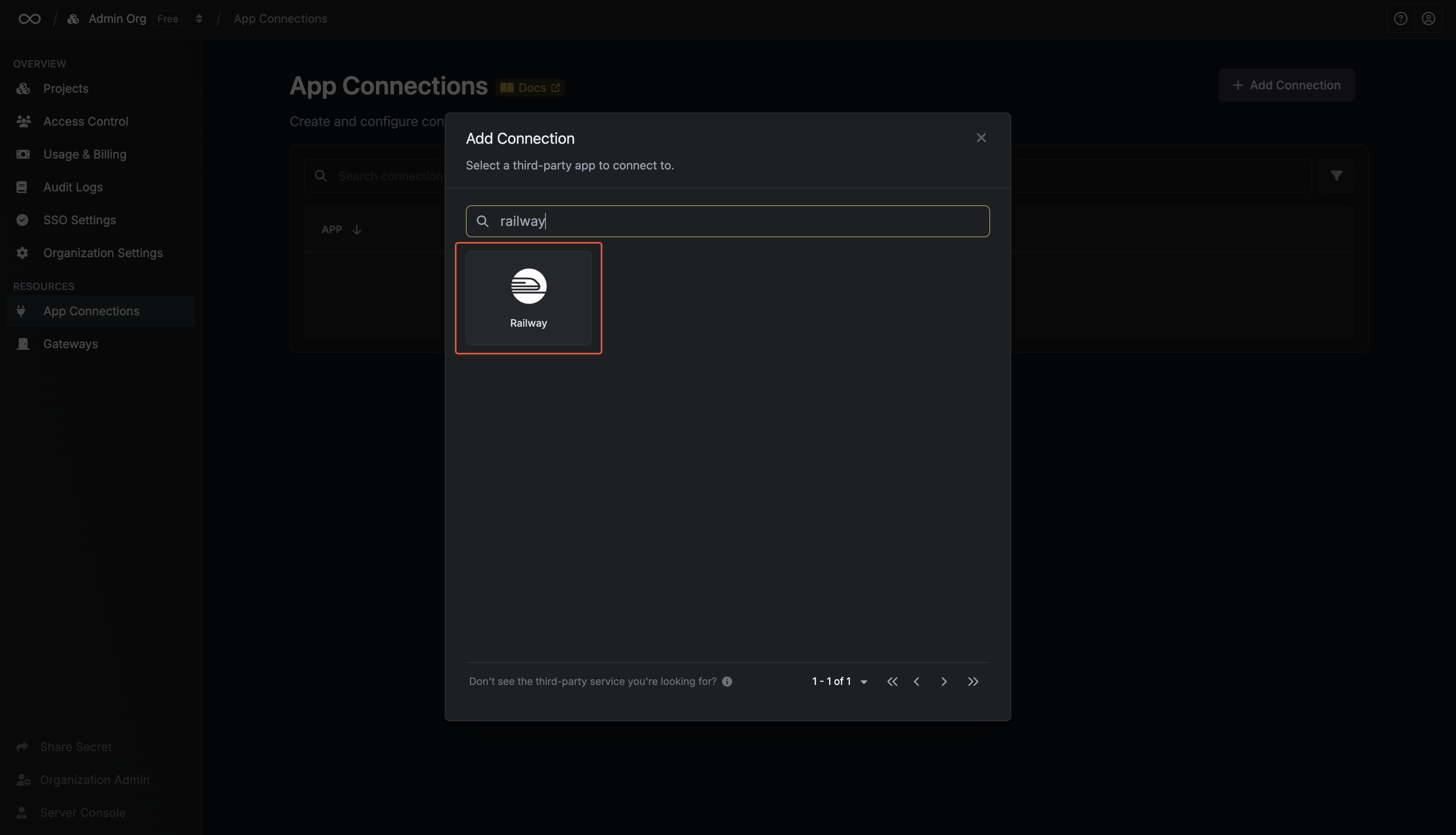
 Click **+ Add Connection** and choose **Railway Connection** from the list of integrations.
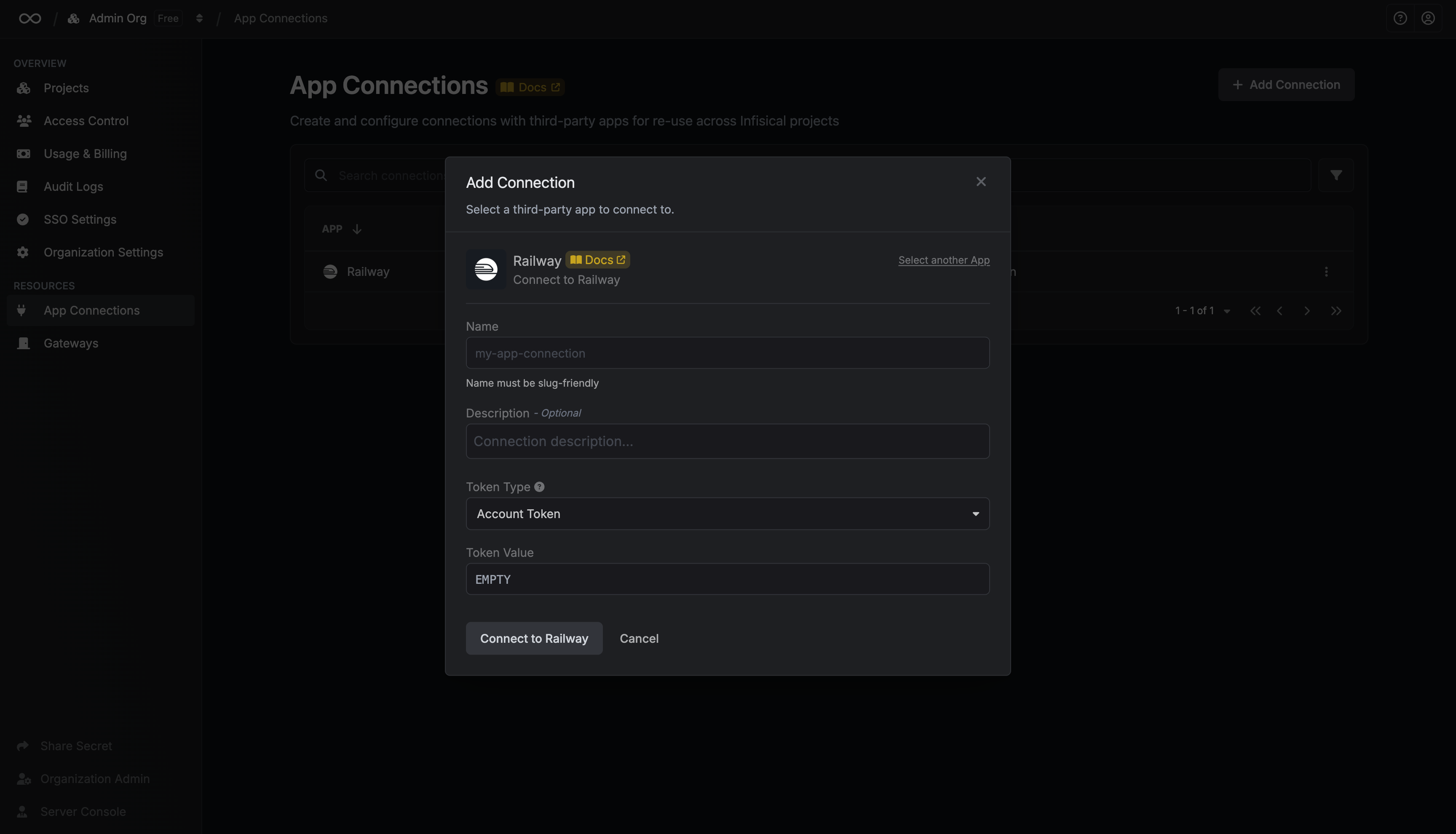
 Complete the form by providing:
* A descriptive name for the connection
* An optional description
* The type of token you created earlier
* The token value from the previous step
Complete the form by providing:
* A descriptive name for the connection
* An optional description
* The type of token you created earlier
* The token value from the previous step
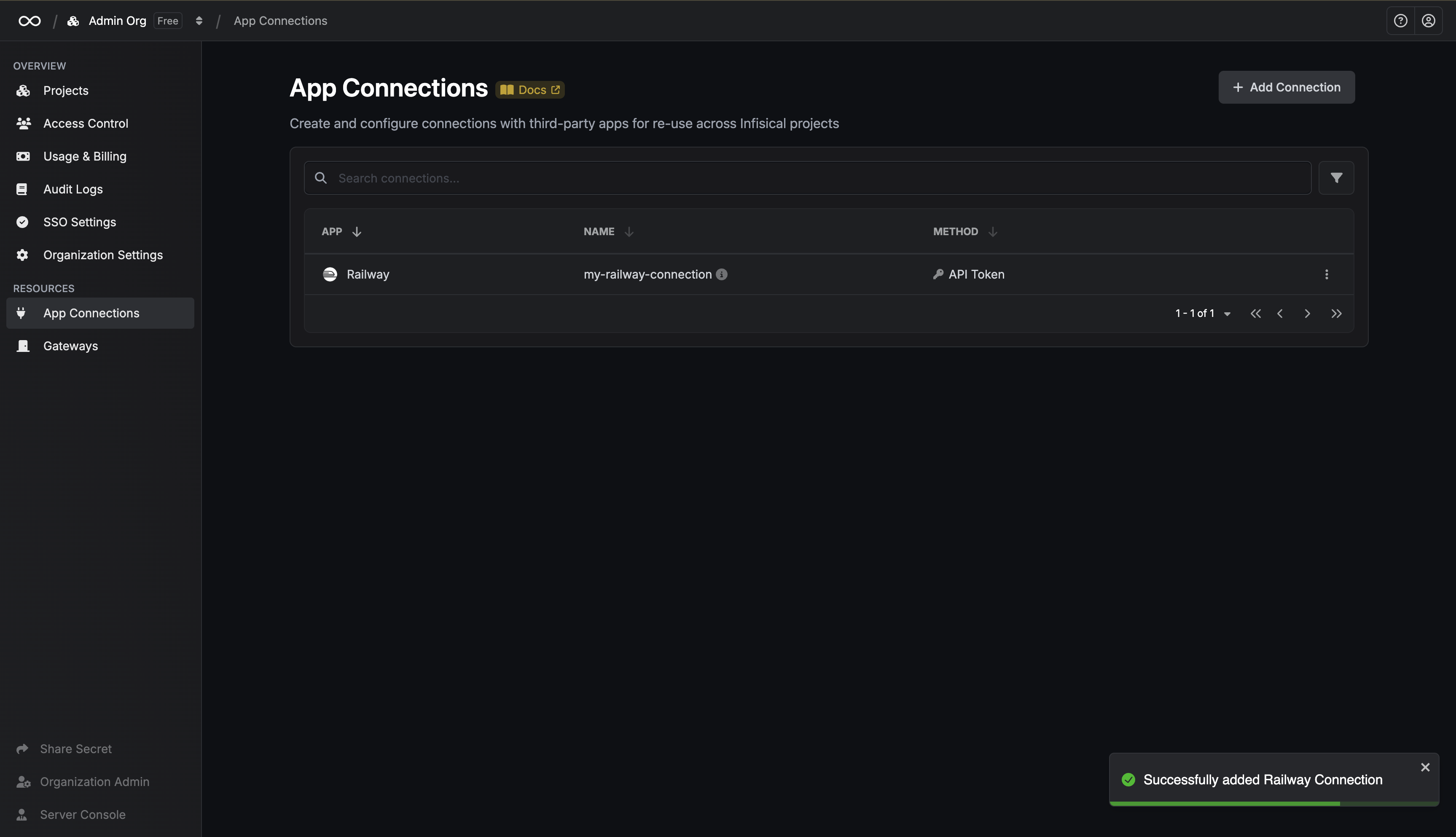
 After submitting the form, your **Railway Connection** will be successfully created and ready to use with your Infisical project.
 To create a Railway Connection via API, send a request to the [Create Railway Connection](/api-reference/endpoints/app-connections/railway/create) endpoint.
### Sample request
```bash Request theme={"dark"}
curl --request POST \
--url https://app.infisical.com/api/v1/app-connections/railway \
--header 'Content-Type: application/json' \
--data '{
"name": "my-railway-connection",
"method": "team-token",
"projectId": "7ffbb072-2575-495a-b5b0-127f88caef78",
"credentials": {
"apiToken": "[TEAM TOKEN]"
}
}'
```
### Sample response
```bash Response theme={"dark"}
{
"appConnection": {
"id": "e5d18aca-86f7-4026-a95e-efb8aeb0d8e6",
"name": "my-railway-connection",
"projectId": "7ffbb072-2575-495a-b5b0-127f88caef78",
"description": null,
"version": 1,
"orgId": "6f03caa1-a5de-43ce-b127-95a145d3464c",
"createdAt": "2025-04-23T19:46:34.831Z",
"updatedAt": "2025-04-23T19:46:34.831Z",
"isPlatformManagedCredentials": false,
"credentialsHash": "7c2d371dec195f82a6a0d5b41c970a229cfcaf88e894a5b6395e2dbd0280661f",
"app": "railway",
"method": "team-token",
"credentials": {}
}
}
```
To create a Railway Connection via API, send a request to the [Create Railway Connection](/api-reference/endpoints/app-connections/railway/create) endpoint.
### Sample request
```bash Request theme={"dark"}
curl --request POST \
--url https://app.infisical.com/api/v1/app-connections/railway \
--header 'Content-Type: application/json' \
--data '{
"name": "my-railway-connection",
"method": "team-token",
"projectId": "7ffbb072-2575-495a-b5b0-127f88caef78",
"credentials": {
"apiToken": "[TEAM TOKEN]"
}
}'
```
### Sample response
```bash Response theme={"dark"}
{
"appConnection": {
"id": "e5d18aca-86f7-4026-a95e-efb8aeb0d8e6",
"name": "my-railway-connection",
"projectId": "7ffbb072-2575-495a-b5b0-127f88caef78",
"description": null,
"version": 1,
"orgId": "6f03caa1-a5de-43ce-b127-95a145d3464c",
"createdAt": "2025-04-23T19:46:34.831Z",
"updatedAt": "2025-04-23T19:46:34.831Z",
"isPlatformManagedCredentials": false,
"credentialsHash": "7c2d371dec195f82a6a0d5b41c970a229cfcaf88e894a5b6395e2dbd0280661f",
"app": "railway",
"method": "team-token",
"credentials": {}
}
}
```