> ## Documentation Index
> Fetch the complete documentation index at: https://infisical.com/docs/llms.txt
> Use this file to discover all available pages before exploring further.
# Portainer connection
> Learn how to configure a Portainer connection for Infisical.
A Portainer connection authenticates Infisical to Portainer with an [access token](https://docs.portainer.io/api/access), so Infisical can list your environments and stacks and update a stack's environment variables.
The token inherits the permissions of the Portainer user who created it, so Infisical can only reach the environments and stacks that user can.
This guide only authenticates Infisical with Portainer. Once the app connection is ready, you can [use it to set up integrations](#step-3-configure-integrations).
## Prerequisites
* Portainer Community Edition 2.39 or later, or Business Edition 2.42 or later
* A Portainer user whose permissions cover the environments and stacks you want to sync to
* If your Portainer instance isn't reachable from the internet, a [Gateway](/docs/documentation/platform/gateways/overview) with network access to it
## Step 1: Generate a Portainer API token
Infisical needs an access token to call the Portainer API on your behalf.
Log in to your Portainer instance, select the user icon in the top-right corner, then select **My account**.
Scroll to the **Access tokens** section and select **Add access token**.
Enter a **Description** that identifies the token, such as `infisical`, then select **Add access token**.
An access token inherits the permissions of the user that created it, so create it as a user who can read the environments and update the stacks you plan to sync to.
Copy the token and store it securely. Portainer shows it only once.
## Step 2: Create the app connection
Next, create the app connection in Infisical.
To create the connection using the API, use the [Create Portainer Connection](/docs/api-reference/endpoints/app-connections/portainer/create) endpoint. If the instance isn't reachable from the internet, include the ID of a Gateway that can reach it as `gatewayId`, or the ID of a Gateway pool as `gatewayPoolId`.
In the sidebar, select **Integrations**, then open the **App Connections** tab.
 Select **Add Connection** and choose **Portainer**.
Fill out the form's fields:
* **Name**: A descriptive name for the connection; it must be slug-friendly
* **Description** (optional): A note for future reference
* **Gateway**: The Gateway or Gateway pool to route requests through if your Portainer instance isn't reachable from the internet; otherwise leave it as **Internet Gateway**
* **Method**: **API Token**, the only method the connection supports
* **Portainer Instance URL**: The URL of your Portainer instance, such as `https://portainer.example.com`
* **Portainer API Token**: The token you copied when [generating a Portainer API token](/docs/integrations/app-connections/portainer#step-1-generate-a-portainer-api-token)
Then, select **Connect to Portainer**.
In your Secrets Manager project, select **Integrations** from the sidebar, then open the **App Connections** tab.
Select **Add Connection** and choose **Portainer**.
Select **Add Connection** and choose **Portainer**.
Fill out the form's fields:
* **Name**: A descriptive name for the connection; it must be slug-friendly
* **Description** (optional): A note for future reference
* **Gateway**: The Gateway or Gateway pool to route requests through if your Portainer instance isn't reachable from the internet; otherwise leave it as **Internet Gateway**
* **Method**: **API Token**, the only method the connection supports
* **Portainer Instance URL**: The URL of your Portainer instance, such as `https://portainer.example.com`
* **Portainer API Token**: The token you copied when [generating a Portainer API token](/docs/integrations/app-connections/portainer#step-1-generate-a-portainer-api-token)
Then, select **Connect to Portainer**.
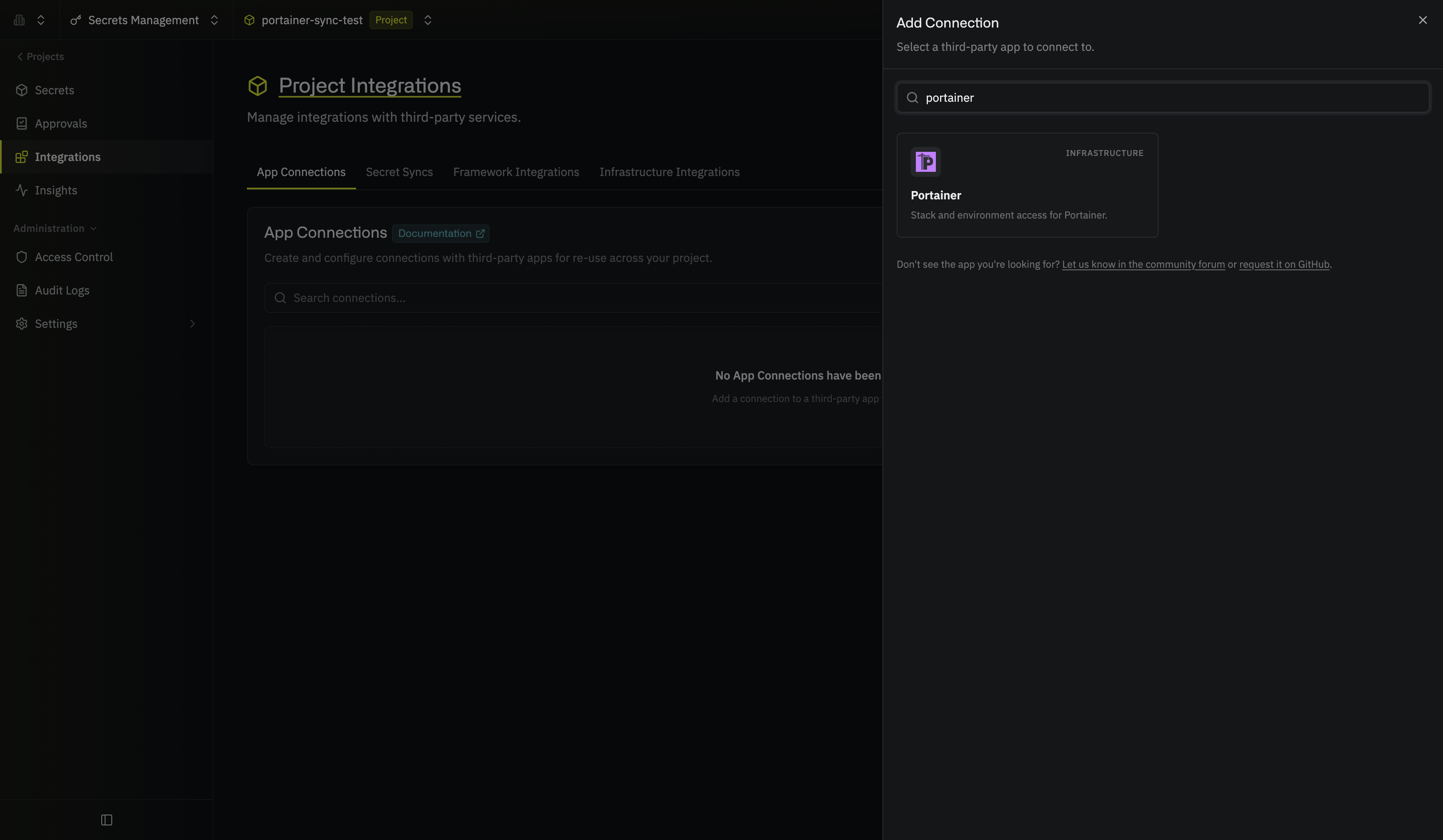
In your Secrets Manager project, select **Integrations** from the sidebar, then open the **App Connections** tab.
Select **Add Connection** and choose **Portainer**.
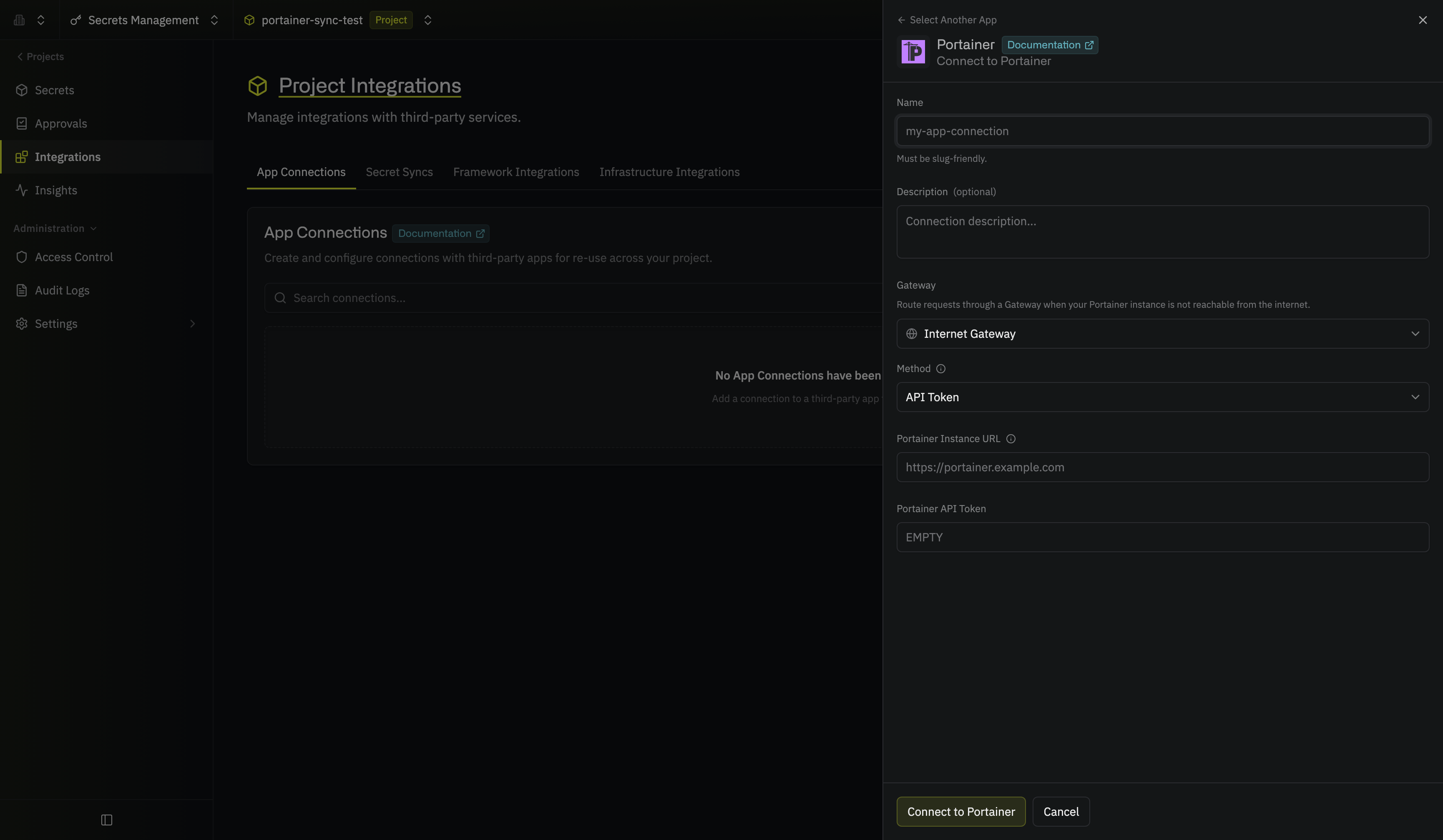
 Fill out the form's fields:
* **Name**: A descriptive name for the connection; it must be slug-friendly
* **Description** (optional): A note for future reference
* **Gateway**: The Gateway or Gateway pool to route requests through if your Portainer instance isn't reachable from the internet; otherwise leave it as **Internet Gateway**
* **Method**: **API Token**, the only method the connection supports
* **Portainer Instance URL**: The URL of your Portainer instance, such as `https://portainer.example.com`
* **Portainer API Token**: The token you copied when [generating a Portainer API token](/docs/integrations/app-connections/portainer#step-1-generate-a-portainer-api-token)
Then, select **Connect to Portainer**.
Fill out the form's fields:
* **Name**: A descriptive name for the connection; it must be slug-friendly
* **Description** (optional): A note for future reference
* **Gateway**: The Gateway or Gateway pool to route requests through if your Portainer instance isn't reachable from the internet; otherwise leave it as **Internet Gateway**
* **Method**: **API Token**, the only method the connection supports
* **Portainer Instance URL**: The URL of your Portainer instance, such as `https://portainer.example.com`
* **Portainer API Token**: The token you copied when [generating a Portainer API token](/docs/integrations/app-connections/portainer#step-1-generate-a-portainer-api-token)
Then, select **Connect to Portainer**.
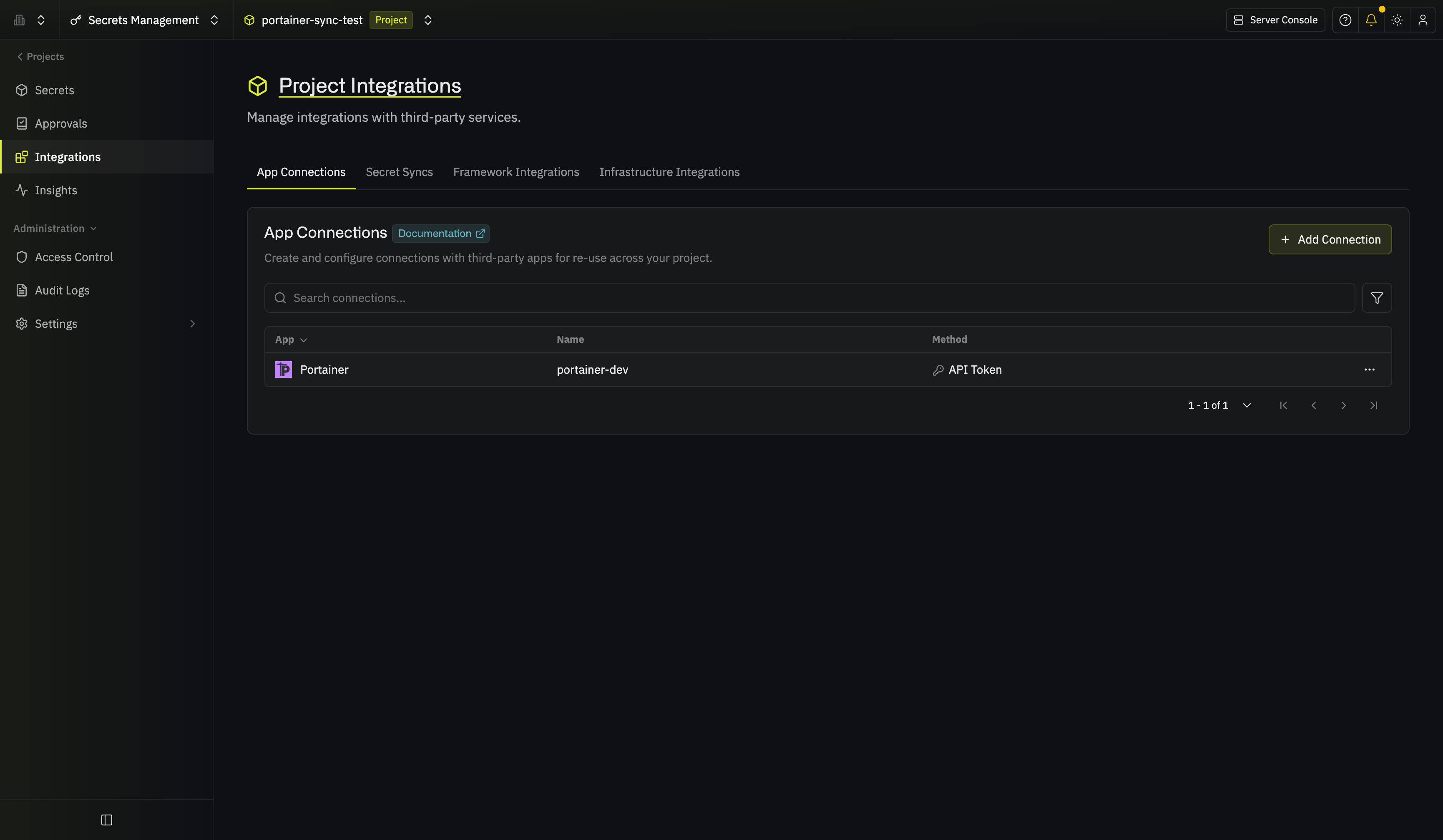
 When you submit the form, Infisical calls the Portainer API with the token to confirm that Portainer accepts it.
Your Portainer app connection is ready to use.
When you submit the form, Infisical calls the Portainer API with the token to confirm that Portainer accepts it.
Your Portainer app connection is ready to use.
 ## Step 3: Configure integrations
Now that your Portainer app connection is configured, you can use it to set up the following integration:
Sync secrets from Infisical to the environment variables of a Portainer stack.
This documentation is built and hosted on [Mintlify](https://mintlify.com), a developer documentation platform.
## Step 3: Configure integrations
Now that your Portainer app connection is configured, you can use it to set up the following integration:
Sync secrets from Infisical to the environment variables of a Portainer stack.
This documentation is built and hosted on [Mintlify](https://mintlify.com), a developer documentation platform.