> ## Documentation Index
> Fetch the complete documentation index at: https://infisical.com/docs/llms.txt
> Use this file to discover all available pages before exploring further.
# OVH Cloud Connection
> Learn how to configure an OVH Cloud Connection for Infisical.
Infisical authenticates to [OVHcloud Key Management Service (OKMS)](https://www.ovhcloud.com/en/identity-security-operations/secret-manager/) using mutual TLS (mTLS) with a PEM-encoded client certificate pair issued by OVH for your OKMS instance.
## Generate an OVH OKMS Access Certificate
Log in to the [OVHcloud Control Panel](https://www.ovh.com/manager/) and navigate to **Identity, Security & Operations** > **Key Management Service**.
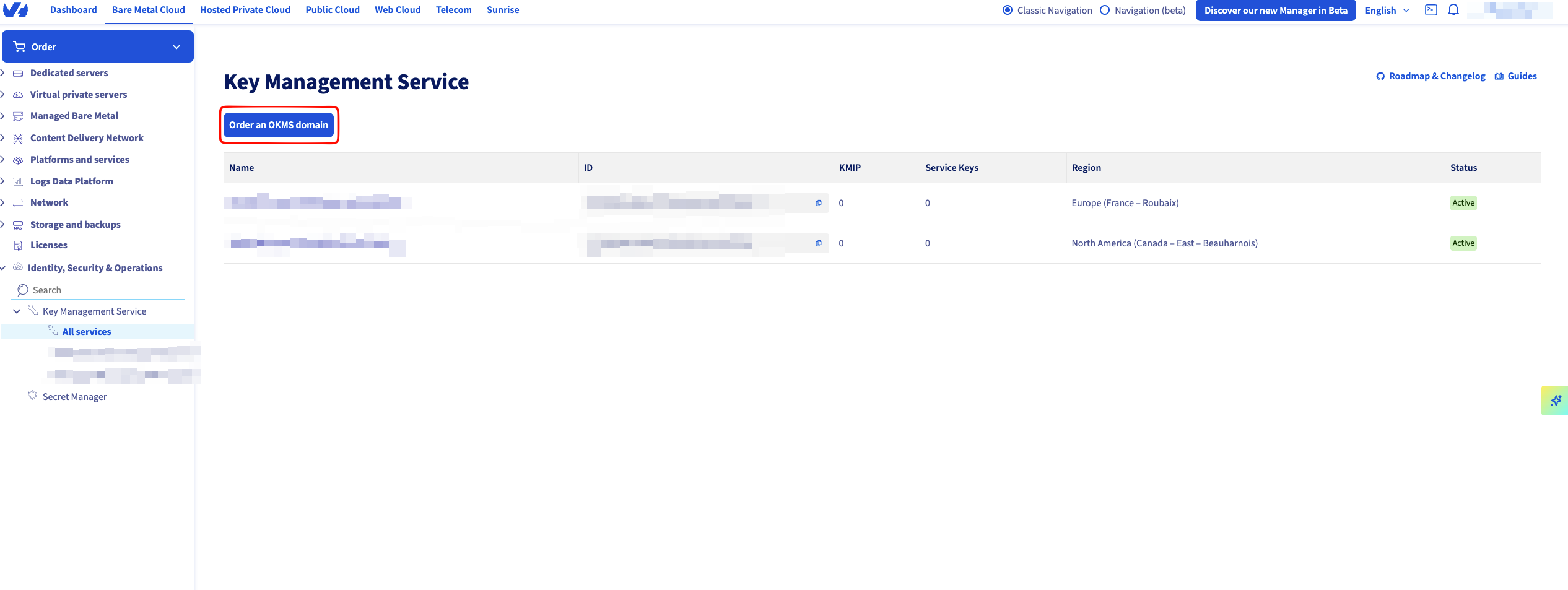
 Click on **Order an OKMS Domain**
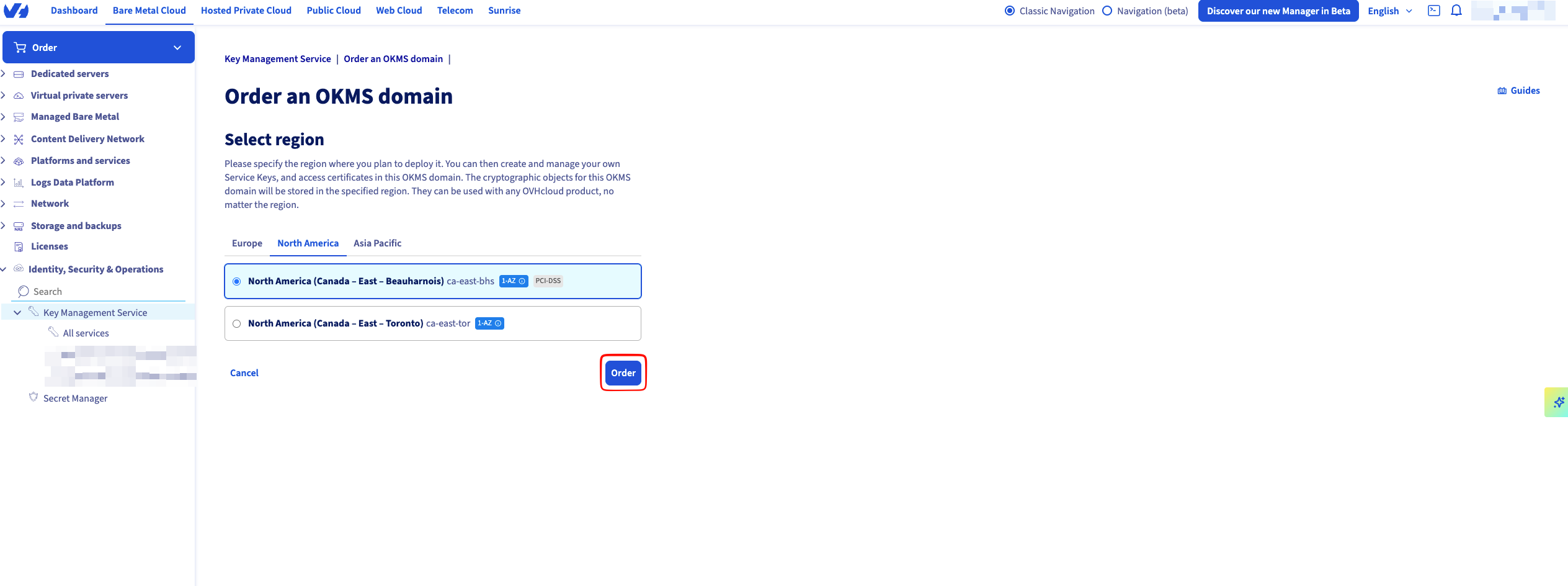
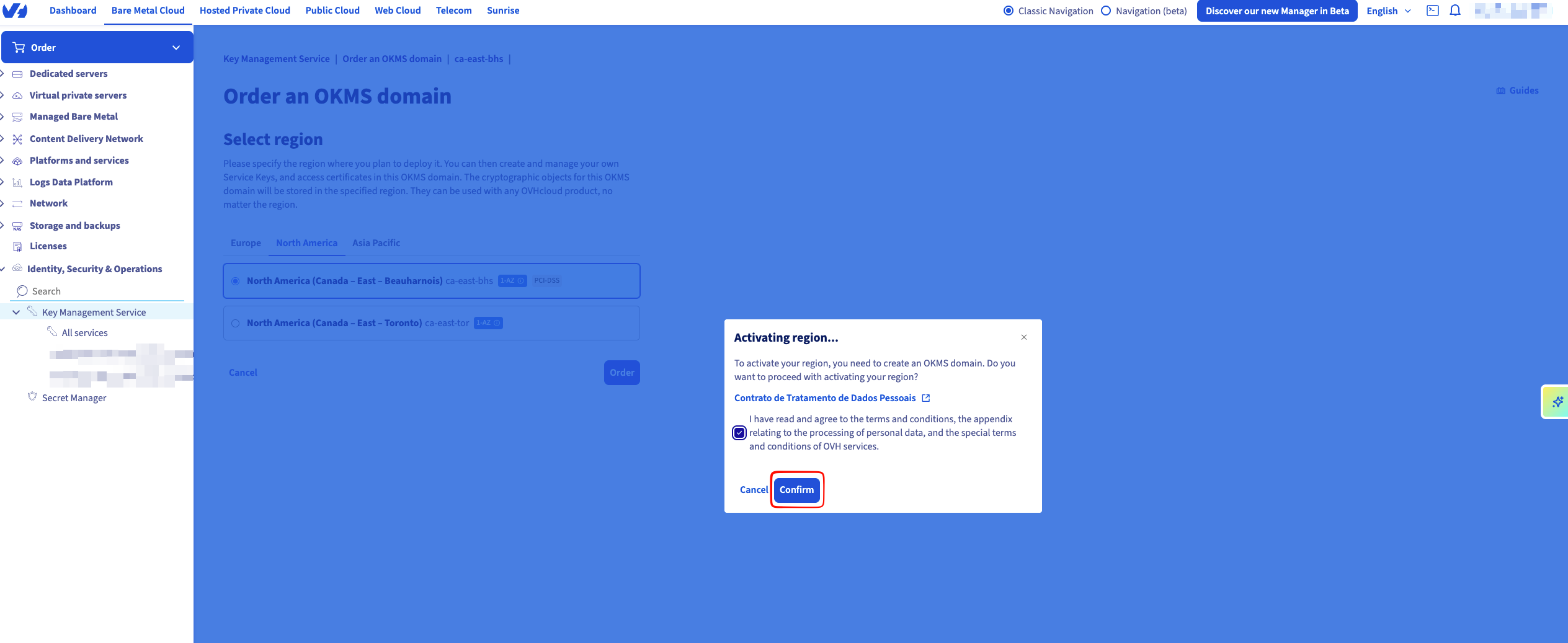
 Select the OKMS region that you want to use. You will also need to confirm by accepting the terms
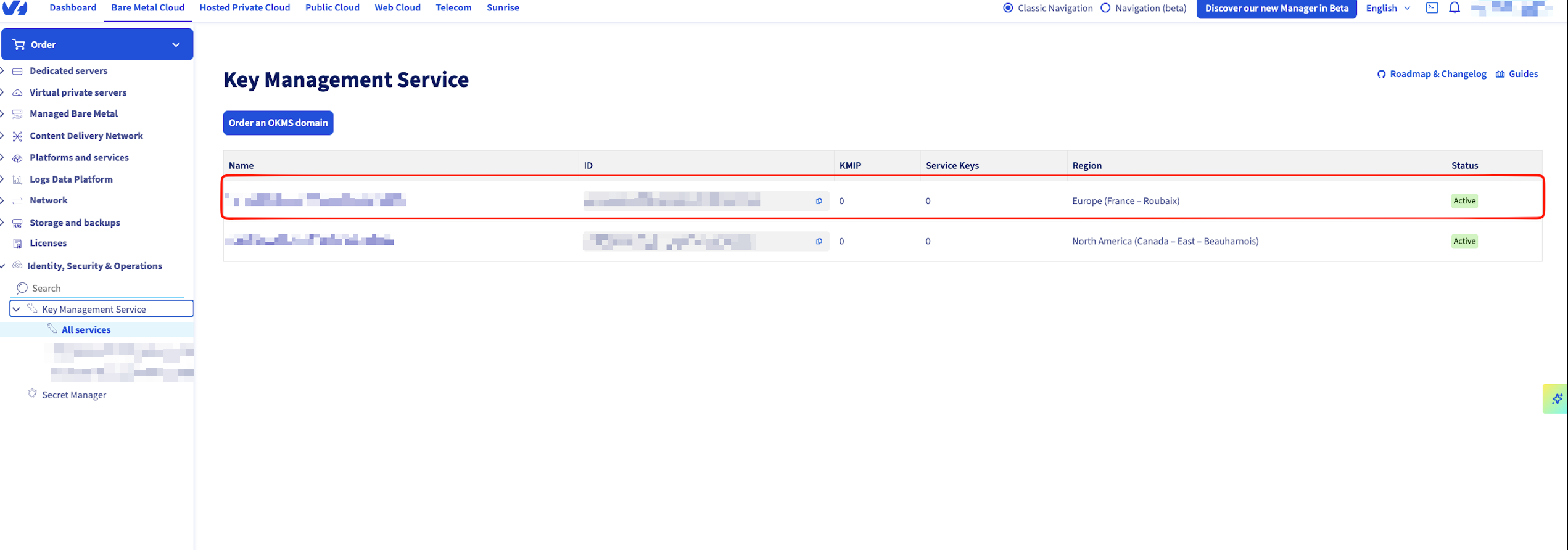
 On your summary, the desired domain by clicking on it.
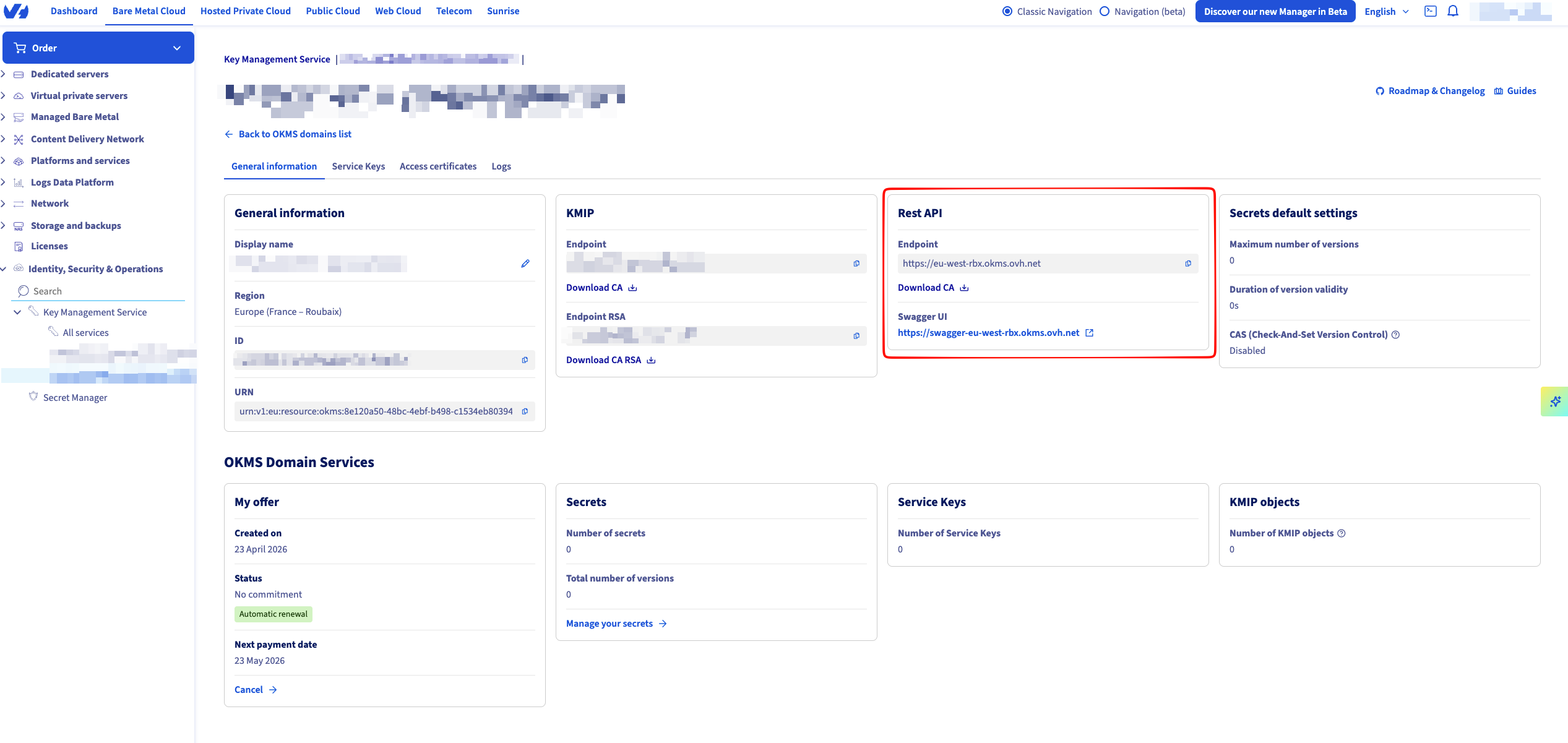
 You will need to get the following values to create a connection.
* **OKMS ID** — the UUID-style identifier shown on the OKMS summary page.
* **REST API endpoint** — the base URL of the OKMS instance (e.g. `https://ca-east-bhs.okms.ovh.net`). This is the **OKMS Domain** value in Infisical.
You will need to get the following values to create a connection.
* **OKMS ID** — the UUID-style identifier shown on the OKMS summary page.
* **REST API endpoint** — the base URL of the OKMS instance (e.g. `https://ca-east-bhs.okms.ovh.net`). This is the **OKMS Domain** value in Infisical.
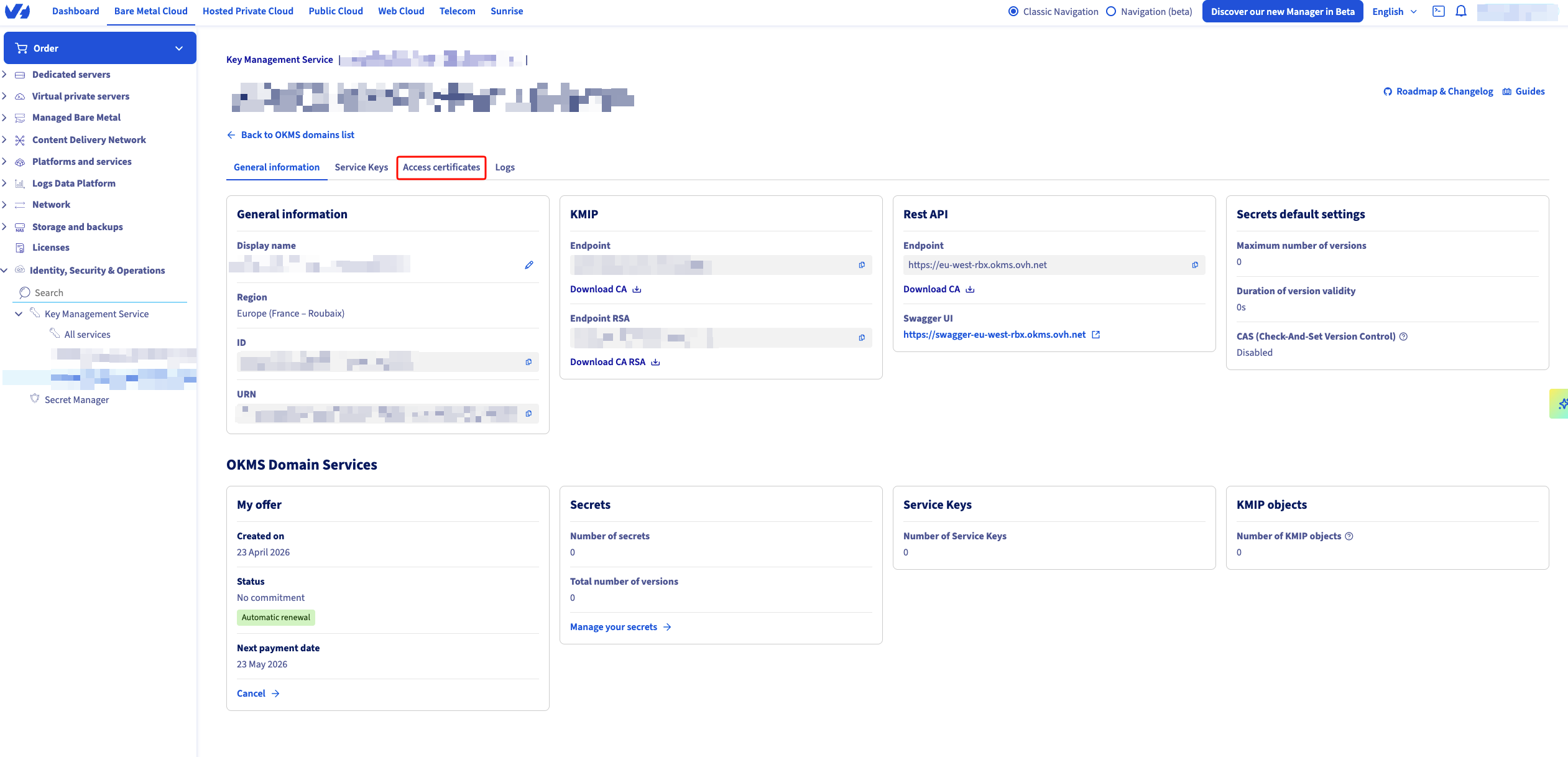
 Open the **Access certificate** tab
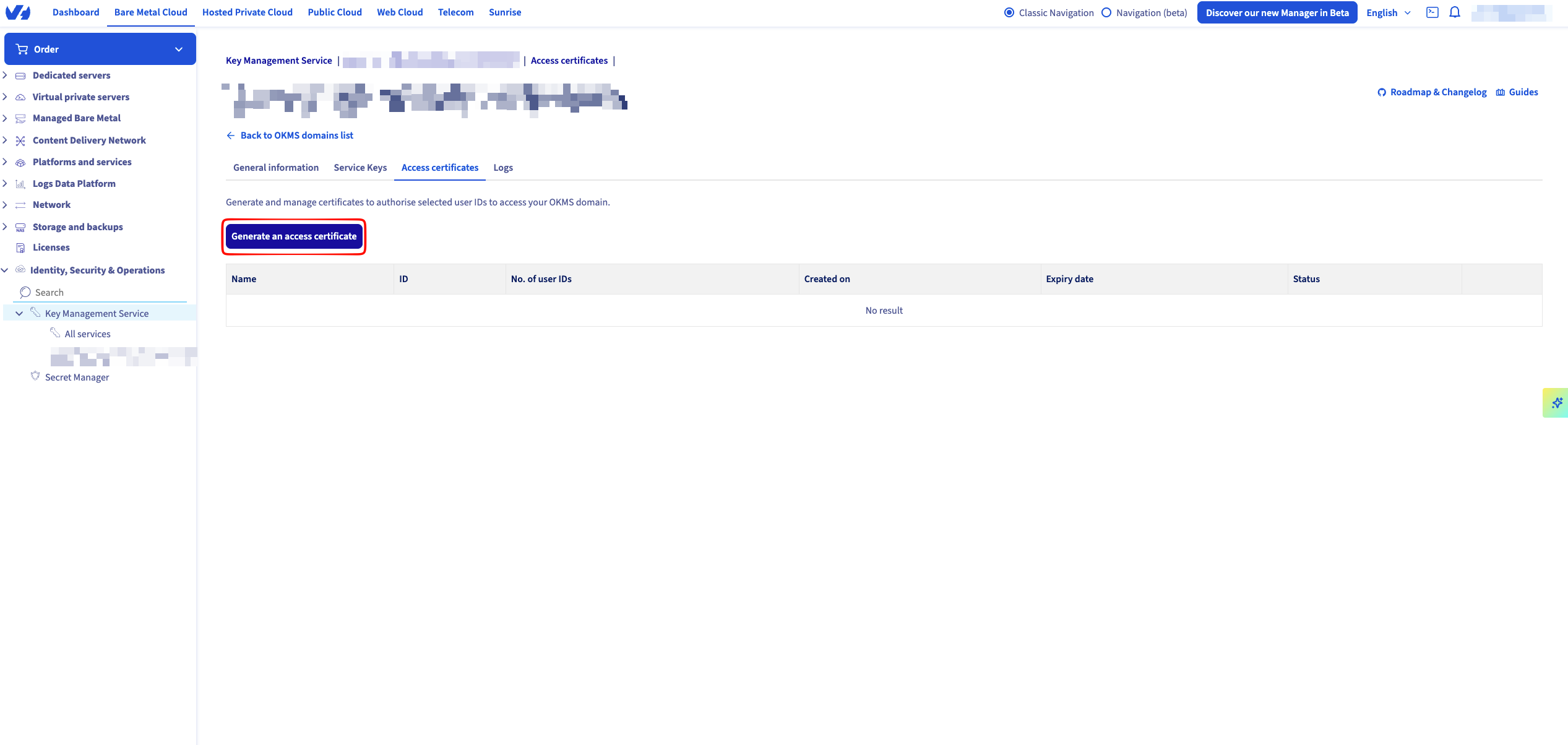
 Click on Generate an access certificate.
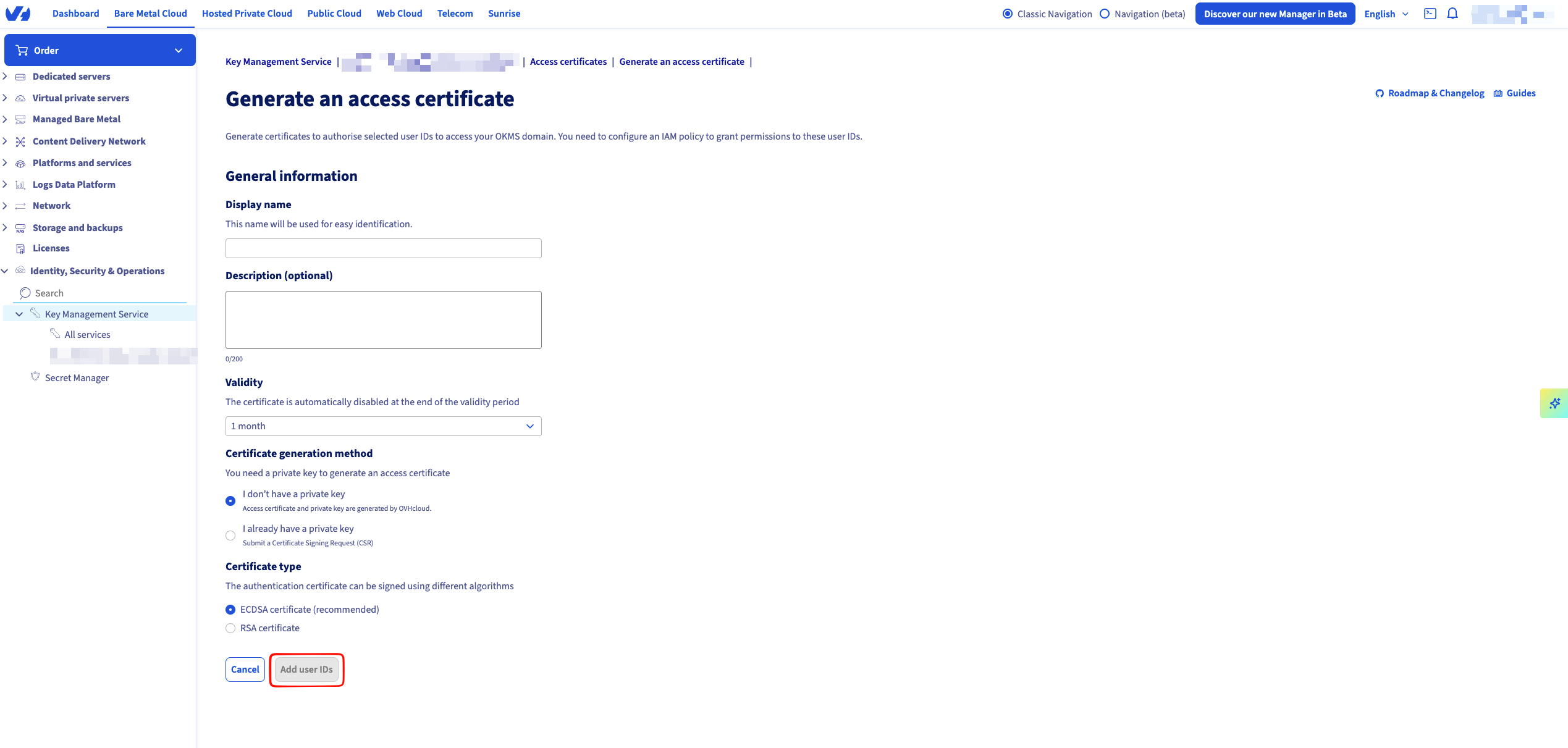
 Define the validity of the certificate and download the two PEM files offered:
* `*_privatekey.pem` — the private key.
* `*_certificate.pem` — the public certificate.
Define the validity of the certificate and download the two PEM files offered:
* `*_privatekey.pem` — the private key.
* `*_certificate.pem` — the public certificate.
 Infisical does **not** support the PKCS12 (`.p12`) format. If OVH offers a PKCS12 download or asks you to convert the PEM files with `openssl pkcs12`, ignore those options and keep the PEM files as-is. Node.js's TLS layer (used by Infisical's HTTP client) cannot parse PKCS12 bundles and returns `Unsupported PKCS12 PFX data.` when one is provided.
## Create an OVH Cloud Connection in Infisical
In your Infisical dashboard, navigate to the **Integrations** tab in the desired project, then select **App Connections**.
Infisical does **not** support the PKCS12 (`.p12`) format. If OVH offers a PKCS12 download or asks you to convert the PEM files with `openssl pkcs12`, ignore those options and keep the PEM files as-is. Node.js's TLS layer (used by Infisical's HTTP client) cannot parse PKCS12 bundles and returns `Unsupported PKCS12 PFX data.` when one is provided.
## Create an OVH Cloud Connection in Infisical
In your Infisical dashboard, navigate to the **Integrations** tab in the desired project, then select **App Connections**.
 Click **+ Add Connection** and choose **OVH Cloud Connection** from the list of integrations.
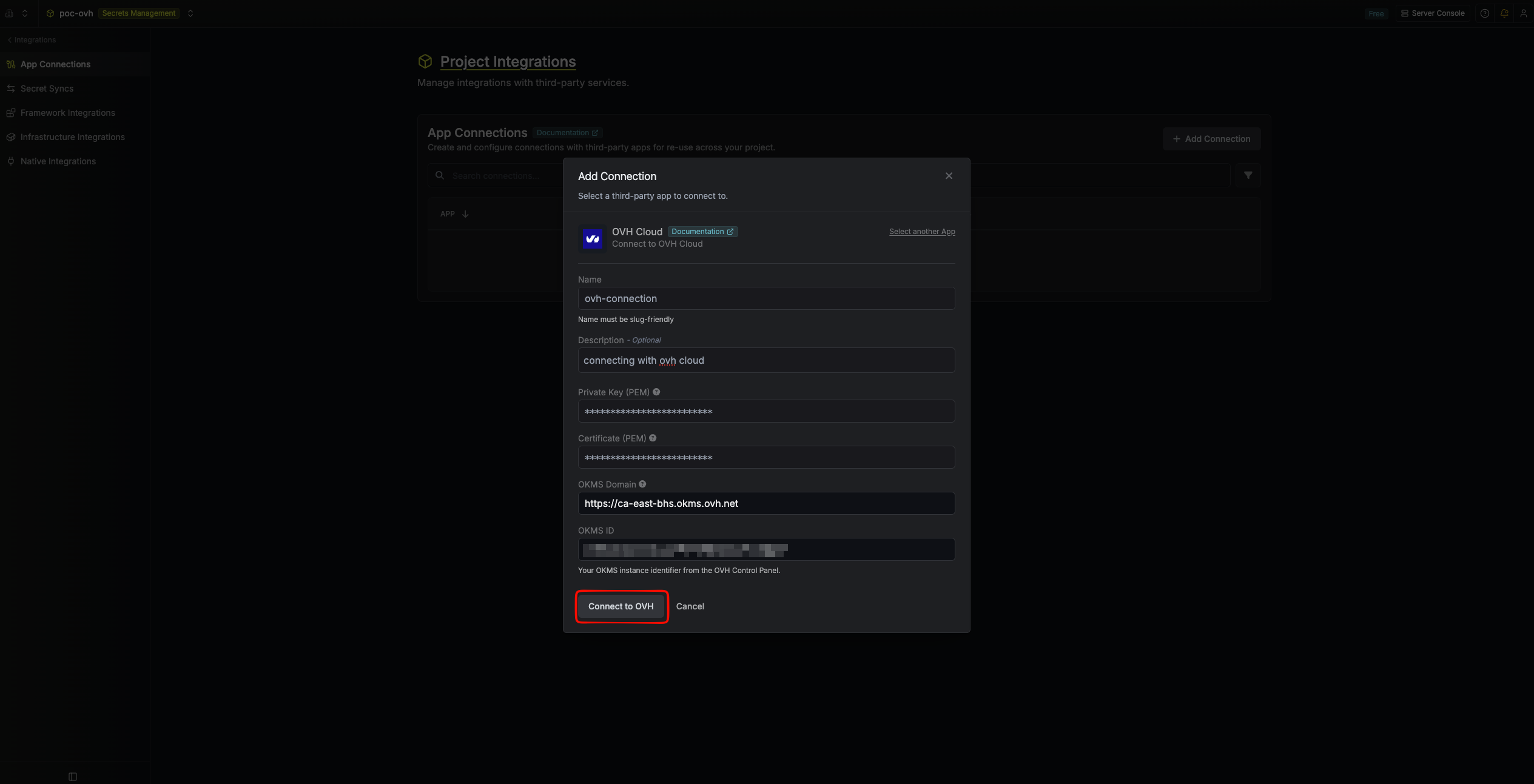
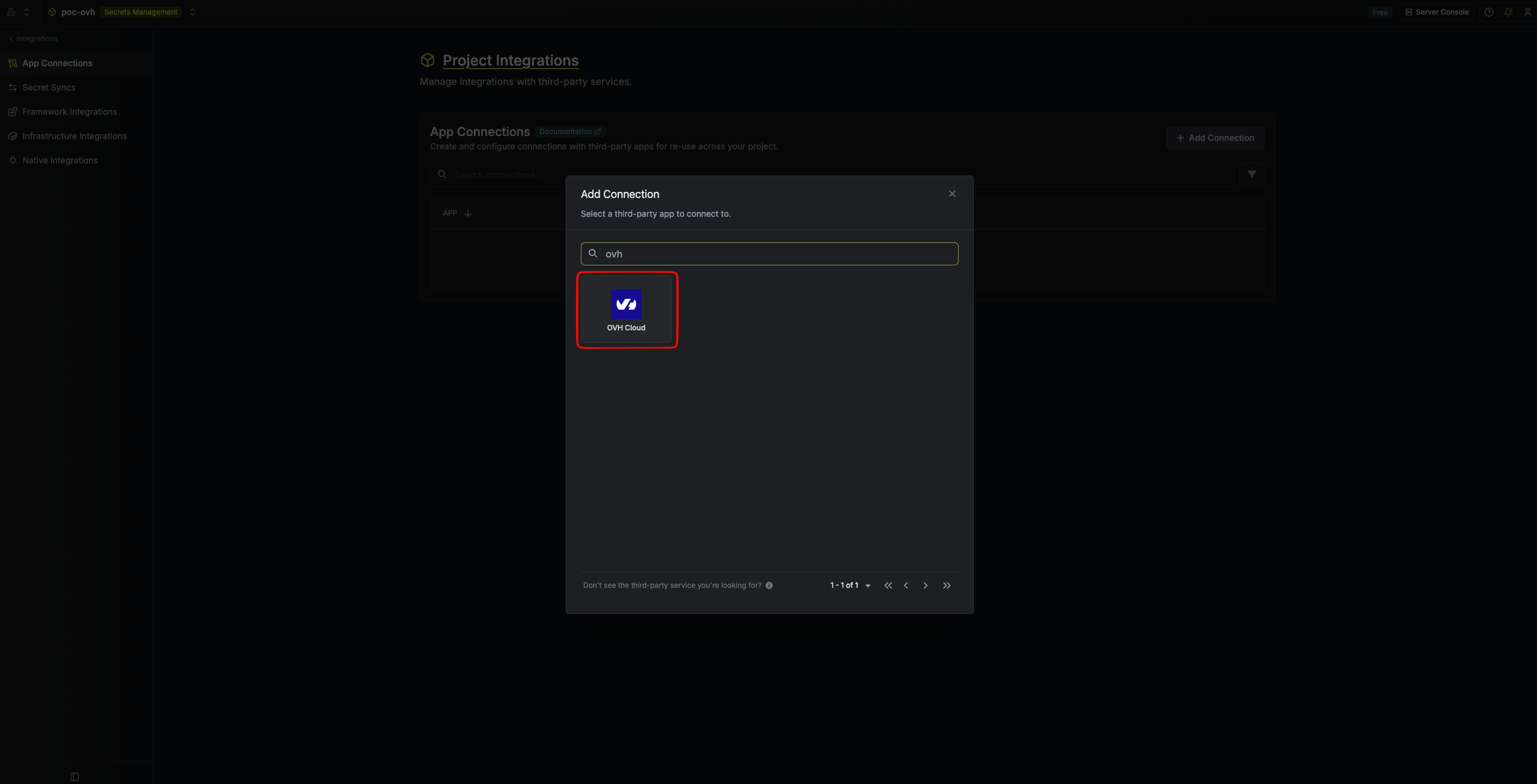 Complete the form by providing:
* A descriptive **Name** for the connection.
* An optional **Description**.
* **Private Key (PEM)** — paste the full contents of `*_privatekey.pem`, including the `-----BEGIN PRIVATE KEY-----` and `-----END PRIVATE KEY-----` markers.
* **Certificate (PEM)** — paste the full contents of `*_certificate.pem`, including the `-----BEGIN CERTIFICATE-----` and `-----END CERTIFICATE-----` markers.
* **OKMS Domain** — the OKMS base URL (e.g. `https://ca-east-bhs.okms.ovh.net`). Do not include the `/api` suffix; Infisical appends it automatically.
* **OKMS ID** — the OKMS instance identifier from the OVHcloud Control Panel.
Complete the form by providing:
* A descriptive **Name** for the connection.
* An optional **Description**.
* **Private Key (PEM)** — paste the full contents of `*_privatekey.pem`, including the `-----BEGIN PRIVATE KEY-----` and `-----END PRIVATE KEY-----` markers.
* **Certificate (PEM)** — paste the full contents of `*_certificate.pem`, including the `-----BEGIN CERTIFICATE-----` and `-----END CERTIFICATE-----` markers.
* **OKMS Domain** — the OKMS base URL (e.g. `https://ca-east-bhs.okms.ovh.net`). Do not include the `/api` suffix; Infisical appends it automatically.
* **OKMS ID** — the OKMS instance identifier from the OVHcloud Control Panel.
 Infisical validates the credentials by calling `GET {OKMS Domain}/api/{OKMS ID}/v1/servicekey` with mTLS. A successful `200` response means the PEM pair is trusted by your OKMS instance.
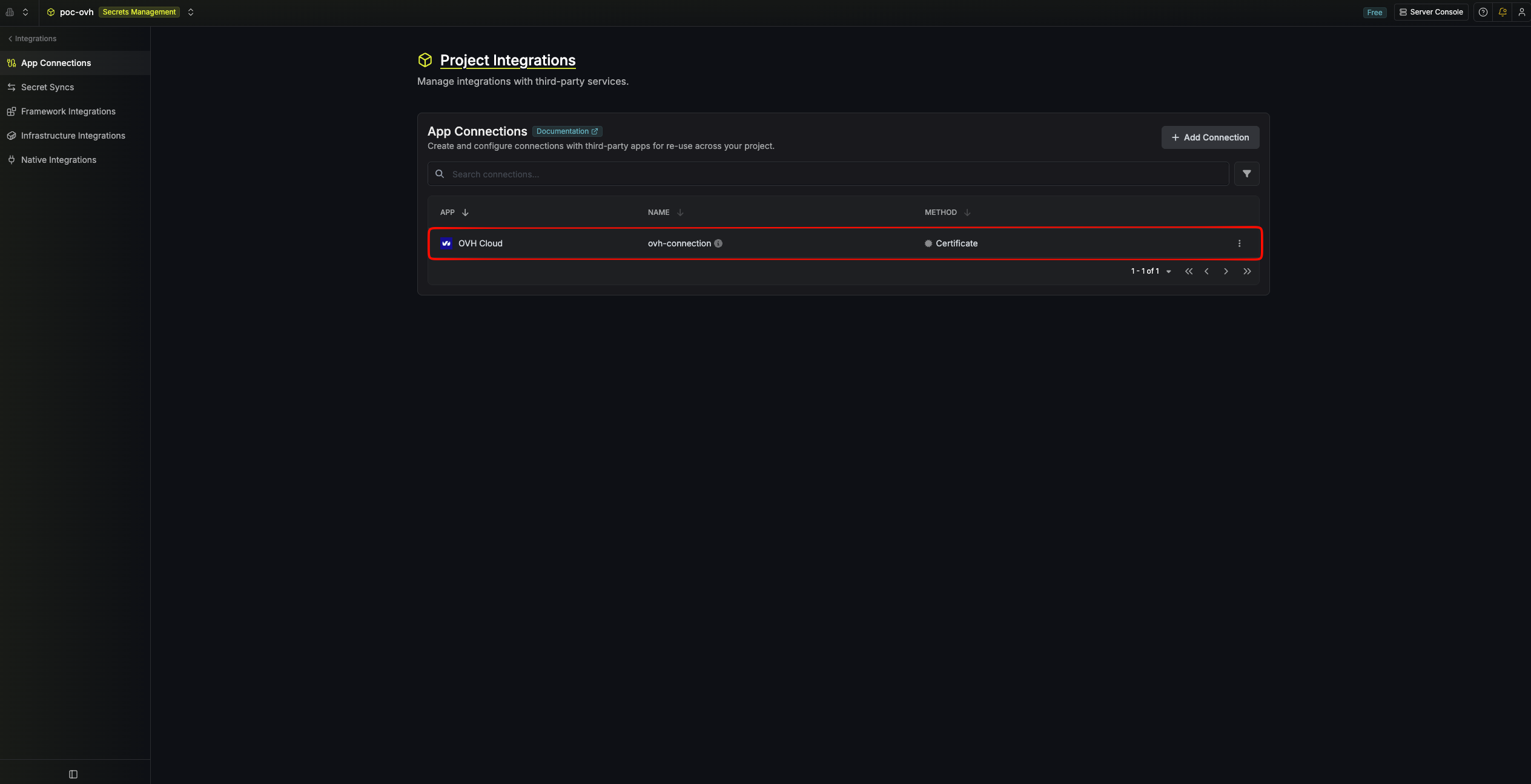
After submitting the form, your **OVH Cloud Connection** is created and ready to use with Secret Syncs.
Infisical validates the credentials by calling `GET {OKMS Domain}/api/{OKMS ID}/v1/servicekey` with mTLS. A successful `200` response means the PEM pair is trusted by your OKMS instance.
After submitting the form, your **OVH Cloud Connection** is created and ready to use with Secret Syncs.
 To create an OVH Cloud Connection via API, send a request to the [Create OVH Cloud Connection](/api-reference/endpoints/app-connections/ovh/create) endpoint.
### Sample request
```bash Request theme={"dark"}
curl --request POST \
--url https://app.infisical.com/api/v1/app-connections/ovh \
--header 'Content-Type: application/json' \
--data '{
"name": "my-ovh-connection",
"method": "certificate",
"projectId": "7ffbb072-2575-495a-b5b0-127f88caef78",
"credentials": {
"privateKey": "-----BEGIN PRIVATE KEY-----\n...\n-----END PRIVATE KEY-----\n",
"certificate": "-----BEGIN CERTIFICATE-----\n...\n-----END CERTIFICATE-----\n",
"okmsDomain": "https://ca-east-bhs.okms.ovh.net",
"okmsId": "00000000-0000-0000-0000-000000000000"
}
}'
```
### Sample response
```bash Response theme={"dark"}
{
"appConnection": {
"id": "a1b2c3d4-5678-90ab-cdef-1234567890ab",
"name": "my-ovh-connection",
"projectId": "7ffbb072-2575-495a-b5b0-127f88caef78",
"description": null,
"version": 1,
"orgId": "abcdef12-3456-7890-abcd-ef1234567890",
"createdAt": "2026-04-23T10:15:00.000Z",
"updatedAt": "2026-04-23T10:15:00.000Z",
"isPlatformManagedCredentials": false,
"credentialsHash": "d41d8cd98f00b204e9800998ecf8427e",
"app": "ovh",
"method": "certificate",
"credentials": {}
}
}
```
To create an OVH Cloud Connection via API, send a request to the [Create OVH Cloud Connection](/api-reference/endpoints/app-connections/ovh/create) endpoint.
### Sample request
```bash Request theme={"dark"}
curl --request POST \
--url https://app.infisical.com/api/v1/app-connections/ovh \
--header 'Content-Type: application/json' \
--data '{
"name": "my-ovh-connection",
"method": "certificate",
"projectId": "7ffbb072-2575-495a-b5b0-127f88caef78",
"credentials": {
"privateKey": "-----BEGIN PRIVATE KEY-----\n...\n-----END PRIVATE KEY-----\n",
"certificate": "-----BEGIN CERTIFICATE-----\n...\n-----END CERTIFICATE-----\n",
"okmsDomain": "https://ca-east-bhs.okms.ovh.net",
"okmsId": "00000000-0000-0000-0000-000000000000"
}
}'
```
### Sample response
```bash Response theme={"dark"}
{
"appConnection": {
"id": "a1b2c3d4-5678-90ab-cdef-1234567890ab",
"name": "my-ovh-connection",
"projectId": "7ffbb072-2575-495a-b5b0-127f88caef78",
"description": null,
"version": 1,
"orgId": "abcdef12-3456-7890-abcd-ef1234567890",
"createdAt": "2026-04-23T10:15:00.000Z",
"updatedAt": "2026-04-23T10:15:00.000Z",
"isPlatformManagedCredentials": false,
"credentialsHash": "d41d8cd98f00b204e9800998ecf8427e",
"app": "ovh",
"method": "certificate",
"credentials": {}
}
}
```