> ## Documentation Index
> Fetch the complete documentation index at: https://infisical.com/docs/llms.txt
> Use this file to discover all available pages before exploring further.
# OracleDB Connection
> Learn how to configure a Oracle Database Connection for Infisical.
OracleDB App Connection is a paid feature.
If you're using Infisical Cloud, then it is available under the **Enterprise Tier**. If you're self-hosting Infisical,
then you should contact [sales@infisical.com](mailto:sales@infisical.com) to purchase an enterprise license to use it.
Infisical supports connecting to OracleDB using a database user.
## Configure an Oracle Database User for Infisical
Infisical recommends creating a designated user in your Oracle Database for your connection.
```SQL theme={"dark"}
-- create user
CREATE USER infisical IDENTIFIED BY "my-password";
-- grant create session privileges
GRANT CREATE SESSION TO infisical;
```
Username must either be ALL UPPERCASE or not be surrounded by "quotes". Values not surrounded by quotes get automatically transformed to uppercase by Oracle Database.
Depending on how you intend to use your OracleDB connection, you'll need to grant one or more of the following permissions.
To learn more about the Oracle Database permission system, please visit their [documentation](https://docs.oracle.com/en/database/oracle/oracle-database/19/dbseg/configuring-privilege-and-role-authorization.html).
For Secret Rotations, your Infisical user will require the ability to alter other users' passwords:
```SQL theme={"dark"}
-- enable permissions to alter login credentials
GRANT ALTER USER TO infisical;
```
You'll need the following information to create your Oracle Database connection:
* `host` - The hostname or IP address of your Oracle Database server
* `port` - The port number your Oracle Database server is listening on (default: 1521)
* `database` - The Oracle Service Name or SID (System Identifier) for the database you are connecting to. For example: `ORCL`, `FREEPDB1`, `XEPDB1`
* `username` - The user name of the login created in the steps above
* `password` - The user password of the login created in the steps above
* `sslCertificate` (optional) - The SSL certificate required for connection (if configured)
If you are self-hosting Infisical and intend to connect to an internal/private IP address, be sure to set the `ALLOW_INTERNAL_IP_CONNECTIONS` environment variable to `true`.
This configuration can only be done on self-hosted or dedicated instances of Infisical.
Infisical includes Oracle Instant Client by default, enabling mTLS wallet-based connections without modifying the Docker image. You only need to mount your Oracle Wallet and configure the environment.
When `TNS_ADMIN` is set and points to a valid wallet directory, **all Oracle Database connections** in your Infisical instance will use the wallet for authentication.
**Gateway Limitation**: Wallet-based connections do not support [Infisical Gateway](/documentation/platform/gateways/overview). The connection details (host, port, protocol) are read directly from the `tnsnames.ora` file in the wallet, bypassing the gateway routing.
### Prerequisites
Your Oracle Wallet folder should contain the following files:
* `cwallet.sso` - Auto-login wallet (SSO wallet)
* `tnsnames.ora` - Connection aliases for your Oracle Database
* `sqlnet.ora` - Network configuration
### Configuration Steps
Ensure your `sqlnet.ora` file points to the correct wallet directory. Update the `DIRECTORY` path to match where you'll mount the wallet in the container:
```ini theme={"dark"}
WALLET_LOCATION =
(SOURCE =
(METHOD = FILE)
(METHOD_DATA =
(DIRECTORY = /app/wallet)
)
)
SQLNET.AUTHENTICATION_SERVICES = (TCPS)
SSL_CLIENT_AUTHENTICATION = TRUE
```
Mount your wallet directory and set the `TNS_ADMIN` environment variable to point to it.
**Environment Variable (`.env` file):**
```ini theme={"dark"}
TNS_ADMIN=/app/wallet
```
**Volume Mount Examples:**
```bash theme={"dark"}
docker run -d \
-v /path/to/your/wallet:/app/wallet:ro \
--env-file .env \
# ... other Infisical configuration ...
infisical/infisical:latest
```
```yaml theme={"dark"}
services:
infisical:
image: infisical/infisical:latest
env_file:
- .env
volumes:
- /path/to/your/wallet:/app/wallet:ro
# ... other Infisical configuration ...
```
You'll need the following information to create the connection in Infisical:
* `host` - The hostname or IP address of your Oracle Database server (required field, but not used for wallet connections).
* `port` - The port number your Oracle Database server is listening on (required field, but not used for wallet connections).
* `database` - The TNS alias for your Oracle Database from your `tnsnames.ora` file.
* `username` - The user name of the login created in the steps above.
* `password` - The user password of the login created in the steps above.
When a wallet is detected (via the `TNS_ADMIN` environment variable), the connection uses the TNS alias from the `database` field to look up full connection details (host, port, protocol) from your `tnsnames.ora` file.
The host and port fields in the connection form are required but ignored for wallet connections. Any SSL settings in the connection form are also ignored - the wallet's certificates are used instead.
If you are self-hosting Infisical and intend to connect to an internal/private IP address, be sure to set the `ALLOW_INTERNAL_IP_CONNECTIONS` environment variable to `true`.
## Create Connection in Infisical
1. Navigate to the **Integrations** tab in the desired project, then select **App Connections**.
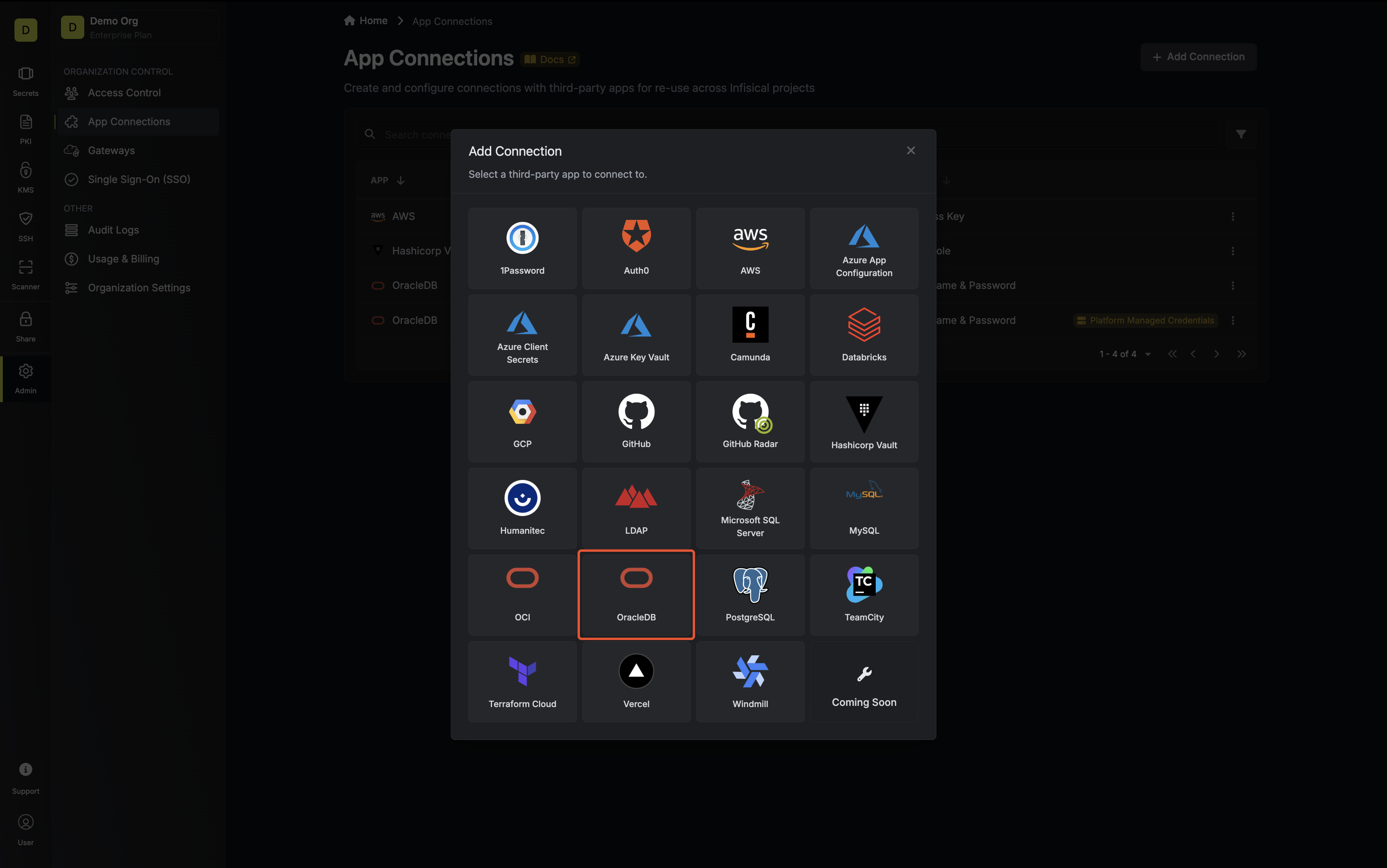
 2. Select the **OracleDB Connection** option.
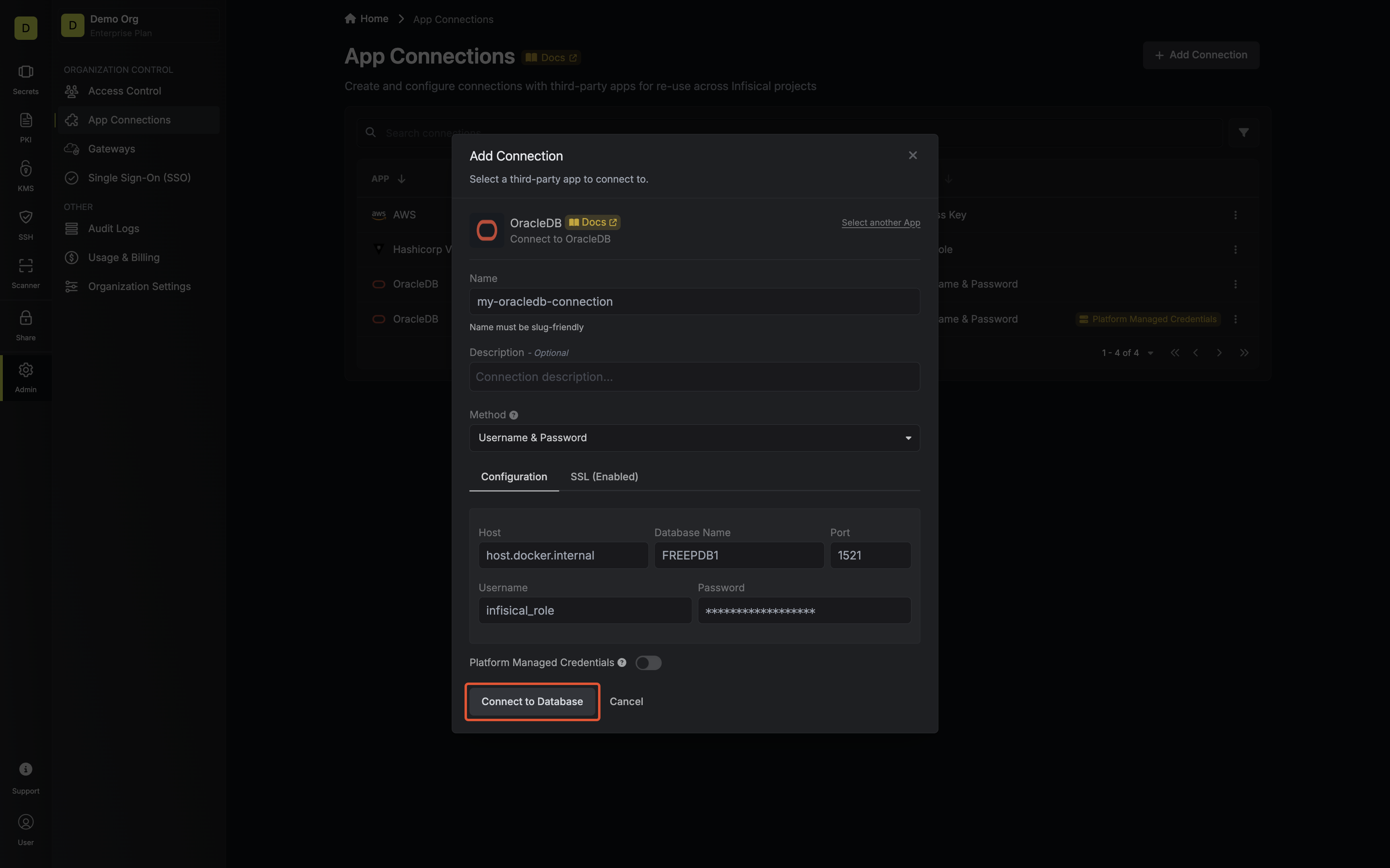
 3. Select the **Username & Password** method option and provide the details obtained from the previous section and press **Connect to OracleDB**.
Optionally, if you'd like Infisical to manage the credentials of this connection, you can enable the Platform Managed Credentials option.
If enabled, Infisical will update the password of the connection on creation to prevent external access to this database user.
3. Select the **Username & Password** method option and provide the details obtained from the previous section and press **Connect to OracleDB**.
Optionally, if you'd like Infisical to manage the credentials of this connection, you can enable the Platform Managed Credentials option.
If enabled, Infisical will update the password of the connection on creation to prevent external access to this database user.
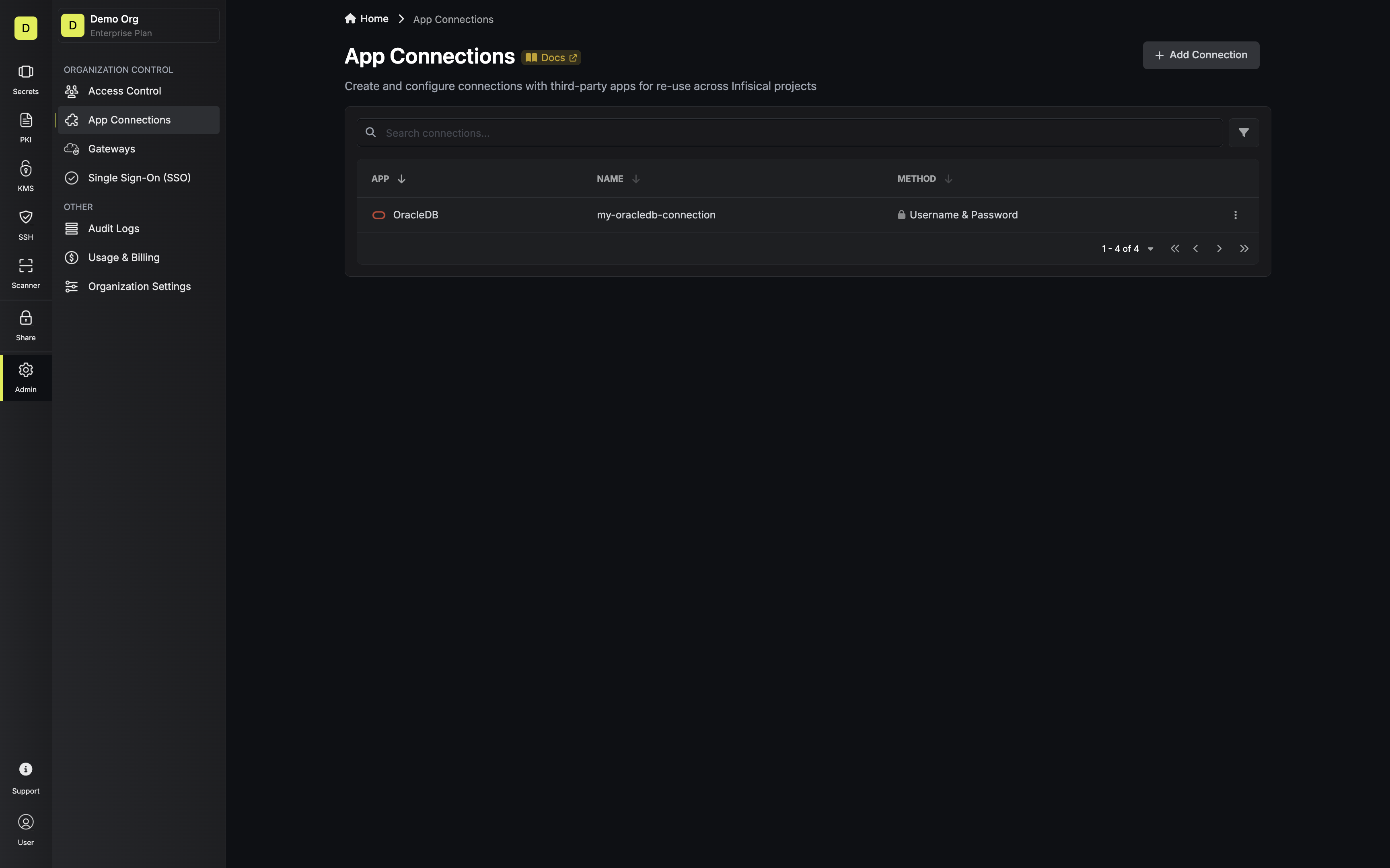
 4. Your **OracleDB Connection** is now available for use.
 To create an Oracle Database Connection, make an API request to the [Create OracleDB Connection](/api-reference/endpoints/app-connections/oracledb/create) API endpoint.
Optionally, if you'd like Infisical to manage the credentials of this connection, you can set the `isPlatformManagedCredentials` option to `true`.
If enabled, Infisical will update the password of the connection on creation to prevent external access to this database user.
### Sample request
```bash Request theme={"dark"}
curl --request POST \
--url https://app.infisical.com/api/v1/app-connections/oracledb \
--header 'Content-Type: application/json' \
--data '{
"name": "my-oracledb-connection",
"method": "username-and-password",
"isPlatformManagedCredentials": true,
"projectId": "7ffbb072-2575-495a-b5b0-127f88caef78",
"credentials": {
"host": "123.4.5.6",
"port": 1521,
"database": "FREEPDB1",
"username": "infisical",
"password": "my-password",
"sslEnabled": true,
"sslRejectUnauthorized": true
},
}'
```
### Sample response
```bash Response theme={"dark"}
{
"appConnection": {
"id": "3c90c3cc-0d44-4b50-8888-8dd25736052a",
"name": "my-oracledb-connection",
"projectId": "7ffbb072-2575-495a-b5b0-127f88caef78",
"version": 1,
"orgId": "3c90c3cc-0d44-4b50-8888-8dd25736052a",
"createdAt": "2023-11-07T05:31:56Z",
"updatedAt": "2023-11-07T05:31:56Z",
"app": "oracledb",
"method": "username-and-password",
"isPlatformManagedCredentials": true,
"credentials": {
"host": "123.4.5.6",
"port": 1521,
"database": "FREEPDB1",
"username": "infisical",
"sslEnabled": true,
"sslRejectUnauthorized": true
}
}
}
```
To create an Oracle Database Connection, make an API request to the [Create OracleDB Connection](/api-reference/endpoints/app-connections/oracledb/create) API endpoint.
Optionally, if you'd like Infisical to manage the credentials of this connection, you can set the `isPlatformManagedCredentials` option to `true`.
If enabled, Infisical will update the password of the connection on creation to prevent external access to this database user.
### Sample request
```bash Request theme={"dark"}
curl --request POST \
--url https://app.infisical.com/api/v1/app-connections/oracledb \
--header 'Content-Type: application/json' \
--data '{
"name": "my-oracledb-connection",
"method": "username-and-password",
"isPlatformManagedCredentials": true,
"projectId": "7ffbb072-2575-495a-b5b0-127f88caef78",
"credentials": {
"host": "123.4.5.6",
"port": 1521,
"database": "FREEPDB1",
"username": "infisical",
"password": "my-password",
"sslEnabled": true,
"sslRejectUnauthorized": true
},
}'
```
### Sample response
```bash Response theme={"dark"}
{
"appConnection": {
"id": "3c90c3cc-0d44-4b50-8888-8dd25736052a",
"name": "my-oracledb-connection",
"projectId": "7ffbb072-2575-495a-b5b0-127f88caef78",
"version": 1,
"orgId": "3c90c3cc-0d44-4b50-8888-8dd25736052a",
"createdAt": "2023-11-07T05:31:56Z",
"updatedAt": "2023-11-07T05:31:56Z",
"app": "oracledb",
"method": "username-and-password",
"isPlatformManagedCredentials": true,
"credentials": {
"host": "123.4.5.6",
"port": 1521,
"database": "FREEPDB1",
"username": "infisical",
"sslEnabled": true,
"sslRejectUnauthorized": true
}
}
}
```