> ## Documentation Index
> Fetch the complete documentation index at: https://infisical.com/docs/llms.txt
> Use this file to discover all available pages before exploring further.
# OCI Connection
> Learn how to configure an Oracle Cloud Infrastructure Connection for Infisical.
OCI App Connection is a paid feature.
If you're using Infisical Cloud, then it is available under the **Enterprise Tier**. If you're self-hosting Infisical,
then you should contact [sales@infisical.com](mailto:sales@infisical.com) to purchase an enterprise license to use it.
Infisical supports the use of [API Signing Key Authentication](https://docs.oracle.com/en-us/iaas/Content/API/Concepts/apisigningkey.htm) to connect with OCI.
## Create OCI User
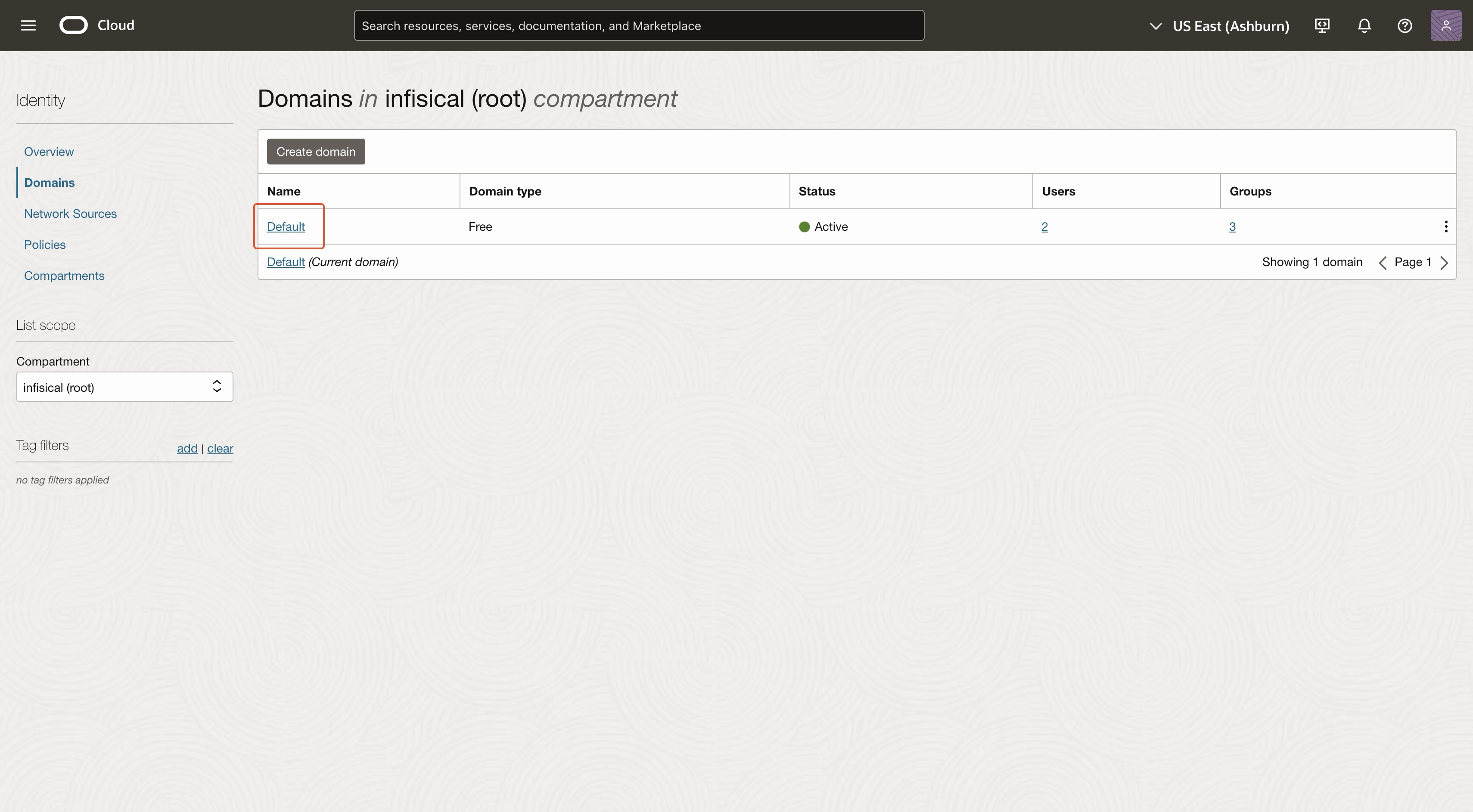
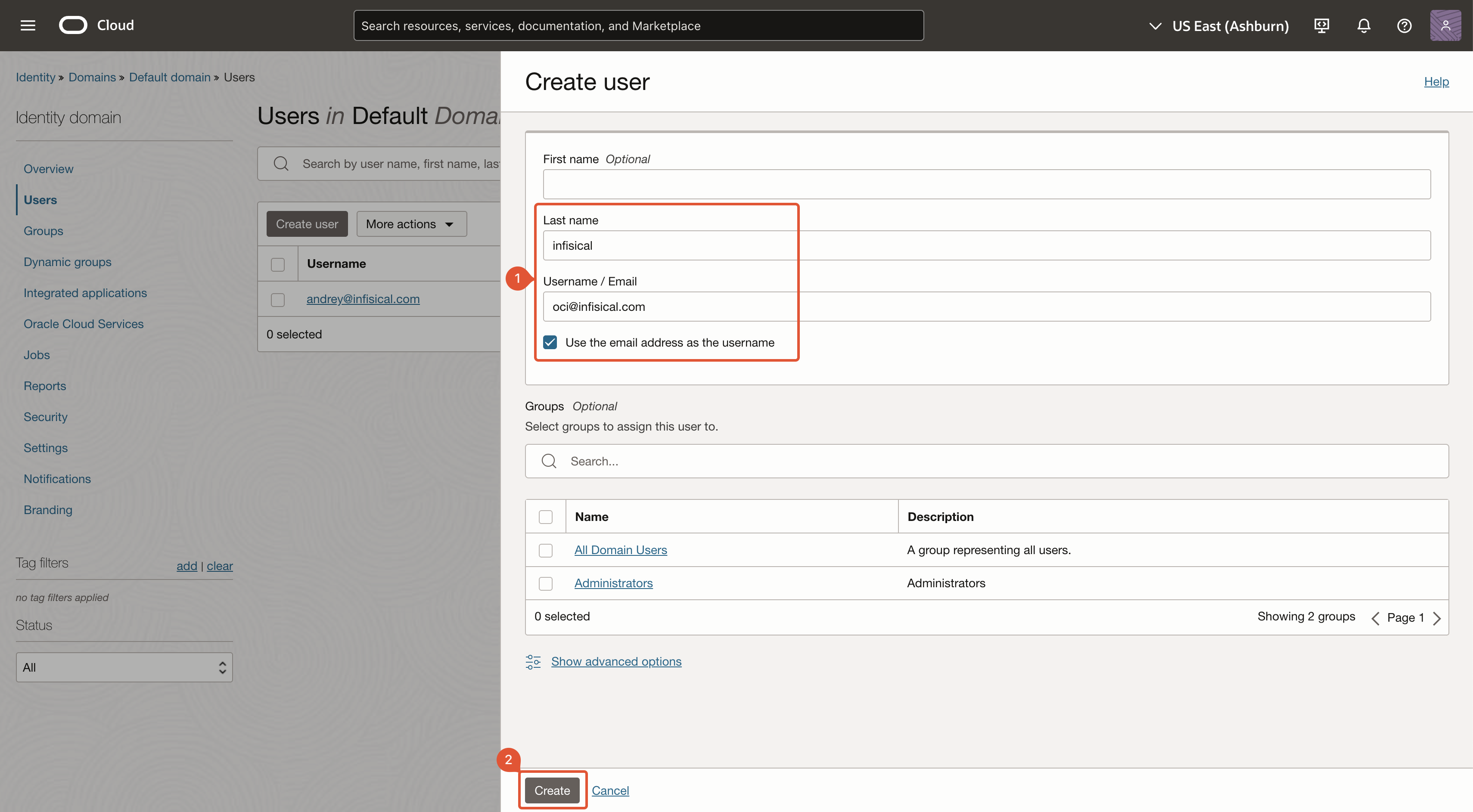
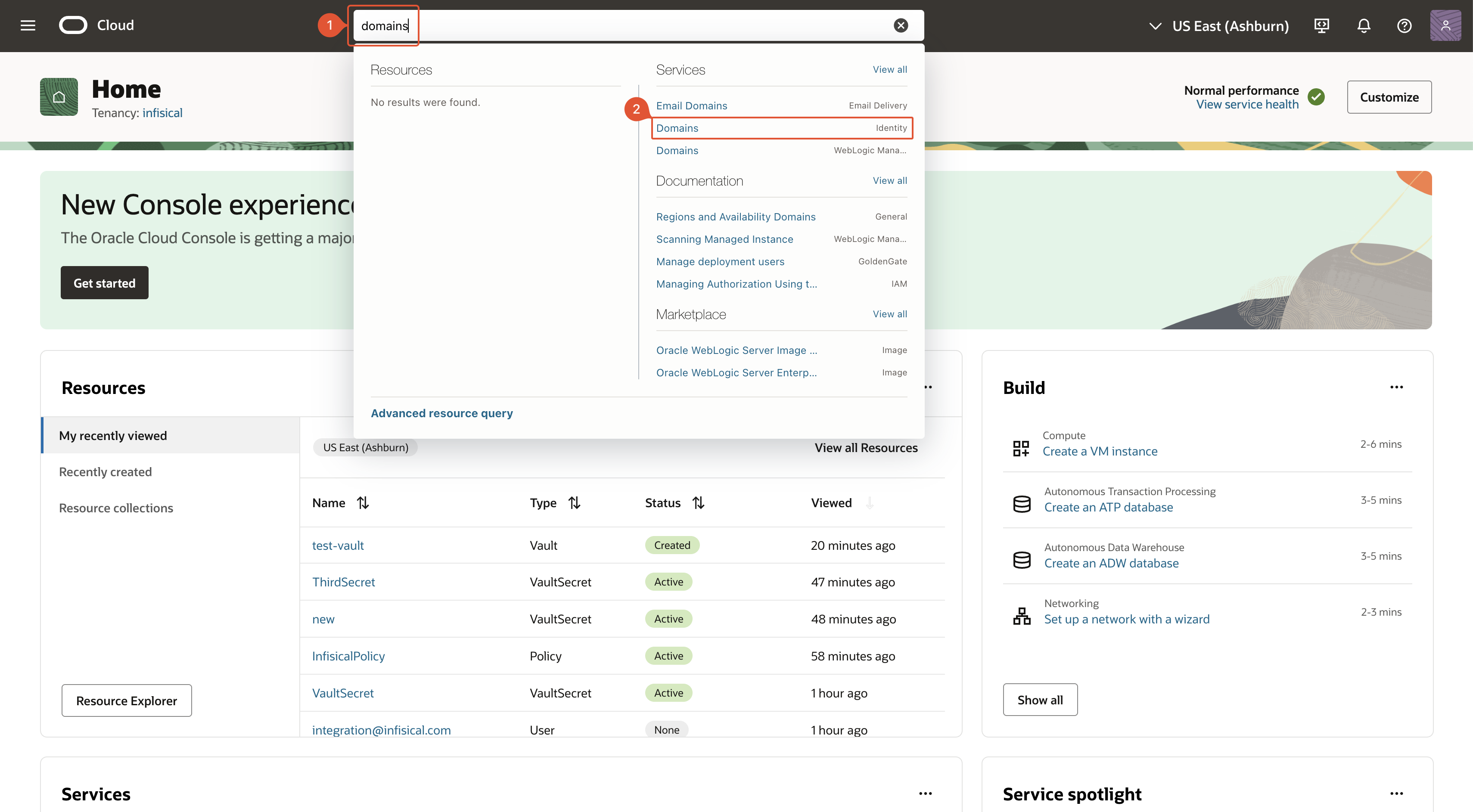 Select the domain in which you want to create the Infisical user account.
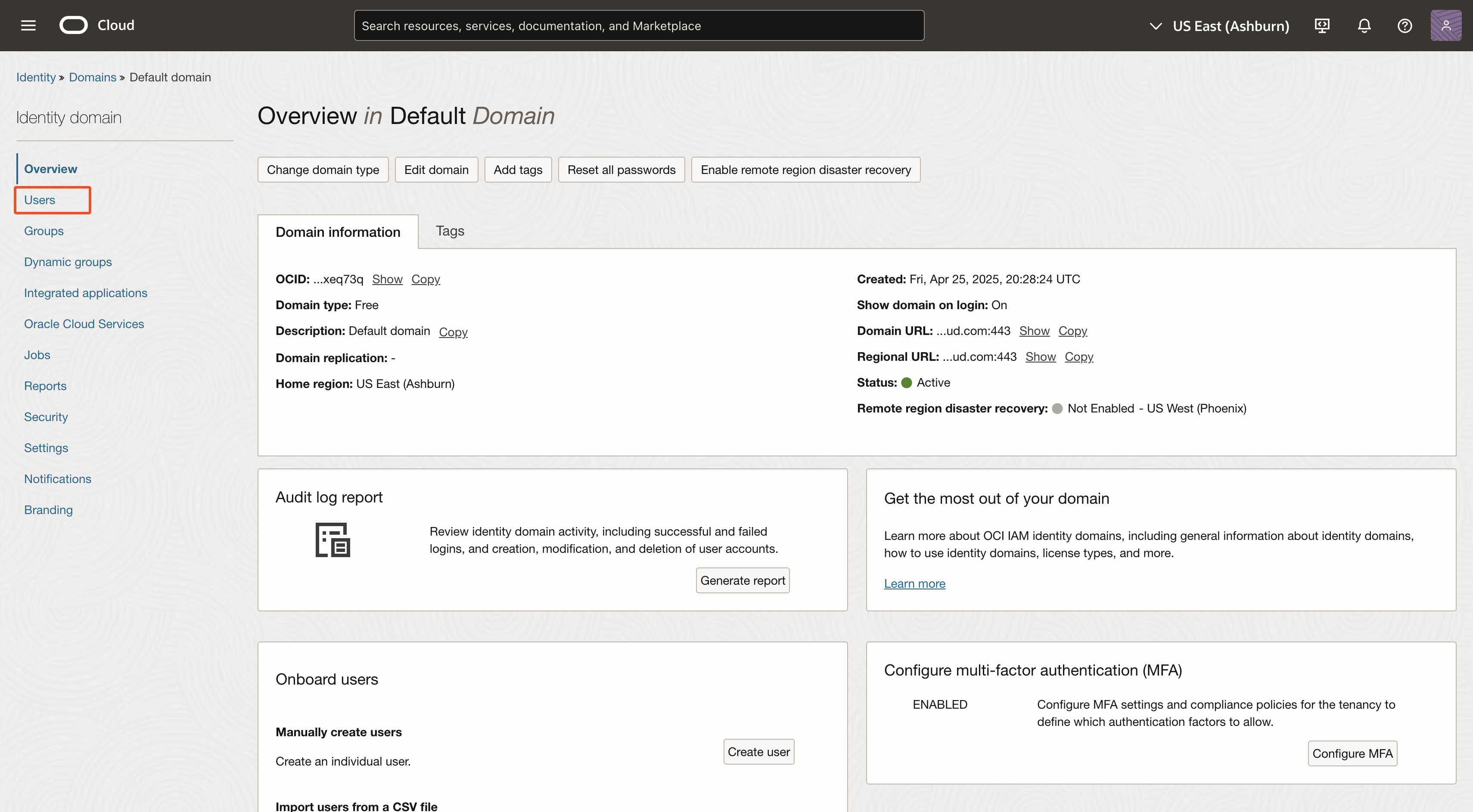
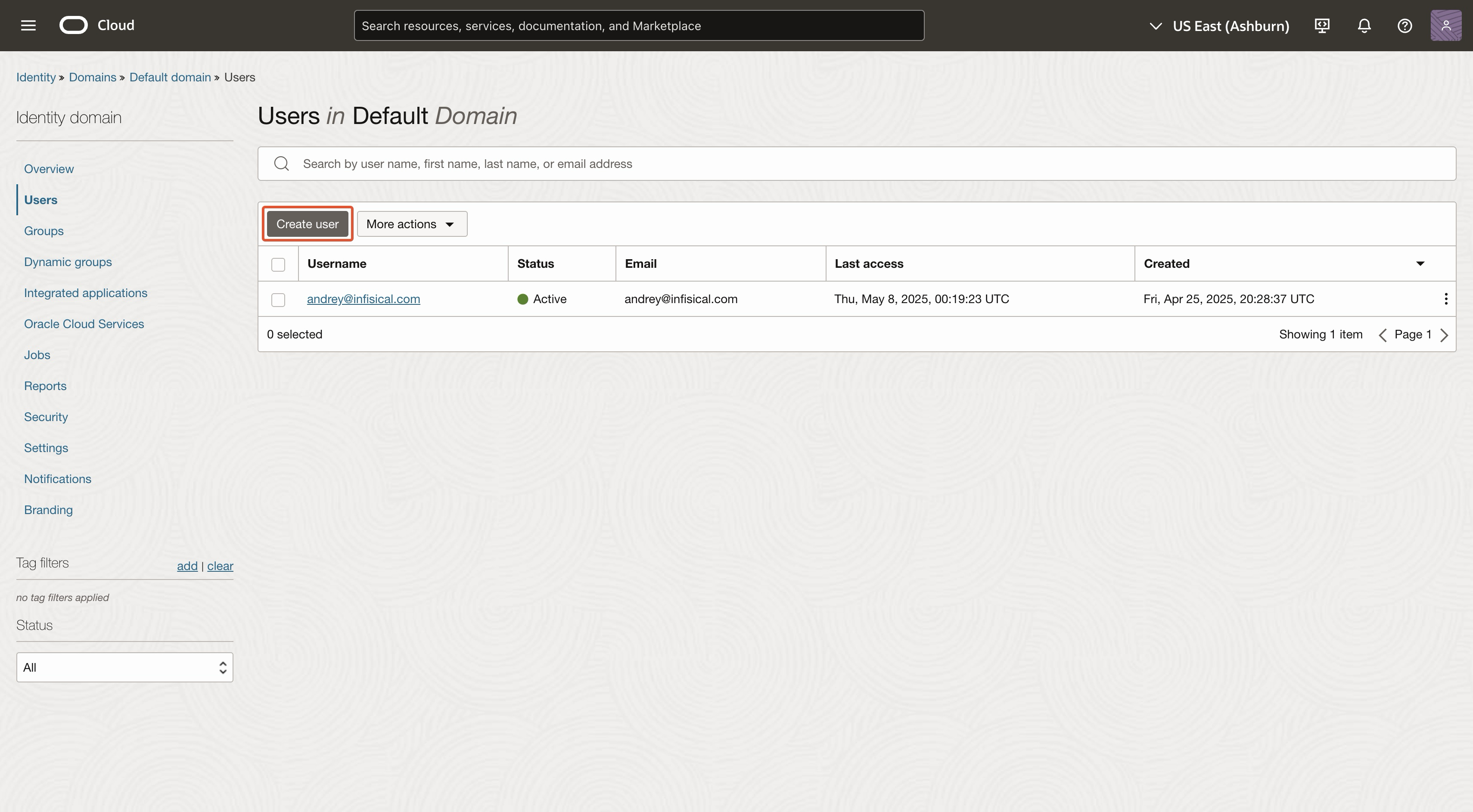 The name, email, and username can be anything.
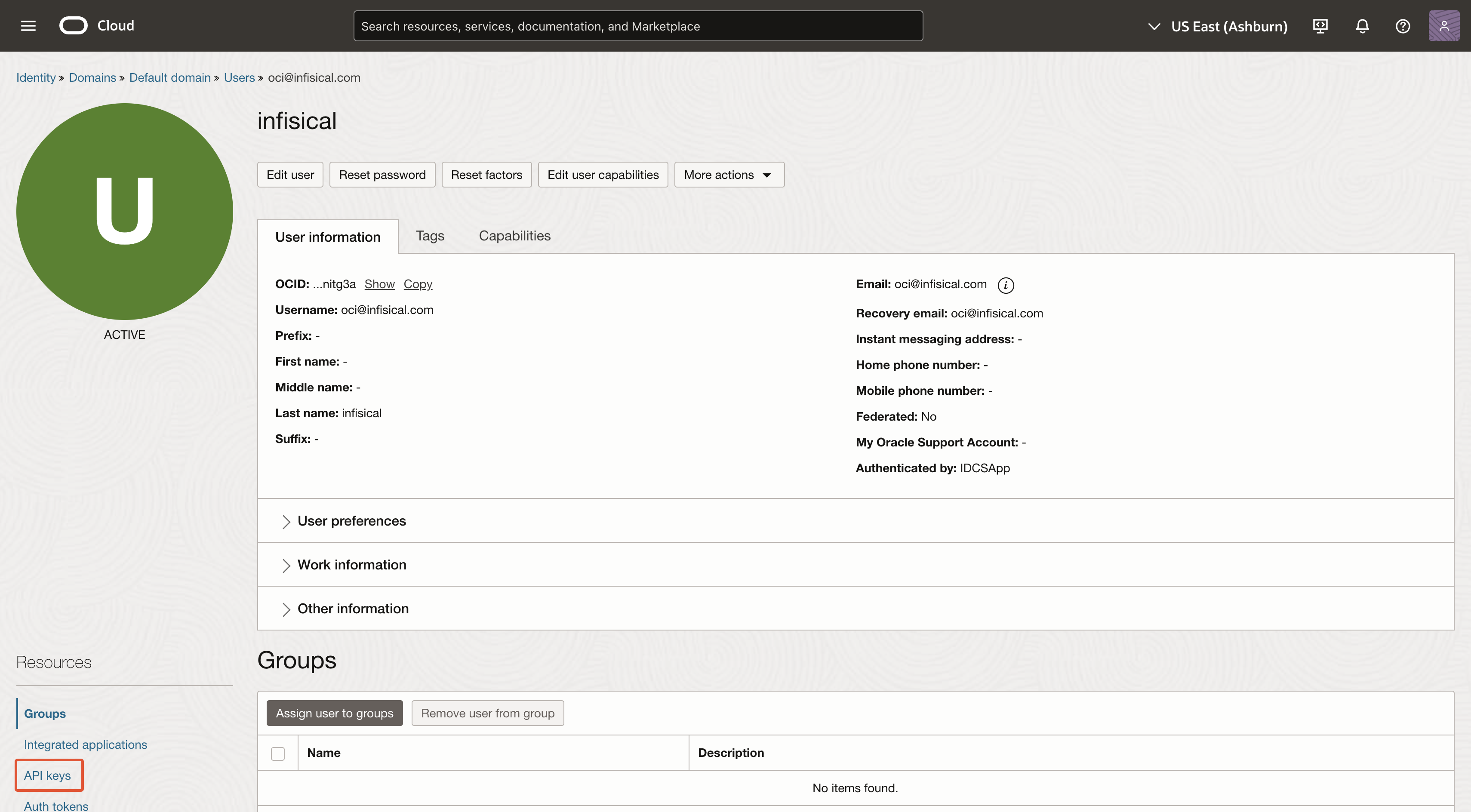
 After you've created a user, you'll be redirected to the user's page. Navigate to 'API keys'.
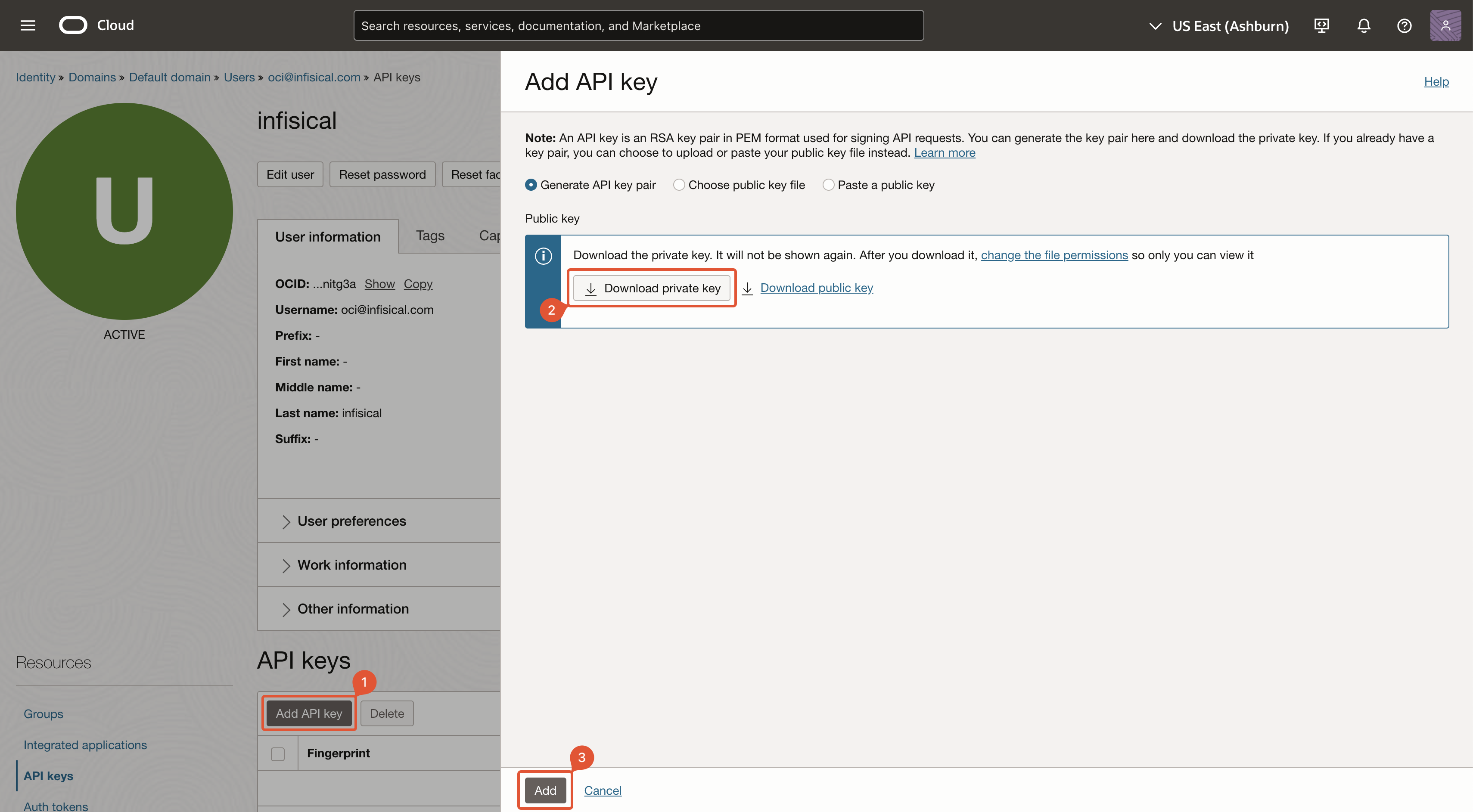
 Click on 'Add API key' and then download or import the private key. After you've obtained the private key, click 'Add'.
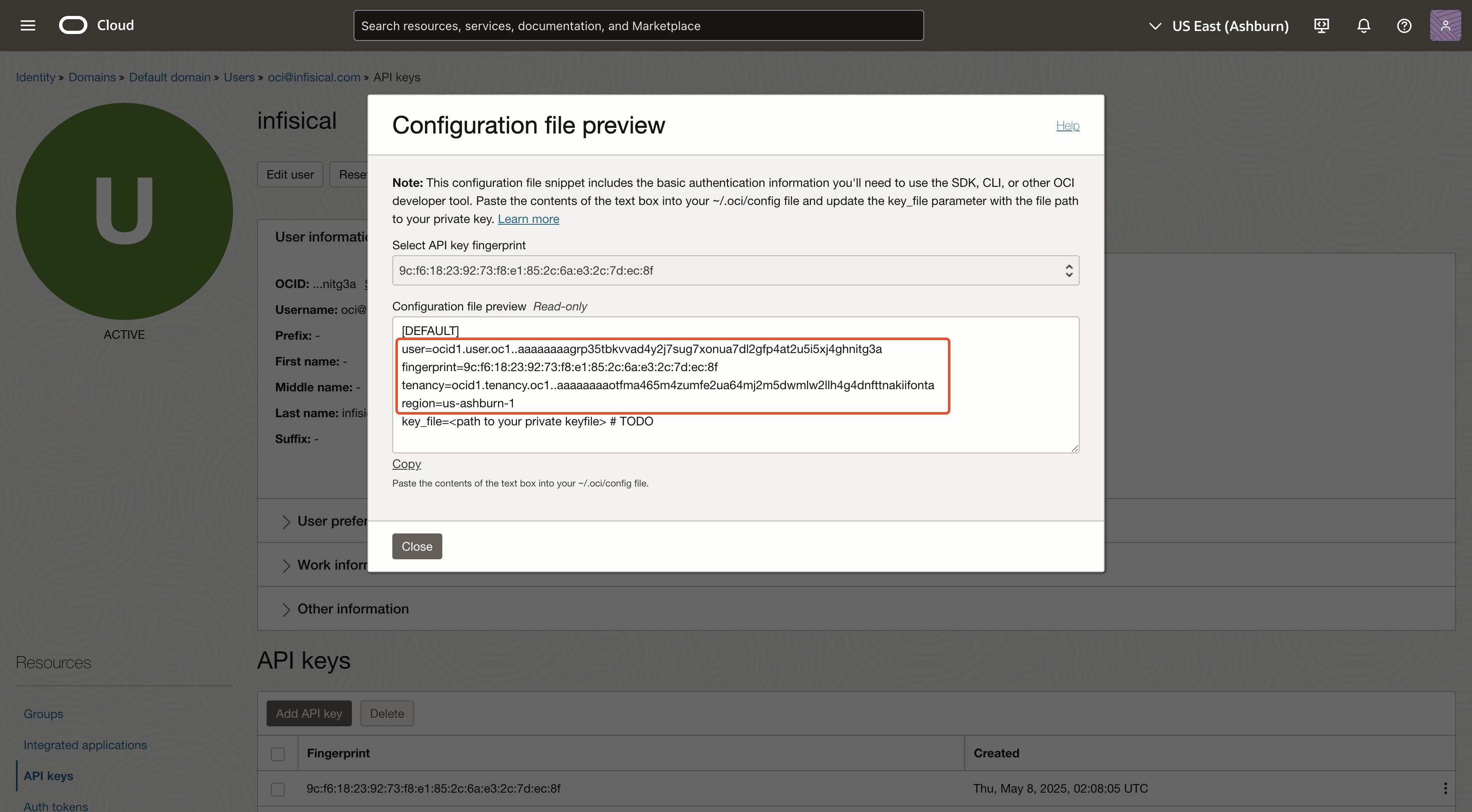
 After creating the API key, you'll be shown a modal with relevant information. Save the highlighted values (and the private key) for later steps.
 ## Create OCI Group
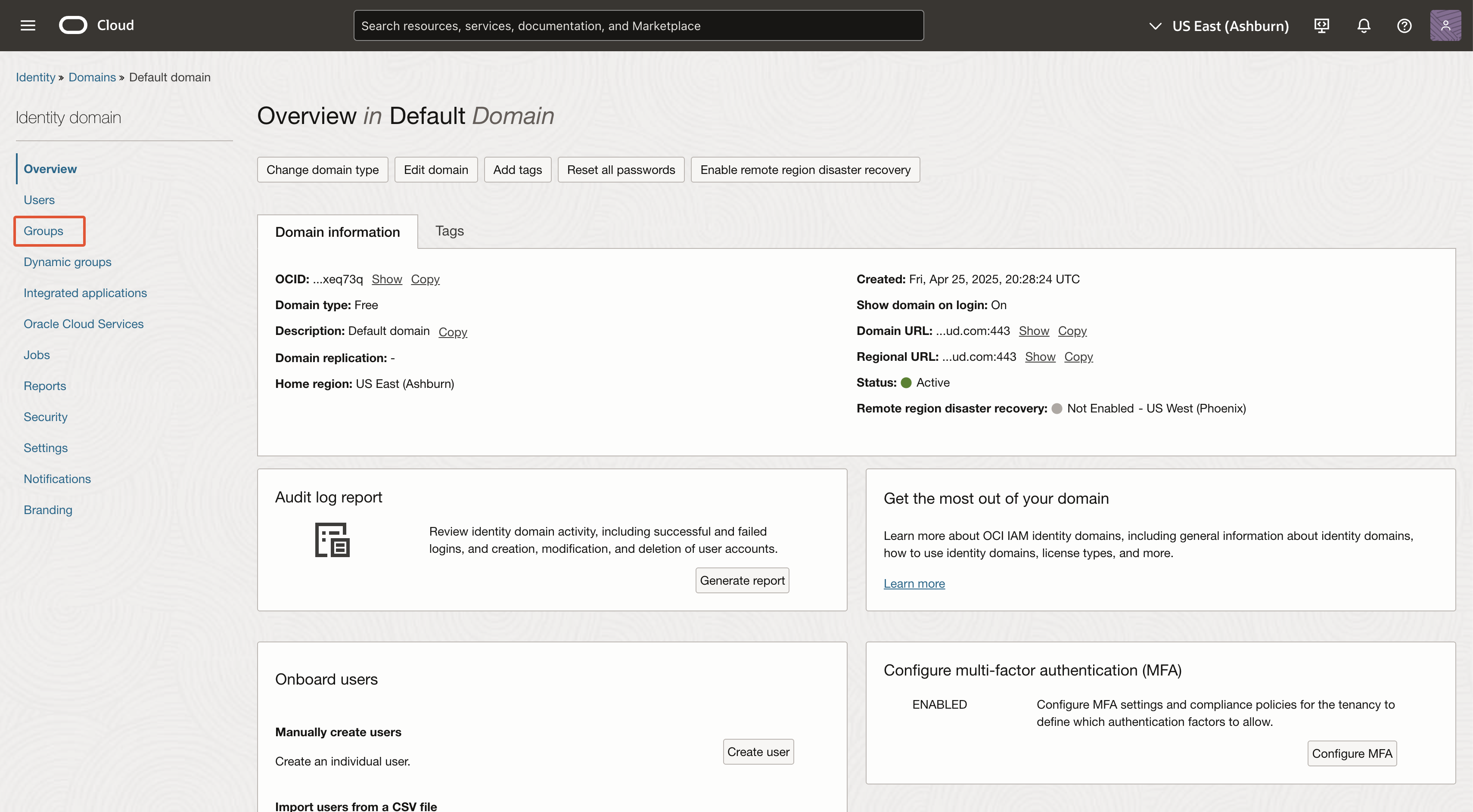
Select the domain in which you want to create the Infisical user account.
## Create OCI Group
Select the domain in which you want to create the Infisical user account.
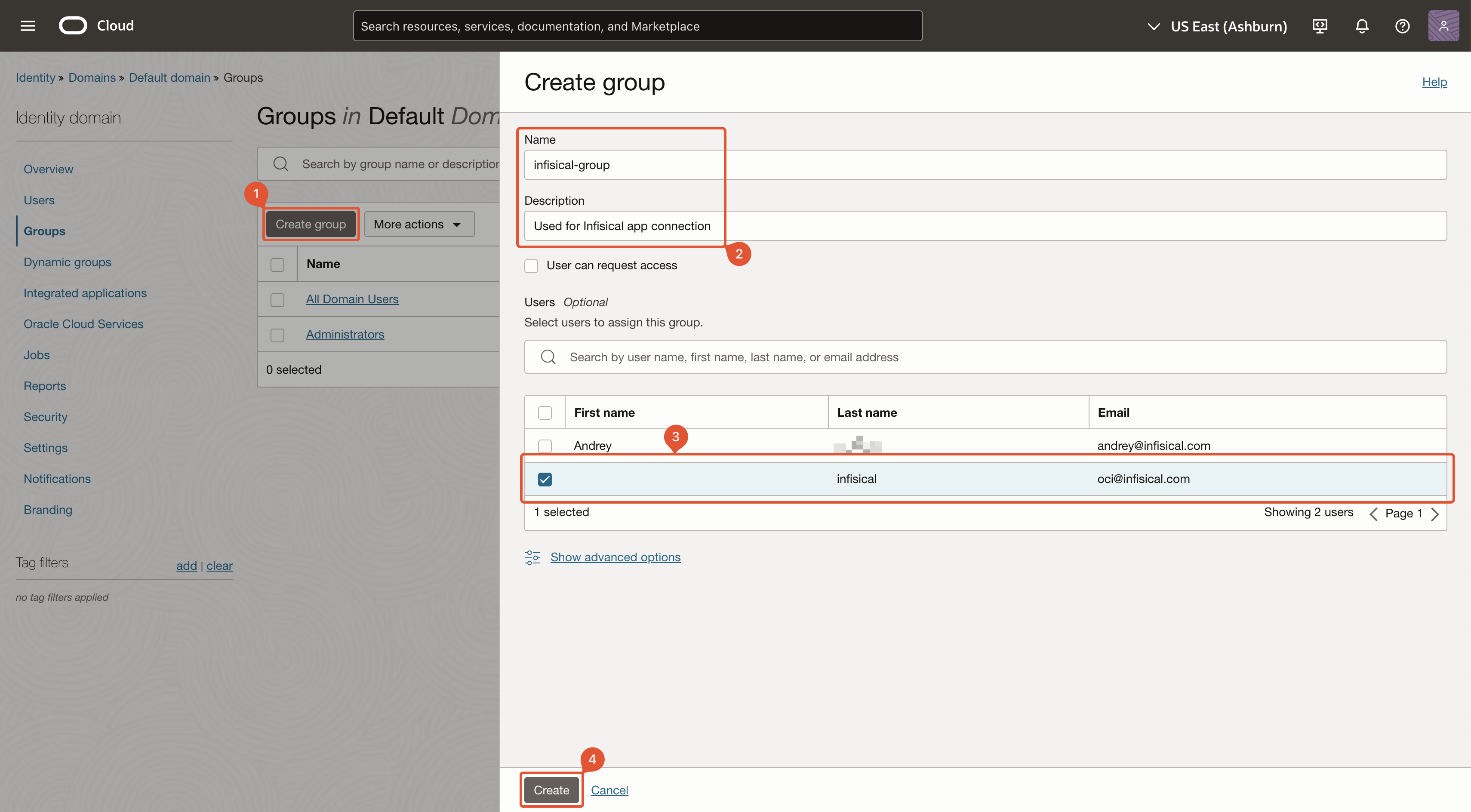
 The name and description can be anything. **Ensure that you assign the user created in earlier steps to this group**.
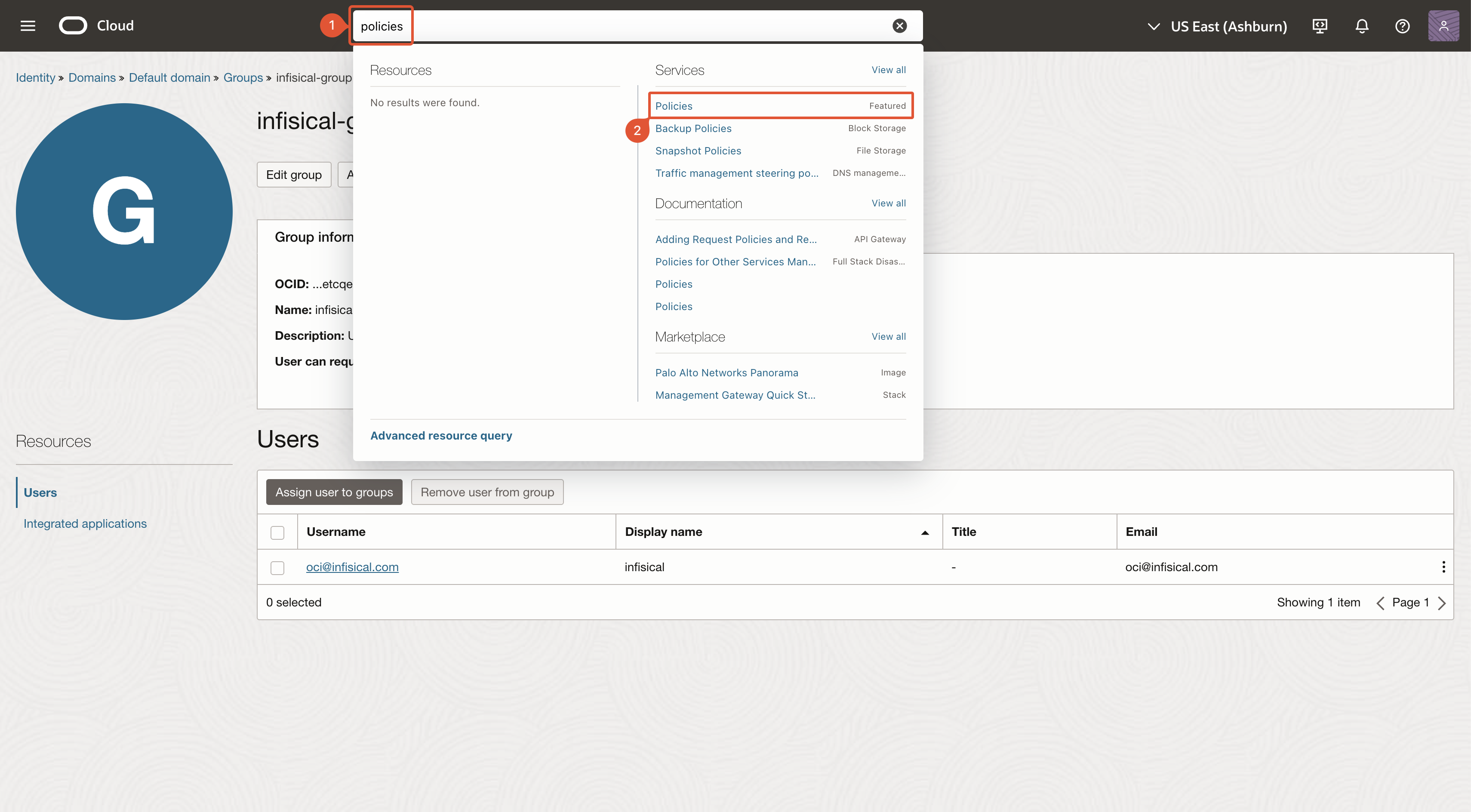
 After creating the group, take note of its name. It will be used in later steps.
## Create OCI Policy
After creating the group, take note of its name. It will be used in later steps.
## Create OCI Policy
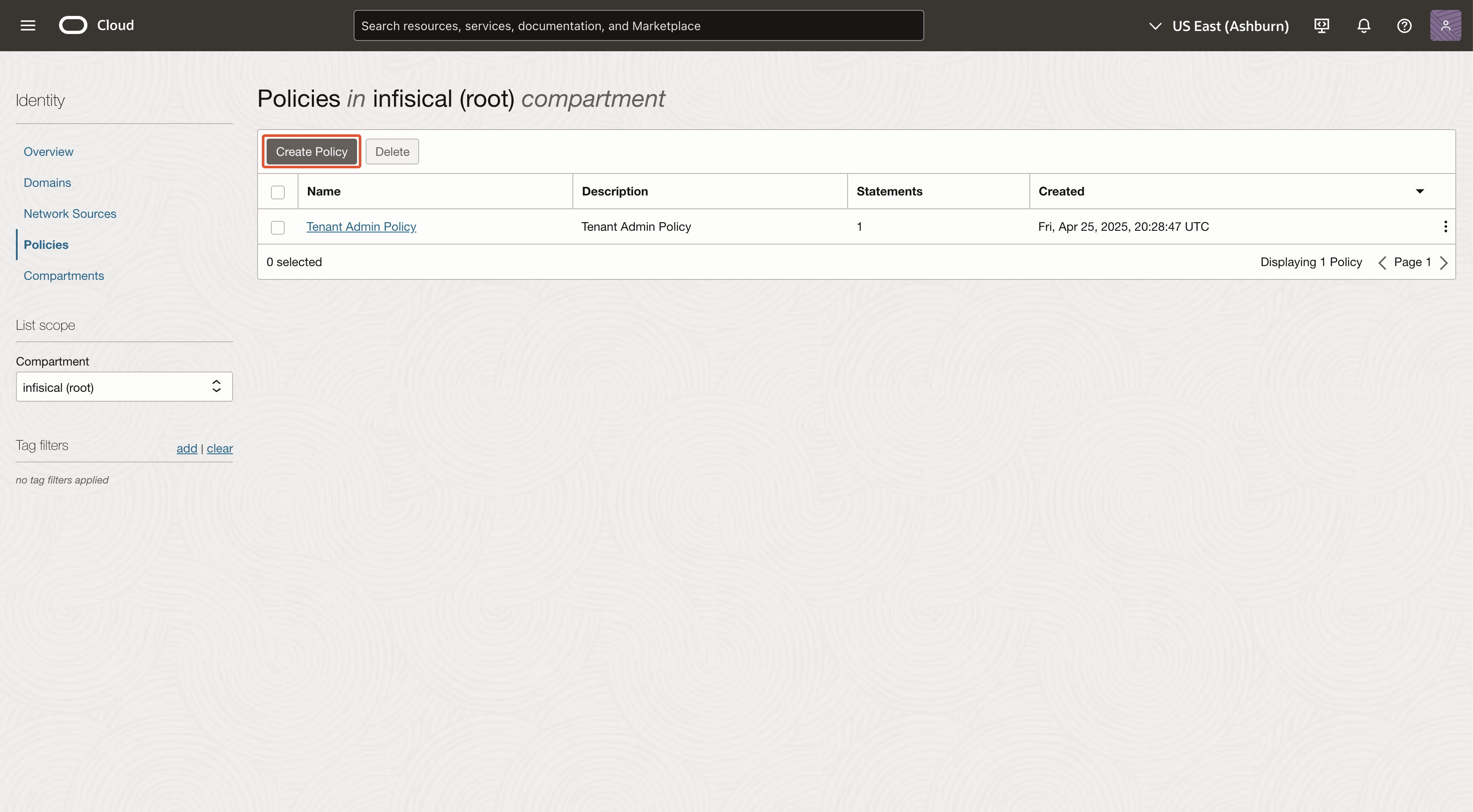 The name and description can be anything. Click 'Show manual editor' and paste in the policy rules relevant to your task:
```
Allow group to manage secret-family in compartment
Allow group to use keys in compartment
Allow group to use vaults in compartment
Allow group to inspect compartments in tenancy
```
* **Group Name:** The name of the group you created in earlier steps.
* **Compartment Name:** The name of the compartment which has your secrets vault.
If you'd like to grant Infisical access to all compartments, replace instances of `compartment ` with `tenancy`.
The name and description can be anything. Click 'Show manual editor' and paste in the policy rules relevant to your task:
```
Allow group to manage secret-family in compartment
Allow group to use keys in compartment
Allow group to use vaults in compartment
Allow group to inspect compartments in tenancy
```
* **Group Name:** The name of the group you created in earlier steps.
* **Compartment Name:** The name of the compartment which has your secrets vault.
If you'd like to grant Infisical access to all compartments, replace instances of `compartment ` with `tenancy`.
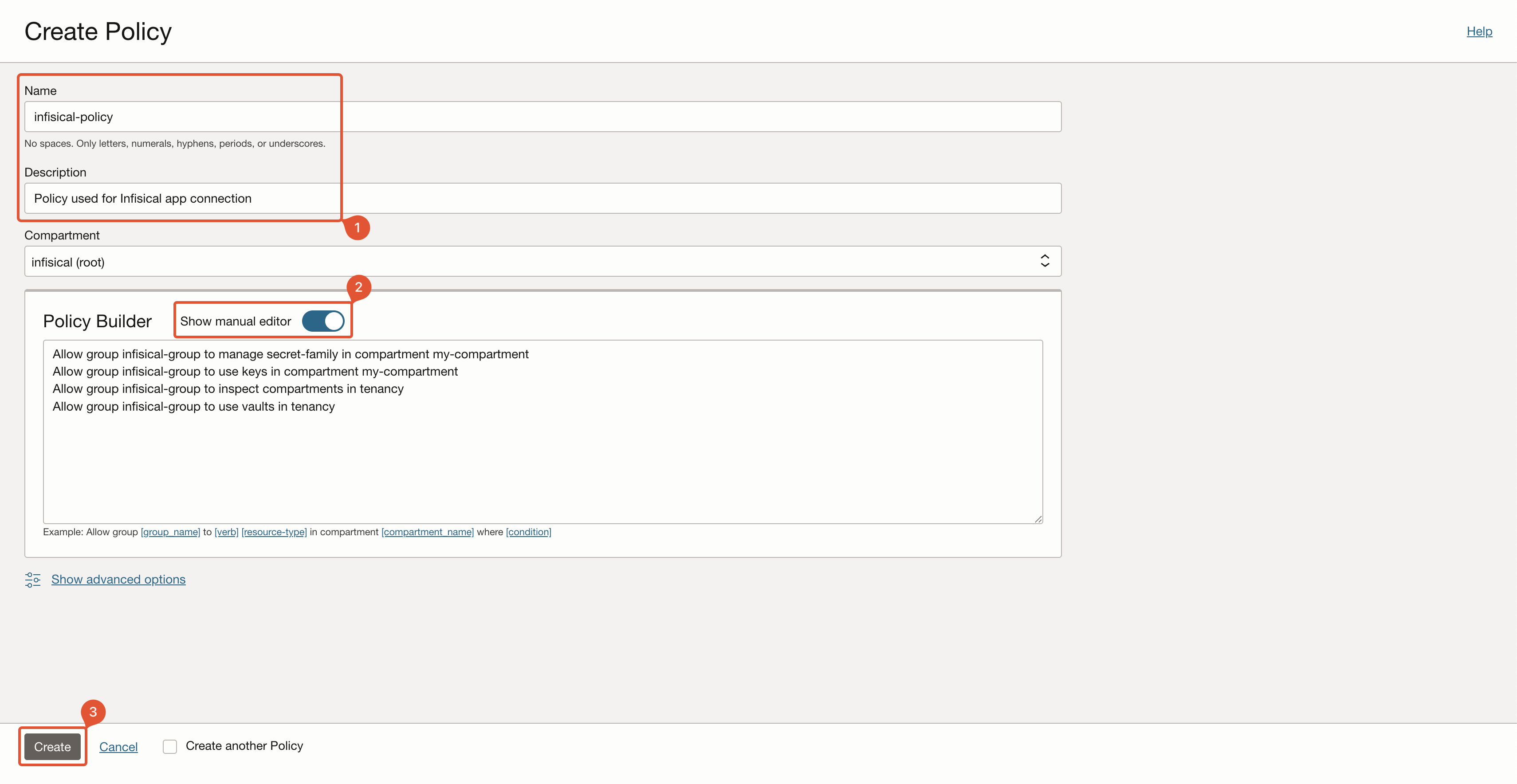 **You must create this policy on the root compartment**, otherwise some functionality may not work.
## Create OCI Connection in Infisical
In your Infisical dashboard, navigate to the **Integrations** tab in the desired project, then select **App Connections**.
**You must create this policy on the root compartment**, otherwise some functionality may not work.
## Create OCI Connection in Infisical
In your Infisical dashboard, navigate to the **Integrations** tab in the desired project, then select **App Connections**.
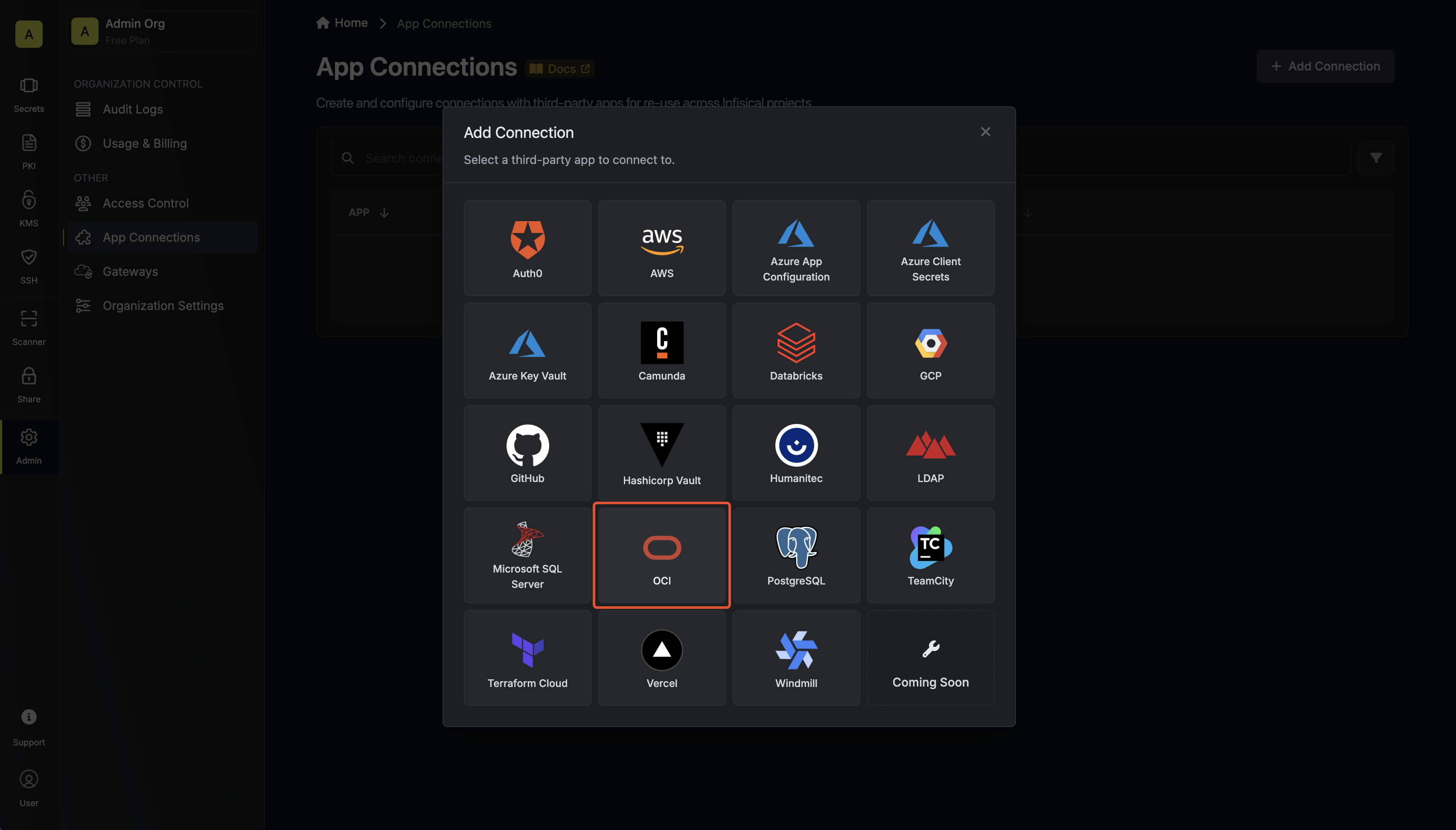
 Click the **+ Add Connection** button and select the **OCI Connection** option from the available integrations.
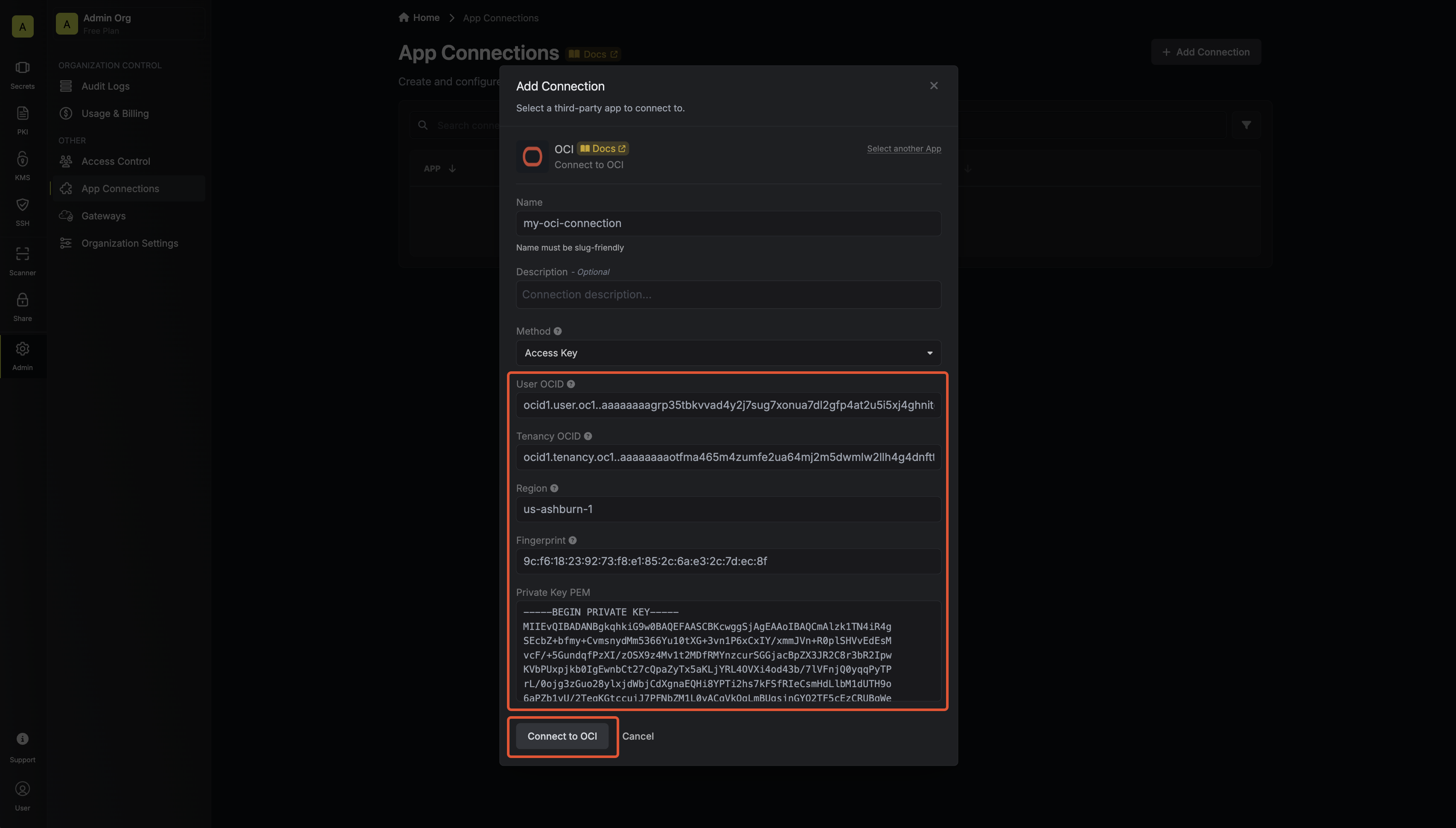
 Complete the OCI Connection form by entering:
* A descriptive name for the connection
* An optional description for future reference
* The User OCID from [earlier steps](https://infisical.com/docs/integrations/app-connections/oci#create-oci-user)
* The Tenancy OCID from [earlier steps](https://infisical.com/docs/integrations/app-connections/oci#create-oci-user)
* The Region from [earlier steps](https://infisical.com/docs/integrations/app-connections/oci#create-oci-user)
* The Fingerprint from [earlier steps](https://infisical.com/docs/integrations/app-connections/oci#create-oci-user)
* The Private Key PEM from [earlier steps](https://infisical.com/docs/integrations/app-connections/oci#create-oci-user)
Complete the OCI Connection form by entering:
* A descriptive name for the connection
* An optional description for future reference
* The User OCID from [earlier steps](https://infisical.com/docs/integrations/app-connections/oci#create-oci-user)
* The Tenancy OCID from [earlier steps](https://infisical.com/docs/integrations/app-connections/oci#create-oci-user)
* The Region from [earlier steps](https://infisical.com/docs/integrations/app-connections/oci#create-oci-user)
* The Fingerprint from [earlier steps](https://infisical.com/docs/integrations/app-connections/oci#create-oci-user)
* The Private Key PEM from [earlier steps](https://infisical.com/docs/integrations/app-connections/oci#create-oci-user)
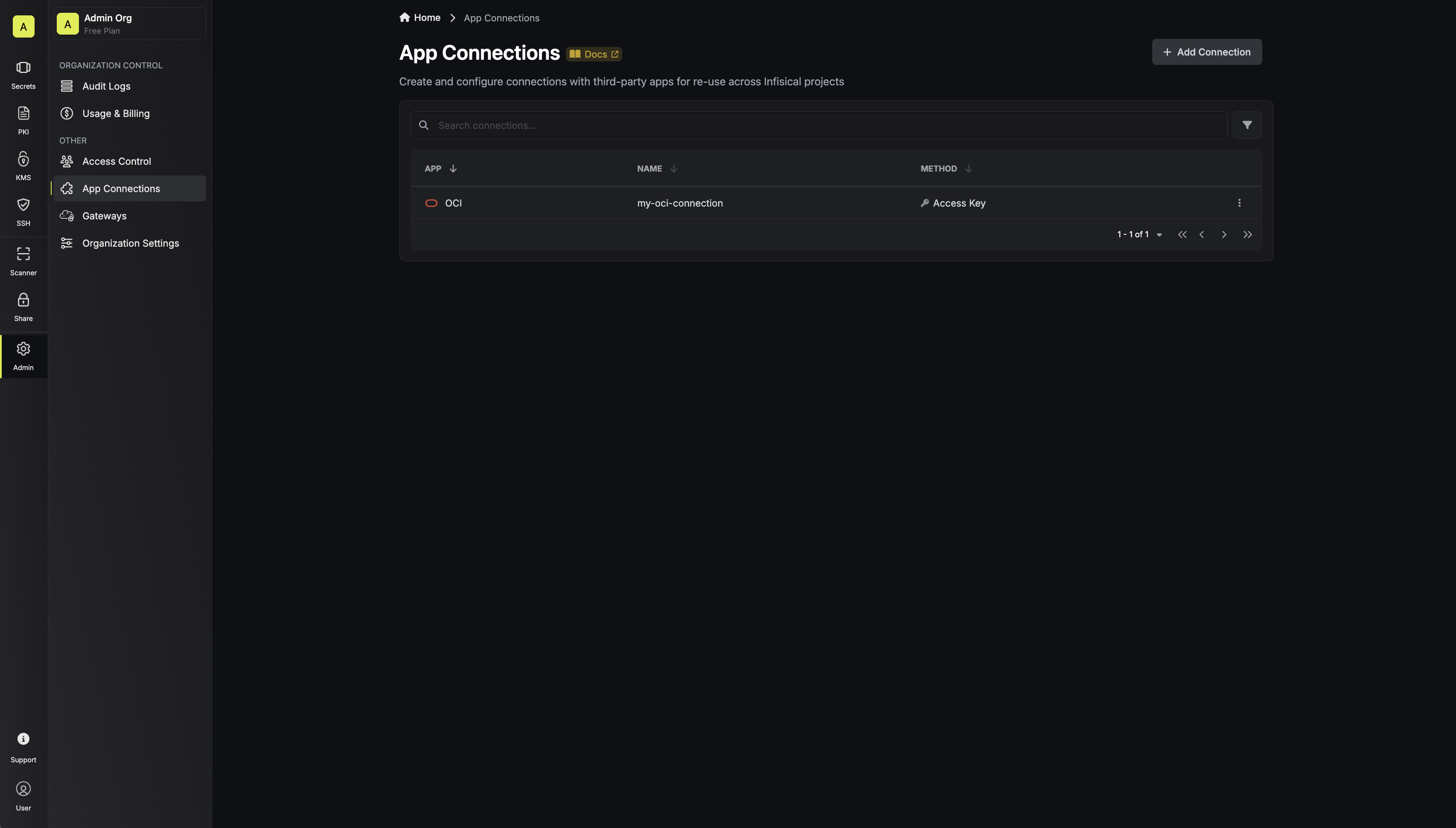
 After clicking Create, your **OCI Connection** is established and ready to use with your Infisical project.
 To create an OCI Connection, make an API request to the [Create OCI Connection](/api-reference/endpoints/app-connections/oci/create) API endpoint.
### Sample request
```bash Request theme={"dark"}
curl --request POST \
--url https://app.infisical.com/api/v1/app-connections/oci \
--header 'Content-Type: application/json' \
--data '{
"name": "my-oci-connection",
"method": "access-key",
"projectId": "7ffbb072-2575-495a-b5b0-127f88caef78",
"credentials": {
"userOcid": "ocid1.user.oc1..aaaaaaaagrp35tbkvvad4y2j7sug7xonua7dl2gfp4at2u5i5xj4ghnitg3a",
"tenancyOcid": "ocid1.tenancy.oc1..aaaaaaaaotfma465m4zumfe2ua64mj2m5dwmlw2llh4g4dnfttnakiifonta",
"region": "us-ashburn-1",
"fingerprint": "9c:f6:18:23:92:73:f8:e1:85:2c:6a:e3:2c:7d:ec:8f",
"privateKey": "[PRIVATE KEY PEM]"
}
}'
```
### Sample response
```bash Response theme={"dark"}
{
"appConnection": {
"id": "e5d18aca-86f7-4026-a95e-efb8aeb0d8e6",
"name": "my-oci-connection",
"projectId": "7ffbb072-2575-495a-b5b0-127f88caef78",
"description": null,
"version": 1,
"orgId": "6f03caa1-a5de-43ce-b127-95a145d3464c",
"createdAt": "2025-04-23T19:46:34.831Z",
"updatedAt": "2025-04-23T19:46:34.831Z",
"isPlatformManagedCredentials": false,
"credentialsHash": "7c2d371dec195f82a6a0d5b41c970a229cfcaf88e894a5b6395e2dbd0280661f",
"app": "oci",
"method": "access-key",
"credentials": {
"userOcid": "ocid1.user.oc1..aaaaaaaagrp35tbkvvad4y2j7sug7xonua7dl2gfp4at2u5i5xj4ghnitg3a",
"tenancyOcid": "ocid1.tenancy.oc1..aaaaaaaaotfma465m4zumfe2ua64mj2m5dwmlw2llh4g4dnfttnakiifonta",
"region": "us-ashburn-1",
"fingerprint": "9c:f6:18:23:92:73:f8:e1:85:2c:6a:e3:2c:7d:ec:8f"
}
}
}
```
To create an OCI Connection, make an API request to the [Create OCI Connection](/api-reference/endpoints/app-connections/oci/create) API endpoint.
### Sample request
```bash Request theme={"dark"}
curl --request POST \
--url https://app.infisical.com/api/v1/app-connections/oci \
--header 'Content-Type: application/json' \
--data '{
"name": "my-oci-connection",
"method": "access-key",
"projectId": "7ffbb072-2575-495a-b5b0-127f88caef78",
"credentials": {
"userOcid": "ocid1.user.oc1..aaaaaaaagrp35tbkvvad4y2j7sug7xonua7dl2gfp4at2u5i5xj4ghnitg3a",
"tenancyOcid": "ocid1.tenancy.oc1..aaaaaaaaotfma465m4zumfe2ua64mj2m5dwmlw2llh4g4dnfttnakiifonta",
"region": "us-ashburn-1",
"fingerprint": "9c:f6:18:23:92:73:f8:e1:85:2c:6a:e3:2c:7d:ec:8f",
"privateKey": "[PRIVATE KEY PEM]"
}
}'
```
### Sample response
```bash Response theme={"dark"}
{
"appConnection": {
"id": "e5d18aca-86f7-4026-a95e-efb8aeb0d8e6",
"name": "my-oci-connection",
"projectId": "7ffbb072-2575-495a-b5b0-127f88caef78",
"description": null,
"version": 1,
"orgId": "6f03caa1-a5de-43ce-b127-95a145d3464c",
"createdAt": "2025-04-23T19:46:34.831Z",
"updatedAt": "2025-04-23T19:46:34.831Z",
"isPlatformManagedCredentials": false,
"credentialsHash": "7c2d371dec195f82a6a0d5b41c970a229cfcaf88e894a5b6395e2dbd0280661f",
"app": "oci",
"method": "access-key",
"credentials": {
"userOcid": "ocid1.user.oc1..aaaaaaaagrp35tbkvvad4y2j7sug7xonua7dl2gfp4at2u5i5xj4ghnitg3a",
"tenancyOcid": "ocid1.tenancy.oc1..aaaaaaaaotfma465m4zumfe2ua64mj2m5dwmlw2llh4g4dnfttnakiifonta",
"region": "us-ashburn-1",
"fingerprint": "9c:f6:18:23:92:73:f8:e1:85:2c:6a:e3:2c:7d:ec:8f"
}
}
}
```