> ## Documentation Index
> Fetch the complete documentation index at: https://infisical.com/docs/llms.txt
> Use this file to discover all available pages before exploring further.
# Microsoft Intune Connection
> Learn how to configure a Microsoft Intune Connection for Infisical.
Infisical's Microsoft Intune Connection lets you validate SCEP certificate requests against Microsoft Intune using Client Secrets. When a device enrolls through a [SCEP enrollment method](/docs/documentation/platform/pki/applications/enrollment-methods/scep) configured with Intune validation, Infisical asks Intune to confirm the device's challenge before issuing the certificate, then reports the outcome back to Intune.
Microsoft Intune is an enterprise App Connection and requires a paid plan.
**Prerequisites:**
* A Microsoft Entra ID tenant with Microsoft Intune enabled.
## Setup Azure application
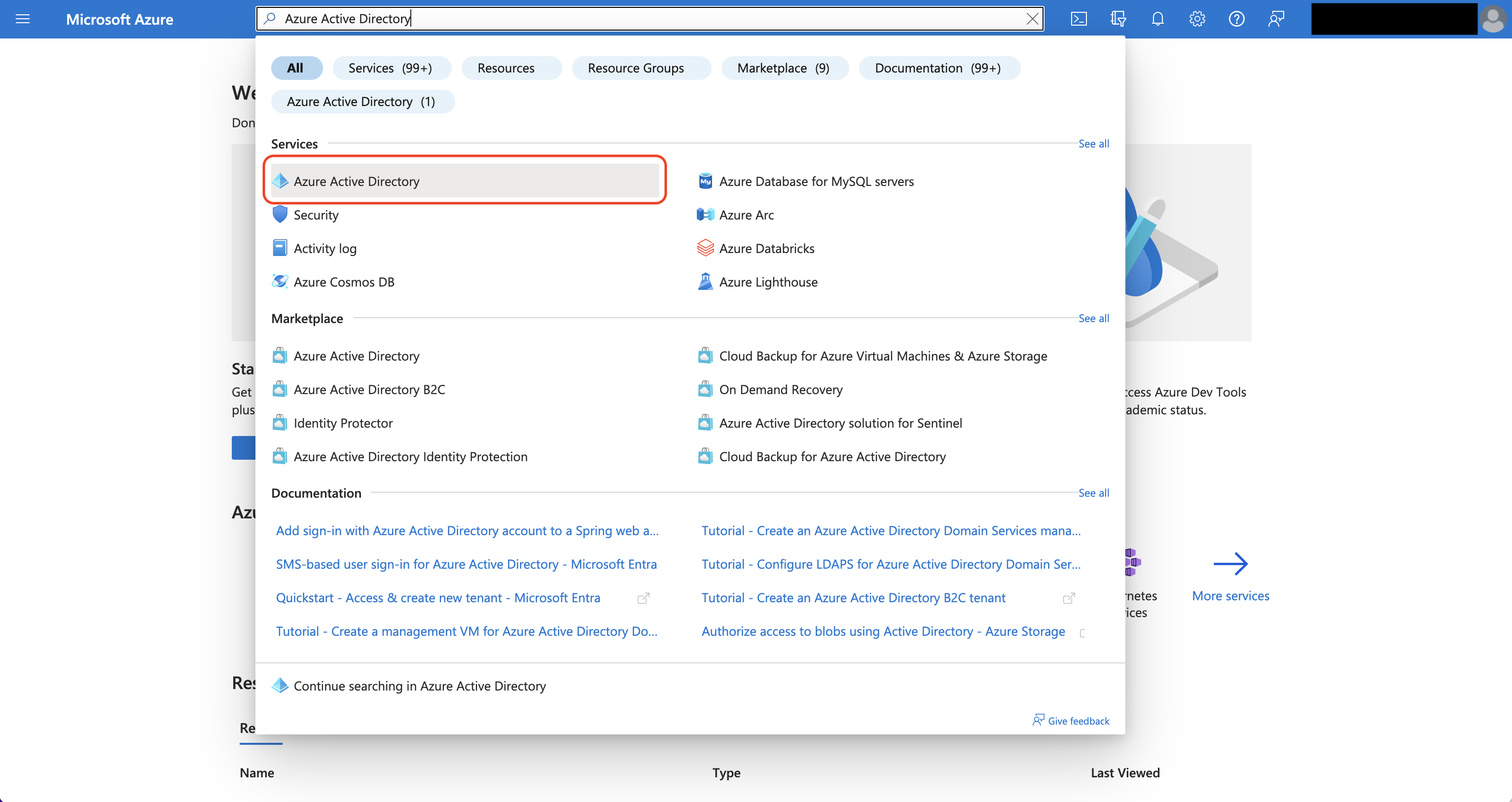
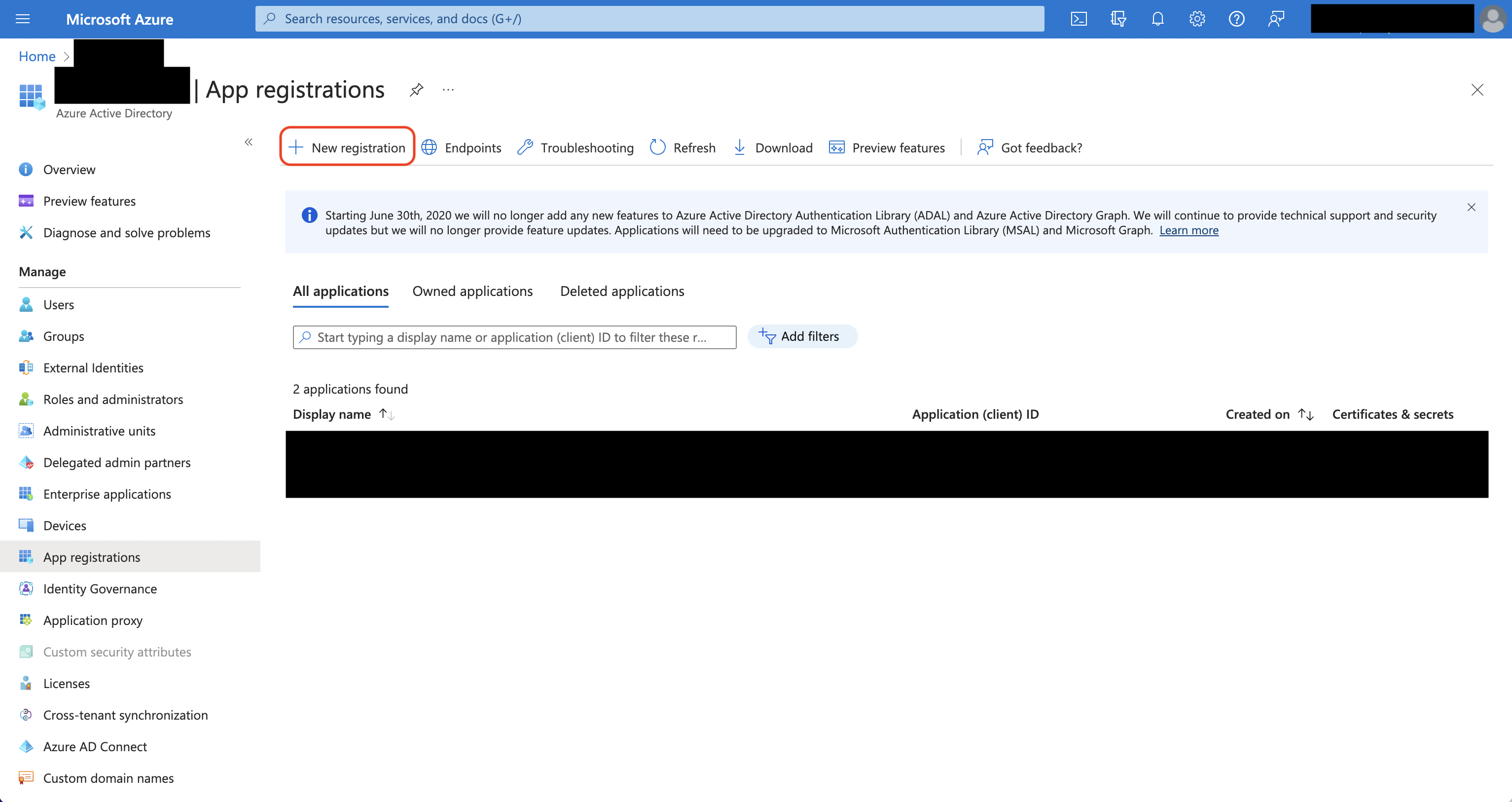
Navigate to Microsoft Entra ID and open **App registrations**, then create a new registration.
Azure Active Directory is now Microsoft Entra ID.
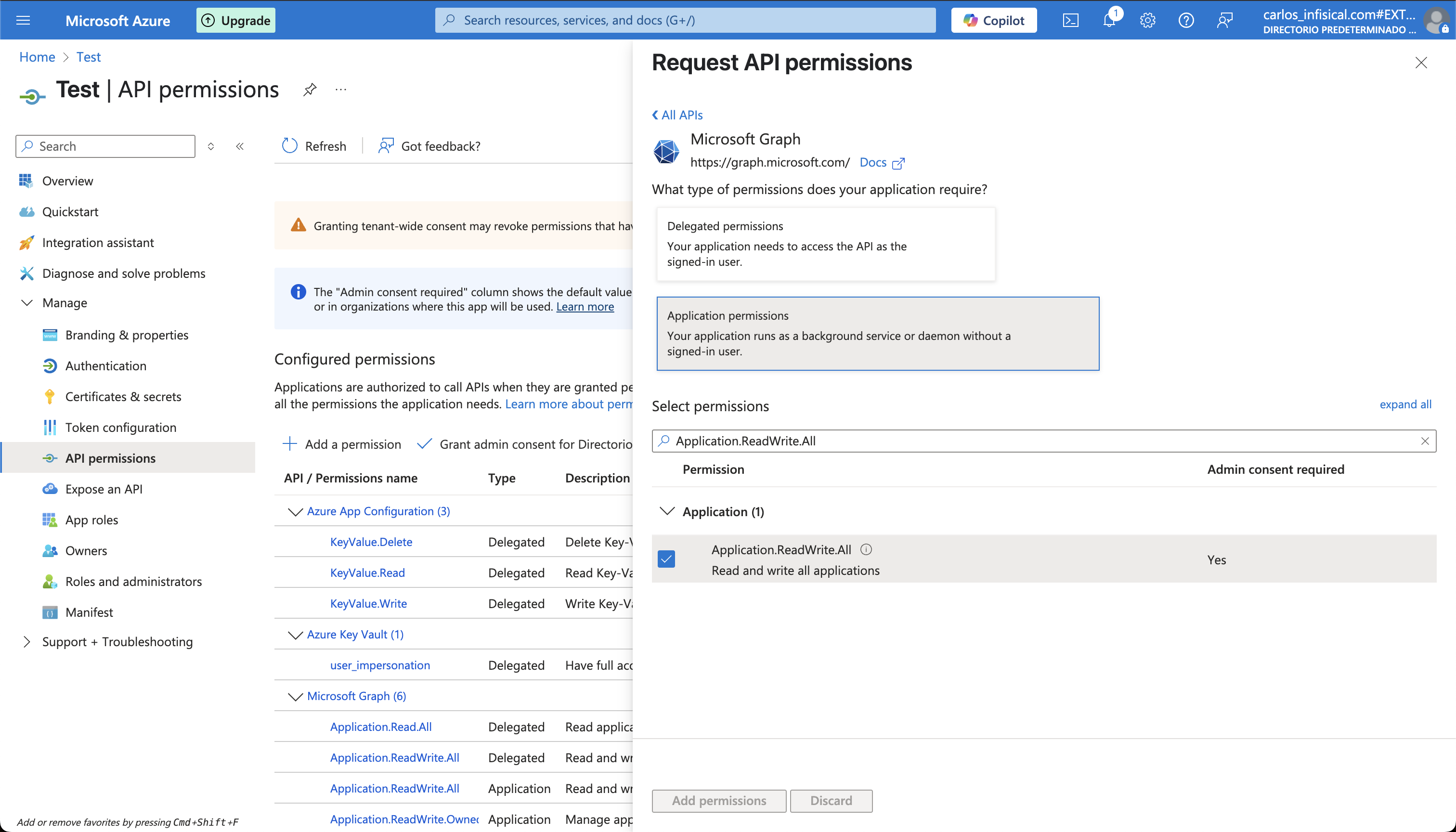
 Set the API permissions of your Azure application to include the following **Application permissions**, then grant admin consent:
* Microsoft Graph
* `Application.Read.All`
* Microsoft Intune
* `scep_challenge_provider`
`Application.Read.All` lets Infisical discover the Intune SCEP validation endpoint, and `scep_challenge_provider` lets it validate challenges and report issuance outcomes.
Set the API permissions of your Azure application to include the following **Application permissions**, then grant admin consent:
* Microsoft Graph
* `Application.Read.All`
* Microsoft Intune
* `scep_challenge_provider`
`Application.Read.All` lets Infisical discover the Intune SCEP validation endpoint, and `scep_challenge_provider` lets it validate challenges and report issuance outcomes.
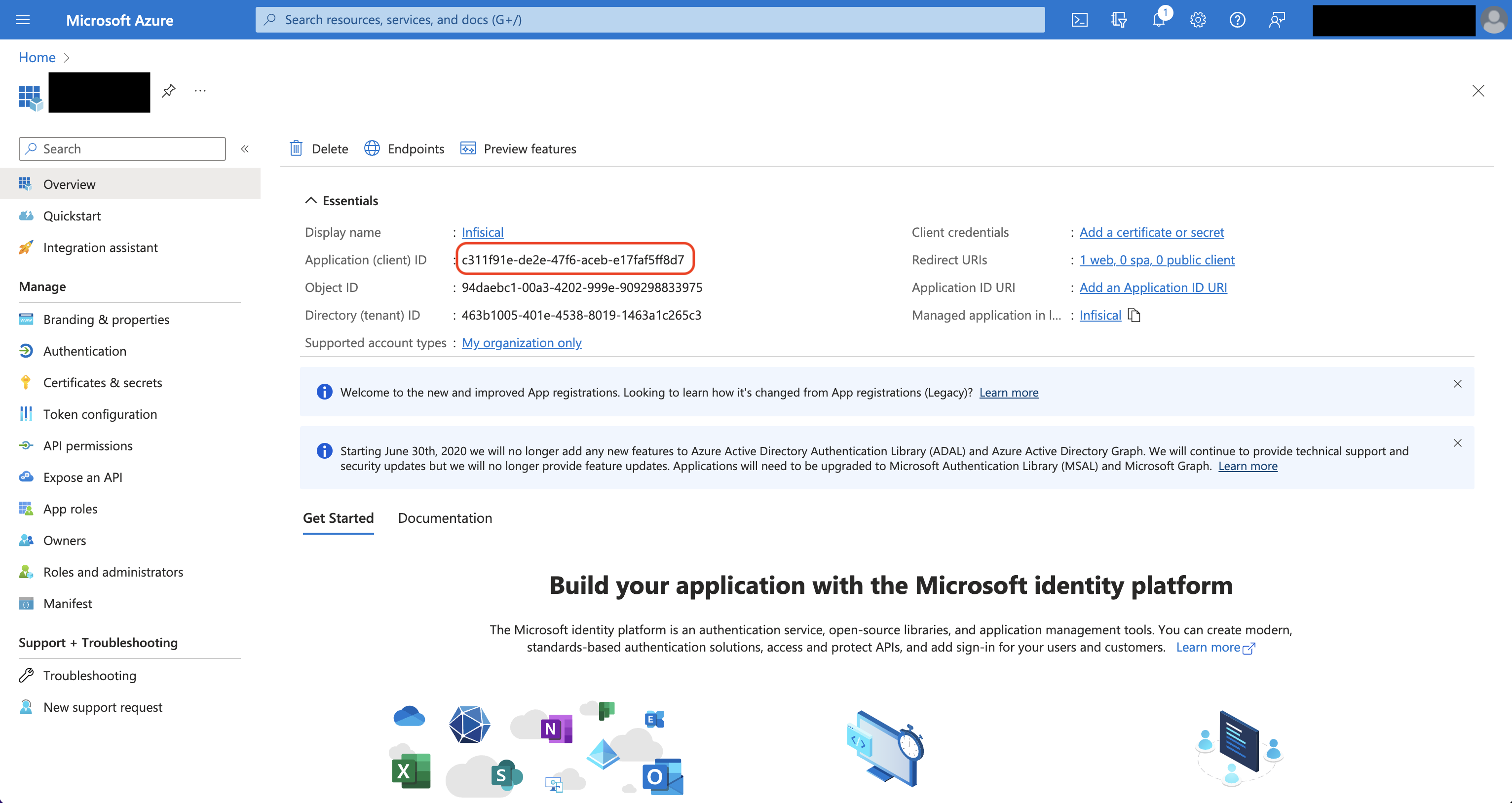
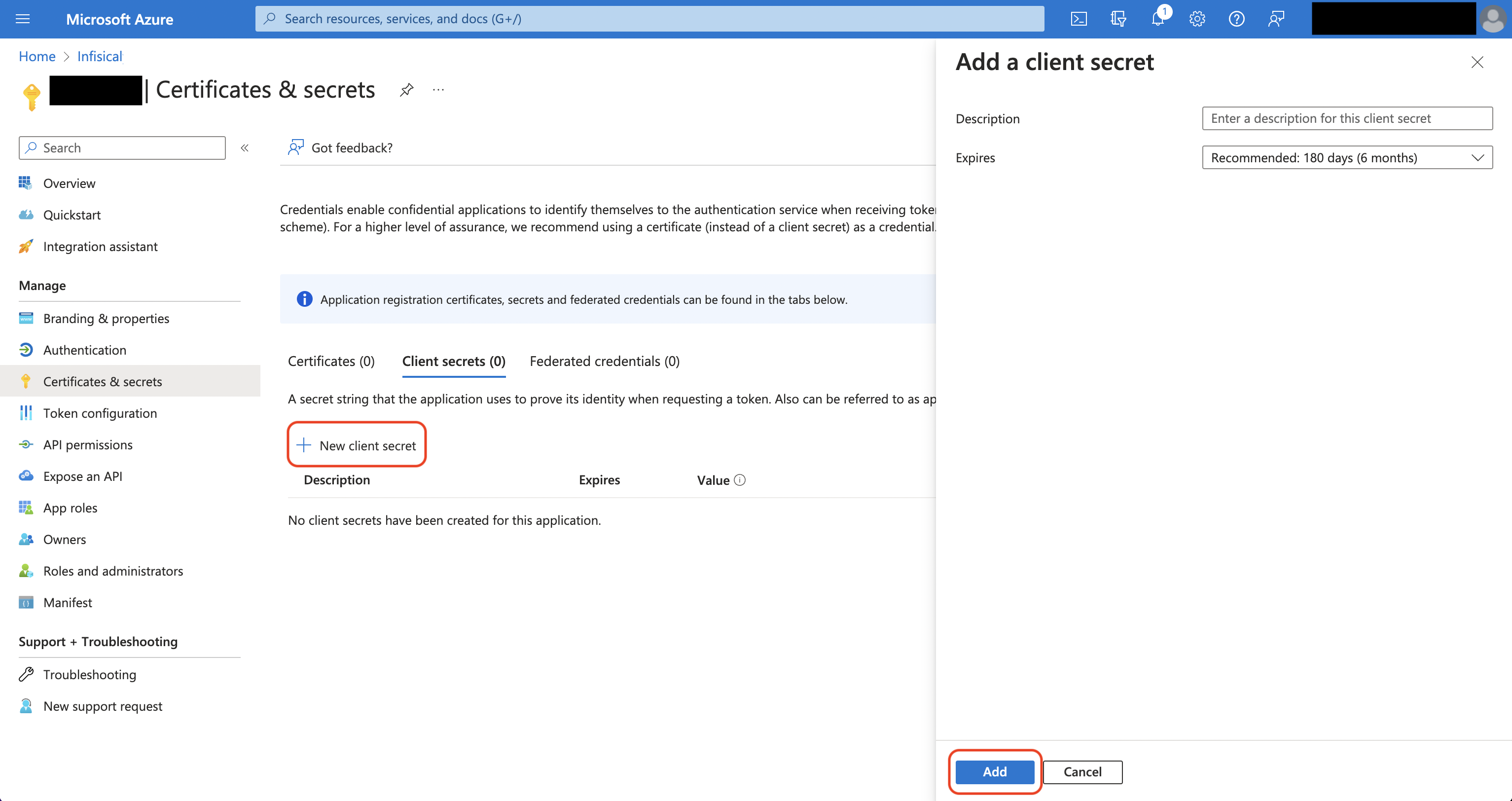
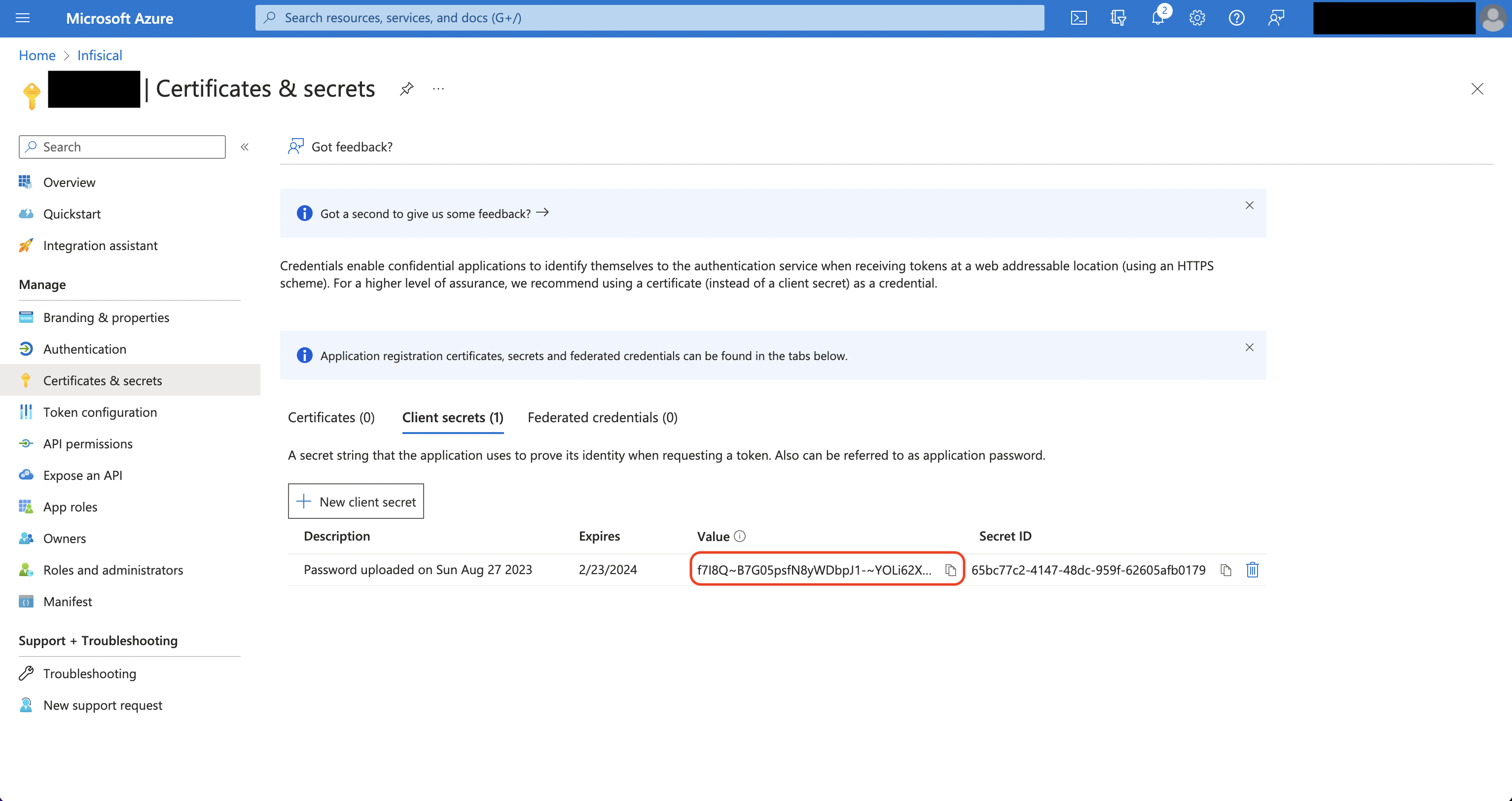
 Obtain the **Directory (Tenant) ID** and **Application (Client) ID** from the application's **Overview** page, then generate a **Client Secret** under **Certificates & secrets**.
 ## Setup Microsoft Intune Connection in Infisical
In Certificate Manager, navigate to the **App Connections** tab on the **Settings** page.
## Setup Microsoft Intune Connection in Infisical
In Certificate Manager, navigate to the **App Connections** tab on the **Settings** page.
 Select the **Microsoft Intune** option from the connection options modal.
Fill in the following fields with the credentials from your Azure App Registration:
* **Tenant ID**: The Directory (Tenant) ID of your Microsoft Entra ID tenant.
* **Client ID**: The Application (Client) ID of your registered application.
* **Client Secret**: A client secret generated for your registered application.
Click **Connect** to create the connection.
Your **Microsoft Intune Connection** is now available for use as the validation connection on a SCEP enrollment method.
To create a Microsoft Intune Connection via API, send a request to the [Create Microsoft Intune Connection](/docs/api-reference/endpoints/app-connections/microsoft-intune/create) endpoint.
### Sample request
```bash Request theme={"dark"}
curl --request POST \
--url https://app.infisical.com/api/v1/app-connections/microsoft-intune \
--header 'Content-Type: application/json' \
--data '{
"name": "my-microsoft-intune-connection",
"method": "client-secret",
"credentials": {
"tenantId": "your-tenant-id",
"clientId": "your-client-id",
"clientSecret": "your-client-secret"
}
}'
```
### Sample response
```json Response theme={"dark"}
{
"appConnection": {
"id": "3c90c3cc-0d44-4b50-8888-8dd25736052a",
"name": "my-microsoft-intune-connection",
"description": null,
"version": 1,
"orgId": "6f03caa1-a5de-43ce-b127-95a145d3464c",
"createdAt": "2023-11-07T05:31:56Z",
"updatedAt": "2023-11-07T05:31:56Z",
"isPlatformManagedCredentials": false,
"app": "microsoft-intune",
"method": "client-secret",
"credentials": {}
}
}
```
Select the **Microsoft Intune** option from the connection options modal.
Fill in the following fields with the credentials from your Azure App Registration:
* **Tenant ID**: The Directory (Tenant) ID of your Microsoft Entra ID tenant.
* **Client ID**: The Application (Client) ID of your registered application.
* **Client Secret**: A client secret generated for your registered application.
Click **Connect** to create the connection.
Your **Microsoft Intune Connection** is now available for use as the validation connection on a SCEP enrollment method.
To create a Microsoft Intune Connection via API, send a request to the [Create Microsoft Intune Connection](/docs/api-reference/endpoints/app-connections/microsoft-intune/create) endpoint.
### Sample request
```bash Request theme={"dark"}
curl --request POST \
--url https://app.infisical.com/api/v1/app-connections/microsoft-intune \
--header 'Content-Type: application/json' \
--data '{
"name": "my-microsoft-intune-connection",
"method": "client-secret",
"credentials": {
"tenantId": "your-tenant-id",
"clientId": "your-client-id",
"clientSecret": "your-client-secret"
}
}'
```
### Sample response
```json Response theme={"dark"}
{
"appConnection": {
"id": "3c90c3cc-0d44-4b50-8888-8dd25736052a",
"name": "my-microsoft-intune-connection",
"description": null,
"version": 1,
"orgId": "6f03caa1-a5de-43ce-b127-95a145d3464c",
"createdAt": "2023-11-07T05:31:56Z",
"updatedAt": "2023-11-07T05:31:56Z",
"isPlatformManagedCredentials": false,
"app": "microsoft-intune",
"method": "client-secret",
"credentials": {}
}
}
```