> ## Documentation Index
> Fetch the complete documentation index at: https://infisical.com/docs/llms.txt
> Use this file to discover all available pages before exploring further.
# HPE iLO connection
> Learn how to configure an HPE iLO connection for Infisical.
An HPE iLO connection authenticates Infisical to HPE Integrated Lights-Out (iLO), the management interface of HPE servers, with the username and password of an iLO local account. Infisical uses the connection to manage iLO local accounts through the iLO [Redfish API](https://servermanagementportal.ext.hpe.com/docs/redfishservices/ilos/).
This guide only authenticates Infisical with HPE iLO. Once the app connection is ready, you can [use it to set up integrations](#step-2-configure-integrations).
## Prerequisites
* An HPE iLO that Infisical can reach over HTTPS, either directly or through a [Gateway](/docs/documentation/platform/gateways/overview)
* An iLO local account with at least the **Login** privilege, for Infisical to sign in with
## Step 1: Create the app connection
To create the connection using the API, use the [Create HPE iLO Connection](/docs/api-reference/endpoints/app-connections/hpe-ilo/create) endpoint.
In the sidebar, select **Integrations**, then open the **App Connections** tab.
 Select **Add Connection** and choose **HPE iLO**.
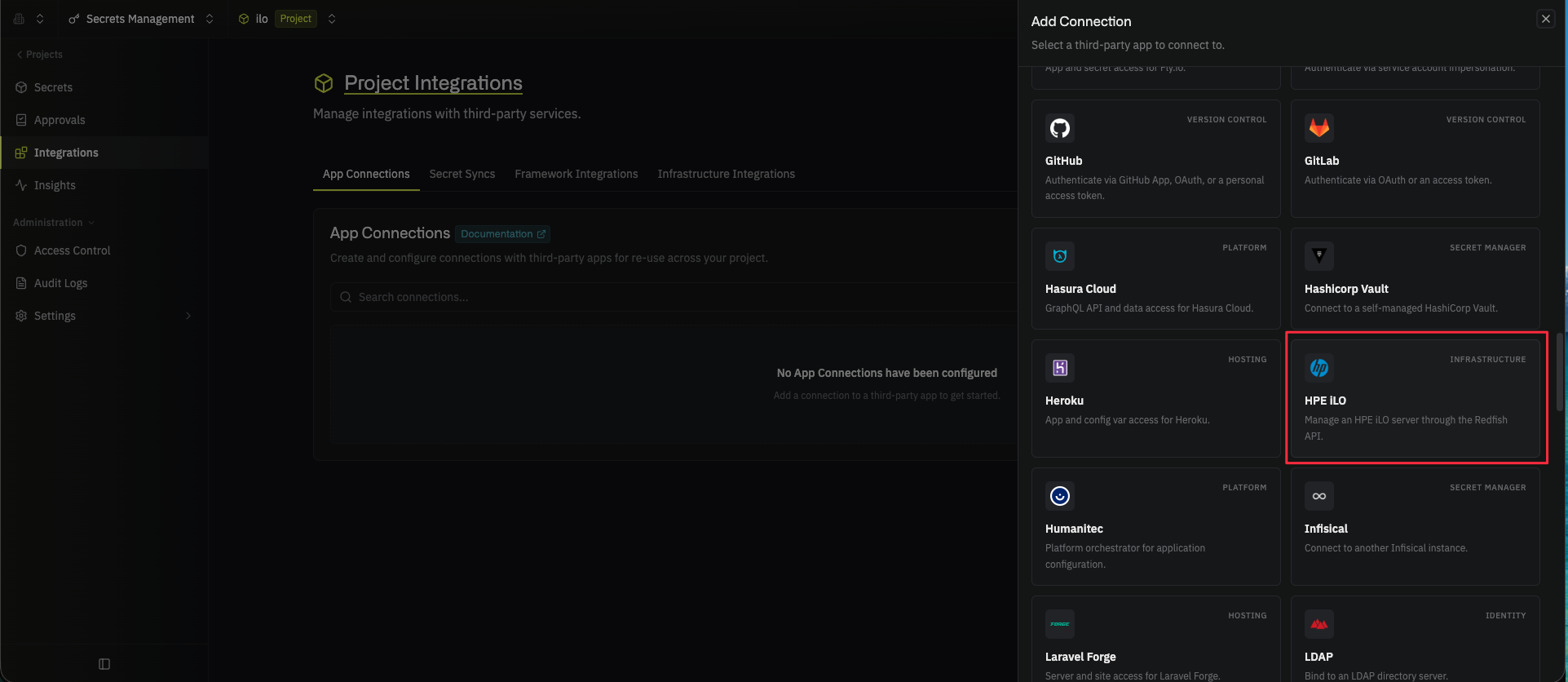 Fill out the form's fields:
* **Name**: A descriptive name for the connection
* **Description** (optional): A note for future reference
* **Gateway** (optional): The [Gateway](/docs/documentation/platform/gateways/overview) Infisical connects through, if Infisical can't reach the iLO directly
* **Hostname**: The hostname or IP address of the iLO, without `https://` or a port (for example, `ilo.example.com`)
* **Port** (optional): The HTTPS port of the iLO (defaults to `443`)
* **Username**: The login name of the [iLO local account](#prerequisites) Infisical signs in with
* **Password**: The password of the iLO account
* **SSL Certificate** (optional): On the **SSL** tab, the CA certificate in PEM format that signed the iLO's TLS certificate
* **Reject Unauthorized**: On the **SSL** tab, whether Infisical refuses to connect when it can't verify the iLO's TLS certificate (on by default; for a self-signed certificate, enter its CA certificate in **SSL Certificate** instead of turning this off)
Then, select **Connect to HPE iLO**.
Fill out the form's fields:
* **Name**: A descriptive name for the connection
* **Description** (optional): A note for future reference
* **Gateway** (optional): The [Gateway](/docs/documentation/platform/gateways/overview) Infisical connects through, if Infisical can't reach the iLO directly
* **Hostname**: The hostname or IP address of the iLO, without `https://` or a port (for example, `ilo.example.com`)
* **Port** (optional): The HTTPS port of the iLO (defaults to `443`)
* **Username**: The login name of the [iLO local account](#prerequisites) Infisical signs in with
* **Password**: The password of the iLO account
* **SSL Certificate** (optional): On the **SSL** tab, the CA certificate in PEM format that signed the iLO's TLS certificate
* **Reject Unauthorized**: On the **SSL** tab, whether Infisical refuses to connect when it can't verify the iLO's TLS certificate (on by default; for a self-signed certificate, enter its CA certificate in **SSL Certificate** instead of turning this off)
Then, select **Connect to HPE iLO**.
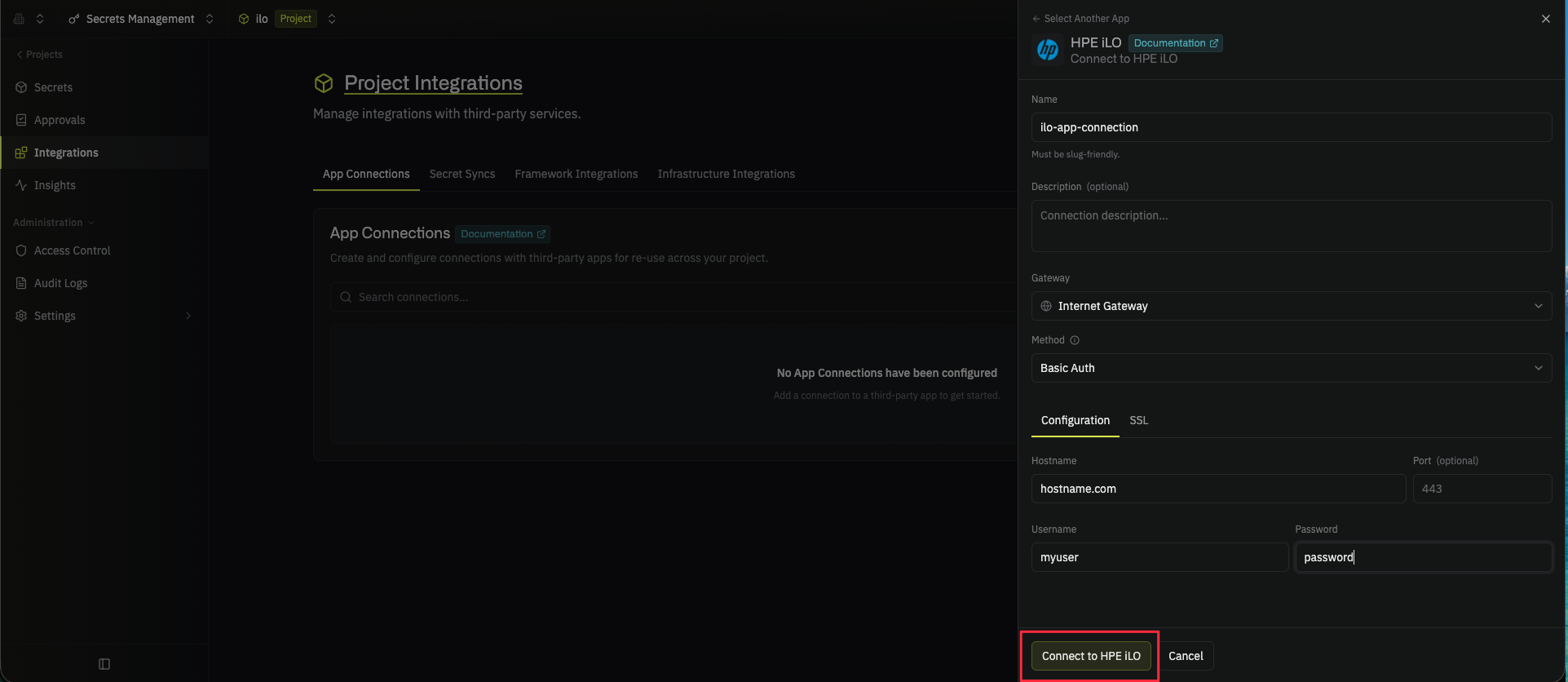 In your Secrets Manager project, select **Integrations** from the sidebar, then open the **App Connections** tab.
Select **Add Connection** and choose **HPE iLO**.
Fill out the form's fields:
* **Name**: A descriptive name for the connection
* **Description** (optional): A note for future reference
* **Gateway** (optional): The [Gateway](/docs/documentation/platform/gateways/overview) Infisical connects through, if Infisical can't reach the iLO directly
* **Hostname**: The hostname or IP address of the iLO, without `https://` or a port (for example, `ilo.example.com`)
* **Port** (optional): The HTTPS port of the iLO (defaults to `443`)
* **Username**: The login name of the [iLO local account](#prerequisites) Infisical signs in with
* **Password**: The password of the iLO account
* **SSL Certificate** (optional): On the **SSL** tab, the CA certificate in PEM format that signed the iLO's TLS certificate
* **Reject Unauthorized**: On the **SSL** tab, whether Infisical refuses to connect when it can't verify the iLO's TLS certificate (on by default; for a self-signed certificate, enter its CA certificate in **SSL Certificate** instead of turning this off)
Then, select **Connect to HPE iLO**.
When you select **Connect to HPE iLO**, Infisical signs in to the iLO with the account's username and password and reads the list of iLO accounts. If the iLO rejects the username or password, or the account can't read the account list, Infisical shows an error and doesn't save the connection.
Your HPE iLO app connection is ready to use.
## Step 2: Configure integrations
Now that your HPE iLO app connection is configured, you can use it to set up the following integrations:
Rotate the password of an iLO local account on a schedule.
This documentation is built and hosted on [Mintlify](https://mintlify.com), a developer documentation platform.
In your Secrets Manager project, select **Integrations** from the sidebar, then open the **App Connections** tab.
Select **Add Connection** and choose **HPE iLO**.
Fill out the form's fields:
* **Name**: A descriptive name for the connection
* **Description** (optional): A note for future reference
* **Gateway** (optional): The [Gateway](/docs/documentation/platform/gateways/overview) Infisical connects through, if Infisical can't reach the iLO directly
* **Hostname**: The hostname or IP address of the iLO, without `https://` or a port (for example, `ilo.example.com`)
* **Port** (optional): The HTTPS port of the iLO (defaults to `443`)
* **Username**: The login name of the [iLO local account](#prerequisites) Infisical signs in with
* **Password**: The password of the iLO account
* **SSL Certificate** (optional): On the **SSL** tab, the CA certificate in PEM format that signed the iLO's TLS certificate
* **Reject Unauthorized**: On the **SSL** tab, whether Infisical refuses to connect when it can't verify the iLO's TLS certificate (on by default; for a self-signed certificate, enter its CA certificate in **SSL Certificate** instead of turning this off)
Then, select **Connect to HPE iLO**.
When you select **Connect to HPE iLO**, Infisical signs in to the iLO with the account's username and password and reads the list of iLO accounts. If the iLO rejects the username or password, or the account can't read the account list, Infisical shows an error and doesn't save the connection.
Your HPE iLO app connection is ready to use.
## Step 2: Configure integrations
Now that your HPE iLO app connection is configured, you can use it to set up the following integrations:
Rotate the password of an iLO local account on a schedule.
This documentation is built and hosted on [Mintlify](https://mintlify.com), a developer documentation platform.