> ## Documentation Index
> Fetch the complete documentation index at: https://infisical.com/docs/llms.txt
> Use this file to discover all available pages before exploring further.
# DigiCert Connection
> Learn how to configure a DigiCert connection for Infisical.
Infisical supports connecting to [DigiCert CertCentral](https://dev.digicert.com/en/certcentral-apis.html) using a **CertCentral API Key**. This connection powers the [DigiCert Certificate Authority](/documentation/platform/pki/ca/digicert-direct) for direct (non-ACME) certificate issuance.
This connection is for the DigiCert **CertCentral Services API**. If you are using DigiCert's
ACME endpoint with External Account Binding (EAB) credentials, use the
[ACME Certificate Authority](/documentation/platform/pki/ca/acme-ca) instead.
## Prerequisites
* A CertCentral account with sufficient permissions to create API keys and place certificate orders
* At least one validated CertCentral organization that will be listed on issued certificates
* A CertCentral user with a role that can place and manage orders (typically **Manager** or **Administrator**) — the API key inherits its permissions from this user
## Create a CertCentral API Key
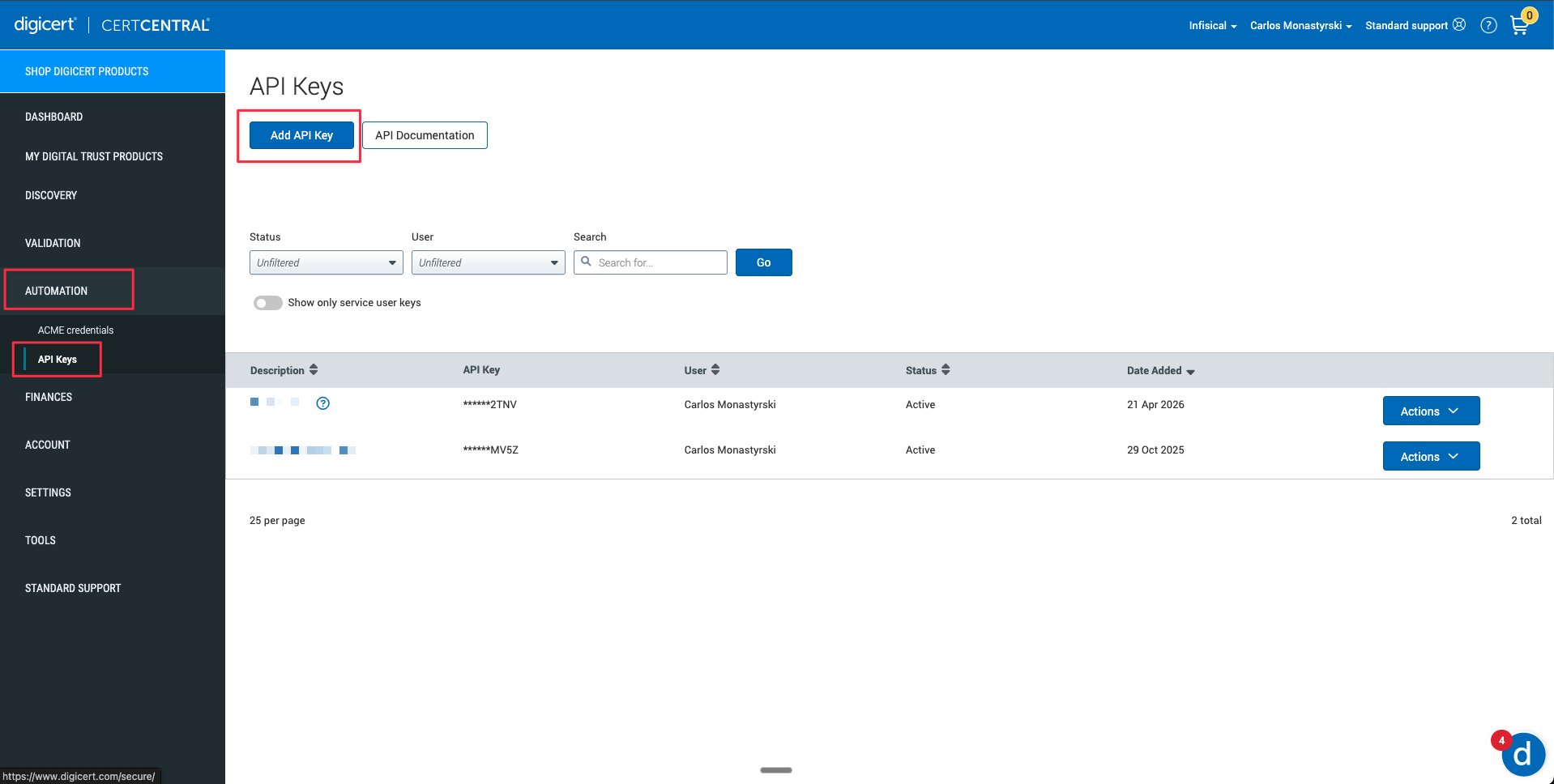
In your CertCentral account, go to **Automation** → **API Keys** and click **Add API Key**.
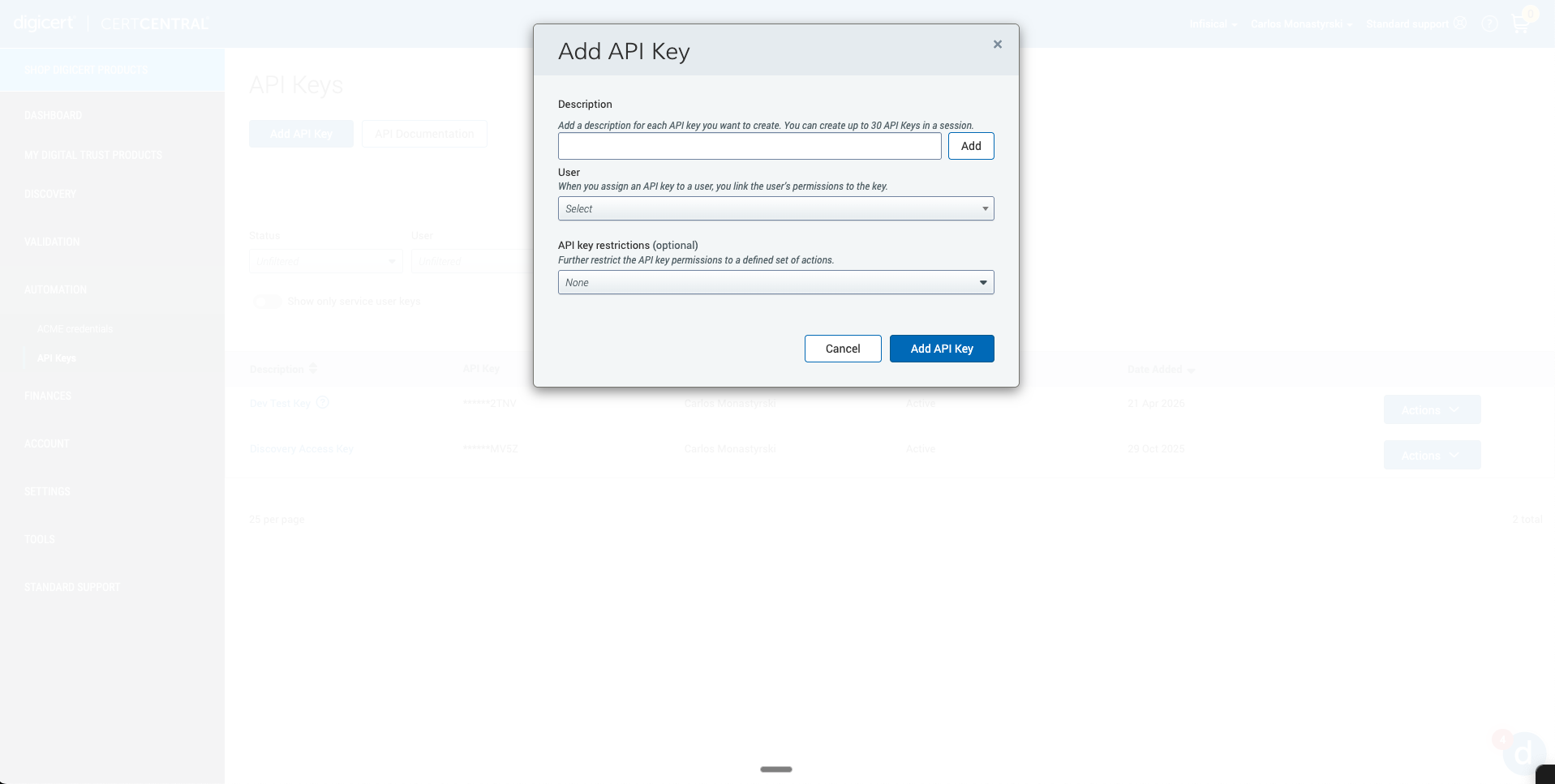
 Give the key a descriptive name (e.g. `infisical`) and **assign a user whose role is Manager or Administrator**, the key inherits that user's permissions on CertCentral.
Under **API key restrictions**, leave the default **None** or select **Orders, Domains, Organizations**
Copy the generated key value, it is only shown once.
Give the key a descriptive name (e.g. `infisical`) and **assign a user whose role is Manager or Administrator**, the key inherits that user's permissions on CertCentral.
Under **API key restrictions**, leave the default **None** or select **Orders, Domains, Organizations**
Copy the generated key value, it is only shown once.
 Create a dedicated API key for Infisical rather than reusing an existing one so you can rotate or
revoke access independently.
## Create DigiCert Connection in Infisical
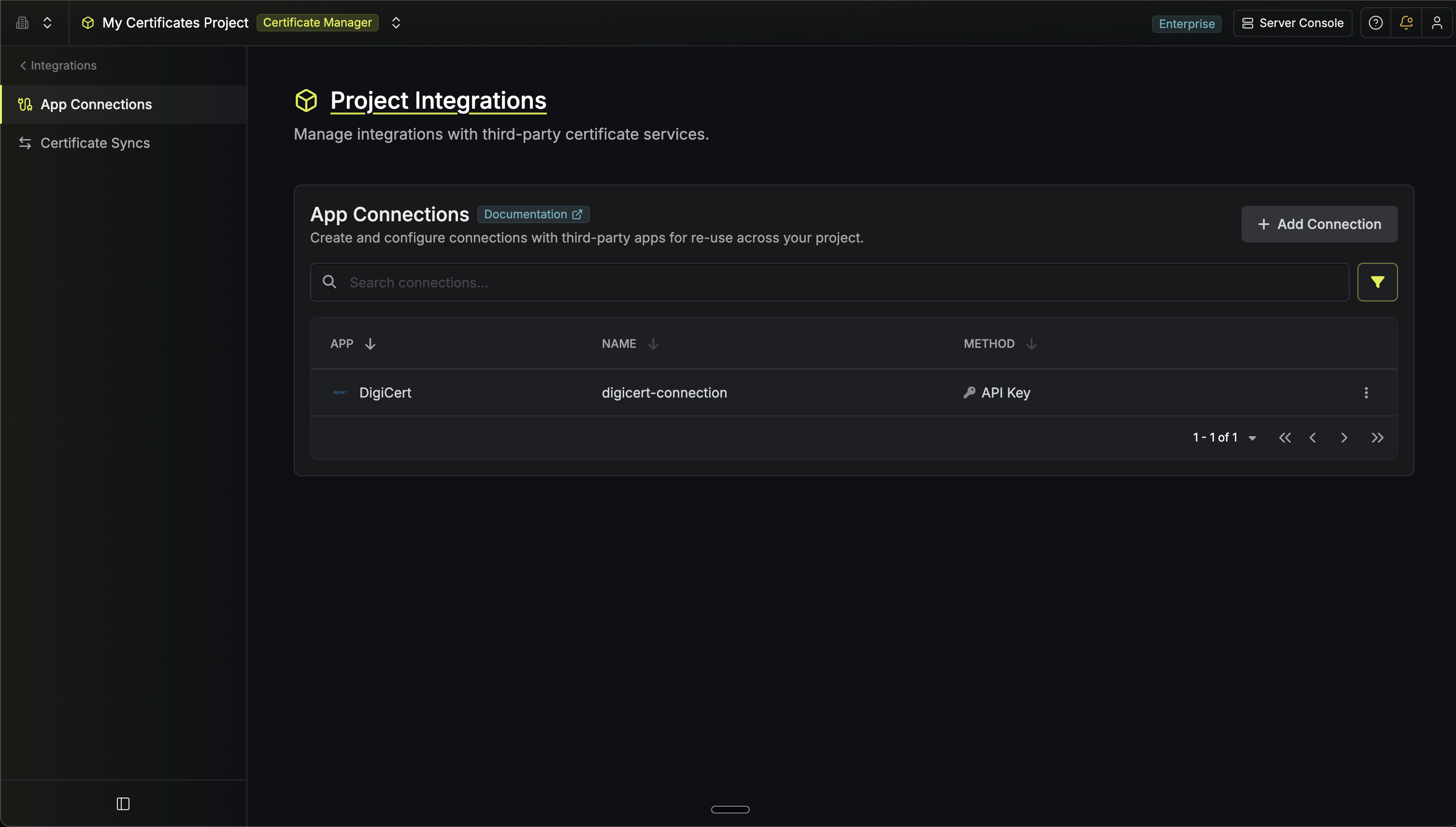
In your Infisical dashboard, go to **Organization Settings** → **App Connections**.
Create a dedicated API key for Infisical rather than reusing an existing one so you can rotate or
revoke access independently.
## Create DigiCert Connection in Infisical
In your Infisical dashboard, go to **Organization Settings** → **App Connections**.
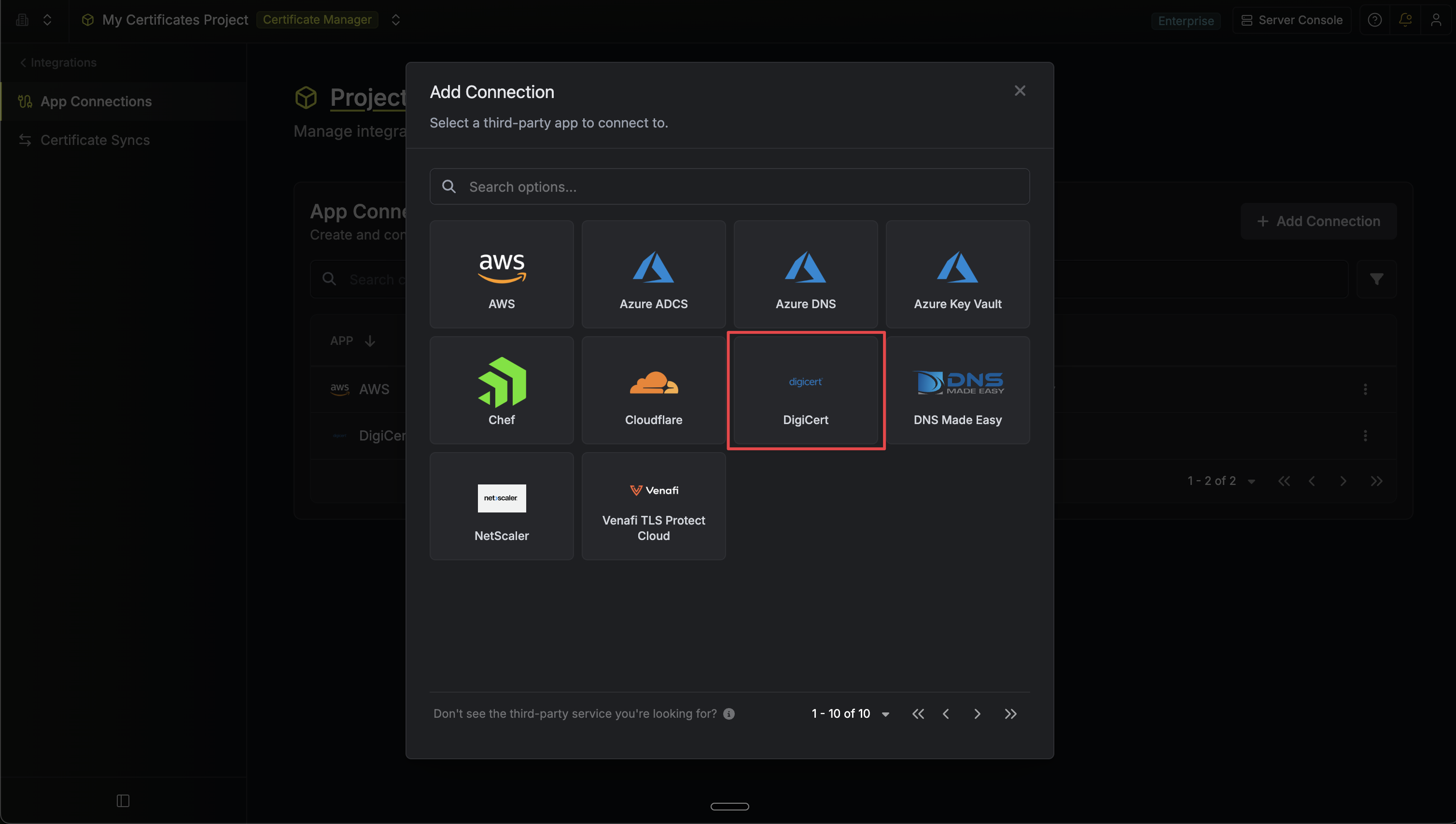
 Click **Add Connection** and choose **DigiCert** from the list of available connections.
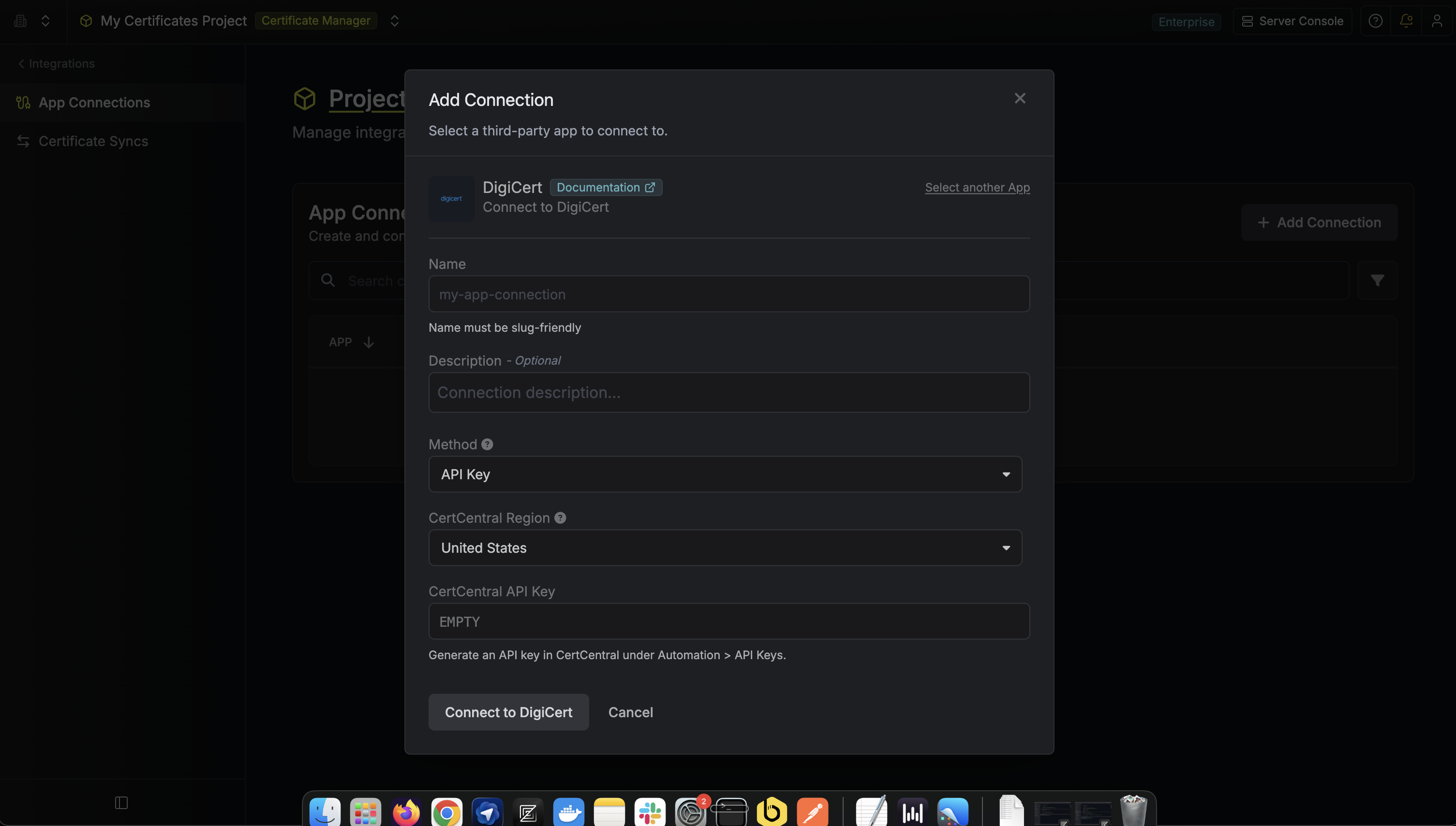
 Complete the form with:
* A **name** for the connection (e.g. `digicert-prod`)
* An optional **description**
* The **CertCentral Region** matching your account, **US** or **EU**
* Your **CertCentral API Key**
Complete the form with:
* A **name** for the connection (e.g. `digicert-prod`)
* An optional **description**
* The **CertCentral Region** matching your account, **US** or **EU**
* Your **CertCentral API Key**
 After clicking **Create**, Infisical validates the key by calling
`GET /services/v2/organization`. Once the key is confirmed, the connection is ready to use
in a DigiCert Certificate Authority.
After clicking **Create**, Infisical validates the key by calling
`GET /services/v2/organization`. Once the key is confirmed, the connection is ready to use
in a DigiCert Certificate Authority.
 To create a DigiCert Connection, make an API request to the [Create DigiCert Connection](/api-reference/endpoints/app-connections/digicert/create) API endpoint.
### Sample request
```bash Request theme={"dark"}
curl --request POST \
--url https://app.infisical.com/api/v1/app-connections/digicert \
--header 'Content-Type: application/json' \
--data '{
"name": "my-digicert-connection",
"method": "api-key",
"credentials": {
"apiKey": "",
"region": "us"
}
}'
```
### Sample response
```bash Response theme={"dark"}
{
"appConnection": {
"id": "a1b2c3d4-86f7-4026-a95e-efb8aeb0d8e6",
"name": "my-digicert-connection",
"description": null,
"version": 1,
"orgId": "6f03caa1-a5de-43ce-b127-95a145d3464c",
"createdAt": "2026-04-20T00:00:00.000Z",
"updatedAt": "2026-04-20T00:00:00.000Z",
"isPlatformManagedCredentials": false,
"app": "digicert",
"method": "api-key",
"credentials": {}
}
}
```
To create a DigiCert Connection, make an API request to the [Create DigiCert Connection](/api-reference/endpoints/app-connections/digicert/create) API endpoint.
### Sample request
```bash Request theme={"dark"}
curl --request POST \
--url https://app.infisical.com/api/v1/app-connections/digicert \
--header 'Content-Type: application/json' \
--data '{
"name": "my-digicert-connection",
"method": "api-key",
"credentials": {
"apiKey": "",
"region": "us"
}
}'
```
### Sample response
```bash Response theme={"dark"}
{
"appConnection": {
"id": "a1b2c3d4-86f7-4026-a95e-efb8aeb0d8e6",
"name": "my-digicert-connection",
"description": null,
"version": 1,
"orgId": "6f03caa1-a5de-43ce-b127-95a145d3464c",
"createdAt": "2026-04-20T00:00:00.000Z",
"updatedAt": "2026-04-20T00:00:00.000Z",
"isPlatformManagedCredentials": false,
"app": "digicert",
"method": "api-key",
"credentials": {}
}
}
```