> ## Documentation Index
> Fetch the complete documentation index at: https://infisical.com/docs/llms.txt
> Use this file to discover all available pages before exploring further.
# Devin Connection
> Learn how to configure a Devin connection for Infisical.
[Devin](https://devin.ai/) is an AI software engineer from Cognition. Infisical supports connecting to Devin using a service-user **API Key**, which is used to push secrets into a Devin organization via [Devin Secret Sync](/integrations/secret-syncs/devin).
## Prerequisites
* A [Devin account](https://app.devin.ai/) with an organization you can manage
## Create a Devin API Key
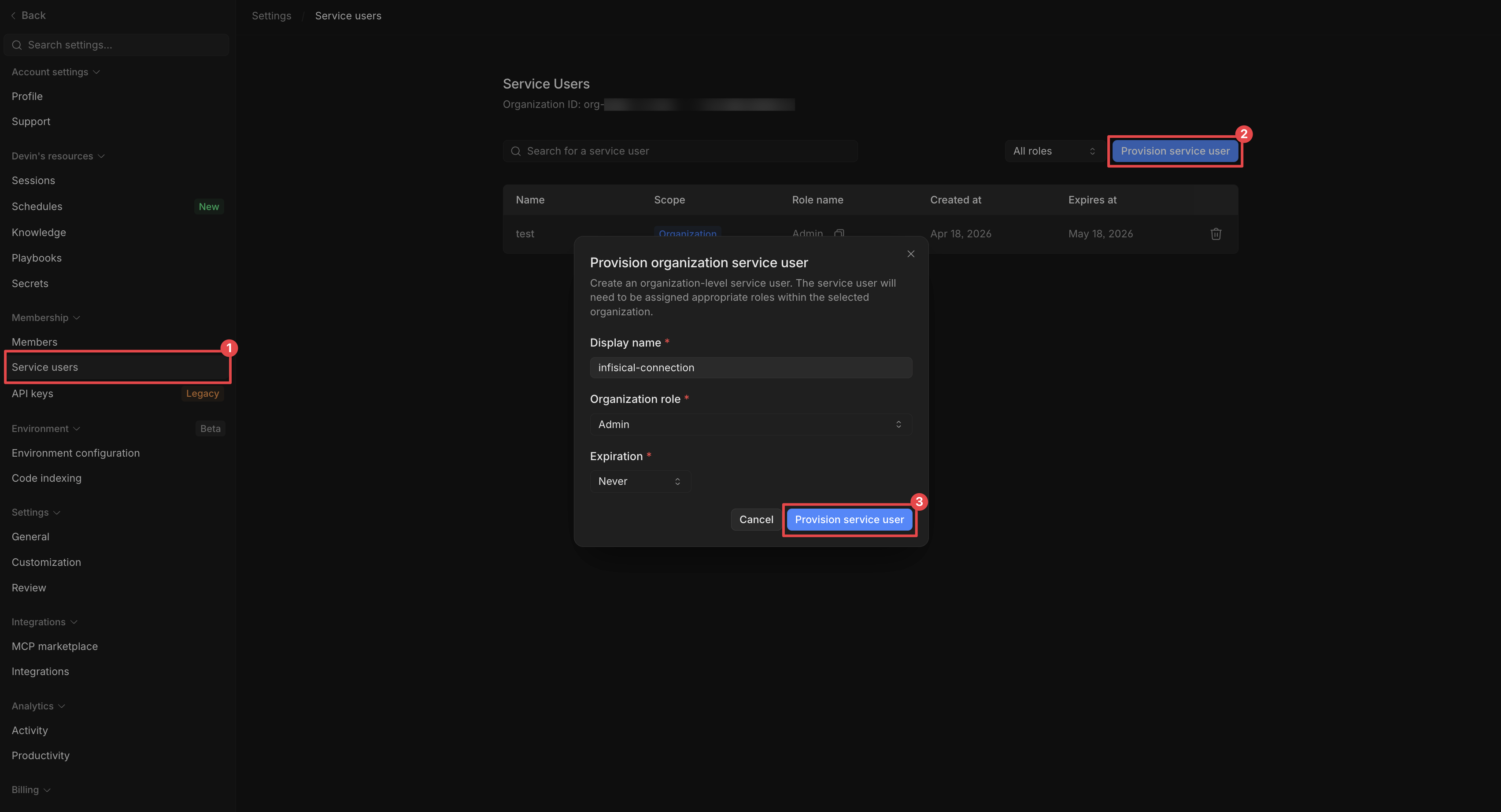
In your Devin organization settings, create a service user that Infisical will act as. Fill in the service user details and submit the form.
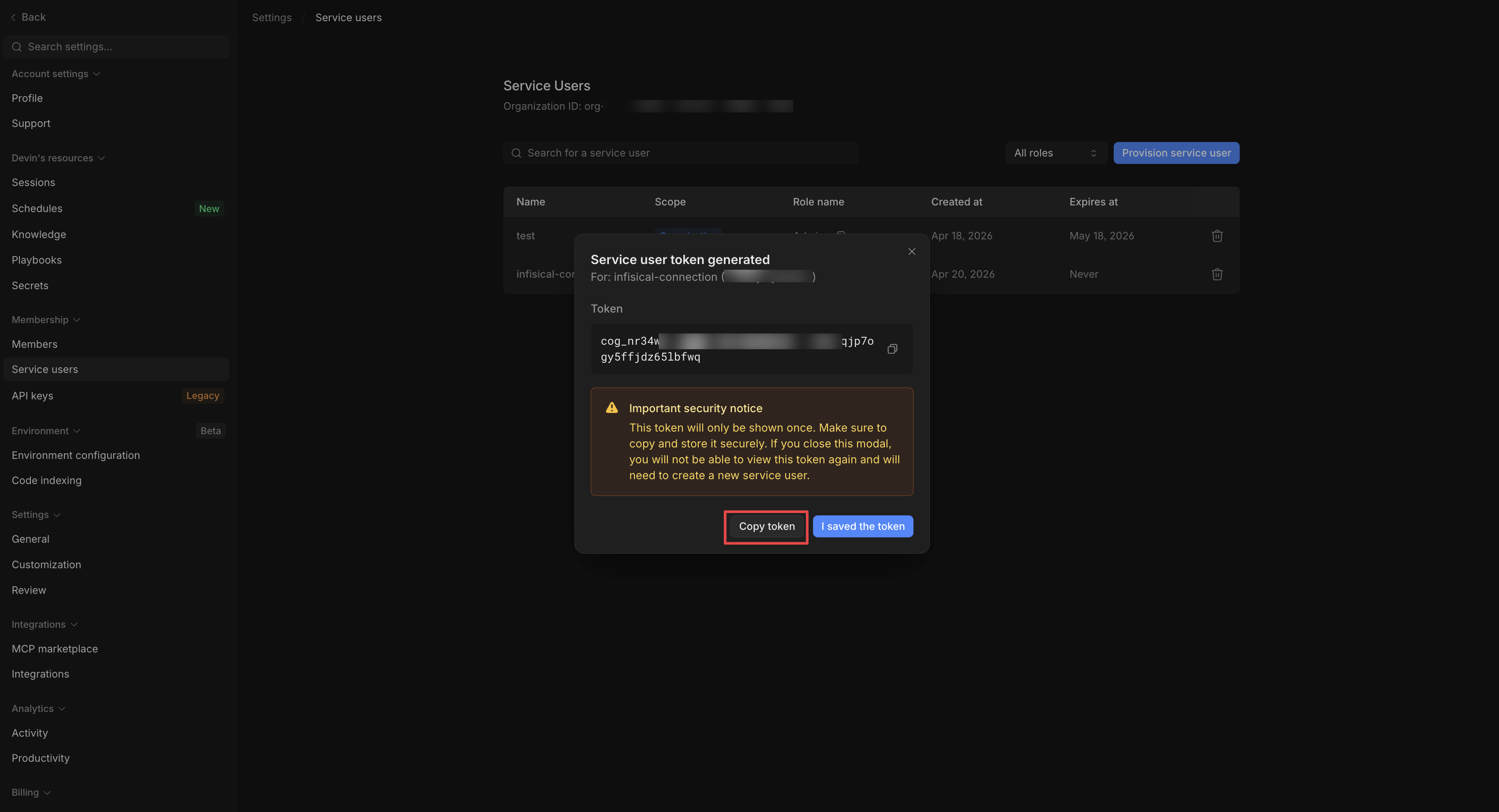
 Devin displays the new service user's API key immediately after creation. Copy the key, it begins with the `cog_` prefix and will only be shown once. Store it securely; you will use it when creating the Infisical connection.
 ## Create Devin Connection in Infisical
In your Infisical dashboard, go to **Organization Settings** → **App Connections** (or the **Integrations** → **App Connections** tab in your project).
## Create Devin Connection in Infisical
In your Infisical dashboard, go to **Organization Settings** → **App Connections** (or the **Integrations** → **App Connections** tab in your project).
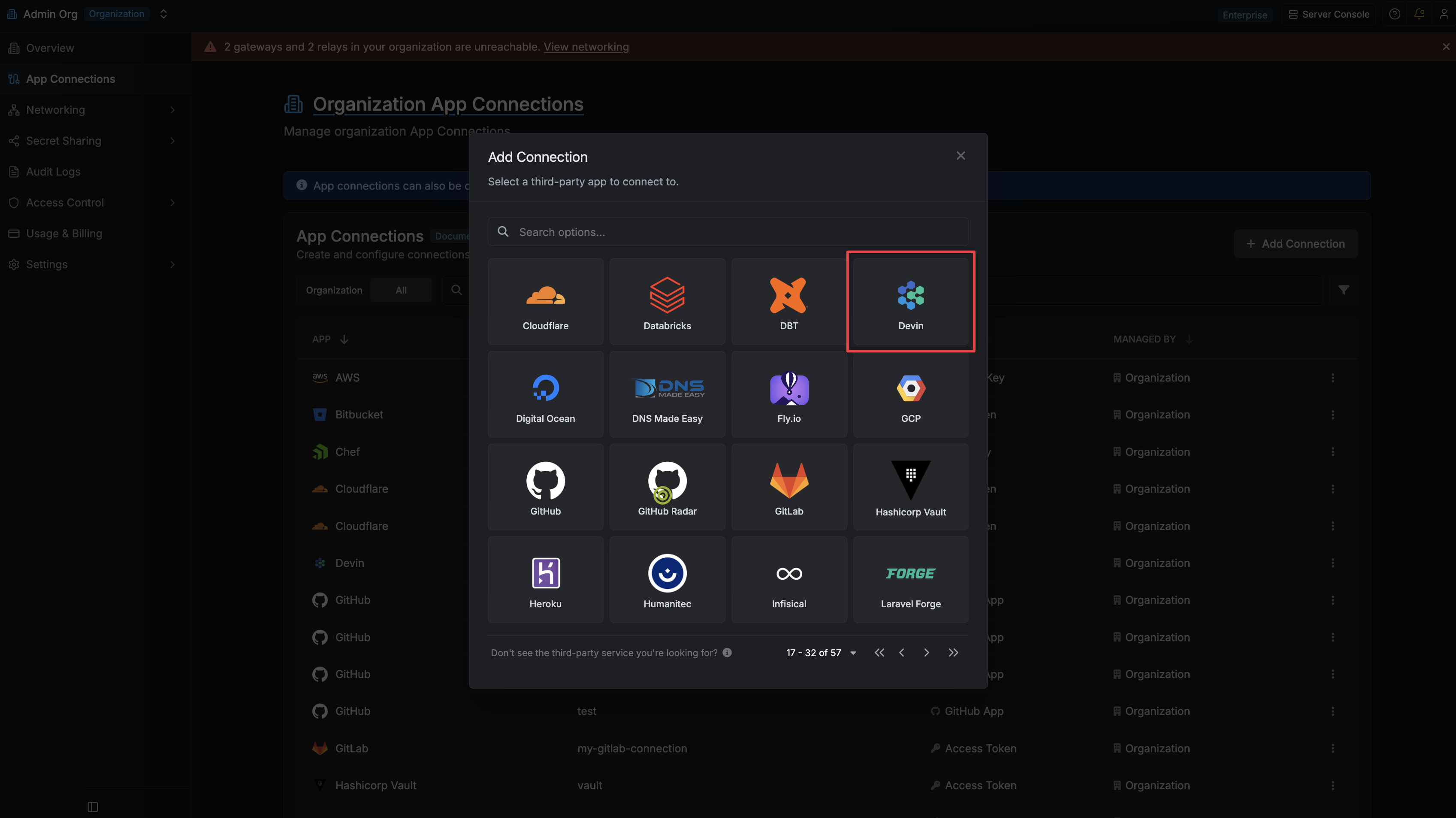
 Click **Add Connection** and choose **Devin** from the list of available connections.
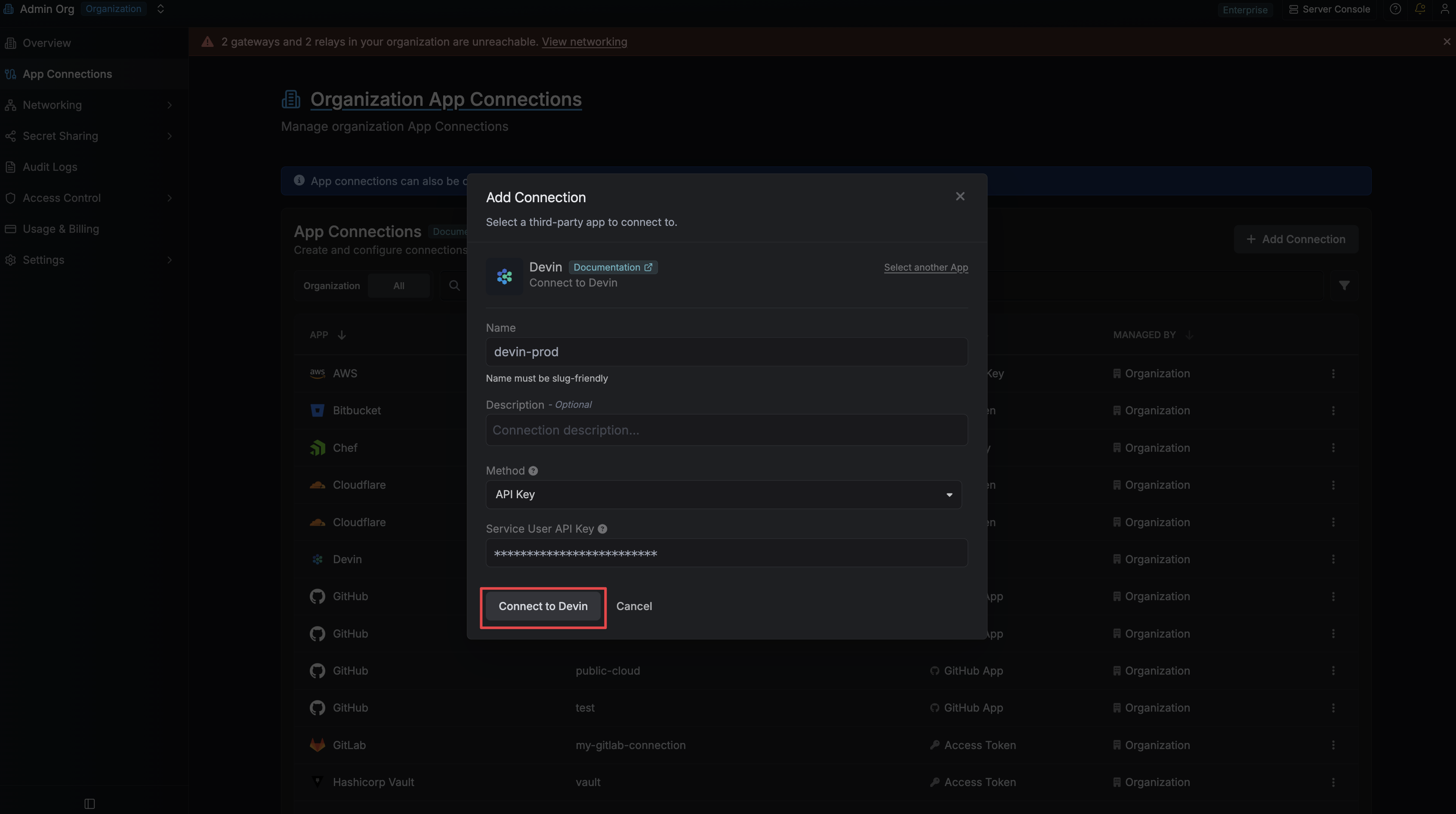
 Complete the form with:
* A **name** for the connection (e.g. `devin-prod`)
* An optional **description**
* Your **Devin API Key** (the `cog_…` value from the steps above)
Complete the form with:
* A **name** for the connection (e.g. `devin-prod`)
* An optional **description**
* Your **Devin API Key** (the `cog_…` value from the steps above)
 After clicking Create, your **Devin Connection** is established and ready to use with your Infisical project.
Create a Devin connection via the API.
### Sample request
```bash Request theme={"dark"}
curl --request POST \
--url https://app.infisical.com/api/v1/app-connections/devin \
--header 'Content-Type: application/json' \
--data '{
"name": "my-devin-connection",
"method": "api-key",
"credentials": {
"apiKey": "cog_"
}
}'
```
### Sample response
```bash Response theme={"dark"}
{
"appConnection": {
"id": "e5d18aca-86f7-4026-a95e-efb8aeb0d8e6",
"name": "my-devin-connection",
"description": null,
"version": 1,
"orgId": "6f03caa1-a5de-43ce-b127-95a145d3464c",
"createdAt": "2026-04-20T19:46:34.831Z",
"updatedAt": "2026-04-20T19:46:34.831Z",
"isPlatformManagedCredentials": false,
"app": "devin",
"method": "api-key",
"credentials": {}
}
}
```
After clicking Create, your **Devin Connection** is established and ready to use with your Infisical project.
Create a Devin connection via the API.
### Sample request
```bash Request theme={"dark"}
curl --request POST \
--url https://app.infisical.com/api/v1/app-connections/devin \
--header 'Content-Type: application/json' \
--data '{
"name": "my-devin-connection",
"method": "api-key",
"credentials": {
"apiKey": "cog_"
}
}'
```
### Sample response
```bash Response theme={"dark"}
{
"appConnection": {
"id": "e5d18aca-86f7-4026-a95e-efb8aeb0d8e6",
"name": "my-devin-connection",
"description": null,
"version": 1,
"orgId": "6f03caa1-a5de-43ce-b127-95a145d3464c",
"createdAt": "2026-04-20T19:46:34.831Z",
"updatedAt": "2026-04-20T19:46:34.831Z",
"isPlatformManagedCredentials": false,
"app": "devin",
"method": "api-key",
"credentials": {}
}
}
```