> ## Documentation Index
> Fetch the complete documentation index at: https://infisical.com/docs/llms.txt
> Use this file to discover all available pages before exploring further.
# Databricks Connection
> Learn how to configure a Databricks Connection for Infisical.
Infisical supports the use of [service principals](https://docs.databricks.com/en/admin/users-groups/service-principals.html) to connect with your Databricks workspaces.
## Configure a Service Principal for Infisical
Navigate to your Databricks Workspace **Settings** via the dropdown in the top right.
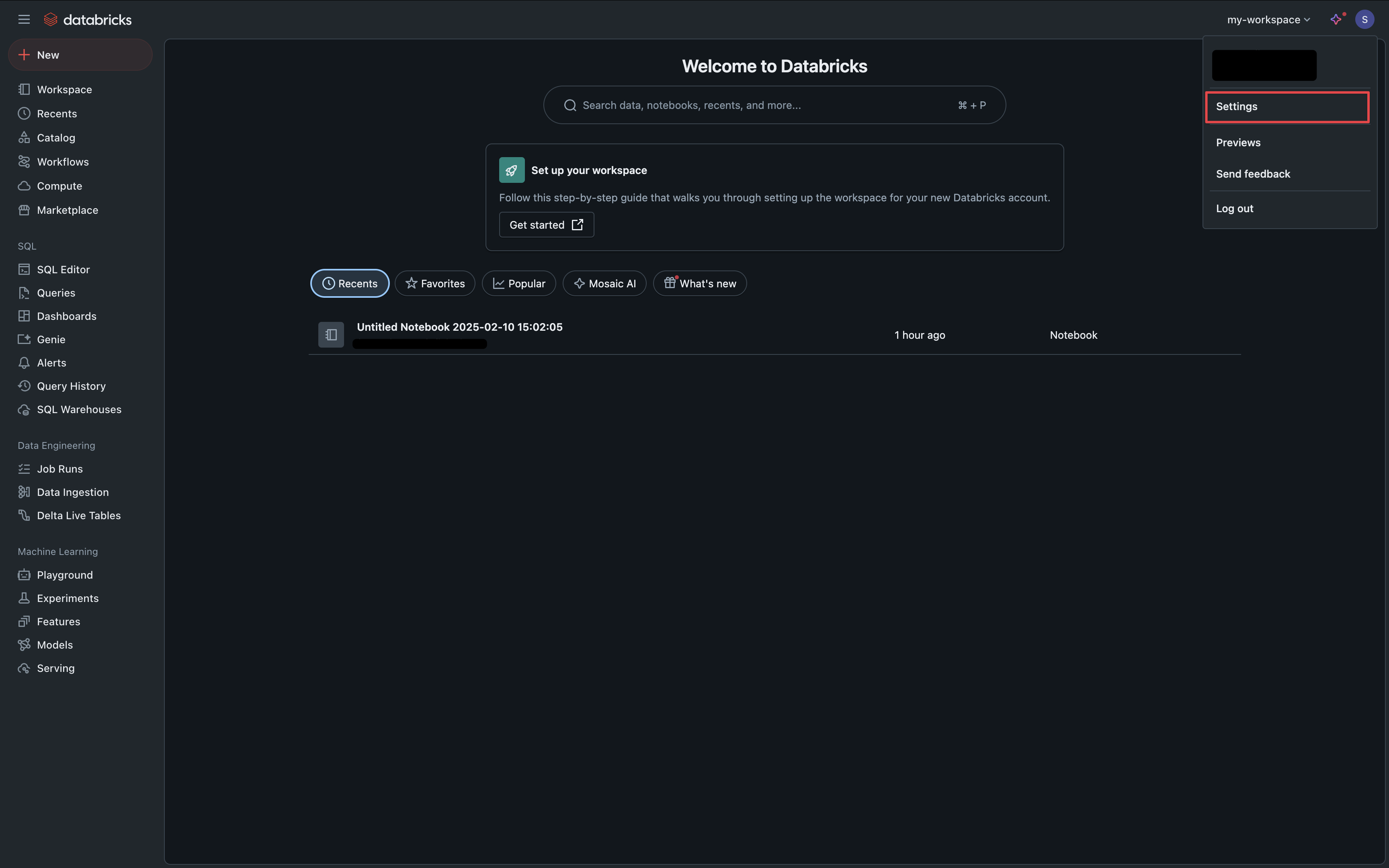 Under the **Identity & Access** tab, click the **Manage** button in the **Service Principals** section.
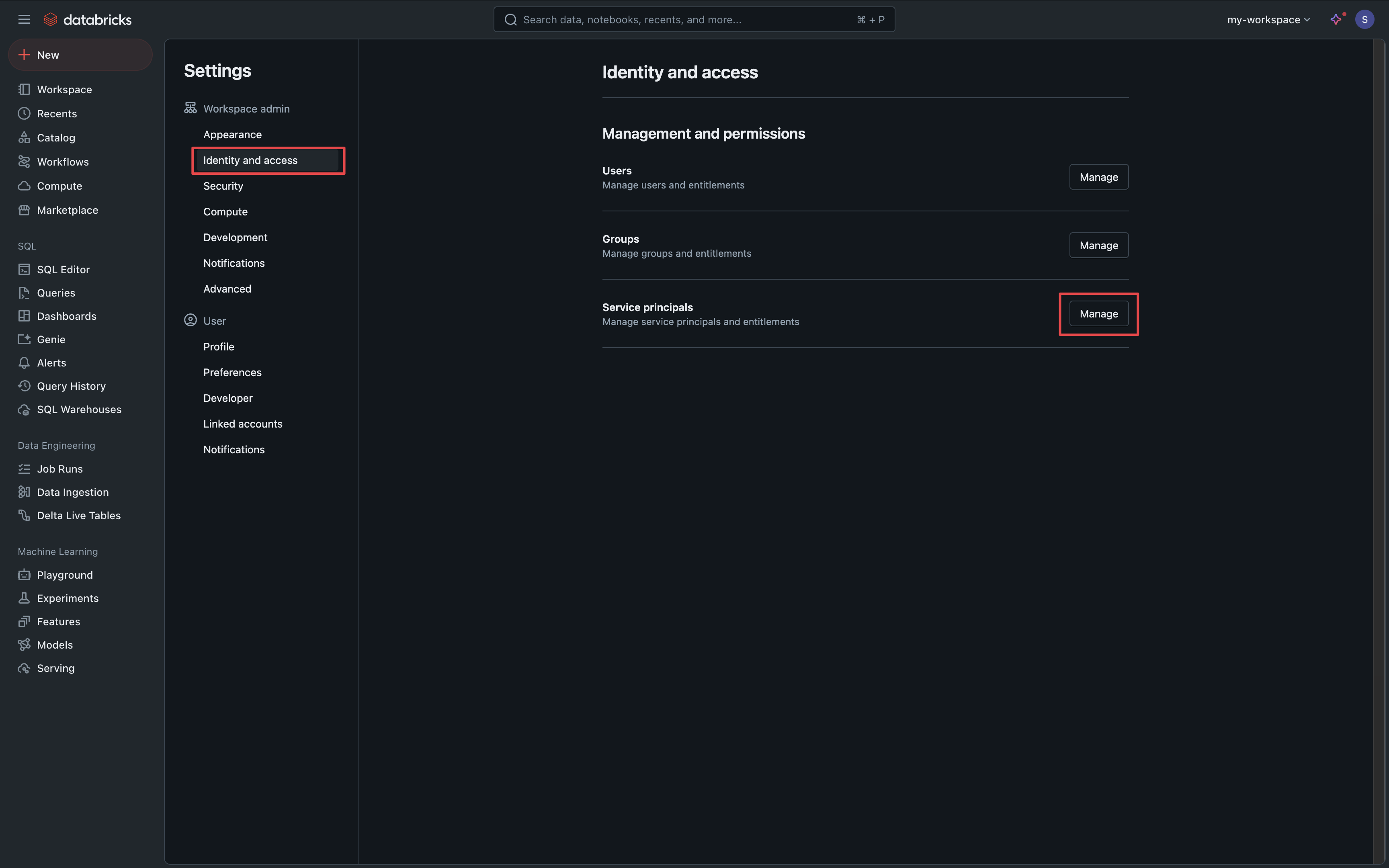 Click the **Add Service Principal** button.
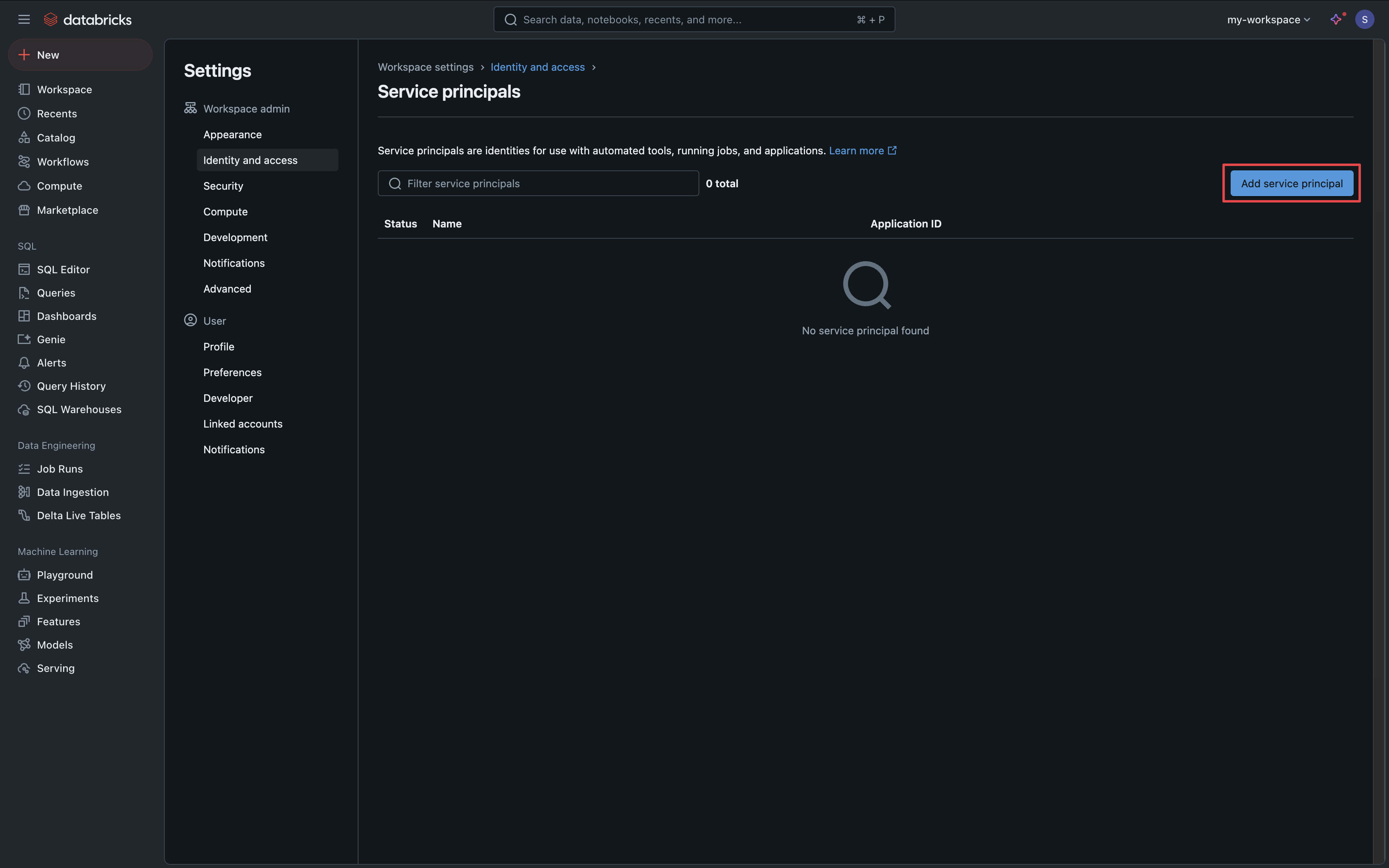 Select the **Add New** option and create a service principal for Infisical.
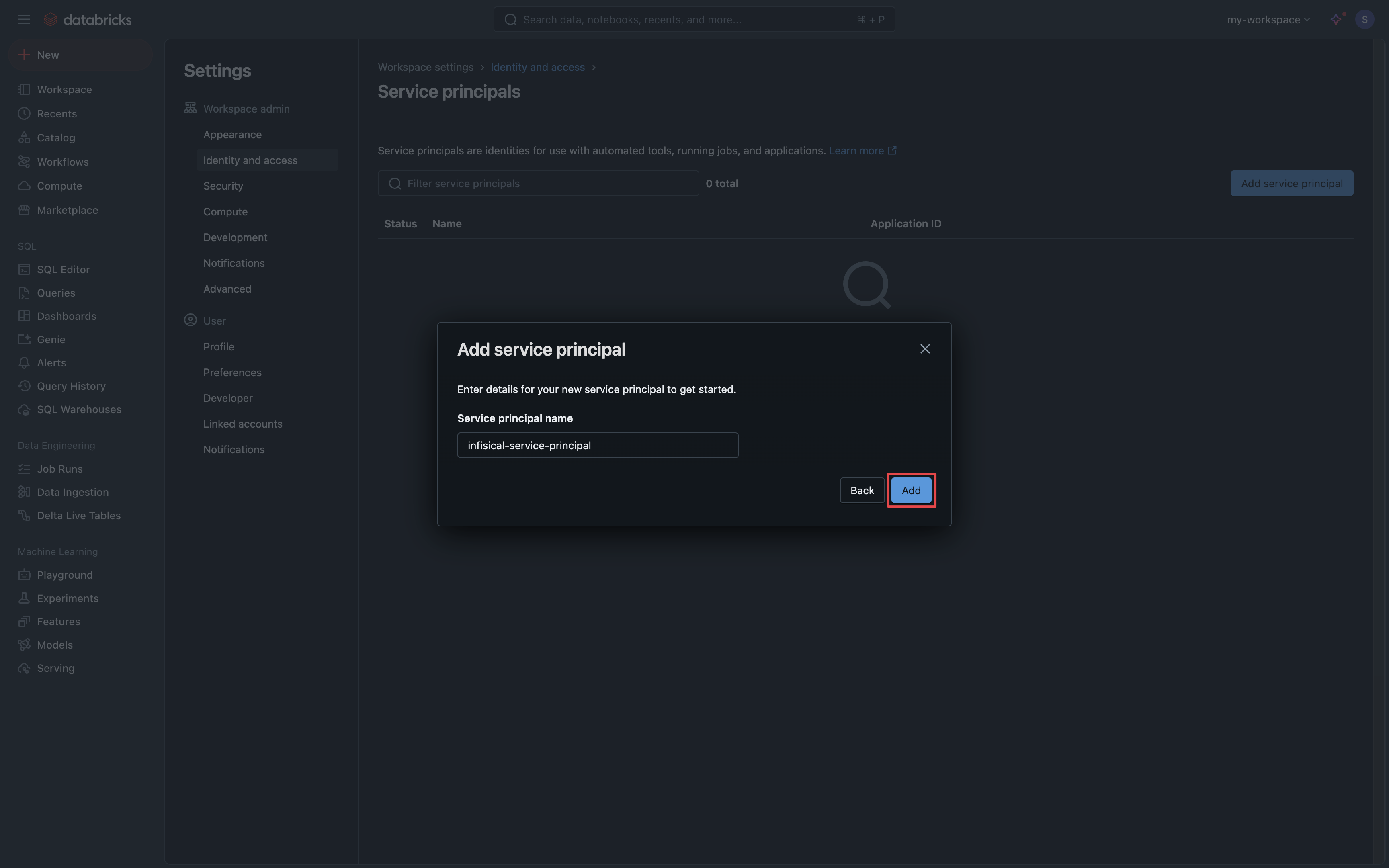 Click on your new service principal, select the **Secrets** tab and click the **Generate Secret** button.
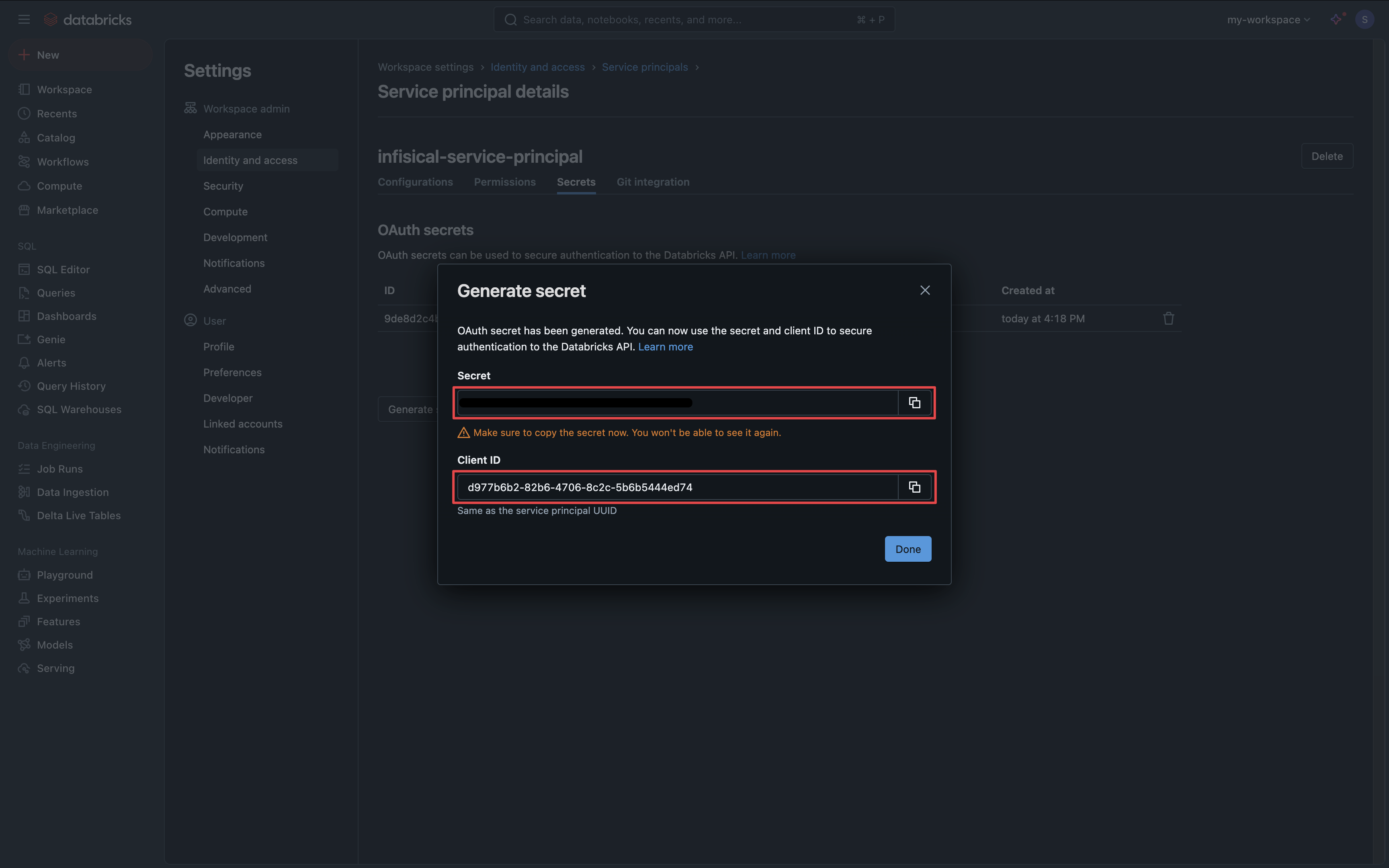
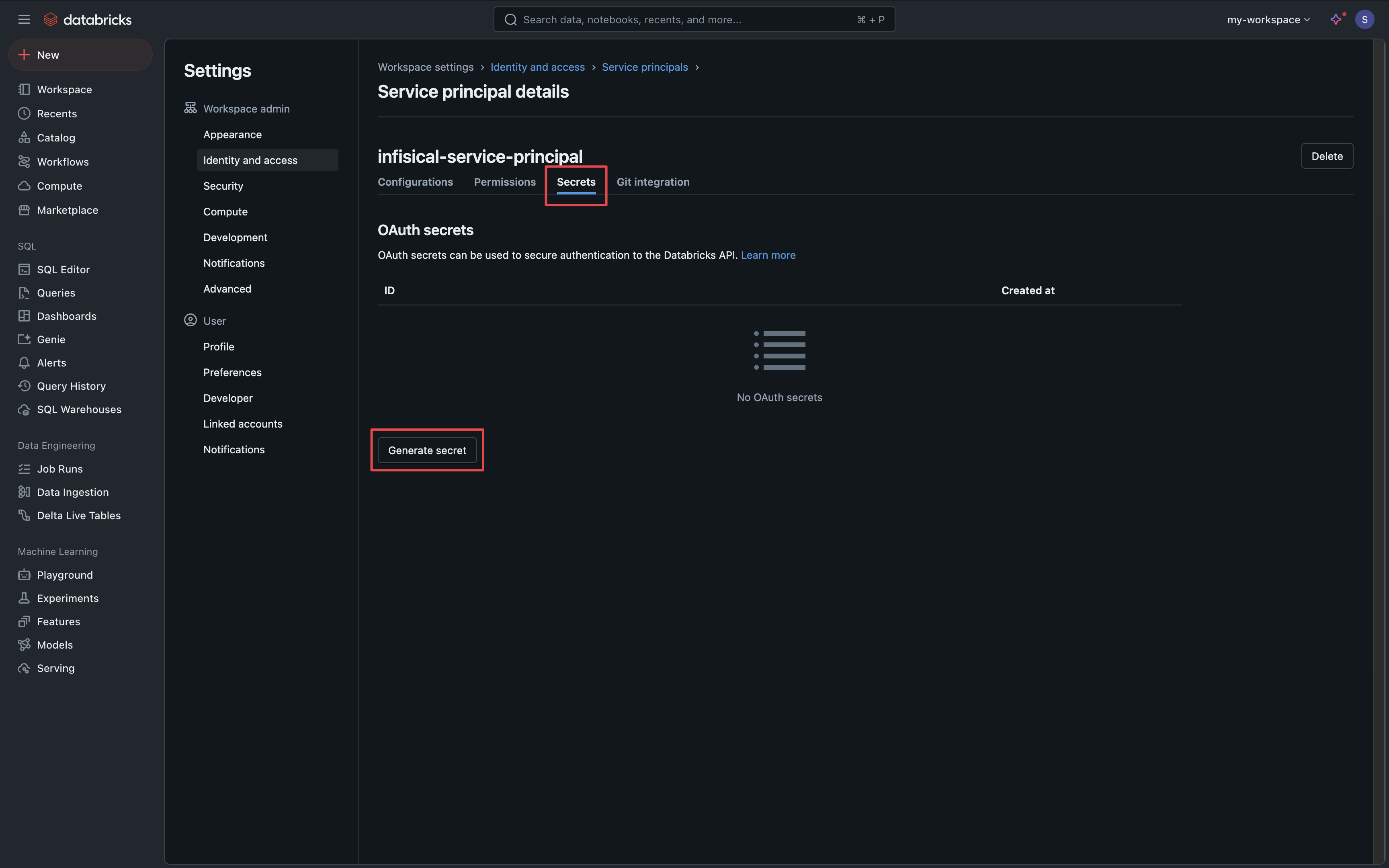 Copy your service principal **Secret** and **Client ID** for use in the following steps.
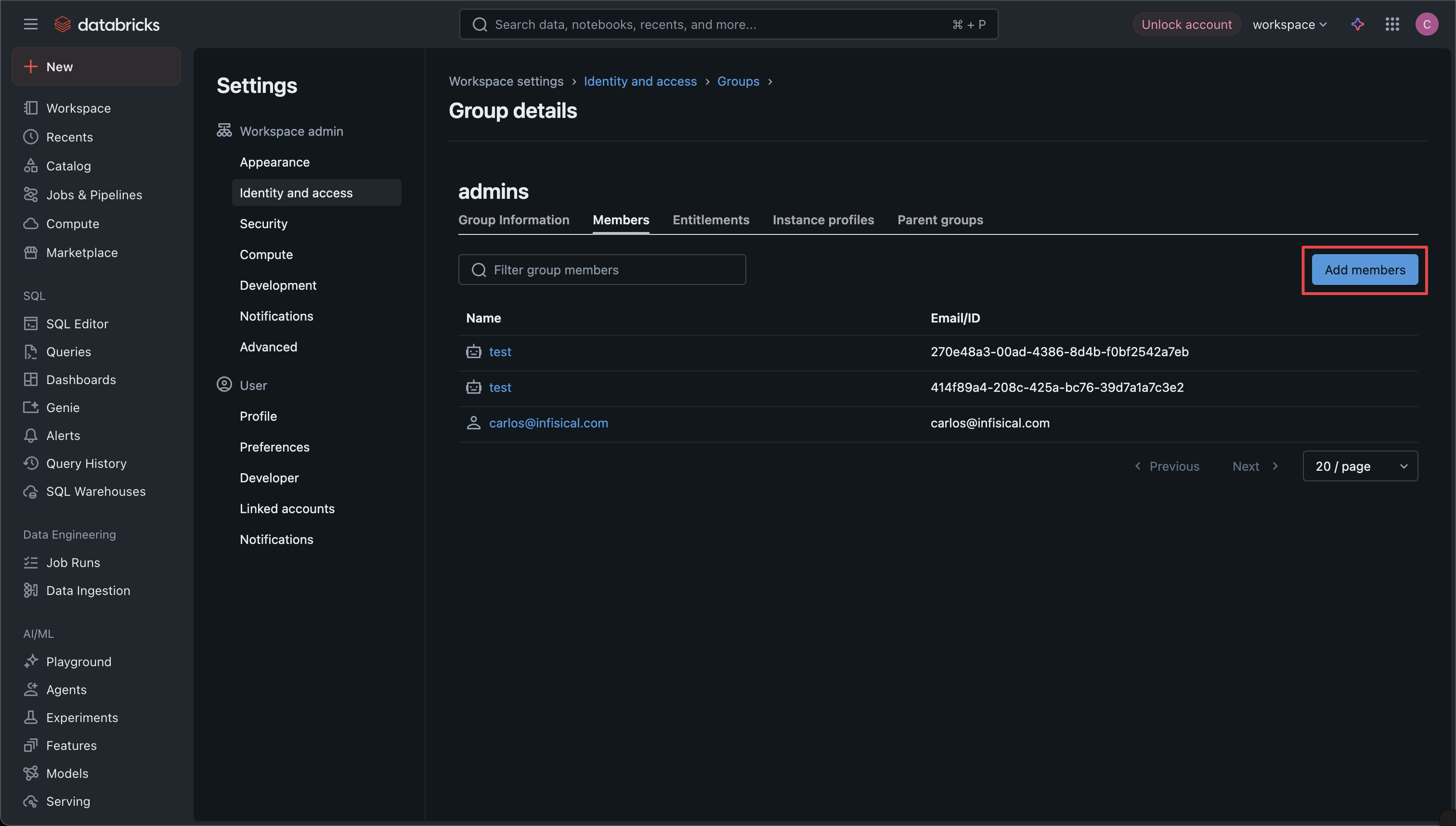
 Navigate to **Settings** > **Identity & Access** > **Groups** and select the admin group (typically named "admins" or "workspace-admins").
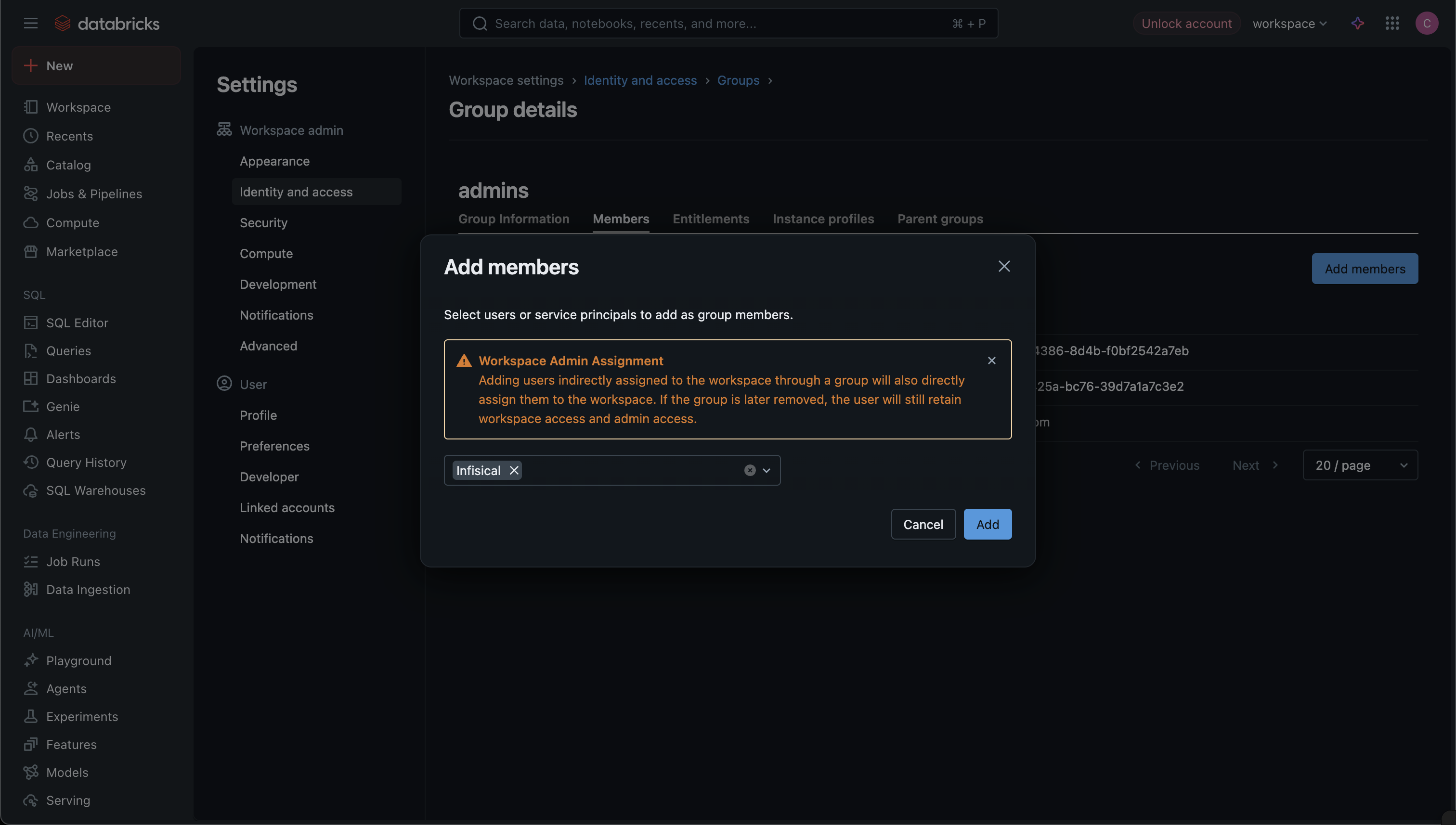
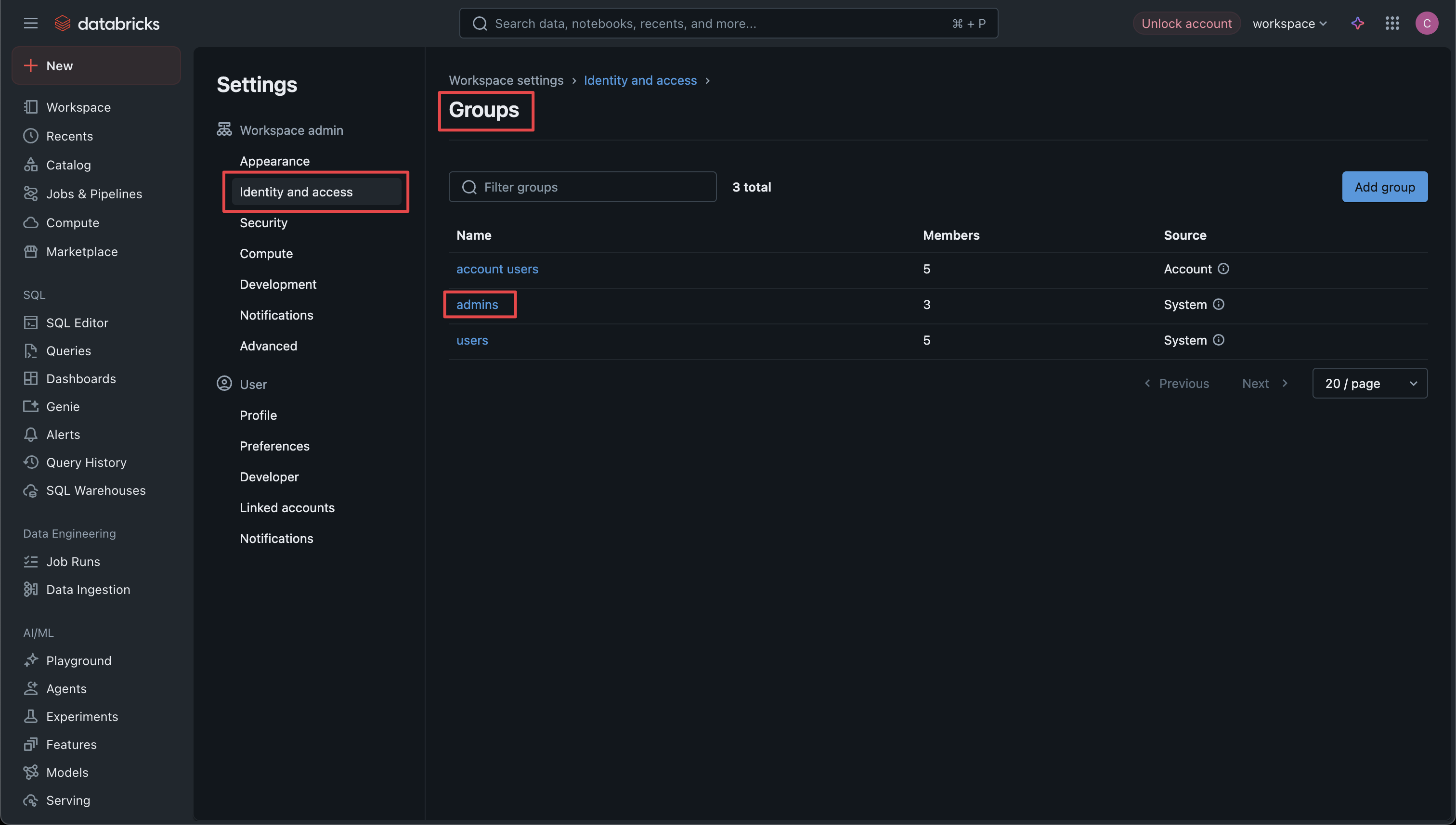 Click **Add** and select the service principal you created for Infisical to add it to the admin group.
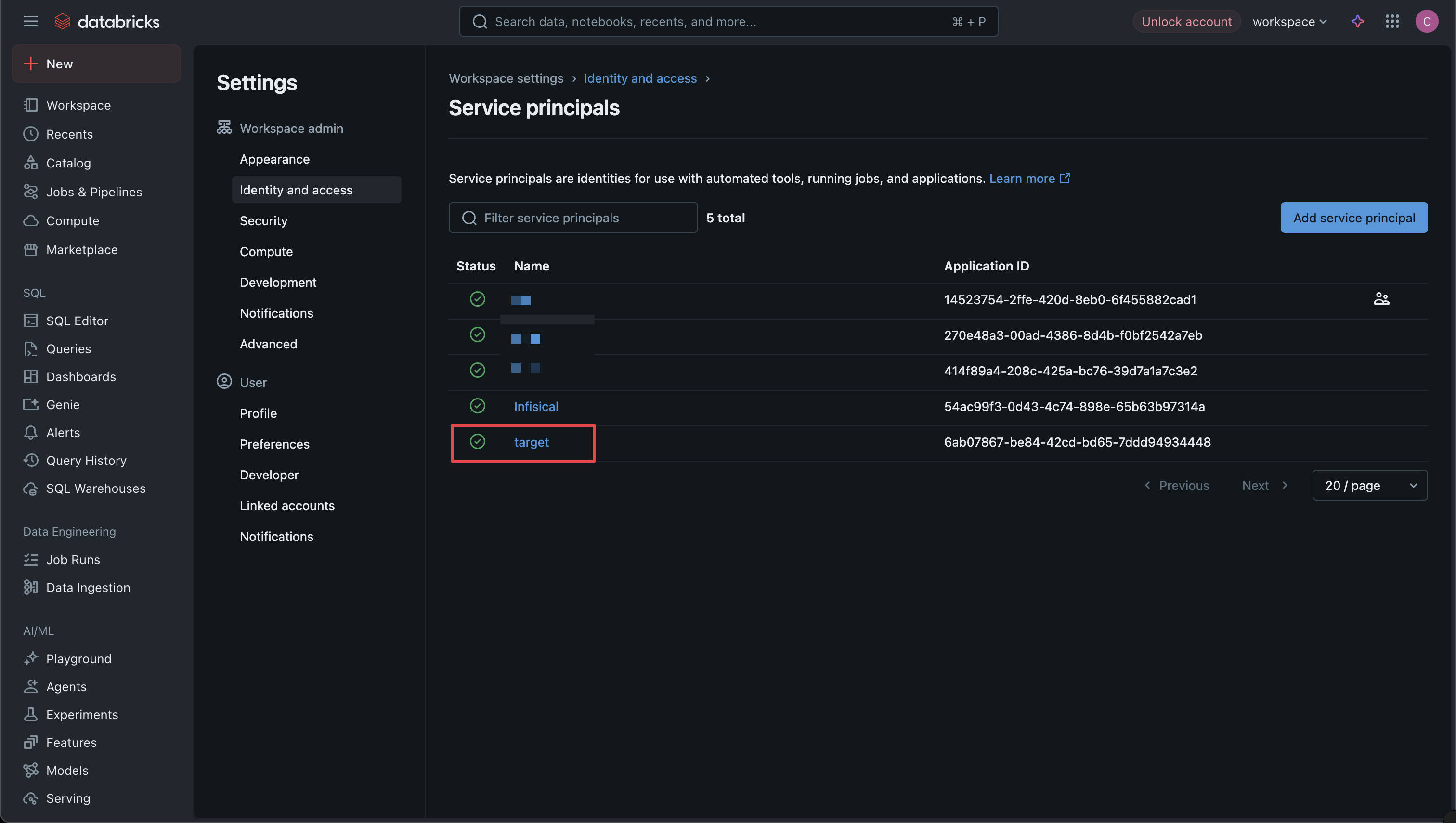
 For each service principal whose secrets you want to rotate, navigate to **Settings** > **Identity & Access** > **Service Principals** and select the target service principal.
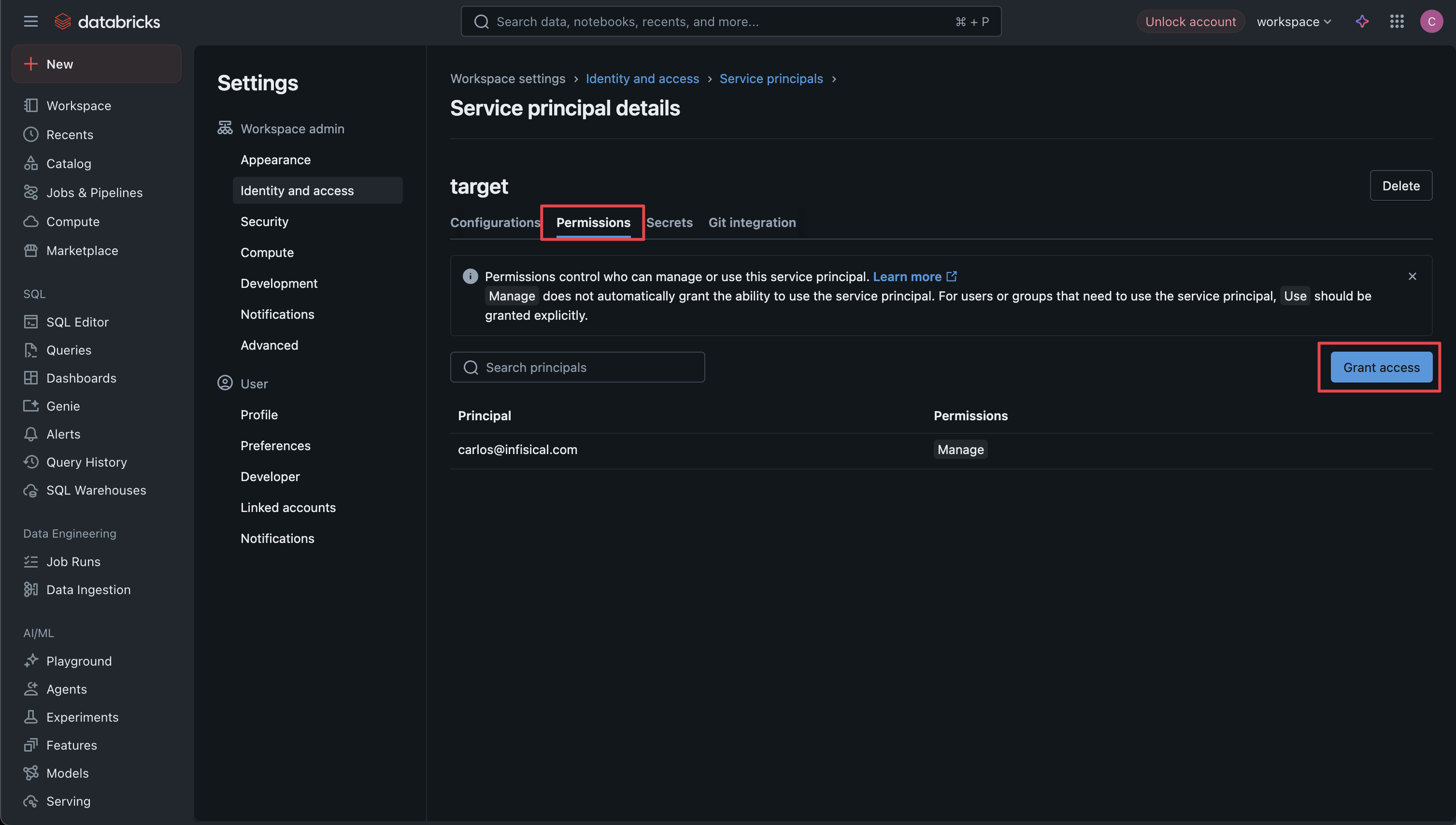
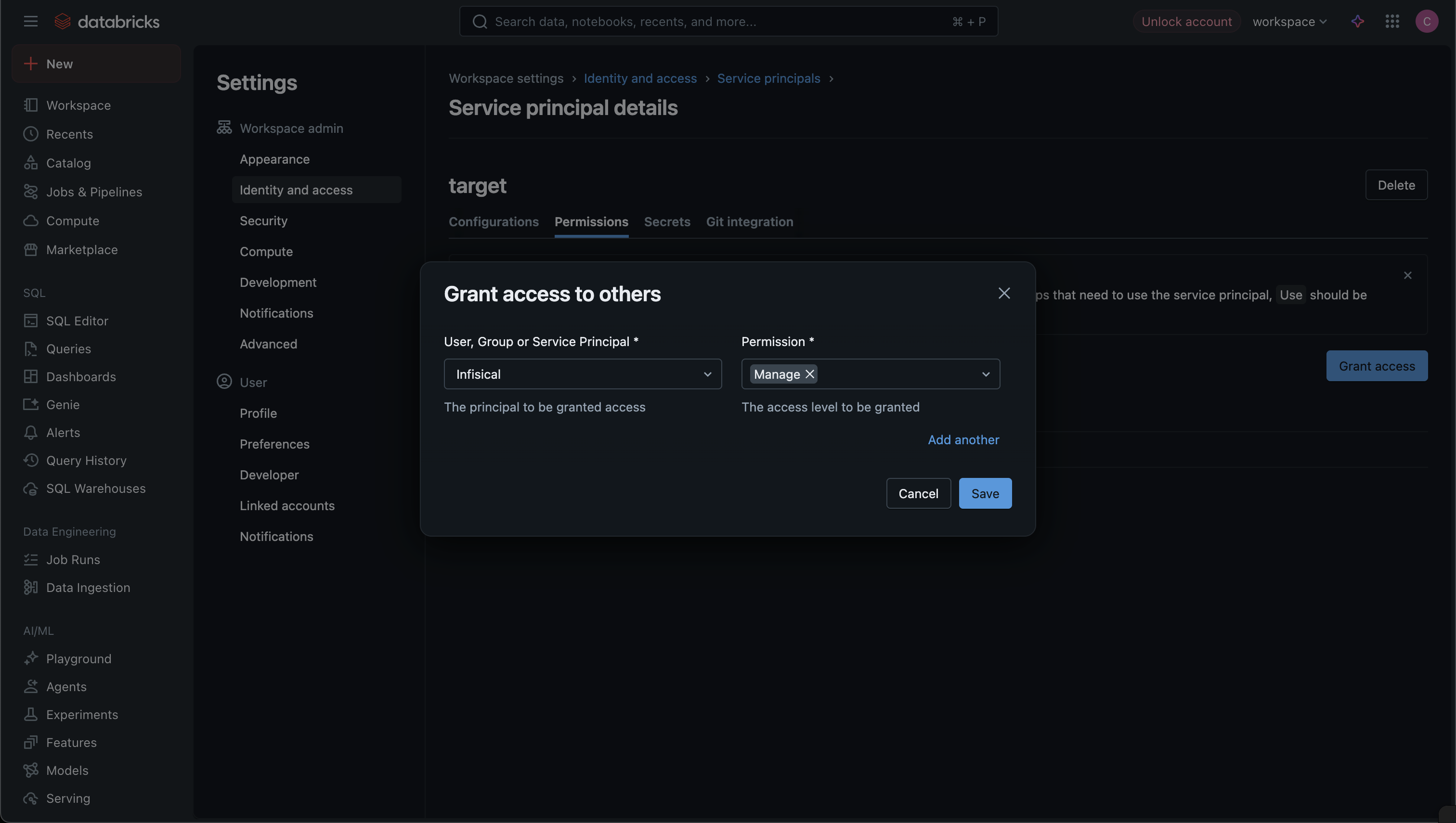
 Click on the **Permissions** tab for the selected service principal. And then click the **Grant access** button to open the permission modal
 In the **User, Group or Service Principal** field, select the service principal you created for Infisical. In the **Permission** field, select **Manage** to allow the Infisical service principal to manage credentials and secrets for this service principal. Click **Save** to apply the permissions. Repeat these steps for each service principal whose secrets you want to rotate.
 ## Setup Databricks Connection in Infisical
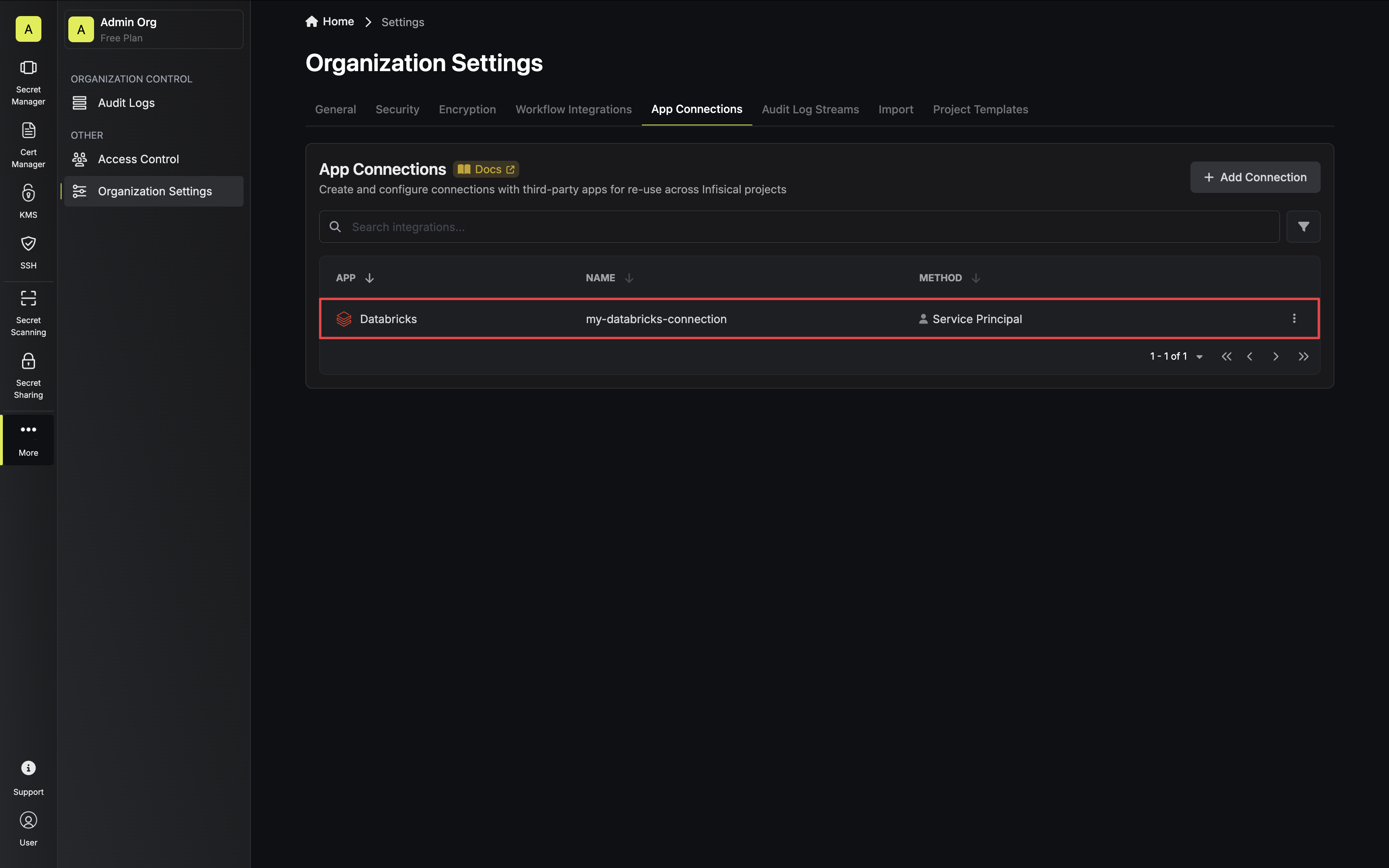
Navigate to the **Integrations** tab in the desired project, then select **App Connections**.
## Setup Databricks Connection in Infisical
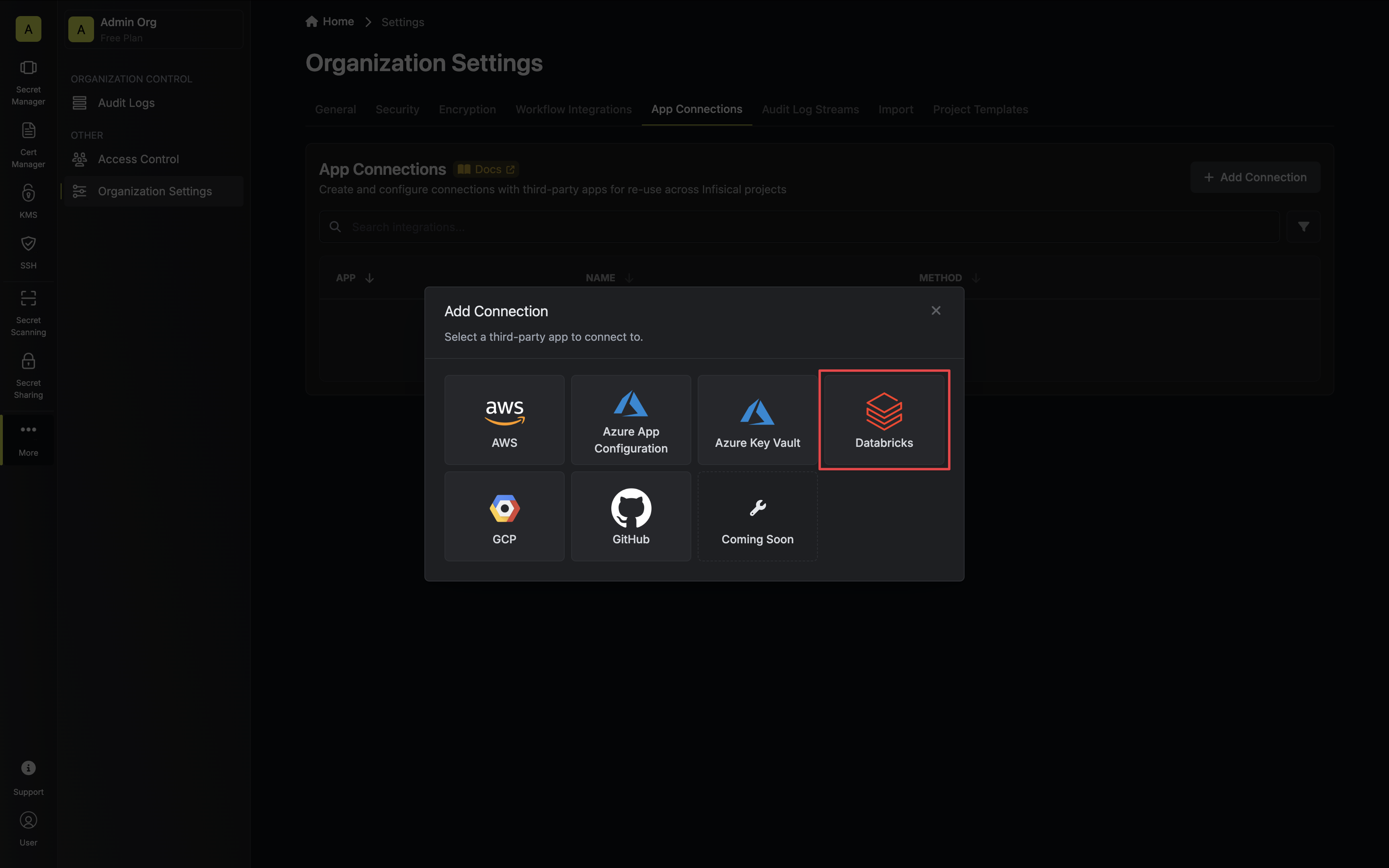
Navigate to the **Integrations** tab in the desired project, then select **App Connections**.  Select the **Databricks Connection** option from the connection options modal.
 Select the **Service Principal** method, add your **workspace URL** and **service principal credentials**, then click **Connect to
Databricks**.
Select the **Service Principal** method, add your **workspace URL** and **service principal credentials**, then click **Connect to
Databricks**. 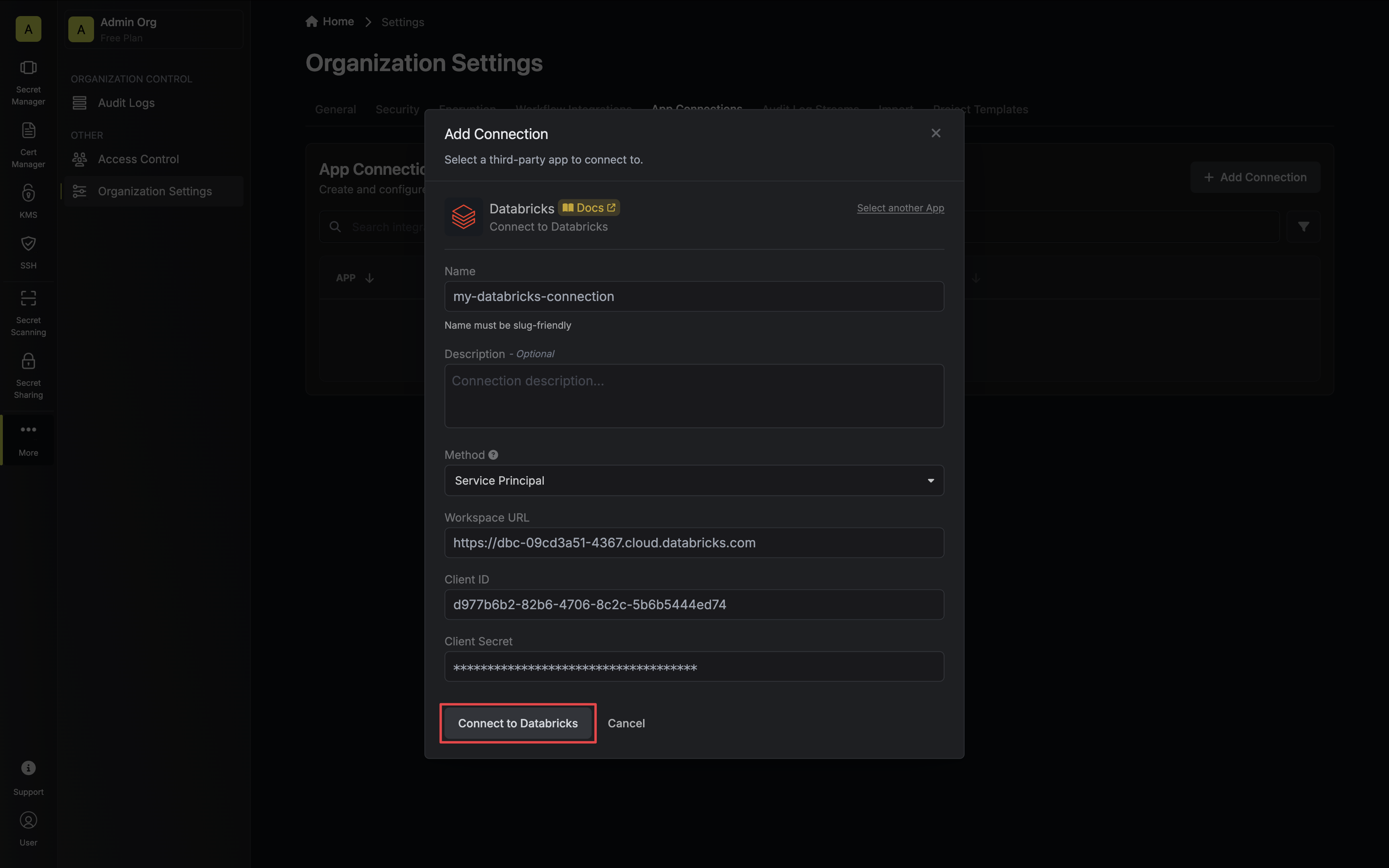 Your **Databricks Connection** is now available for use.