> ## Documentation Index
> Fetch the complete documentation index at: https://infisical.com/docs/llms.txt
> Use this file to discover all available pages before exploring further.
# Convex Connection
> Learn how to configure a Convex Connection for Infisical.
Infisical supports the use of [personal access tokens](https://docs.convex.dev/dashboard/personal-access-tokens) to connect with your Convex account.
## Create a Personal Access Token in Convex
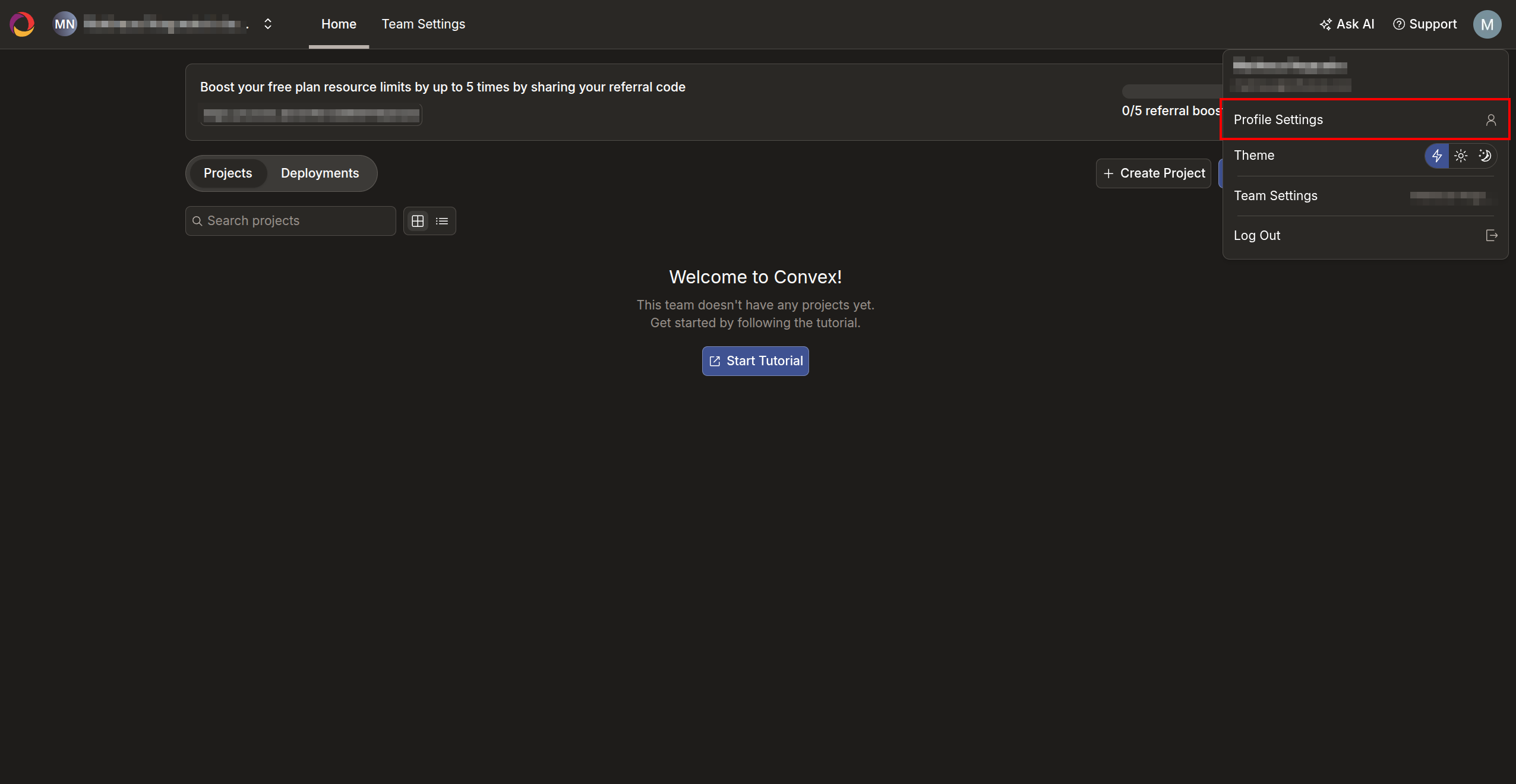
Log in to the [Convex Dashboard](https://dashboard.convex.dev), click your profile avatar in the top right, and select **Profile Settings**.
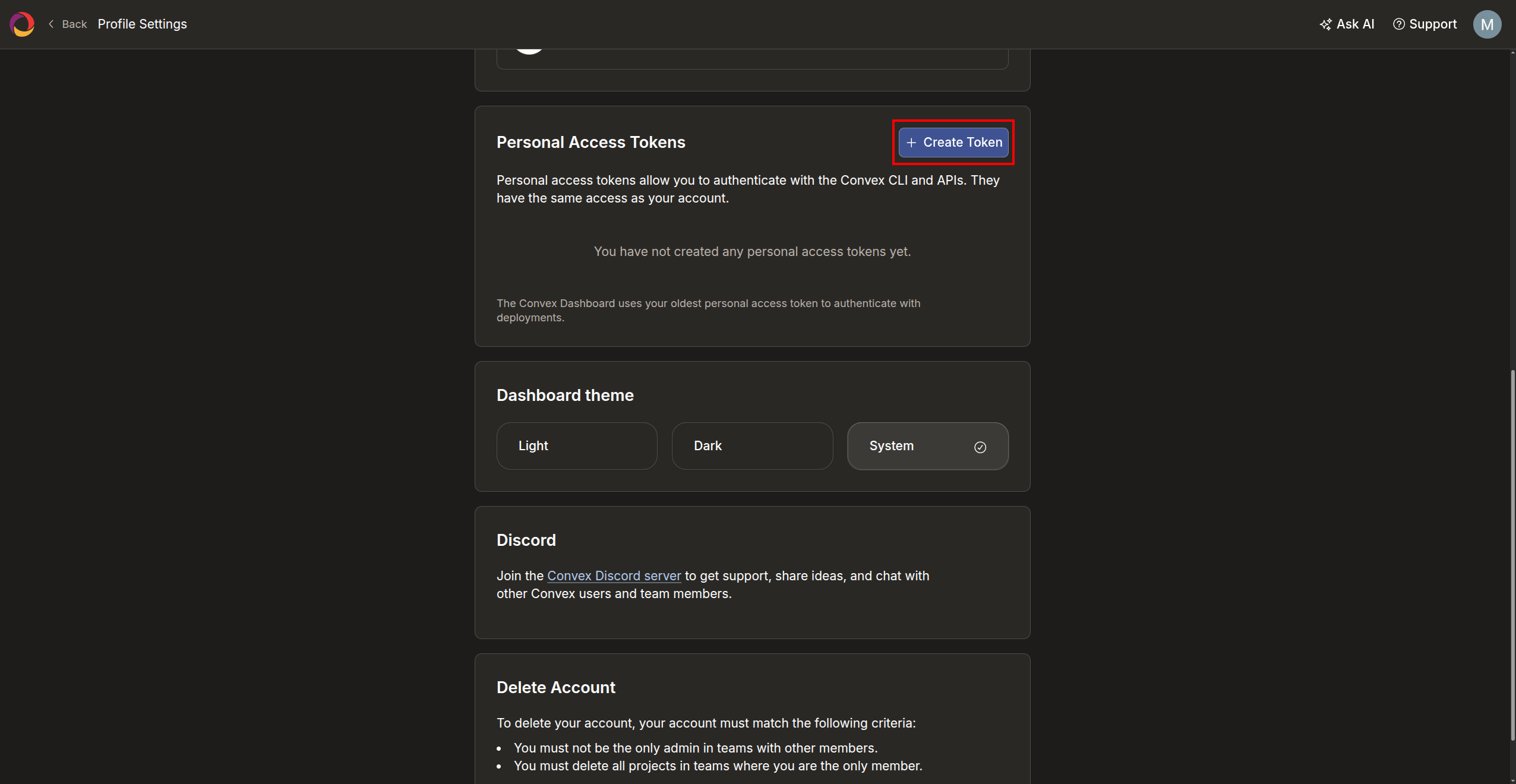
 Scroll down to the **Personal Access Tokens** section and click the **+ Create Token** button.
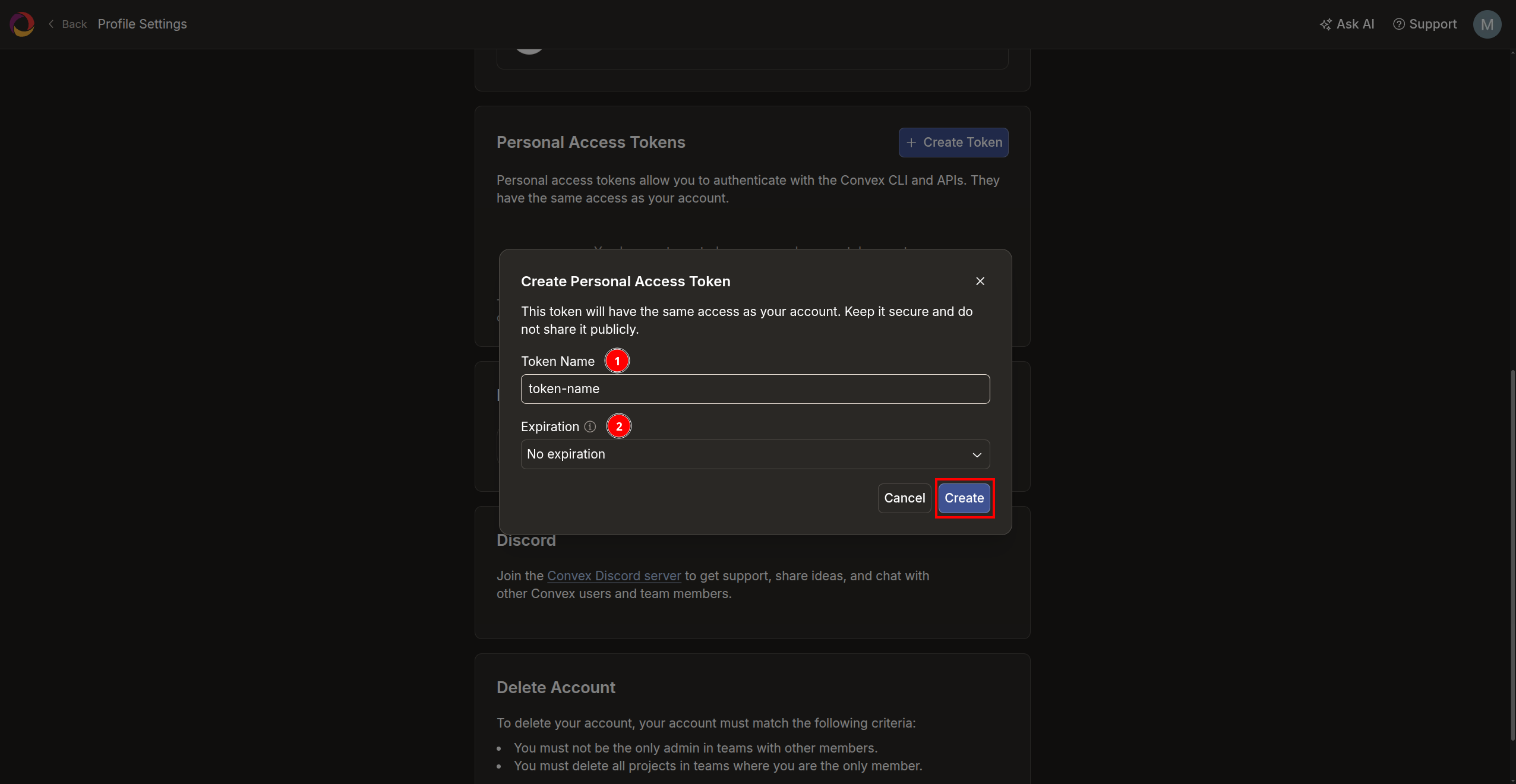
 Enter a **Token Name** (e.g. `infisical`) and select an **Expiration** period, then click **Create**.
If the personal access token expires, any secret rotations relying on this connection will fail. We recommend setting a long expiration or selecting **No expiration** to avoid disruptions.
Enter a **Token Name** (e.g. `infisical`) and select an **Expiration** period, then click **Create**.
If the personal access token expires, any secret rotations relying on this connection will fail. We recommend setting a long expiration or selecting **No expiration** to avoid disruptions.
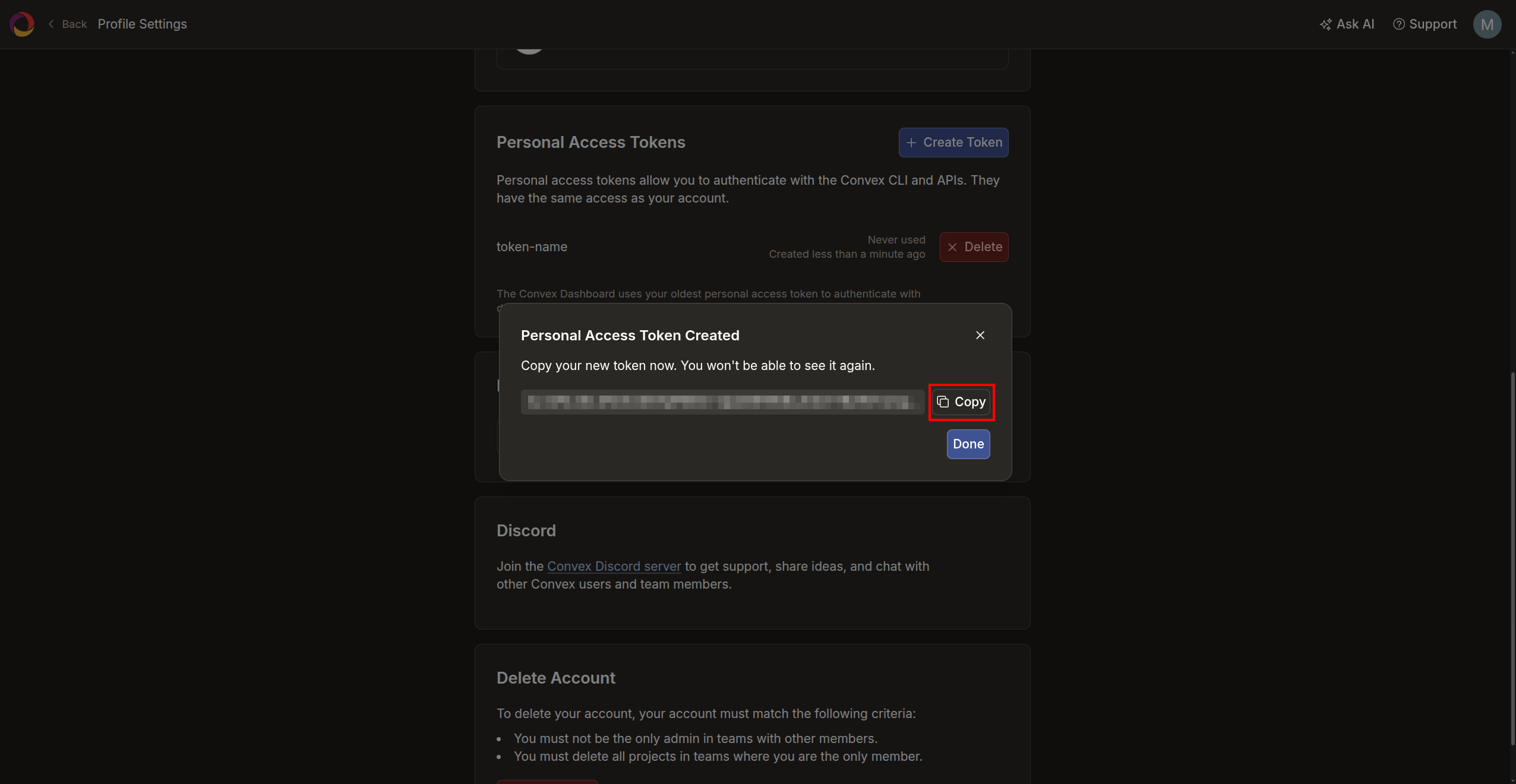
 Copy the generated token and store it securely. You will not be able to see it again. You will need it to configure the Convex connection in Infisical.
 ## Setup Convex Connection in Infisical
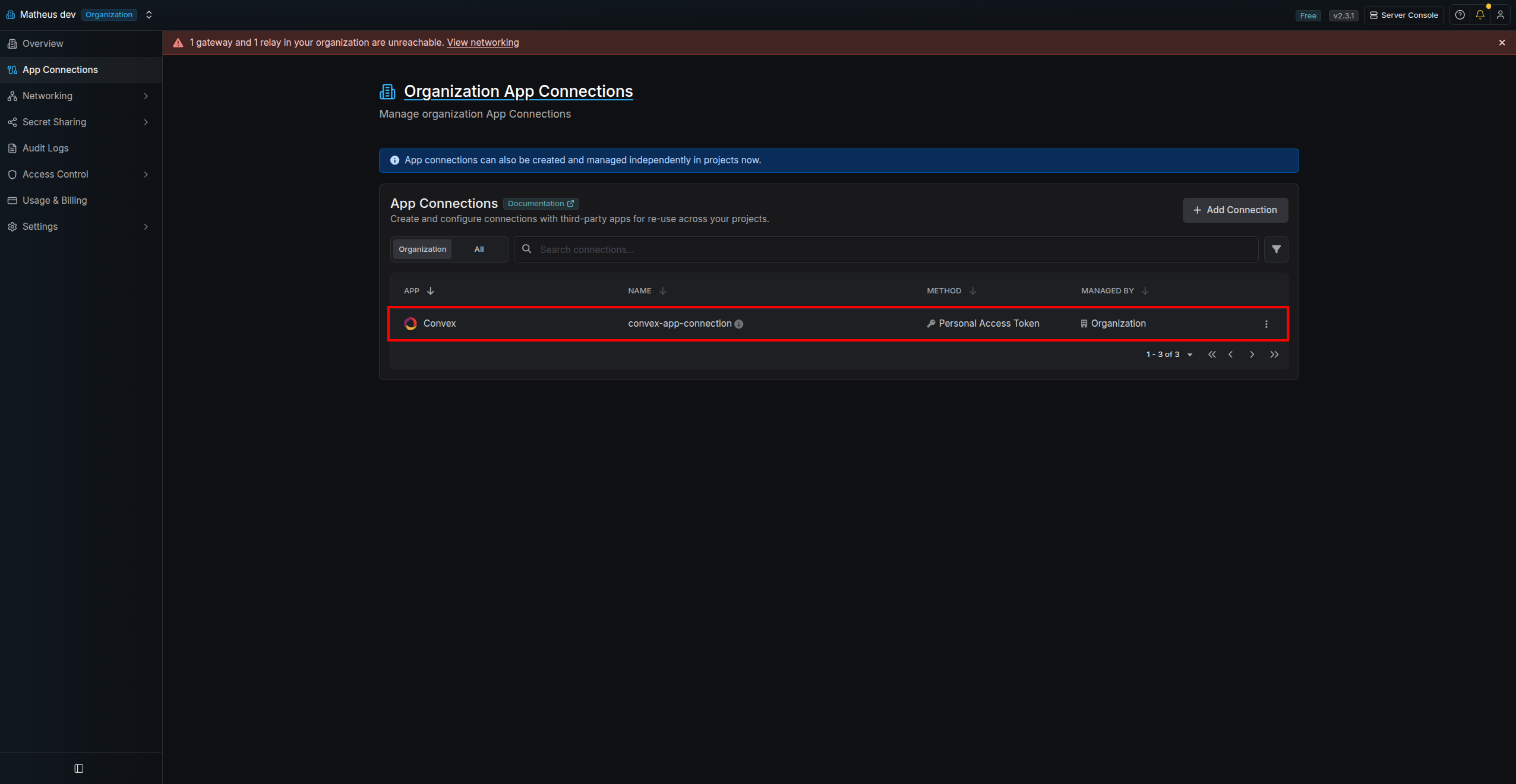
Navigate to the **App Connections** tab in your organization and click **+ Add Connection**.
## Setup Convex Connection in Infisical
Navigate to the **App Connections** tab in your organization and click **+ Add Connection**.
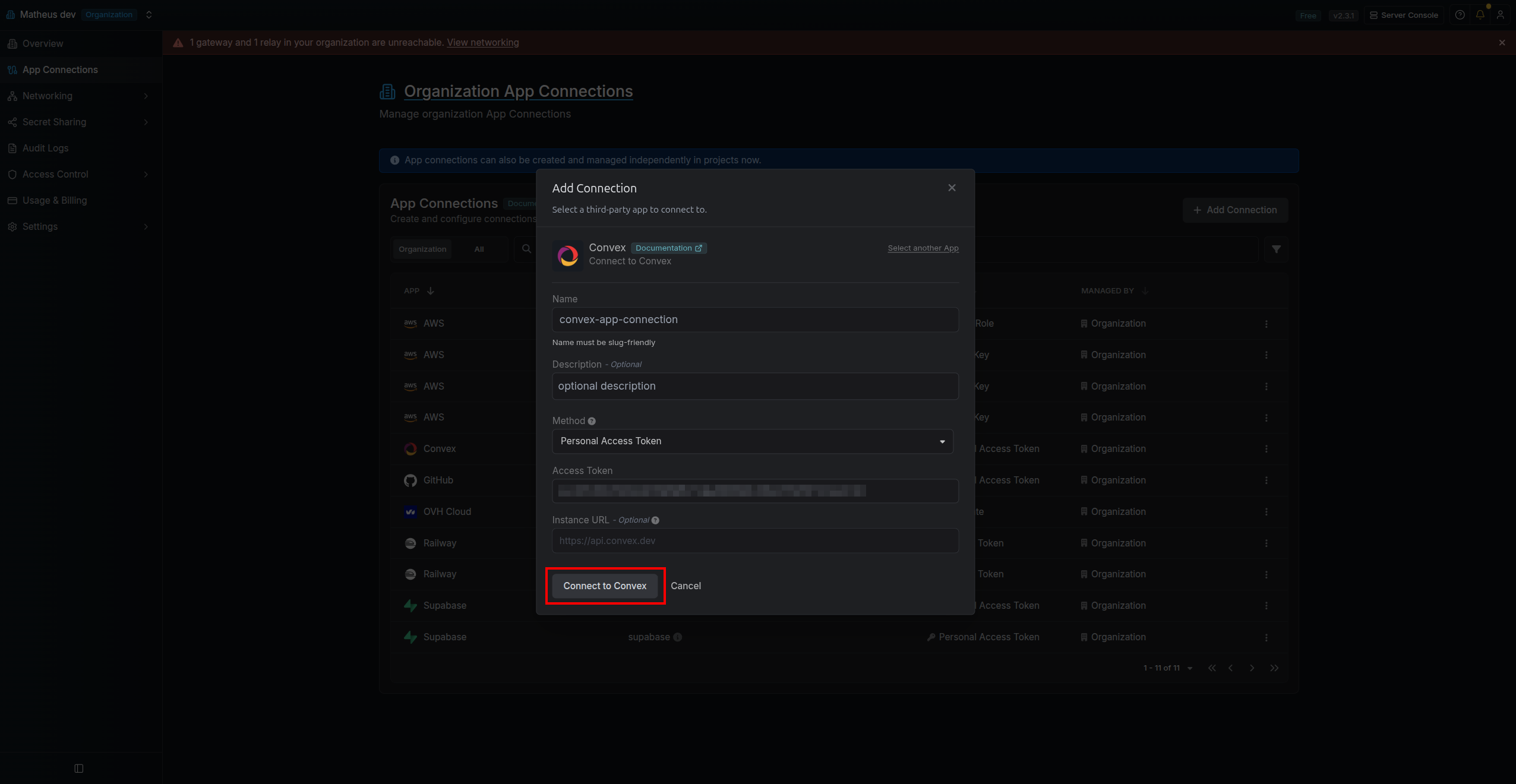
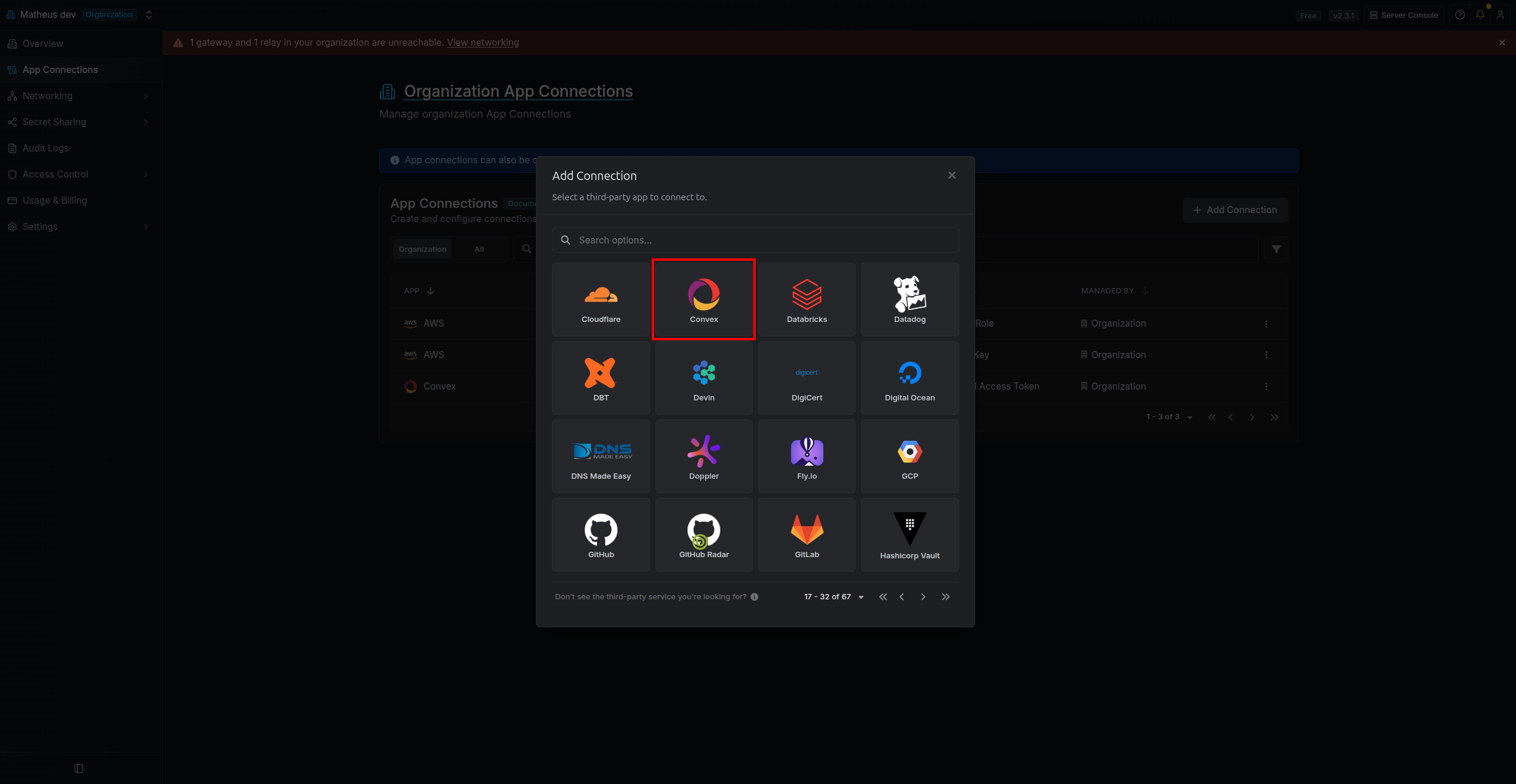 Select the **Convex** option, fill in the connection **Name**, select the **Personal Access Token** method, paste the **Access Token** you copied earlier, and click **Connect to Convex**.
Optionally, you can provide an **Instance URL** if you are self-hosting Convex. If left empty, `https://api.convex.dev` is used by default.
Select the **Convex** option, fill in the connection **Name**, select the **Personal Access Token** method, paste the **Access Token** you copied earlier, and click **Connect to Convex**.
Optionally, you can provide an **Instance URL** if you are self-hosting Convex. If left empty, `https://api.convex.dev` is used by default.
 Your **Convex Connection** is now available for use.