> ## Documentation Index
> Fetch the complete documentation index at: https://infisical.com/docs/llms.txt
> Use this file to discover all available pages before exploring further.
# Cloudflare Connection
> Learn how to configure a Cloudflare Connection for Infisical.
Infisical supports connecting to Cloudflare using API tokens and Account ID for secure access to your Cloudflare services.
## Configure API Token and Account ID for Infisical
Navigate to your Cloudflare dashboard and go to **Profile**.
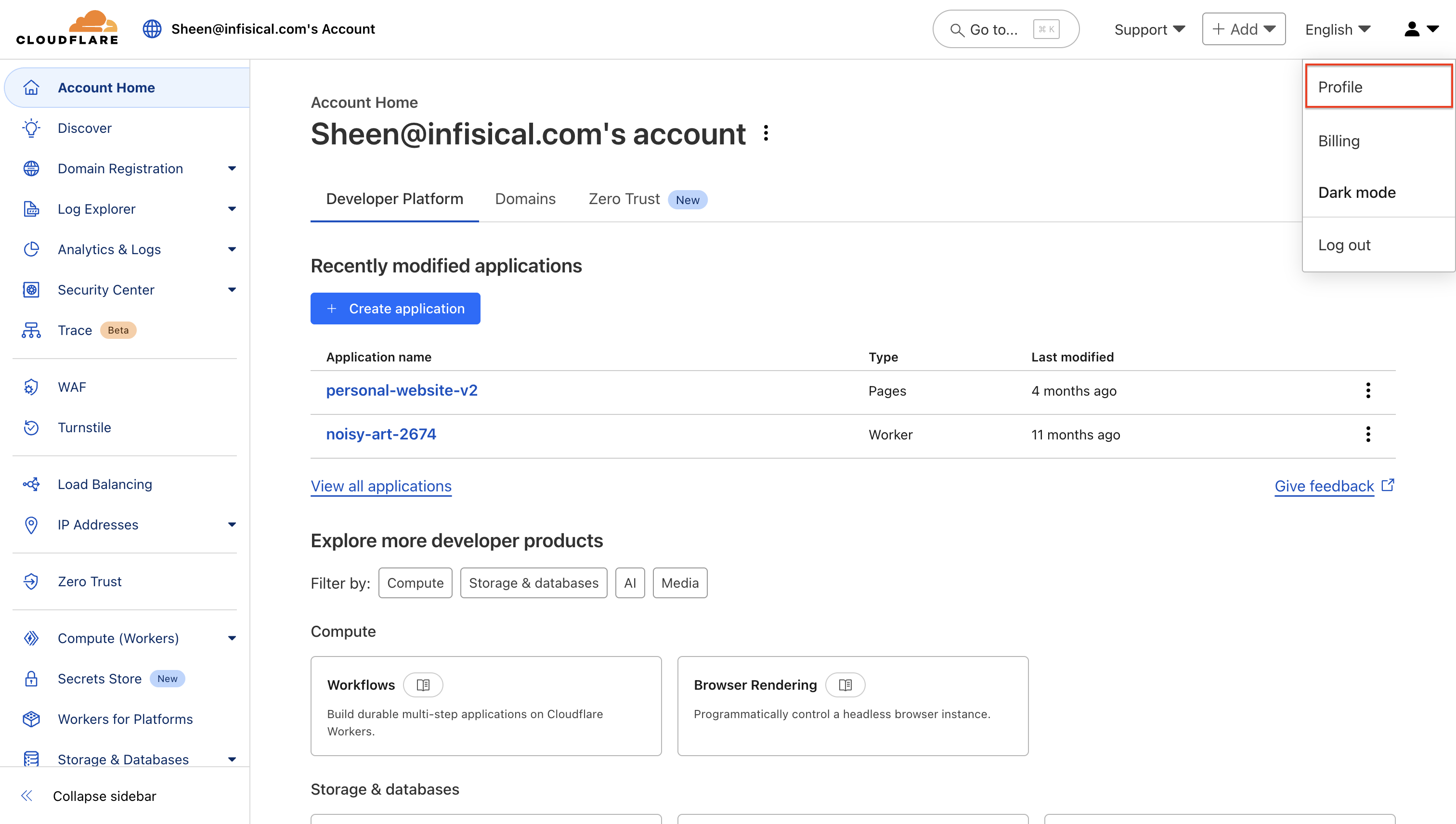 Click **API Tokens > Create Token** to generate a new API token.
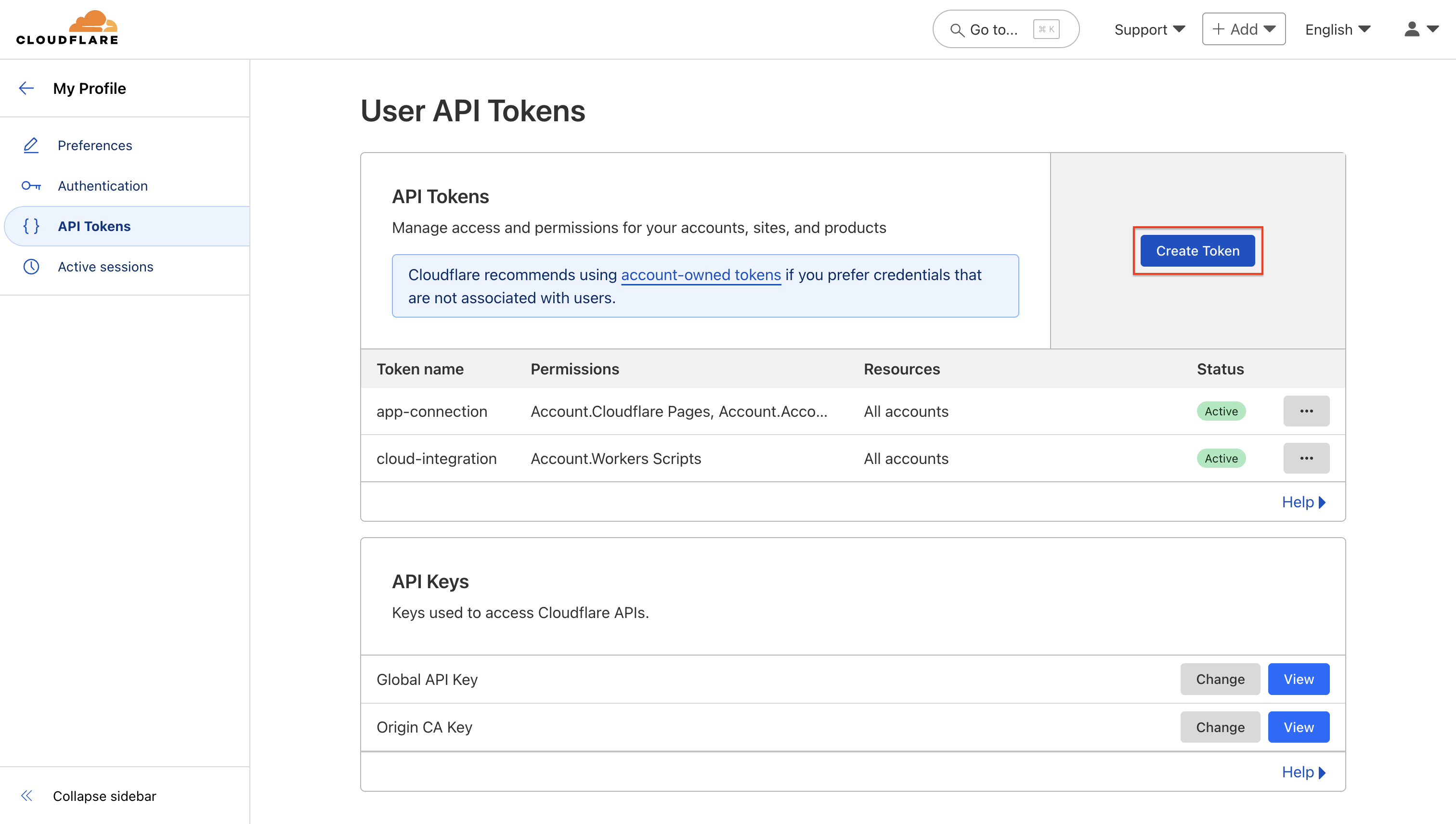 Configure your API token with the necessary permissions for your Cloudflare services.
Depending on your use case, add one or more of the following permission sets to your API token:
Use the following permissions to grant Infisical access to sync secrets to Cloudflare Pages:
Configure your API token with the necessary permissions for your Cloudflare services.
Depending on your use case, add one or more of the following permission sets to your API token:
Use the following permissions to grant Infisical access to sync secrets to Cloudflare Pages:
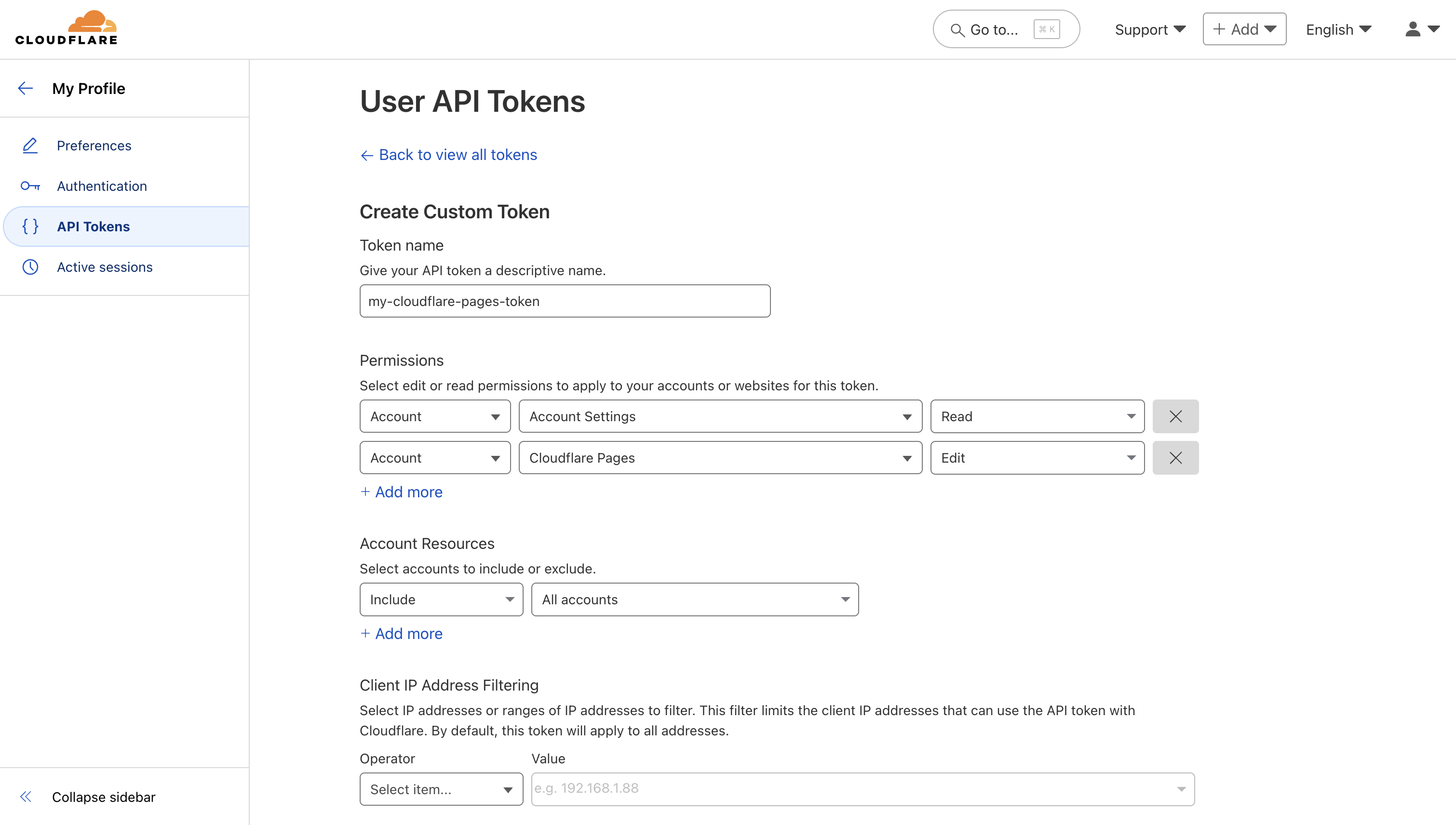 **Required Permissions:**
* **Account** - **Cloudflare Pages** - **Edit**
* **Account** - **Account Settings** - **Read**
Add these permissions to your API token and click **Continue to summary**, then **Create Token** to generate your API token.
Use the following permissions to grant Infisical access to sync secrets to Cloudflare Workers:
**Required Permissions:**
* **Account** - **Cloudflare Pages** - **Edit**
* **Account** - **Account Settings** - **Read**
Add these permissions to your API token and click **Continue to summary**, then **Create Token** to generate your API token.
Use the following permissions to grant Infisical access to sync secrets to Cloudflare Workers:
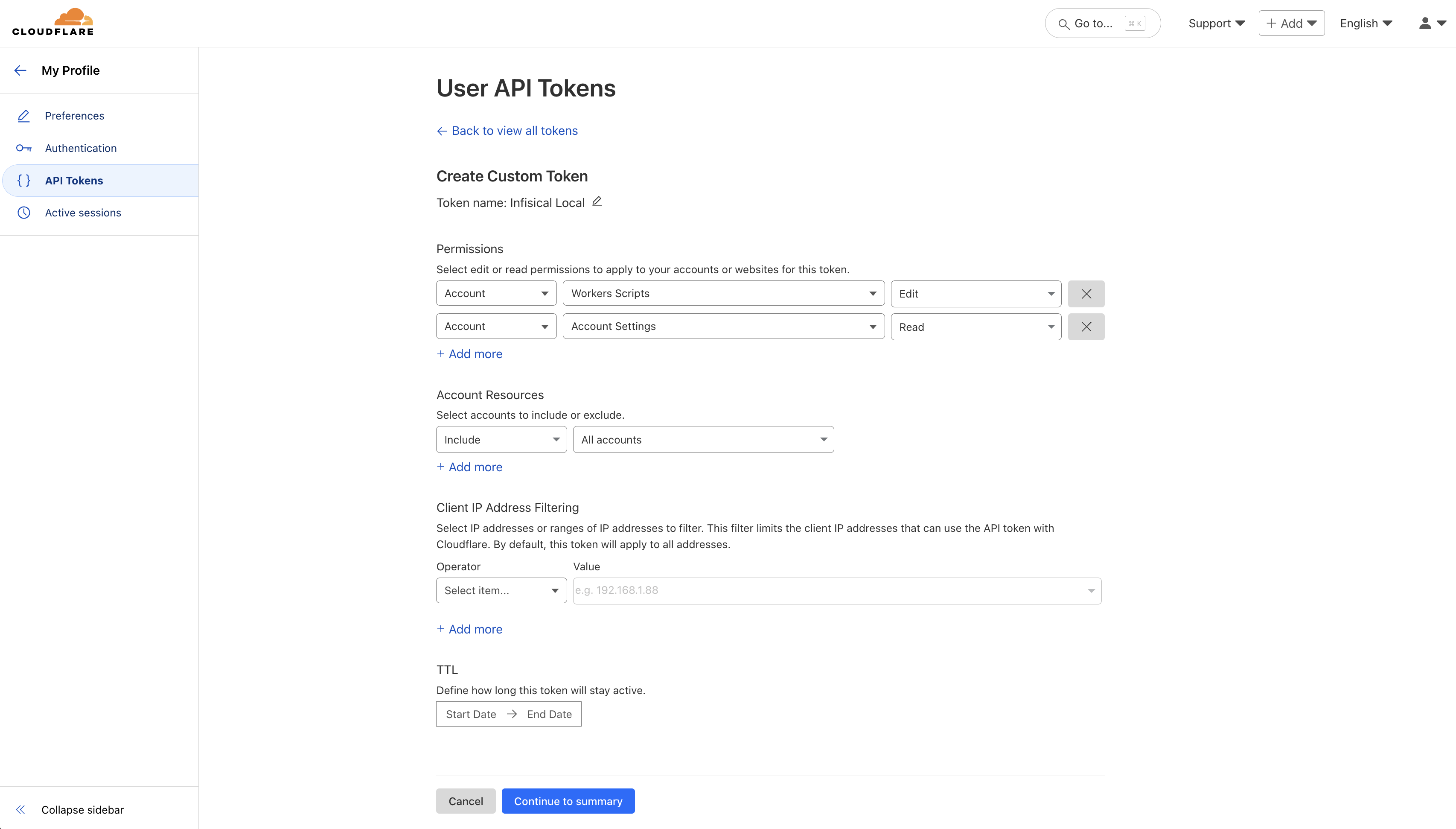 **Required Permissions:**
* **Account** - **Workers Scripts** - **Edit**
* **Account** - **Account Settings** - **Read**
Add these permissions to your API token and click **Continue to summary**, then **Create Token** to generate your API token.
Use the following permissions to grant Infisical access to verify certificates using DNS TXT records with ACME:
**Required Permissions:**
* **Account** - **Workers Scripts** - **Edit**
* **Account** - **Account Settings** - **Read**
Add these permissions to your API token and click **Continue to summary**, then **Create Token** to generate your API token.
Use the following permissions to grant Infisical access to verify certificates using DNS TXT records with ACME:
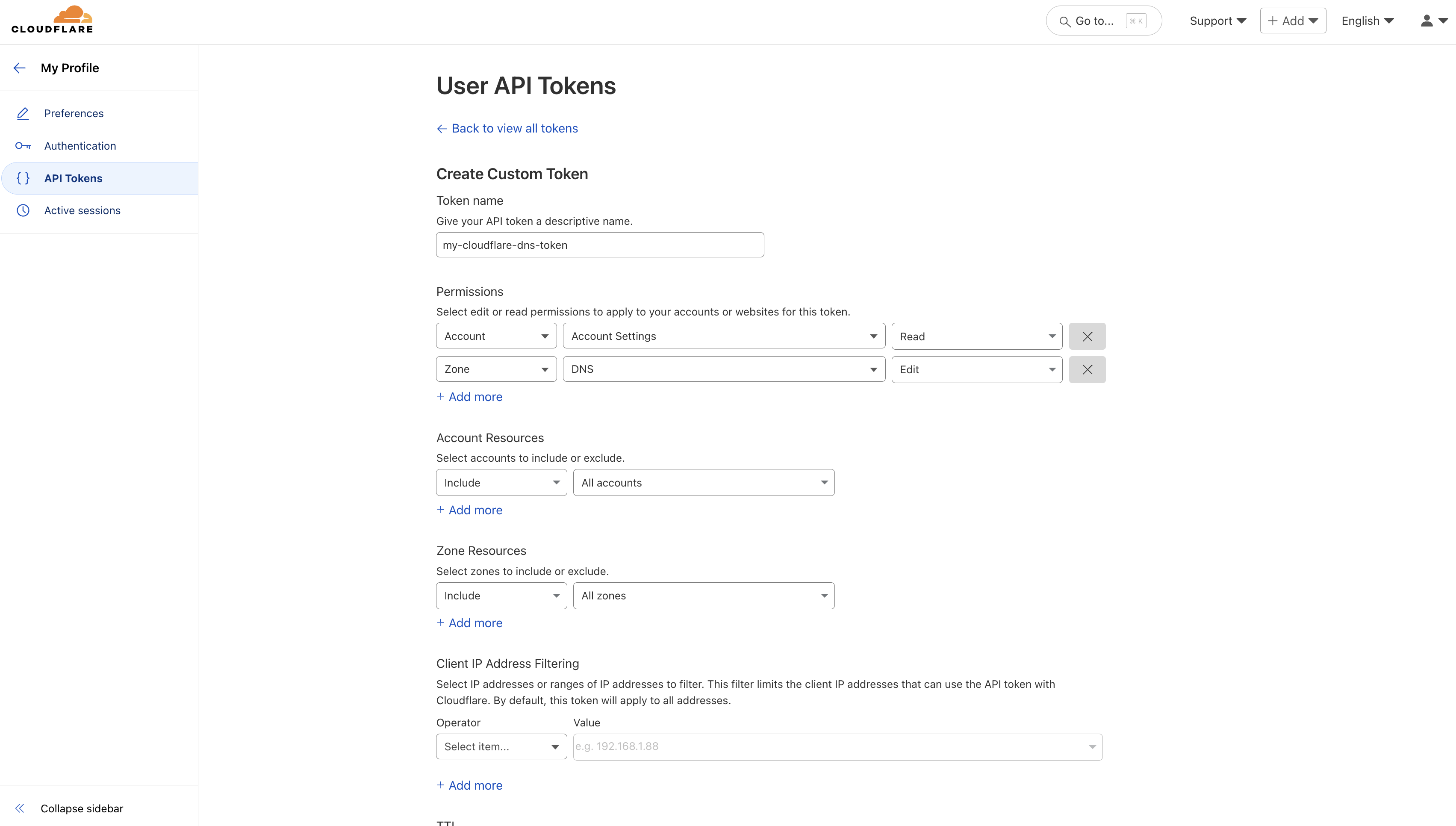 **Required Permissions:**
* **Account** - **Account Settings** - **Read**
* **Zone** - **DNS** - **Edit**
Add these permissions to your API token and click **Continue to summary**, then **Create Token** to generate your API token.
Use the following permissions to grant Infisical access to sync certificates to Cloudflare as Custom SSL certificates:
**Required Permissions:**
* **Account** - **Account Settings** - **Read**
* **Zone** - **DNS** - **Edit**
Add these permissions to your API token and click **Continue to summary**, then **Create Token** to generate your API token.
Use the following permissions to grant Infisical access to sync certificates to Cloudflare as Custom SSL certificates:
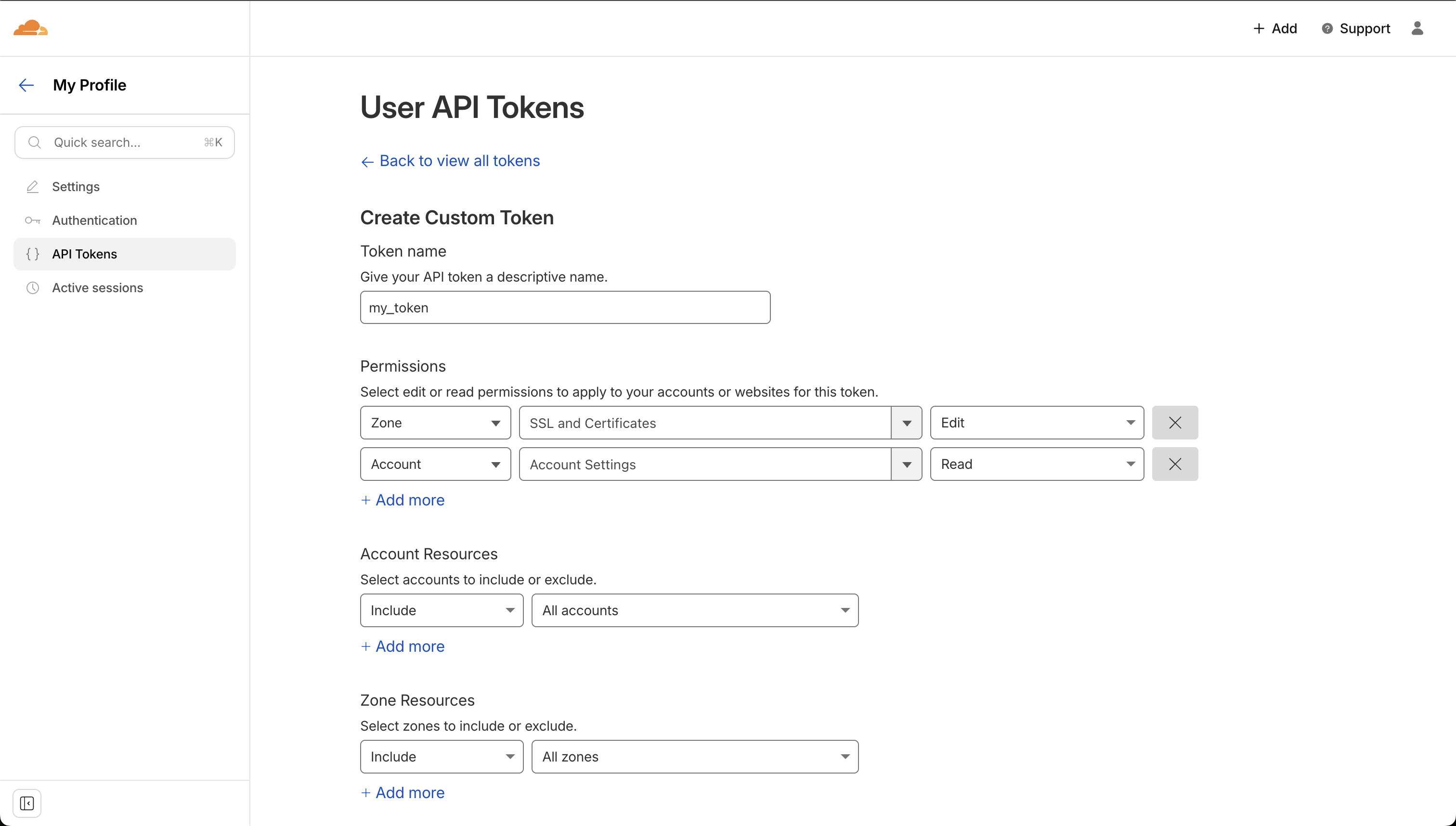 **Required Permissions:**
* **Account** - **Account Settings** - **Read**
* **Zone** - **SSL and Certificates** - **Edit**
These permissions allow Infisical to upload, update, and delete custom SSL certificates in your Cloudflare zones.
Add these permissions to your API token and click **Continue to summary**, then **Create Token** to generate your API token.
After creation, copy and securely store your API token as it will not be shown again.
**Required Permissions:**
* **Account** - **Account Settings** - **Read**
* **Zone** - **SSL and Certificates** - **Edit**
These permissions allow Infisical to upload, update, and delete custom SSL certificates in your Cloudflare zones.
Add these permissions to your API token and click **Continue to summary**, then **Create Token** to generate your API token.
After creation, copy and securely store your API token as it will not be shown again.
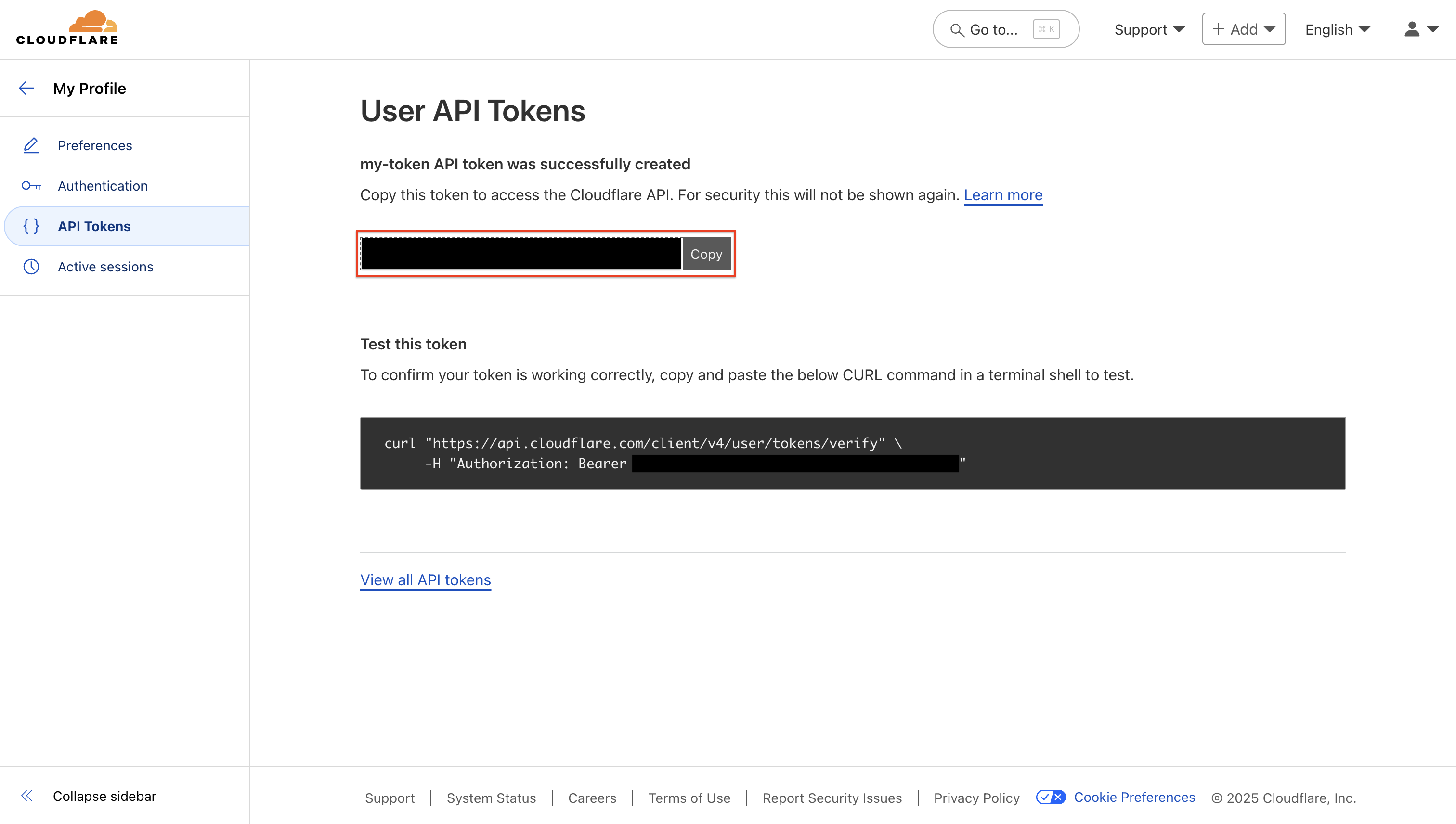 Keep your API token secure and do not share it. Anyone with access to this token can manage your Cloudflare resources based on the permissions granted.
From your Cloudflare Account Home page, click on the account information dropdown and select **Copy account ID**.
Keep your API token secure and do not share it. Anyone with access to this token can manage your Cloudflare resources based on the permissions granted.
From your Cloudflare Account Home page, click on the account information dropdown and select **Copy account ID**.
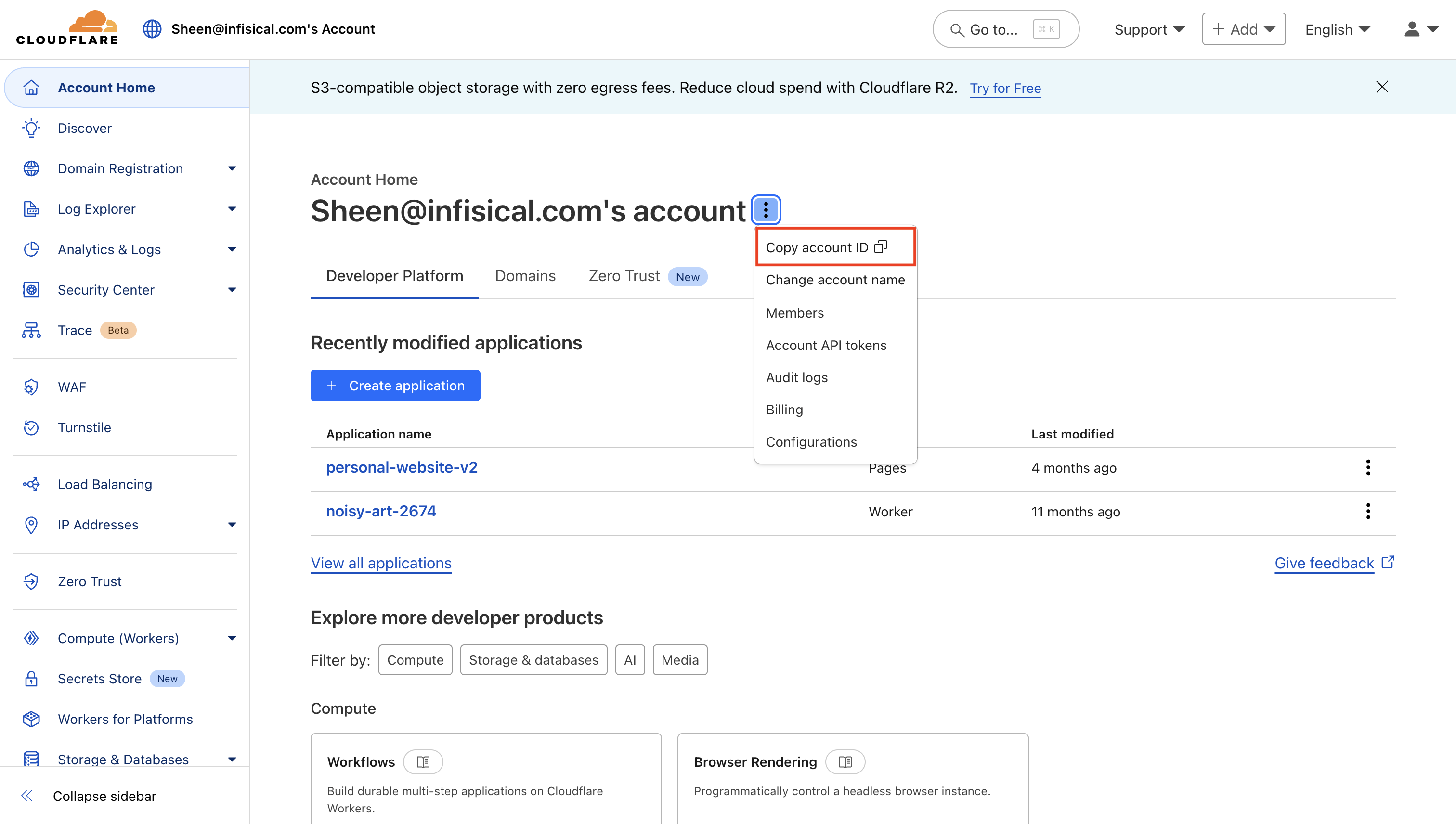 Save your Account ID for use in the next step.
## Setup Cloudflare Connection in Infisical
Navigate to the **Integrations** tab in the desired project, then select **App Connections**.
Save your Account ID for use in the next step.
## Setup Cloudflare Connection in Infisical
Navigate to the **Integrations** tab in the desired project, then select **App Connections**.  Select the **Cloudflare Connection** option from the connection options
modal.
Select the **Cloudflare Connection** option from the connection options
modal. 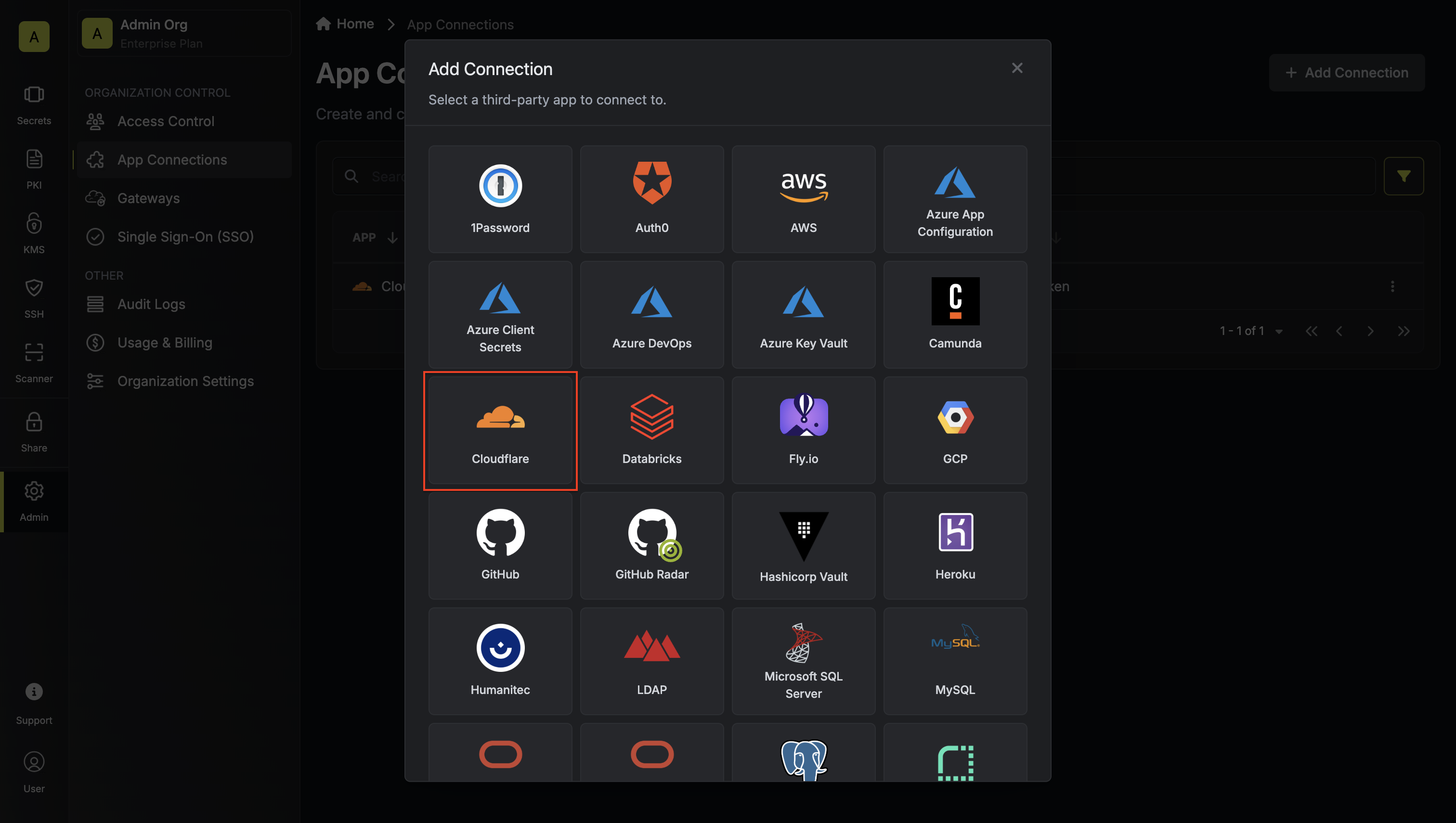 Enter your Cloudflare API token and Account ID in the provided fields and
click **Connect to Cloudflare** to establish the connection.
Enter your Cloudflare API token and Account ID in the provided fields and
click **Connect to Cloudflare** to establish the connection. 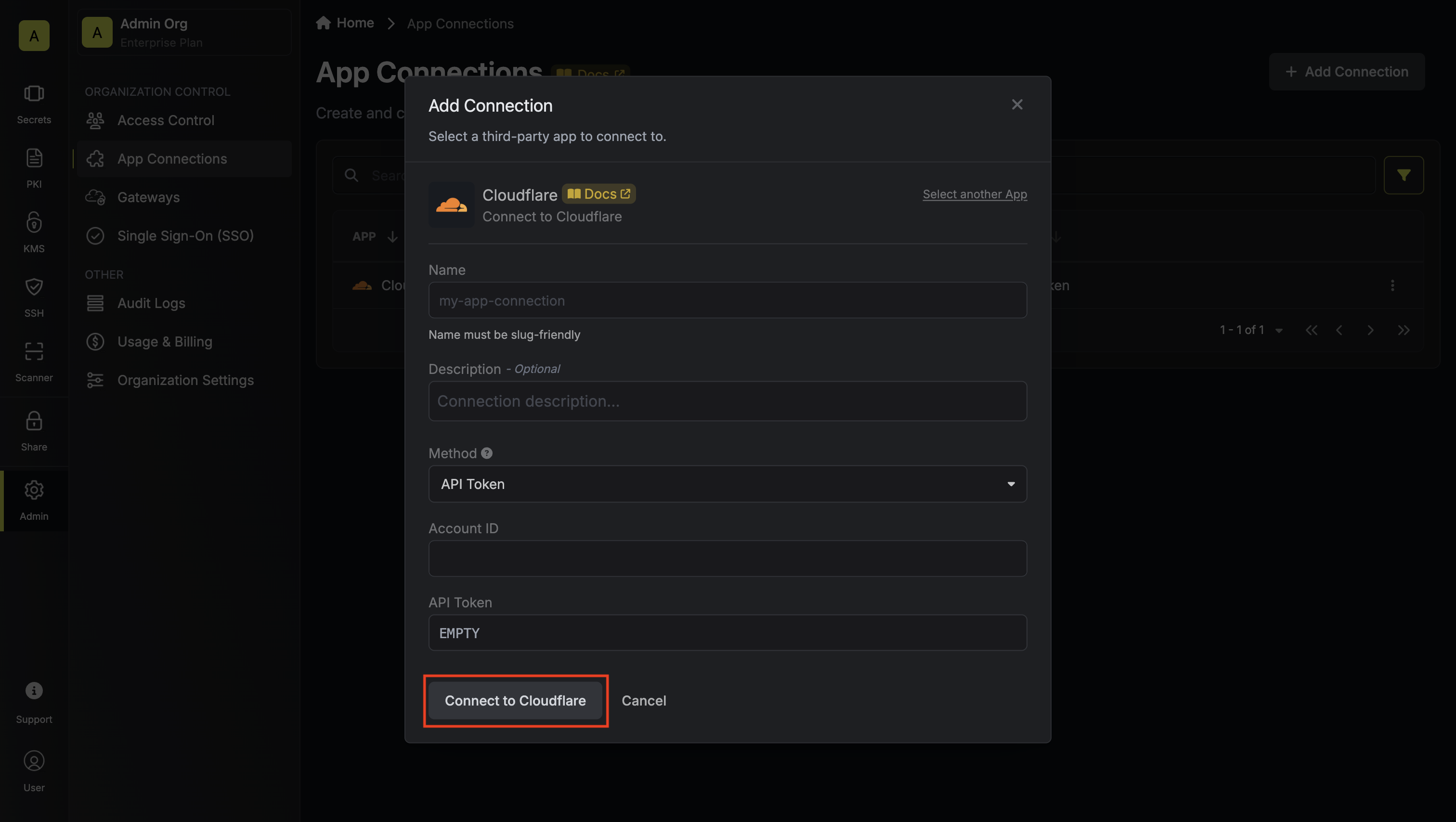 Your **Cloudflare Connection** is now available for use in your Infisical
projects.
Your **Cloudflare Connection** is now available for use in your Infisical
projects. 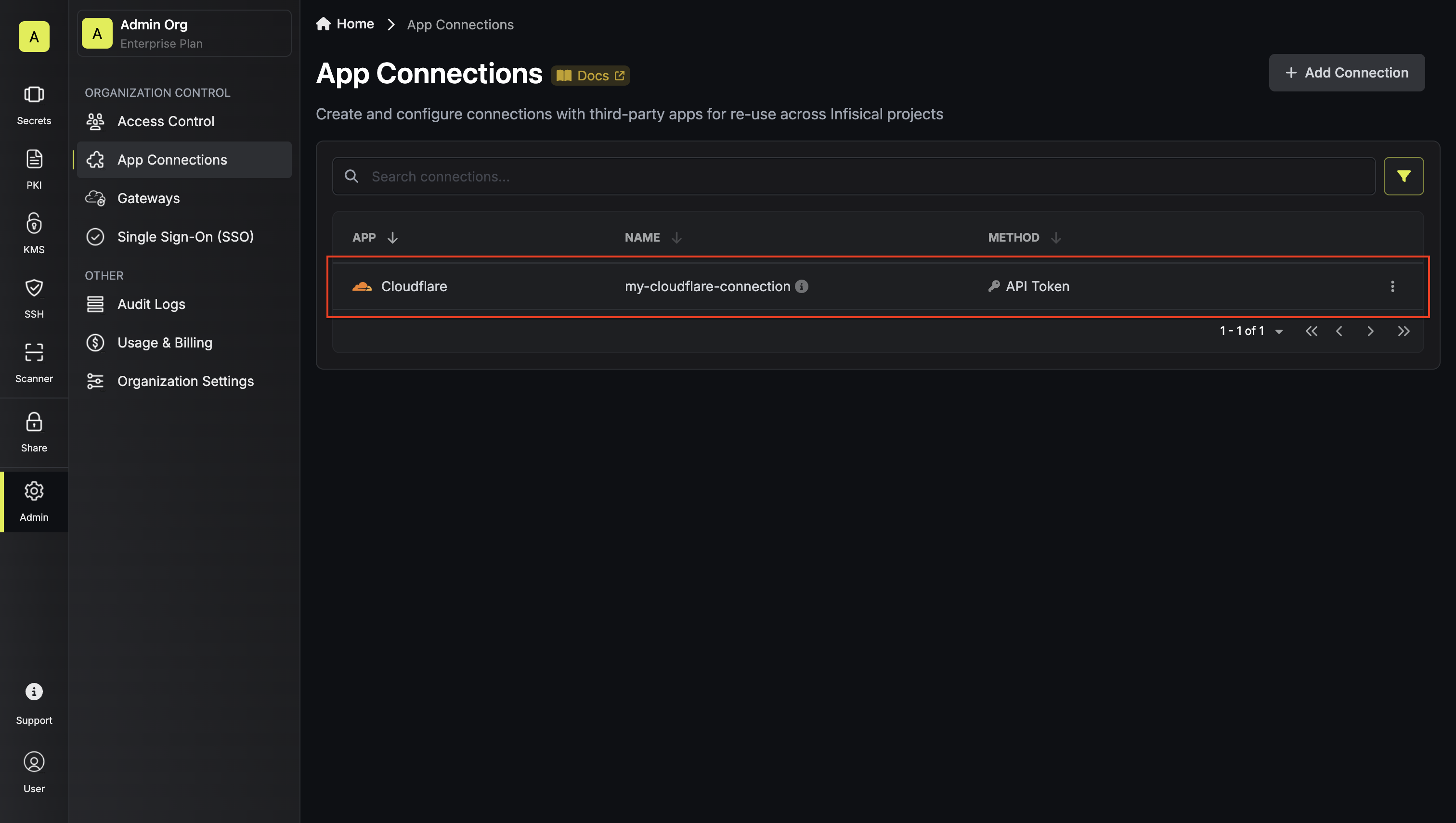 API token connections require manual token rotation when your Cloudflare API
token expires or is regenerated. Monitor your connection status and update the
token as needed.
API token connections require manual token rotation when your Cloudflare API
token expires or is regenerated. Monitor your connection status and update the
token as needed.