> ## Documentation Index
> Fetch the complete documentation index at: https://infisical.com/docs/llms.txt
> Use this file to discover all available pages before exploring further.
# Cloud 66 Connection
> Learn how to configure a Cloud 66 Connection for Infisical using a Personal Access Token.
Infisical supports connecting to Cloud 66 using a **Personal Access Token**.
## Create Cloud 66 Personal Access Token
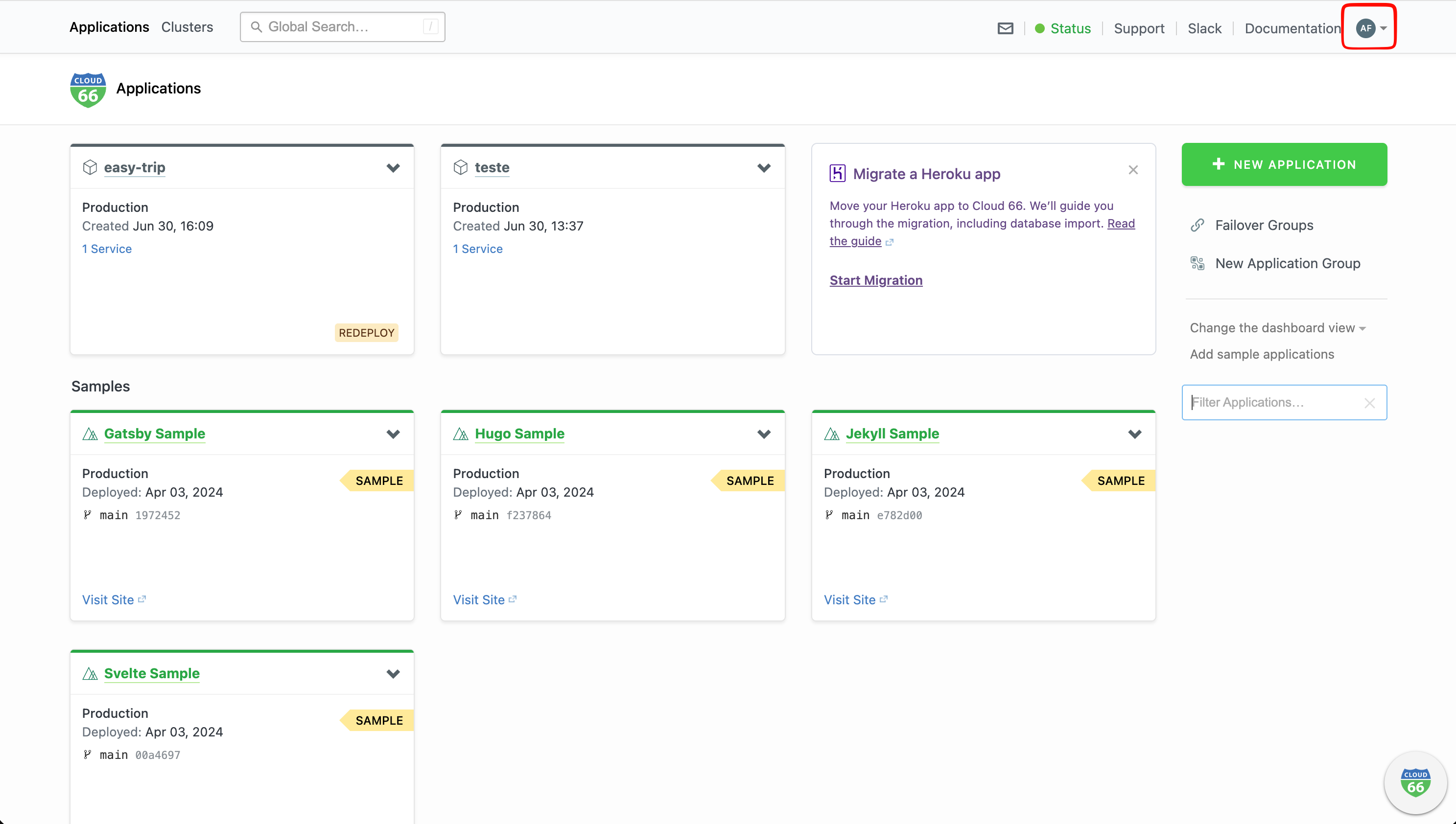
Log in to your [Cloud 66 account](https://app.cloud66.com) and click your account avatar in the top-right corner.
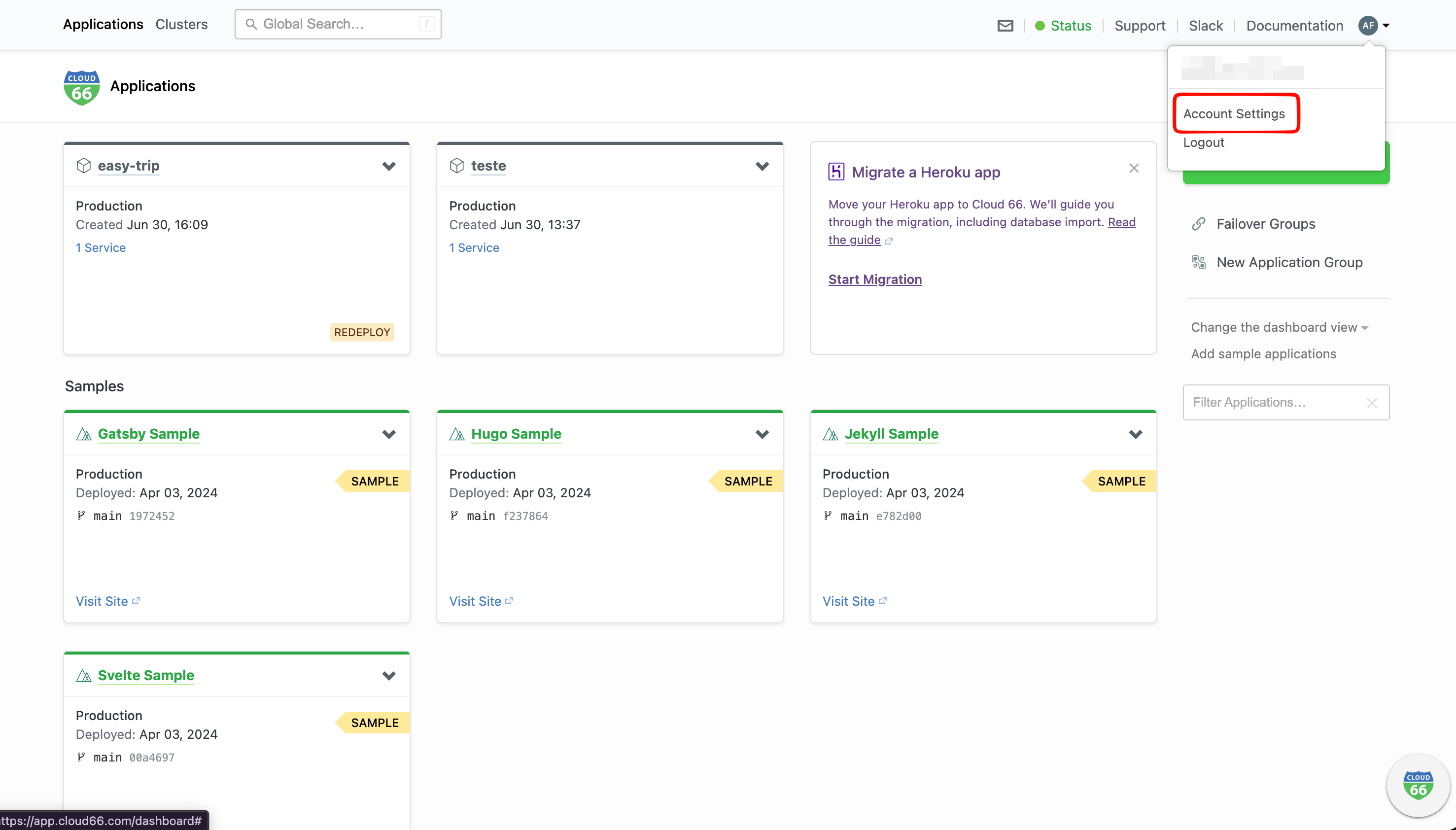
 Select **Account Settings** from the dropdown.
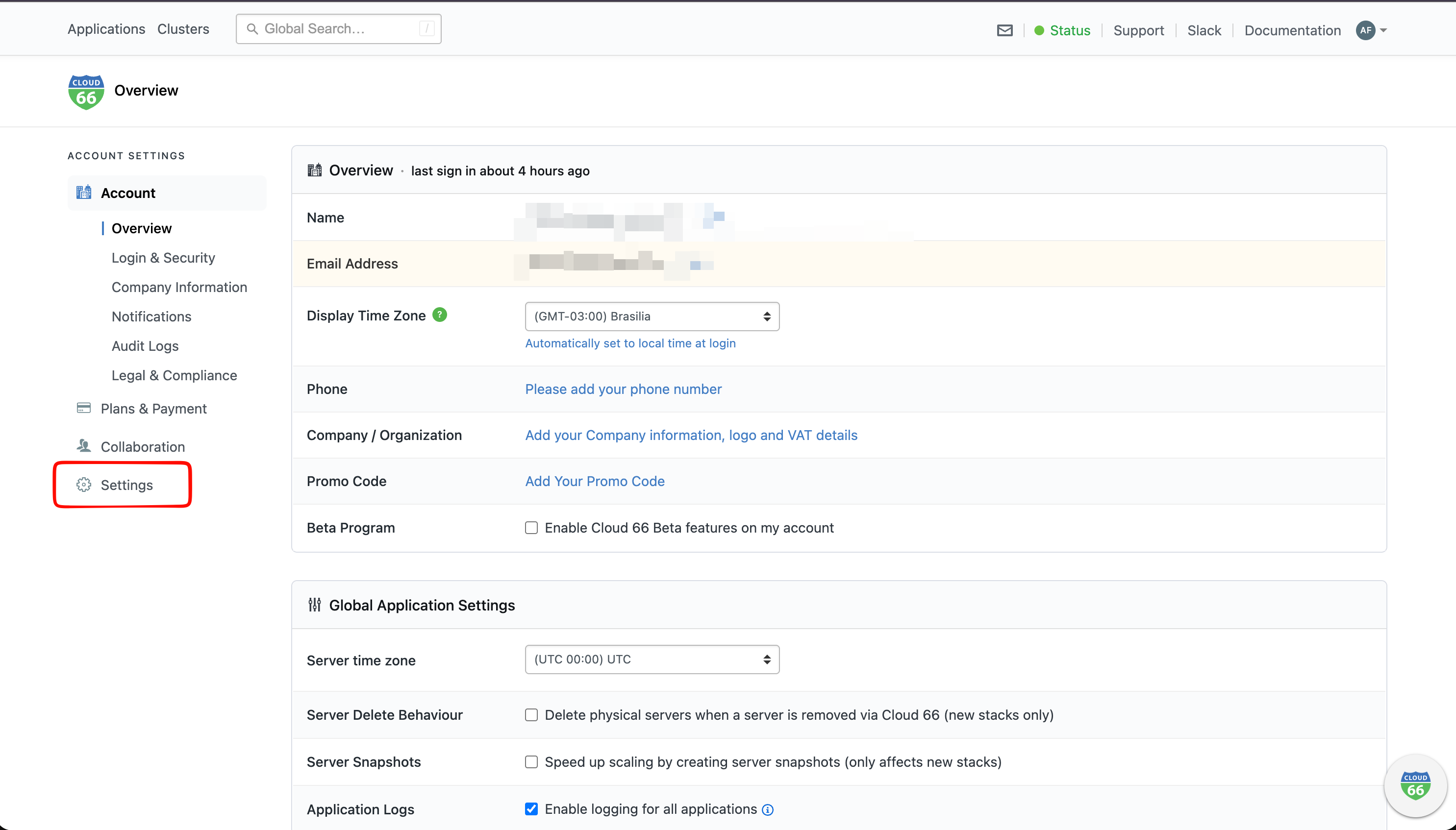
 In the account settings sidebar, select **Settings**.
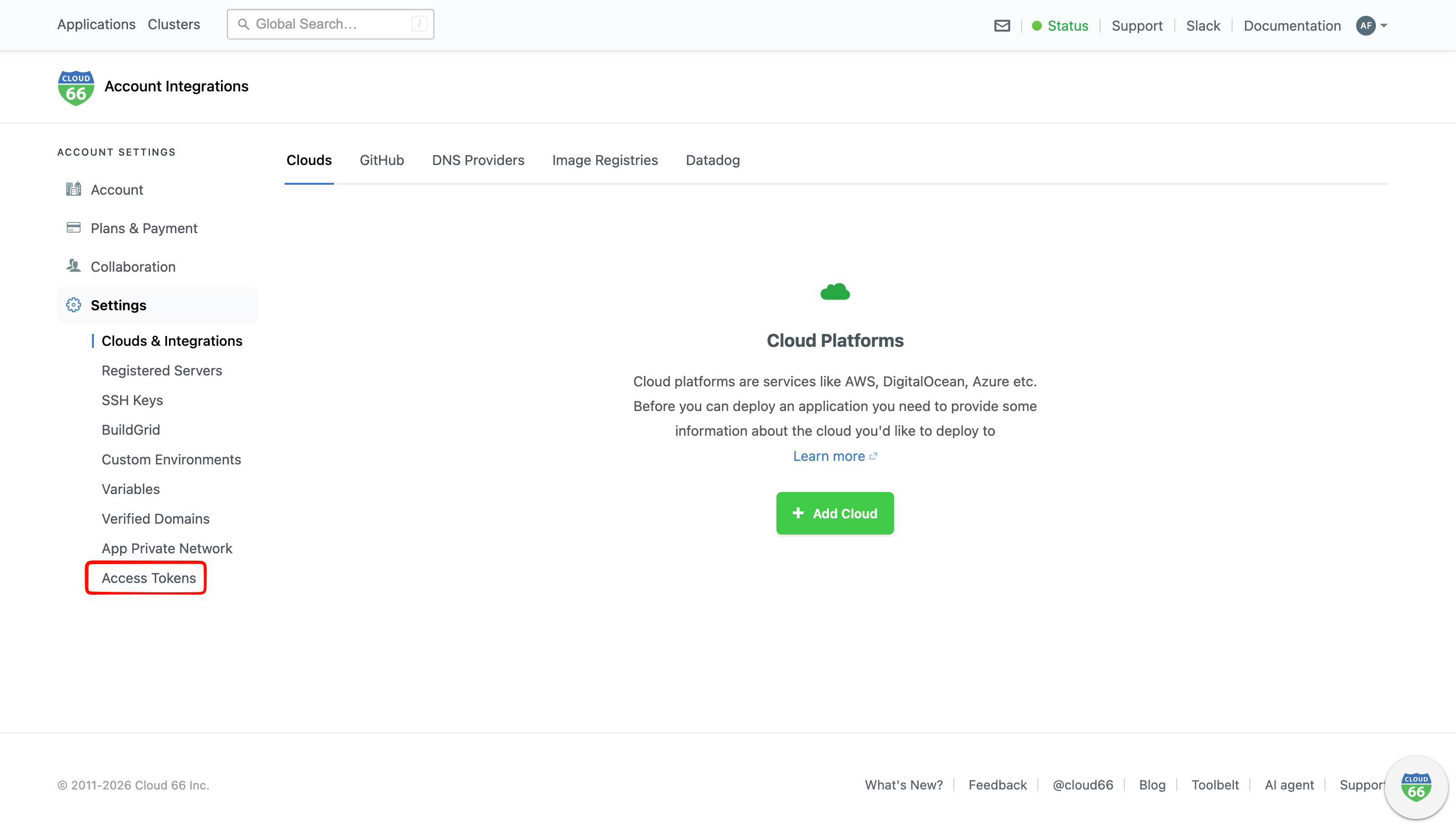
 Then select **Access Tokens**.
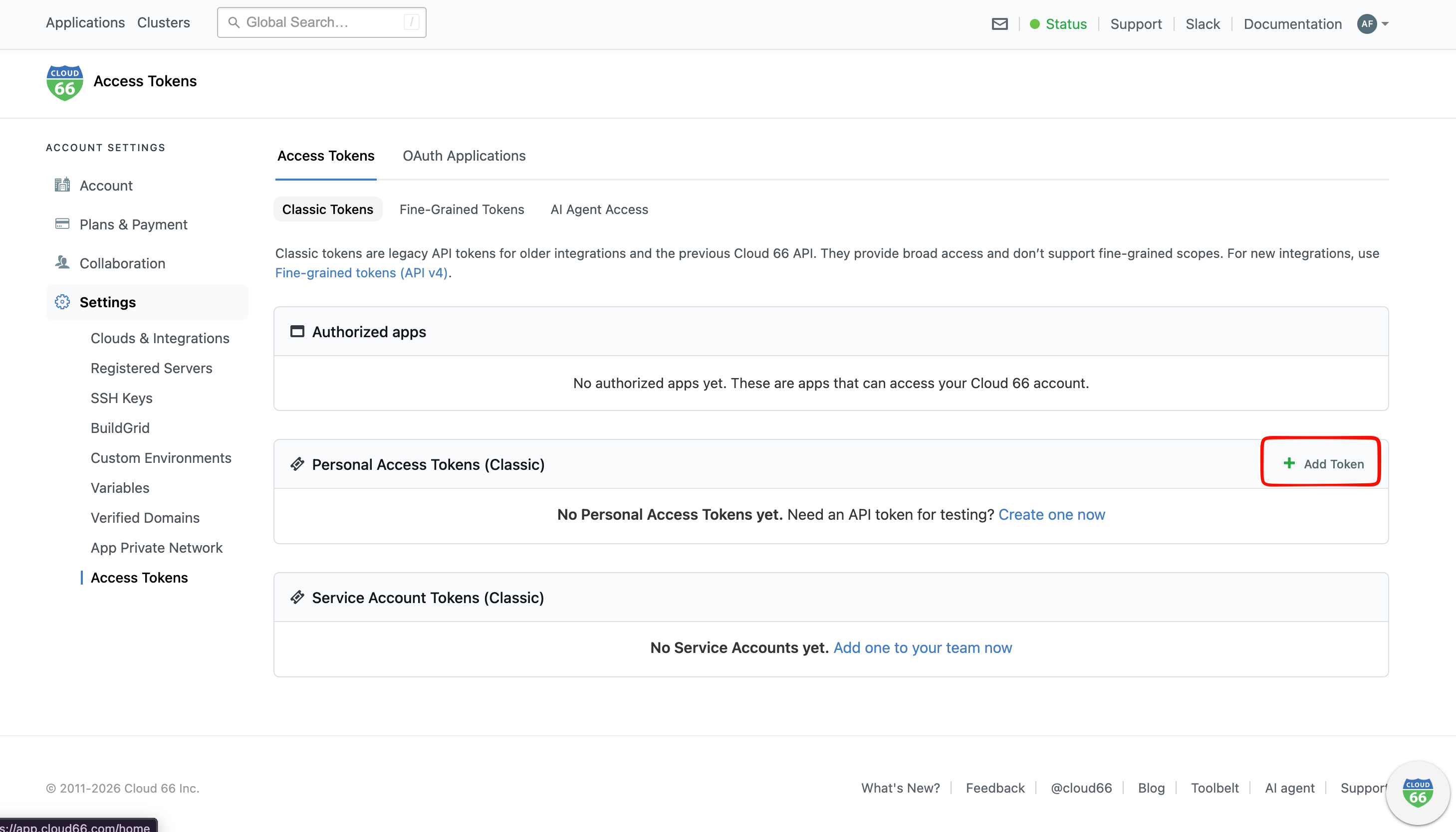
 Under **Personal Access Tokens (Classic)**, click **Add Token**.
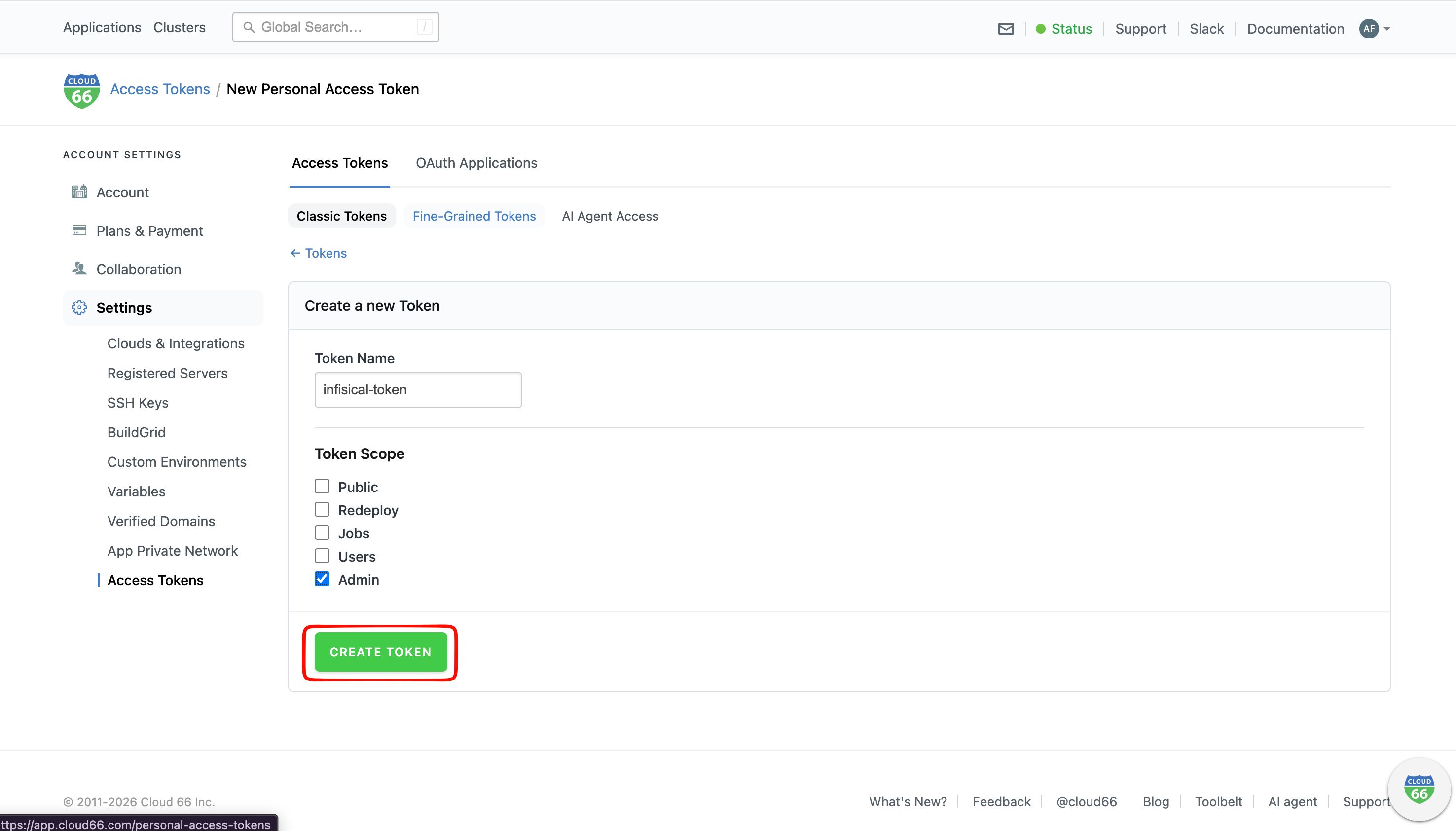
 Give the token a name and select a scope that allows managing your stacks' environment variables, then click **Create Token**.
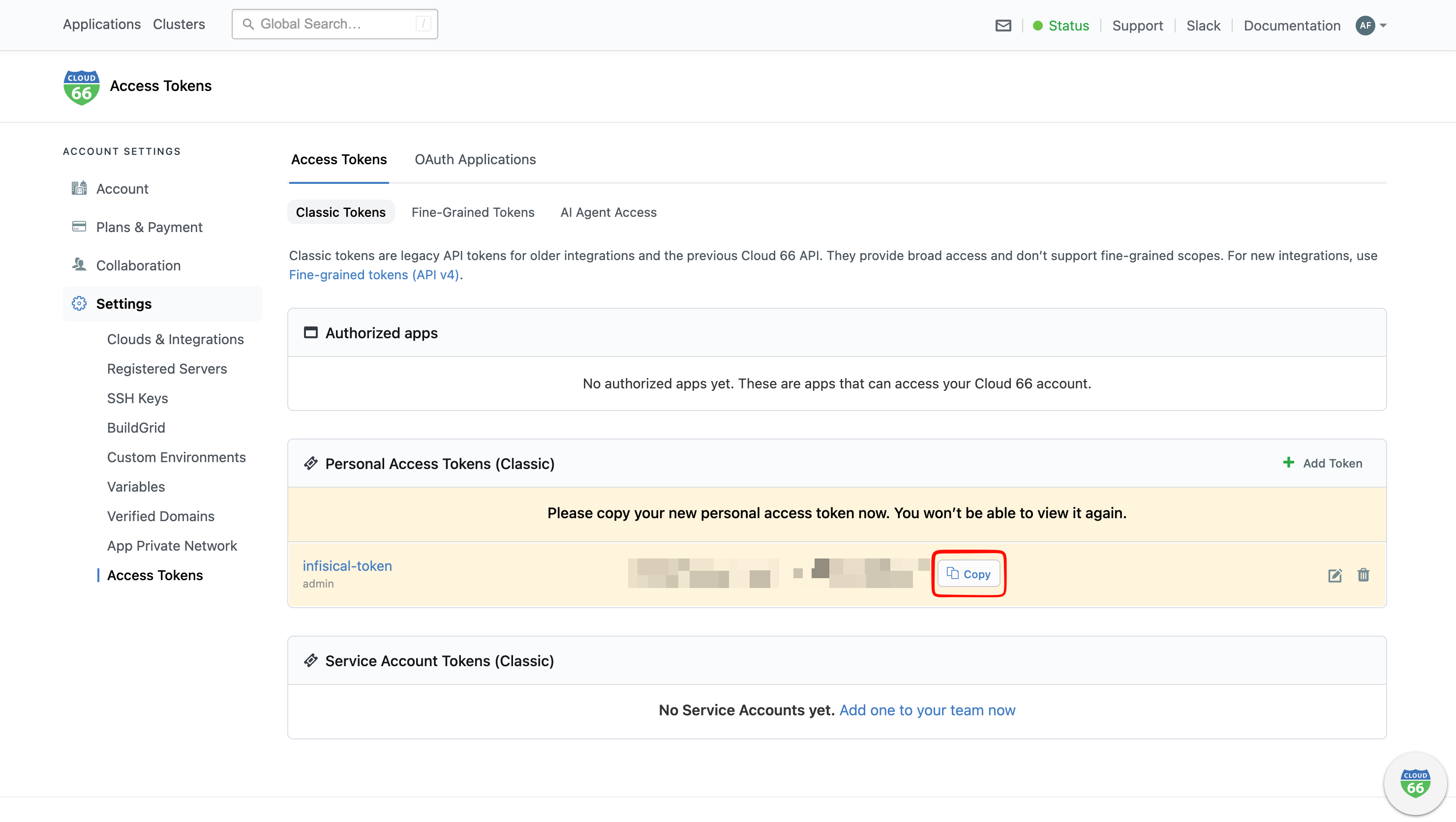
 Copy the token and store it somewhere safe. Cloud 66 will not show it again after you leave this page.
 ## Setup Cloud 66 Connection in Infisical
Navigate to the **Integrations** tab in the desired project, then select **App Connections**.
## Setup Cloud 66 Connection in Infisical
Navigate to the **Integrations** tab in the desired project, then select **App Connections**.
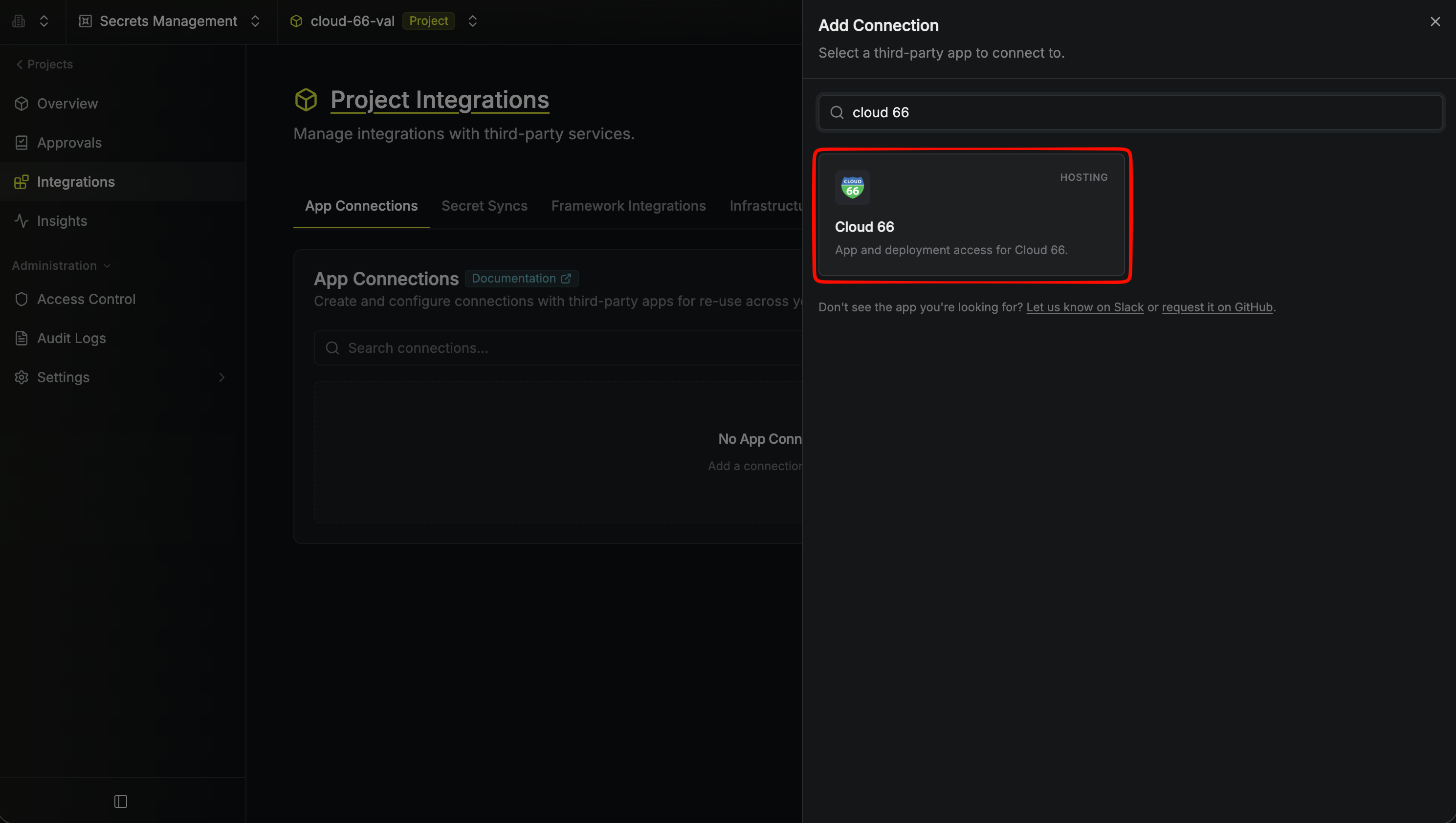
 Select the **Cloud 66 Connection** option from the connection options modal.
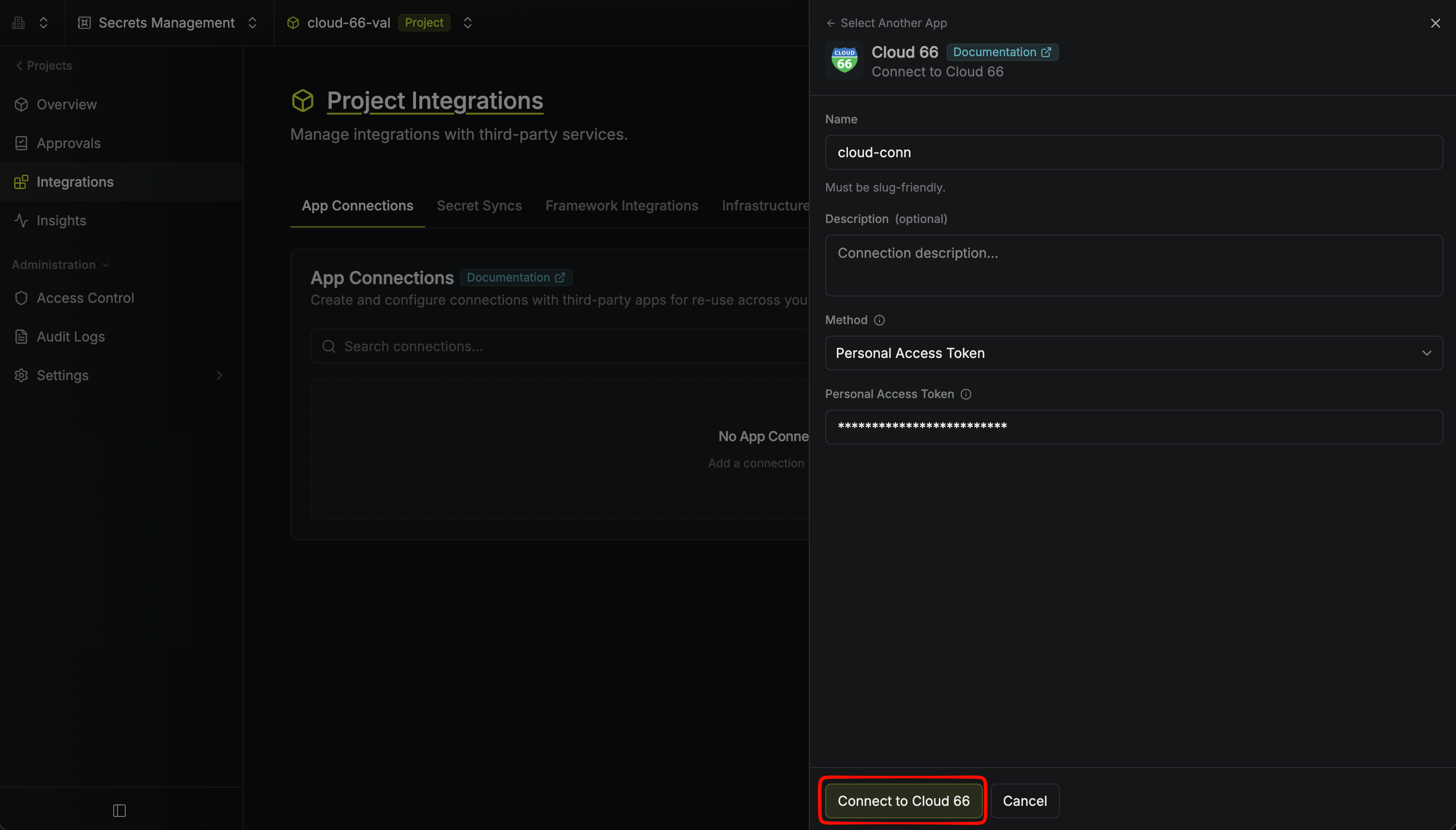
 Enter a name for the connection, paste your Personal Access Token into the **Personal Access Token** field, then click **Connect to Cloud 66**.
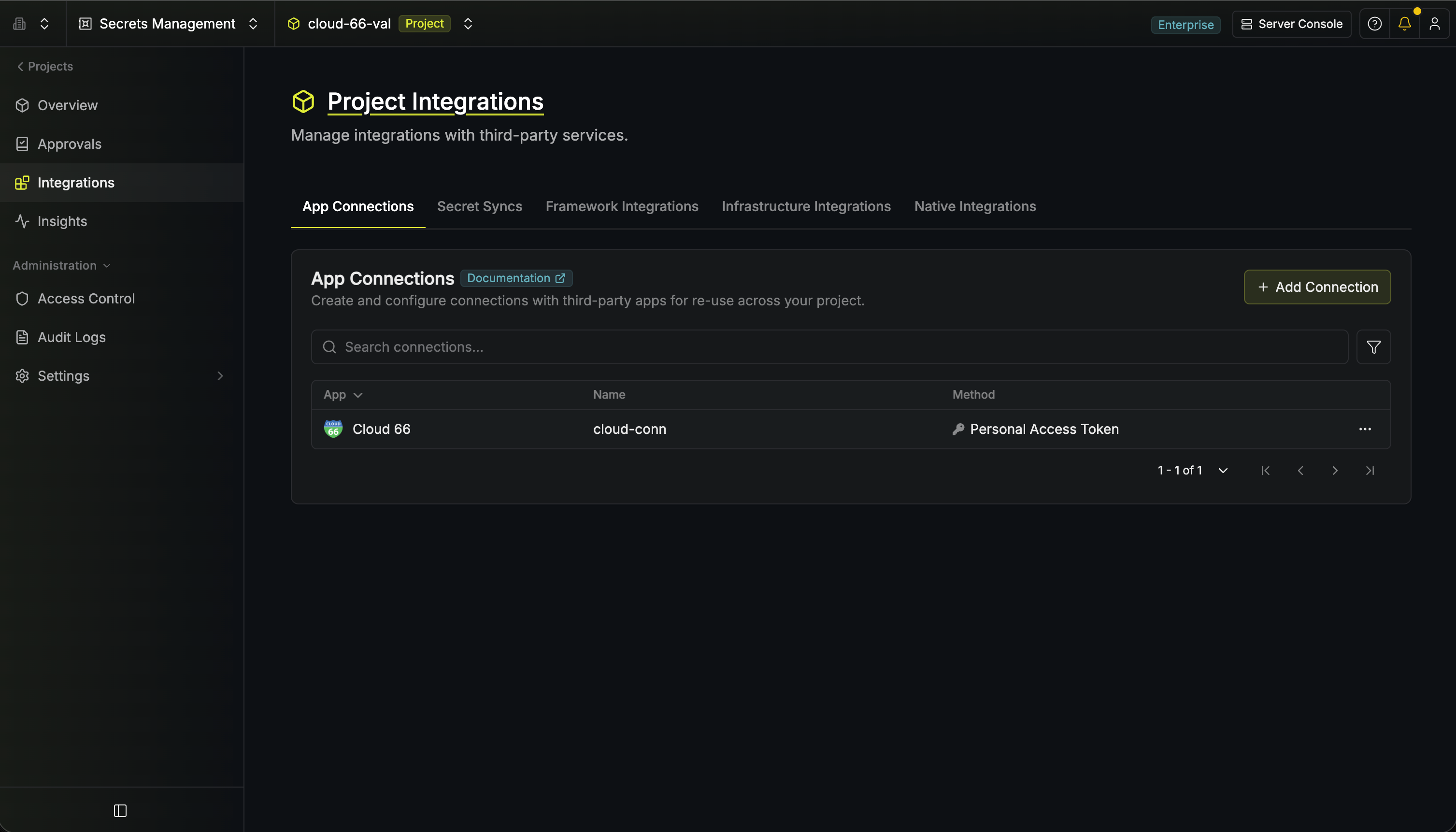
 Your connection is now available for use.
 Personal Access Token connections require manual token rotation when your Cloud 66 token expires or is
regenerated. Monitor your connection status and update the token as needed.
Personal Access Token connections require manual token rotation when your Cloud 66 token expires or is
regenerated. Monitor your connection status and update the token as needed.