> ## Documentation Index
> Fetch the complete documentation index at: https://infisical.com/docs/llms.txt
> Use this file to discover all available pages before exploring further.
# Camunda Connection
> Learn how to configure a Camunda Connection for Infisical.
Infisical supports connecting to Camunda APIs using [client credentials](https://docs.camunda.io/docs/apis-tools/administration-api/authentication/#client-credentials-and-scopes).
## Configure Client Credentials for Infisical
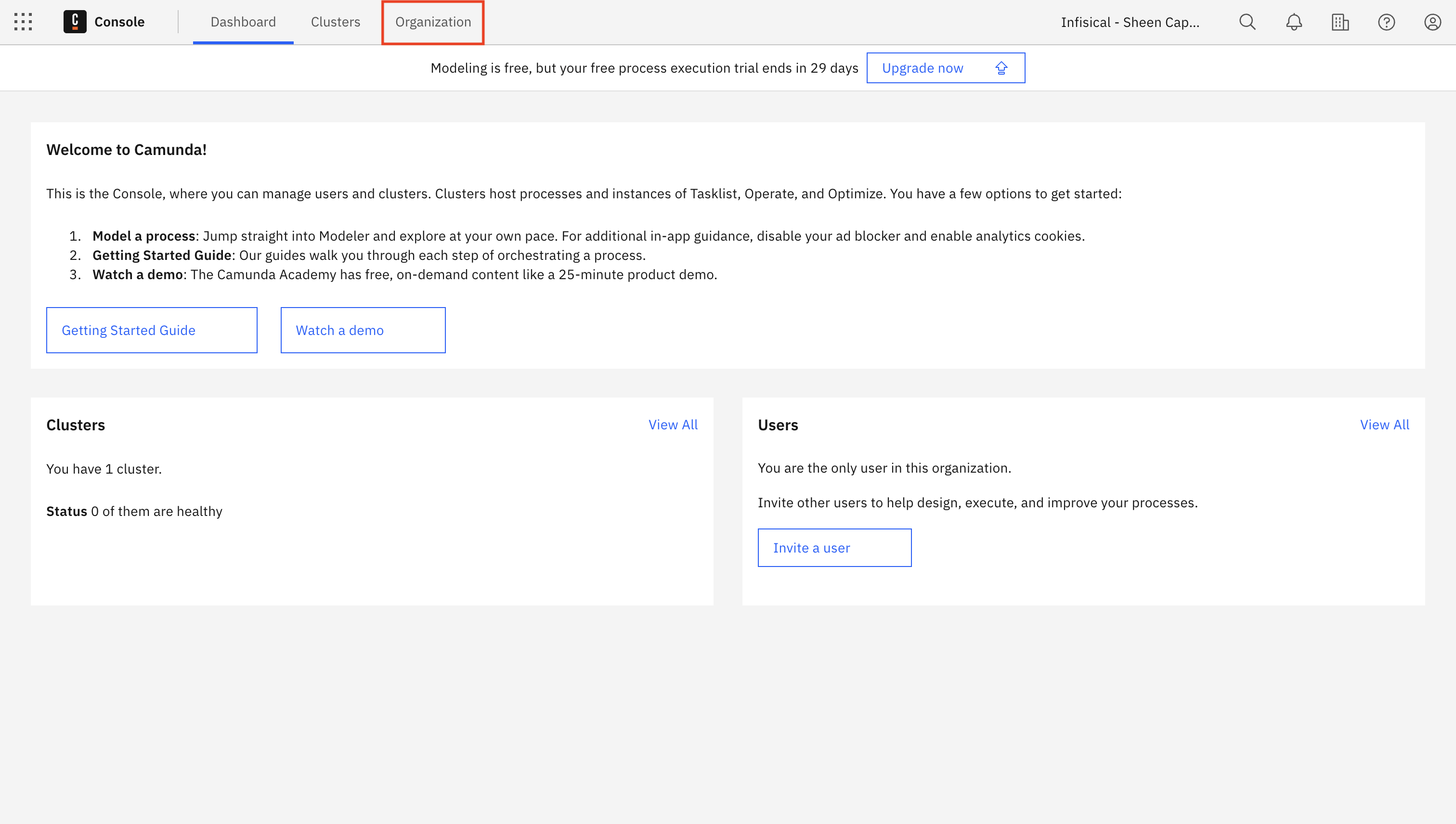
In your Camunda Cloud Console, navigate to the **Organization** tab in the top navigation menu.
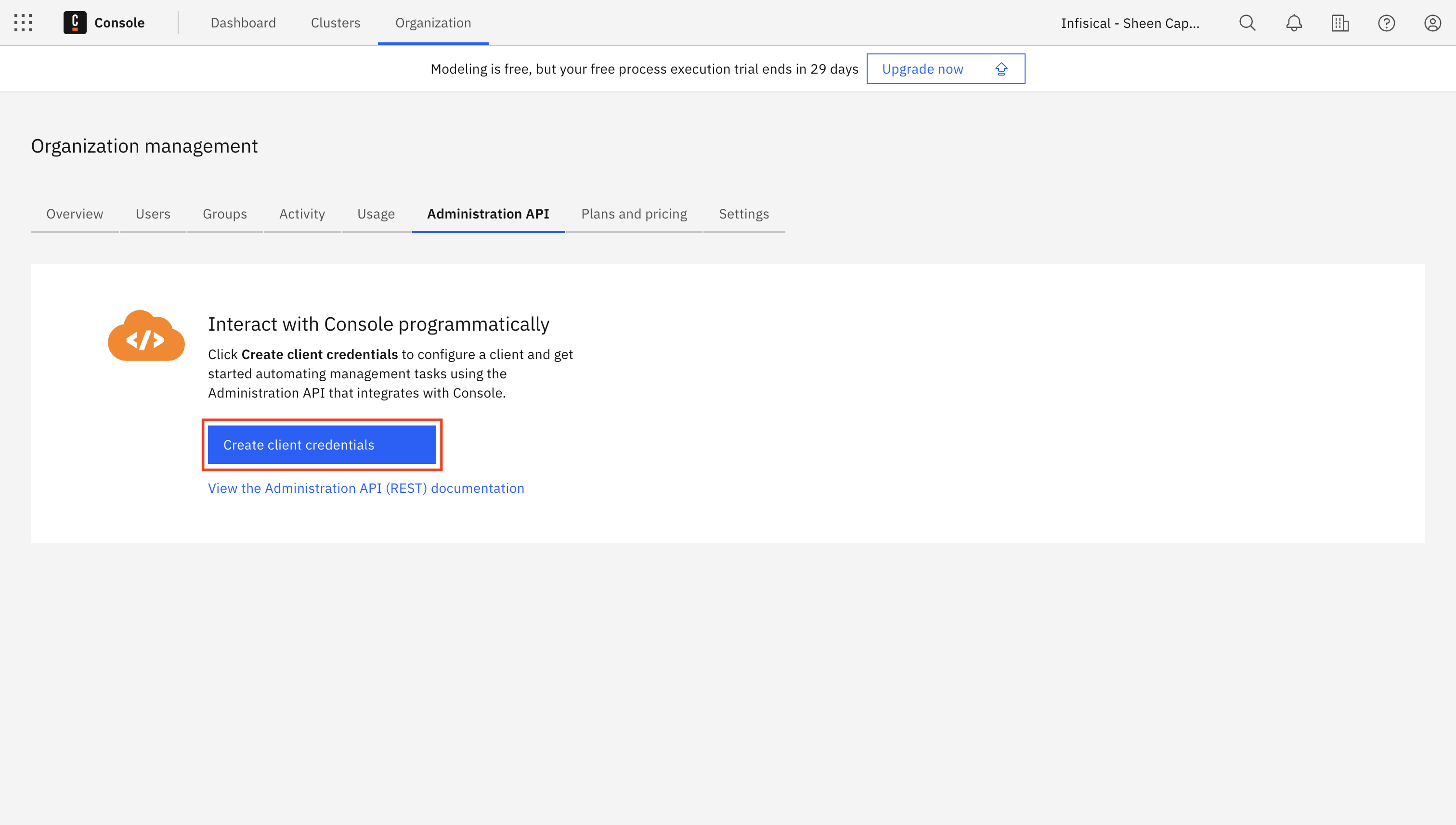
 From the Organization Management tabs, click on **Administration API** to manage your API credentials and click the **Create client credentials** button.
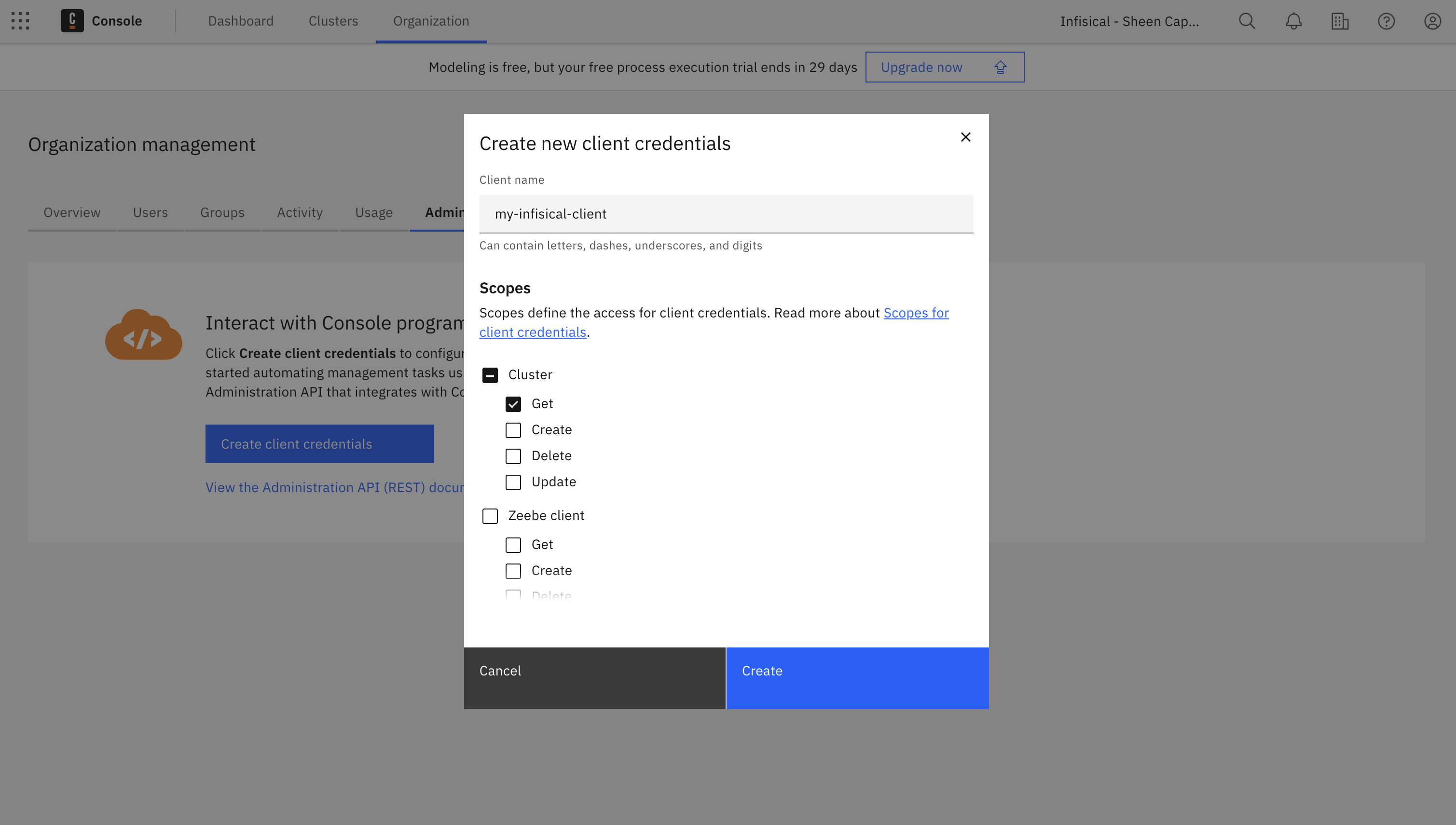
 Enter a recognizable name for your client, such as "my-infisical-client". The name can contain letters, dashes, underscores, and digits.
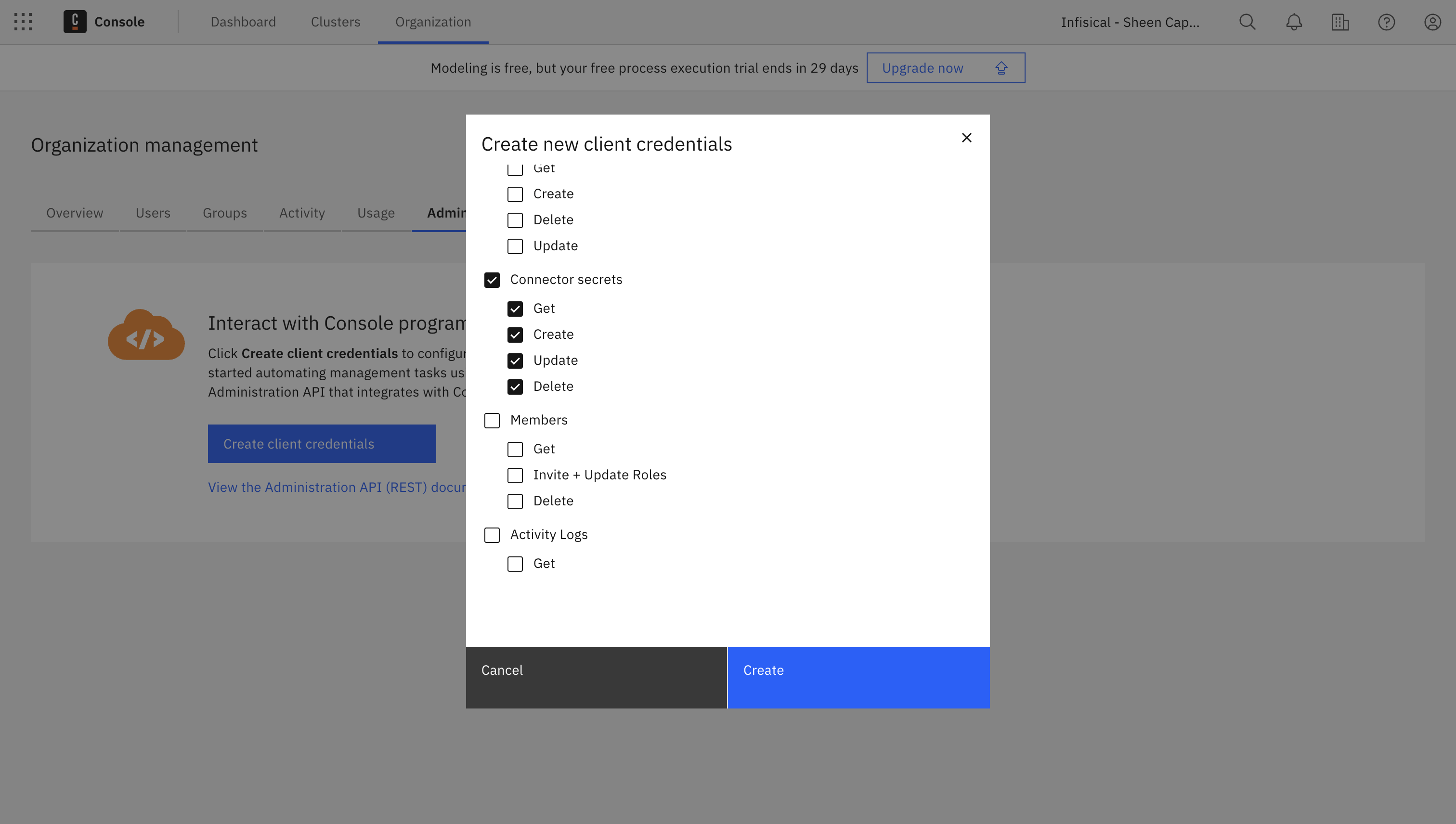
In the "Create new client credentials" modal, select the following permissions required for secret syncs:
* **Cluster**: Enable read access (Get)
* **Connector secrets**: Enable all operations (Get, Create, Update, Delete)
These specific permissions are required for Infisical to properly sync and manage your Camunda secrets.
Enter a recognizable name for your client, such as "my-infisical-client". The name can contain letters, dashes, underscores, and digits.
In the "Create new client credentials" modal, select the following permissions required for secret syncs:
* **Cluster**: Enable read access (Get)
* **Connector secrets**: Enable all operations (Get, Create, Update, Delete)
These specific permissions are required for Infisical to properly sync and manage your Camunda secrets.
 Click the **Create** button to generate your client credentials.
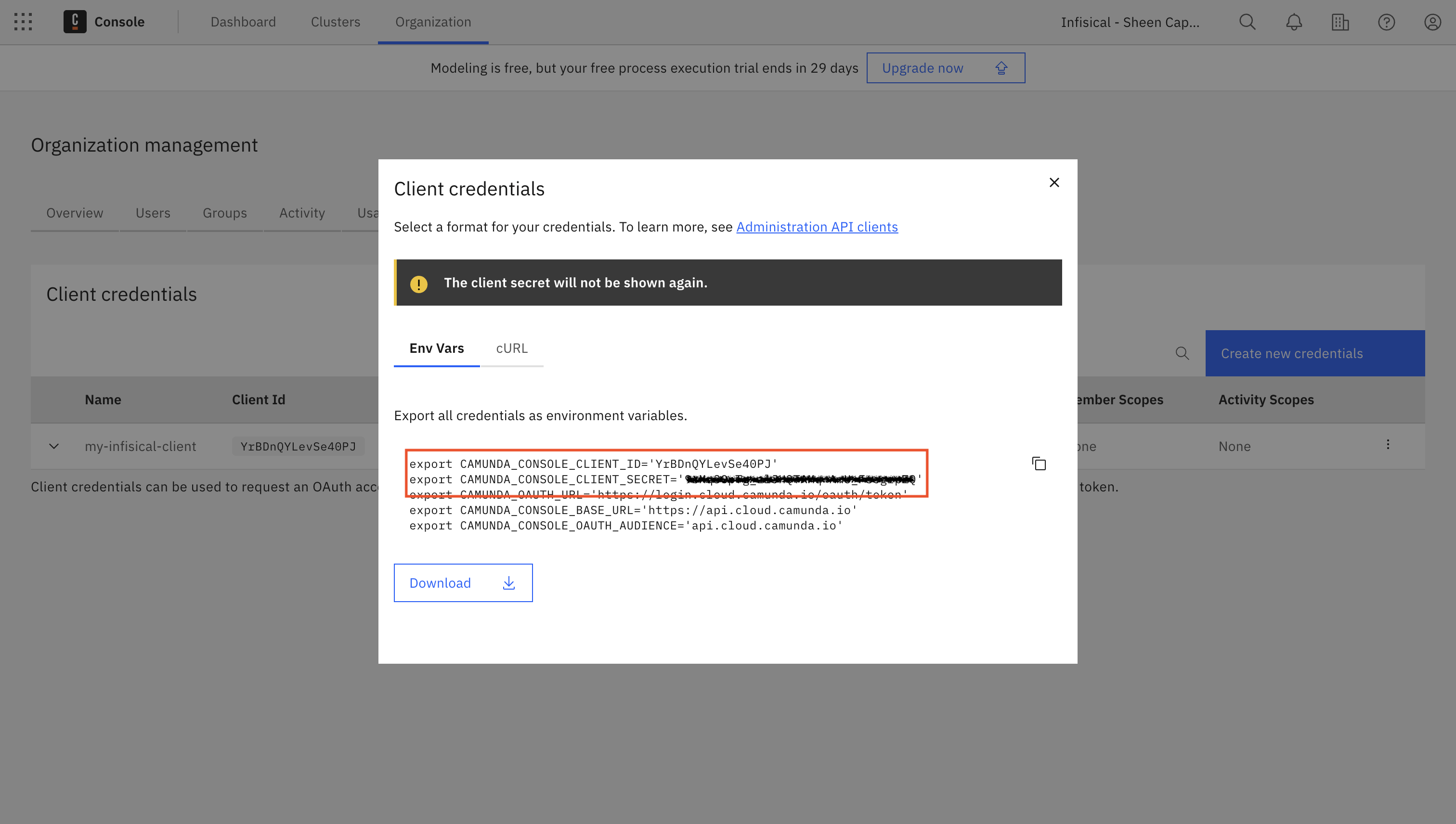
After creation, you'll be shown your client credentials. For the Infisical connection, you'll need:
* **Client ID** (`CAMUNDA_CONSOLE_CLIENT_ID`)
* **Client Secret** (`CAMUNDA_CONSOLE_CLIENT_SECRET`)
**IMPORTANT**: Make sure to securely save the Client Secret, as it will not be shown again after you close this dialog.
You can download these credentials or copy them to use in the next section.
Click the **Create** button to generate your client credentials.
After creation, you'll be shown your client credentials. For the Infisical connection, you'll need:
* **Client ID** (`CAMUNDA_CONSOLE_CLIENT_ID`)
* **Client Secret** (`CAMUNDA_CONSOLE_CLIENT_SECRET`)
**IMPORTANT**: Make sure to securely save the Client Secret, as it will not be shown again after you close this dialog.
You can download these credentials or copy them to use in the next section.
 ## Setup Camunda Connection in Infisical
Navigate to the **Integrations** tab in the desired project, then select **App Connections**.
## Setup Camunda Connection in Infisical
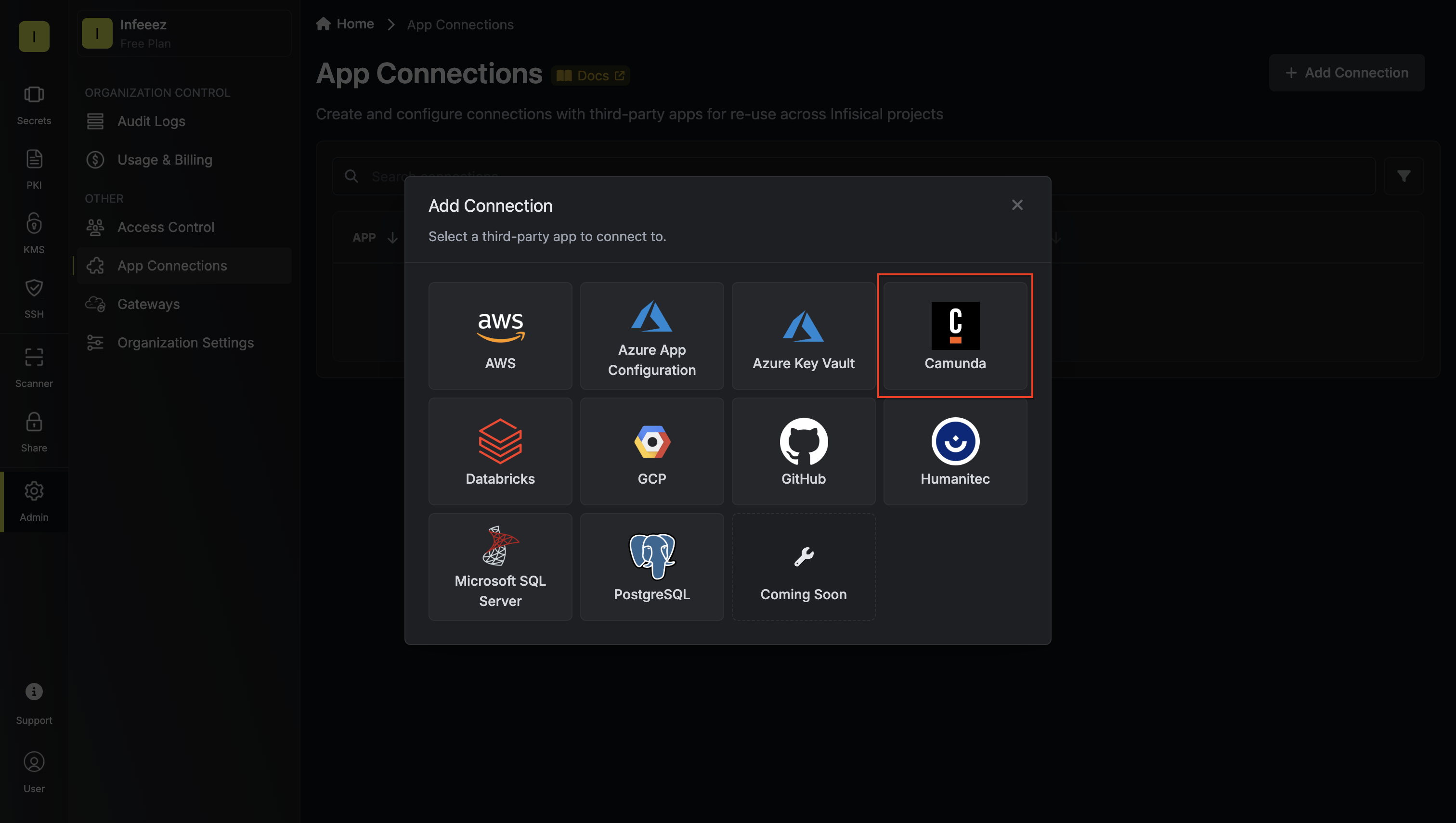
Navigate to the **Integrations** tab in the desired project, then select **App Connections**.  Select the **Camunda Connection** option from the connection options modal.
 Select the **Client Credentials** method and enter the Camunda client
credentials you created:
* **Client ID**: Your `CAMUNDA_CONSOLE_CLIENT_ID` value
* **Client Secret**: Your `CAMUNDA_CONSOLE_CLIENT_SECRET` value
Infisical will automatically configure the connection using these credentials to access the Camunda API. Click **Connect to Camunda** to establish the connection.
Select the **Client Credentials** method and enter the Camunda client
credentials you created:
* **Client ID**: Your `CAMUNDA_CONSOLE_CLIENT_ID` value
* **Client Secret**: Your `CAMUNDA_CONSOLE_CLIENT_SECRET` value
Infisical will automatically configure the connection using these credentials to access the Camunda API. Click **Connect to Camunda** to establish the connection. 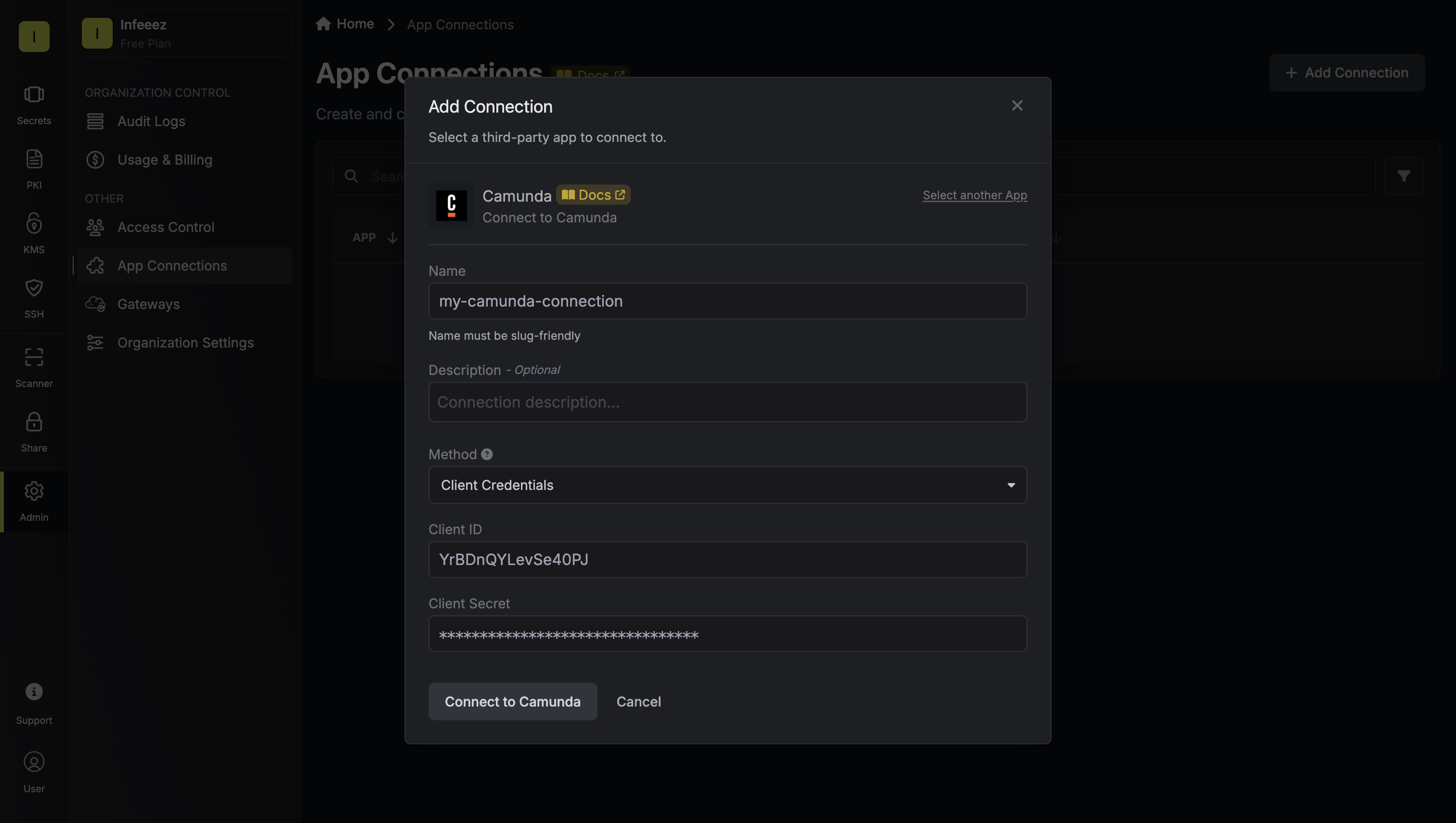 Your **Camunda Connection** is now available for use in your Infisical
projects.
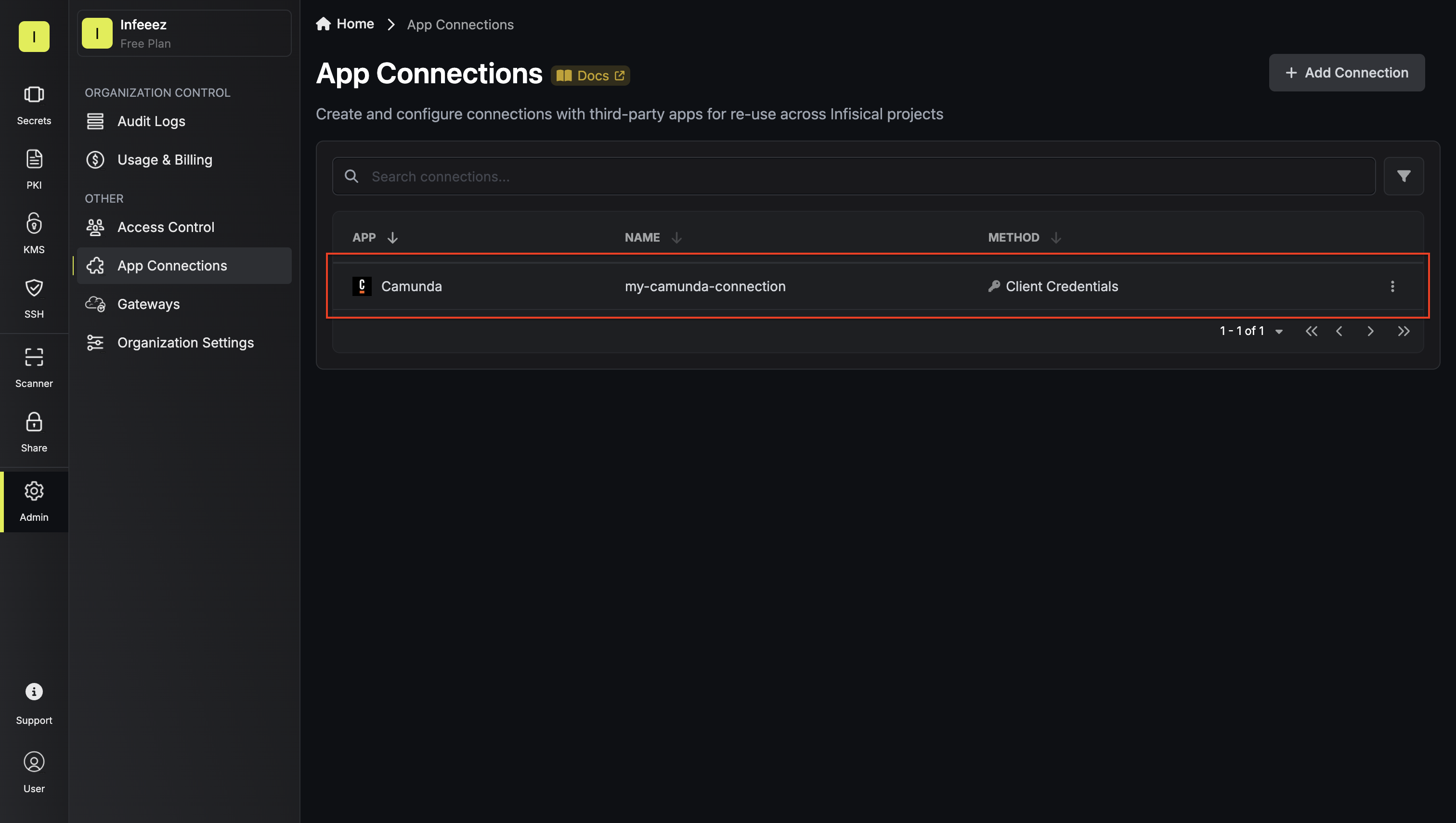
Your **Camunda Connection** is now available for use in your Infisical
projects.