> ## Documentation Index
> Fetch the complete documentation index at: https://infisical.com/docs/llms.txt
> Use this file to discover all available pages before exploring further.
# Bitbucket Connection
> Learn how to configure a Bitbucket Connection for Infisical.
Infisical supports the use of [API Tokens](https://support.atlassian.com/bitbucket-cloud/docs/api-tokens/) to connect with Bitbucket.
Infisical recommends creating a dedicated Bitbucket account with access restricted to only the resources your use case requires.
## Create Bitbucket Access Token
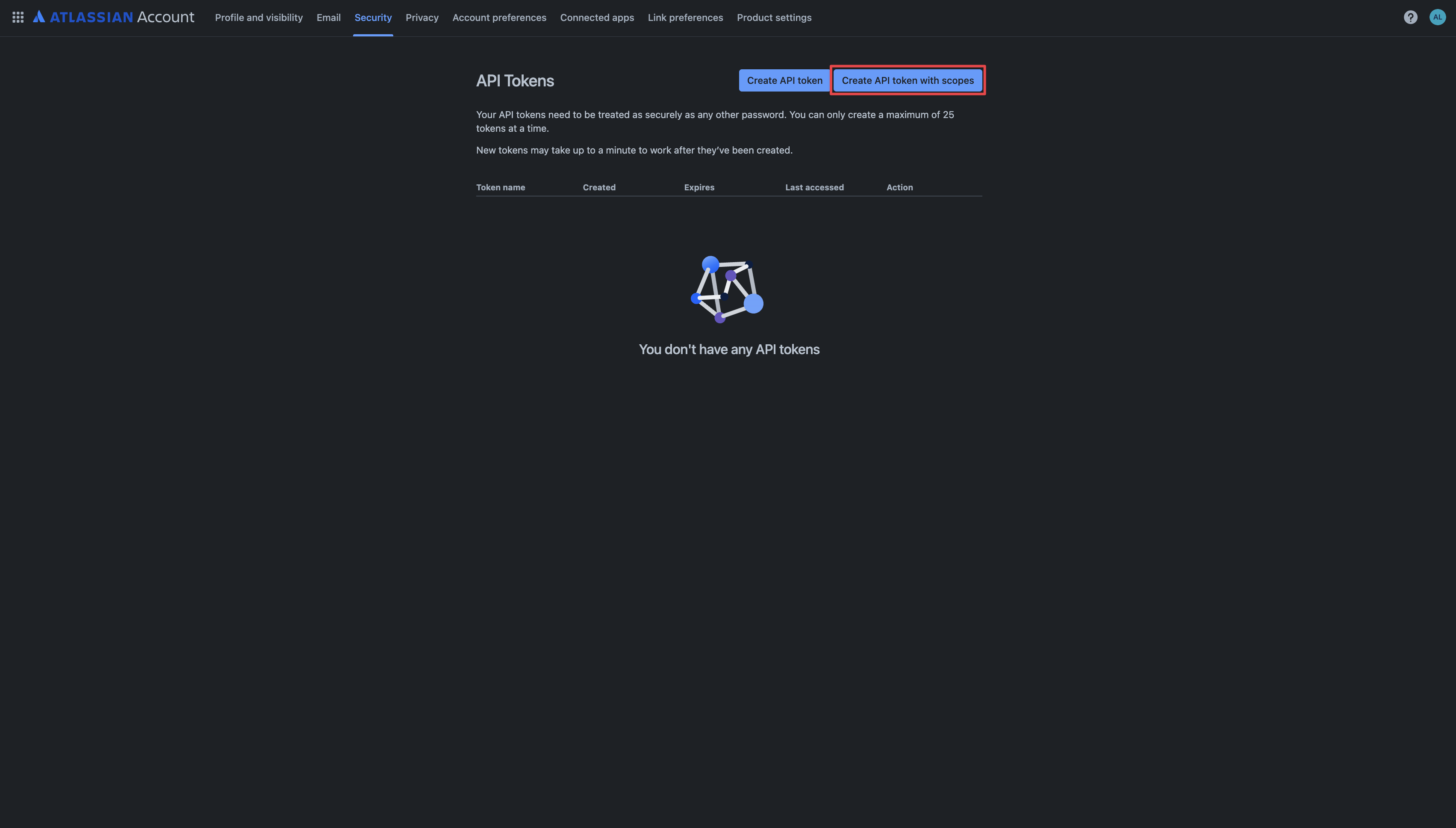
Go to [Account API Tokens](https://id.atlassian.com/manage-profile/security/api-tokens) and click **Create API token with scopes**.
 Set the name and expiration date of the token, then click **Next**.
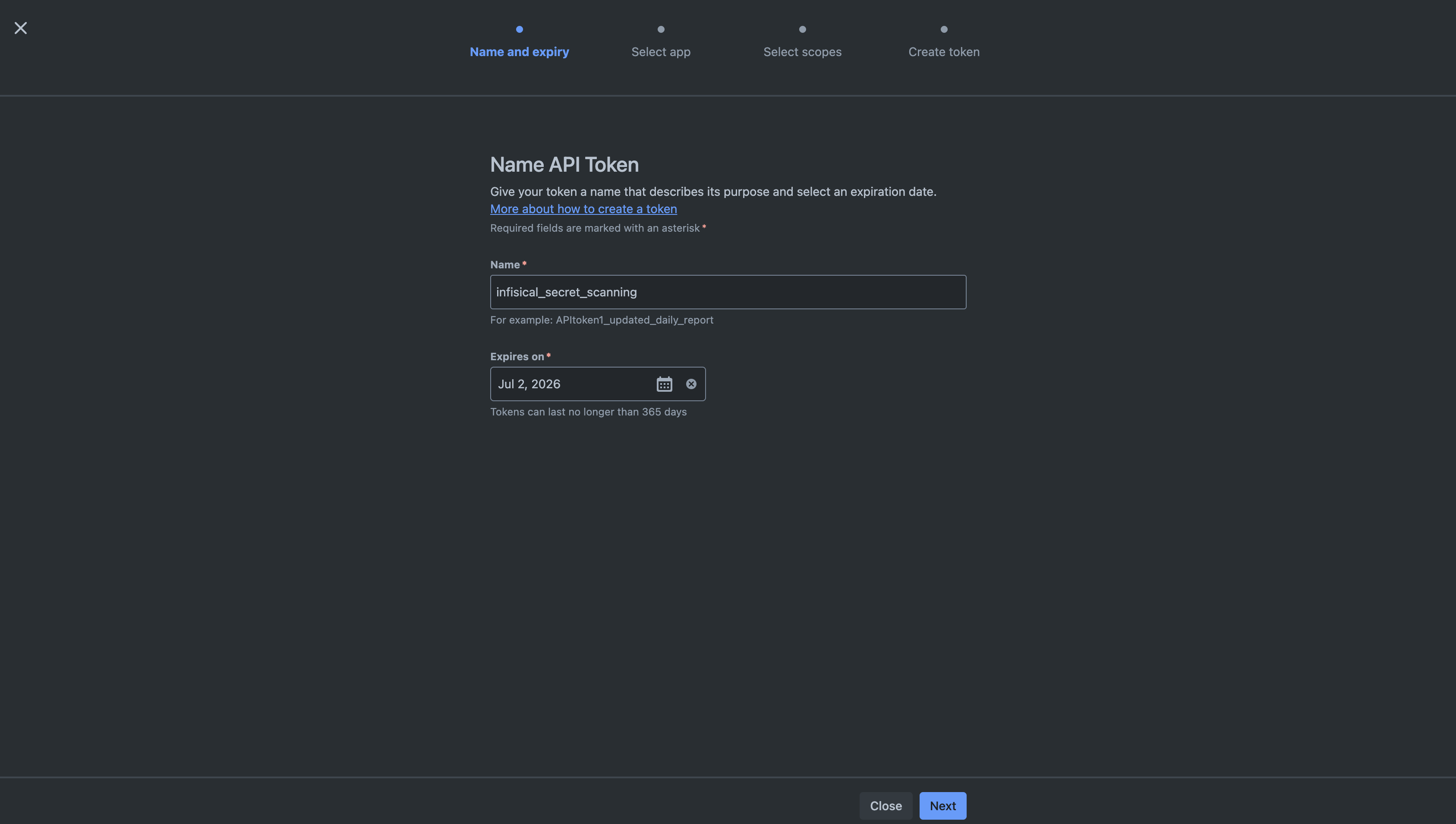 Keep in mind that you'll need to manually replace the token after it expires.
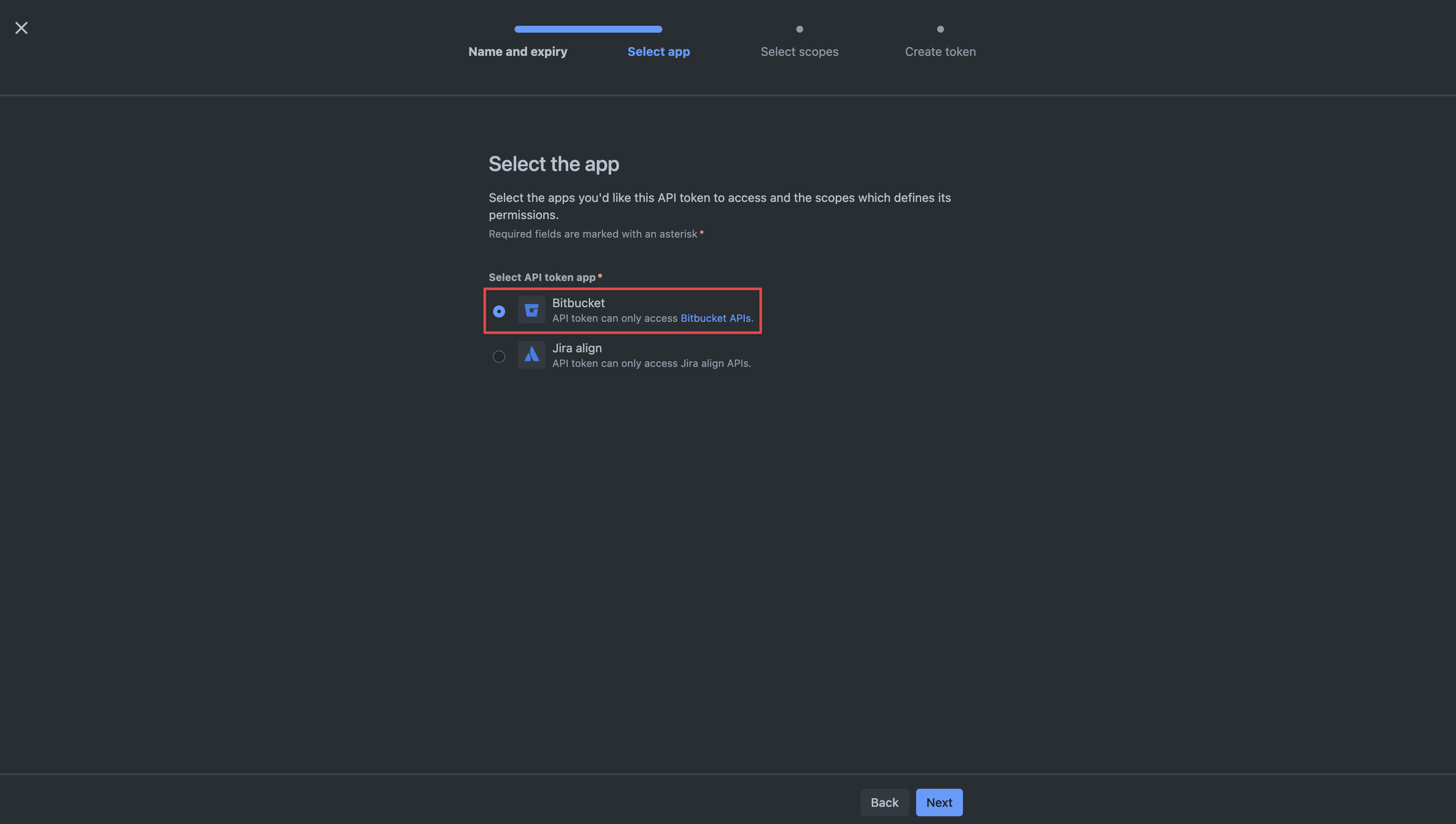
Select **Bitbucket** and then click **Next**.
Keep in mind that you'll need to manually replace the token after it expires.
Select **Bitbucket** and then click **Next**.
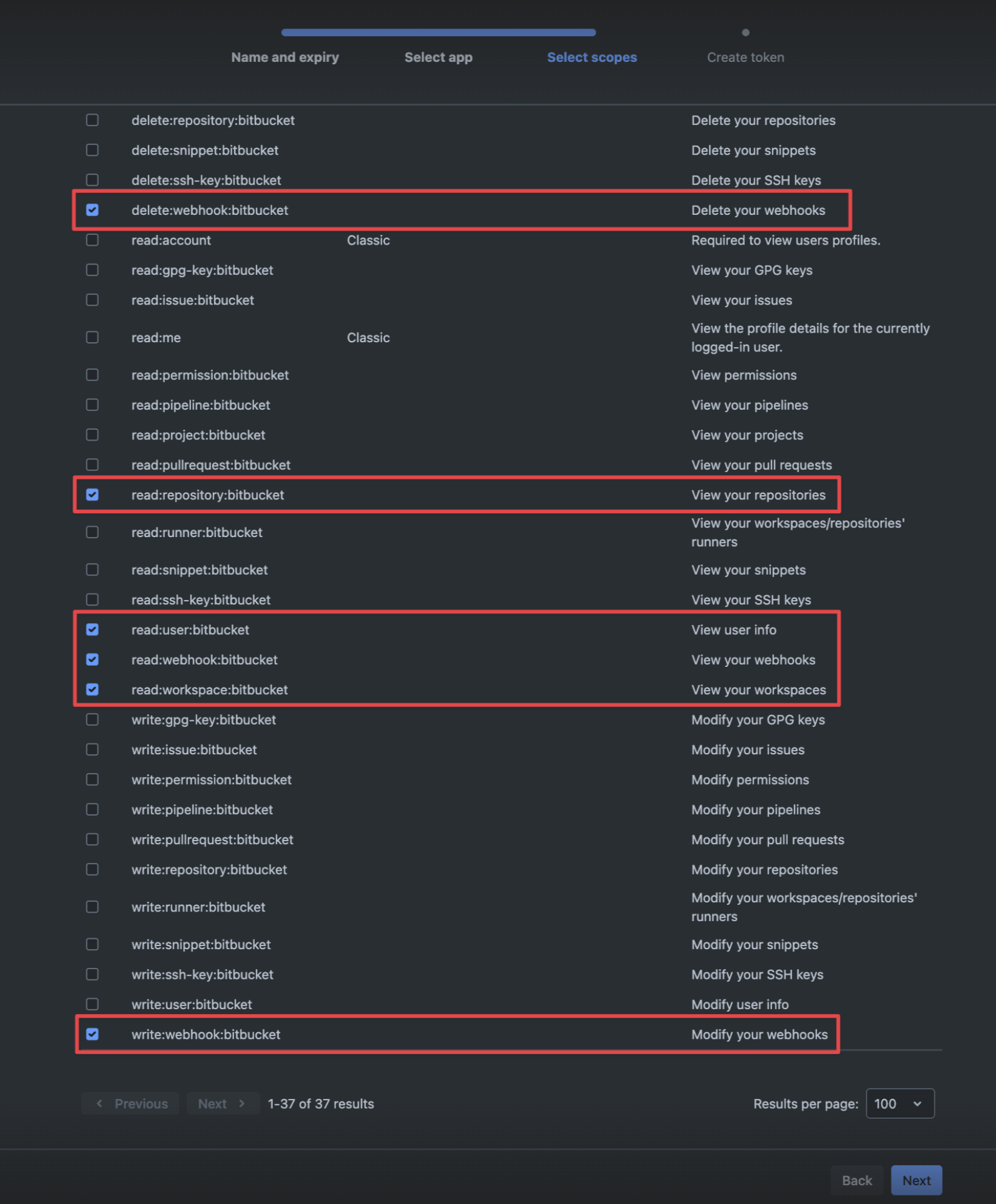
 Configure permissions according to your app's use case:
```
read:workspace:bitbucket
read:user:bitbucket
read:project:bitbucket
read:webhook:bitbucket
write:webhook:bitbucket
delete:webhook:bitbucket
read:repository:bitbucket
```
Configure permissions according to your app's use case:
```
read:workspace:bitbucket
read:user:bitbucket
read:project:bitbucket
read:webhook:bitbucket
write:webhook:bitbucket
delete:webhook:bitbucket
read:repository:bitbucket
```
 ```
read:workspace:bitbucket
admin:workspace:bitbucket
read:user:bitbucket
read:project:bitbucket
read:repository:bitbucket
read:pipeline:bitbucket
write:pipeline:bitbucket
admin:pipeline:bitbucket
```
```
read:workspace:bitbucket
admin:workspace:bitbucket
read:user:bitbucket
read:project:bitbucket
read:repository:bitbucket
read:pipeline:bitbucket
write:pipeline:bitbucket
admin:pipeline:bitbucket
```
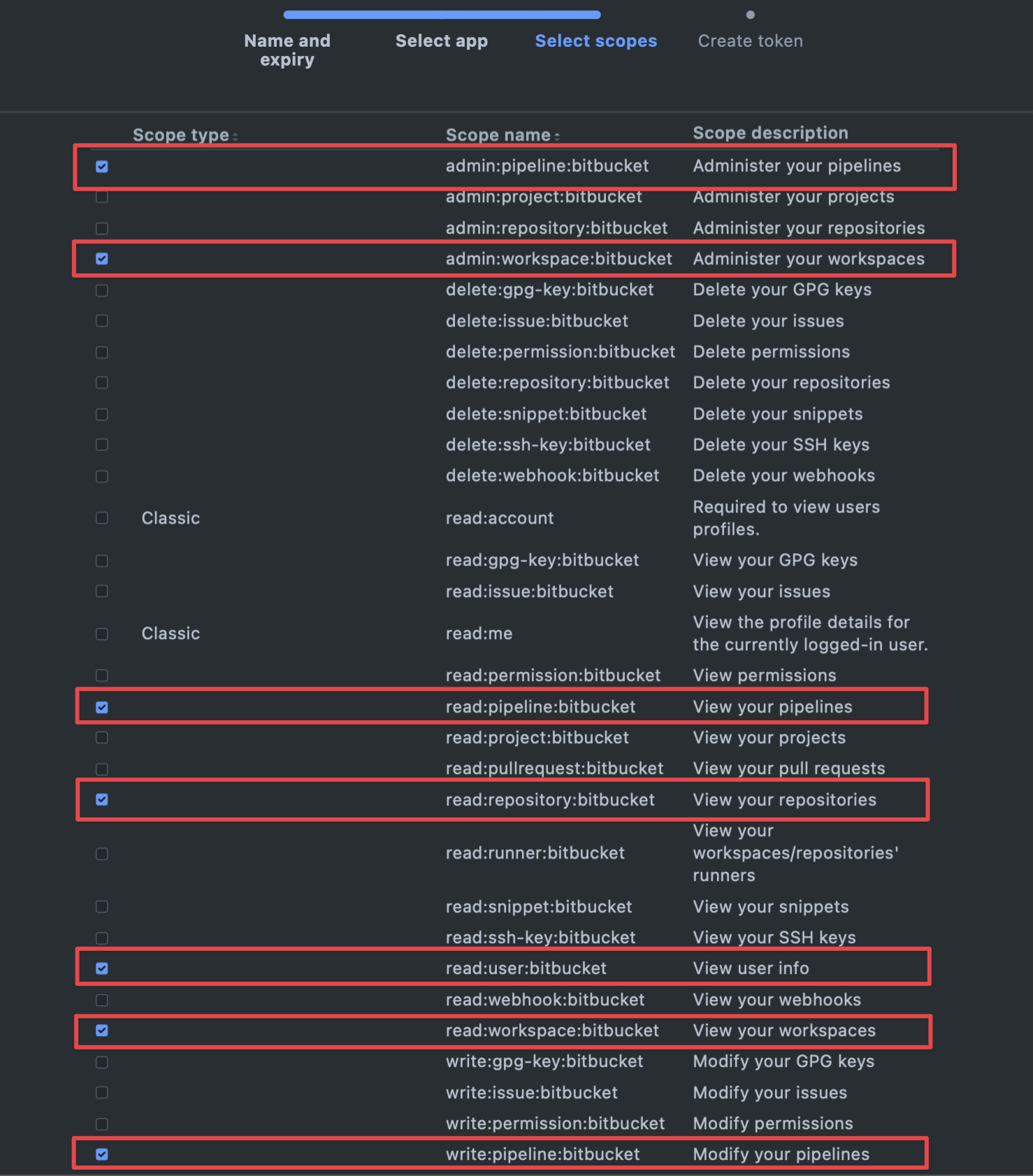 Click **Next**.
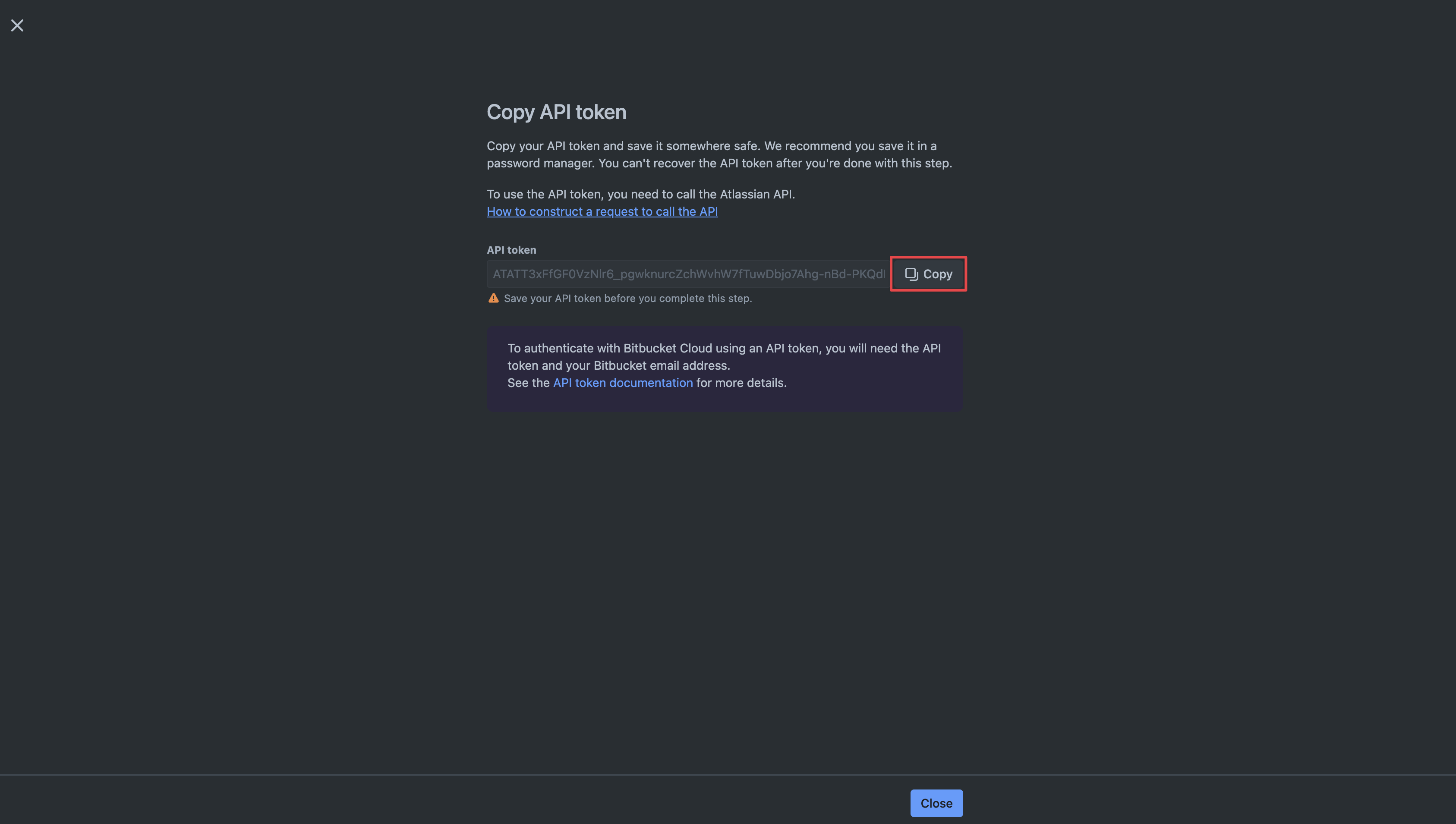
Save the API Token for later steps.
Click **Next**.
Save the API Token for later steps.
 ## Create Bitbucket Connection in Infisical
In your Infisical dashboard, navigate to the **Integrations** tab in the desired project, then select **App Connections**.
## Create Bitbucket Connection in Infisical
In your Infisical dashboard, navigate to the **Integrations** tab in the desired project, then select **App Connections**.
 Click the **Add new connection** button and select **Bitbucket** from the list of available connections.
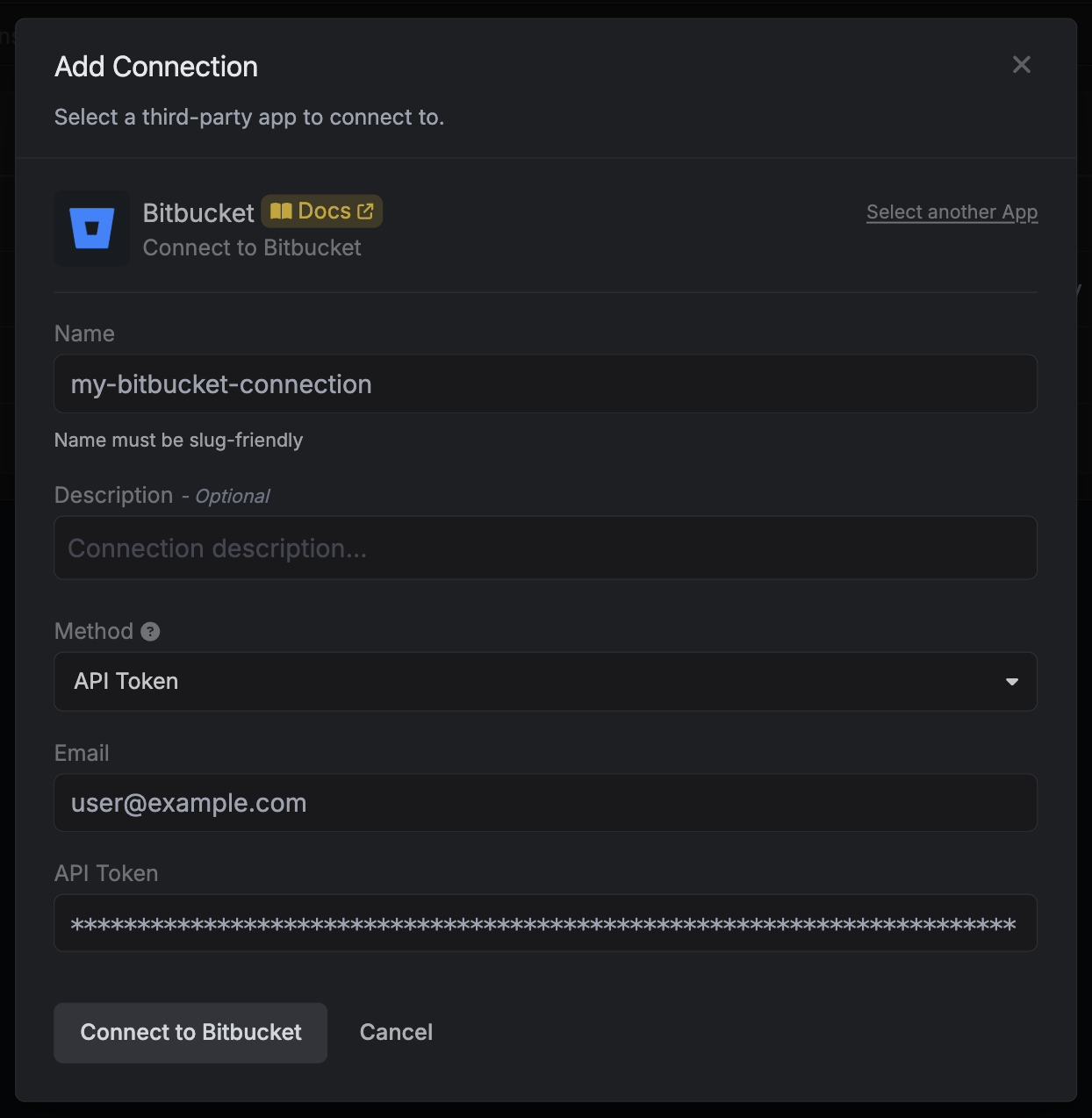
Complete the Bitbucket Connection form by entering:
* A descriptive name for the connection
* An optional description for future reference
* Your Bitbucket email
* The API Token from earlier steps
Click the **Add new connection** button and select **Bitbucket** from the list of available connections.
Complete the Bitbucket Connection form by entering:
* A descriptive name for the connection
* An optional description for future reference
* Your Bitbucket email
* The API Token from earlier steps
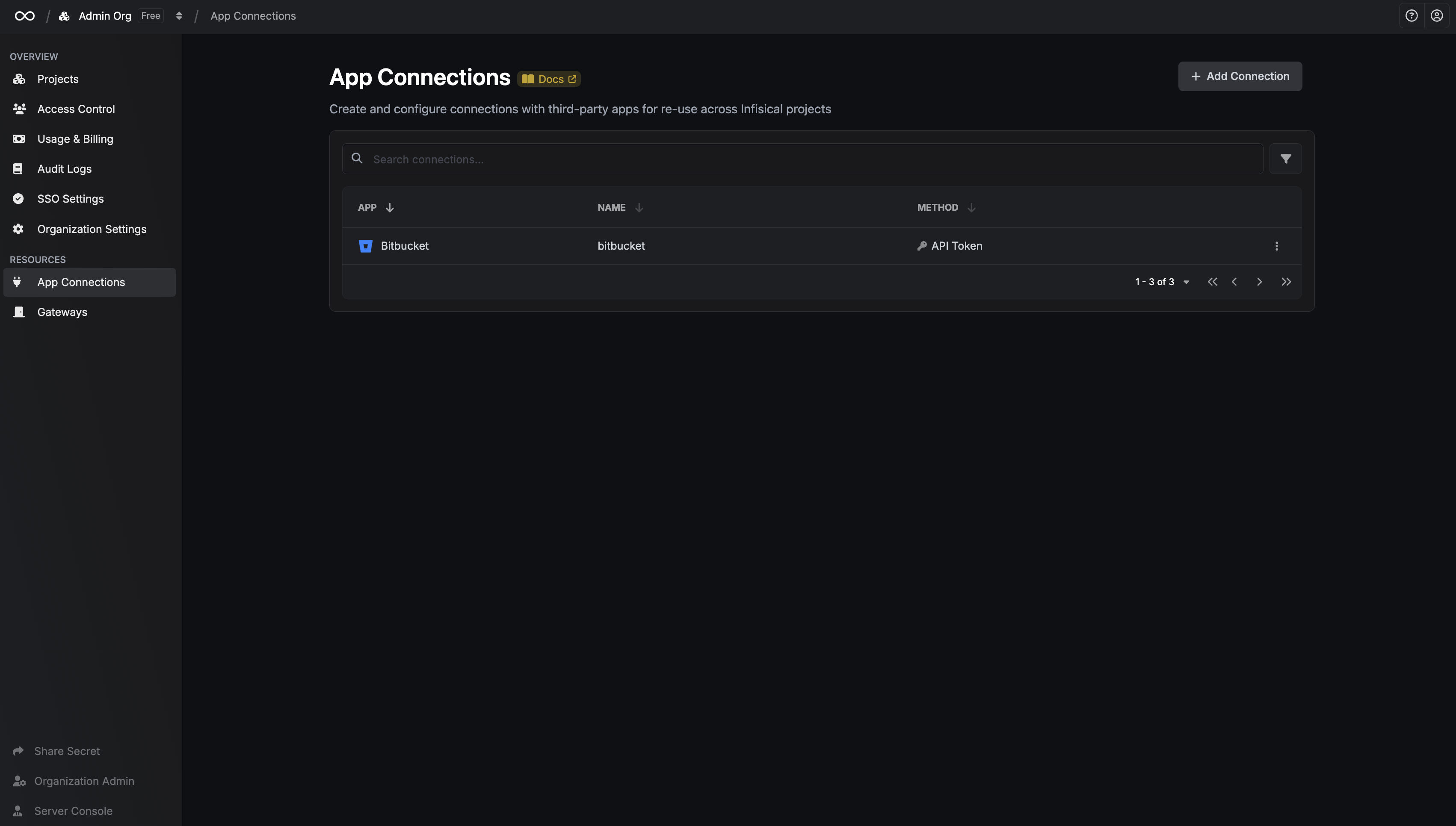
 After clicking Create, your **Bitbucket Connection** is established and ready to use with your Infisical project.
 To create a Bitbucket Connection, make an API request to the [Create Bitbucket Connection](/api-reference/endpoints/app-connections/bitbucket/create) API endpoint.
### Sample request
```bash Request theme={"dark"}
curl --request POST \
--url https://app.infisical.com/api/v1/app-connections/bitbucket \
--header 'Content-Type: application/json' \
--data '{
"name": "my-bitbucket-connection",
"method": "api-token",
"projectId": "7ffbb072-2575-495a-b5b0-127f88caef78",
"credentials": {
"email": "user@example.com",
"apiToken": ""
}
}'
```
### Sample response
```bash Response theme={"dark"}
{
"appConnection": {
"id": "e5d18aca-86f7-4026-a95e-efb8aeb0d8e6",
"name": "my-bitbucket-connection",
"projectId": "7ffbb072-2575-495a-b5b0-127f88caef78",
"description": null,
"version": 1,
"orgId": "6f03caa1-a5de-43ce-b127-95a145d3464c",
"createdAt": "2025-04-23T19:46:34.831Z",
"updatedAt": "2025-04-23T19:46:34.831Z",
"isPlatformManagedCredentials": false,
"credentialsHash": "7c2d371dec195f82a6a0d5b41c970a229cfcaf88e894a5b6395e2dbd0280661f",
"app": "bitbucket",
"method": "api-token",
"credentials": {
"email": "user@example.com"
}
}
}
```
To create a Bitbucket Connection, make an API request to the [Create Bitbucket Connection](/api-reference/endpoints/app-connections/bitbucket/create) API endpoint.
### Sample request
```bash Request theme={"dark"}
curl --request POST \
--url https://app.infisical.com/api/v1/app-connections/bitbucket \
--header 'Content-Type: application/json' \
--data '{
"name": "my-bitbucket-connection",
"method": "api-token",
"projectId": "7ffbb072-2575-495a-b5b0-127f88caef78",
"credentials": {
"email": "user@example.com",
"apiToken": ""
}
}'
```
### Sample response
```bash Response theme={"dark"}
{
"appConnection": {
"id": "e5d18aca-86f7-4026-a95e-efb8aeb0d8e6",
"name": "my-bitbucket-connection",
"projectId": "7ffbb072-2575-495a-b5b0-127f88caef78",
"description": null,
"version": 1,
"orgId": "6f03caa1-a5de-43ce-b127-95a145d3464c",
"createdAt": "2025-04-23T19:46:34.831Z",
"updatedAt": "2025-04-23T19:46:34.831Z",
"isPlatformManagedCredentials": false,
"credentialsHash": "7c2d371dec195f82a6a0d5b41c970a229cfcaf88e894a5b6395e2dbd0280661f",
"app": "bitbucket",
"method": "api-token",
"credentials": {
"email": "user@example.com"
}
}
}
```