> ## Documentation Index
> Fetch the complete documentation index at: https://infisical.com/docs/llms.txt
> Use this file to discover all available pages before exploring further.
# Okta OIDC
> Learn how to configure Okta OIDC for Infisical SSO.
Okta OIDC SSO is a paid feature. If you're using Infisical Cloud, then it is
available under the **Pro Tier**. If you're self-hosting Infisical, then you
should contact [sales@infisical.com](mailto:sales@infisical.com) to purchase a self-hosted license to use
it.
SSO authentication requires [Email Domain Verification](/documentation/platform/email-domain).
You must verify your organization's email domain before users can log in via SSO.
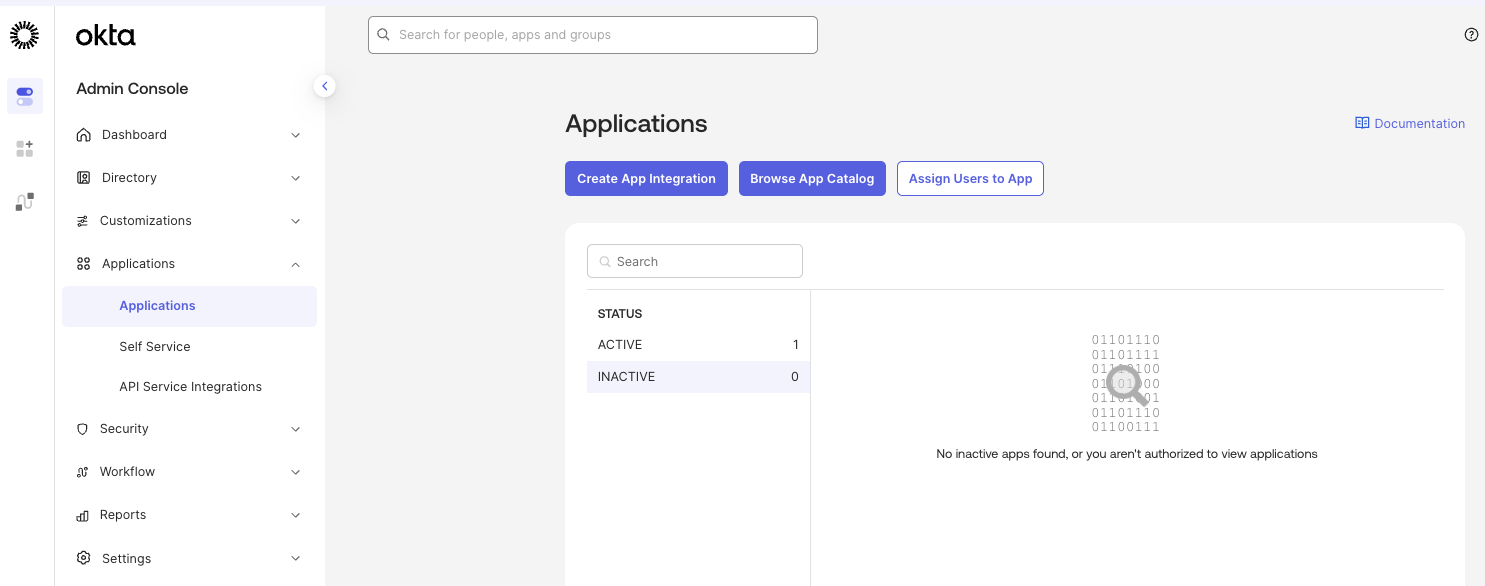
In the Okta Admin Portal, select Applications > Applications from the navigation. On the Applications screen, click the **Create App Integration** button.
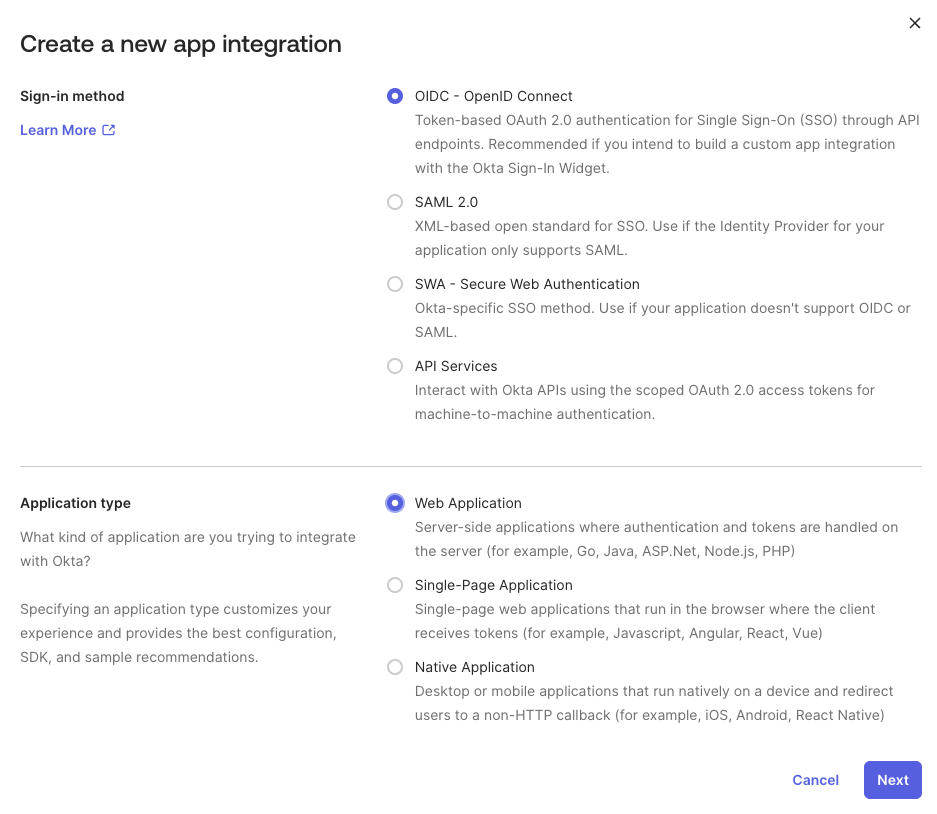
 In the Create a New Application Integration dialog, select **OIDC - OpenID Connect** as the Sign-in method and **Web Application** as the Application type, then click **Next**.
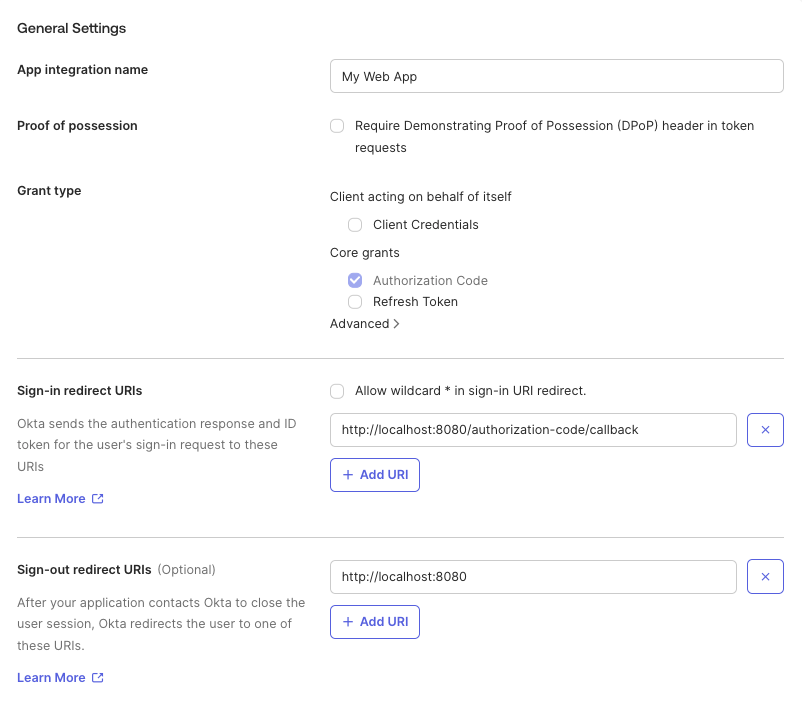
 On the New Web App Integration screen, configure the following settings:
* **App integration name**: Enter a name like `Infisical`
* **Grant type**: Ensure **Authorization Code** is checked
* **Sign-in redirect URIs**: Set to `https://app.infisical.com/api/v1/sso/oidc/callback`
* **Sign-out redirect URIs**: (Optional) Set to `https://app.infisical.com`
* **Controlled access**: Select the appropriate access level for your organization
On the New Web App Integration screen, configure the following settings:
* **App integration name**: Enter a name like `Infisical`
* **Grant type**: Ensure **Authorization Code** is checked
* **Sign-in redirect URIs**: Set to `https://app.infisical.com/api/v1/sso/oidc/callback`
* **Sign-out redirect URIs**: (Optional) Set to `https://app.infisical.com`
* **Controlled access**: Select the appropriate access level for your organization
 If you're self-hosting Infisical, replace `https://app.infisical.com` with your own domain in the redirect URIs.
Click **Save** to create the application.
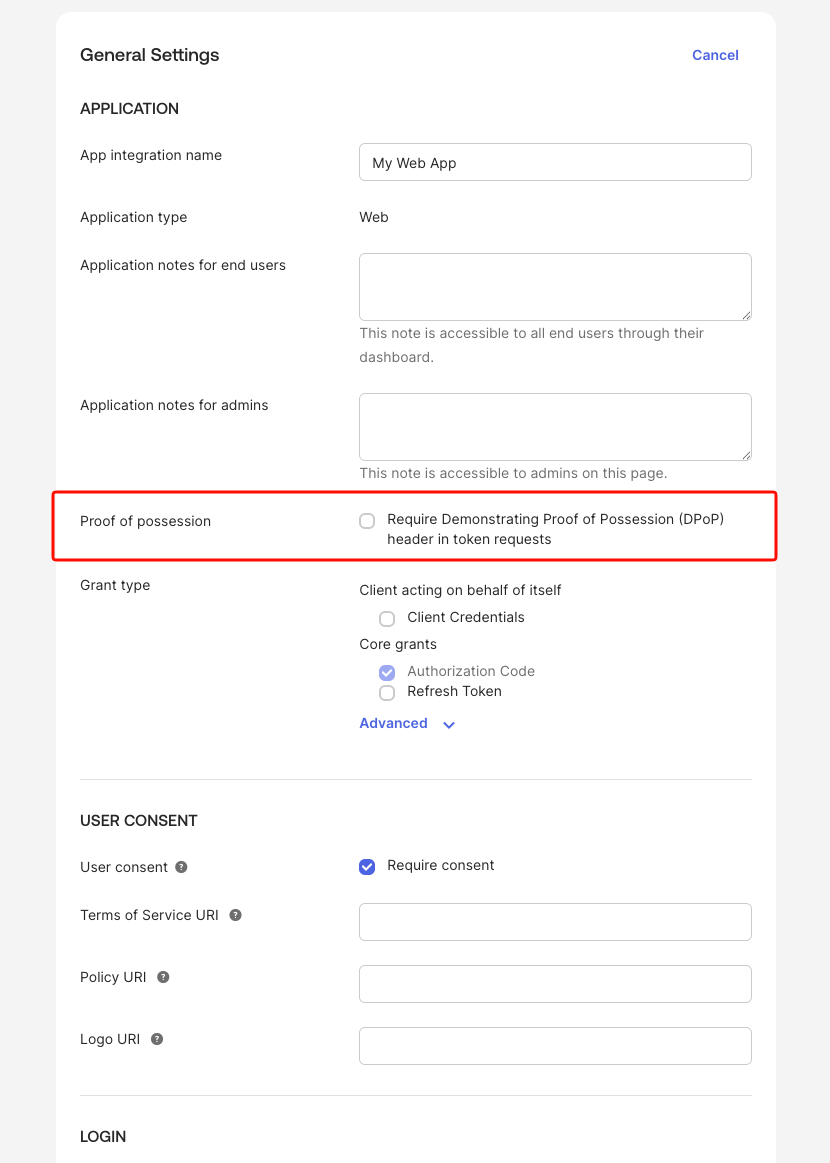
After saving, scroll down to the **General Settings** section and click **Edit**. Ensure the **Proof of possession** setting labeled "Require Demonstrating Proof of Possession (DPoP) header in token requests" is **unchecked**.
If you're self-hosting Infisical, replace `https://app.infisical.com` with your own domain in the redirect URIs.
Click **Save** to create the application.
After saving, scroll down to the **General Settings** section and click **Edit**. Ensure the **Proof of possession** setting labeled "Require Demonstrating Proof of Possession (DPoP) header in token requests" is **unchecked**.
 Infisical does not currently support DPoP for OIDC authentication.
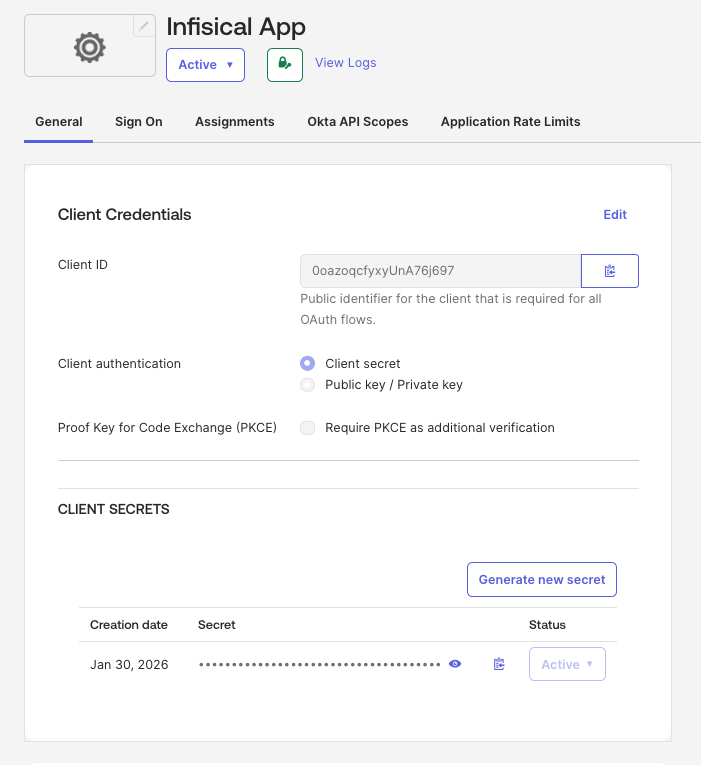
After creating the application, you will be taken to the application's settings page. From the **General** tab, copy the **Client ID** and **Client Secret** values.
Infisical does not currently support DPoP for OIDC authentication.
After creating the application, you will be taken to the application's settings page. From the **General** tab, copy the **Client ID** and **Client Secret** values.
 Next, you need to obtain the Discovery Document URL (also known as the OpenID Configuration URL). This URL follows the format: `https:///.well-known/openid-configuration`.
To find your Okta domain, look at the URL in your browser's address bar while in the Okta Admin Portal. It typically looks like `https://your-company.okta.com` or `https://your-company.oktapreview.com`.
Next, you need to obtain the Discovery Document URL (also known as the OpenID Configuration URL). This URL follows the format: `https:///.well-known/openid-configuration`.
To find your Okta domain, look at the URL in your browser's address bar while in the Okta Admin Portal. It typically looks like `https://your-company.okta.com` or `https://your-company.oktapreview.com`.
 Your Discovery Document URL will be: `https:///.well-known/openid-configuration`
For example: `https://your-company.okta.com/.well-known/openid-configuration`
Back in Infisical, on the OIDC configuration page, set the **Configuration Type** to **Discovery URL**.
Fill in the following fields:
Fill in the following fields:
* **Discovery Document URL**: Enter the OpenID Configuration URL from step 2 (e.g., `https://your-company.okta.com/.well-known/openid-configuration`)
* **Client ID**: Enter the Client ID from step 2
* **Client Secret**: Enter the Client Secret from step 2
* **JWT Signature Algorithm**: Select **RS256** (this is the default algorithm used by Okta)
Your Discovery Document URL will be: `https:///.well-known/openid-configuration`
For example: `https://your-company.okta.com/.well-known/openid-configuration`
Back in Infisical, on the OIDC configuration page, set the **Configuration Type** to **Discovery URL**.
Fill in the following fields:
Fill in the following fields:
* **Discovery Document URL**: Enter the OpenID Configuration URL from step 2 (e.g., `https://your-company.okta.com/.well-known/openid-configuration`)
* **Client ID**: Enter the Client ID from step 2
* **Client Secret**: Enter the Client Secret from step 2
* **JWT Signature Algorithm**: Select **RS256** (this is the default algorithm used by Okta)
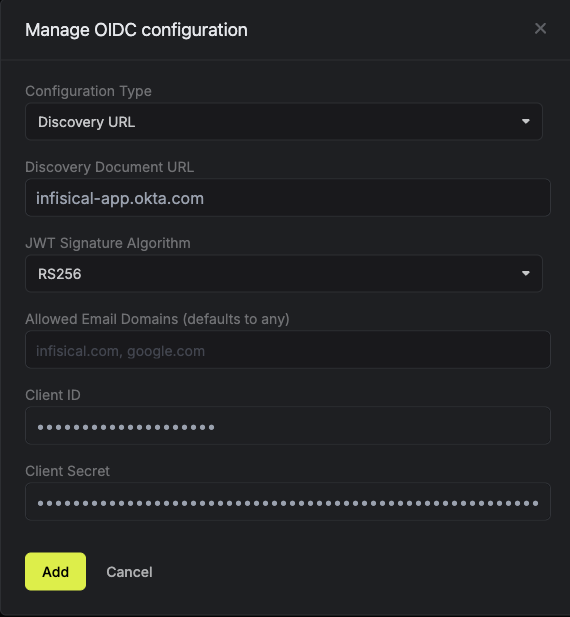 Currently, the following JWT signature algorithms are supported: RS256, RS512, HS256, and EdDSA. Okta typically uses RS256.
Optionally, you can define a whitelist of allowed email domains to restrict which users can authenticate. Wildcard patterns such as `*.example.com` are supported to allow entire subdomain trees (e.g. `team.example.com`, `eng.example.com`).
Once you've filled in all the required fields, click **Update** to save the configuration.
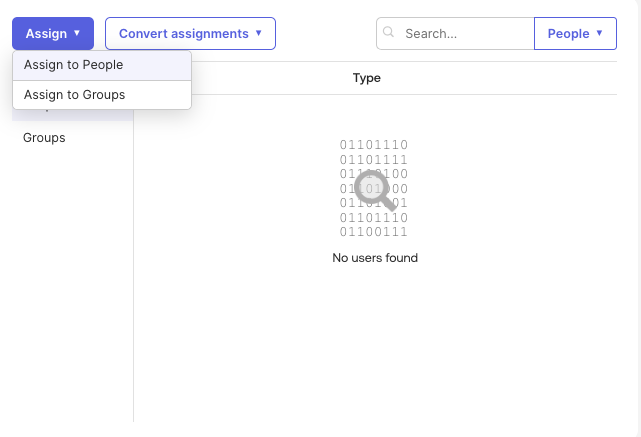
Back in Okta, navigate to the **Assignments** tab of your Infisical application and click **Assign**. You can assign access to the application on a user-by-user basis using the **Assign to People** option, or in bulk using the **Assign to Groups** option.
Currently, the following JWT signature algorithms are supported: RS256, RS512, HS256, and EdDSA. Okta typically uses RS256.
Optionally, you can define a whitelist of allowed email domains to restrict which users can authenticate. Wildcard patterns such as `*.example.com` are supported to allow entire subdomain trees (e.g. `team.example.com`, `eng.example.com`).
Once you've filled in all the required fields, click **Update** to save the configuration.
Back in Okta, navigate to the **Assignments** tab of your Infisical application and click **Assign**. You can assign access to the application on a user-by-user basis using the **Assign to People** option, or in bulk using the **Assign to Groups** option.
 At this point, you have configured everything you need within the context of the Okta Admin Portal.
Enabling OIDC SSO allows members in your organization to log into Infisical via Okta.
At this point, you have configured everything you need within the context of the Okta Admin Portal.
Enabling OIDC SSO allows members in your organization to log into Infisical via Okta.
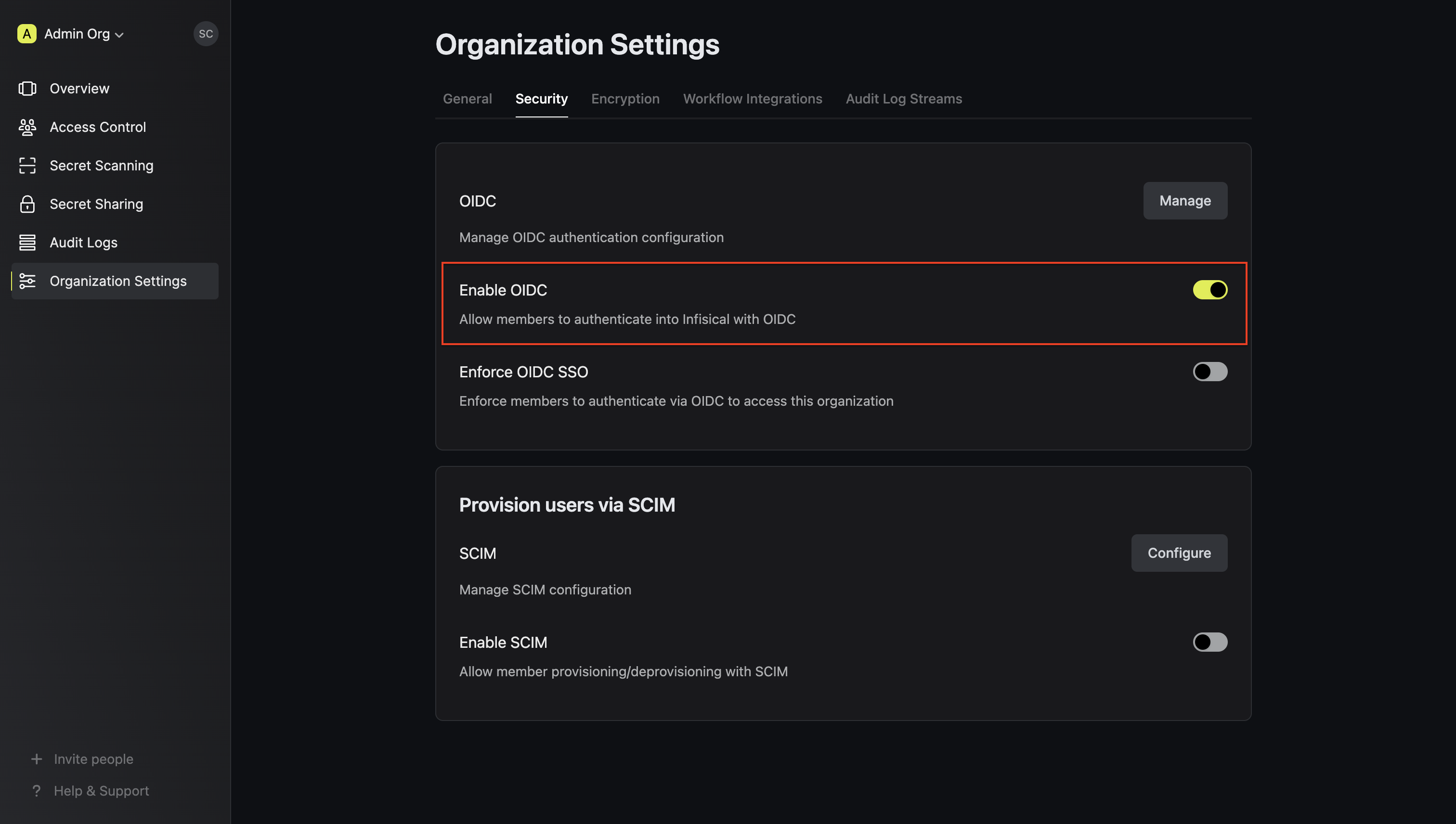 Enforcing OIDC SSO ensures that members in your organization can only access Infisical
by logging into the organization via Okta.
To enforce OIDC SSO, you're required to test out the OpenID connection by successfully authenticating at least one Okta user with Infisical.
Once you've completed this requirement, you can toggle the **Enforce OIDC SSO** button to enforce OIDC SSO.
We recommend ensuring that your account is provisioned using the application in Okta
prior to enforcing OIDC SSO to prevent any unintended issues.
In case of a lockout, an organization admin can use the [Admin Login Portal](https://infisical.com/docs/documentation/platform/sso/overview#admin-login-portal) in the `/login/admin` path e.g. [https://app.infisical.com/login/admin](https://app.infisical.com/login/admin).
If you are only using one organization on your Infisical instance, you can configure a default organization in the [Server Admin Console](../admin-panel/server-admin#default-organization) to expedite OIDC login.
If you're configuring OIDC SSO on a self-hosted instance of Infisical, make
sure to set the `AUTH_SECRET` and `SITE_URL` environment variable for it to
work:
* `AUTH_SECRET`: A secret key used for signing and verifying JWT. This
can be a random 32-byte base64 string generated with `openssl rand -base64
32`.
* `SITE_URL`: The absolute URL of your self-hosted instance of Infisical including the protocol (e.g. [https://app.infisical.com](https://app.infisical.com))
Enforcing OIDC SSO ensures that members in your organization can only access Infisical
by logging into the organization via Okta.
To enforce OIDC SSO, you're required to test out the OpenID connection by successfully authenticating at least one Okta user with Infisical.
Once you've completed this requirement, you can toggle the **Enforce OIDC SSO** button to enforce OIDC SSO.
We recommend ensuring that your account is provisioned using the application in Okta
prior to enforcing OIDC SSO to prevent any unintended issues.
In case of a lockout, an organization admin can use the [Admin Login Portal](https://infisical.com/docs/documentation/platform/sso/overview#admin-login-portal) in the `/login/admin` path e.g. [https://app.infisical.com/login/admin](https://app.infisical.com/login/admin).
If you are only using one organization on your Infisical instance, you can configure a default organization in the [Server Admin Console](../admin-panel/server-admin#default-organization) to expedite OIDC login.
If you're configuring OIDC SSO on a self-hosted instance of Infisical, make
sure to set the `AUTH_SECRET` and `SITE_URL` environment variable for it to
work:
* `AUTH_SECRET`: A secret key used for signing and verifying JWT. This
can be a random 32-byte base64 string generated with `openssl rand -base64
32`.
* `SITE_URL`: The absolute URL of your self-hosted instance of Infisical including the protocol (e.g. [https://app.infisical.com](https://app.infisical.com))