> ## Documentation Index
> Fetch the complete documentation index at: https://infisical.com/docs/llms.txt
> Use this file to discover all available pages before exploring further.
# Stripe API key
> Learn how to automatically rotate Stripe restricted API keys.
**Rotation Type: Dual-Phase**
This rotation maintains two active credential sets with overlapping validity, ensuring zero-downtime during rotation cycles.
Stripe API key rotation mints a new [restricted key](https://docs.stripe.com/keys#limit-access-with-restricted-api-keys) on the interval you set, so your applications always have a working credential without a manual key swap. A few things about how it behaves are worth knowing before you set it up.
* **The generated value is a restricted key (`rk_...`), never a secret key (`sk_...`).** If anything downstream checks the credential's prefix, check it against `rk_`.
* **Infisical never touches the key you already have.** Rotation only creates and retires the keys it generates itself. Your original Stripe key keeps working until you manually delete it in the Stripe dashboard, once you've confirmed your applications are reading the rotated secret.
* **Retiring a key doesn't kill it instantly.** When a key is due for retirement, Infisical expires it through Stripe, but Stripe decides when that expiration takes effect. A retired key can keep authenticating requests for a short window afterward, so don't build anything that assumes the old key stops working the moment rotation runs.
## Prerequisites
* Create a [Stripe Connection](/docs/integrations/app-connections/stripe). That connection is used to create and expire restricted API keys on your behalf during rotation.
## Create a Stripe API key rotation in Infisical
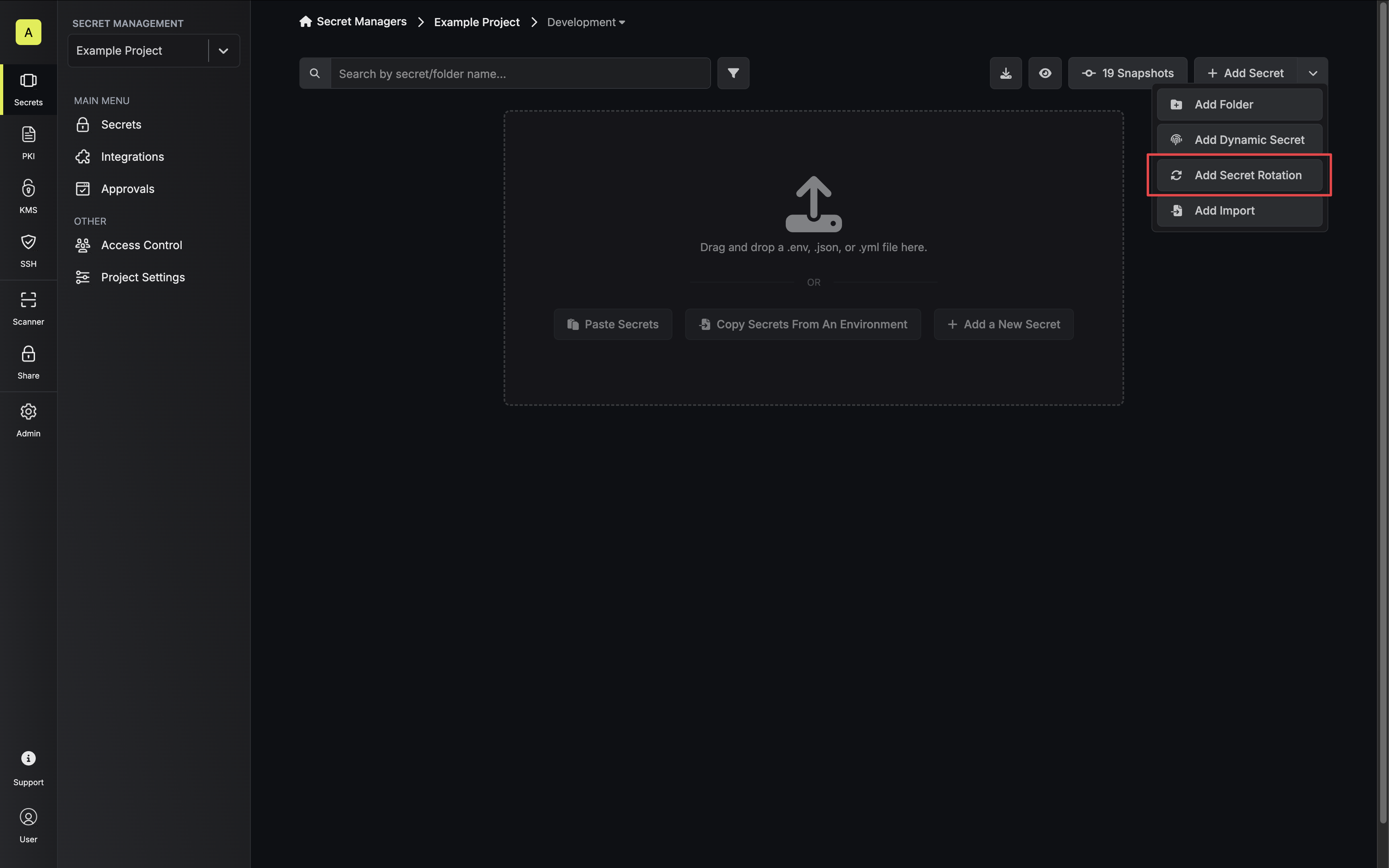
1. Navigate to your Secrets Manager Project's Dashboard and select **Add Secret Rotation** from the actions dropdown.
 2. Select the **Stripe API Key** option.
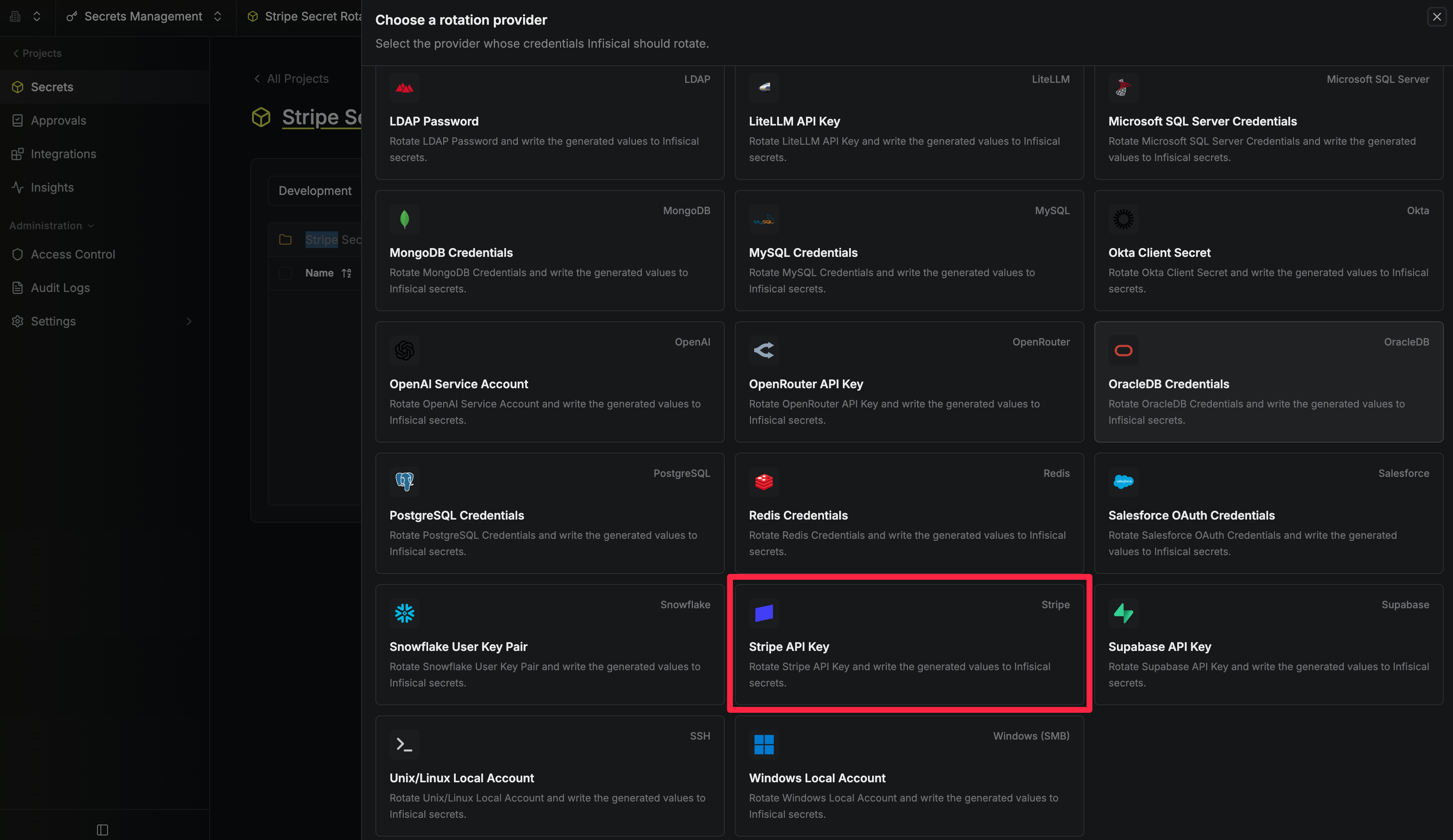 3. Configure the rotation behavior, then select **Continue**.
* **Environment** - The environment the rotated secret is stored in.
* **Stripe Connection** - The connection that will create and expire restricted API keys during rotation.
* **Rotation Interval** - The interval, in days, after which a rotation is triggered.
* **Rotate At** - The local time of day when rotation runs once the interval has elapsed.
* **Auto-Rotation Enabled** - Whether to rotate automatically on the interval. Turn off to rotate only manually or pause rotation.
3. Configure the rotation behavior, then select **Continue**.
* **Environment** - The environment the rotated secret is stored in.
* **Stripe Connection** - The connection that will create and expire restricted API keys during rotation.
* **Rotation Interval** - The interval, in days, after which a rotation is triggered.
* **Rotate At** - The local time of day when rotation runs once the interval has elapsed.
* **Auto-Rotation Enabled** - Whether to rotate automatically on the interval. Turn off to rotate only manually or pause rotation.
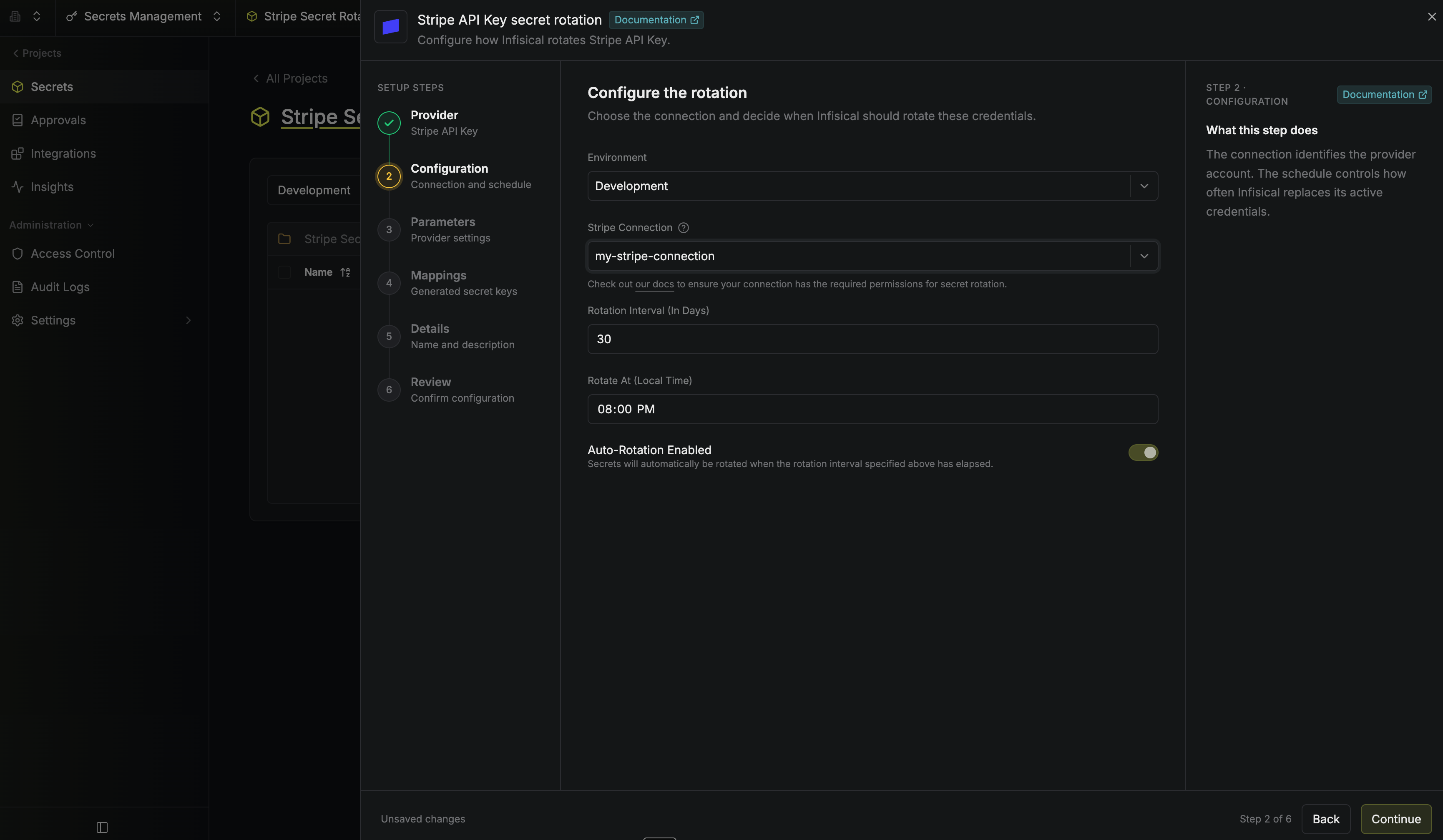 4. Set the Stripe API key parameters, then select **Continue**.
* **Key Name** (optional) - The name of each key the rotation creates, as it appears in the Stripe dashboard. Infisical adds a timestamp to each name, so the old and new key stay distinct while both are valid. If you leave it empty, the name is `infisical-managed`.
* **Permissions** - The access the generated key has to each Stripe resource. Set a resource to **None**, **Read**, or **Write**. **Write** includes read access. Stripe has no wildcard for "all access", so grant only the resources your application uses. Use **Set all** to give one access level to every resource that matches your search.
4. Set the Stripe API key parameters, then select **Continue**.
* **Key Name** (optional) - The name of each key the rotation creates, as it appears in the Stripe dashboard. Infisical adds a timestamp to each name, so the old and new key stay distinct while both are valid. If you leave it empty, the name is `infisical-managed`.
* **Permissions** - The access the generated key has to each Stripe resource. Set a resource to **None**, **Read**, or **Write**. **Write** includes read access. Stripe has no wildcard for "all access", so grant only the resources your application uses. Use **Set all** to give one access level to every resource that matches your search.
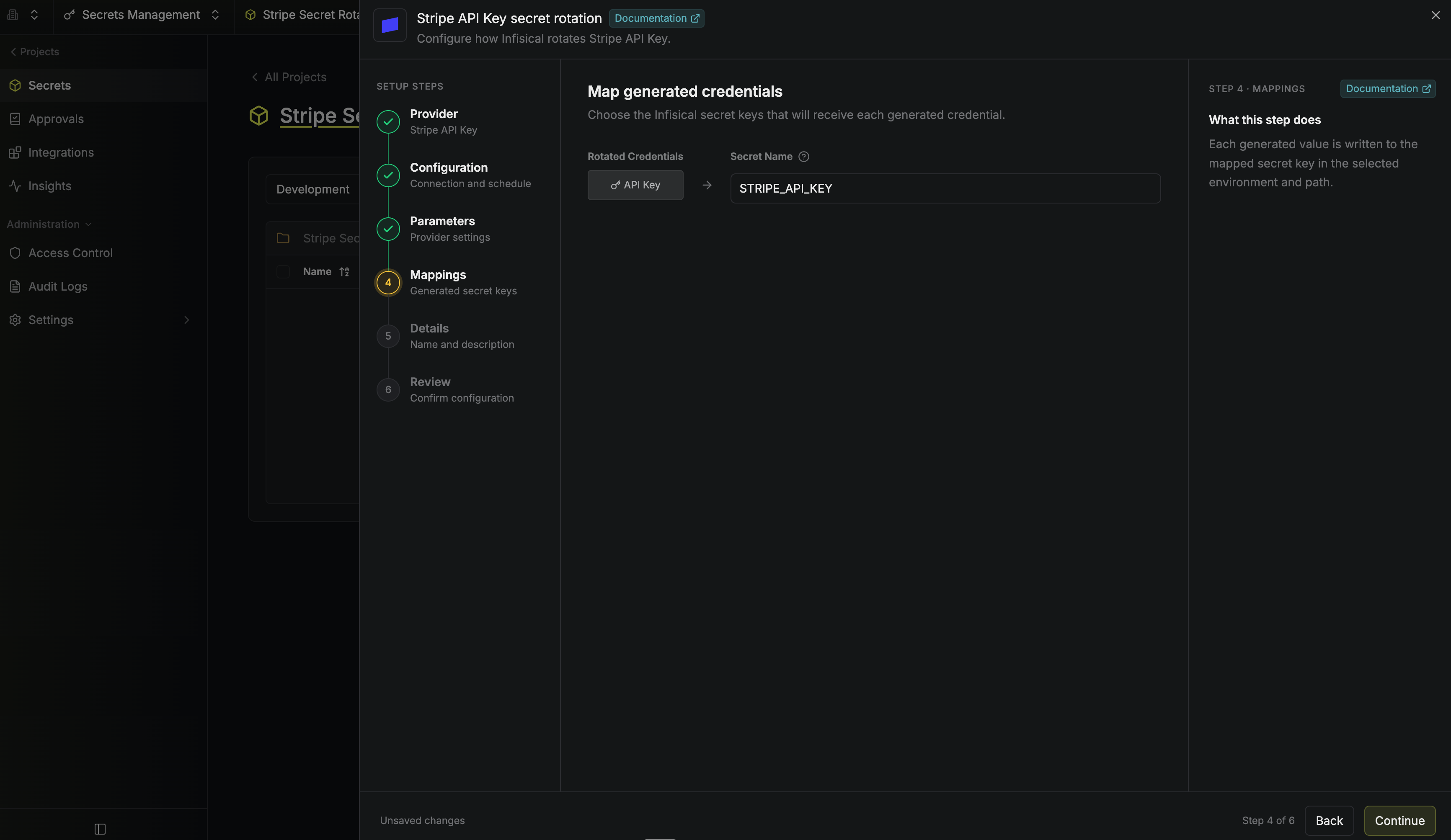
 5. Specify the secret name that the rotated API key will be mapped to. Then select **Continue**.
* **API Key** - The name of the secret in Infisical where the generated restricted key's value will be stored.
5. Specify the secret name that the rotated API key will be mapped to. Then select **Continue**.
* **API Key** - The name of the secret in Infisical where the generated restricted key's value will be stored.
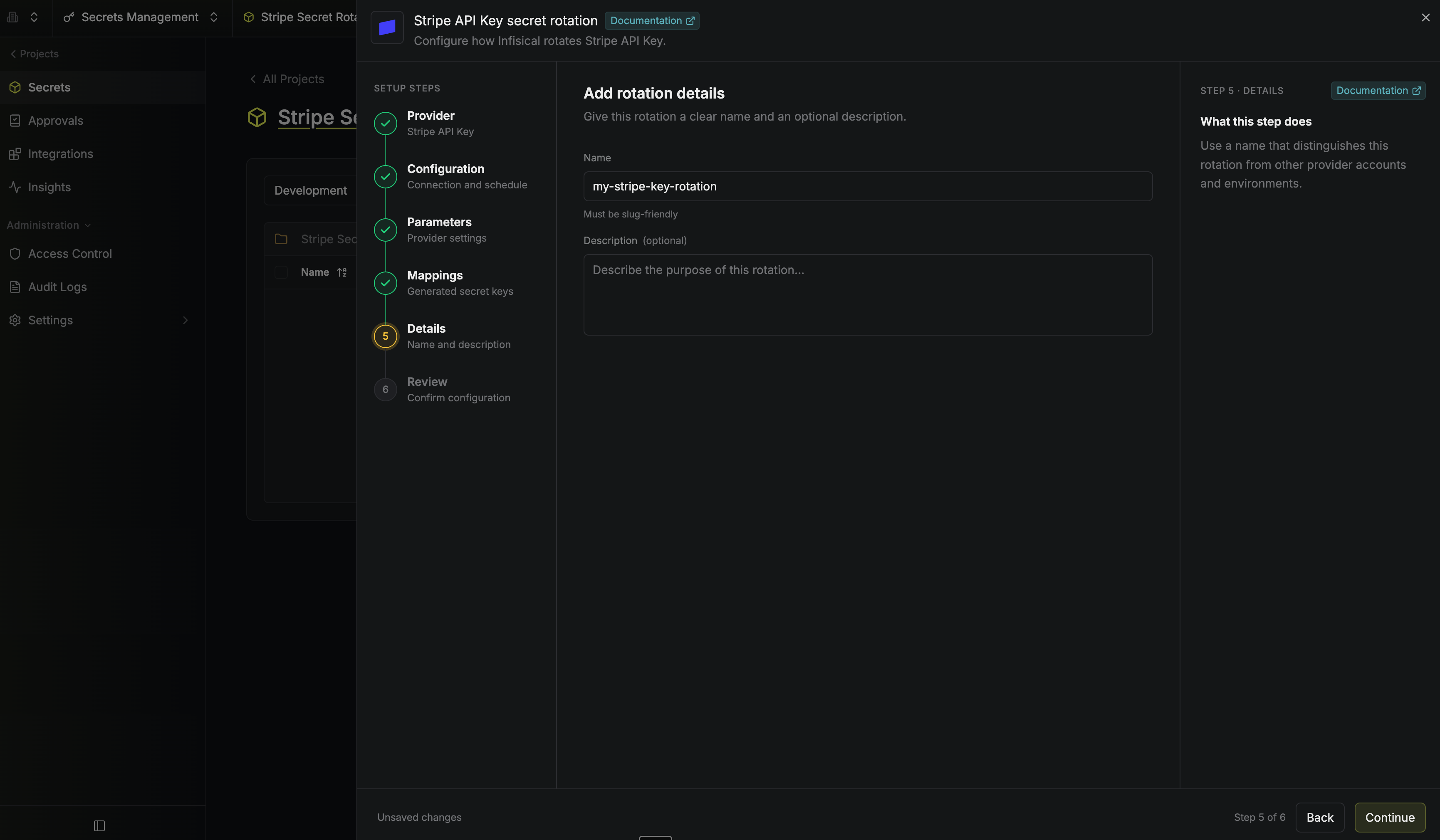
 6. Give your rotation a name and description (optional). Then select **Continue**.
* **Name** - A slug-friendly name for this rotation configuration.
* **Description** (optional) - Notes about this rotation.
6. Give your rotation a name and description (optional). Then select **Continue**.
* **Name** - A slug-friendly name for this rotation configuration.
* **Description** (optional) - Notes about this rotation.
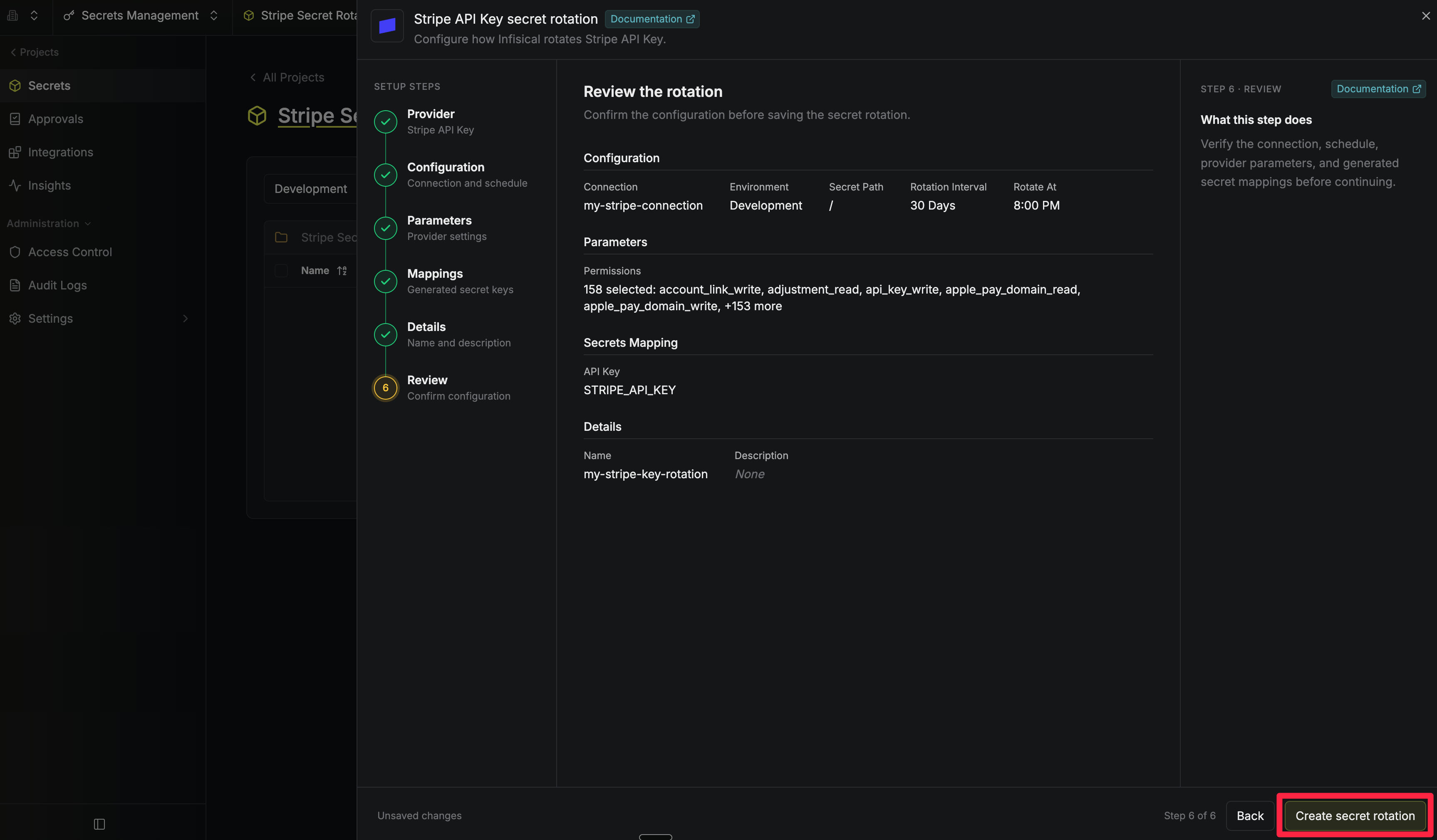
 7. Review your configuration, then select **Create secret rotation**.
 8. Your **Stripe API Key** rotation is created. The current restricted key is available as a secret at the mapped path. Each rotation creates a new key, expires the key from two rotations ago, then switches the active secret to the new key, so two keys are always valid at once for zero-downtime rotation.
To create a Stripe API Key rotation, call the [Create Stripe API Key Rotation](/docs/api-reference/endpoints/secret-rotations/stripe-api-key/create) API endpoint.
### Sample request
```bash Request theme={"dark"}
curl --request POST \
--url https://us.infisical.com/api/v2/secret-rotations/stripe-api-key \
--header 'Content-Type: application/json' \
--data '{
"name": "my-stripe-rotation",
"projectId": "",
"description": "Stripe API key rotation",
"connectionId": "",
"environment": "dev",
"secretPath": "/",
"isAutoRotationEnabled": true,
"rotationInterval": 30,
"rotateAtUtc": {
"hours": 0,
"minutes": 0
},
"parameters": {
"keyName": "payments-service",
"permissions": ["charge_read", "charge_write", "customer_read", "customer_write"]
},
"secretsMapping": {
"apiKey": "STRIPE_API_KEY"
}
}'
```
### Sample response
```bash Response theme={"dark"}
{
"secretRotation": {
"id": "",
"name": "my-stripe-rotation",
"description": "Stripe API key rotation",
"secretsMapping": {
"apiKey": "STRIPE_API_KEY"
},
"isAutoRotationEnabled": true,
"activeIndex": 0,
"connectionId": "",
"rotationInterval": 30,
"rotateAtUtc": { "hours": 0, "minutes": 0 },
"type": "stripe-api-key",
"parameters": {
"keyName": "payments-service",
"permissions": ["charge_read", "charge_write", "customer_read", "customer_write"]
}
}
}
```
Infisical only ever expires the keys it created. Your account's existing keys,
including any key you were using before you set up this rotation, are left
alone.
8. Your **Stripe API Key** rotation is created. The current restricted key is available as a secret at the mapped path. Each rotation creates a new key, expires the key from two rotations ago, then switches the active secret to the new key, so two keys are always valid at once for zero-downtime rotation.
To create a Stripe API Key rotation, call the [Create Stripe API Key Rotation](/docs/api-reference/endpoints/secret-rotations/stripe-api-key/create) API endpoint.
### Sample request
```bash Request theme={"dark"}
curl --request POST \
--url https://us.infisical.com/api/v2/secret-rotations/stripe-api-key \
--header 'Content-Type: application/json' \
--data '{
"name": "my-stripe-rotation",
"projectId": "",
"description": "Stripe API key rotation",
"connectionId": "",
"environment": "dev",
"secretPath": "/",
"isAutoRotationEnabled": true,
"rotationInterval": 30,
"rotateAtUtc": {
"hours": 0,
"minutes": 0
},
"parameters": {
"keyName": "payments-service",
"permissions": ["charge_read", "charge_write", "customer_read", "customer_write"]
},
"secretsMapping": {
"apiKey": "STRIPE_API_KEY"
}
}'
```
### Sample response
```bash Response theme={"dark"}
{
"secretRotation": {
"id": "",
"name": "my-stripe-rotation",
"description": "Stripe API key rotation",
"secretsMapping": {
"apiKey": "STRIPE_API_KEY"
},
"isAutoRotationEnabled": true,
"activeIndex": 0,
"connectionId": "",
"rotationInterval": 30,
"rotateAtUtc": { "hours": 0, "minutes": 0 },
"type": "stripe-api-key",
"parameters": {
"keyName": "payments-service",
"permissions": ["charge_read", "charge_write", "customer_read", "customer_write"]
}
}
}
```
Infisical only ever expires the keys it created. Your account's existing keys,
including any key you were using before you set up this rotation, are left
alone.