> ## Documentation Index
> Fetch the complete documentation index at: https://infisical.com/docs/llms.txt
> Use this file to discover all available pages before exploring further.
# Snowflake User Key Pair Rotation
> Learn how to automatically rotate a Snowflake user's RSA key pair.
**Rotation Type: Dual-Phase**
This rotation maintains two active credential sets with overlapping validity, ensuring zero-downtime during rotation cycles. It uses Snowflake's two public-key slots (`RSA_PUBLIC_KEY` and `RSA_PUBLIC_KEY_2`), alternating between them on each rotation so the retired key pair stays valid until the next cycle.
Infisical's Snowflake User Key Pair rotation generates an **RSA key pair** (2048-bit or 4096-bit, defaulting to 2048) and assigns its public key to a target Snowflake user for [key-pair authentication](https://docs.snowflake.com/en/user-guide/key-pair-auth). On each rotation, Infisical generates a fresh key pair, writes the public key to the currently-inactive slot on the user, and maps the new private and public keys to the secrets of your choice.
## Prerequisites
1. Create a [Snowflake Connection](/docs/integrations/app-connections/snowflake) with the required **Secret Rotation** permissions.
2. Decide on the target user whose key pair you want to rotate. New users are created as key-pair-only `SERVICE` users.
Users created by Infisical are not deleted when their credentials are revoked.
If the target user already has a key set in the `RSA_PUBLIC_KEY` slot, creating the rotation is
blocked so an existing key is never overwritten. Remove that key (or choose a user without one)
before creating the rotation.
3. Ensure your network security policies allow incoming requests from Infisical to your Snowflake account, if network restrictions apply.
Only the RSA public key is written to Snowflake. The generated private key is stored solely in the mapped Infisical secret and is never persisted to Snowflake.
## Create a Snowflake User Key Pair Rotation in Infisical
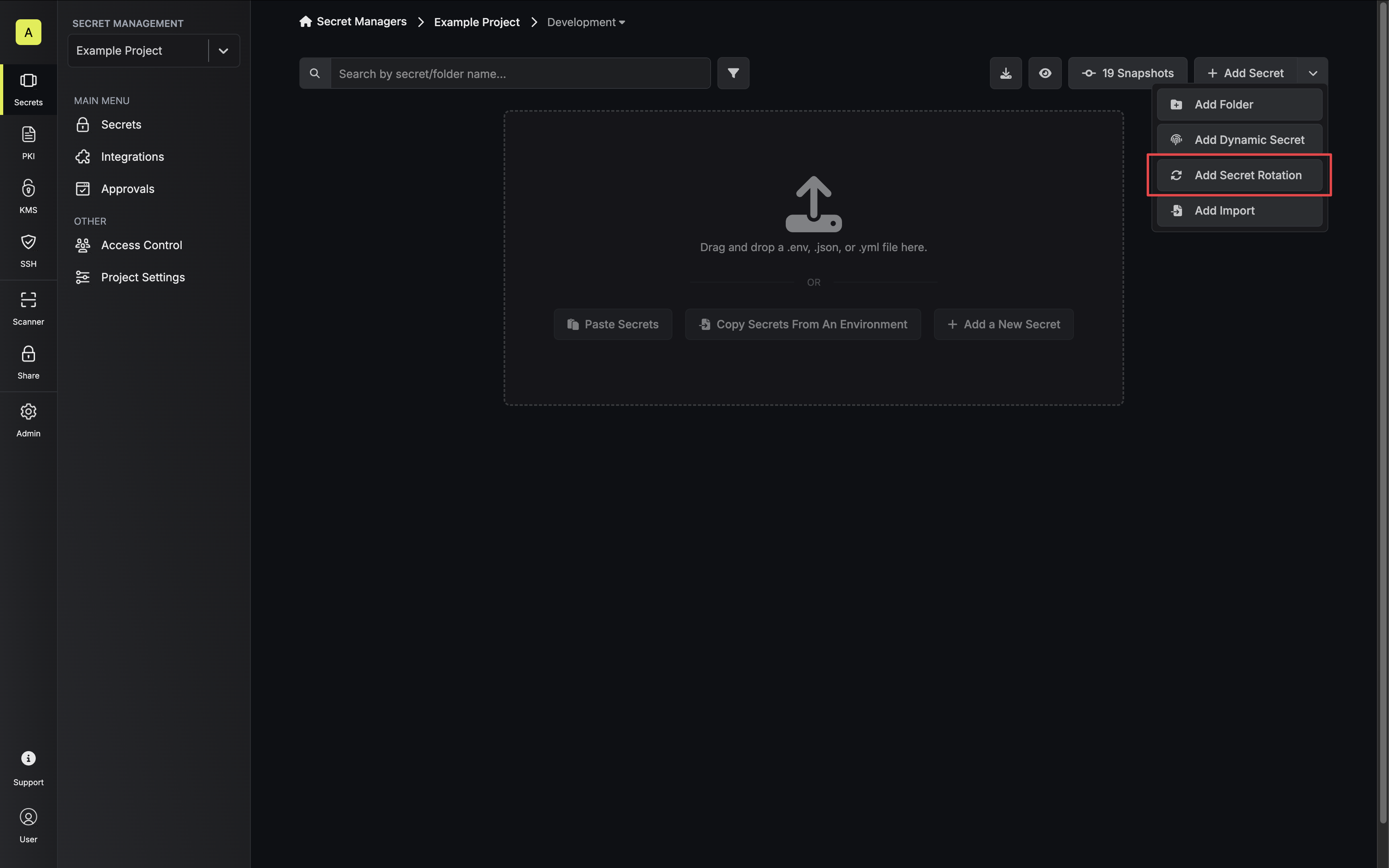
1. Navigate to your Secret Manager Project's Dashboard and select **Add Secret Rotation** from the actions dropdown.
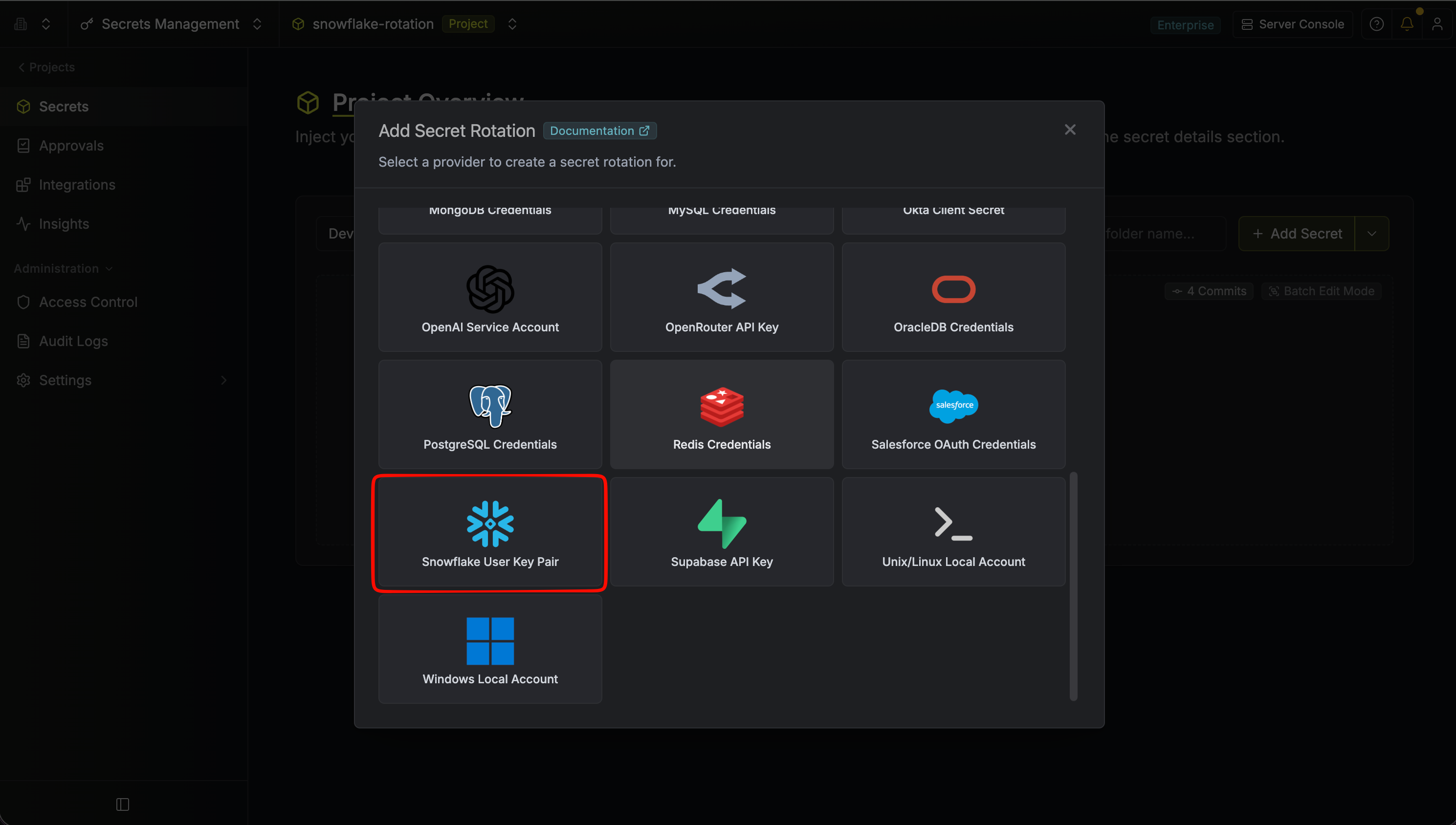
 2. Select the **Snowflake User Key Pair** option.
 3. Select the **Snowflake Connection** to use and configure the rotation behavior. Then click **Next**.
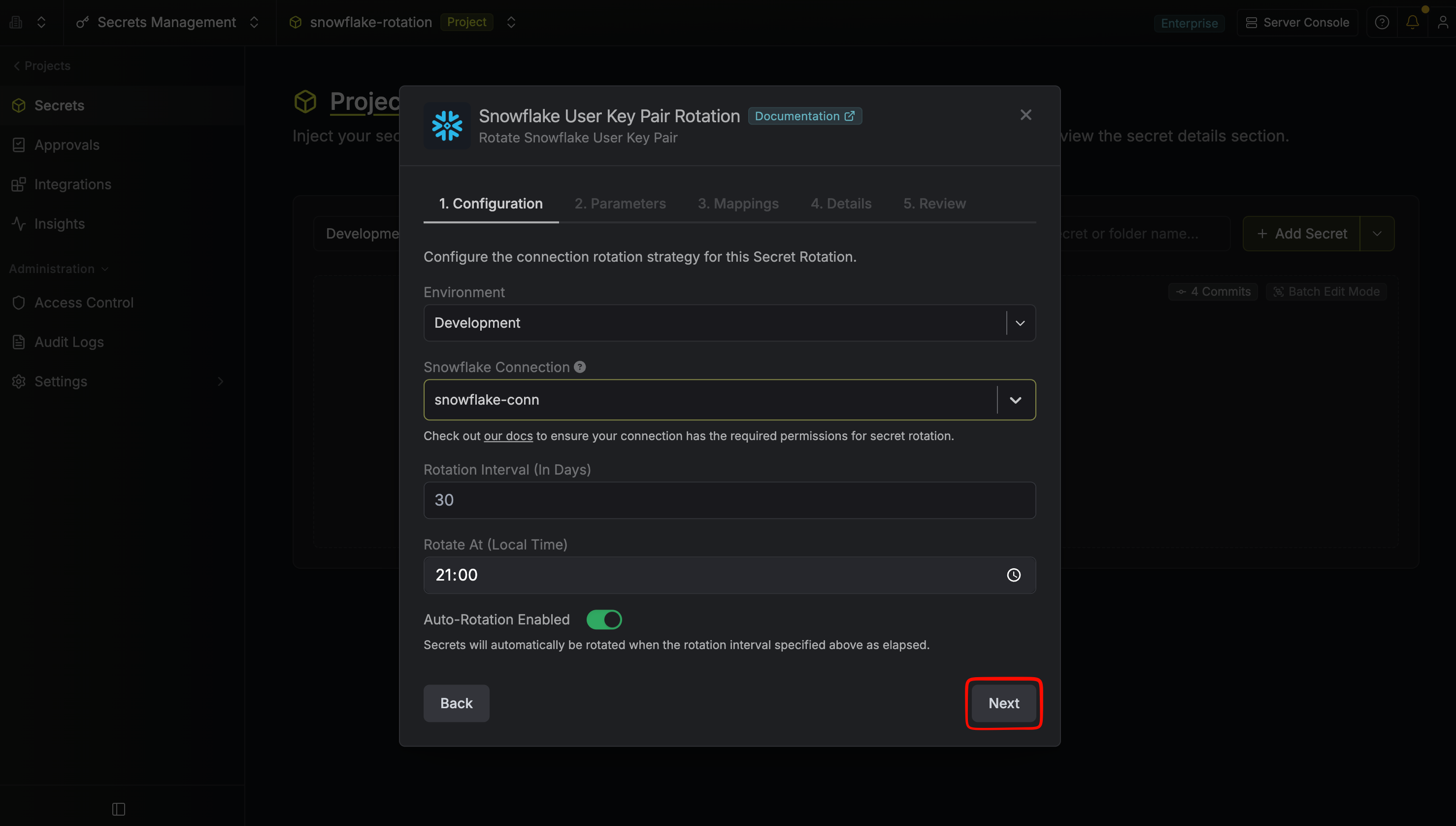 * **Snowflake Connection** - the connection that will perform the rotation of the target user's RSA key pair.
* **Rotation Interval** - the interval, in days, that once elapsed will trigger a rotation.
* **Rotate At** - the local time of day when rotation should occur once the interval has elapsed.
* **Auto-Rotation Enabled** - whether secrets should automatically be rotated once the rotation interval has elapsed. Disable this option to manually rotate secrets or pause secret rotation.
4. Select the Snowflake user whose key pair should be rotated (or enter a new username to create one) and choose the RSA Modulus Length. Then click **Next**.
* **Snowflake Connection** - the connection that will perform the rotation of the target user's RSA key pair.
* **Rotation Interval** - the interval, in days, that once elapsed will trigger a rotation.
* **Rotate At** - the local time of day when rotation should occur once the interval has elapsed.
* **Auto-Rotation Enabled** - whether secrets should automatically be rotated once the rotation interval has elapsed. Disable this option to manually rotate secrets or pause secret rotation.
4. Select the Snowflake user whose key pair should be rotated (or enter a new username to create one) and choose the RSA Modulus Length. Then click **Next**.
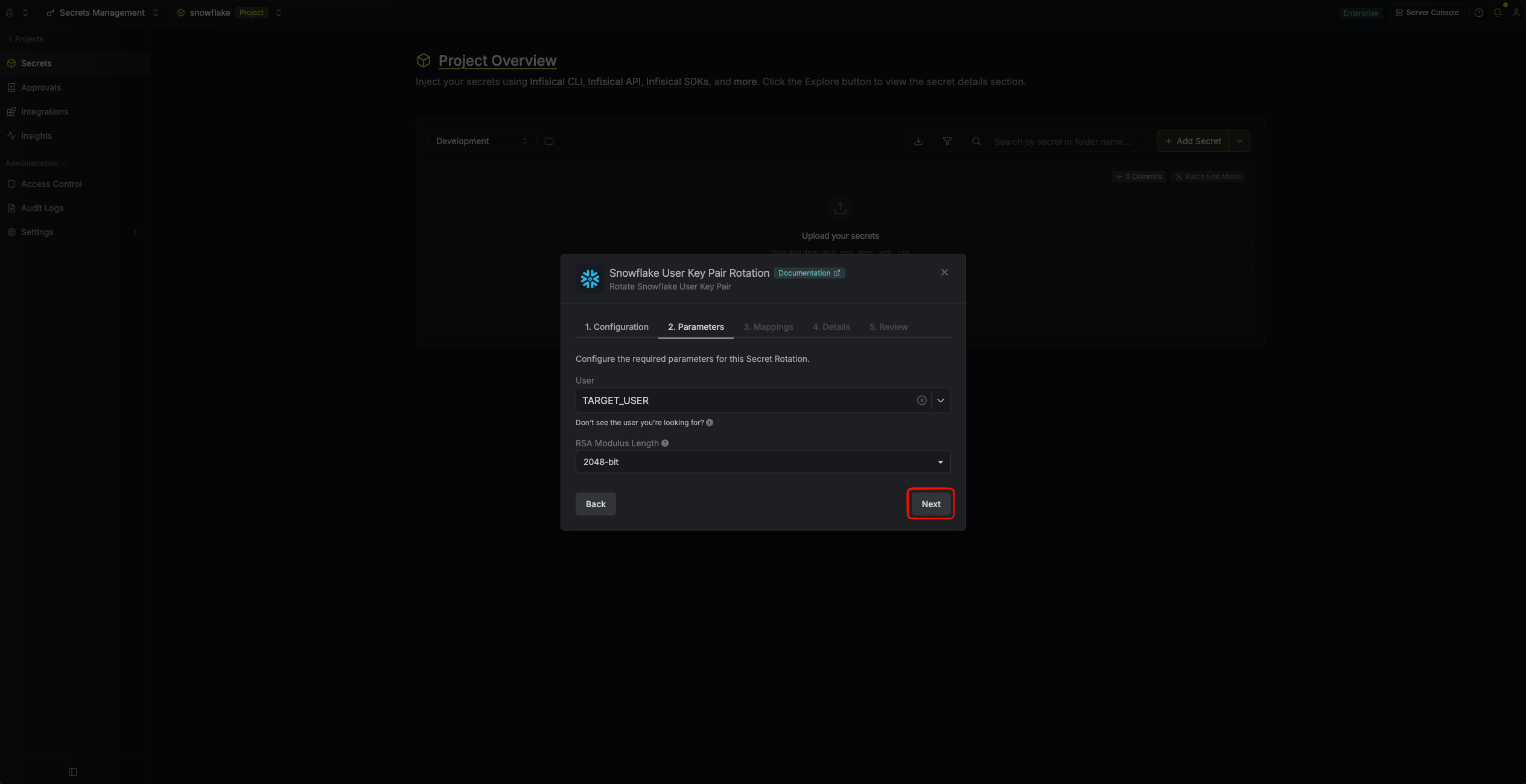 * **User** - the Snowflake user whose RSA key pair will be rotated. Select an existing user, or type a new username to create one. New users are created as key-pair-only `SERVICE` users.
* **RSA Modulus Length** - the size in bits of the generated RSA key pairs (2048 or 4096). Defaults to 2048. Changing this on an existing rotation only affects keys generated on future rotations.
5. Specify the secret names that the generated key pair should be mapped to. Then click **Next**.
* **User** - the Snowflake user whose RSA key pair will be rotated. Select an existing user, or type a new username to create one. New users are created as key-pair-only `SERVICE` users.
* **RSA Modulus Length** - the size in bits of the generated RSA key pairs (2048 or 4096). Defaults to 2048. Changing this on an existing rotation only affects keys generated on future rotations.
5. Specify the secret names that the generated key pair should be mapped to. Then click **Next**.
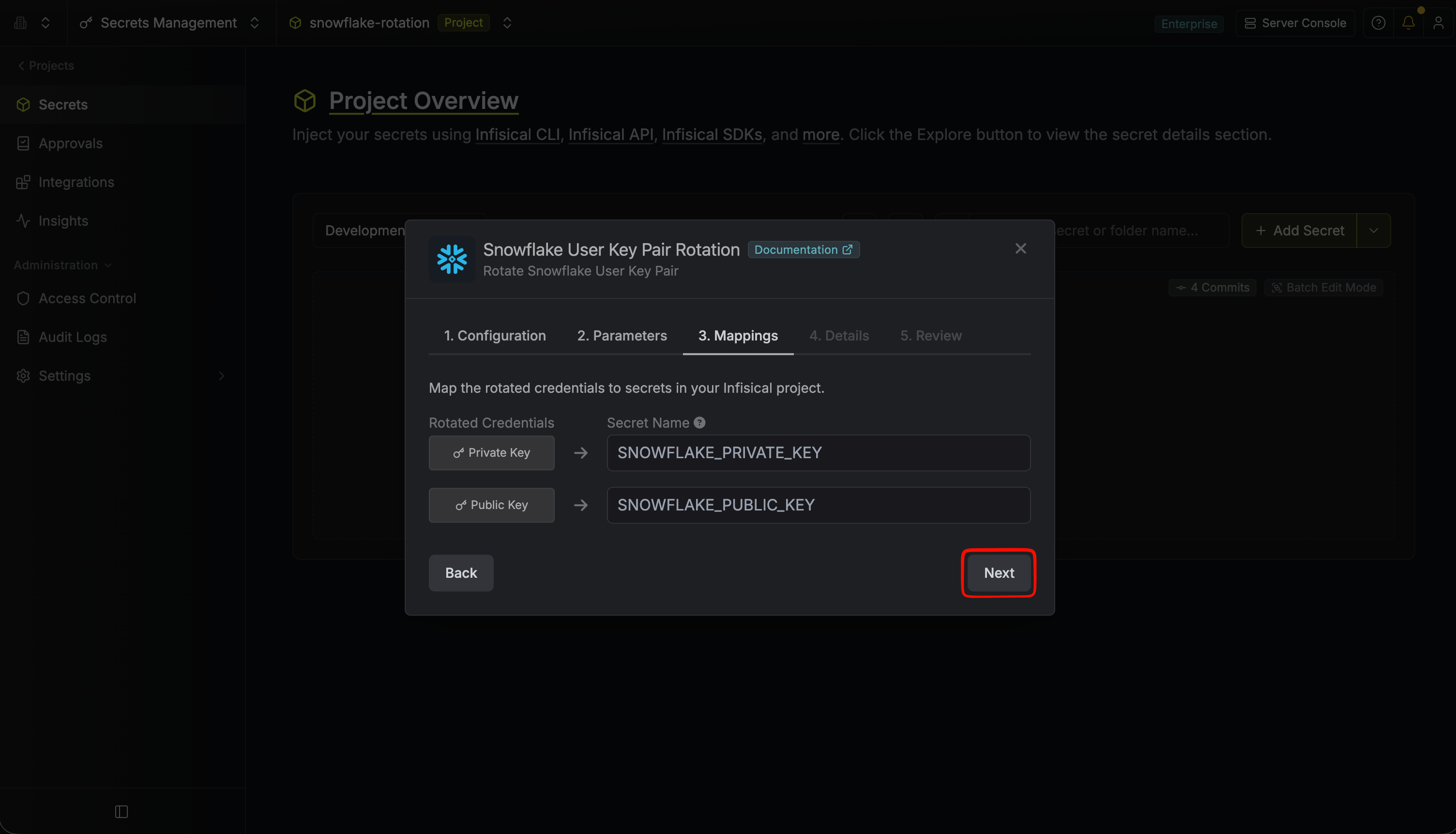 * **Private Key** - the name of the secret that the generated RSA private key (PKCS#8 PEM) will be mapped to.
* **Public Key** - the name of the secret that the generated RSA public key (SPKI PEM) will be mapped to.
6. Give your rotation a name and description (optional). Then click **Next**.
* **Private Key** - the name of the secret that the generated RSA private key (PKCS#8 PEM) will be mapped to.
* **Public Key** - the name of the secret that the generated RSA public key (SPKI PEM) will be mapped to.
6. Give your rotation a name and description (optional). Then click **Next**.
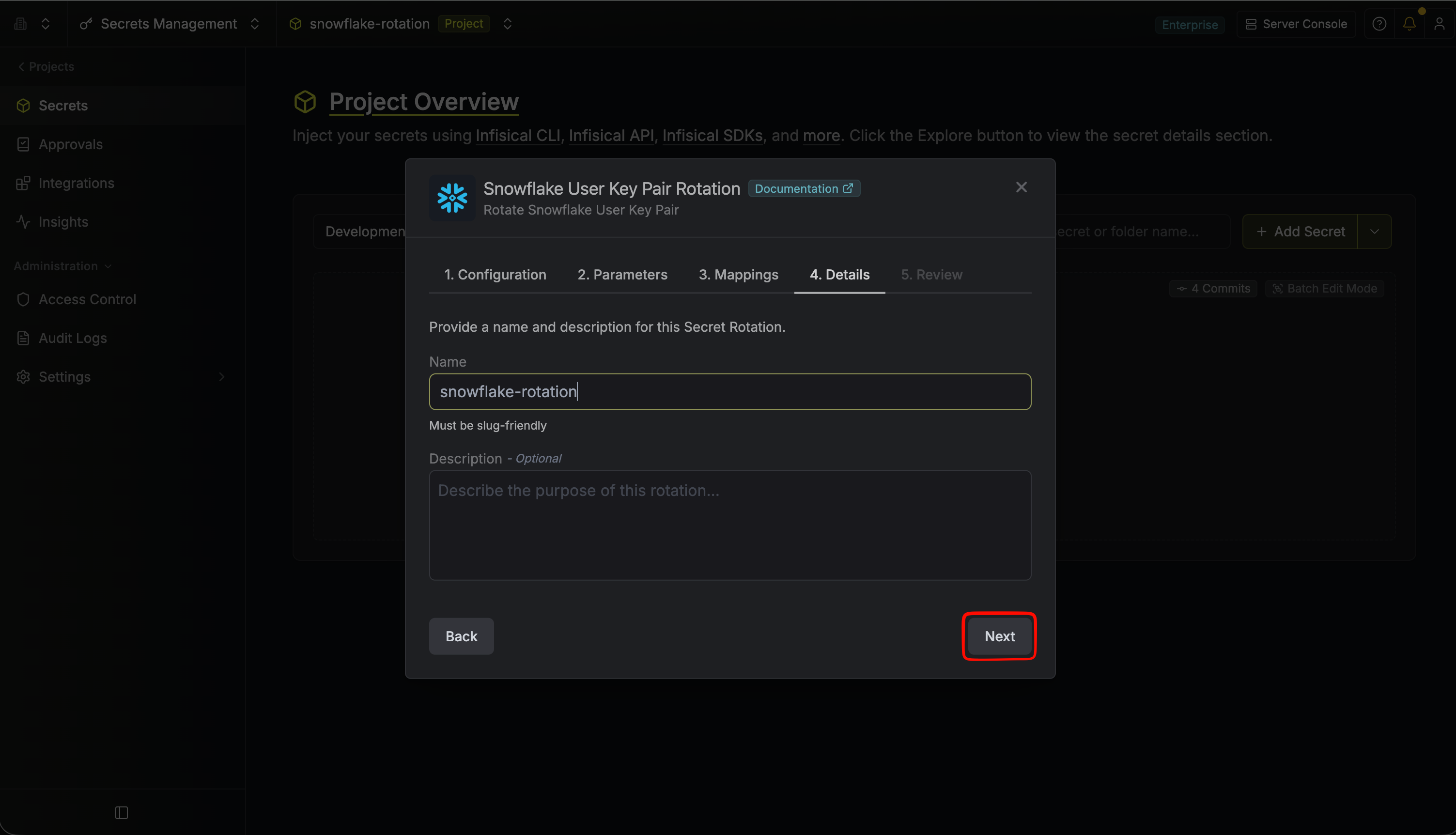 * **Name** - the name of the secret rotation configuration. Must be slug-friendly.
* **Description** (optional) - a description of this rotation configuration.
7. Review your configuration, then click **Create Secret Rotation**.
* **Name** - the name of the secret rotation configuration. Must be slug-friendly.
* **Description** (optional) - a description of this rotation configuration.
7. Review your configuration, then click **Create Secret Rotation**.
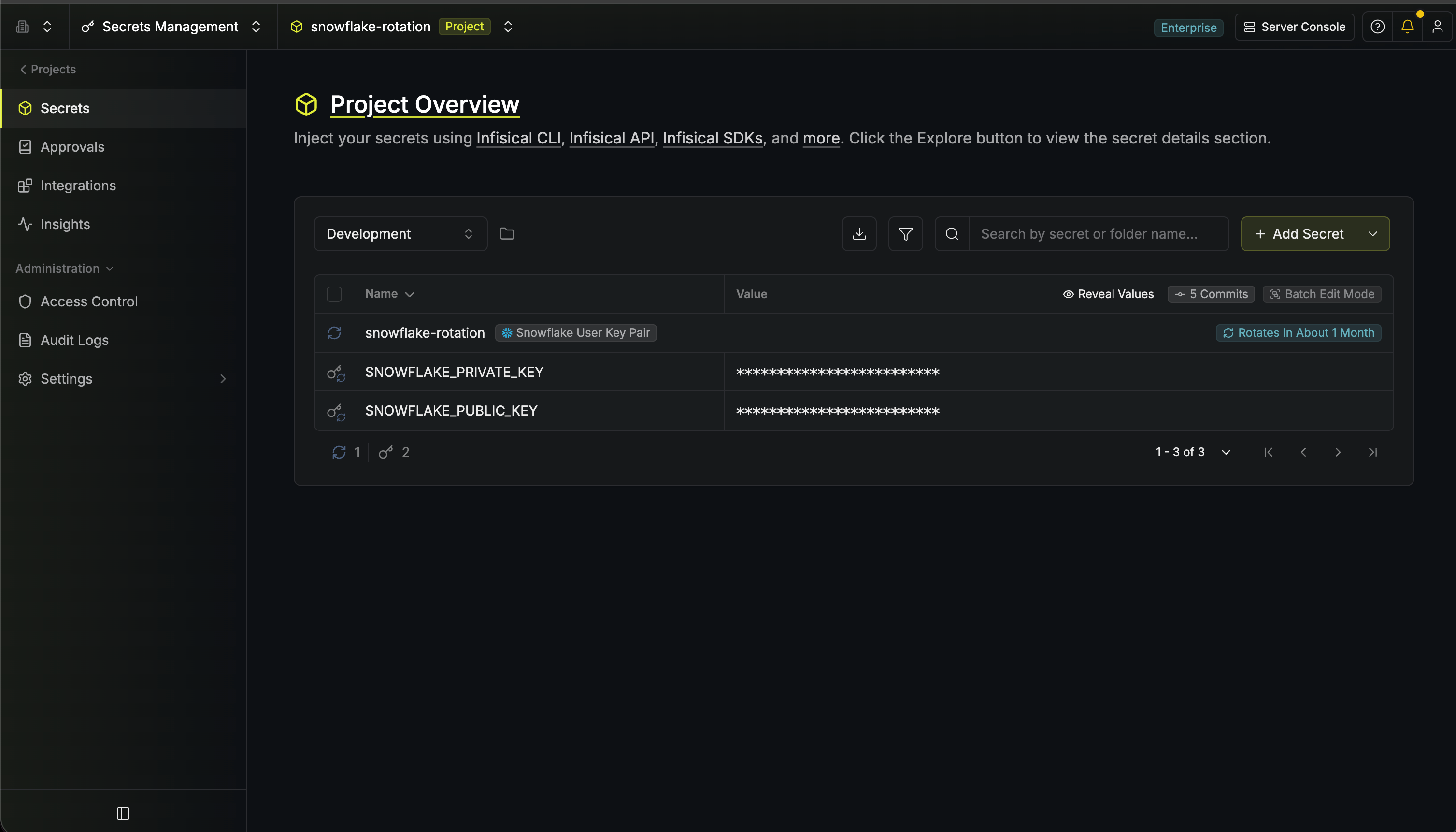
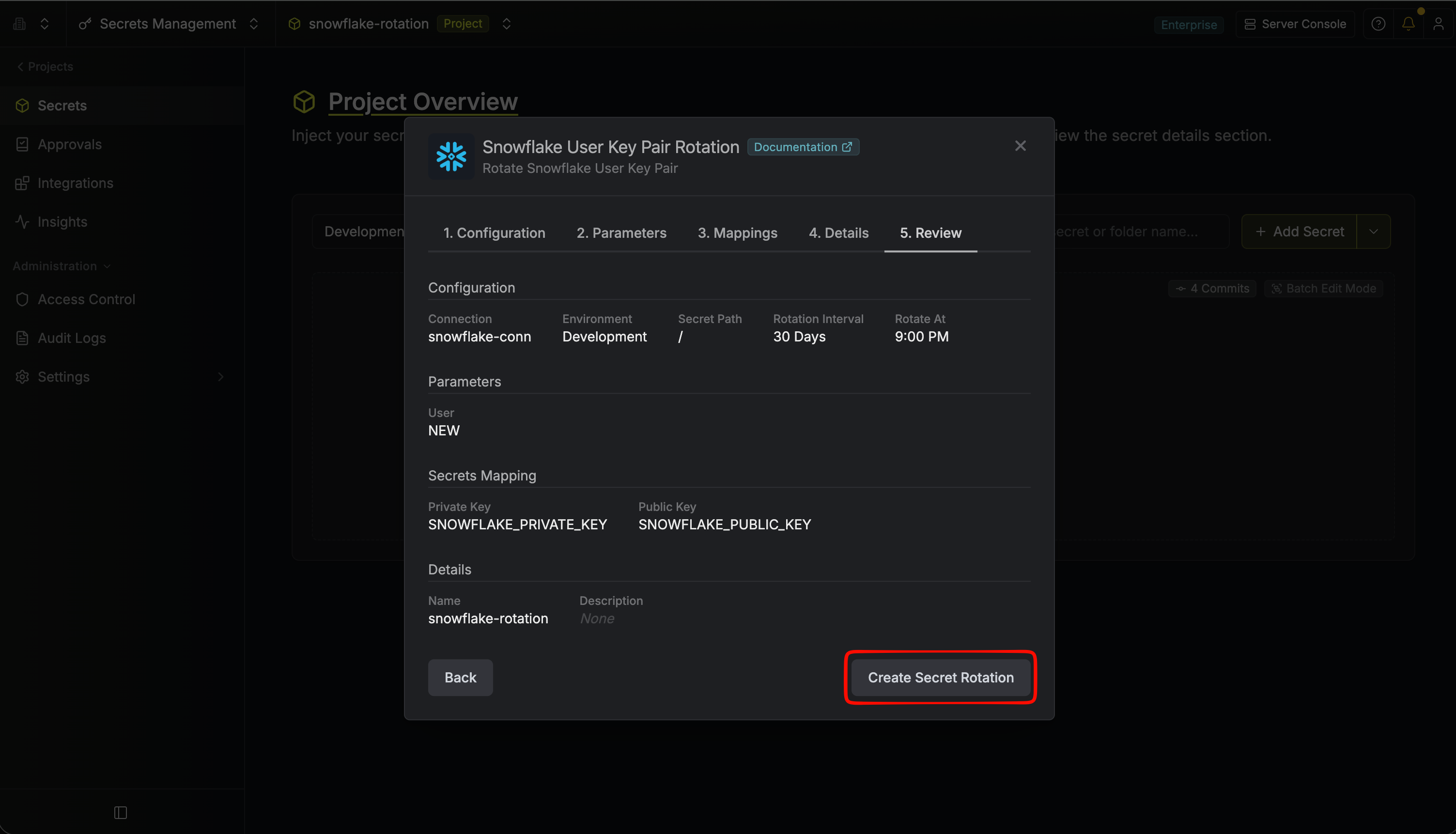 8. Your **Snowflake User Key Pair** is now available for use via the mapped secrets.
 To create a Snowflake User Key Pair Rotation, make an API request to the [Create Snowflake User Key Pair
Rotation](/docs/api-reference/endpoints/secret-rotations/snowflake-user-key-pair/create) API endpoint.
### Sample request
```bash Request theme={"dark"}
curl --request POST \
--url https://us.infisical.com/api/v2/secret-rotations/snowflake-user-key-pair \
--header 'Content-Type: application/json' \
--data '{
"name": "my-snowflake-rotation",
"projectId": "3c90c3cc-0d44-4b50-8888-8dd25736052a",
"description": "my snowflake key pair rotation",
"connectionId": "3c90c3cc-0d44-4b50-8888-8dd25736052a",
"environment": "dev",
"secretPath": "/",
"isAutoRotationEnabled": true,
"rotationInterval": 30,
"rotateAtUtc": {
"hours": 0,
"minutes": 0
},
"parameters": {
"username": "MY_SERVICE_USER",
"modulusLength": 2048
},
"secretsMapping": {
"privateKey": "SNOWFLAKE_PRIVATE_KEY",
"publicKey": "SNOWFLAKE_PUBLIC_KEY"
}
}'
```
### Sample response
```bash Response theme={"dark"}
{
"secretRotation": {
"id": "3c90c3cc-0d44-4b50-8888-8dd25736052a",
"name": "my-snowflake-rotation",
"description": "my snowflake key pair rotation",
"secretsMapping": {
"privateKey": "SNOWFLAKE_PRIVATE_KEY",
"publicKey": "SNOWFLAKE_PUBLIC_KEY"
},
"isAutoRotationEnabled": true,
"activeIndex": 0,
"folderId": "3c90c3cc-0d44-4b50-8888-8dd25736052a",
"connectionId": "3c90c3cc-0d44-4b50-8888-8dd25736052a",
"createdAt": "2023-11-07T05:31:56Z",
"updatedAt": "2023-11-07T05:31:56Z",
"rotationInterval": 30,
"rotationStatus": "success",
"lastRotationAttemptedAt": "2023-11-07T05:31:56Z",
"lastRotatedAt": "2023-11-07T05:31:56Z",
"lastRotationJobId": "3c90c3cc-0d44-4b50-8888-8dd25736052a",
"nextRotationAt": "2023-11-07T05:31:56Z",
"connection": {
"app": "snowflake",
"name": "my-snowflake-connection",
"id": "3c90c3cc-0d44-4b50-8888-8dd25736052a"
},
"environment": {
"slug": "dev",
"name": "Development",
"id": "3c90c3cc-0d44-4b50-8888-8dd25736052a"
},
"projectId": "3c90c3cc-0d44-4b50-8888-8dd25736052a",
"folder": {
"id": "3c90c3cc-0d44-4b50-8888-8dd25736052a",
"path": "/"
},
"rotateAtUtc": {
"hours": 0,
"minutes": 0
},
"lastRotationMessage": null,
"type": "snowflake-user-key-pair",
"parameters": {
"username": "MY_SERVICE_USER",
"modulusLength": 2048
}
}
}
```
To create a Snowflake User Key Pair Rotation, make an API request to the [Create Snowflake User Key Pair
Rotation](/docs/api-reference/endpoints/secret-rotations/snowflake-user-key-pair/create) API endpoint.
### Sample request
```bash Request theme={"dark"}
curl --request POST \
--url https://us.infisical.com/api/v2/secret-rotations/snowflake-user-key-pair \
--header 'Content-Type: application/json' \
--data '{
"name": "my-snowflake-rotation",
"projectId": "3c90c3cc-0d44-4b50-8888-8dd25736052a",
"description": "my snowflake key pair rotation",
"connectionId": "3c90c3cc-0d44-4b50-8888-8dd25736052a",
"environment": "dev",
"secretPath": "/",
"isAutoRotationEnabled": true,
"rotationInterval": 30,
"rotateAtUtc": {
"hours": 0,
"minutes": 0
},
"parameters": {
"username": "MY_SERVICE_USER",
"modulusLength": 2048
},
"secretsMapping": {
"privateKey": "SNOWFLAKE_PRIVATE_KEY",
"publicKey": "SNOWFLAKE_PUBLIC_KEY"
}
}'
```
### Sample response
```bash Response theme={"dark"}
{
"secretRotation": {
"id": "3c90c3cc-0d44-4b50-8888-8dd25736052a",
"name": "my-snowflake-rotation",
"description": "my snowflake key pair rotation",
"secretsMapping": {
"privateKey": "SNOWFLAKE_PRIVATE_KEY",
"publicKey": "SNOWFLAKE_PUBLIC_KEY"
},
"isAutoRotationEnabled": true,
"activeIndex": 0,
"folderId": "3c90c3cc-0d44-4b50-8888-8dd25736052a",
"connectionId": "3c90c3cc-0d44-4b50-8888-8dd25736052a",
"createdAt": "2023-11-07T05:31:56Z",
"updatedAt": "2023-11-07T05:31:56Z",
"rotationInterval": 30,
"rotationStatus": "success",
"lastRotationAttemptedAt": "2023-11-07T05:31:56Z",
"lastRotatedAt": "2023-11-07T05:31:56Z",
"lastRotationJobId": "3c90c3cc-0d44-4b50-8888-8dd25736052a",
"nextRotationAt": "2023-11-07T05:31:56Z",
"connection": {
"app": "snowflake",
"name": "my-snowflake-connection",
"id": "3c90c3cc-0d44-4b50-8888-8dd25736052a"
},
"environment": {
"slug": "dev",
"name": "Development",
"id": "3c90c3cc-0d44-4b50-8888-8dd25736052a"
},
"projectId": "3c90c3cc-0d44-4b50-8888-8dd25736052a",
"folder": {
"id": "3c90c3cc-0d44-4b50-8888-8dd25736052a",
"path": "/"
},
"rotateAtUtc": {
"hours": 0,
"minutes": 0
},
"lastRotationMessage": null,
"type": "snowflake-user-key-pair",
"parameters": {
"username": "MY_SERVICE_USER",
"modulusLength": 2048
}
}
}
```