> ## Documentation Index
> Fetch the complete documentation index at: https://infisical.com/docs/llms.txt
> Use this file to discover all available pages before exploring further.
# OpenAI Service Account
> Learn how to automatically rotate OpenAI project service accounts.
**Rotation Type: Dual-Phase**
This rotation maintains two active credential sets with overlapping validity, ensuring zero-downtime during rotation cycles.
## Prerequisites
* Create an [OpenAI Connection](/integrations/app-connections/openai) using an **Admin API key**. That connection is used to create and delete project service accounts on your behalf during rotation.
## Create an OpenAI Service Account Rotation in Infisical
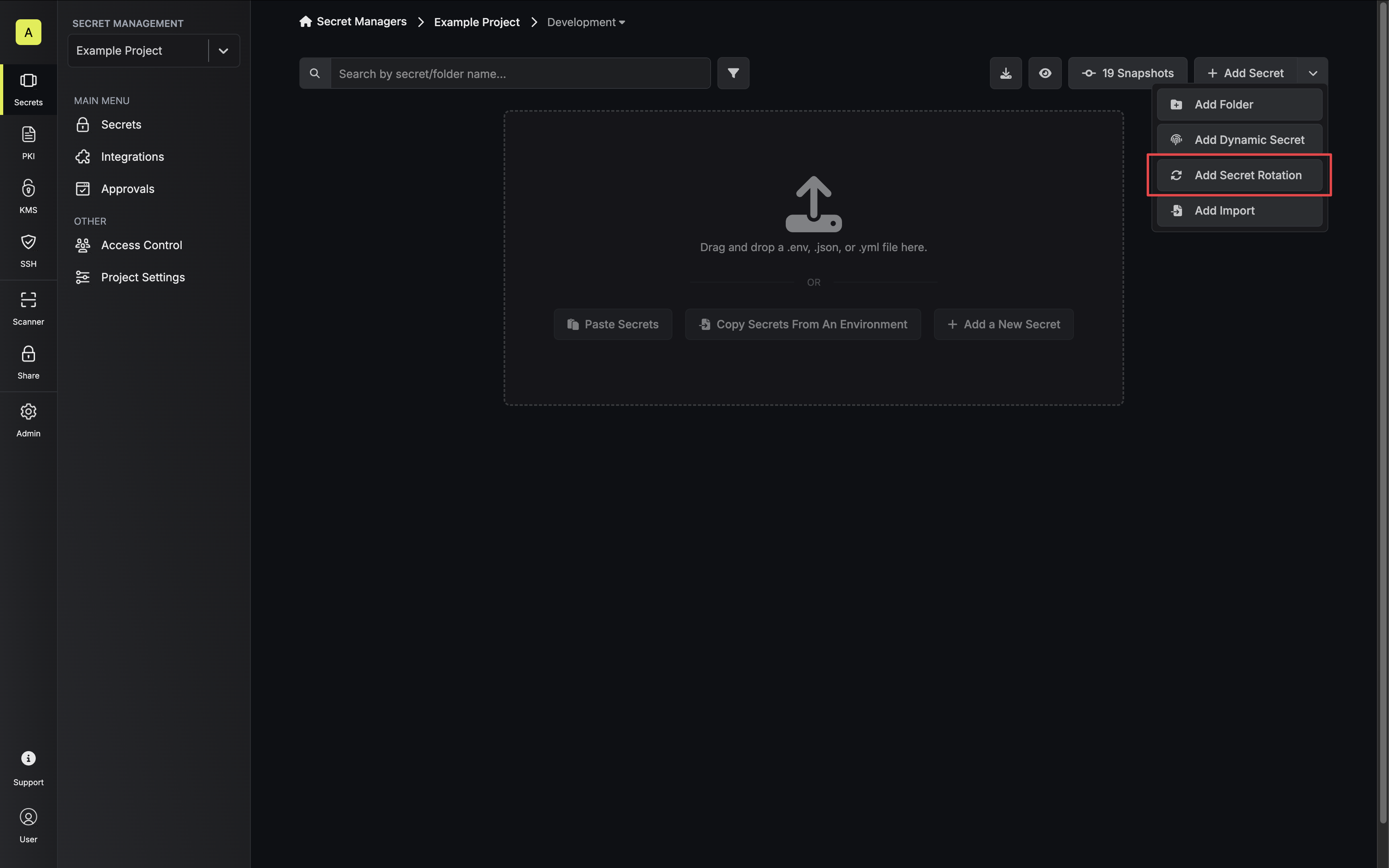
1. Navigate to your Secret Manager Project's Dashboard and select **Add Secret Rotation** from the actions dropdown.
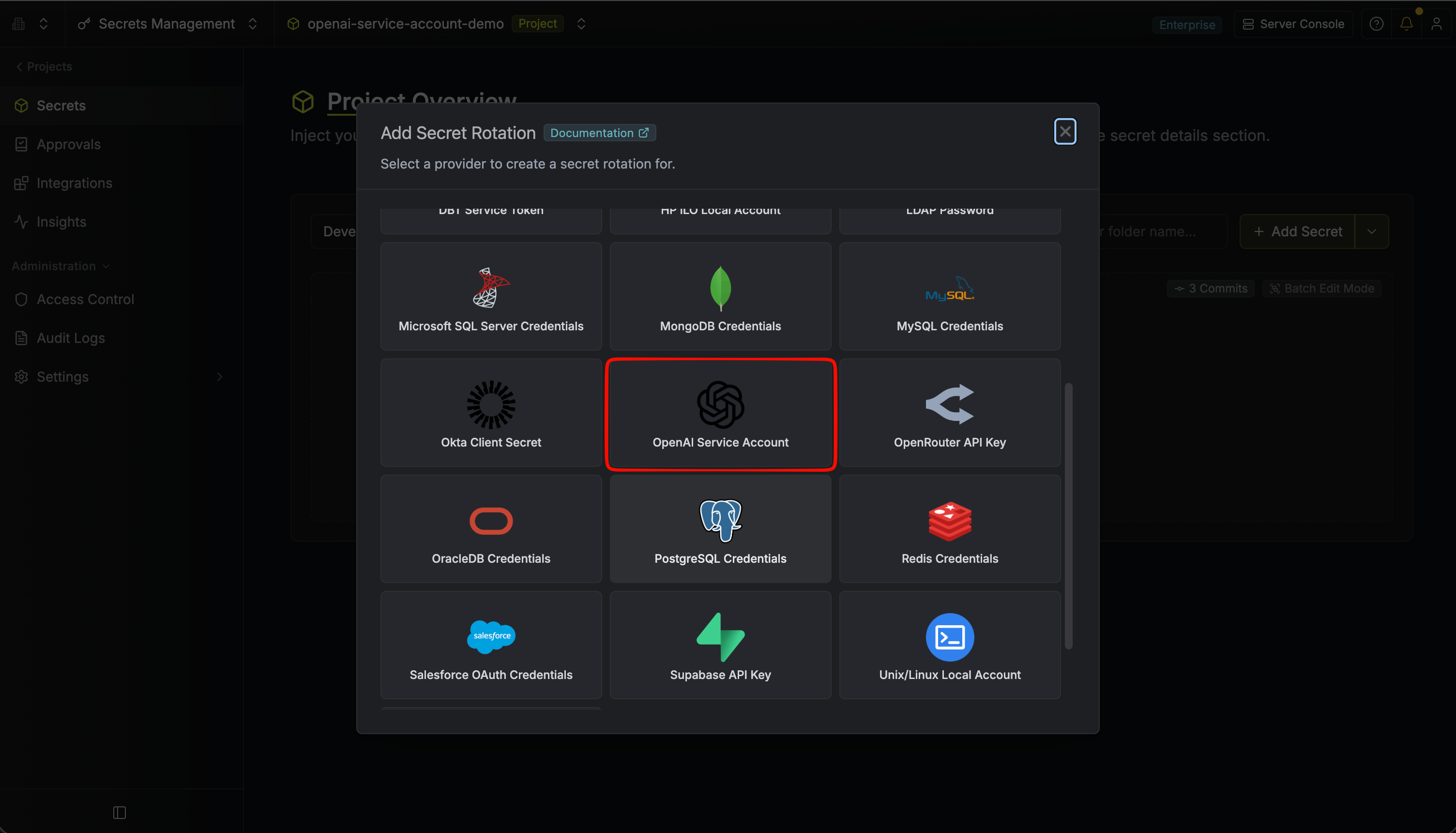
 2. Select the **OpenAI Service Account** option.
 3. Configure the rotation behavior, then click **Next**.
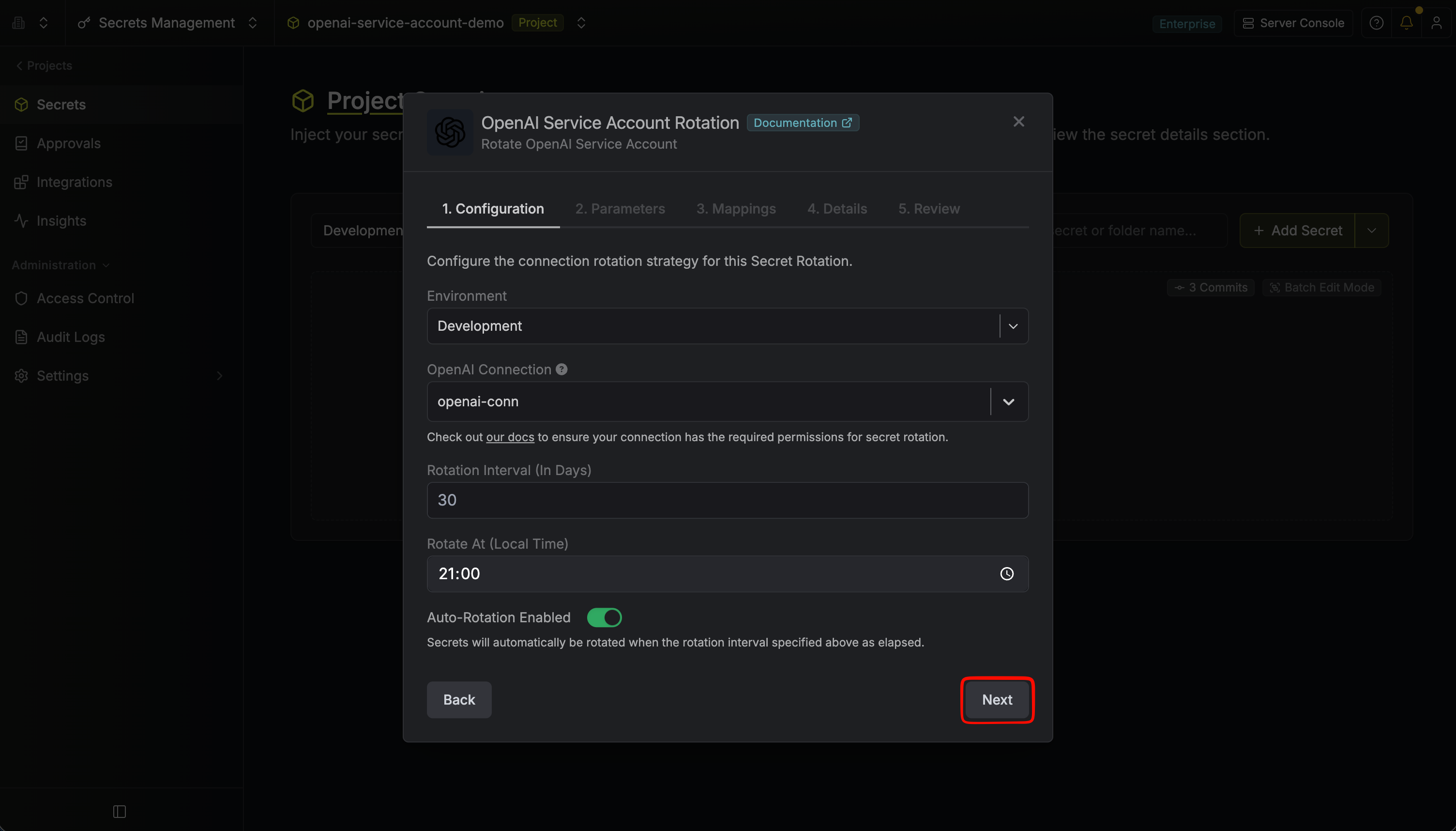 * **OpenAI Connection** – The connection that will create and delete service accounts during rotation.
* **Rotation Interval** – The interval, in days, after which a rotation is triggered.
* **Rotate At** – The local time of day when rotation runs once the interval has elapsed.
* **Auto-Rotation Enabled** – Whether to rotate automatically on the interval. Turn off to rotate only manually or pause rotation.
4. Set the OpenAI Service Account parameters, then click **Next**.
* **OpenAI Connection** – The connection that will create and delete service accounts during rotation.
* **Rotation Interval** – The interval, in days, after which a rotation is triggered.
* **Rotate At** – The local time of day when rotation runs once the interval has elapsed.
* **Auto-Rotation Enabled** – Whether to rotate automatically on the interval. Turn off to rotate only manually or pause rotation.
4. Set the OpenAI Service Account parameters, then click **Next**.
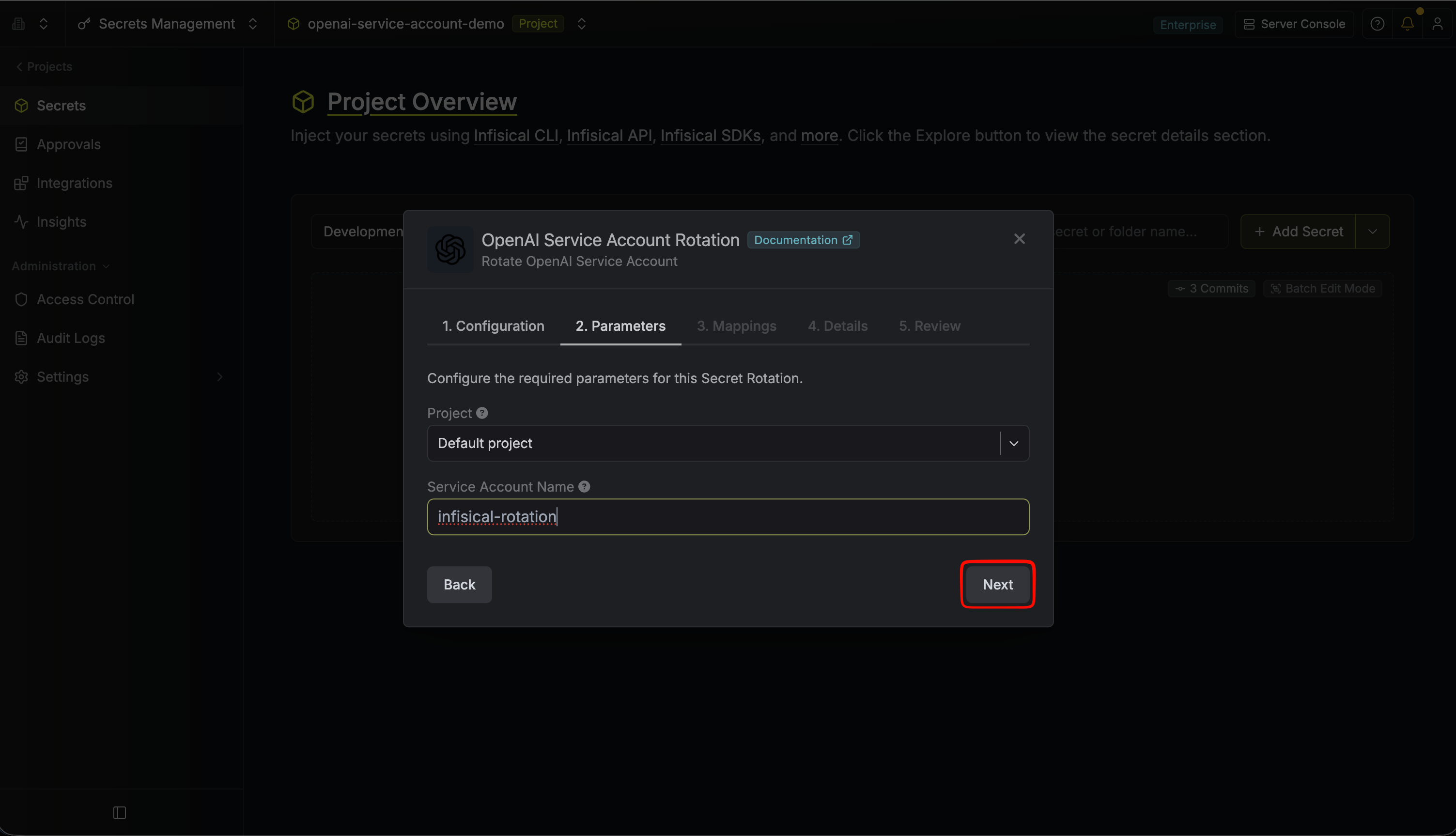 * **Project** – The OpenAI project to create service accounts in. Projects are listed via your OpenAI connection. This cannot be changed after the rotation is created.
* **Service Account Name** – The name for the generated OpenAI service account (required, up to 100 characters). Infisical appends a timestamp suffix to this name in the OpenAI dashboard (e.g. `my-app-service-account-1720268400000`) so that the active and previous service accounts stay distinguishable during the overlap window. Service accounts are deleted by their ID, so the name is used only for identification.
5. Specify the secret name that the rotated API key will be mapped to. Then click **Next**.
* **Project** – The OpenAI project to create service accounts in. Projects are listed via your OpenAI connection. This cannot be changed after the rotation is created.
* **Service Account Name** – The name for the generated OpenAI service account (required, up to 100 characters). Infisical appends a timestamp suffix to this name in the OpenAI dashboard (e.g. `my-app-service-account-1720268400000`) so that the active and previous service accounts stay distinguishable during the overlap window. Service accounts are deleted by their ID, so the name is used only for identification.
5. Specify the secret name that the rotated API key will be mapped to. Then click **Next**.
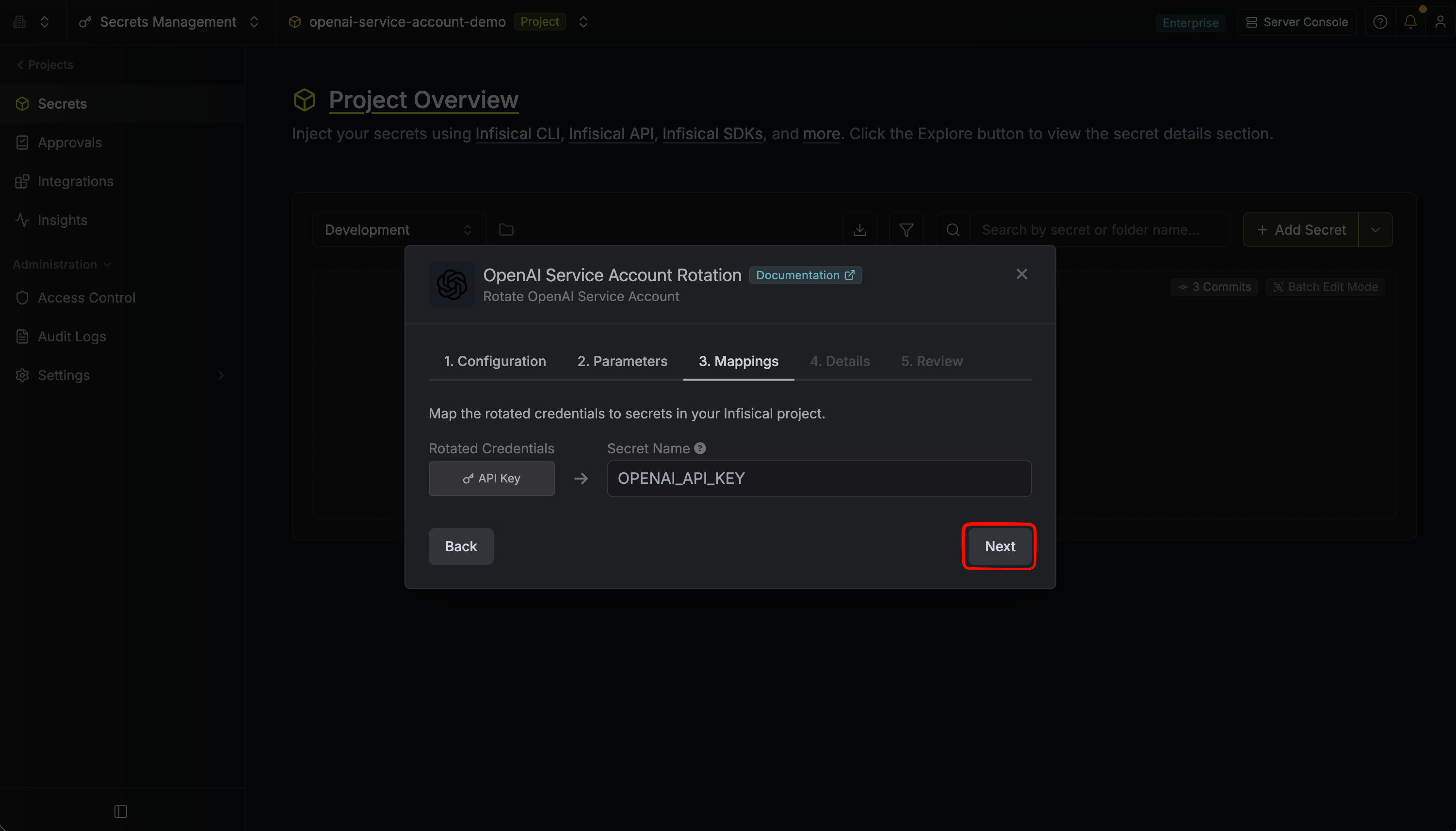 * **API Key** – The name of the secret in Infisical where the rotated service account API key value will be stored.
6. Give your rotation a name and description (optional). Then click **Next**.
* **API Key** – The name of the secret in Infisical where the rotated service account API key value will be stored.
6. Give your rotation a name and description (optional). Then click **Next**.
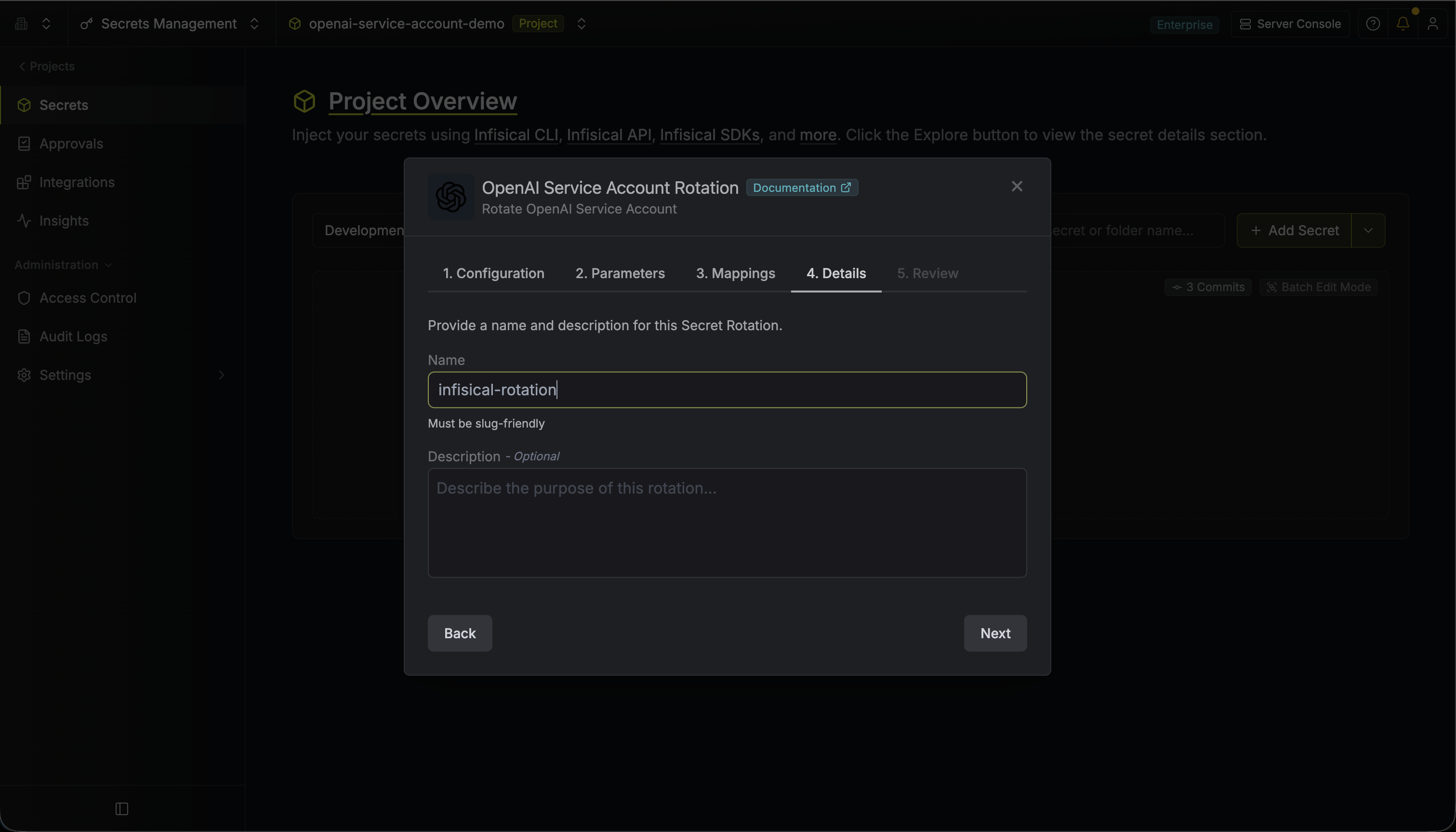 * **Name** – A slug-friendly name for this rotation configuration.
* **Description** (optional) – Notes about this rotation.
7. Review your configuration, then click **Create Secret Rotation**.
* **Name** – A slug-friendly name for this rotation configuration.
* **Description** (optional) – Notes about this rotation.
7. Review your configuration, then click **Create Secret Rotation**.
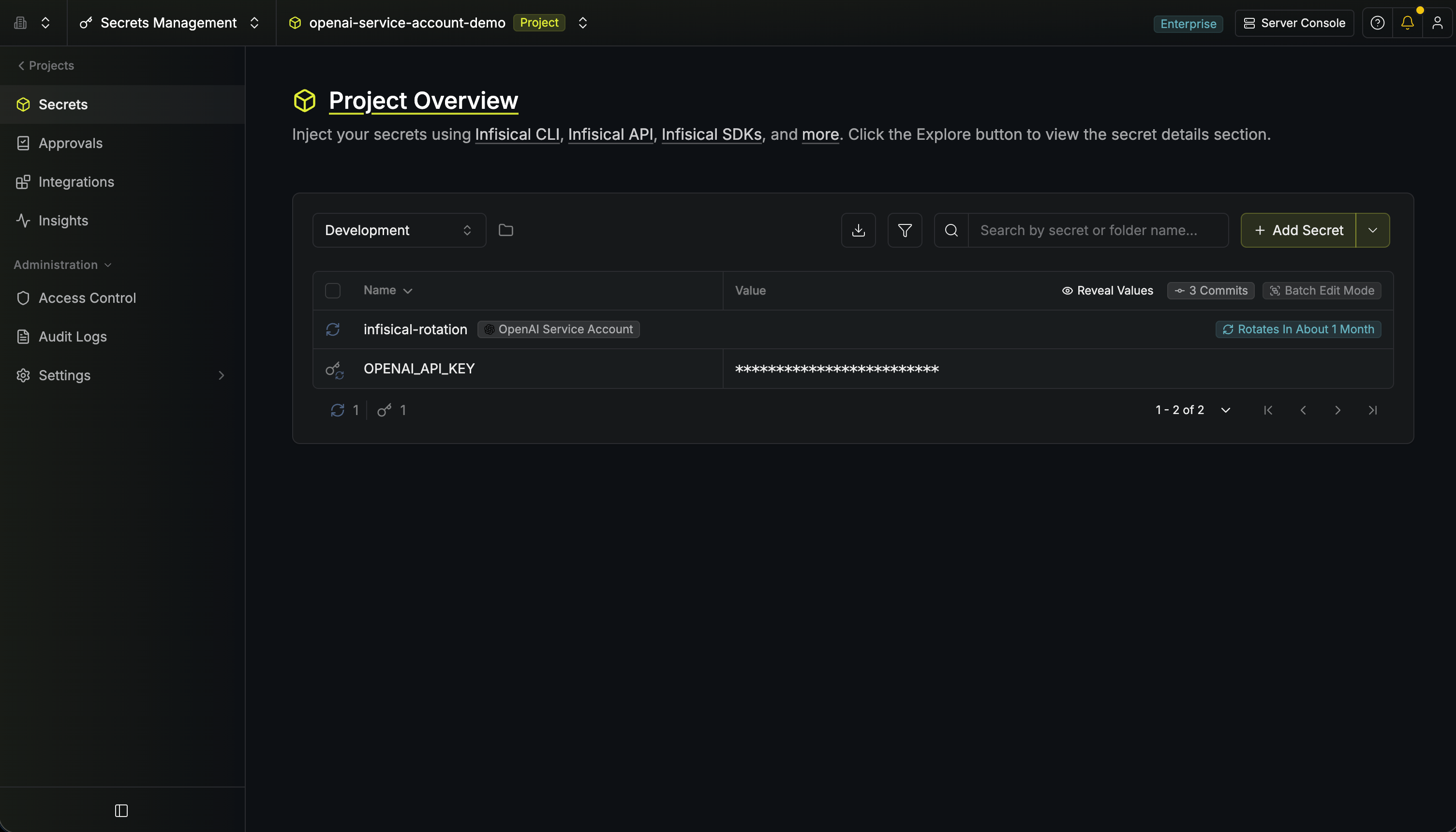
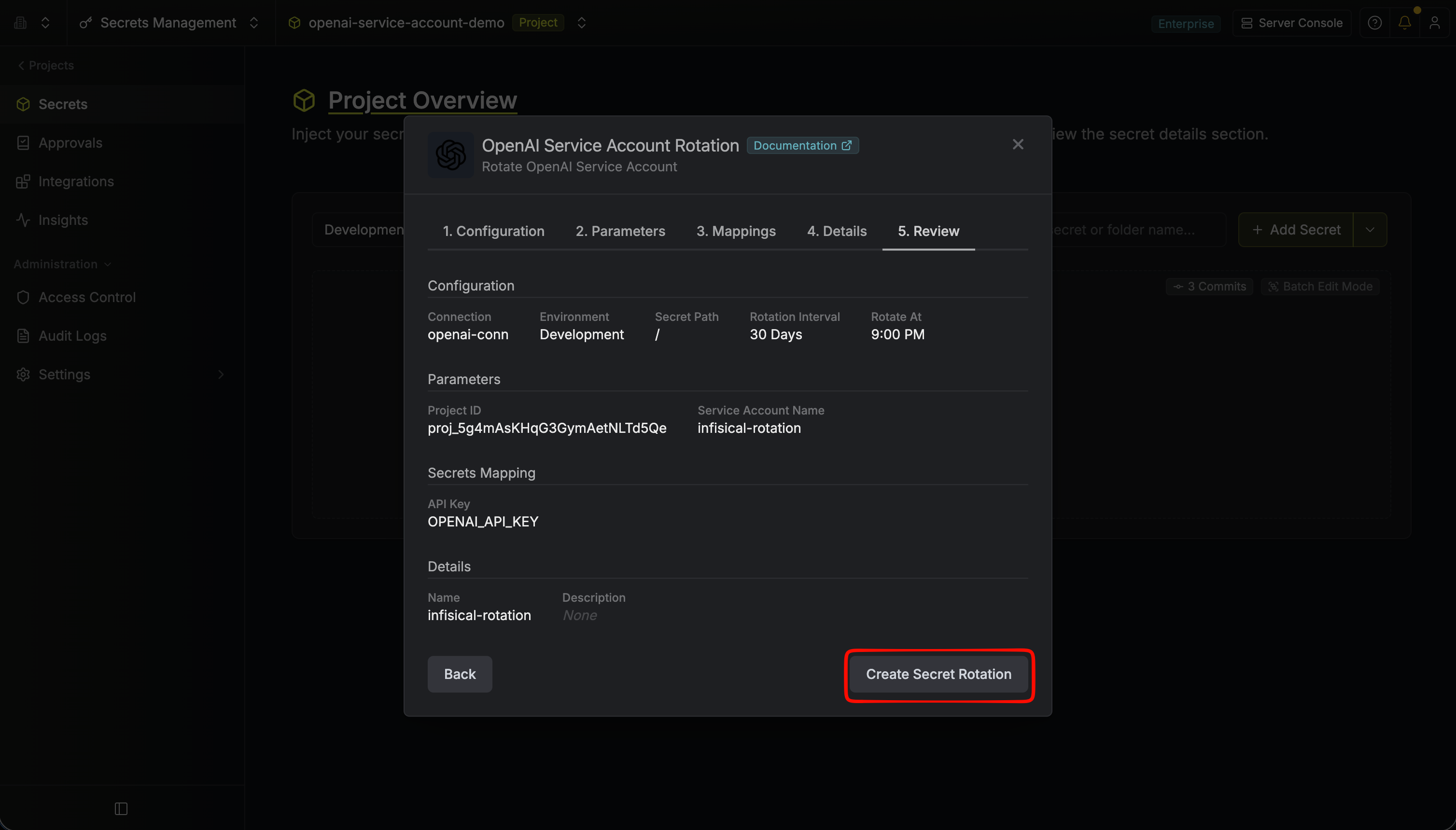 8. Your **OpenAI Service Account** rotation is created. The current service account's API key is available as a secret at the mapped path. Rotations will create a new service account, switch the active secret to its API key, then delete the previous service account for zero-downtime rotation.
 To create an OpenAI Service Account rotation, call the [Create OpenAI Service Account Rotation](/api-reference/endpoints/secret-rotations/openai-service-account/create) API endpoint.
### Sample request
```bash Request theme={"dark"}
curl --request POST \
--url https://us.infisical.com/api/v2/secret-rotations/openai-service-account \
--header 'Content-Type: application/json' \
--data '{
"name": "my-openai-rotation",
"projectId": "",
"description": "OpenAI service account rotation",
"connectionId": "",
"environment": "dev",
"secretPath": "/",
"isAutoRotationEnabled": true,
"rotationInterval": 30,
"rotateAtUtc": {
"hours": 0,
"minutes": 0
},
"parameters": {
"projectId": "proj_abc123",
"name": "my-app-service-account"
},
"secretsMapping": {
"apiKey": "OPENAI_API_KEY"
}
}'
```
### Sample response
```bash Response theme={"dark"}
{
"secretRotation": {
"id": "",
"name": "my-openai-rotation",
"description": "OpenAI service account rotation",
"secretsMapping": {
"apiKey": "OPENAI_API_KEY"
},
"isAutoRotationEnabled": true,
"activeIndex": 0,
"connectionId": "",
"rotationInterval": 30,
"rotateAtUtc": { "hours": 0, "minutes": 0 },
"type": "openai-service-account",
"parameters": {
"projectId": "proj_abc123",
"name": "my-app-service-account"
}
}
}
```
To create an OpenAI Service Account rotation, call the [Create OpenAI Service Account Rotation](/api-reference/endpoints/secret-rotations/openai-service-account/create) API endpoint.
### Sample request
```bash Request theme={"dark"}
curl --request POST \
--url https://us.infisical.com/api/v2/secret-rotations/openai-service-account \
--header 'Content-Type: application/json' \
--data '{
"name": "my-openai-rotation",
"projectId": "",
"description": "OpenAI service account rotation",
"connectionId": "",
"environment": "dev",
"secretPath": "/",
"isAutoRotationEnabled": true,
"rotationInterval": 30,
"rotateAtUtc": {
"hours": 0,
"minutes": 0
},
"parameters": {
"projectId": "proj_abc123",
"name": "my-app-service-account"
},
"secretsMapping": {
"apiKey": "OPENAI_API_KEY"
}
}'
```
### Sample response
```bash Response theme={"dark"}
{
"secretRotation": {
"id": "",
"name": "my-openai-rotation",
"description": "OpenAI service account rotation",
"secretsMapping": {
"apiKey": "OPENAI_API_KEY"
},
"isAutoRotationEnabled": true,
"activeIndex": 0,
"connectionId": "",
"rotationInterval": 30,
"rotateAtUtc": { "hours": 0, "minutes": 0 },
"type": "openai-service-account",
"parameters": {
"projectId": "proj_abc123",
"name": "my-app-service-account"
}
}
}
```