> ## Documentation Index
> Fetch the complete documentation index at: https://infisical.com/docs/llms.txt
> Use this file to discover all available pages before exploring further.
# GCP service account key
> Learn how to automatically rotate GCP service account keys.
Rotate the JSON keys of a Google Cloud service account on a schedule. On each rotation, Infisical creates a new key for the service account, stores the key file in a secret, and deletes the key it created two rotation cycles earlier.
**Rotation Type: Dual-Phase**
This rotation maintains two active credential sets with overlapping validity, ensuring zero-downtime during rotation cycles.
This rotation needs a [GCP app connection](/docs/integrations/app-connections/gcp). This guide walks you through creating a project-scoped app connection.
## Prerequisites
* A [project with secrets configured](/docs/documentation/platform/secrets-mgmt/quick-starts/deliver-first-secret)
* A [GCP service account](https://docs.cloud.google.com/iam/docs/service-accounts-create) that your applications authenticate as with a key
* A role that lets you [grant roles on that service account](https://docs.cloud.google.com/iam/docs/manage-access-service-accounts), such as **Service Account Admin**
* The `iam.disableServiceAccountKeyCreation` [organization policy](https://docs.cloud.google.com/organization-policy/restrict-service-accounts) not enforced on the service account's project (if it's enforced, nobody can create keys in that project)
## Step 1: Configure the service account for Infisical
Infisical needs a GCP connection whose service account has the **Service Account Key Admin** role on the service account you want to rotate. The role lets Infisical create and delete keys for the service account you want to rotate. Infisical manages the keys through the Identity and Access Management (IAM) API, so that API must be enabled on the project that contains the connection's service account.
If you don't have a GCP connection yet, create the connection's service account and let Infisical impersonate it, as described in [Configure service account for Infisical](/docs/integrations/app-connections/gcp#configure-service-account-for-infisical).
Enable the IAM API (`iam.googleapis.com`) on the project that contains the connection's service account. This is a different API from the IAM Service Account Credentials API that the connection setup enables. You can enable it from the Google Cloud console or with the command line, replacing `projectId` with your GCP project ID:
```bash theme={"dark"}
gcloud services enable iam.googleapis.com --project=projectId
```
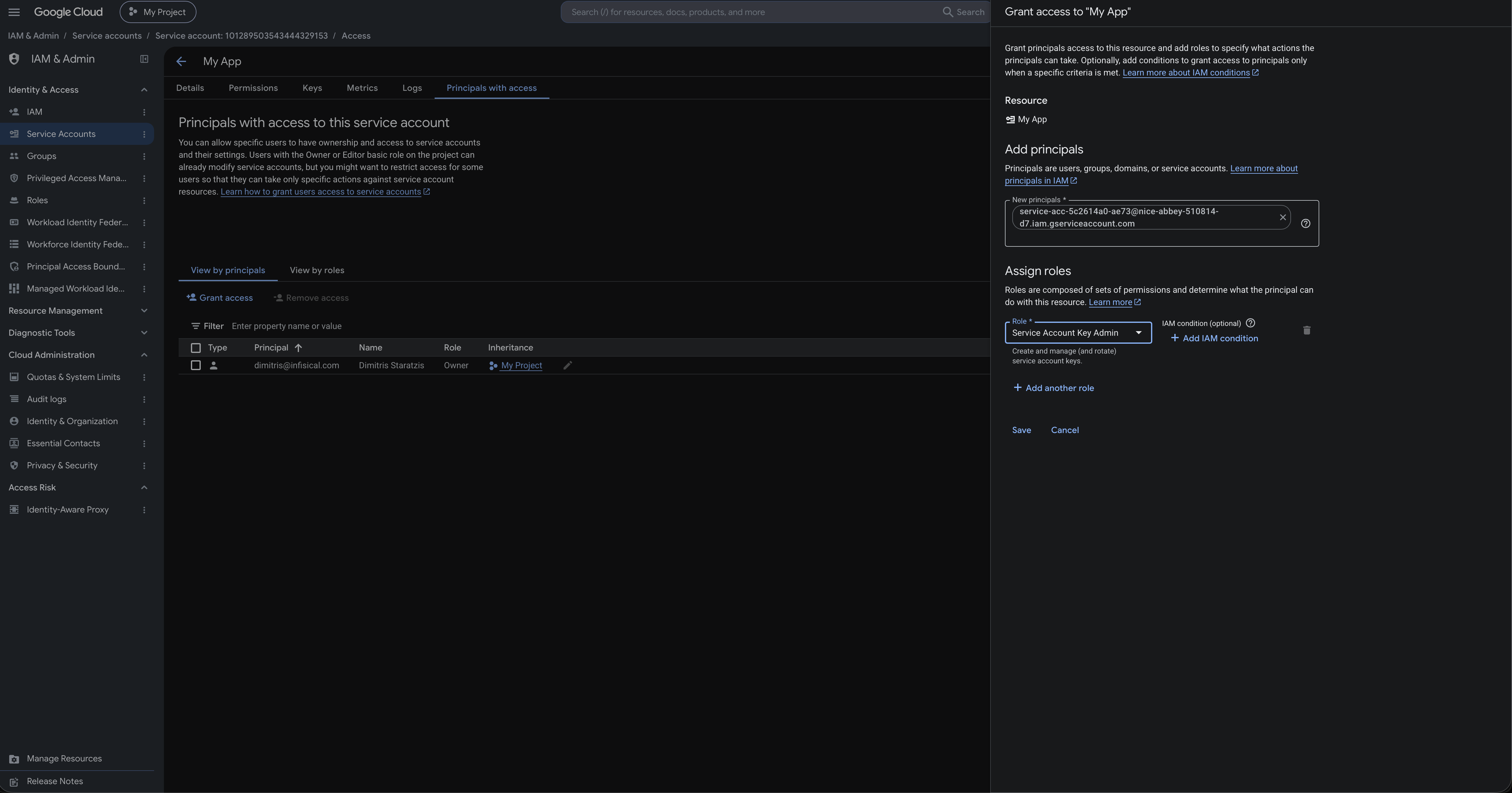
In the Google Cloud console, go to **IAM & Admin** > **Service Accounts** and select the service account you want to rotate.
Open the **Principals with access** tab and select **Grant access**.
In **New principals**, enter the email of the connection's service account. Under **Select a role**, choose **Service Account Key Admin**, then select **Save**.
 To rotate the keys of several service accounts in one project, you can grant the role once on the project's **IAM** page instead. The connection can then create keys for every service account in the project, including service accounts with broad access, so choose carefully [where the connection lives](/docs/integrations/app-connections/overview#where-a-connection-lives) and who can use it.
## Step 2: Set up the rotation in Infisical
To create the rotation using the API, use the [Create GCP Service Account Key Rotation](/docs/api-reference/endpoints/secret-rotations/gcp-service-account-key/create) endpoint.
In your Secrets Manager project, open the dashboard, select **Add New**, then select **Add Secret Rotation**.
To rotate the keys of several service accounts in one project, you can grant the role once on the project's **IAM** page instead. The connection can then create keys for every service account in the project, including service accounts with broad access, so choose carefully [where the connection lives](/docs/integrations/app-connections/overview#where-a-connection-lives) and who can use it.
## Step 2: Set up the rotation in Infisical
To create the rotation using the API, use the [Create GCP Service Account Key Rotation](/docs/api-reference/endpoints/secret-rotations/gcp-service-account-key/create) endpoint.
In your Secrets Manager project, open the dashboard, select **Add New**, then select **Add Secret Rotation**.
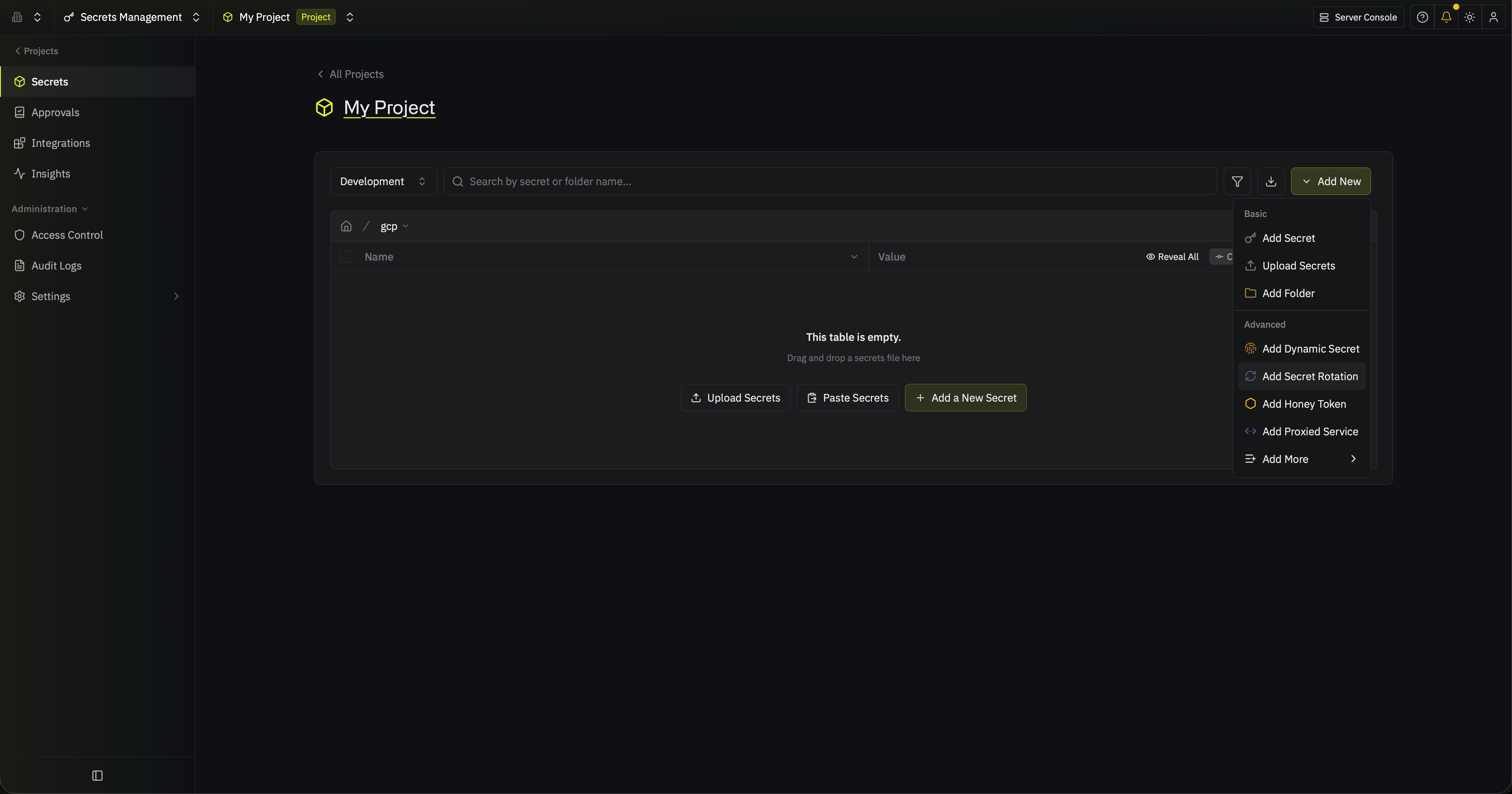 Then, select the **GCP Service Account Key** option.
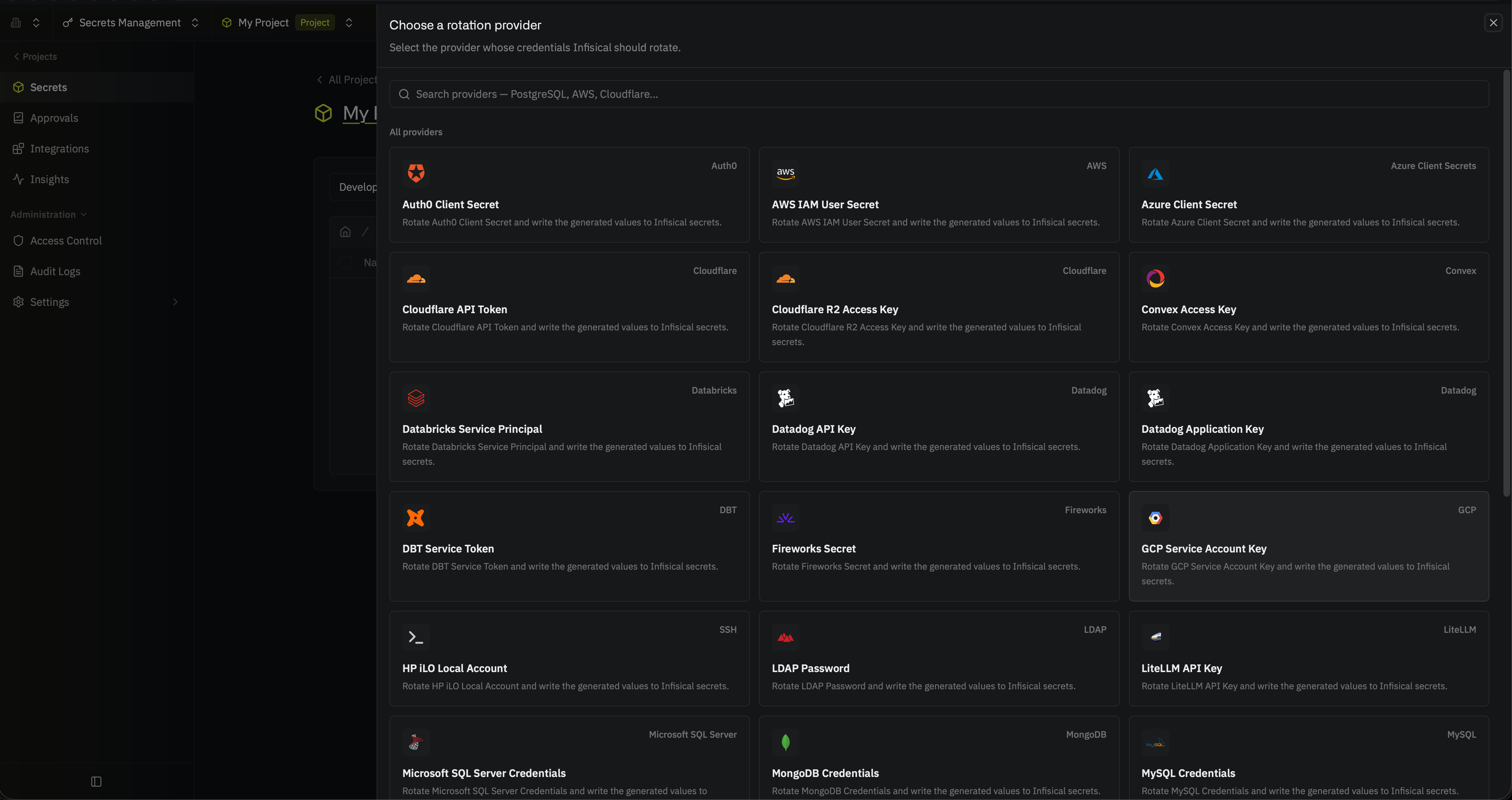 Under **Configuration**, choose the app connection and when the rotation runs:
* **Environment**: The project environment the rotated secret is stored in
* **GCP Connection**: The app connection the rotation uses
* **Rotation Interval (In Days)**: The number of days between rotations
* **Rotate At (Local Time)**: The time of day the rotation runs
* **Auto-Rotation Enabled**: When enabled, the key rotates on the schedule; turn it off to rotate manually only
Under **GCP Connection**, select **Create Connection** in the dropdown, then fill in:
* **Name**: A name for the connection
* **Description** (optional): What the connection is for
* **Method**: **Service Account Impersonation**
* **Service Account Email**: The email of the connection's service account from [Step 1](#step-1-configure-the-service-account-for-infisical)
Select **Connect to GCP**. Infisical returns you to the rotation form with the new connection selected.
This creates a connection scoped to the current project. To share the connection across other projects, [create it at the organization level](/docs/integrations/app-connections/gcp#setup-gcp-connection-in-infisical) first, then select it here.
Under **GCP Connection**, select the app connection you'd like to use.
Under **Configuration**, choose the app connection and when the rotation runs:
* **Environment**: The project environment the rotated secret is stored in
* **GCP Connection**: The app connection the rotation uses
* **Rotation Interval (In Days)**: The number of days between rotations
* **Rotate At (Local Time)**: The time of day the rotation runs
* **Auto-Rotation Enabled**: When enabled, the key rotates on the schedule; turn it off to rotate manually only
Under **GCP Connection**, select **Create Connection** in the dropdown, then fill in:
* **Name**: A name for the connection
* **Description** (optional): What the connection is for
* **Method**: **Service Account Impersonation**
* **Service Account Email**: The email of the connection's service account from [Step 1](#step-1-configure-the-service-account-for-infisical)
Select **Connect to GCP**. Infisical returns you to the rotation form with the new connection selected.
This creates a connection scoped to the current project. To share the connection across other projects, [create it at the organization level](/docs/integrations/app-connections/gcp#setup-gcp-connection-in-infisical) first, then select it here.
Under **GCP Connection**, select the app connection you'd like to use.
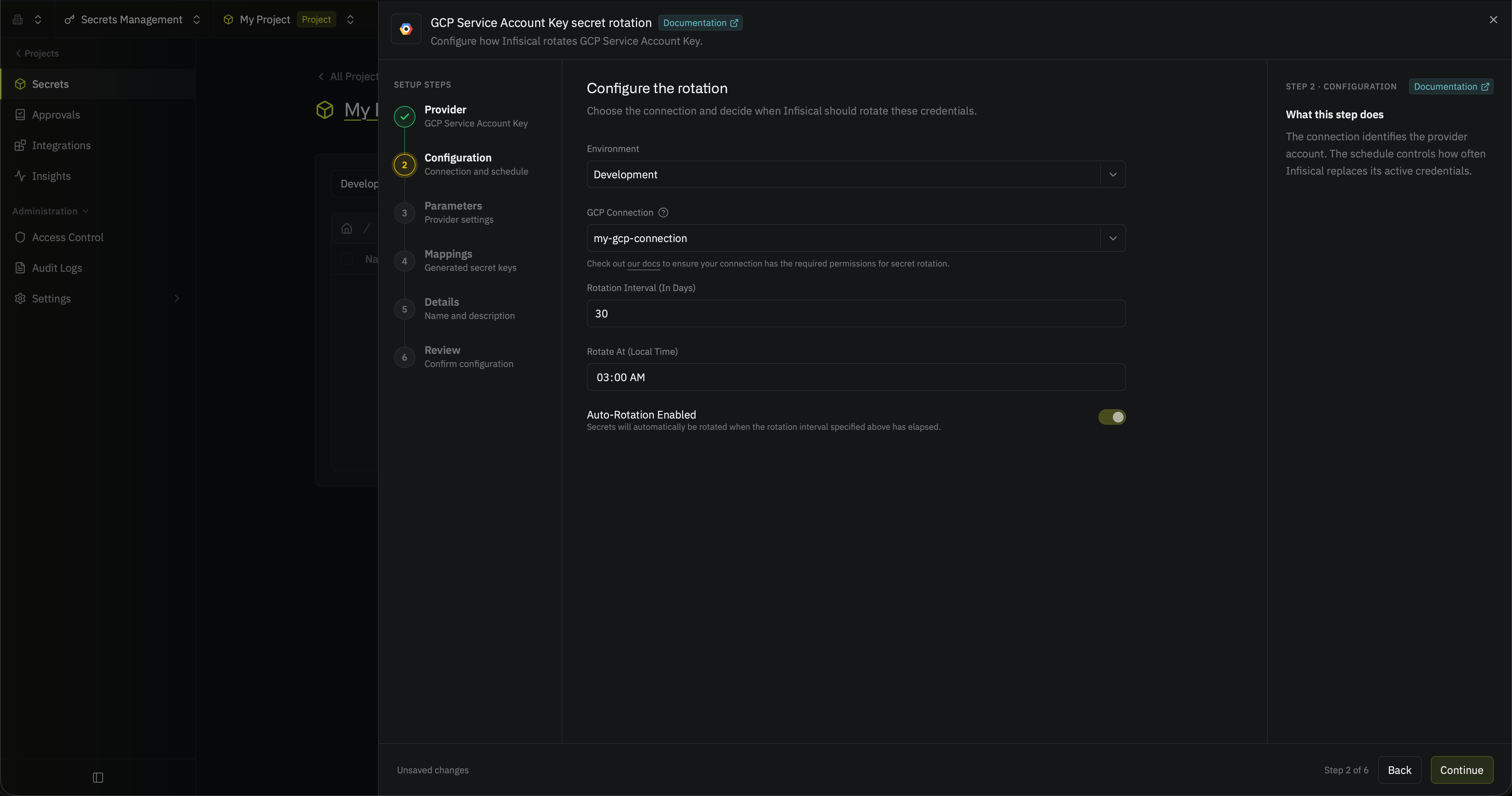 Then select **Continue**.
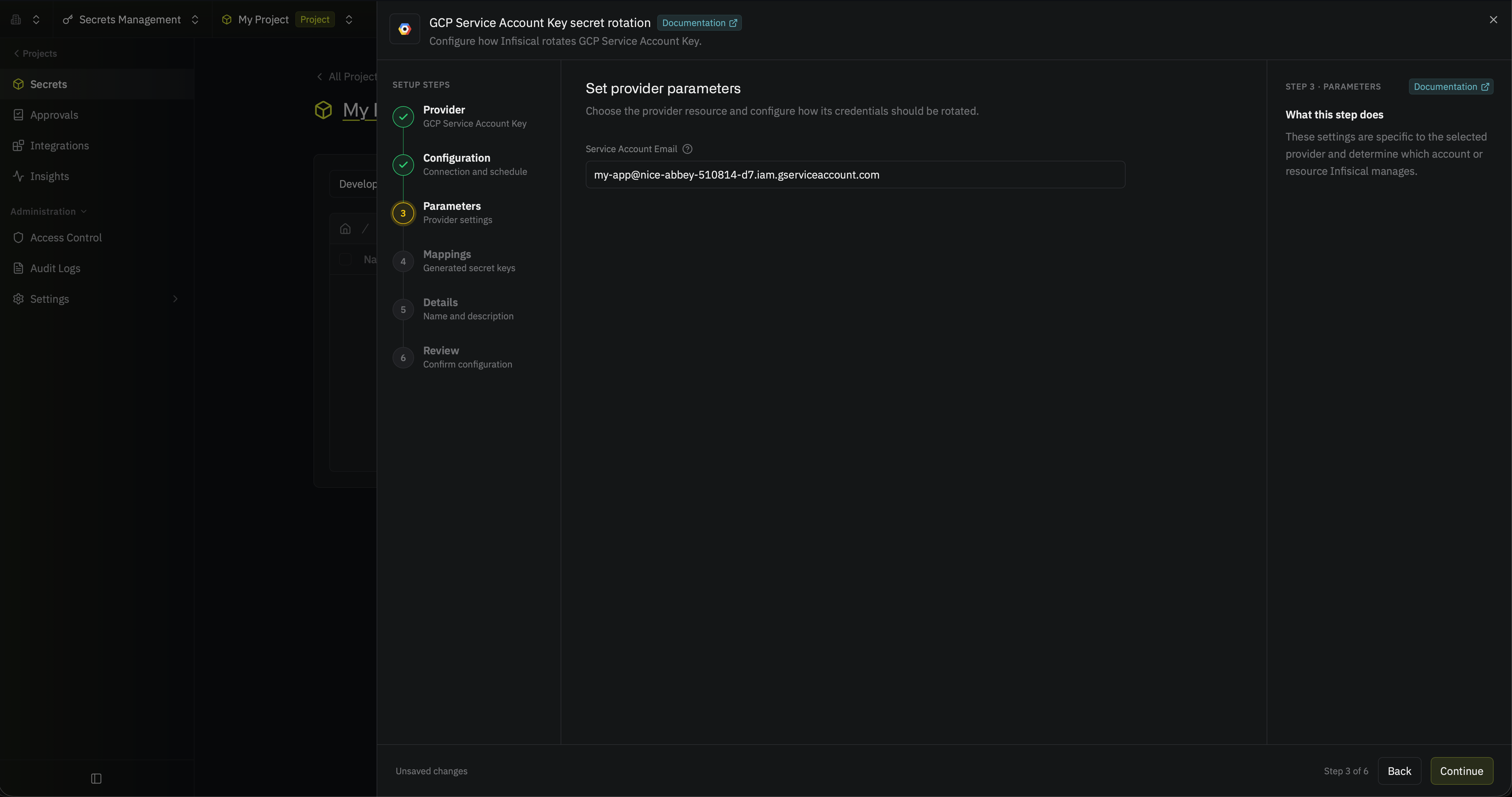
Under **Parameters**, enter the service account whose keys Infisical rotates:
* **Service Account Email**: The email of the service account you want to rotate, such as `my-app@my-project.iam.gserviceaccount.com` (you can't change it after you create the rotation)
Then select **Continue**.
Under **Parameters**, enter the service account whose keys Infisical rotates:
* **Service Account Email**: The email of the service account you want to rotate, such as `my-app@my-project.iam.gserviceaccount.com` (you can't change it after you create the rotation)
 Then select **Continue**.
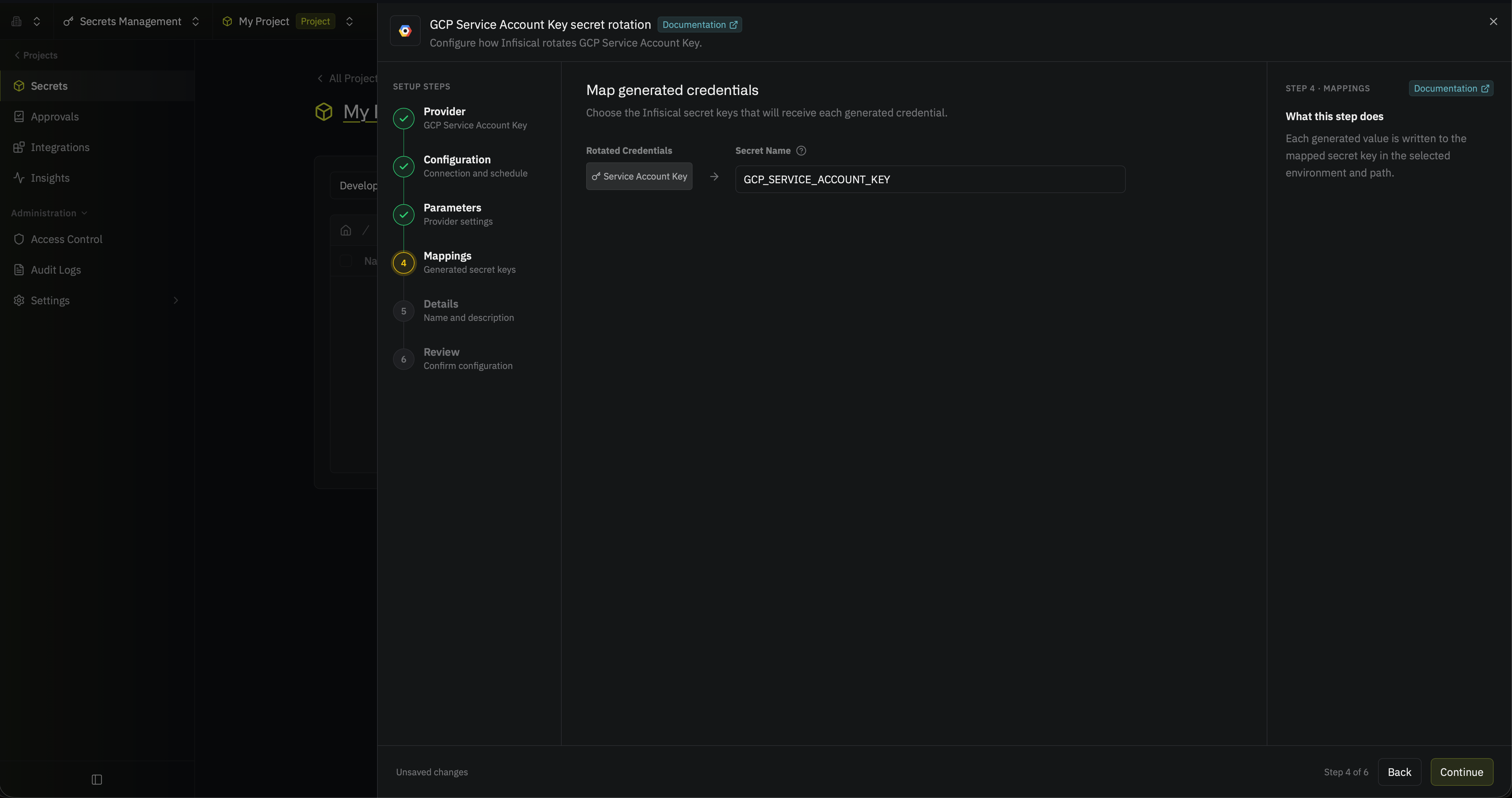
Under **Mappings**, choose the name of the Infisical secret that holds the rotated key:
* **Service Account Key**: The name of the secret that holds the JSON key file
Then select **Continue**.
Under **Mappings**, choose the name of the Infisical secret that holds the rotated key:
* **Service Account Key**: The name of the secret that holds the JSON key file
 Then select **Continue**.
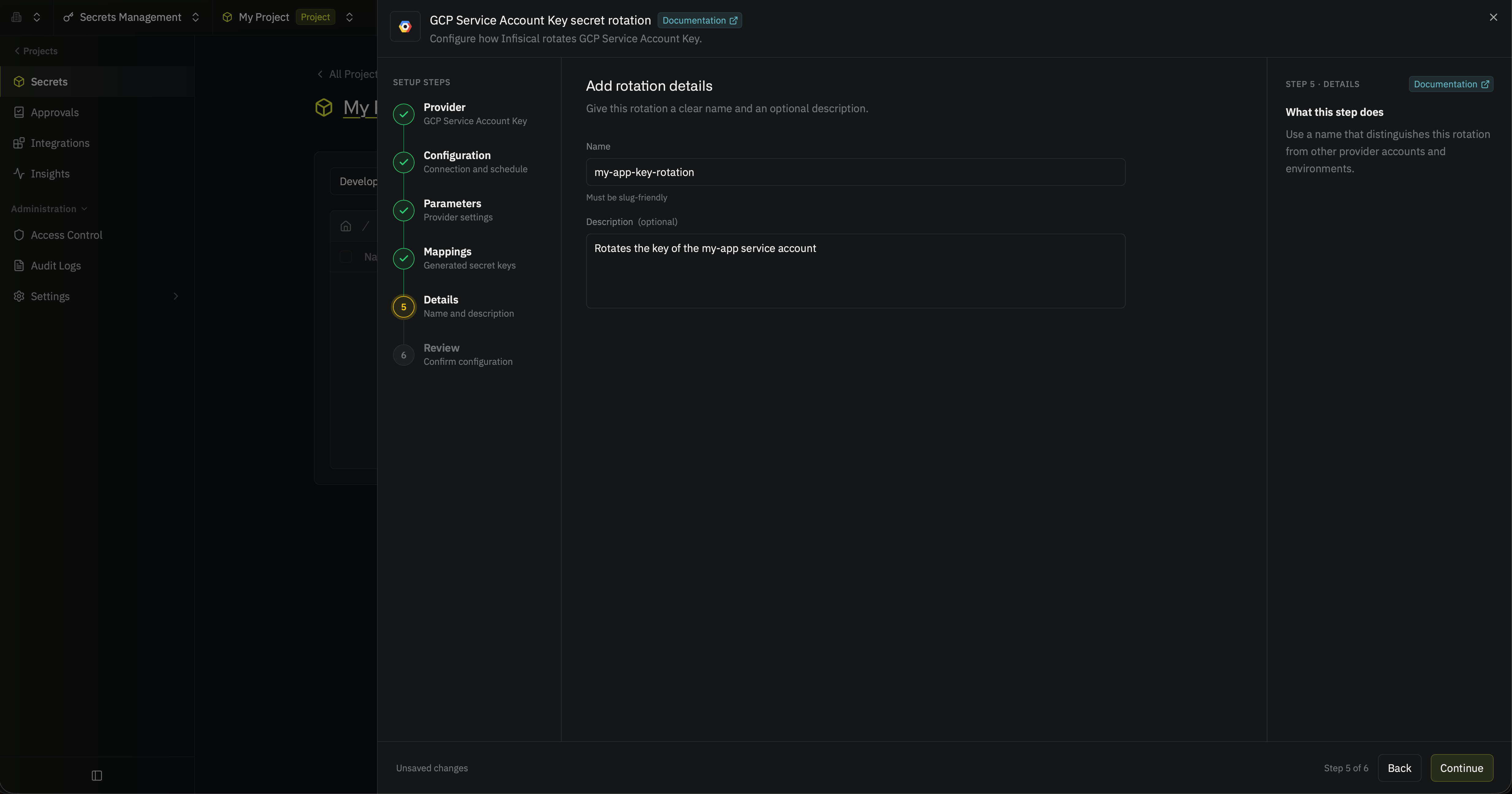
Give the rotation a **Name** and an optional **Description**. The name must be slug-friendly.
Then select **Continue**.
Give the rotation a **Name** and an optional **Description**. The name must be slug-friendly.
 Then select **Continue**.
Review your GCP Service Account Key Rotation configuration, then select **Create secret rotation**.
Then select **Continue**.
Review your GCP Service Account Key Rotation configuration, then select **Create secret rotation**.
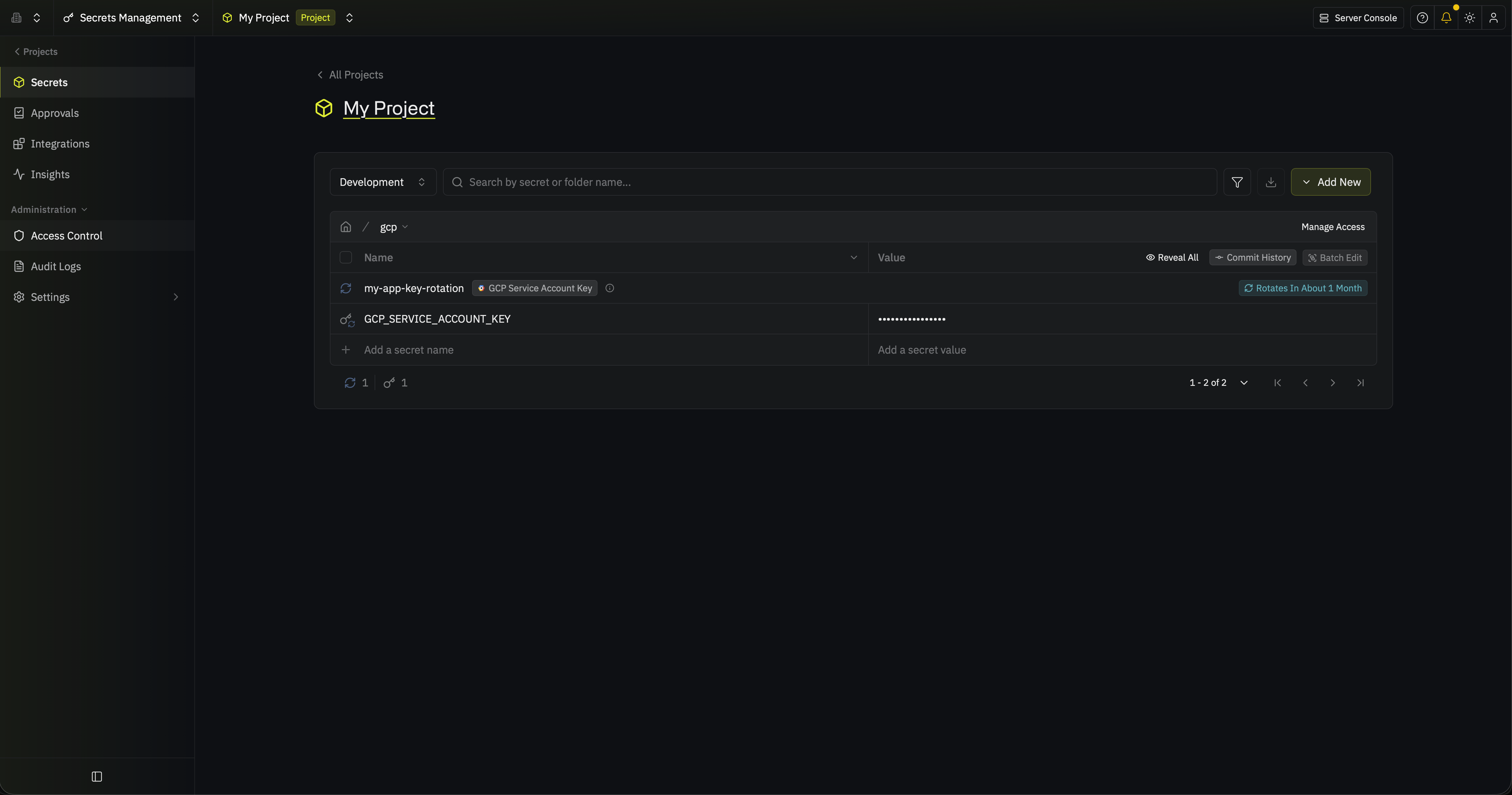
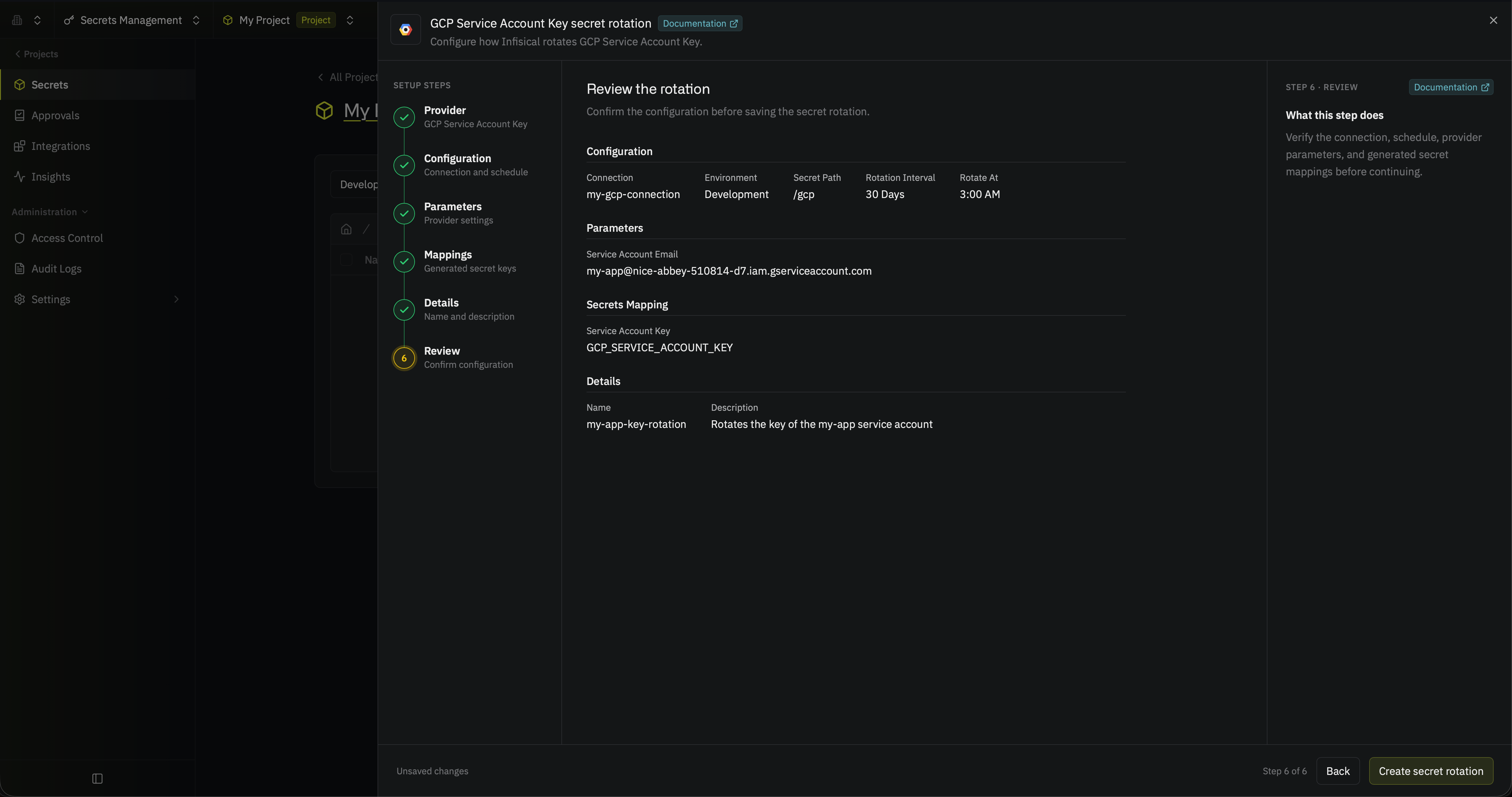 The JSON key file is now available through the mapped secret. If auto-rotation is enabled, the key rotates on your configured schedule.
 ## Frequently asked questions
The secret holds the contents of a JSON key file. Google Cloud client libraries read the key from a file whose path is in the `GOOGLE_APPLICATION_CREDENTIALS` environment variable, so write the secret's value to a file and set the variable to that file's path. Some client libraries can also take the JSON contents directly.
Infisical keeps two keys: the current key, which the secret holds, and the previous key, which keeps working until the next rotation deletes it. During a rotation, Infisical creates the new key before it deletes the previous key, so the service account needs room for a third key under GCP's limit of 10 keys per service account.
Infisical doesn't change or delete keys that it didn't create. After your applications read the key from Infisical, delete any keys you created by hand so they stop working.
Yes, for a short time. GCP usually accepts a new key within seconds, but Google documents that it can take a minute or more. Infisical updates the secret as soon as GCP creates the key, so an application that reads the secret right after a rotation can briefly fail to authenticate.
The previous key keeps working until the next rotation, so applications that still hold it aren't affected. If your application reads the secret right after it changes, retry authentication for a short time.
Yes. If your Google Cloud organization enforces the `iam.serviceAccountKeyExpiryHours` policy, every key expires after the policy's duration, including the keys Infisical creates. Each key stays valid for two rotation intervals (first as the current key, then as the previous key), so set the rotation interval to at most half of the expiry. For example, with a 90-day expiry, rotate every 45 days or less.
## Next steps
Set up the GCP connection that Infisical uses to manage service account keys.
Learn how dual-phase and single-phase rotations work.
This documentation is built and hosted on [Mintlify](https://mintlify.com), a developer documentation platform.
## Frequently asked questions
The secret holds the contents of a JSON key file. Google Cloud client libraries read the key from a file whose path is in the `GOOGLE_APPLICATION_CREDENTIALS` environment variable, so write the secret's value to a file and set the variable to that file's path. Some client libraries can also take the JSON contents directly.
Infisical keeps two keys: the current key, which the secret holds, and the previous key, which keeps working until the next rotation deletes it. During a rotation, Infisical creates the new key before it deletes the previous key, so the service account needs room for a third key under GCP's limit of 10 keys per service account.
Infisical doesn't change or delete keys that it didn't create. After your applications read the key from Infisical, delete any keys you created by hand so they stop working.
Yes, for a short time. GCP usually accepts a new key within seconds, but Google documents that it can take a minute or more. Infisical updates the secret as soon as GCP creates the key, so an application that reads the secret right after a rotation can briefly fail to authenticate.
The previous key keeps working until the next rotation, so applications that still hold it aren't affected. If your application reads the secret right after it changes, retry authentication for a short time.
Yes. If your Google Cloud organization enforces the `iam.serviceAccountKeyExpiryHours` policy, every key expires after the policy's duration, including the keys Infisical creates. Each key stays valid for two rotation intervals (first as the current key, then as the previous key), so set the rotation interval to at most half of the expiry. For example, with a 90-day expiry, rotate every 45 days or less.
## Next steps
Set up the GCP connection that Infisical uses to manage service account keys.
Learn how dual-phase and single-phase rotations work.
This documentation is built and hosted on [Mintlify](https://mintlify.com), a developer documentation platform.