> ## Documentation Index
> Fetch the complete documentation index at: https://infisical.com/docs/llms.txt
> Use this file to discover all available pages before exploring further.
# Cloudflare R2 Access Key
> Learn how to automatically rotate Cloudflare R2 access keys.
**Rotation Type: Dual-Phase**
This rotation maintains two active credential sets with overlapping validity, ensuring zero-downtime during rotation cycles.
An R2 access key is a Cloudflare API token viewed through R2's S3-compatible API: the **Access Key ID** is the token's ID, and the **Secret Access Key** is the SHA-256 hash of the token's value. This rotation creates that token scoped to the buckets you select, then hands you both values as secrets.
## Prerequisites
* Create a [Cloudflare Connection](/docs/integrations/app-connections/cloudflare). That connection is used to create and delete API tokens on your behalf during rotation.
* The connection's API token must include:
* **Account** - **API Tokens** - **Edit**, to create and revoke the generated tokens.
* **Account** - **Workers R2 Storage** - **Read**, so Infisical can list your buckets for the bucket picker.
* **Account** - **Account Settings** - **Read**, so Infisical can validate the connection.
See the **Secret Rotation** tab under [Configure API Token and Account ID for Infisical](/docs/integrations/app-connections/cloudflare#configure-api-token-and-account-id-for-infisical) for the exact configuration.
## Create a Cloudflare R2 Access Key Rotation in Infisical
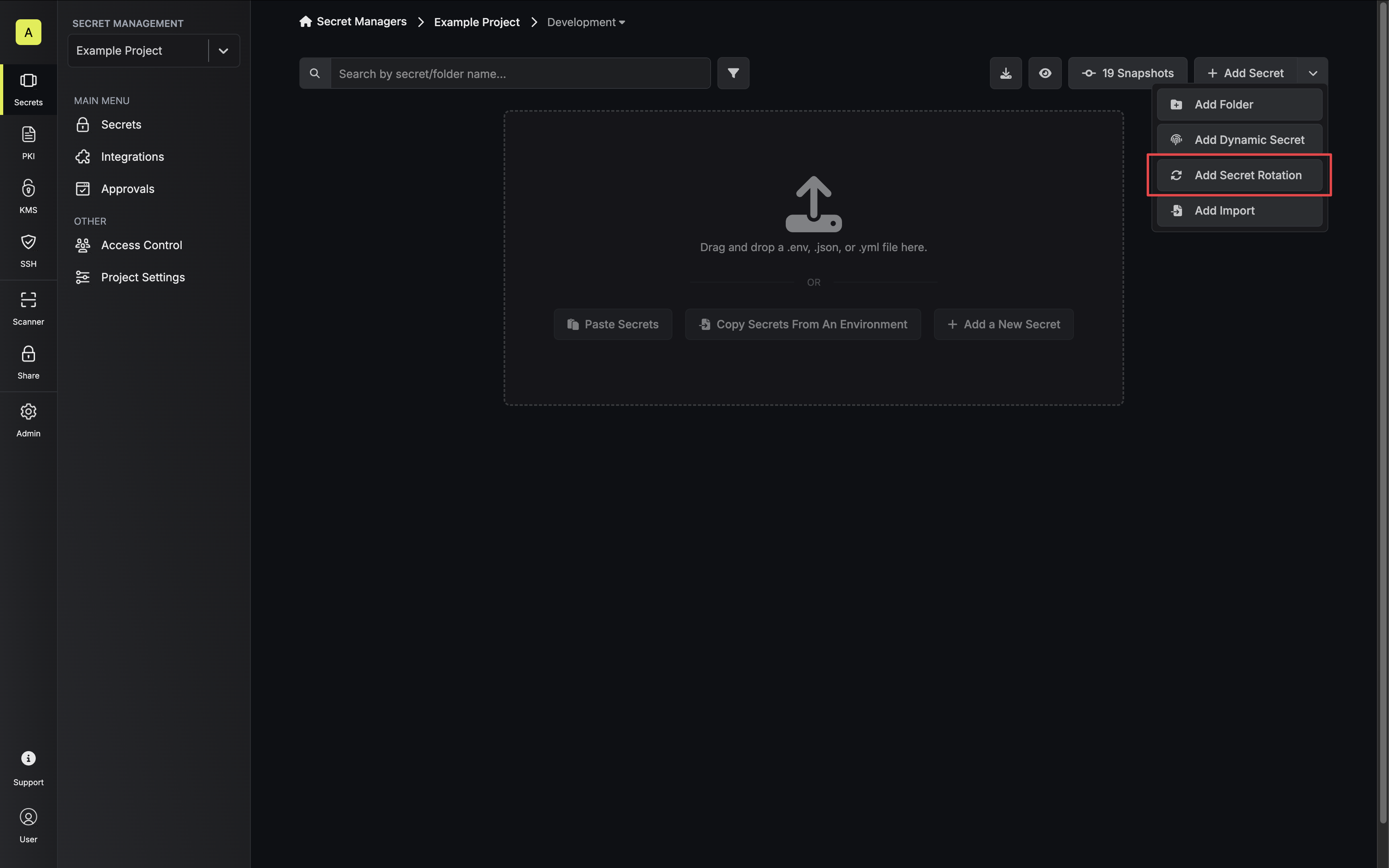
1. Navigate to your Secret Manager Project's Dashboard and select **Add Secret Rotation** from the actions dropdown.
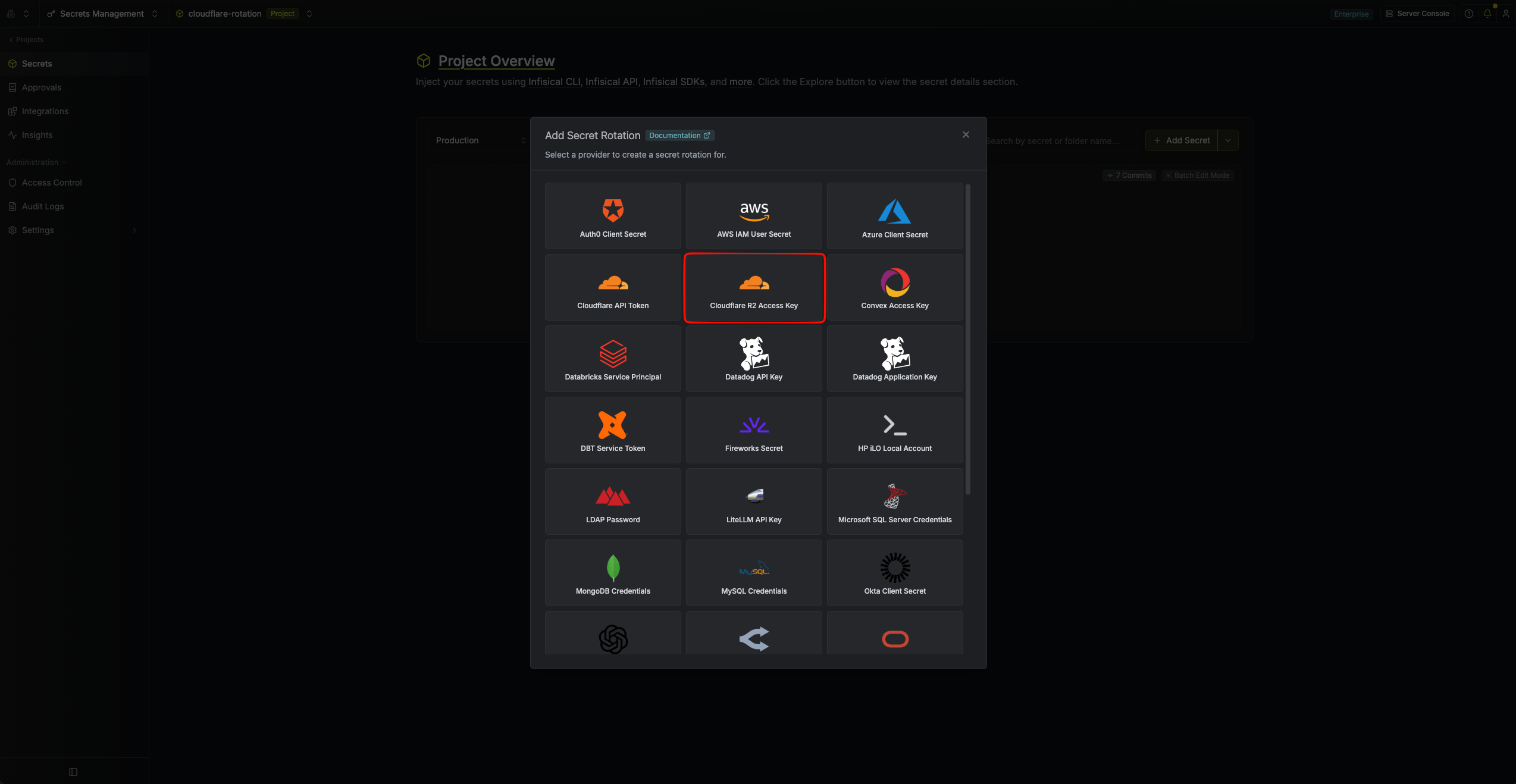
 2. Select the **Cloudflare R2 Access Key** option.
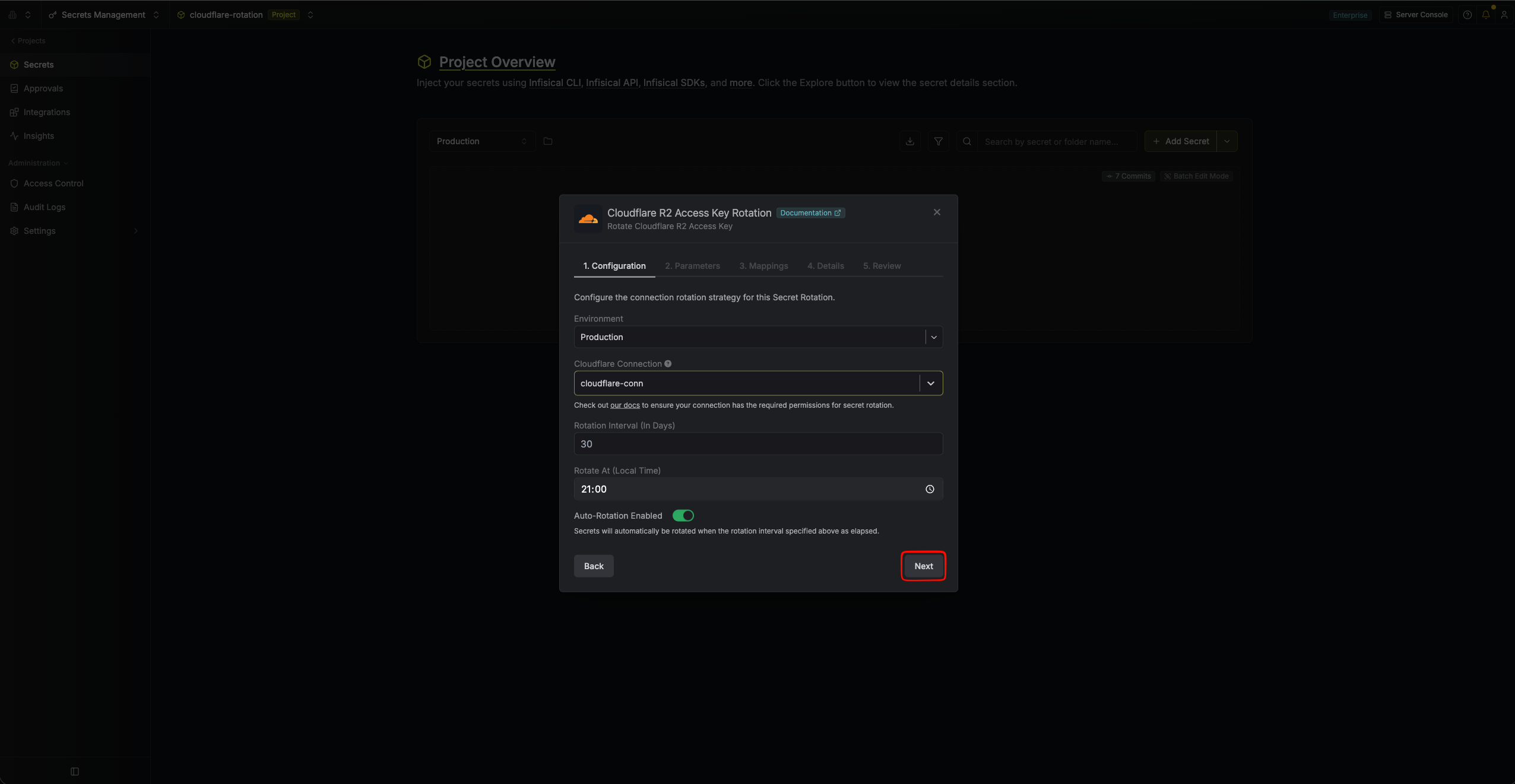
 3. Configure the rotation behavior, then click **Next**.
* **Cloudflare Connection** - The connection that will create and delete access keys during rotation.
* **Rotation Interval** - The interval, in days, after which a rotation is triggered.
* **Rotate At** - The local time of day when rotation runs once the interval has elapsed.
* **Auto-Rotation Enabled** - Whether to rotate automatically on the interval. Turn off to rotate only manually or pause rotation.
3. Configure the rotation behavior, then click **Next**.
* **Cloudflare Connection** - The connection that will create and delete access keys during rotation.
* **Rotation Interval** - The interval, in days, after which a rotation is triggered.
* **Rotate At** - The local time of day when rotation runs once the interval has elapsed.
* **Auto-Rotation Enabled** - Whether to rotate automatically on the interval. Turn off to rotate only manually or pause rotation.
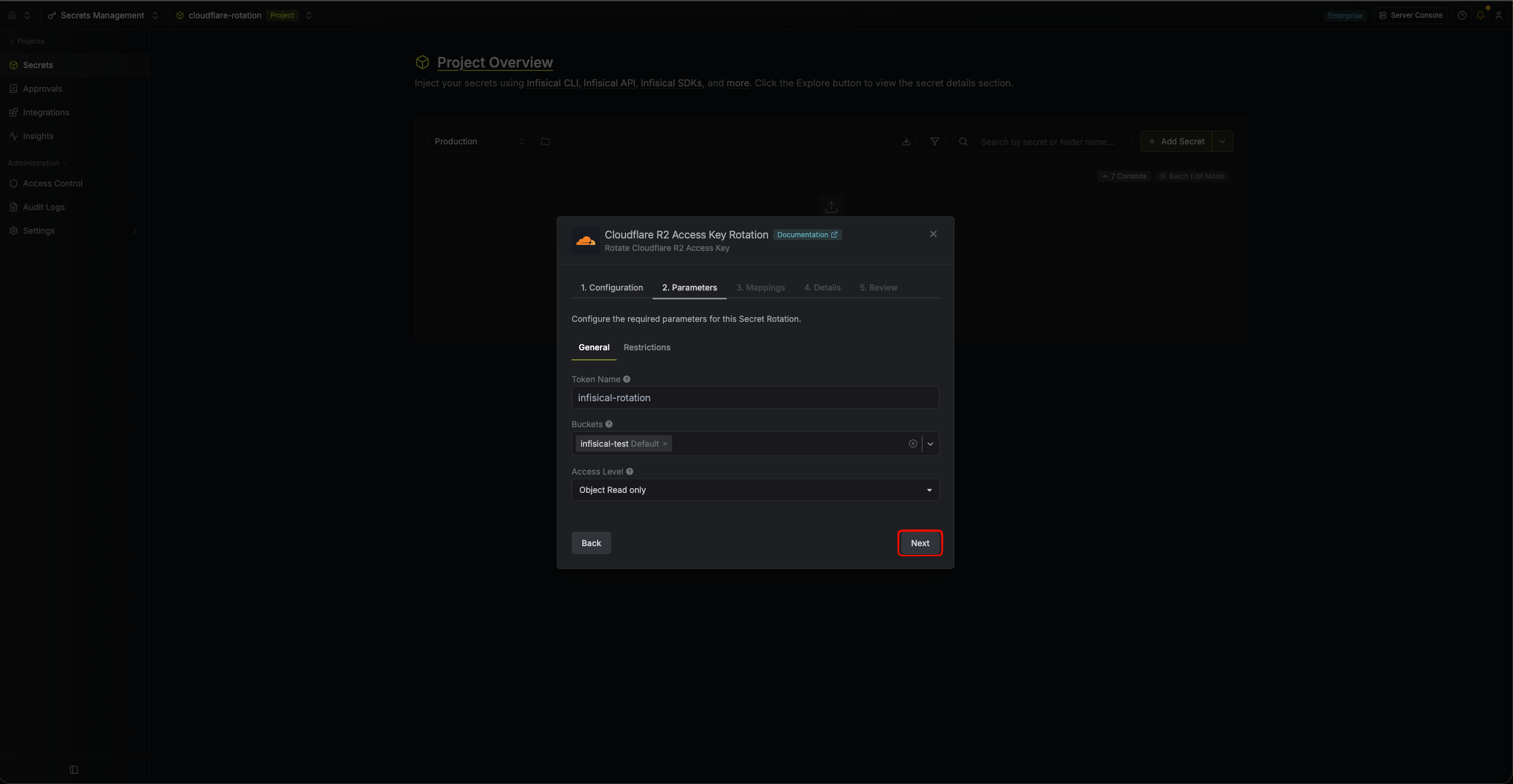
 4. Set the R2 access key parameters, then click **Next**.
The **General** tab defines the key Infisical generates:
* **Token Name** - The name for the generated Cloudflare API token, up to 100 characters. A timestamp is appended to each generated token so every rotation produces a distinct name in Cloudflare.
* **Buckets** - The R2 buckets the generated key can act on. The list is fetched through your Cloudflare Connection and covers every jurisdiction your account has enabled; buckets outside the `default` jurisdiction are labelled with theirs.
* **Access Level** - What the generated key can do on the selected buckets:
* `Object Read only` - Read and list objects.
* `Object Read & Write` - Read, list, write, and delete objects.
4. Set the R2 access key parameters, then click **Next**.
The **General** tab defines the key Infisical generates:
* **Token Name** - The name for the generated Cloudflare API token, up to 100 characters. A timestamp is appended to each generated token so every rotation produces a distinct name in Cloudflare.
* **Buckets** - The R2 buckets the generated key can act on. The list is fetched through your Cloudflare Connection and covers every jurisdiction your account has enabled; buckets outside the `default` jurisdiction are labelled with theirs.
* **Access Level** - What the generated key can do on the selected buckets:
* `Object Read only` - Read and list objects.
* `Object Read & Write` - Read, list, write, and delete objects.
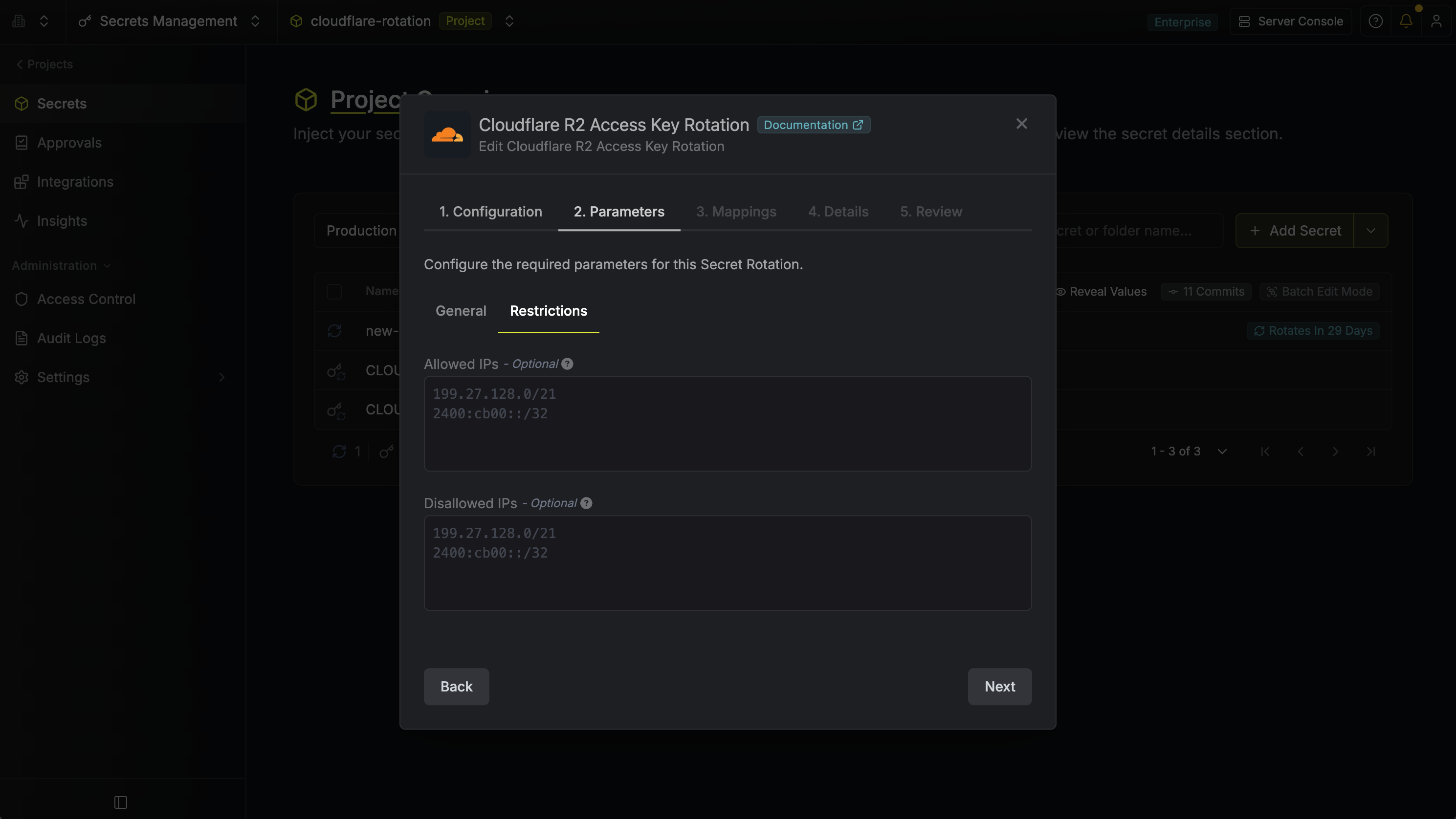
 The **Restrictions** tab optionally limits where the generated key can be used:
* **Allowed IPs** (optional) - The generated key can only be used from these IP addresses or CIDR blocks, one entry per line. Leave empty to allow any IP.
* **Disallowed IPs** (optional) - The generated key cannot be used from these IP addresses or CIDR blocks, one entry per line.
The **Restrictions** tab optionally limits where the generated key can be used:
* **Allowed IPs** (optional) - The generated key can only be used from these IP addresses or CIDR blocks, one entry per line. Leave empty to allow any IP.
* **Disallowed IPs** (optional) - The generated key cannot be used from these IP addresses or CIDR blocks, one entry per line.
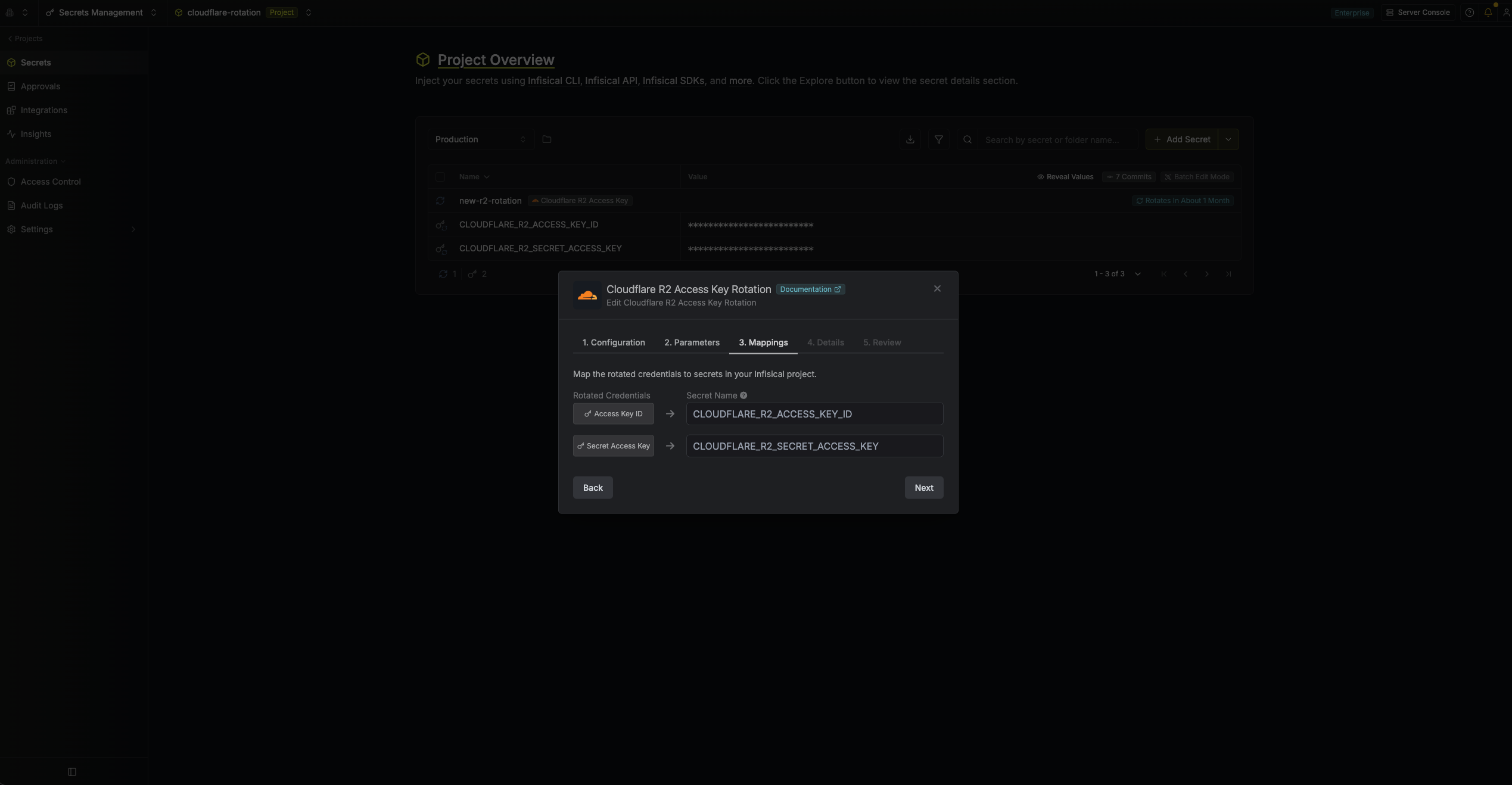
 5. Specify the secret names that the rotated credentials will be mapped to. Then click **Next**.
* **Access Key ID** - The name of the secret in Infisical where the generated access key ID will be stored.
* **Secret Access Key** - The name of the secret in Infisical where the generated secret access key will be stored.
5. Specify the secret names that the rotated credentials will be mapped to. Then click **Next**.
* **Access Key ID** - The name of the secret in Infisical where the generated access key ID will be stored.
* **Secret Access Key** - The name of the secret in Infisical where the generated secret access key will be stored.
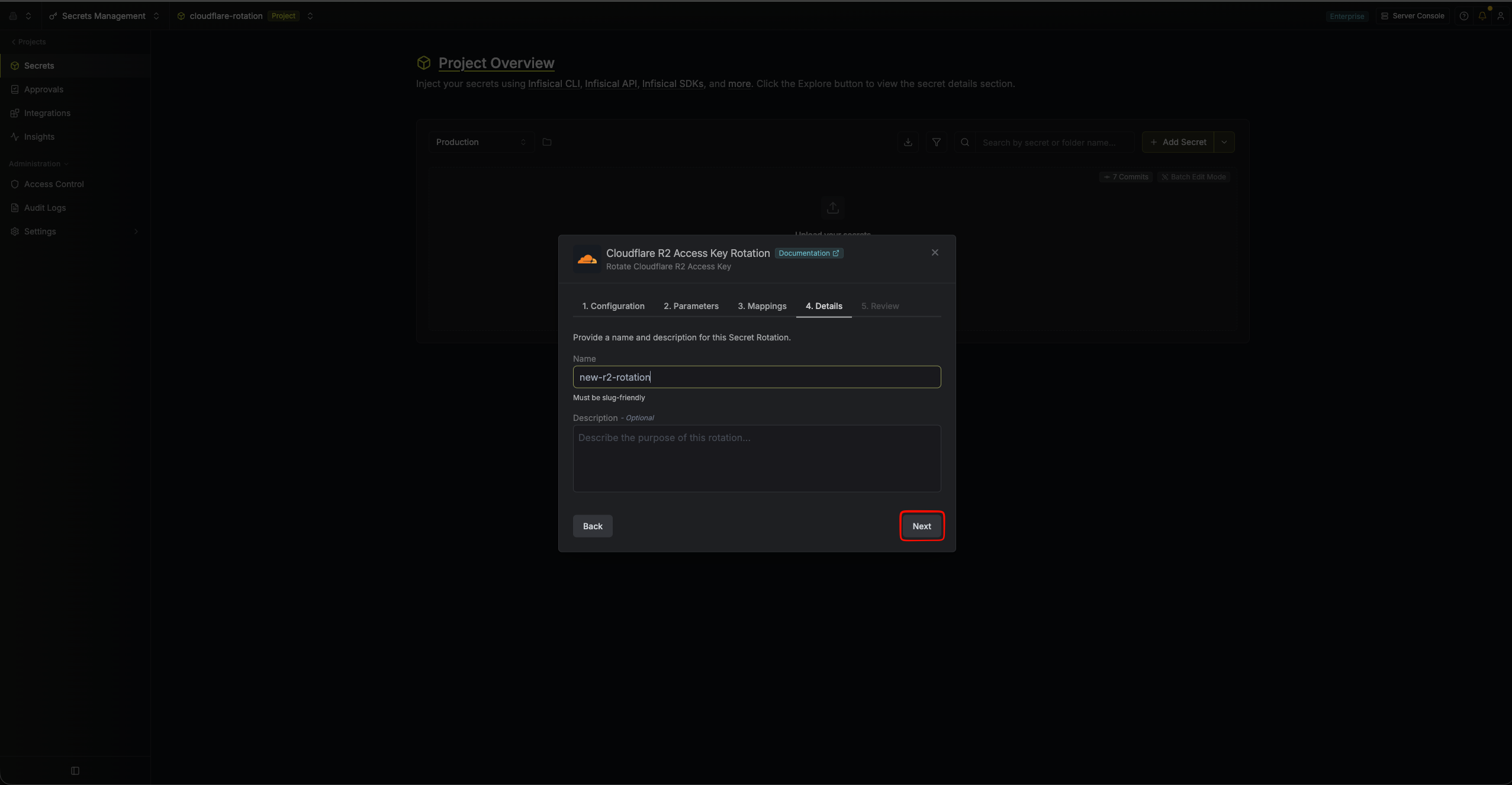
 6. Give your rotation a name and description (optional). Then click **Next**.
* **Name** - A slug-friendly name for this rotation configuration.
* **Description** (optional) - Notes about this rotation.
6. Give your rotation a name and description (optional). Then click **Next**.
* **Name** - A slug-friendly name for this rotation configuration.
* **Description** (optional) - Notes about this rotation.
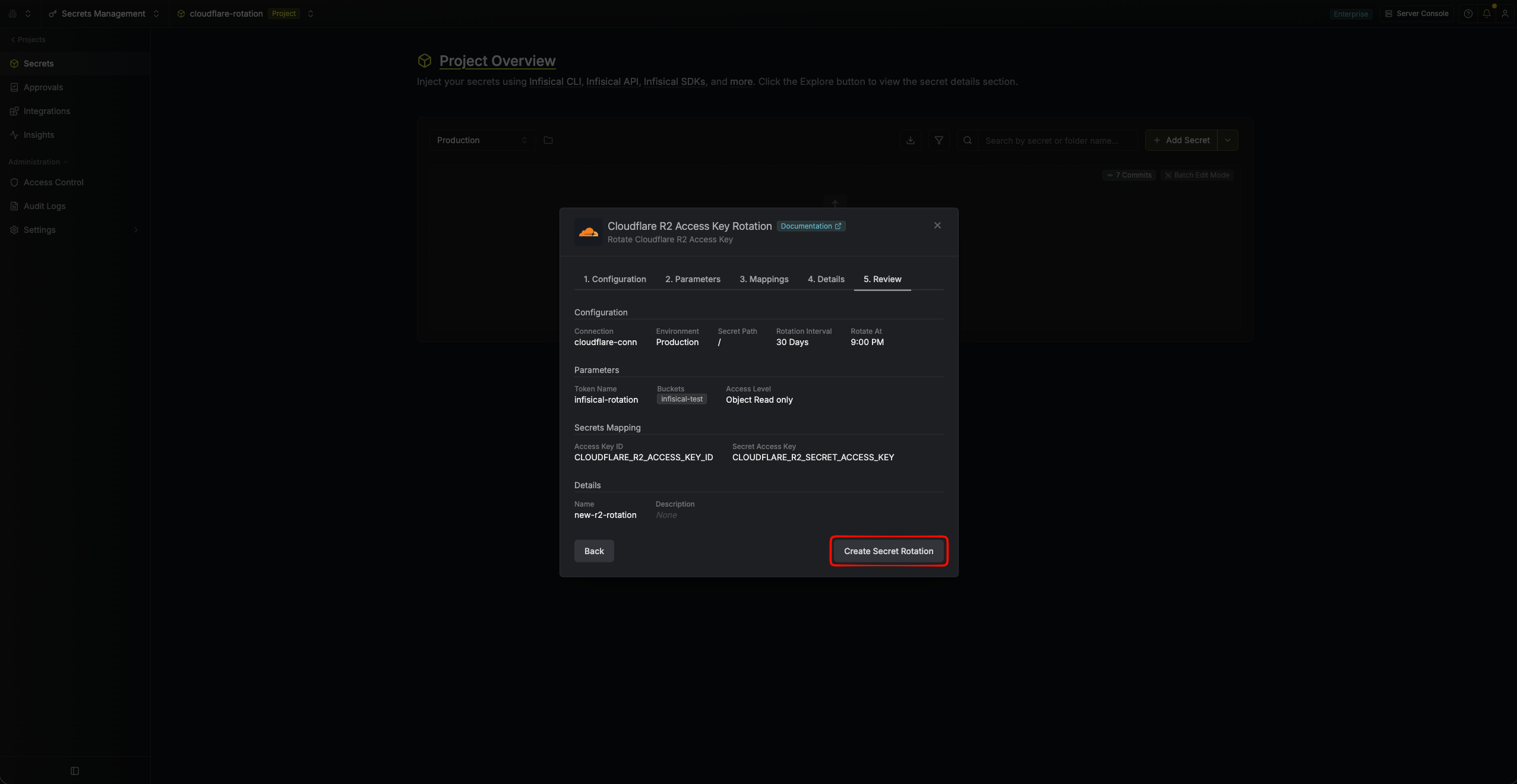
 7. Review your configuration, then click **Create Secret Rotation**.
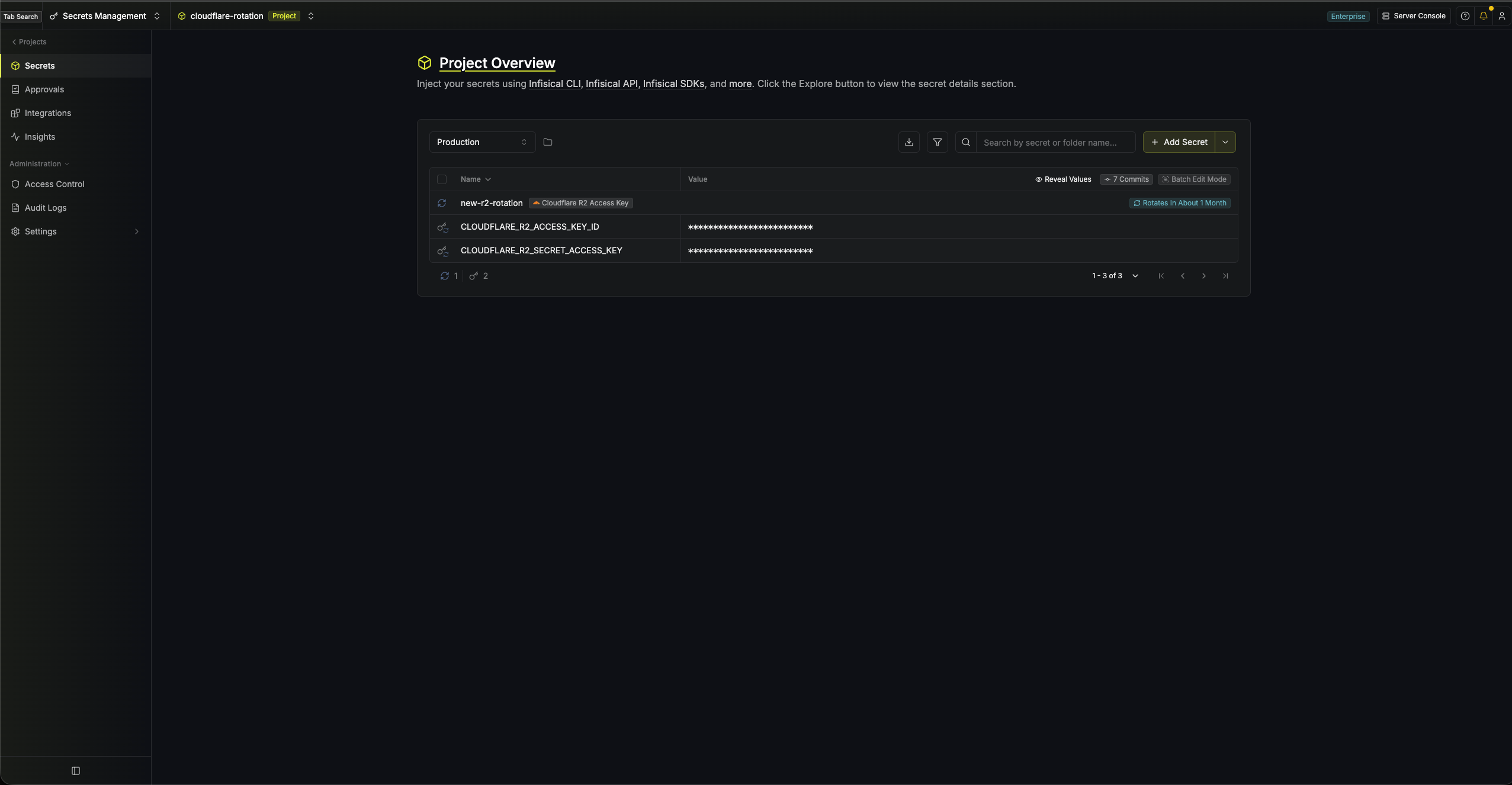
 8. Your **Cloudflare R2 Access Key** rotation is created. Rotations will create a new key, switch the active secrets to it, then revoke the previous key for zero-downtime rotation.
 Infisical sets an expiration on every token it generates, calculated as twice the rotation interval plus one day, with a minimum of 7 days. This guarantees a key can never expire while it is still the active or previous credential.
To create a Cloudflare R2 Access Key rotation, call the [Create Cloudflare R2 Access Key Rotation](/docs/api-reference/endpoints/secret-rotations/cloudflare-r2-access-key/create) API endpoint.
### Sample request
```bash Request theme={"dark"}
curl --request POST \
--url https://us.infisical.com/api/v2/secret-rotations/cloudflare-r2-access-key \
--header 'Content-Type: application/json' \
--data '{
"name": "my-r2-access-key-rotation",
"projectId": "",
"description": "Cloudflare R2 access key rotation",
"connectionId": "",
"environment": "dev",
"secretPath": "/",
"isAutoRotationEnabled": true,
"rotationInterval": 30,
"rotateAtUtc": {
"hours": 0,
"minutes": 0
},
"parameters": {
"name": "infisical-r2-access-key",
"buckets": [
{ "name": "my-bucket", "jurisdiction": "default" }
],
"accessLevel": "object-read",
"allowedIps": ["203.0.113.0/24"]
},
"secretsMapping": {
"accessKeyId": "CLOUDFLARE_R2_ACCESS_KEY_ID",
"secretAccessKey": "CLOUDFLARE_R2_SECRET_ACCESS_KEY"
}
}'
```
### Sample response
```bash Response theme={"dark"}
{
"secretRotation": {
"id": "",
"name": "my-r2-access-key-rotation",
"description": "Cloudflare R2 access key rotation",
"secretsMapping": {
"accessKeyId": "CLOUDFLARE_R2_ACCESS_KEY_ID",
"secretAccessKey": "CLOUDFLARE_R2_SECRET_ACCESS_KEY"
},
"isAutoRotationEnabled": true,
"activeIndex": 0,
"connectionId": "",
"rotationInterval": 30,
"rotateAtUtc": { "hours": 0, "minutes": 0 },
"type": "cloudflare-r2-access-key",
"parameters": {
"name": "infisical-r2-access-key",
"buckets": [
{ "name": "my-bucket", "jurisdiction": "default" }
],
"accessLevel": "object-read",
"allowedIps": ["203.0.113.0/24"]
}
}
}
```
**Buckets are granted by name.** The token's policy references each bucket by its name and jurisdiction, so renaming or recreating a bucket in Cloudflare breaks the grant. Cloudflare does not reject unknown bucket names, so a stale name produces a key that silently grants nothing on it. Update the rotation's parameters after renaming a bucket.
**Parameter changes apply on the next rotation.** Editing the buckets or access level does not re-scope the key that is currently active; the change takes effect when the next key is generated. Trigger a manual rotation if you need it applied immediately.
Infisical sets an expiration on every token it generates, calculated as twice the rotation interval plus one day, with a minimum of 7 days. This guarantees a key can never expire while it is still the active or previous credential.
To create a Cloudflare R2 Access Key rotation, call the [Create Cloudflare R2 Access Key Rotation](/docs/api-reference/endpoints/secret-rotations/cloudflare-r2-access-key/create) API endpoint.
### Sample request
```bash Request theme={"dark"}
curl --request POST \
--url https://us.infisical.com/api/v2/secret-rotations/cloudflare-r2-access-key \
--header 'Content-Type: application/json' \
--data '{
"name": "my-r2-access-key-rotation",
"projectId": "",
"description": "Cloudflare R2 access key rotation",
"connectionId": "",
"environment": "dev",
"secretPath": "/",
"isAutoRotationEnabled": true,
"rotationInterval": 30,
"rotateAtUtc": {
"hours": 0,
"minutes": 0
},
"parameters": {
"name": "infisical-r2-access-key",
"buckets": [
{ "name": "my-bucket", "jurisdiction": "default" }
],
"accessLevel": "object-read",
"allowedIps": ["203.0.113.0/24"]
},
"secretsMapping": {
"accessKeyId": "CLOUDFLARE_R2_ACCESS_KEY_ID",
"secretAccessKey": "CLOUDFLARE_R2_SECRET_ACCESS_KEY"
}
}'
```
### Sample response
```bash Response theme={"dark"}
{
"secretRotation": {
"id": "",
"name": "my-r2-access-key-rotation",
"description": "Cloudflare R2 access key rotation",
"secretsMapping": {
"accessKeyId": "CLOUDFLARE_R2_ACCESS_KEY_ID",
"secretAccessKey": "CLOUDFLARE_R2_SECRET_ACCESS_KEY"
},
"isAutoRotationEnabled": true,
"activeIndex": 0,
"connectionId": "",
"rotationInterval": 30,
"rotateAtUtc": { "hours": 0, "minutes": 0 },
"type": "cloudflare-r2-access-key",
"parameters": {
"name": "infisical-r2-access-key",
"buckets": [
{ "name": "my-bucket", "jurisdiction": "default" }
],
"accessLevel": "object-read",
"allowedIps": ["203.0.113.0/24"]
}
}
}
```
**Buckets are granted by name.** The token's policy references each bucket by its name and jurisdiction, so renaming or recreating a bucket in Cloudflare breaks the grant. Cloudflare does not reject unknown bucket names, so a stale name produces a key that silently grants nothing on it. Update the rotation's parameters after renaming a bucket.
**Parameter changes apply on the next rotation.** Editing the buckets or access level does not re-scope the key that is currently active; the change takes effect when the next key is generated. Trigger a manual rotation if you need it applied immediately.