> ## Documentation Index
> Fetch the complete documentation index at: https://infisical.com/docs/llms.txt
> Use this file to discover all available pages before exploring further.
# AWS IAM User
> Learn how to automatically rotate Access Key Id and Secret Key of AWS IAM Users.
**Rotation Type: Dual-Phase**
This rotation maintains two active credential sets with overlapping validity, ensuring zero-downtime during rotation cycles.
Infisical's AWS IAM User secret rotation capability lets you update the **Access key** and **Secret access key** credentials of a target IAM user from within Infisical
at a specified interval or on-demand.
## Prerequisites
* Create an [AWS Connection](/integrations/app-connections/aws) with the required **Secret Rotation** permissions
* Make sure to add the following permissions to your IAM Role/IAM User Permission policy set used by your AWS Connection:
```json theme={"dark"}
{
"Version": "2012-10-17",
"Statement": [
{
"Effect": "Allow",
"Action": [
"iam:ListAccessKeys",
"iam:CreateAccessKey",
"iam:UpdateAccessKey",
"iam:DeleteAccessKey",
"iam:ListUsers"
],
"Resource": "*"
}
]
}
```
## Workflow
The typical workflow for using the AWS IAM User rotation strategy consists of four steps:
1. Creating the target IAM user whose credentials you wish to rotate.
2. Configuring the rotation strategy in Infisical with the credentials of the managing IAM user.
3. Pressing the **Rotate** button in the Infisical dashboard to trigger the rotation of the target IAM user's credentials. The strategy can also be configured to rotate the credentials automatically at a specified interval.
In the following steps, we explore the end-to-end workflow for setting up this strategy in Infisical.
To begin, create an IAM user whose credentials you wish to rotate. If you already have an IAM user,
then you can skip this step.
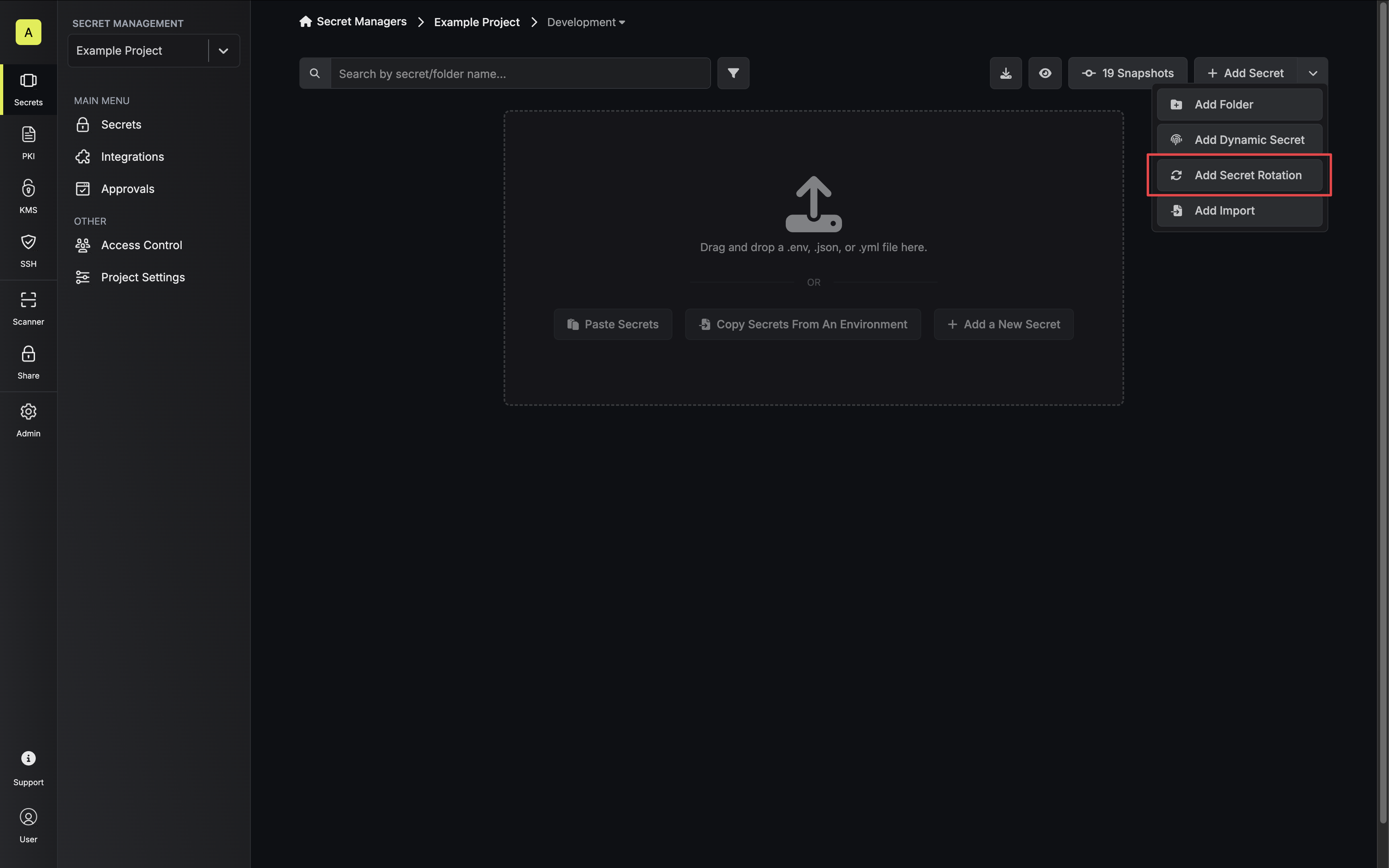
1. Navigate to your Secret Manager Project's Dashboard and select **Add Secret Rotation** from the actions dropdown.
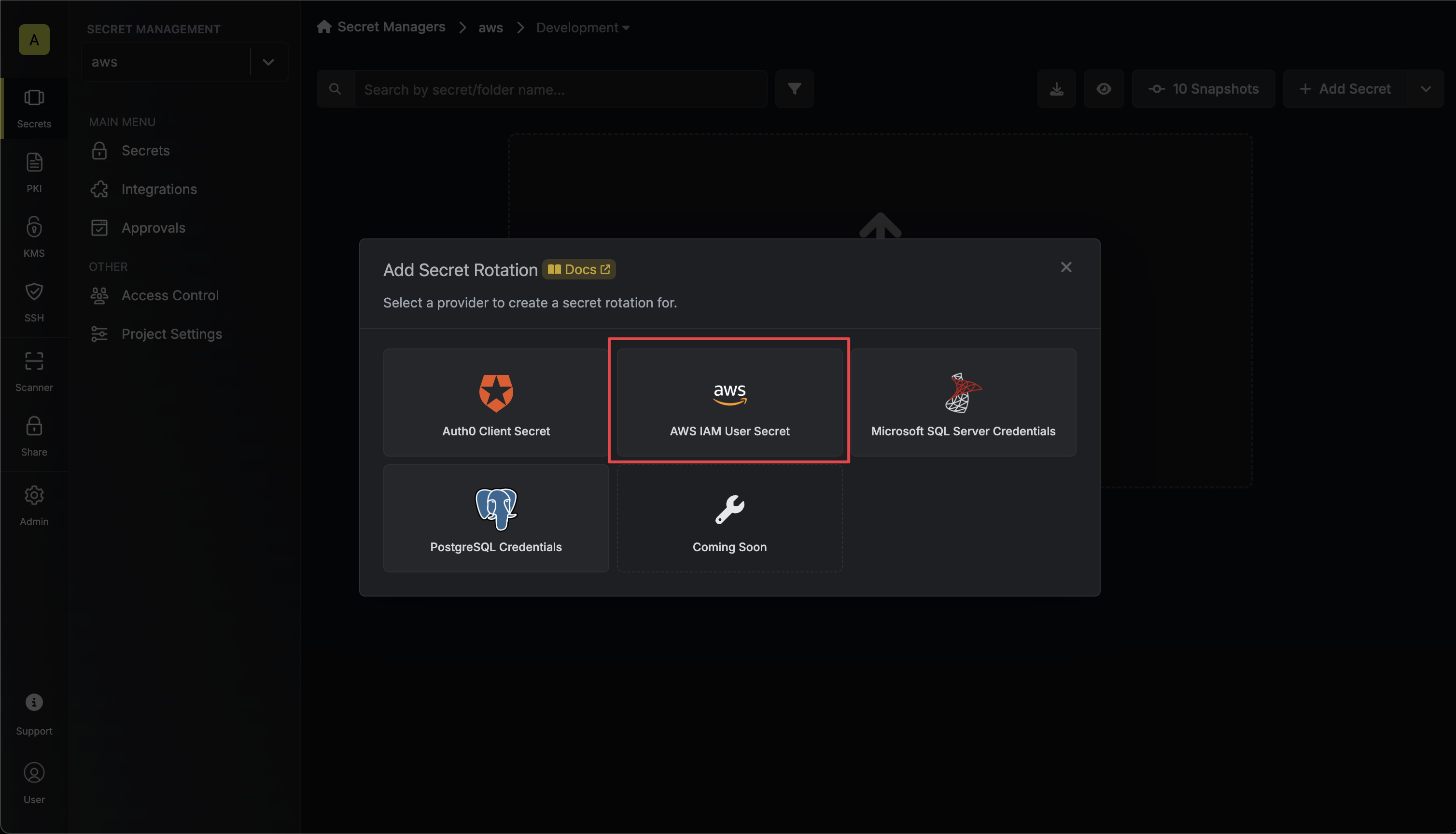
 2. Select the **AWS IAM User Secret** option.
 3. Select the **AWS Connection** to use and configure the rotation behavior. Then click **Next**.
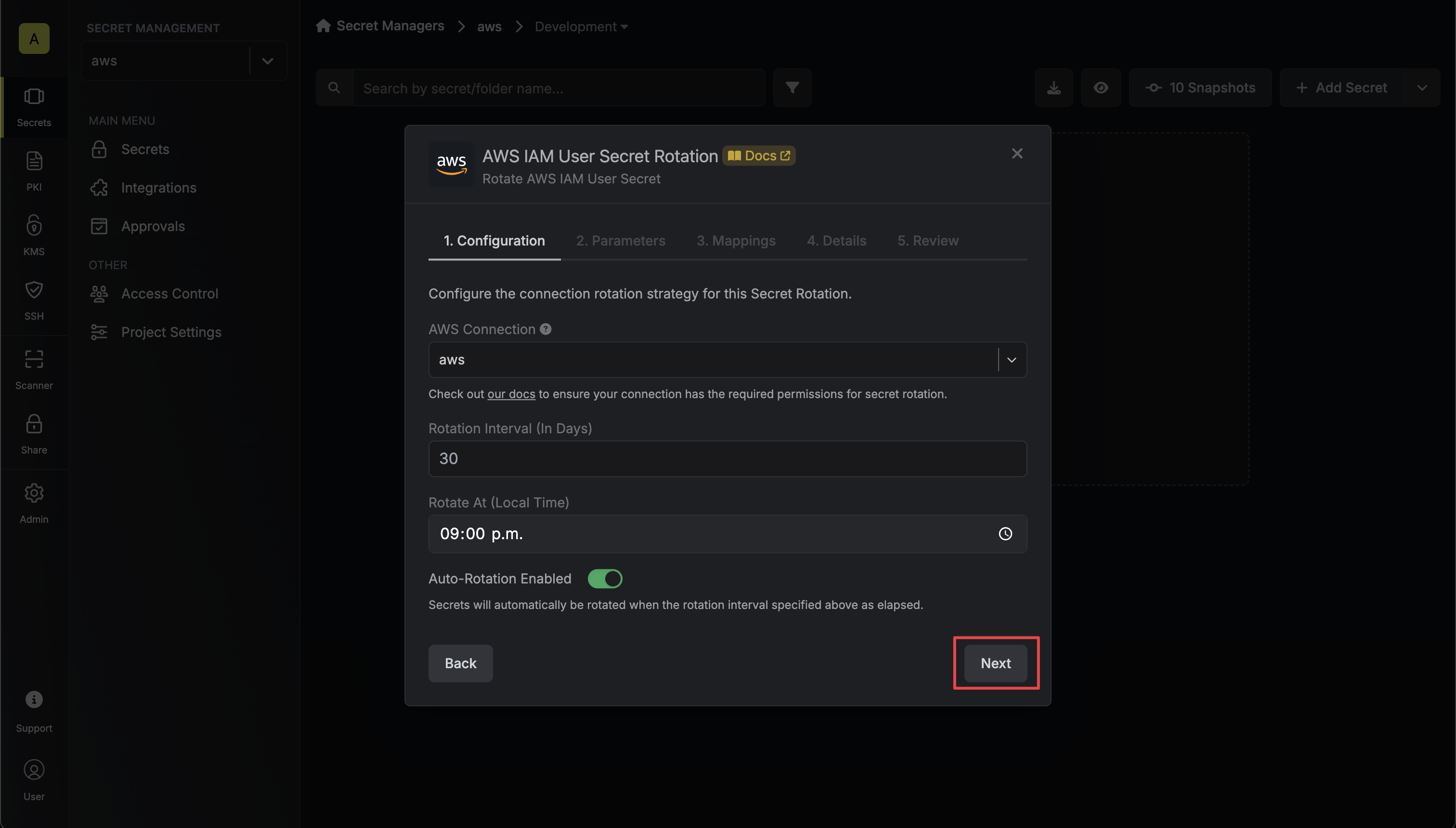 * **AWS Connection** - the connection that will perform the rotation of the specified application's Client Secret.
* **Rotation Interval** - the interval, in days, that once elapsed will trigger a rotation.
* **Rotate At** - the local time of day when rotation should occur once the interval has elapsed.
* **Auto-Rotation Enabled** - whether secrets should automatically be rotated once the rotation interval has elapsed. Disable this option to manually rotate secrets or pause secret rotation.
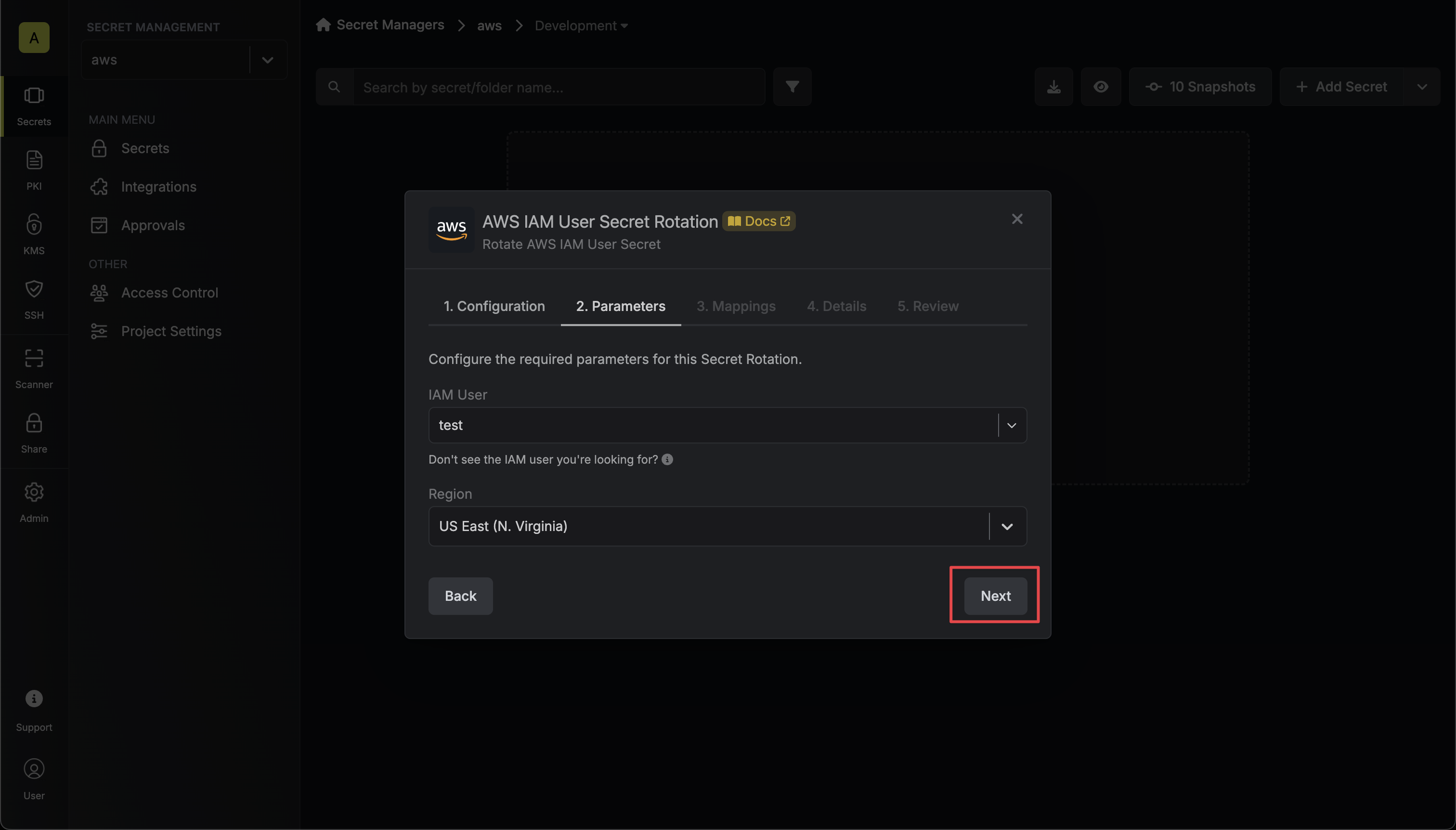
4. Select the AWS IAM user and the region of the user whose credentials you want to rotate. Then click **Next**.
* **AWS Connection** - the connection that will perform the rotation of the specified application's Client Secret.
* **Rotation Interval** - the interval, in days, that once elapsed will trigger a rotation.
* **Rotate At** - the local time of day when rotation should occur once the interval has elapsed.
* **Auto-Rotation Enabled** - whether secrets should automatically be rotated once the rotation interval has elapsed. Disable this option to manually rotate secrets or pause secret rotation.
4. Select the AWS IAM user and the region of the user whose credentials you want to rotate. Then click **Next**.
 5. Specify the secret names that the AWS IAM access key credentials should be mapped to. Then click **Next**.
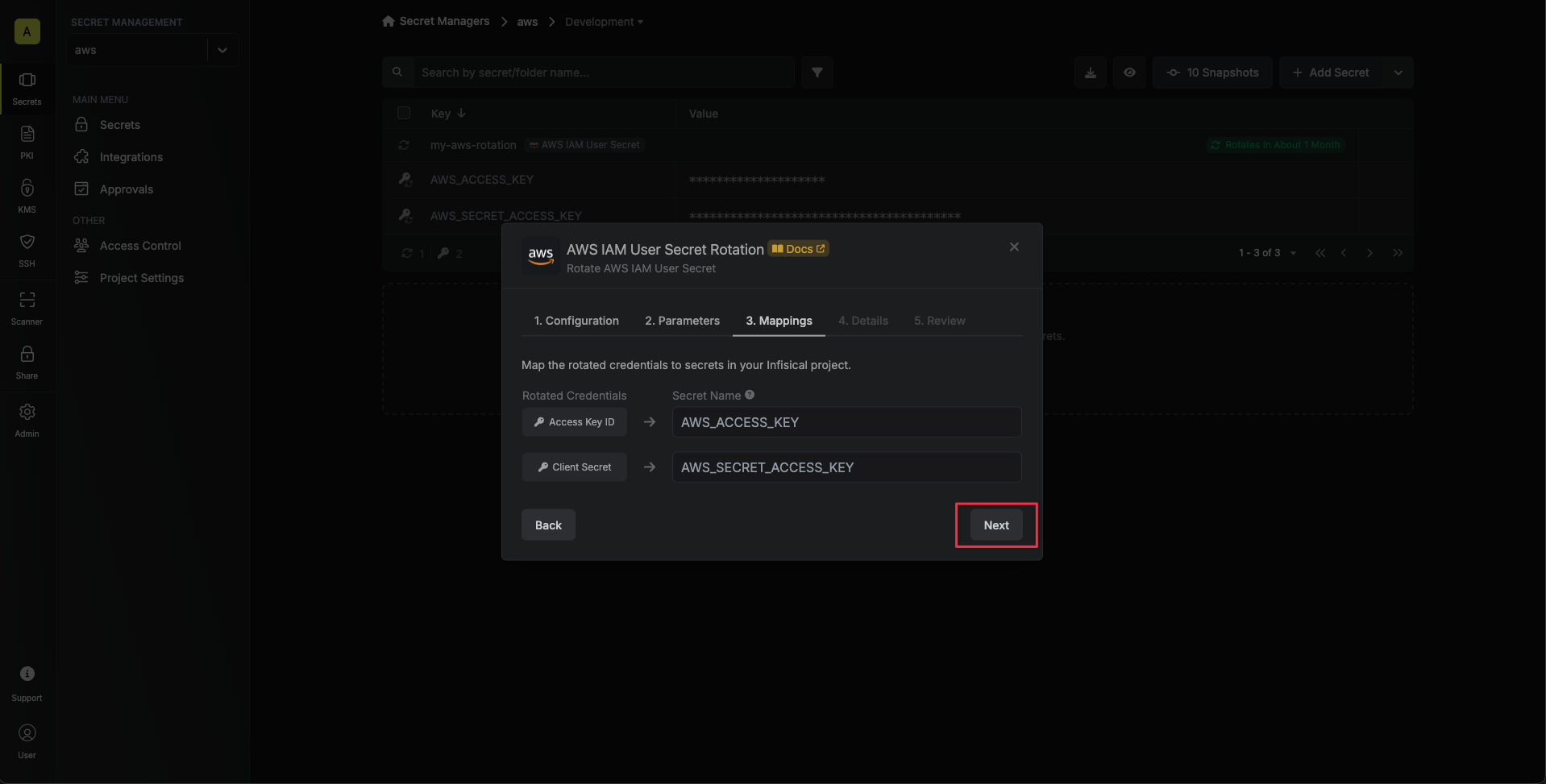 * **Access Key ID** - the name of the secret that the AWS access key ID will be mapped to.
* **Secret Access Key** - the name of the secret that the rotated secret access key will be mapped to.
6. Give your rotation a name and description (optional). Then click **Next**.
* **Access Key ID** - the name of the secret that the AWS access key ID will be mapped to.
* **Secret Access Key** - the name of the secret that the rotated secret access key will be mapped to.
6. Give your rotation a name and description (optional). Then click **Next**.
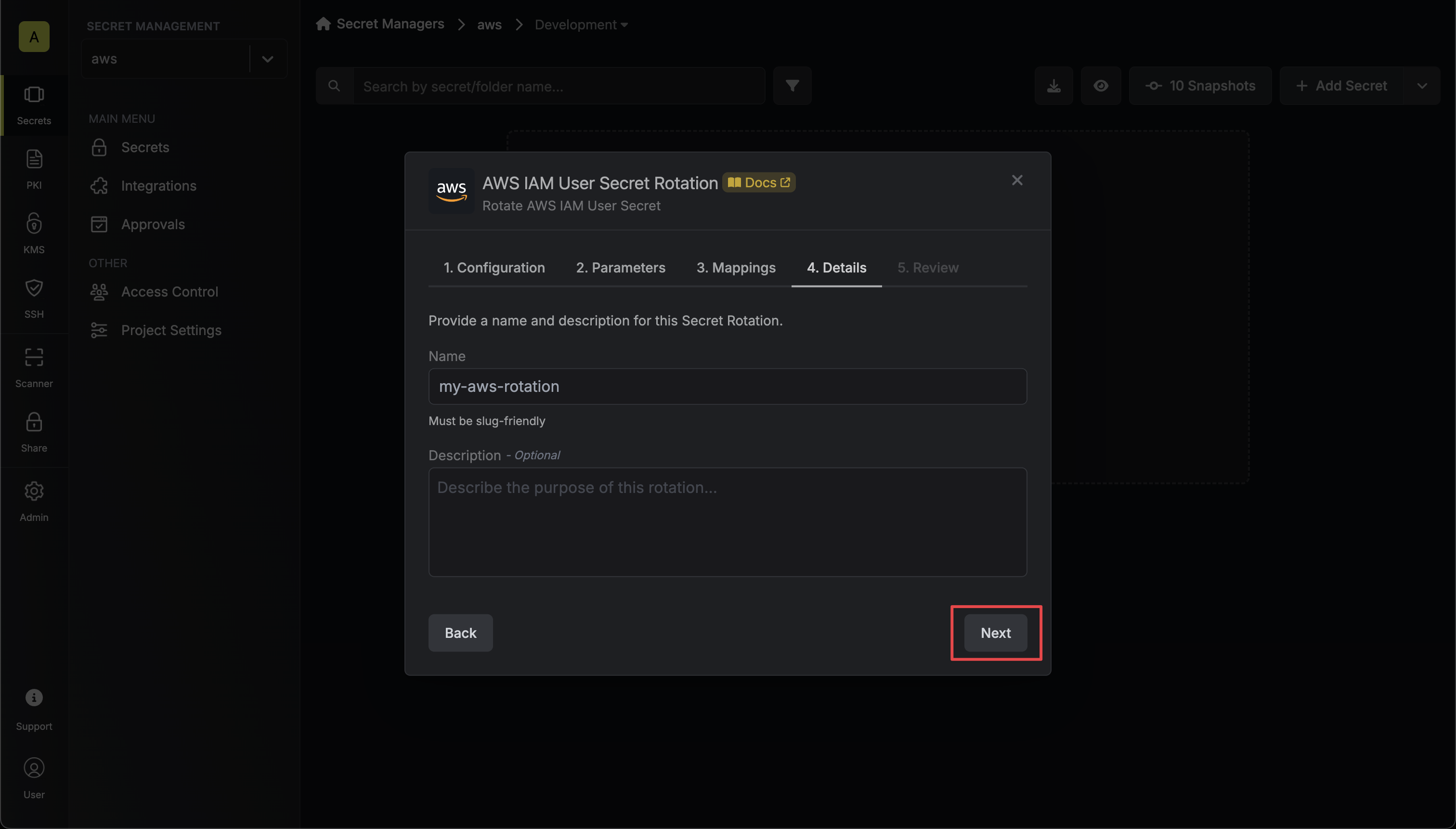 * **Name** - the name of the secret rotation configuration. Must be slug-friendly.
* **Description** (optional) - a description of this rotation configuration.
7. Review your configuration, then click **Create Secret Rotation**.
* **Name** - the name of the secret rotation configuration. Must be slug-friendly.
* **Description** (optional) - a description of this rotation configuration.
7. Review your configuration, then click **Create Secret Rotation**.
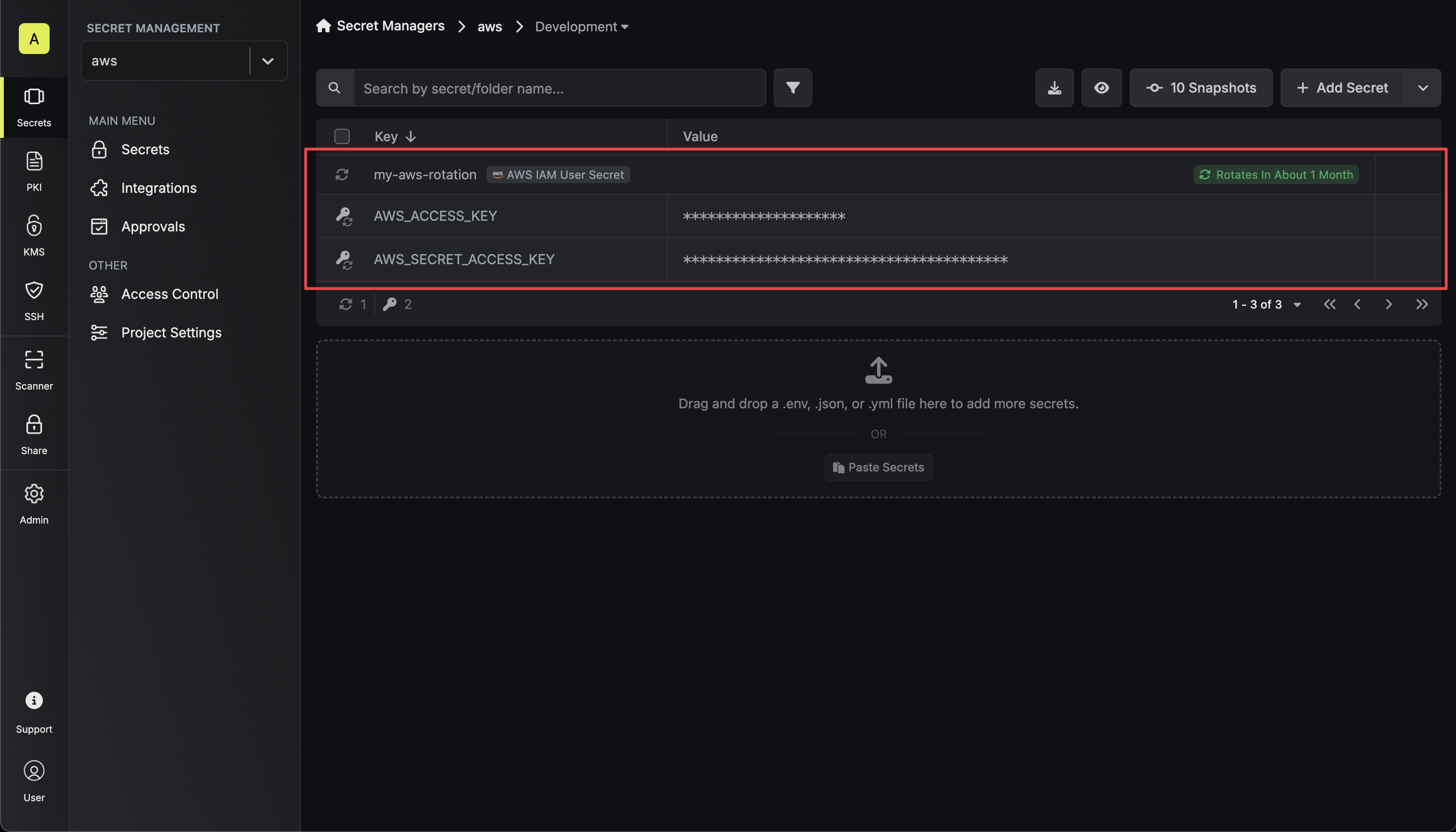
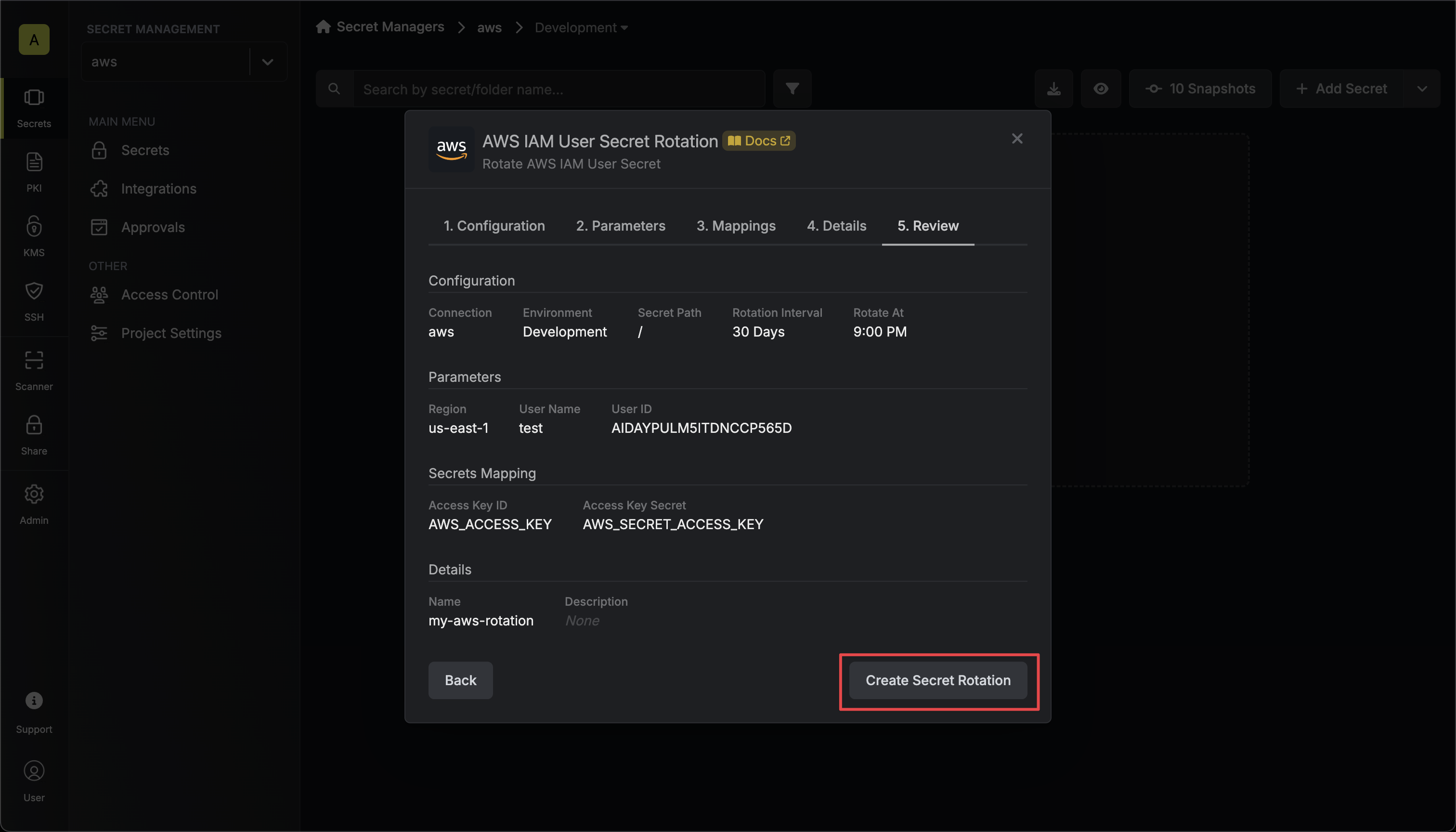 8. Your **AWS IAM User** credentials are now available for use via the mapped secrets.
 To create an AWS IAM User Rotation, make an API request to the [Create AWS IAM User Rotation](/api-reference/endpoints/secret-rotations/aws-iam-user-secret/create) API endpoint.
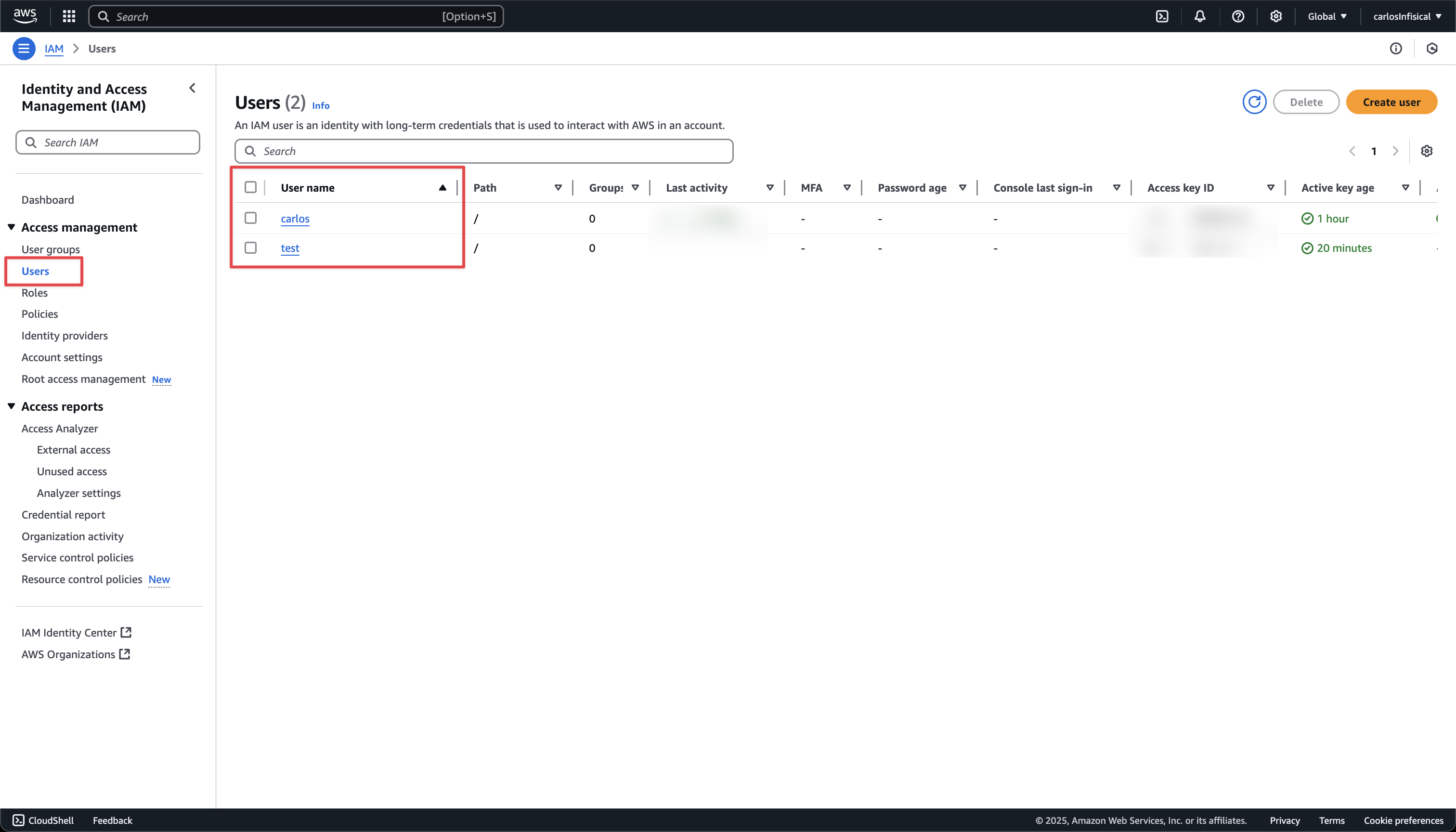
You will first need the **User Name** of the AWS IAM user you want to rotate the secret for. This can be obtained from the IAM console, on Users tab.
To create an AWS IAM User Rotation, make an API request to the [Create AWS IAM User Rotation](/api-reference/endpoints/secret-rotations/aws-iam-user-secret/create) API endpoint.
You will first need the **User Name** of the AWS IAM user you want to rotate the secret for. This can be obtained from the IAM console, on Users tab.
 ### Sample request
```bash Request theme={"dark"}
curl --request POST \
--url https://us.infisical.com/api/v2/secret-rotations/aws-iam-user-secret \
--header 'Content-Type: application/json' \
--data '{
"name": "my-aws-rotation",
"projectId": "9602cfc5-20b9-4c35-a056-dd7372db0f25",
"description": "My rotation strategy description",
"connectionId": "3c90c3cc-0d44-4b50-8888-8dd25736052a",
"environment": "dev",
"secretPath": "/",
"isAutoRotationEnabled": true,
"rotationInterval": 2,
"rotateAtUtc": {
"hours": 11.5,
"minutes": 29.5
},
"parameters": {
"userName": "testUser",
"region": "us-east-1"
},
"secretsMapping": {
"accessKeyId": "AWS_ACCESS_KEY_ID",
"secretAccessKey": "AWS_SECRET_ACCESS_KEY"
}
}'
```
### Sample response
```bash Response theme={"dark"}
{
"secretRotation": {
"id": "3c90c3cc-0d44-4b50-8888-8dd25736052a",
"name": "my-aws-rotation",
"description": "My rotation strategy description",
"secretsMapping": {
"accessKeyId": "AWS_ACCESS_KEY_ID",
"secretAccessKey": "AWS_SECRET_ACCESS_KEY"
},
"isAutoRotationEnabled": true,
"activeIndex": 0,
"folderId": "3c90c3cc-0d44-4b50-8888-8dd25736052a",
"connectionId": "3c90c3cc-0d44-4b50-8888-8dd25736052a",
"createdAt": "2023-11-07T05:31:56Z",
"updatedAt": "2023-11-07T05:31:56Z",
"rotationInterval": 123,
"rotationStatus": "success",
"lastRotationAttemptedAt": "2023-11-07T05:31:56Z",
"lastRotatedAt": "2023-11-07T05:31:56Z",
"lastRotationJobId": null,
"nextRotationAt": "2023-11-07T05:31:56Z",
"isLastRotationManual": true,
"connection": {
"app": "aws",
"name": "my-aws-connection",
"id": "3c90c3cc-0d44-4b50-8888-8dd25736052a"
},
"environment": {
"slug": "dev",
"name": "Development",
"id": "3c90c3cc-0d44-4b50-8888-8dd25736052a"
},
"projectId": "9602cfc5-20b9-4c35-a056-dd7372db0f25",
"folder": {
"id": "3c90c3cc-0d44-4b50-8888-8dd25736052a",
"path": "/"
},
"rotateAtUtc": {
"hours": 11.5,
"minutes": 29.5
},
"lastRotationMessage": null,
"type": "aws-iam-user-secret",
"parameters": {
"userName": "testUser",
"region": "us-east-1"
}
}
}
```
**FAQ**
There are a few reasons for why this might happen:
* The strategy configuration is invalid (e.g. the managing IAM user's credentials are incorrect, the target AWS region is incorrect, etc.)
* The managing IAM user is insufficiently permissioned to rotate the credentials of the target IAM user. For instance, you may have setup
[paths](https://aws.amazon.com/blogs/security/optimize-aws-administration-with-iam-paths/) for the managing IAM user and the policy does not have the necessary
permissions to rotate the credentials.
### Sample request
```bash Request theme={"dark"}
curl --request POST \
--url https://us.infisical.com/api/v2/secret-rotations/aws-iam-user-secret \
--header 'Content-Type: application/json' \
--data '{
"name": "my-aws-rotation",
"projectId": "9602cfc5-20b9-4c35-a056-dd7372db0f25",
"description": "My rotation strategy description",
"connectionId": "3c90c3cc-0d44-4b50-8888-8dd25736052a",
"environment": "dev",
"secretPath": "/",
"isAutoRotationEnabled": true,
"rotationInterval": 2,
"rotateAtUtc": {
"hours": 11.5,
"minutes": 29.5
},
"parameters": {
"userName": "testUser",
"region": "us-east-1"
},
"secretsMapping": {
"accessKeyId": "AWS_ACCESS_KEY_ID",
"secretAccessKey": "AWS_SECRET_ACCESS_KEY"
}
}'
```
### Sample response
```bash Response theme={"dark"}
{
"secretRotation": {
"id": "3c90c3cc-0d44-4b50-8888-8dd25736052a",
"name": "my-aws-rotation",
"description": "My rotation strategy description",
"secretsMapping": {
"accessKeyId": "AWS_ACCESS_KEY_ID",
"secretAccessKey": "AWS_SECRET_ACCESS_KEY"
},
"isAutoRotationEnabled": true,
"activeIndex": 0,
"folderId": "3c90c3cc-0d44-4b50-8888-8dd25736052a",
"connectionId": "3c90c3cc-0d44-4b50-8888-8dd25736052a",
"createdAt": "2023-11-07T05:31:56Z",
"updatedAt": "2023-11-07T05:31:56Z",
"rotationInterval": 123,
"rotationStatus": "success",
"lastRotationAttemptedAt": "2023-11-07T05:31:56Z",
"lastRotatedAt": "2023-11-07T05:31:56Z",
"lastRotationJobId": null,
"nextRotationAt": "2023-11-07T05:31:56Z",
"isLastRotationManual": true,
"connection": {
"app": "aws",
"name": "my-aws-connection",
"id": "3c90c3cc-0d44-4b50-8888-8dd25736052a"
},
"environment": {
"slug": "dev",
"name": "Development",
"id": "3c90c3cc-0d44-4b50-8888-8dd25736052a"
},
"projectId": "9602cfc5-20b9-4c35-a056-dd7372db0f25",
"folder": {
"id": "3c90c3cc-0d44-4b50-8888-8dd25736052a",
"path": "/"
},
"rotateAtUtc": {
"hours": 11.5,
"minutes": 29.5
},
"lastRotationMessage": null,
"type": "aws-iam-user-secret",
"parameters": {
"userName": "testUser",
"region": "us-east-1"
}
}
}
```
**FAQ**
There are a few reasons for why this might happen:
* The strategy configuration is invalid (e.g. the managing IAM user's credentials are incorrect, the target AWS region is incorrect, etc.)
* The managing IAM user is insufficiently permissioned to rotate the credentials of the target IAM user. For instance, you may have setup
[paths](https://aws.amazon.com/blogs/security/optimize-aws-administration-with-iam-paths/) for the managing IAM user and the policy does not have the necessary
permissions to rotate the credentials.