> ## Documentation Index
> Fetch the complete documentation index at: https://infisical.com/docs/llms.txt
> Use this file to discover all available pages before exploring further.
# DigiCert
> Learn how to connect Infisical to DigiCert to issue certificates via ACME.
## Concept
Infisical can connect to [DigiCert](https://www.digicert.com/) using the [ACME-compatible CA integration](/documentation/platform/pki/ca/acme-ca) to issue certificates back to your end-entities.
DigiCert CertCentral supports the ACME protocol and requires **External Account Binding (EAB)** for all ACME registrations. You will need to obtain the ACME Directory URL, a Key Identifier (KID), and an HMAC Key from your DigiCert CertCentral account before registering the ACME CA in Infisical.
## Guide to Connecting Infisical to DigiCert
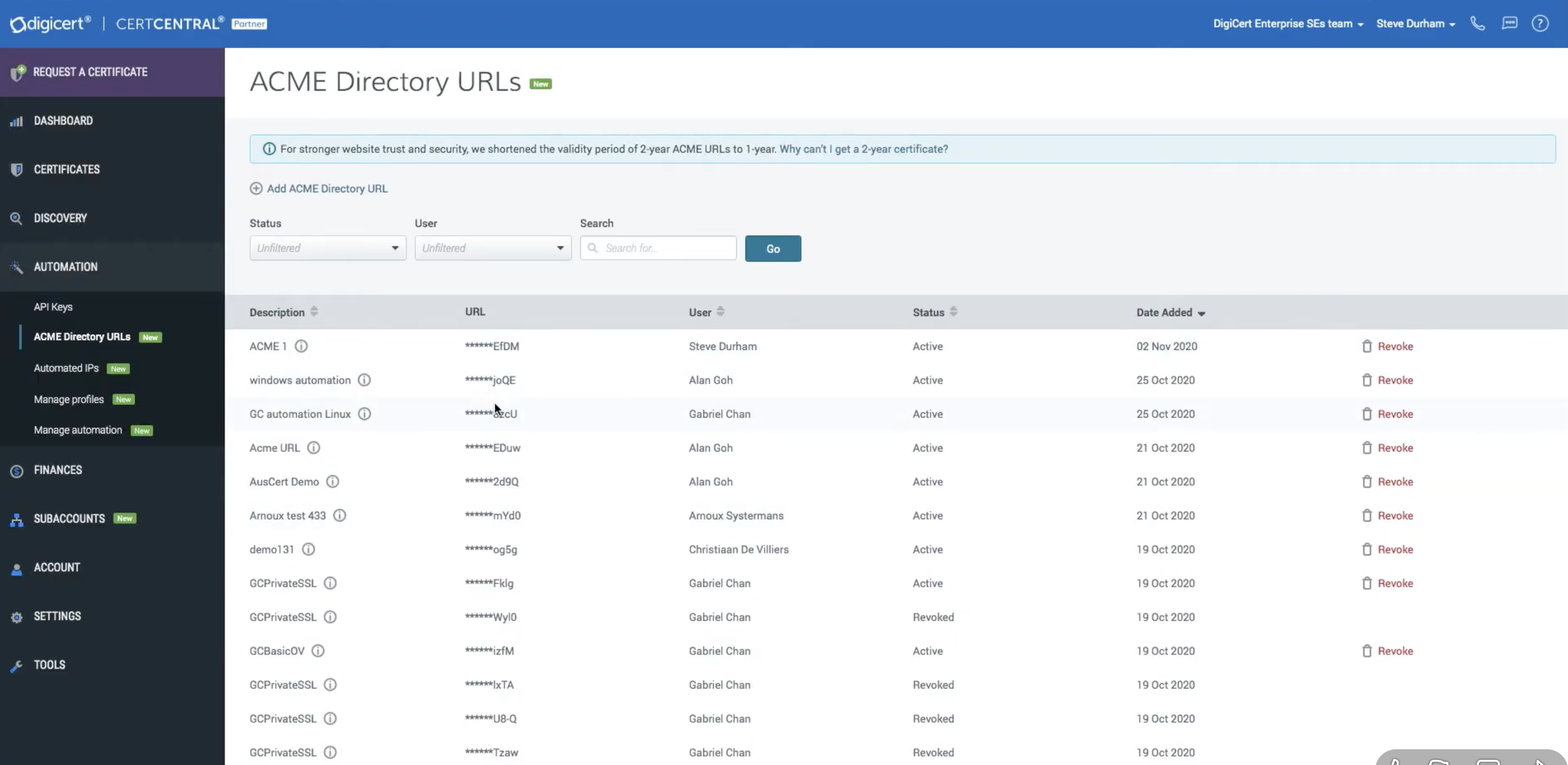
Log in to your DigiCert CertCentral account and navigate to **Automation > ACME Directory URLs** in the left sidebar. Click **Add ACME Directory URL** at the top of the page.
 In the modal that appears, configure the following options:
* **Name**: A friendly name for the credential set.
* **Product**: The certificate product to use.
* **Division**: The division to associate with issued certificates.
* **Organization**: Required for OV/EV certificates.
* **Validity period**: The certificate validity duration.
Click **Add ACME Directory URL** to generate your credentials. A modal will display the generated credentials. Copy the following values:
* **ACME Directory URL**: A unique URL generated for your ACME requests.
* **Key Identifier (KID)**: Identifies your CertCentral account.
* **HMAC Key**: Used for authentication and encryption.
These credentials are **only displayed once**. Make sure to copy and save them in a secure location before dismissing the modal. If you lose your credentials, you will need to revoke them and generate new ones.
Follow the steps in the [ACME-compatible CA integration](/documentation/platform/pki/ca/acme-ca) guide to create an External CA in Infisical with the **ACME** CA type. When filling out the form, use the values from DigiCert:
* **Directory URL**: Paste the **ACME Directory URL** from DigiCert.
* **EAB Key Identifier (KID)**: Paste the **Key Identifier** from DigiCert.
* **EAB HMAC Key**: Paste the **HMAC Key** from DigiCert.
## What's Next
Now that your DigiCert CA is configured, set up the infrastructure to issue certificates:
Create a profile that references your DigiCert CA.
Create an Application, attach a profile, and configure enrollment.
Choose how certificates are requested — API, ACME, EST, or SCEP.
Issue your first certificate end-to-end.
In the modal that appears, configure the following options:
* **Name**: A friendly name for the credential set.
* **Product**: The certificate product to use.
* **Division**: The division to associate with issued certificates.
* **Organization**: Required for OV/EV certificates.
* **Validity period**: The certificate validity duration.
Click **Add ACME Directory URL** to generate your credentials. A modal will display the generated credentials. Copy the following values:
* **ACME Directory URL**: A unique URL generated for your ACME requests.
* **Key Identifier (KID)**: Identifies your CertCentral account.
* **HMAC Key**: Used for authentication and encryption.
These credentials are **only displayed once**. Make sure to copy and save them in a secure location before dismissing the modal. If you lose your credentials, you will need to revoke them and generate new ones.
Follow the steps in the [ACME-compatible CA integration](/documentation/platform/pki/ca/acme-ca) guide to create an External CA in Infisical with the **ACME** CA type. When filling out the form, use the values from DigiCert:
* **Directory URL**: Paste the **ACME Directory URL** from DigiCert.
* **EAB Key Identifier (KID)**: Paste the **Key Identifier** from DigiCert.
* **EAB HMAC Key**: Paste the **HMAC Key** from DigiCert.
## What's Next
Now that your DigiCert CA is configured, set up the infrastructure to issue certificates:
Create a profile that references your DigiCert CA.
Create an Application, attach a profile, and configure enrollment.
Choose how certificates are requested — API, ACME, EST, or SCEP.
Issue your first certificate end-to-end.