> ## Documentation Index
> Fetch the complete documentation index at: https://infisical.com/docs/llms.txt
> Use this file to discover all available pages before exploring further.
# AWS Private CA
> Learn how to issue and manage certificates using AWS Private Certificate Authority (PCA) with Infisical.
Issue and manage certificates using AWS Private Certificate Authority (PCA) for cloud-native private certificate management.
## Prerequisites
Before setting up AWS PCA integration, ensure you have:
* An AWS account with AWS Private CA service access
* An AWS Private CA in **ACTIVE** status
* An [AWS App Connection](/integrations/app-connections/aws) configured in Infisical with the required IAM permissions (see below)
### IAM Permissions
Your AWS connection's IAM role or user needs the following permissions on your Private CA resource(s):
* `acm-pca:DescribeCertificateAuthority`
* `acm-pca:GetCertificateAuthorityCertificate`
* `acm-pca:IssueCertificate`
* `acm-pca:GetCertificate`
* `acm-pca:RevokeCertificate`
To scope permissions to a single CA, set the `Resource` to that CA's ARN:
```json theme={"dark"}
{
"Version": "2012-10-17",
"Statement": [
{
"Effect": "Allow",
"Action": [
"acm-pca:DescribeCertificateAuthority",
"acm-pca:GetCertificateAuthorityCertificate",
"acm-pca:IssueCertificate",
"acm-pca:GetCertificate",
"acm-pca:RevokeCertificate"
],
"Resource": "arn:aws:acm-pca:us-east-1:123456789012:certificate-authority/your-ca-id"
}
]
}
```
To allow access to multiple CAs, list each ARN in the `Resource` array:
```json theme={"dark"}
{
"Version": "2012-10-17",
"Statement": [
{
"Effect": "Allow",
"Action": [
"acm-pca:DescribeCertificateAuthority",
"acm-pca:GetCertificateAuthorityCertificate",
"acm-pca:IssueCertificate",
"acm-pca:GetCertificate",
"acm-pca:RevokeCertificate"
],
"Resource": [
"arn:aws:acm-pca:us-east-1:123456789012:certificate-authority/ca-id-1",
"arn:aws:acm-pca:us-west-2:123456789012:certificate-authority/ca-id-2"
]
}
]
}
```
Using a specific CA ARN in `Resource` is recommended over `"*"` to follow the principle of least privilege.
See the [AWS Connection](/integrations/app-connections/aws) page for full setup instructions.
## Complete Workflow: From Setup to Certificate Issuance
In the AWS Console, navigate to **AWS Private CA** and select your certificate authority. Copy the **ARN** from the CA details page.
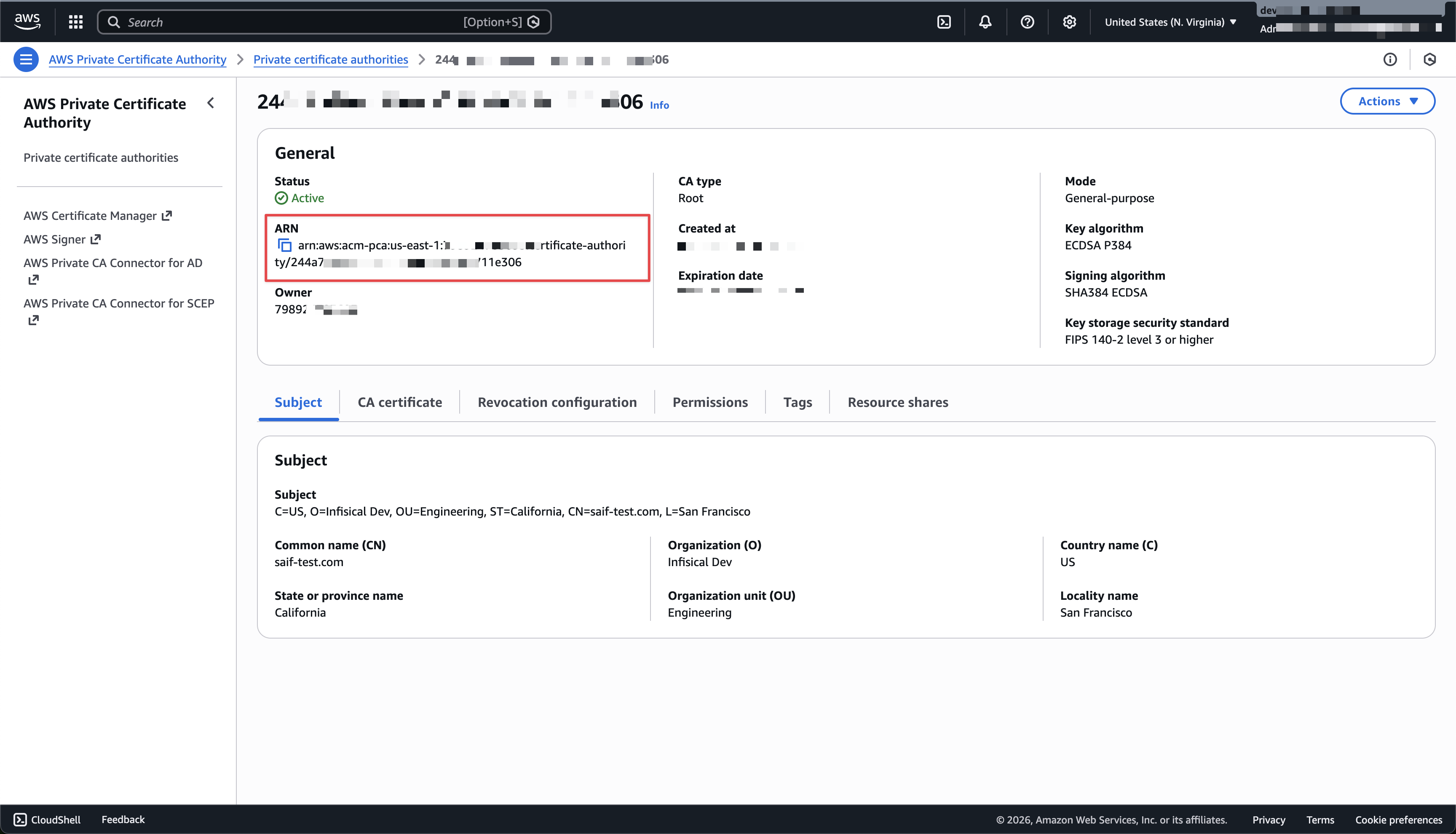 In **Certificate Manager**, go to **Certificate Authorities** and scroll to the **External Certificate Authorities** section.
Click **Create CA** and configure:
* **CA Type**: Choose **AWS Private CA (PCA)**
* **Name**: A slug name for this CA — lowercase letters, numbers, and hyphens only (e.g., "production-aws-pca")
* **AWS Connection**: Select your AWS connection from the dropdown
* **Certificate Authority ARN**: Paste the ARN copied from the previous step
* **Region**: Select the AWS region where your PCA is hosted
Go to **Certificate Manager → Certificate Profiles** and create a profile with your AWS PCA CA as the issuing CA.
Create an [Application](/documentation/platform/pki/applications/overview), attach the profile, and configure an [enrollment method](/documentation/platform/pki/applications/enrollment-methods/overview). Then submit a certificate request from within the Application. The request will be sent to AWS PCA and the issued certificate will be available once the order completes.
## Troubleshooting
**CA Not in ACTIVE Status**
* AWS PCA must be in the **ACTIVE** state before Infisical can issue certificates. Verify the status in the AWS Console under **AWS Private CA**.
**IAM Permission Errors**
* Ensure your AWS connection's IAM role or user has the required `acm-pca:*` permissions scoped to the correct CA ARN. See the [IAM Permissions](#iam-permissions) section above.
**Invalid CA ARN**
* Double-check the ARN format: `arn:aws:acm-pca:::certificate-authority/`.
In **Certificate Manager**, go to **Certificate Authorities** and scroll to the **External Certificate Authorities** section.
Click **Create CA** and configure:
* **CA Type**: Choose **AWS Private CA (PCA)**
* **Name**: A slug name for this CA — lowercase letters, numbers, and hyphens only (e.g., "production-aws-pca")
* **AWS Connection**: Select your AWS connection from the dropdown
* **Certificate Authority ARN**: Paste the ARN copied from the previous step
* **Region**: Select the AWS region where your PCA is hosted
Go to **Certificate Manager → Certificate Profiles** and create a profile with your AWS PCA CA as the issuing CA.
Create an [Application](/documentation/platform/pki/applications/overview), attach the profile, and configure an [enrollment method](/documentation/platform/pki/applications/enrollment-methods/overview). Then submit a certificate request from within the Application. The request will be sent to AWS PCA and the issued certificate will be available once the order completes.
## Troubleshooting
**CA Not in ACTIVE Status**
* AWS PCA must be in the **ACTIVE** state before Infisical can issue certificates. Verify the status in the AWS Console under **AWS Private CA**.
**IAM Permission Errors**
* Ensure your AWS connection's IAM role or user has the required `acm-pca:*` permissions scoped to the correct CA ARN. See the [IAM Permissions](#iam-permissions) section above.
**Invalid CA ARN**
* Double-check the ARN format: `arn:aws:acm-pca:::certificate-authority/`.