> ## Documentation Index
> Fetch the complete documentation index at: https://infisical.com/docs/llms.txt
> Use this file to discover all available pages before exploring further.
# PostgreSQL Web Access
> Browse, query, and edit PostgreSQL databases directly from your browser.
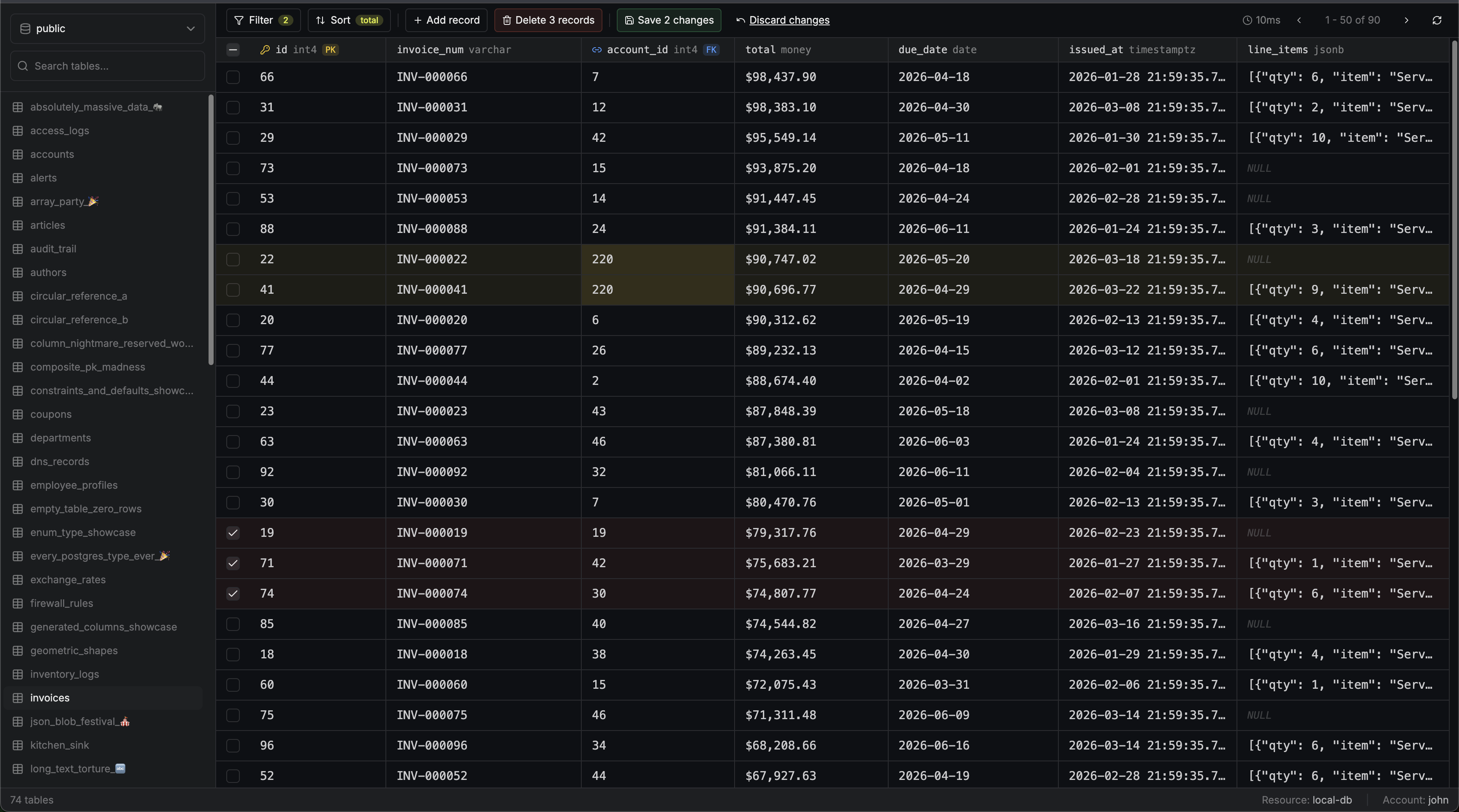 PostgreSQL web access provides a unified interface for interacting with your database directly from the browser. It combines visual table browsing and editing with an integrated SQL query runner, all in one interface.
## Connecting
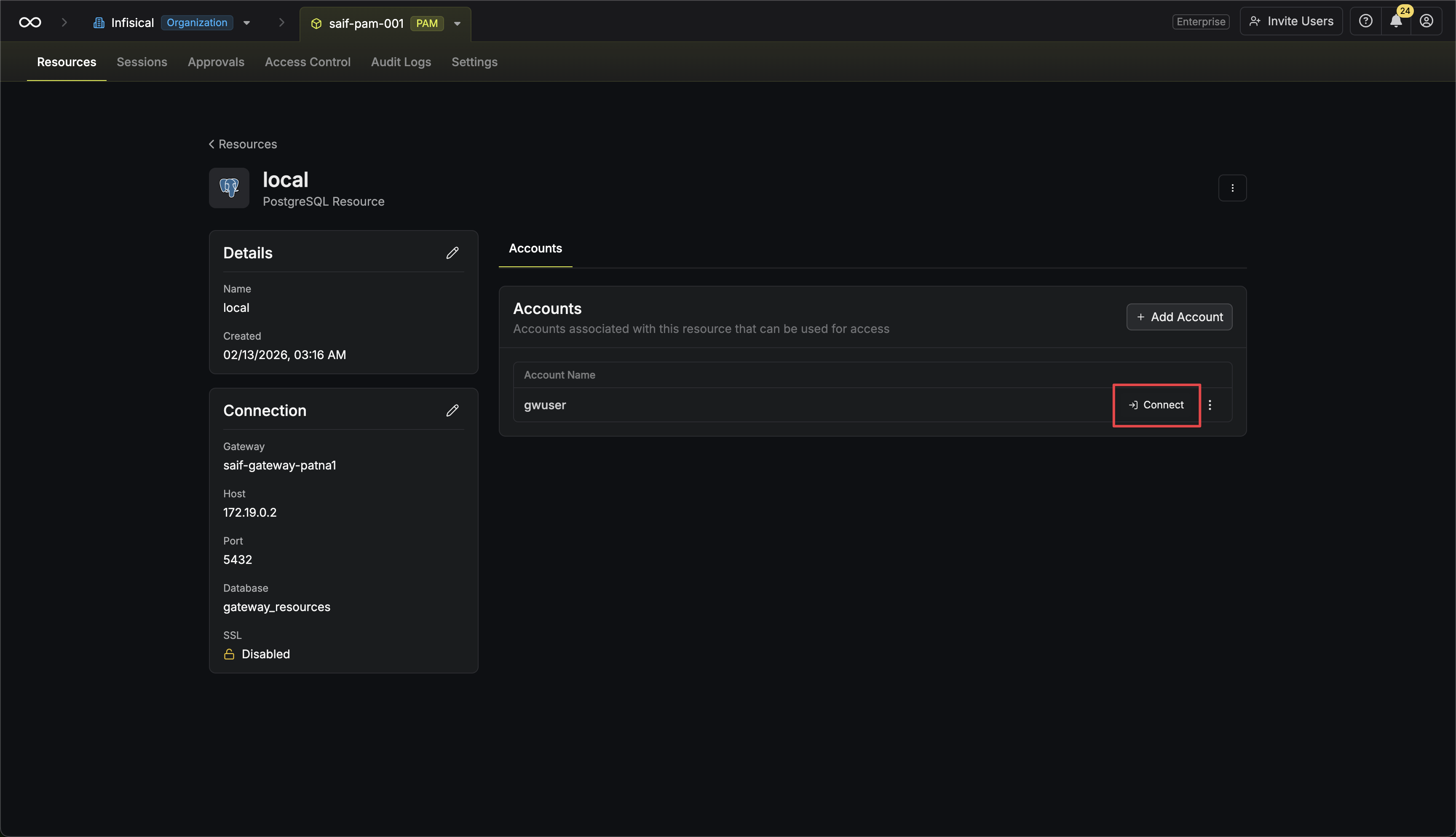
Go to the **Resources** tab in your PAM project, open the PostgreSQL resource, and find the account you want to access. Click the **Connect** button next to the account.
PostgreSQL web access provides a unified interface for interacting with your database directly from the browser. It combines visual table browsing and editing with an integrated SQL query runner, all in one interface.
## Connecting
Go to the **Resources** tab in your PAM project, open the PostgreSQL resource, and find the account you want to access. Click the **Connect** button next to the account.
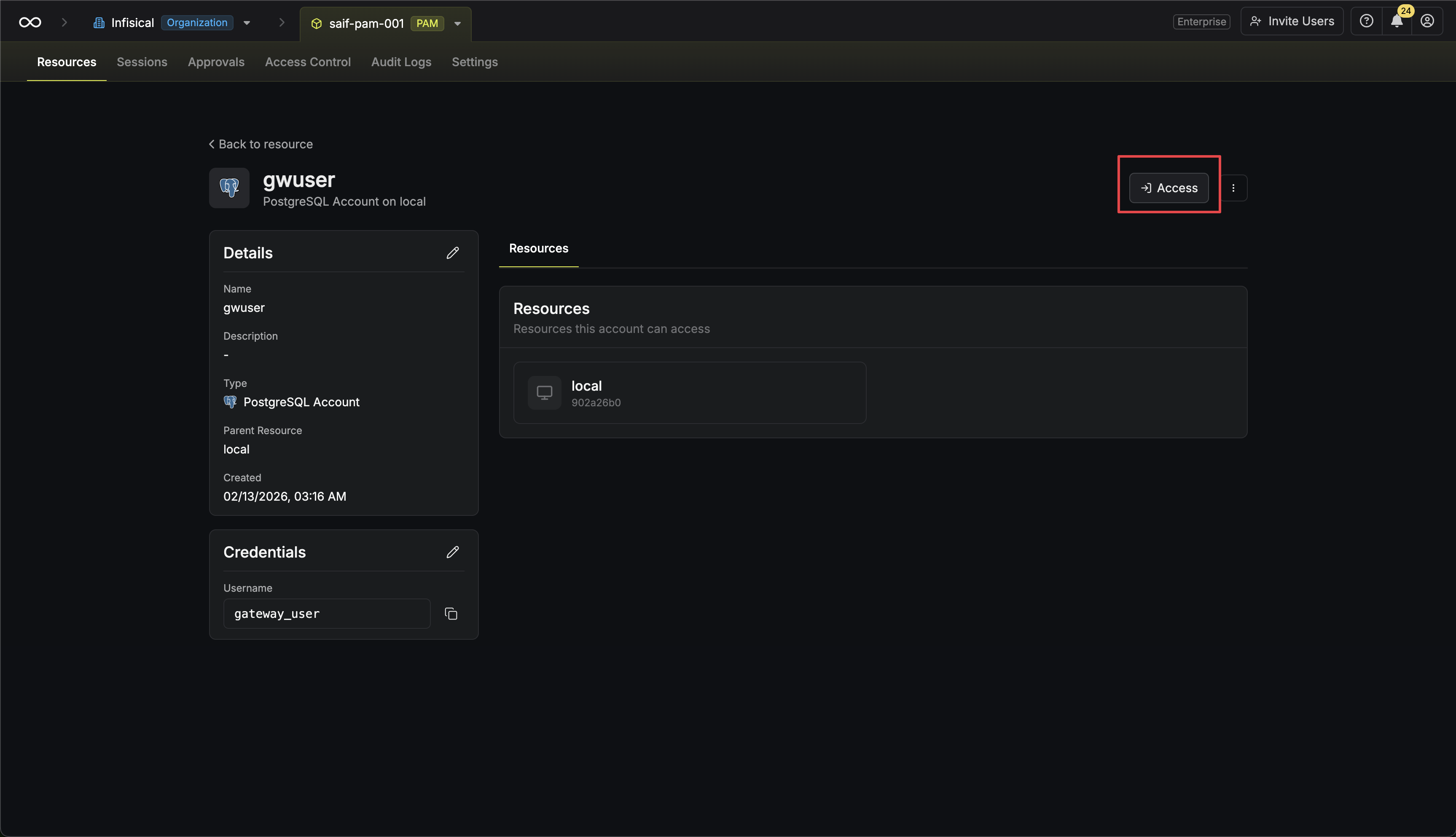
 Alternatively, if you are on the account page, click the **Access** button.
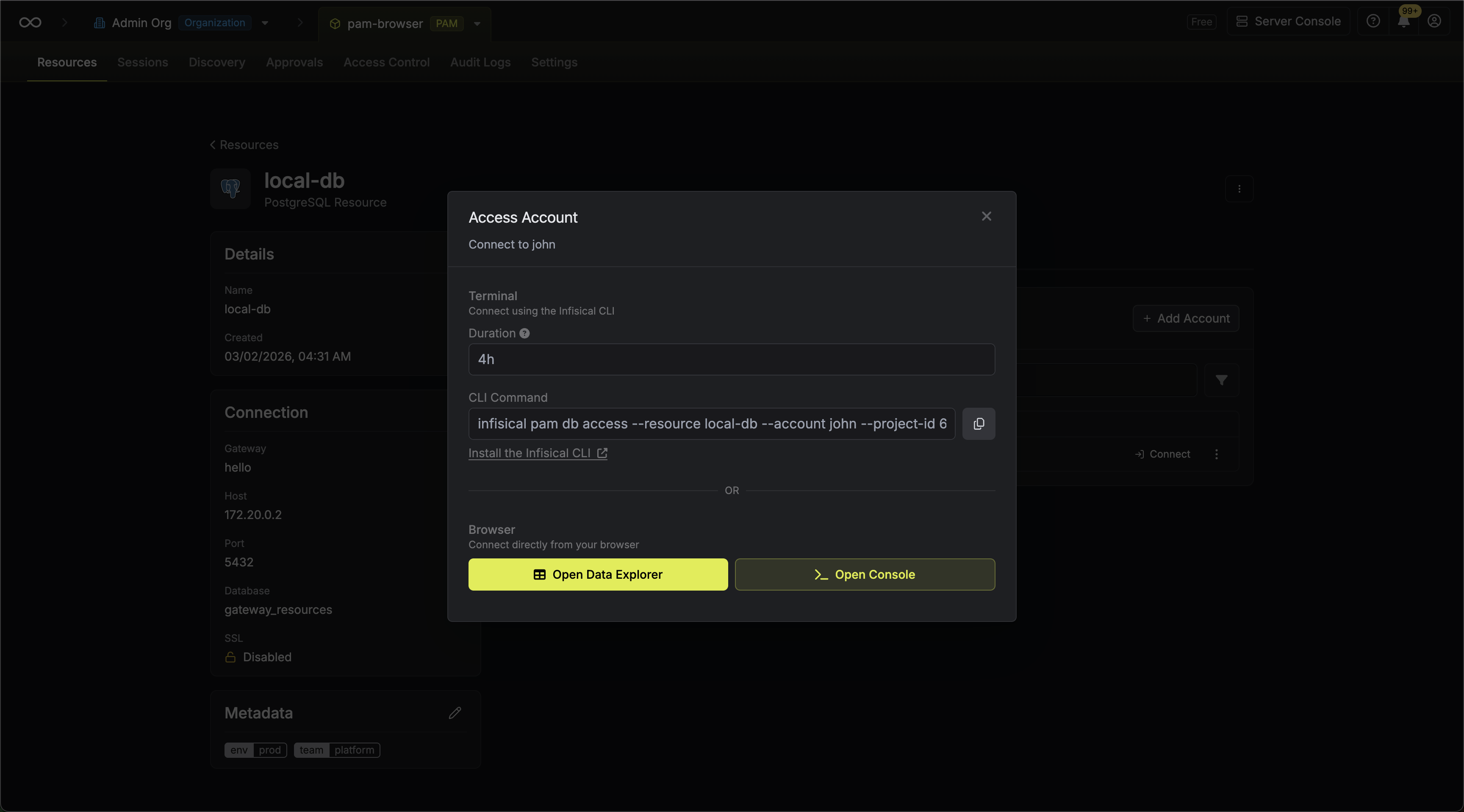
 In the connect modal, click **Connect in Browser** to launch the web access interface in a new tab.
 Once connected, you get a spreadsheet-like interface for your database where you can:
* Browse tables and explore their data
* Filter and sort to quickly find what you need
* Edit data directly — add, update, or delete rows
* Export results as CSV or JSON (download or copy to clipboard)
## Tabs
The interface uses tabs to keep multiple working contexts open at once. Tabs come in two kinds:
* **Table tabs** — opened by clicking a table in the sidebar. Clicking a table that is already open switches to its existing tab. To open a duplicate tab for the same table, right-click the table and choose **Open in new tab**, or hold ⌘ / Ctrl while clicking.
* **Query tabs** — opened with the **+ New query** button in the tab bar.
Each tab uses its own database connection, so transactions are scoped to the tab they were opened in.
## SQL Queries
The SQL query runner lets you run arbitrary SQL against your database without leaving the browser.
Once connected, you get a spreadsheet-like interface for your database where you can:
* Browse tables and explore their data
* Filter and sort to quickly find what you need
* Edit data directly — add, update, or delete rows
* Export results as CSV or JSON (download or copy to clipboard)
## Tabs
The interface uses tabs to keep multiple working contexts open at once. Tabs come in two kinds:
* **Table tabs** — opened by clicking a table in the sidebar. Clicking a table that is already open switches to its existing tab. To open a duplicate tab for the same table, right-click the table and choose **Open in new tab**, or hold ⌘ / Ctrl while clicking.
* **Query tabs** — opened with the **+ New query** button in the tab bar.
Each tab uses its own database connection, so transactions are scoped to the tab they were opened in.
## SQL Queries
The SQL query runner lets you run arbitrary SQL against your database without leaving the browser.
 ### Usage
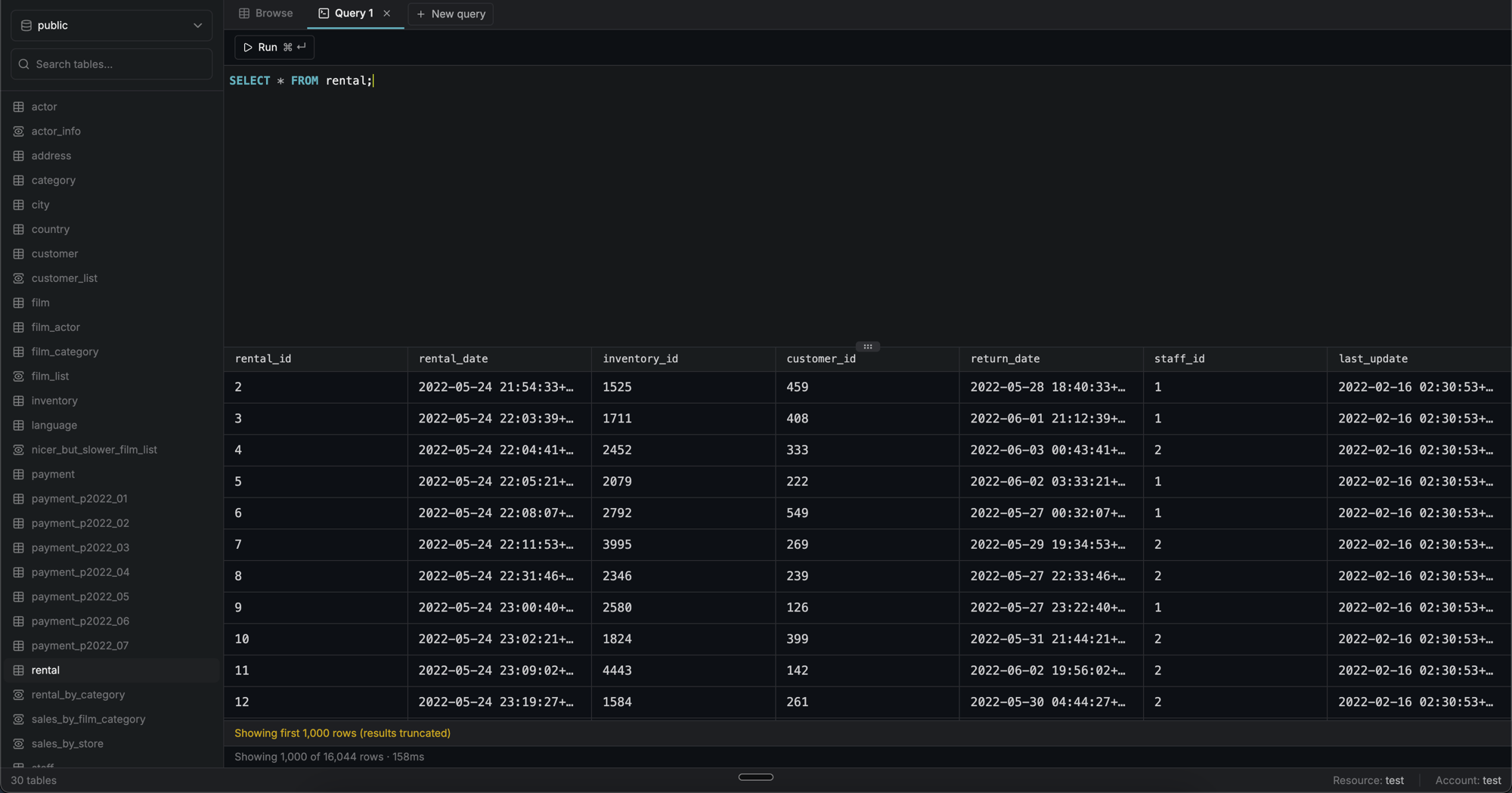
Write your query in the editor and run it by clicking **Run** or pressing `Cmd+Enter` (Mac) / `Ctrl+Enter` (Windows/Linux). Results are displayed in a table below the editor with column types, primary key, and foreign key indicators.
#### Multi-statement queries
If you run multiple statements at once, the results of the last statement are shown, the same behaviour as `psql`.
#### Mutation queries
`INSERT`, `UPDATE`, and `DELETE` statements display the number of affected rows instead of a result table.
## Exporting Data
You can export the currently visible data from both table browse tabs and query result panels. Click the download icon to open the export menu with the following options:
* **Download as CSV / JSON** — saves a file to your machine.
* **Copy as CSV / JSON** — copies the data to your clipboard.
## Limits
In addition to the [common session limits](/documentation/platform/pam/product-reference/web-access/overview#session-limits), the following PostgreSQL-specific limits apply:
| Setting | Value |
| --------------------- | -------------------- |
| **Statement timeout** | 30 seconds per query |
While the browser tab is in the foreground, sessions are kept alive against the [idle timeout](/documentation/platform/pam/product-reference/web-access/overview#session-limits) (10 minutes); the timeout starts counting once the tab becomes hidden. The max session duration still applies regardless.
## FAQ
Editing is only available for tables that have a primary key defined. Tables without a primary key, as well as views, are displayed in read-only mode.
Yes. You can use `BEGIN`, `COMMIT`, and `ROLLBACK` to manage transactions. The toolbar will show a **Transaction open** indicator while a transaction is in progress.
Yes. Select any portion of the SQL in the editor and click **Run Selection** (or press ⌘ Enter / Ctrl Enter) to execute only the selected text.
### Usage
Write your query in the editor and run it by clicking **Run** or pressing `Cmd+Enter` (Mac) / `Ctrl+Enter` (Windows/Linux). Results are displayed in a table below the editor with column types, primary key, and foreign key indicators.
#### Multi-statement queries
If you run multiple statements at once, the results of the last statement are shown, the same behaviour as `psql`.
#### Mutation queries
`INSERT`, `UPDATE`, and `DELETE` statements display the number of affected rows instead of a result table.
## Exporting Data
You can export the currently visible data from both table browse tabs and query result panels. Click the download icon to open the export menu with the following options:
* **Download as CSV / JSON** — saves a file to your machine.
* **Copy as CSV / JSON** — copies the data to your clipboard.
## Limits
In addition to the [common session limits](/documentation/platform/pam/product-reference/web-access/overview#session-limits), the following PostgreSQL-specific limits apply:
| Setting | Value |
| --------------------- | -------------------- |
| **Statement timeout** | 30 seconds per query |
While the browser tab is in the foreground, sessions are kept alive against the [idle timeout](/documentation/platform/pam/product-reference/web-access/overview#session-limits) (10 minutes); the timeout starts counting once the tab becomes hidden. The max session duration still applies regardless.
## FAQ
Editing is only available for tables that have a primary key defined. Tables without a primary key, as well as views, are displayed in read-only mode.
Yes. You can use `BEGIN`, `COMMIT`, and `ROLLBACK` to manage transactions. The toolbar will show a **Transaction open** indicator while a transaction is in progress.
Yes. Select any portion of the SQL in the editor and click **Run Selection** (or press ⌘ Enter / Ctrl Enter) to execute only the selected text.