> ## Documentation Index
> Fetch the complete documentation index at: https://infisical.com/docs/llms.txt
> Use this file to discover all available pages before exploring further.
# Account Policies
> Learn how to define behavioral rules for PAM accounts using account policies.
Account Policies let you define behavioral rules that are enforced on PAM accounts during sessions. Use them to block dangerous commands, mask sensitive data in session logs, or both.
## Concepts
An account policy is a named, project-scoped configuration that contains one or more **rules**. Each rule targets a specific behavior:
| Rule Type | Description | Supported Resources |
| ------------------------- | ------------------------------------------------------------------------------------------------- | ------------------- |
| **Command Blocking** | Prevents execution of commands matching specified regex patterns. | SSH |
| **Session Log Masking** | Redacts data matching specified regex patterns from session logs. | All resource types |
| **Require Access Reason** | Requires the user to provide a reason before a session can start. The reason is stored for audit. | All resource types |
A policy can be **active** or **inactive**. Only active policies are enforced during sessions.
## Creating an Account Policy
Navigate to your PAM project sidebar and click **Account Policies**, then click **Create Policy**.
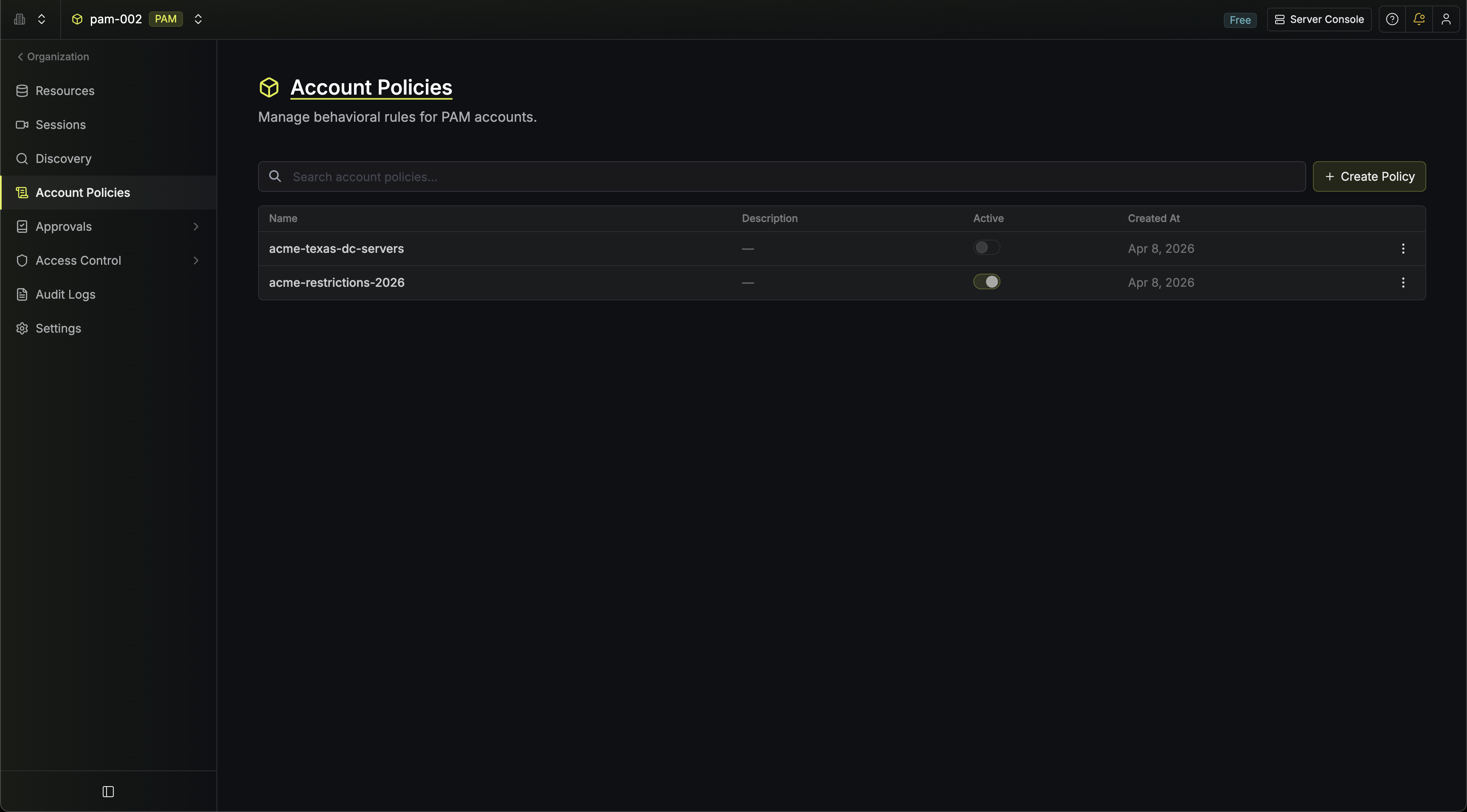 Provide a **name** for the policy (must be unique within the project) and an optional **description**.
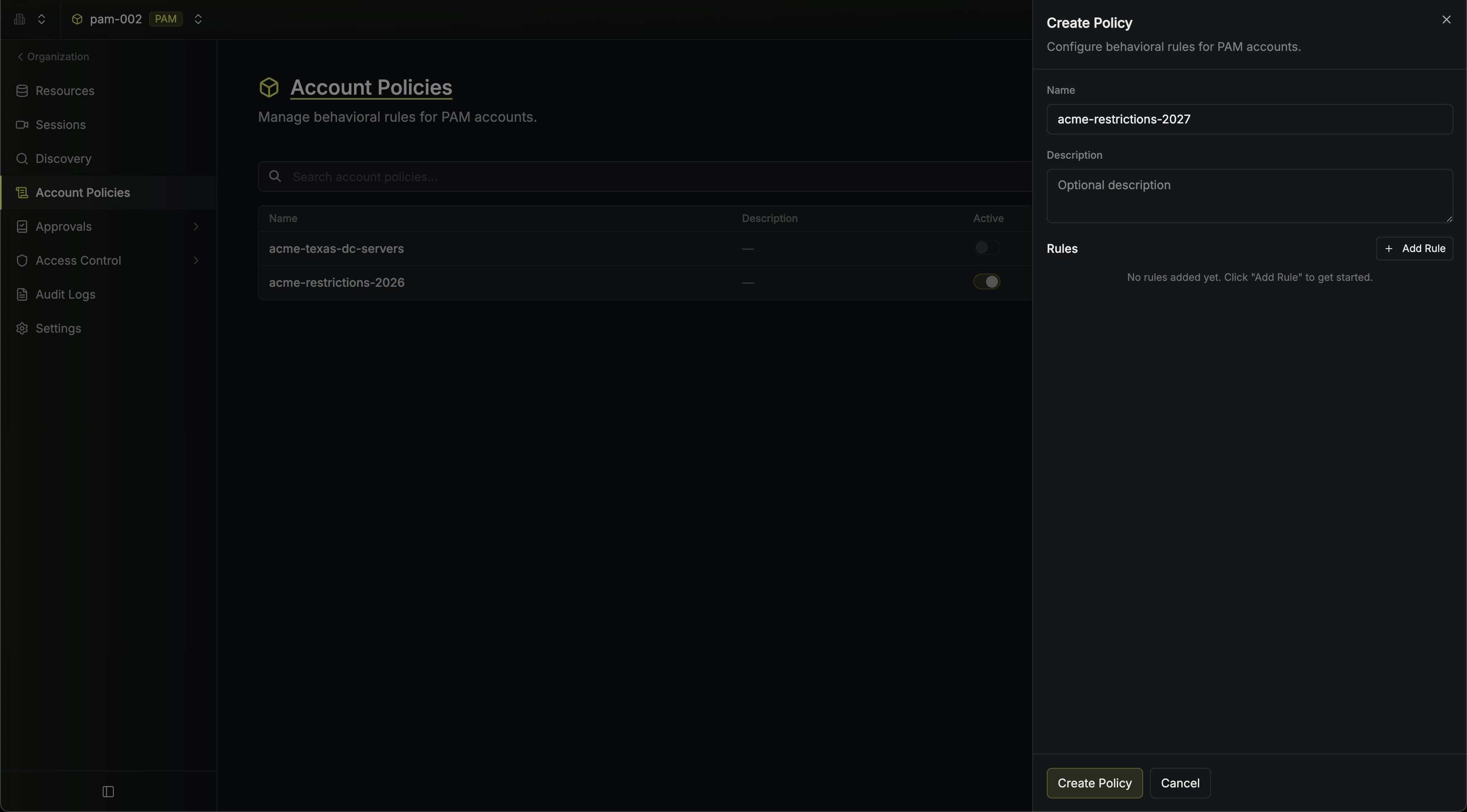 Click **Add Rule** and select a rule type from the menu. Each rule type can only be added once per policy.
* **Command Blocking**: Add one or more regex patterns. Commands matching any of these patterns will be blocked during SSH sessions.
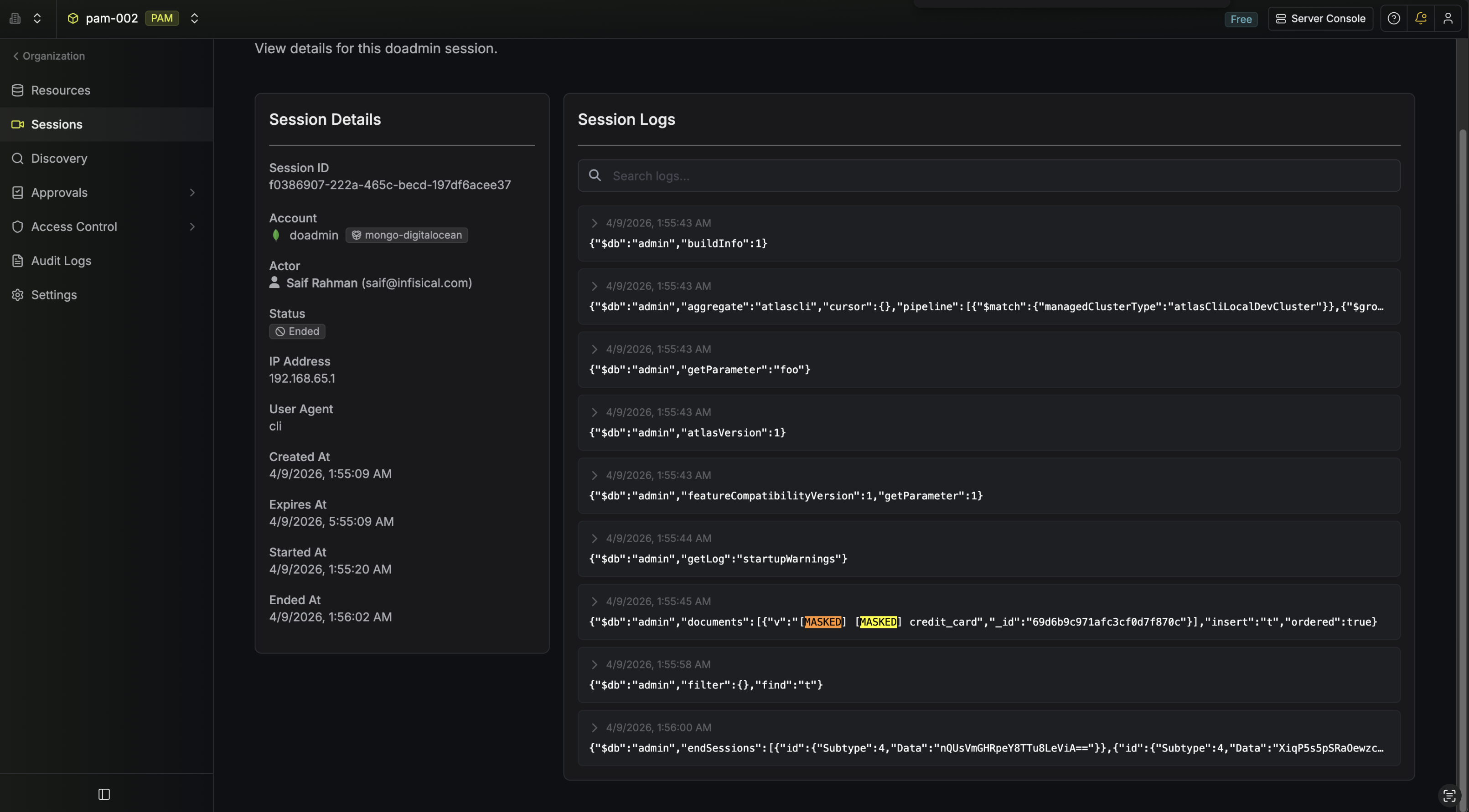
* **Session Log Masking**: Add one or more regex patterns. Any data matching these patterns will be redacted in session logs.
* **Require Access Reason**: Forces the user to provide a non-empty reason before they can start a session. When the rule is active, the CLI prompts for a reason (or accepts the `--reason` flag) and the browser shows a Reason Required screen before the session is created.
For each rule, click the **+** button to add additional patterns.
Click **Add Rule** and select a rule type from the menu. Each rule type can only be added once per policy.
* **Command Blocking**: Add one or more regex patterns. Commands matching any of these patterns will be blocked during SSH sessions.
* **Session Log Masking**: Add one or more regex patterns. Any data matching these patterns will be redacted in session logs.
* **Require Access Reason**: Forces the user to provide a non-empty reason before they can start a session. When the rule is active, the CLI prompts for a reason (or accepts the `--reason` flag) and the browser shows a Reason Required screen before the session is created.
For each rule, click the **+** button to add additional patterns.
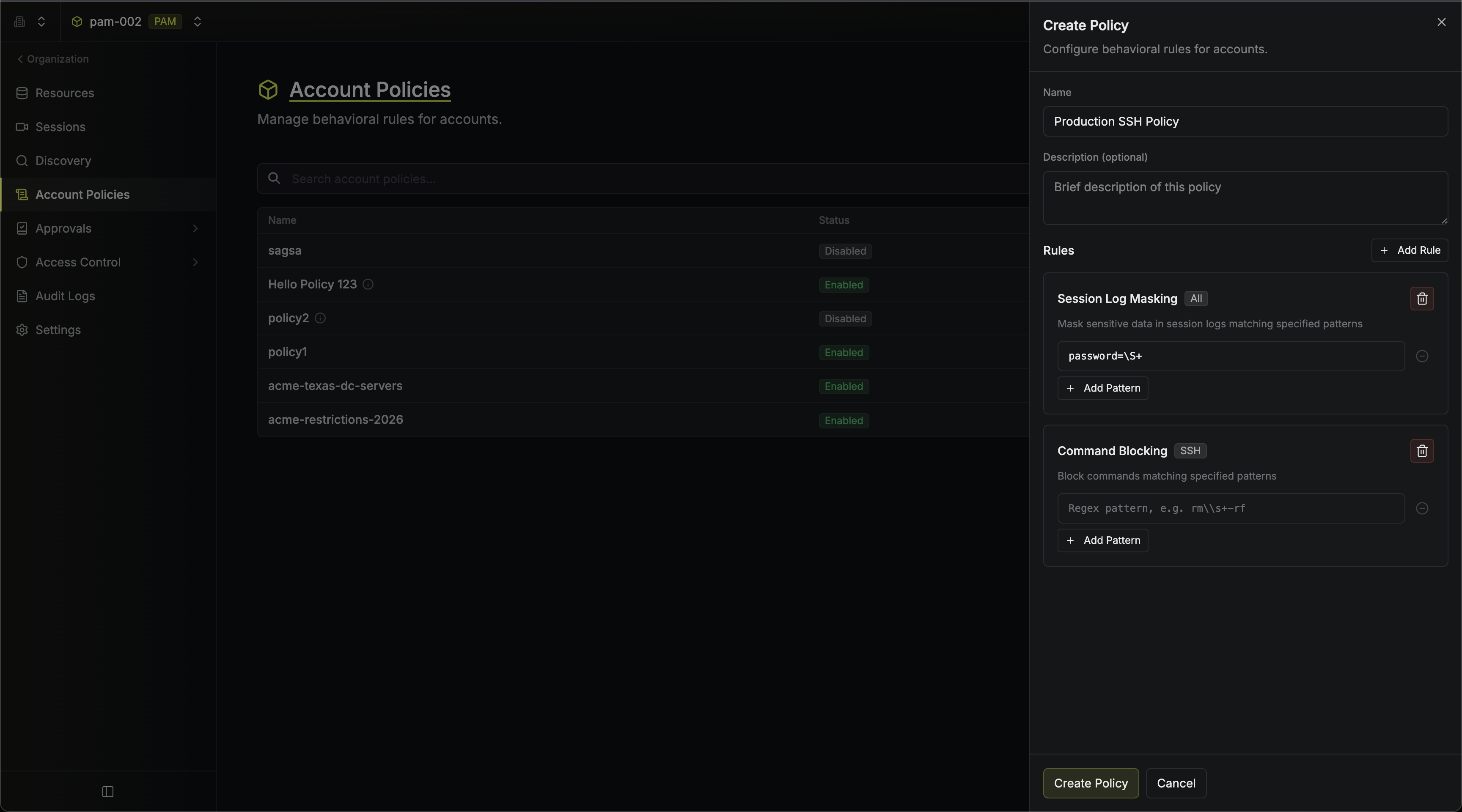 Here's an example of command blocking in action during a live SSH session:
 And session logs with masked sensitive data:
 Click **Create** to save the policy. The policy is active by default and will be enforced on any accounts it is assigned to.
## Assigning a Policy to an Account
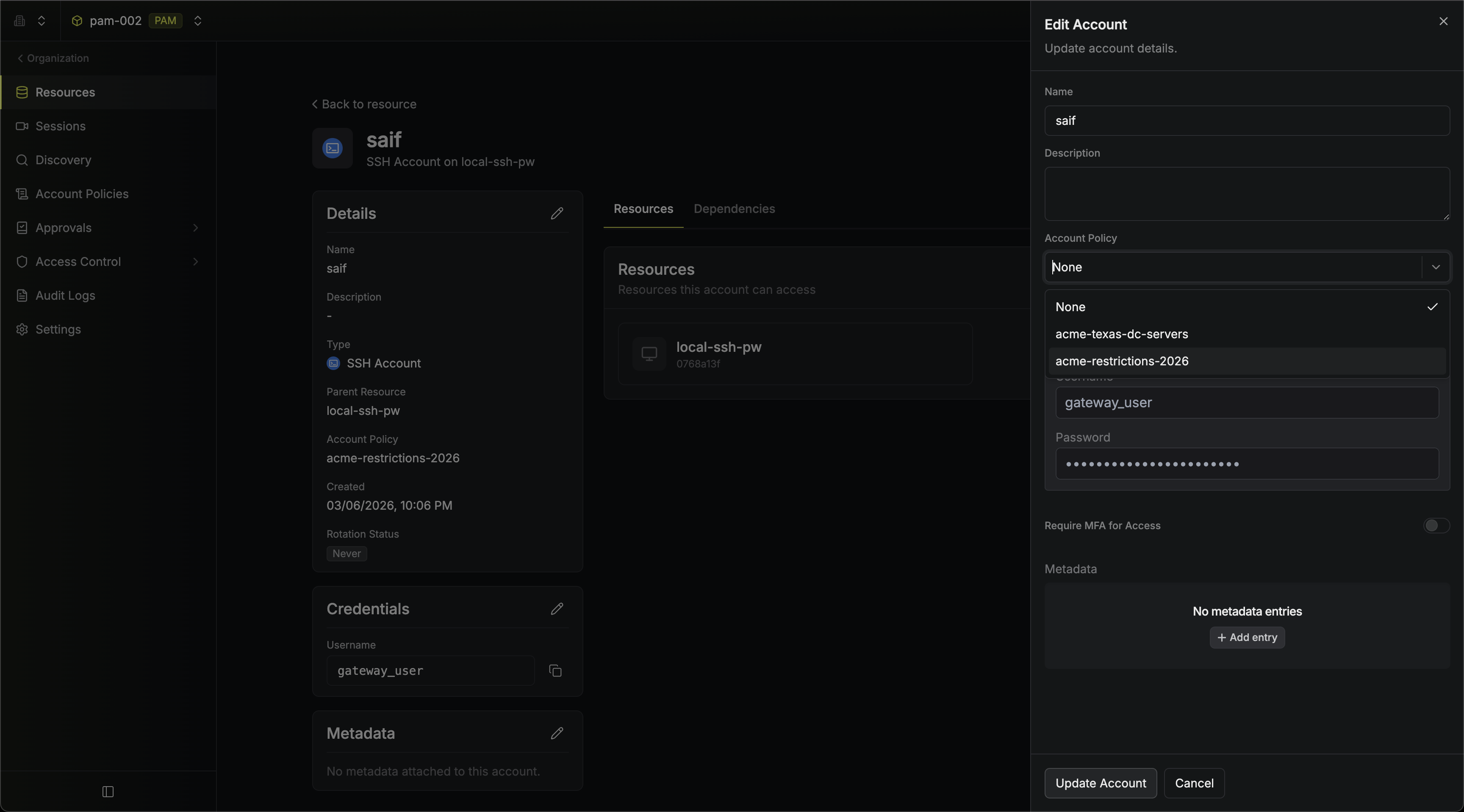
When creating or editing an [Account](/documentation/platform/pam/getting-started/accounts), select a policy from the **Account Policy** dropdown. Each account can have at most one policy assigned. Multiple accounts can share the same policy.
Click **Create** to save the policy. The policy is active by default and will be enforced on any accounts it is assigned to.
## Assigning a Policy to an Account
When creating or editing an [Account](/documentation/platform/pam/getting-started/accounts), select a policy from the **Account Policy** dropdown. Each account can have at most one policy assigned. Multiple accounts can share the same policy.
 If a policy is deleted, any accounts that were using it will have their policy reference removed automatically.
## Toggling a Policy
You can toggle a policy between active and inactive from the account policies list page using the switch in the **Active** column. Inactive policies are not enforced during sessions.
## Editing a Policy
Click the **three-dot menu** on any policy row and select **Edit** to open the policy sheet. You can modify the name, description, and rules of the policy.
## Deleting a Policy
Click the **three-dot menu** on any policy row and select **Delete**. Deleting a policy removes it from all accounts that reference it.
## Writing Regex Patterns
Patterns use standard regular expression syntax. Some examples:
| Pattern | Effect |
| ---------------- | --------------------------------------------------- |
| `rm\s+-rf` | Blocks `rm -rf` commands (command blocking) |
| `sudo\s+su` | Blocks `sudo su` commands (command blocking) |
| `password=.*` | Masks password values in logs (session log masking) |
| `api[_-]?key=.*` | Masks API key values in logs (session log masking) |
Patterns are matched as regular expressions against the full command (for command blocking) or session log content (for session log masking). Test your patterns carefully to avoid overly broad matches.
Command blocking helps prevent unintended or careless commands from reaching the target, adding a guardrail in front of systems where direct controls on the target resource aren't available.
Because matches are evaluated with regular expressions, patterns need to cover the different ways a command might be typed, and exhaustive coverage of every variation is difficult to guarantee in practice. It is highly recommended to pair command blocking with target-side controls like restricted shells or `sudoers` rules where those are available.
## FAQ
No. Each account can have at most one policy assigned. If you need to combine rules, create a single policy that includes all the rules you need.
Deactivating a policy stops it from being enforced during sessions. The policy remains assigned to its accounts and can be reactivated at any time.
The accounts will have their policy reference removed. The accounts themselves are not affected — they will simply have no policy applied.
Only the rules that are applicable to the resource type are enforced. For example, if a policy contains both a command blocking rule and a session log masking rule, and it is assigned to a PostgreSQL account, only the session log masking rule will be enforced — command blocking is specific to SSH resources and will be ignored for non-SSH accounts.
If a policy is deleted, any accounts that were using it will have their policy reference removed automatically.
## Toggling a Policy
You can toggle a policy between active and inactive from the account policies list page using the switch in the **Active** column. Inactive policies are not enforced during sessions.
## Editing a Policy
Click the **three-dot menu** on any policy row and select **Edit** to open the policy sheet. You can modify the name, description, and rules of the policy.
## Deleting a Policy
Click the **three-dot menu** on any policy row and select **Delete**. Deleting a policy removes it from all accounts that reference it.
## Writing Regex Patterns
Patterns use standard regular expression syntax. Some examples:
| Pattern | Effect |
| ---------------- | --------------------------------------------------- |
| `rm\s+-rf` | Blocks `rm -rf` commands (command blocking) |
| `sudo\s+su` | Blocks `sudo su` commands (command blocking) |
| `password=.*` | Masks password values in logs (session log masking) |
| `api[_-]?key=.*` | Masks API key values in logs (session log masking) |
Patterns are matched as regular expressions against the full command (for command blocking) or session log content (for session log masking). Test your patterns carefully to avoid overly broad matches.
Command blocking helps prevent unintended or careless commands from reaching the target, adding a guardrail in front of systems where direct controls on the target resource aren't available.
Because matches are evaluated with regular expressions, patterns need to cover the different ways a command might be typed, and exhaustive coverage of every variation is difficult to guarantee in practice. It is highly recommended to pair command blocking with target-side controls like restricted shells or `sudoers` rules where those are available.
## FAQ
No. Each account can have at most one policy assigned. If you need to combine rules, create a single policy that includes all the rules you need.
Deactivating a policy stops it from being enforced during sessions. The policy remains assigned to its accounts and can be reactivated at any time.
The accounts will have their policy reference removed. The accounts themselves are not affected — they will simply have no policy applied.
Only the rules that are applicable to the resource type are enforced. For example, if a policy contains both a command blocking rule and a session log masking rule, and it is assigned to a PostgreSQL account, only the session log masking rule will be enforced — command blocking is specific to SSH resources and will be ignored for non-SSH accounts.