> ## Documentation Index
> Fetch the complete documentation index at: https://infisical.com/docs/llms.txt
> Use this file to discover all available pages before exploring further.
# AWS Key Management Service
> Learn how to manage encryption using AWS KMS
To enhance the security of your Infisical projects, you can now encrypt your secrets using an external Key Management Service (KMS).
When external KMS is configured for your project, all encryption and decryption operations will be handled by the chosen KMS.
This guide will walk you through the steps needed to configure external KMS support with AWS KMS.
## Prerequisites
* An AWS KMS Key configured as a `Symmetric` key and with `Encrypt and Decrypt` key usage.
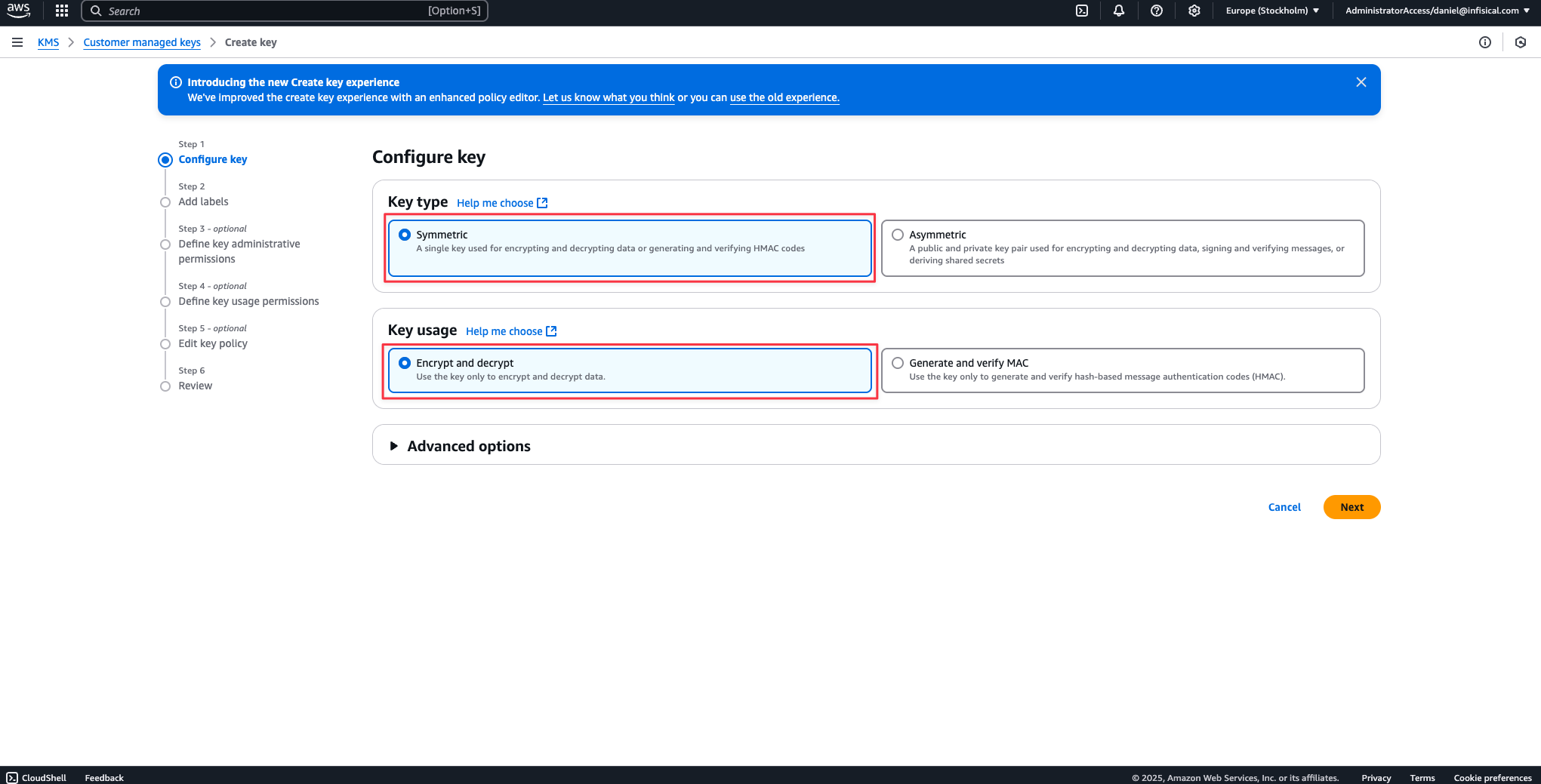 Before you begin, you'll first need to choose a method of authentication with AWS from below.
1. Navigate to the [Create IAM Role](https://console.aws.amazon.com/iamv2/home#/roles/create?step=selectEntities) page in your AWS Console.
Before you begin, you'll first need to choose a method of authentication with AWS from below.
1. Navigate to the [Create IAM Role](https://console.aws.amazon.com/iamv2/home#/roles/create?step=selectEntities) page in your AWS Console.
 2. Select **AWS Account** as the **Trusted Entity Type**.
3. Select **Another AWS Account** and provide the appropriate Infisical AWS Account ID: use **381492033652** for the **US region**, and **345594589636** for the **EU region**. This restricts the role to be assumed only by Infisical. If you are self-hosting, provide the AWS account number where Infisical is hosted.
**For Dedicated Instances**: Your AWS account ID differs from the one provided above. Please reach out to Infisical support to obtain your AWS account ID.
4. Optionally, enable **Require external ID** and enter your Infisical **project ID** to further enhance security.
Use the following custom policy to grant the minimum permissions required by Infisical to integrate with AWS KMS
```json theme={"dark"}
{
"Version": "2012-10-17",
"Statement": [
{
"Sid": "AllowKMSAccess",
"Effect": "Allow",
"Action": [
"kms:Decrypt",
"kms:Encrypt",
"kms:DescribeKey"
],
"Resource": "*"
}
]
}
```
Navigate to your IAM user and add a policy to grant the following permissions:
```json theme={"dark"}
{
"Version": "2012-10-17",
"Statement": [
{
"Sid": "AllowKMSAccess",
"Effect": "Allow",
"Action": [
"kms:Decrypt",
"kms:Encrypt",
"kms:DescribeKey"
],
"Resource": "*"
}
]
}
```
## Setup AWS KMS in the Organization Settings
Next, you will need to follow the steps listed below to add AWS KMS for your organization.
2. Select **AWS Account** as the **Trusted Entity Type**.
3. Select **Another AWS Account** and provide the appropriate Infisical AWS Account ID: use **381492033652** for the **US region**, and **345594589636** for the **EU region**. This restricts the role to be assumed only by Infisical. If you are self-hosting, provide the AWS account number where Infisical is hosted.
**For Dedicated Instances**: Your AWS account ID differs from the one provided above. Please reach out to Infisical support to obtain your AWS account ID.
4. Optionally, enable **Require external ID** and enter your Infisical **project ID** to further enhance security.
Use the following custom policy to grant the minimum permissions required by Infisical to integrate with AWS KMS
```json theme={"dark"}
{
"Version": "2012-10-17",
"Statement": [
{
"Sid": "AllowKMSAccess",
"Effect": "Allow",
"Action": [
"kms:Decrypt",
"kms:Encrypt",
"kms:DescribeKey"
],
"Resource": "*"
}
]
}
```
Navigate to your IAM user and add a policy to grant the following permissions:
```json theme={"dark"}
{
"Version": "2012-10-17",
"Statement": [
{
"Sid": "AllowKMSAccess",
"Effect": "Allow",
"Action": [
"kms:Decrypt",
"kms:Encrypt",
"kms:DescribeKey"
],
"Resource": "*"
}
]
}
```
## Setup AWS KMS in the Organization Settings
Next, you will need to follow the steps listed below to add AWS KMS for your organization.
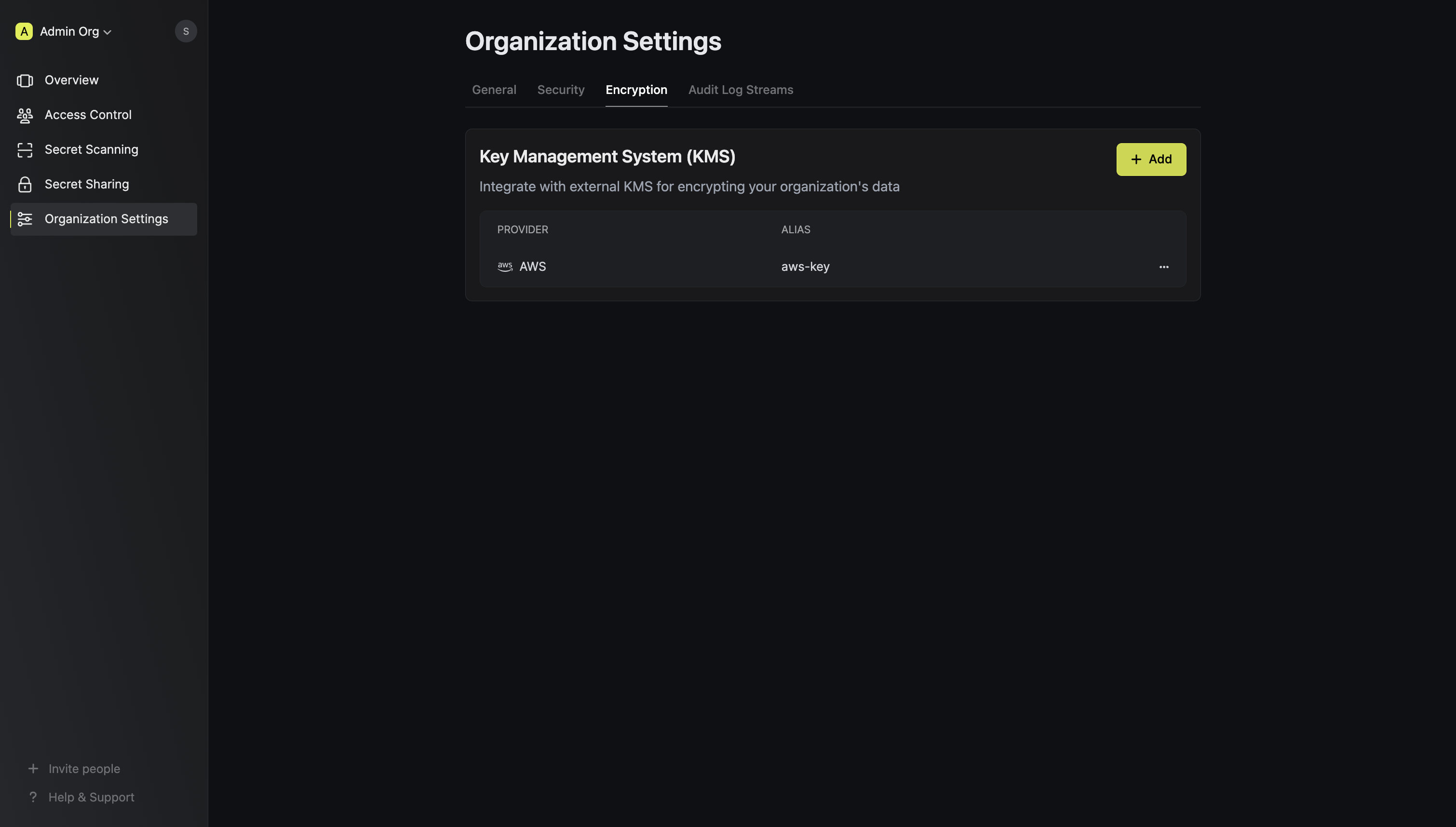
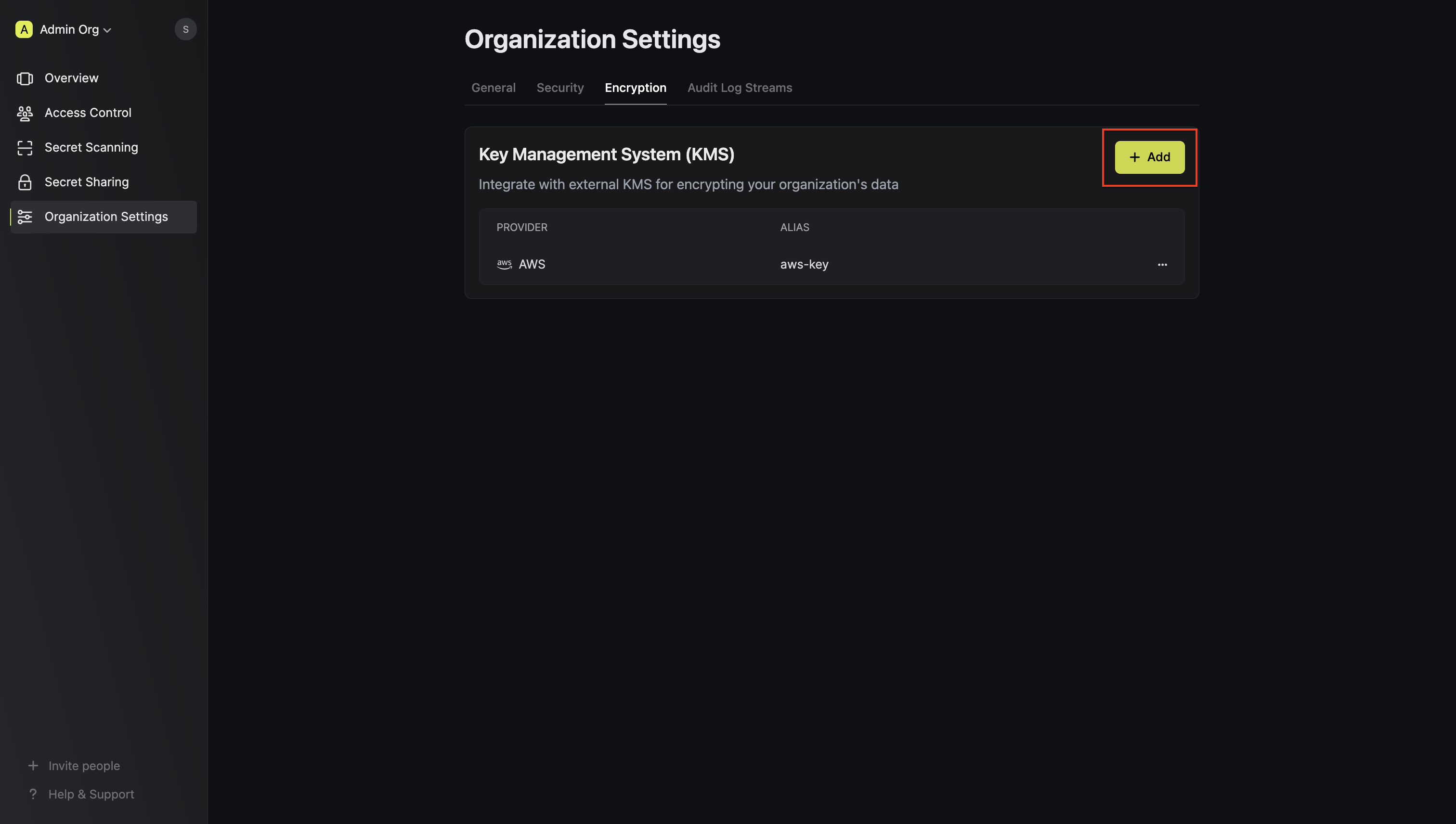 Click the 'Add' button to begin adding a new external KMS.
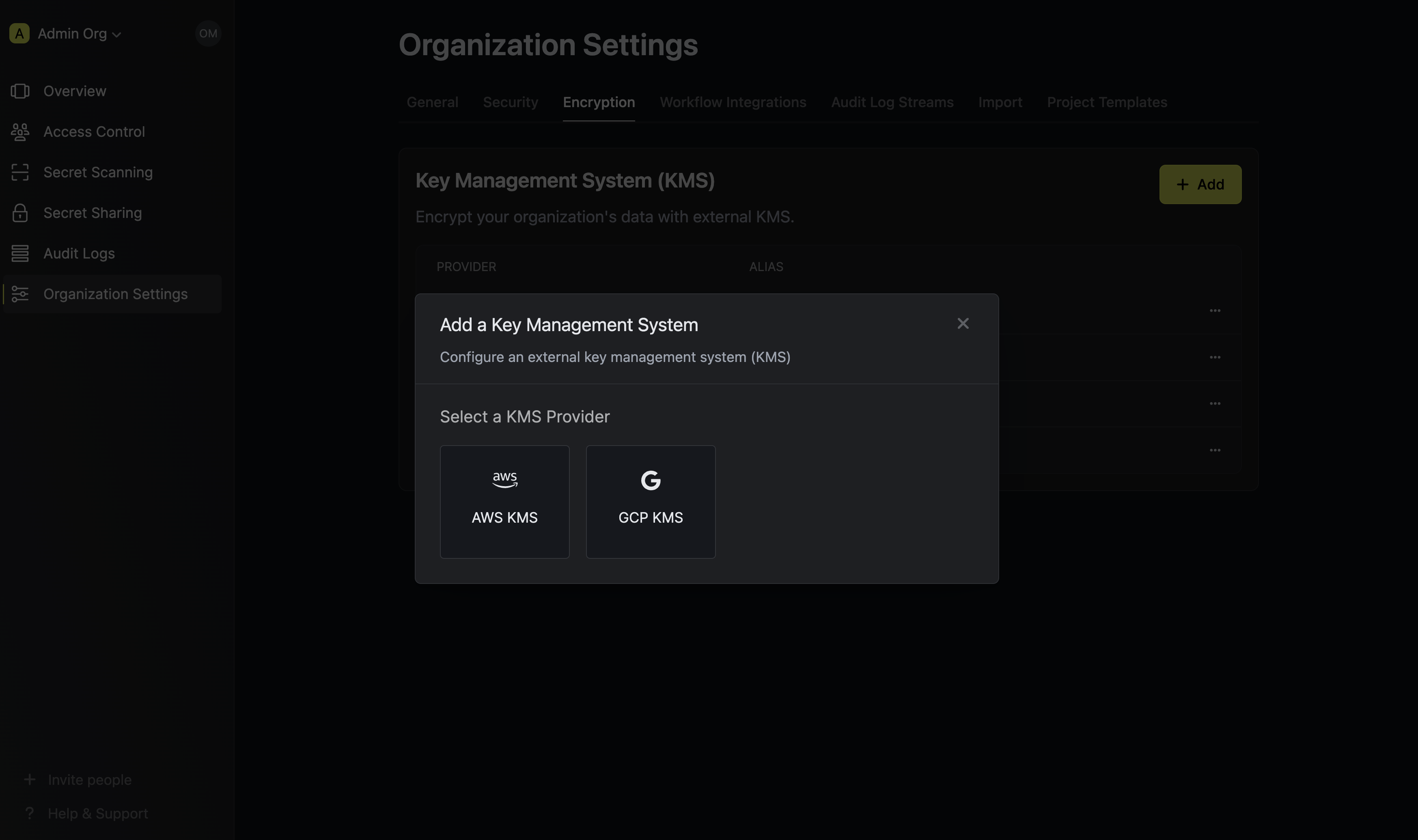 Choose 'AWS KMS' from the list of encryption providers.
Selecting AWS as the provider will require you input the following fields.
Name for referencing the AWS KMS key within the organization.
Short description of the AWS KMS key.
Authentication mode for AWS, either "AWS Assume Role" or "Access Key".
ARN of the AWS role to assume for providing Infisical access to the AWS KMS Key (required if Authentication Mode is "AWS Assume Role")
Custom identifier for additional validation during role assumption.
AWS IAM Access Key ID for authentication (required if Authentication Mode is "Access Key").
AWS IAM Secret Access Key for authentication (required if Authentication Mode is "Access Key").
AWS region where the AWS KMS Key is located.
Key ID of the AWS KMS Key. If left blank, Infisical will generate and use a new AWS KMS Key in the specified region.
Choose 'AWS KMS' from the list of encryption providers.
Selecting AWS as the provider will require you input the following fields.
Name for referencing the AWS KMS key within the organization.
Short description of the AWS KMS key.
Authentication mode for AWS, either "AWS Assume Role" or "Access Key".
ARN of the AWS role to assume for providing Infisical access to the AWS KMS Key (required if Authentication Mode is "AWS Assume Role")
Custom identifier for additional validation during role assumption.
AWS IAM Access Key ID for authentication (required if Authentication Mode is "Access Key").
AWS IAM Secret Access Key for authentication (required if Authentication Mode is "Access Key").
AWS region where the AWS KMS Key is located.
Key ID of the AWS KMS Key. If left blank, Infisical will generate and use a new AWS KMS Key in the specified region.
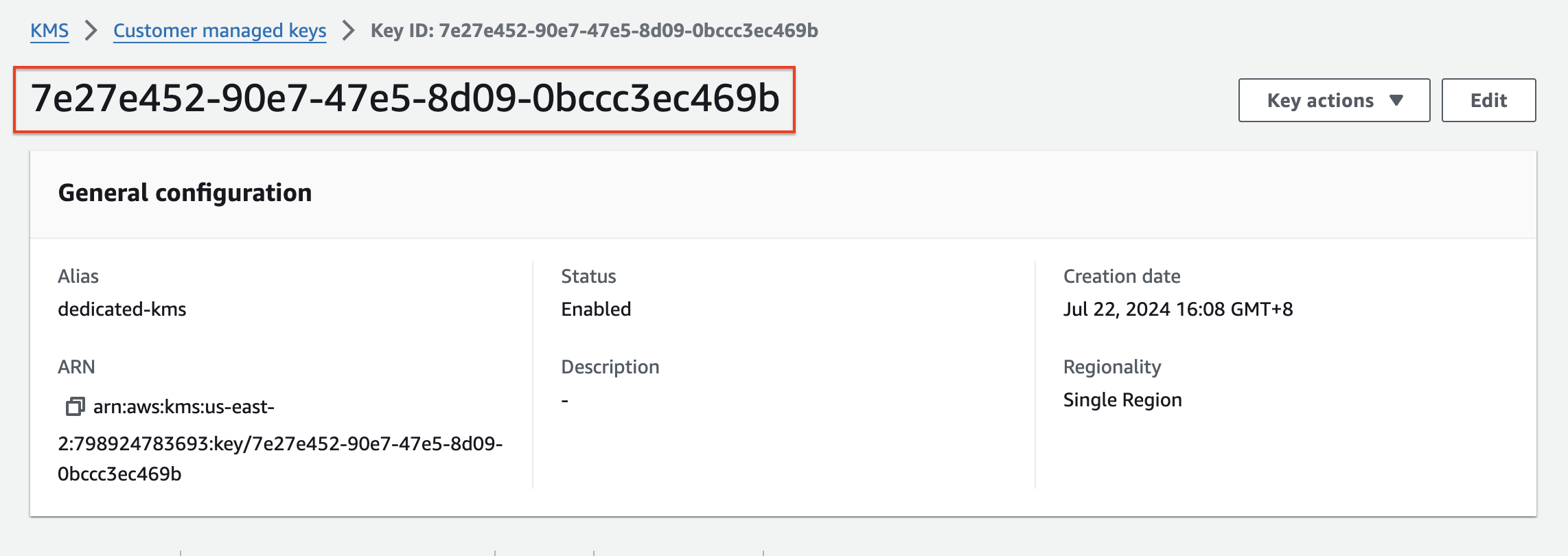 Save your configuration to apply the settings.
You now have an AWS KMS Key configured at the organization level. You can assign these AWS KMS keys to existing Infisical projects by visiting the 'Project Settings' page.
## Assign AWS KMS Key to an Existing Project
To assign the AWS KMS key you added to your organization, follow the steps below.
Save your configuration to apply the settings.
You now have an AWS KMS Key configured at the organization level. You can assign these AWS KMS keys to existing Infisical projects by visiting the 'Project Settings' page.
## Assign AWS KMS Key to an Existing Project
To assign the AWS KMS key you added to your organization, follow the steps below.
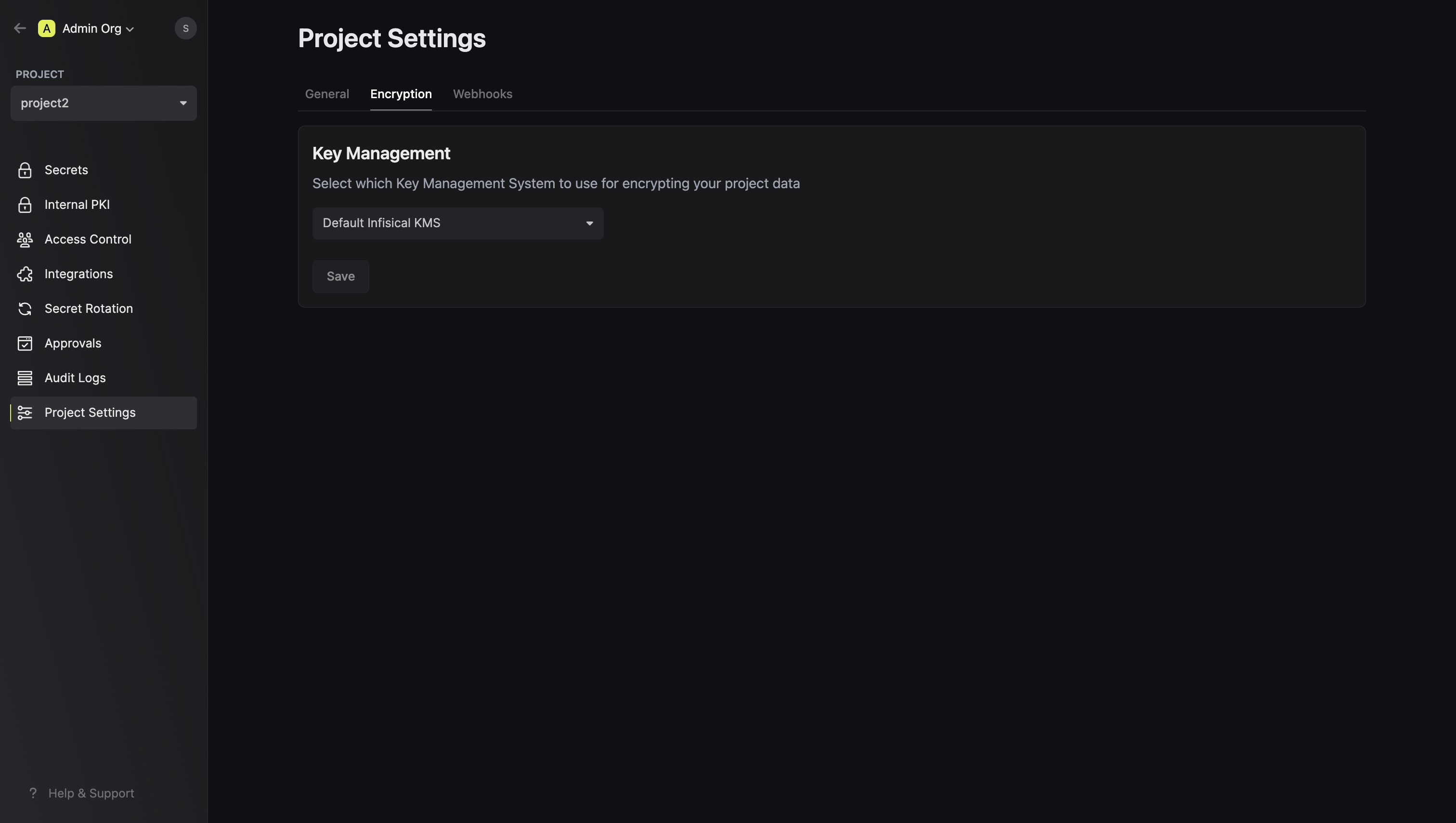
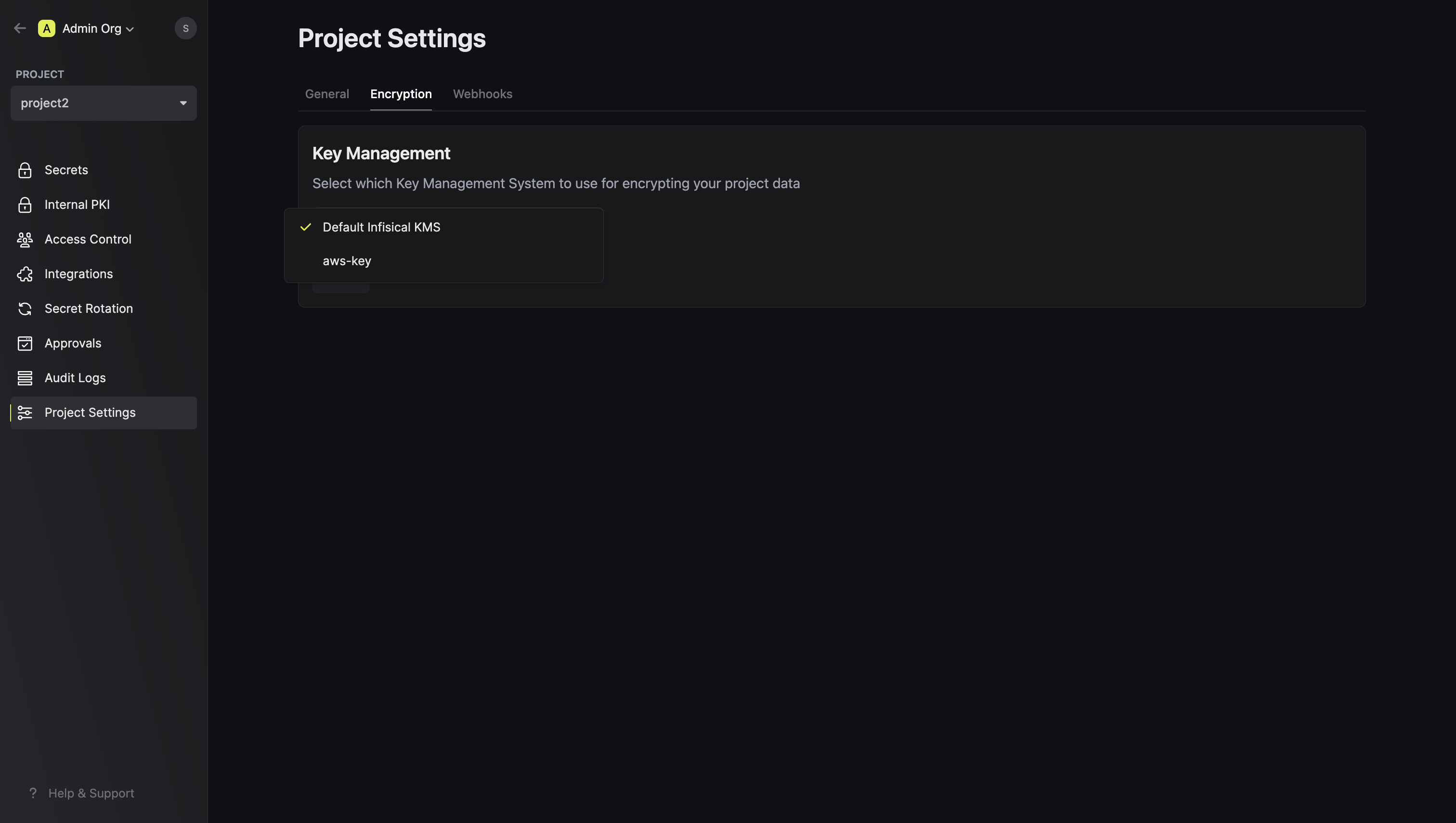 Choose the AWS KMS key you configured earlier.
Once you have selected the KMS of choice, click save.
Choose the AWS KMS key you configured earlier.
Once you have selected the KMS of choice, click save.