> ## Documentation Index
> Fetch the complete documentation index at: https://infisical.com/docs/llms.txt
> Use this file to discover all available pages before exploring further.
# Using AWS Honey Tokens
> Create, monitor, and manage AWS honey tokens in your projects.
Before creating honey tokens, an organization admin must complete the
[one-time setup](/documentation/platform/honey-tokens/aws/setup).
Creating, editing, resetting, and revoking honey tokens requires project-level **Admin** permissions by default. Members and Viewers can only view honey tokens. See the [Permissions](/documentation/platform/honey-tokens/overview#permissions) section for details on configuring custom roles.
## Creating a Honey Token
Navigate to your project's Secret Manager dashboard and select the environment and secret path where you want to plant the honey token.
Click the **Add Honey Token** button to open the creation dialog.
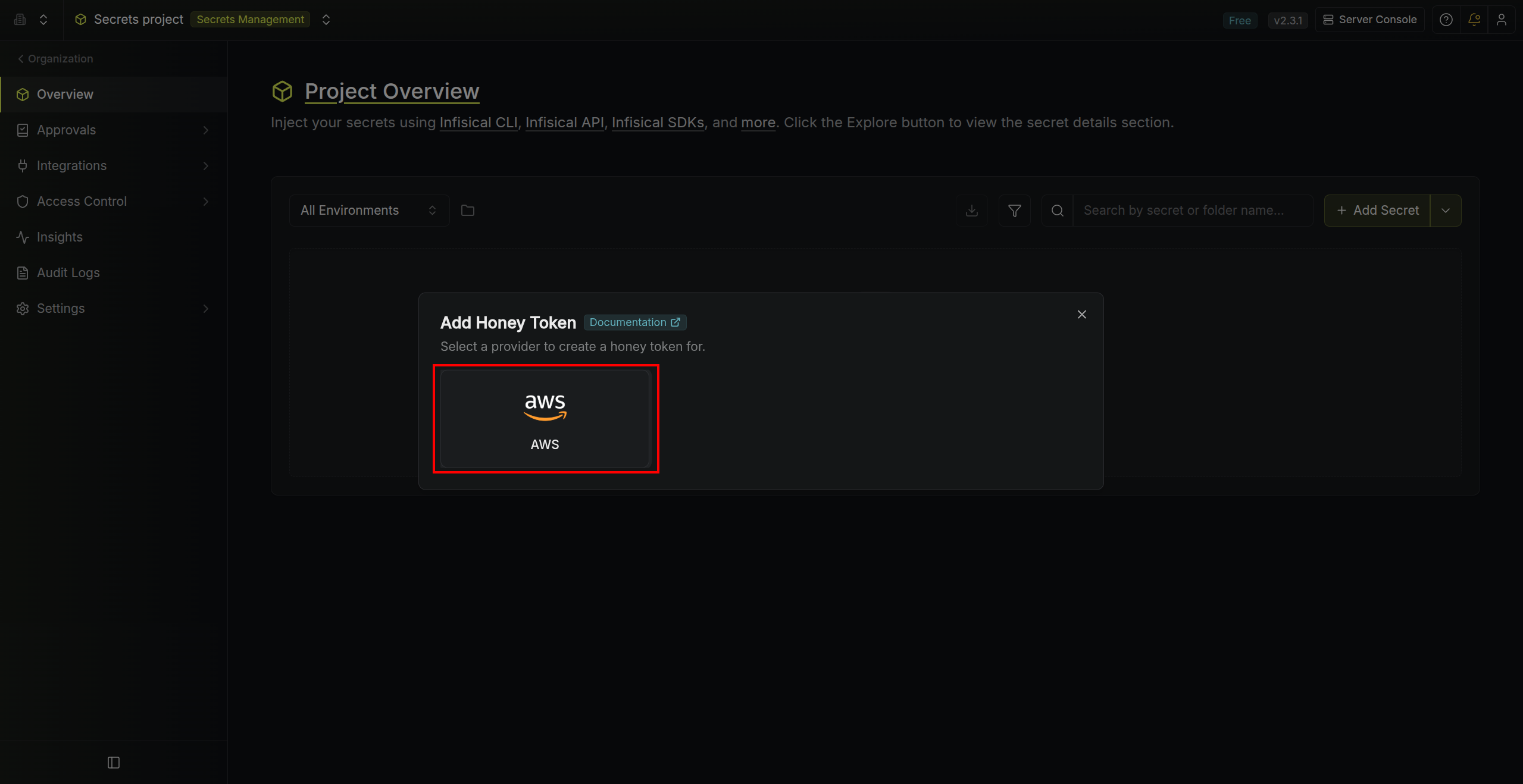
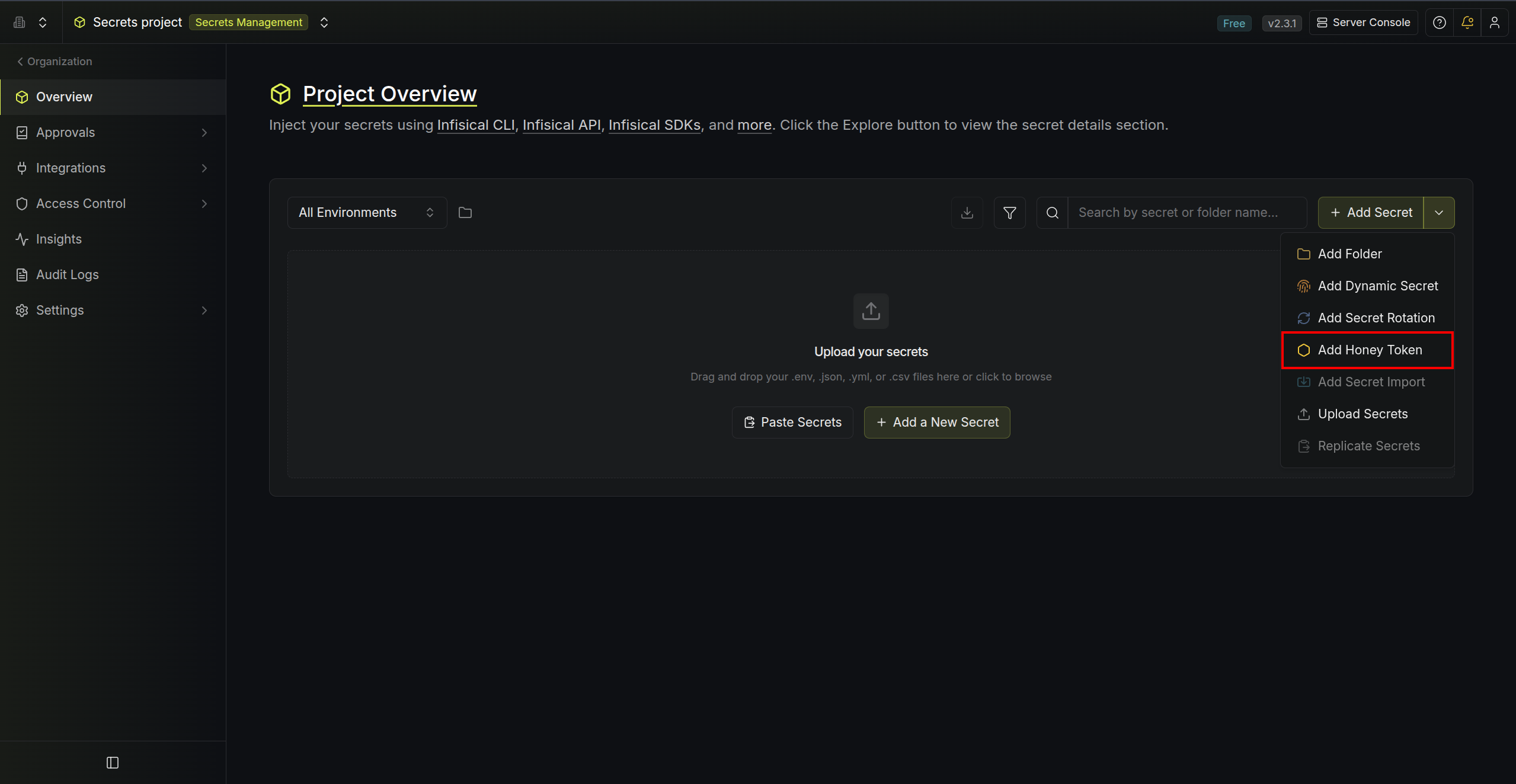 Choose the type of honey token you want to create.
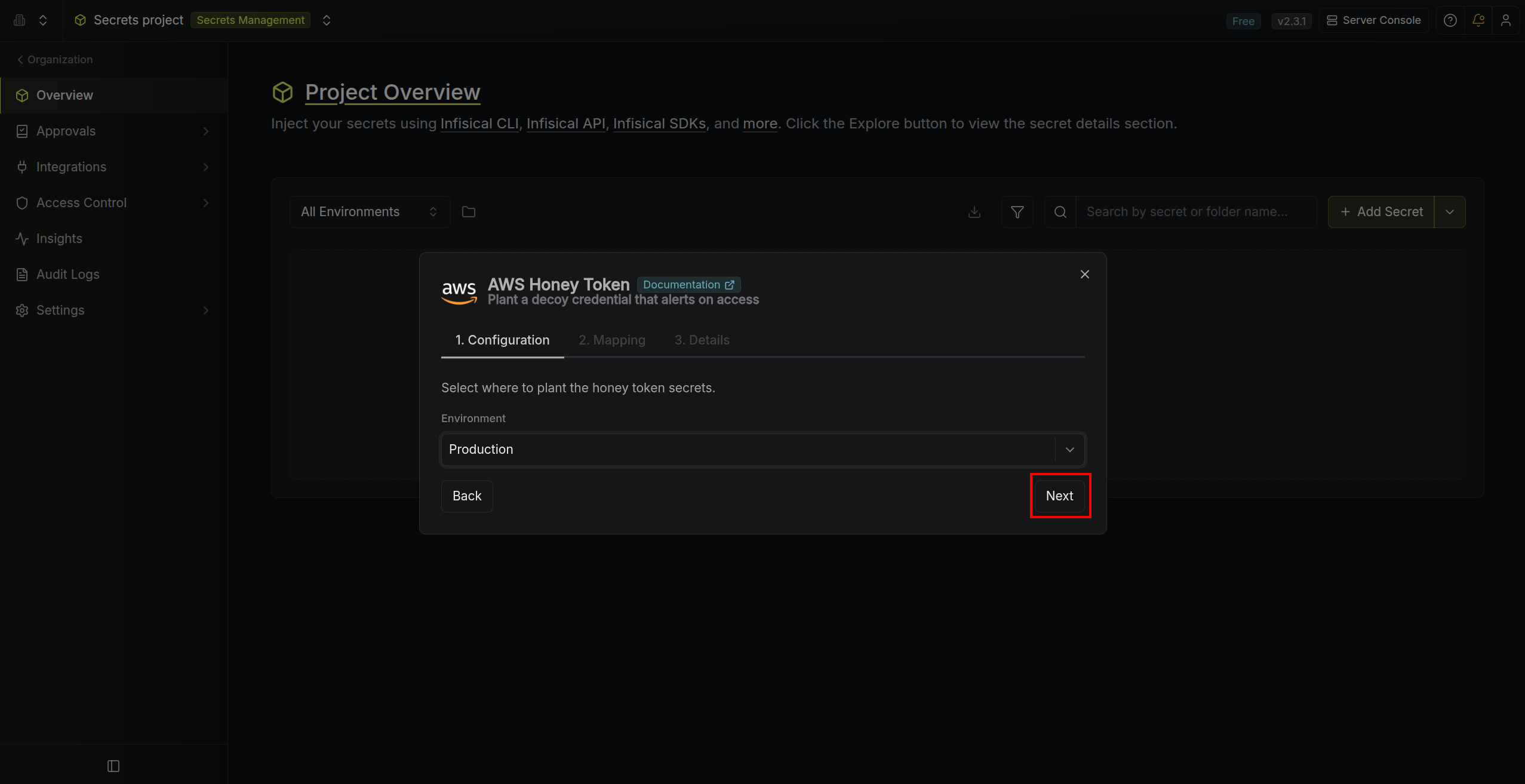
 Configure where the honey token and its credentials will be planted within your project:
* **Environment** — choose the target environment.
The secret path is automatically determined based on which secret path you are currently in while creating the honey token.
Configure where the honey token and its credentials will be planted within your project:
* **Environment** — choose the target environment.
The secret path is automatically determined based on which secret path you are currently in while creating the honey token.
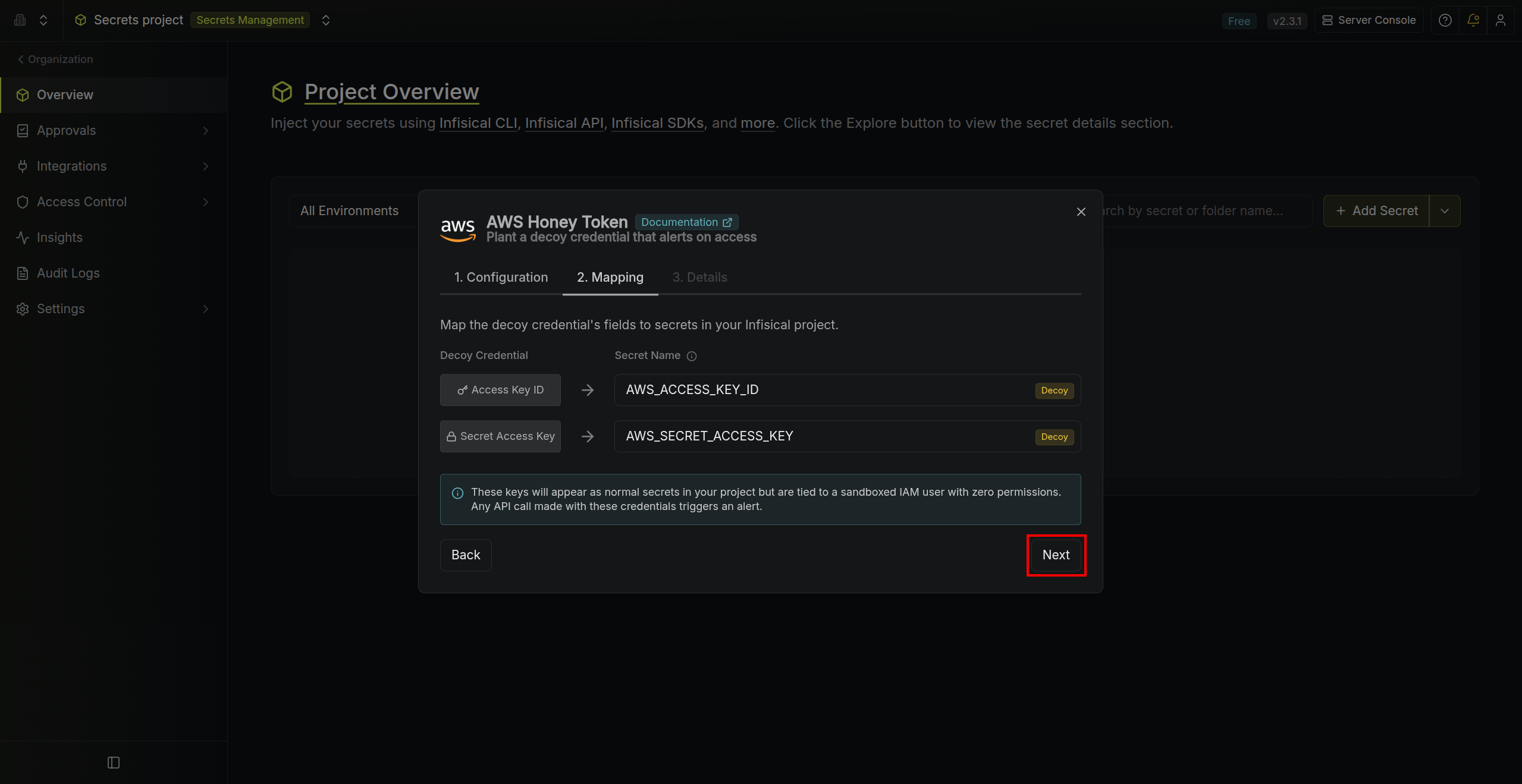
 Configure the secret mappings. This dictates which secret keys will be created in your selected environment and secret path to hold the honey token credentials.
* **Access Key ID** — secret name for the AWS access key ID (for example: `AWS_ACCESS_KEY_ID`).
* **Secret Access Key** — secret name for the AWS secret access key (for example: `AWS_SECRET_ACCESS_KEY`).
Configure the secret mappings. This dictates which secret keys will be created in your selected environment and secret path to hold the honey token credentials.
* **Access Key ID** — secret name for the AWS access key ID (for example: `AWS_ACCESS_KEY_ID`).
* **Secret Access Key** — secret name for the AWS secret access key (for example: `AWS_SECRET_ACCESS_KEY`).
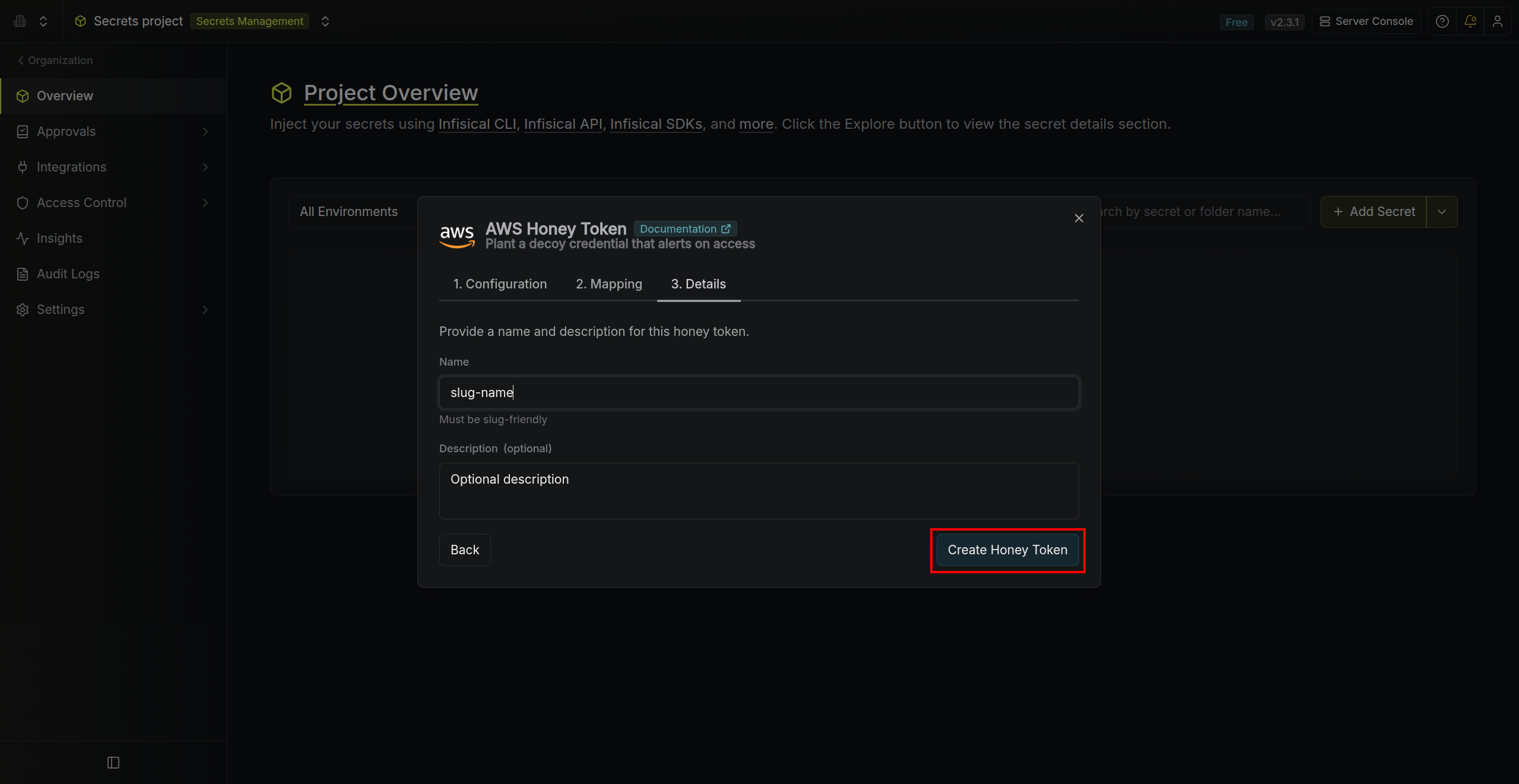
 Add the honey token details to help you better identify it in the future:
* **Name** — a slug-friendly identifier (must be unique within the selected folder).
* **Description** (optional) — context for this honey token.
Click **Create**. Infisical provisions the decoy credentials in your AWS account and stores them as secrets in the selected environment and path.
Add the honey token details to help you better identify it in the future:
* **Name** — a slug-friendly identifier (must be unique within the selected folder).
* **Description** (optional) — context for this honey token.
Click **Create**. Infisical provisions the decoy credentials in your AWS account and stores them as secrets in the selected environment and path.
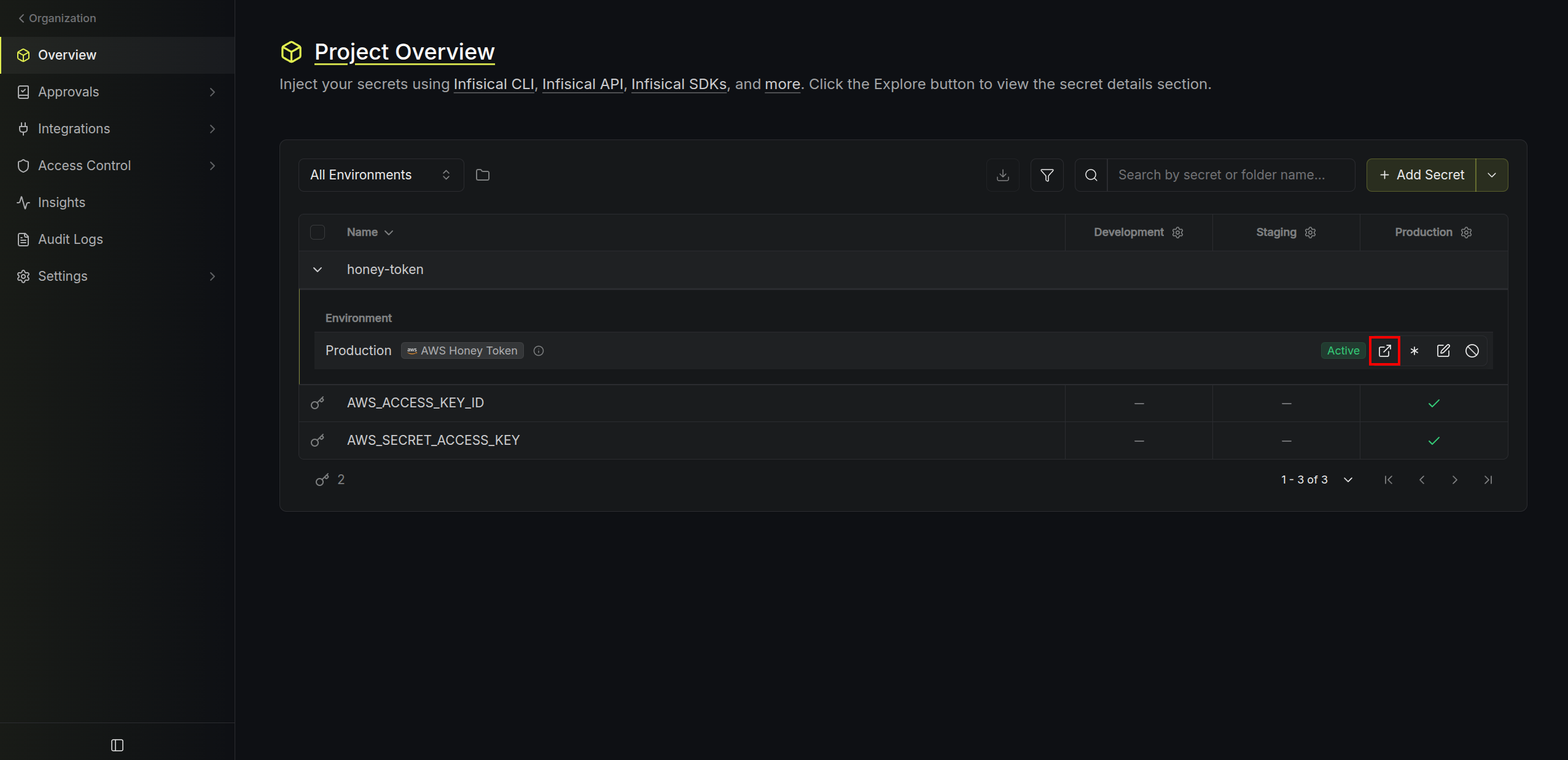
 The honey token is now **Active**. The decoy secrets appear alongside your real secrets and are included in any secret syncs or integrations.
## Notifications
When someone uses a honey token's credentials to make any AWS API call, Infisical detects the activity, marks the honey token as **Triggered**, and sends an email alert to all organization admins with:
* The name of the triggered honey token and its project
* The AWS API call that was made (e.g., `GetUser`, `ListBuckets`)
* The source IP address and AWS region
* The time of the event
* A direct link to the honey token in the Infisical dashboard
To avoid alert fatigue, Infisical sends at most one email notification per
honey token every 24 hours. All trigger events are still recorded and
viewable in the event log.
## Managing Honey Tokens
### Viewing Events
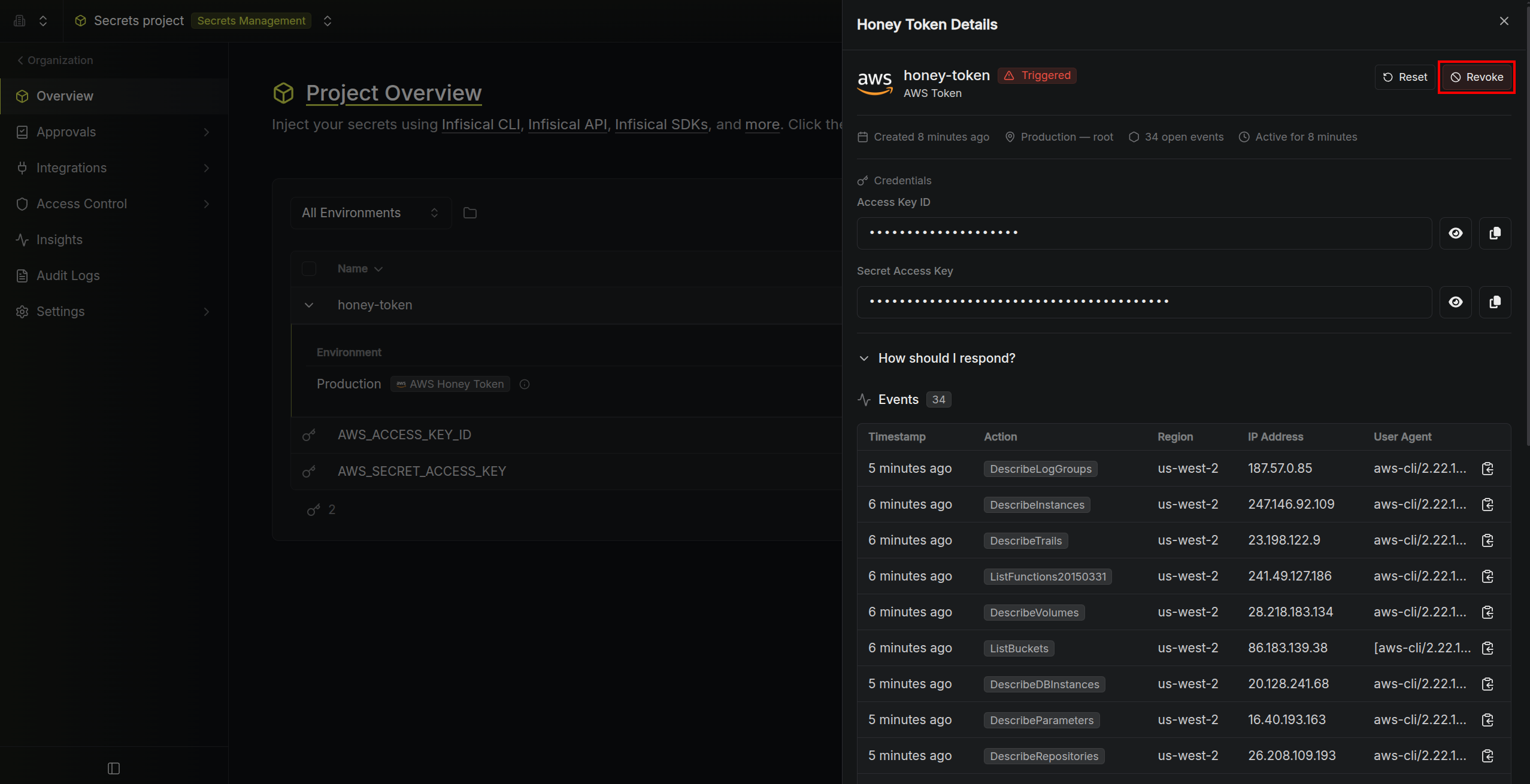
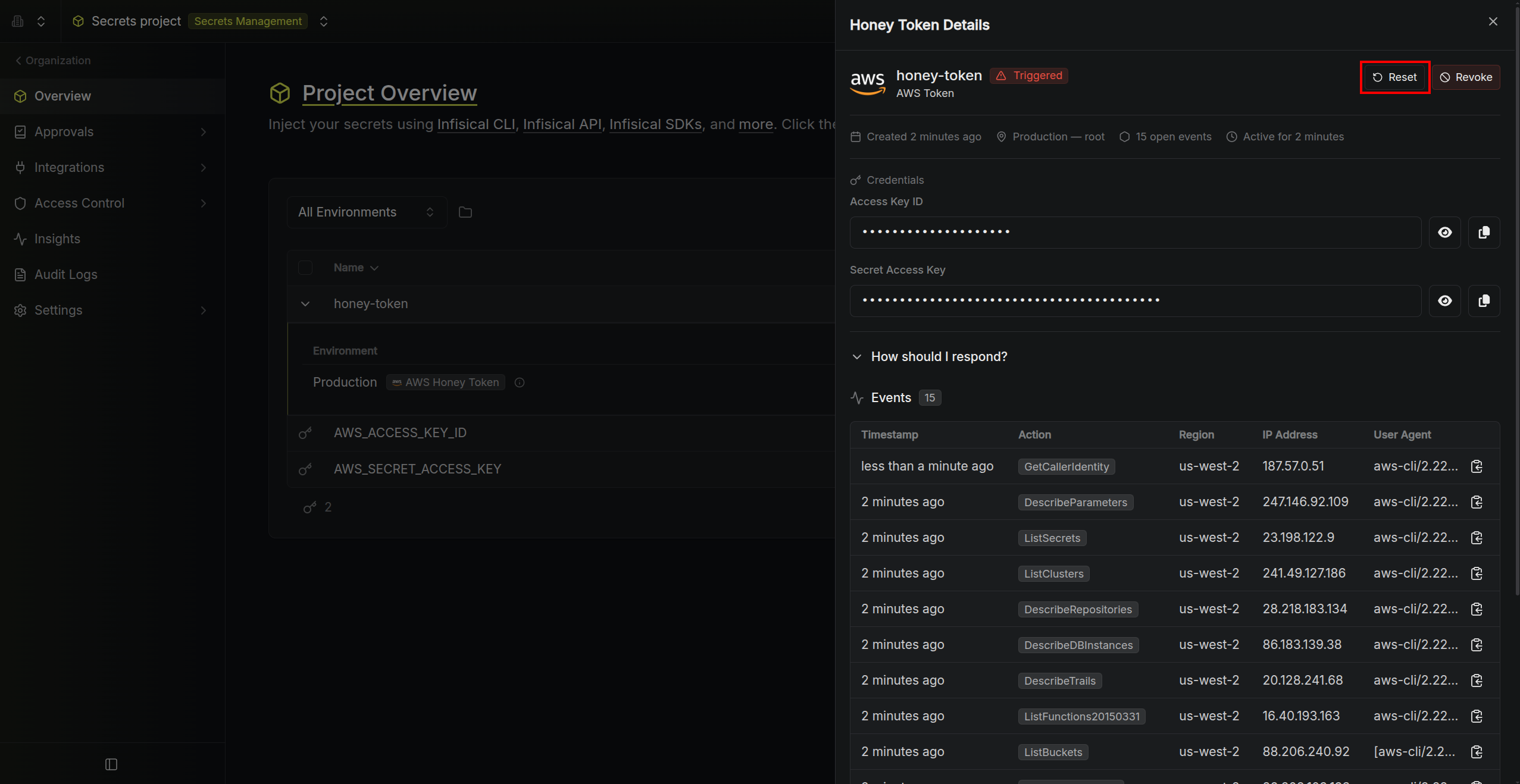
Open a honey token's detail page to see a chronological log of all trigger events since the last reset. Each event shows the AWS API call, source IP, region, and timestamp.
The honey token is now **Active**. The decoy secrets appear alongside your real secrets and are included in any secret syncs or integrations.
## Notifications
When someone uses a honey token's credentials to make any AWS API call, Infisical detects the activity, marks the honey token as **Triggered**, and sends an email alert to all organization admins with:
* The name of the triggered honey token and its project
* The AWS API call that was made (e.g., `GetUser`, `ListBuckets`)
* The source IP address and AWS region
* The time of the event
* A direct link to the honey token in the Infisical dashboard
To avoid alert fatigue, Infisical sends at most one email notification per
honey token every 24 hours. All trigger events are still recorded and
viewable in the event log.
## Managing Honey Tokens
### Viewing Events
Open a honey token's detail page to see a chronological log of all trigger events since the last reset. Each event shows the AWS API call, source IP, region, and timestamp.
 ### Resetting a Triggered Token
If a honey token is in **Triggered** status and you've addressed the incident, click **Reset** to return it to **Active** status. This hides previous events from the event log view (events are still stored in the database) and re-enables email notifications.
### Resetting a Triggered Token
If a honey token is in **Triggered** status and you've addressed the incident, click **Reset** to return it to **Active** status. This hides previous events from the event log view (events are still stored in the database) and re-enables email notifications.
 ### Revoking a Honey Token
To permanently deactivate a honey token, click **Revoke**. This will:
* Delete the IAM user and access key from AWS
* Remove the decoy secrets from the project
* Mark the honey token as **Revoked**
Revocation is irreversible.
### Revoking a Honey Token
To permanently deactivate a honey token, click **Revoke**. This will:
* Delete the IAM user and access key from AWS
* Remove the decoy secrets from the project
* Mark the honey token as **Revoked**
Revocation is irreversible.