> ## Documentation Index
> Fetch the complete documentation index at: https://infisical.com/docs/llms.txt
> Use this file to discover all available pages before exploring further.
# Migrating from Vault to Infisical
> Learn how to migrate resources from Vault to Infisical.
This guide helps you migrate from HashiCorp Vault to Infisical. Whether you're moving a single application or your entire secrets infrastructure, Infisical provides tooling to make the transition smooth.
Our in-platform migration tooling lets you set up a connection to your Vault instance once, then import specific resources as needed throughout Infisical. Think of it as creating a "bridge" between Vault and Infisical that you can use repeatedly.
**What you can migrate:**
* KV v1 and KV v2 secrets
* Kubernetes auth method configurations (translated to [Machine Identities](/documentation/platform/identities/machine-identities) in Infisical)
* Kubernetes secrets engine roles (translated to [Dynamic Secrets](/documentation/platform/dynamic-secrets/kubernetes) in Infisical)
* Vault policies (translated to [Infisical project roles](/documentation/platform/access-controls/role-based-access-controls))
Importing from Vault requires the `Connect` action on `App Connections` and the `Create` action on the relevant subjects — for example, the `Create` action on the `Secrets` subject at the target environment and folder path for KV imports, or the equivalent permission for Machine Identities, Dynamic Secrets, and Roles.
## Set Up Your Vault Connection
Before importing anything, you need to establish a secure connection between Infisical and your Vault instance. This is a one-time setup.
In your Vault instance, create a policy that allows Infisical to read your secrets, policies, and authentication configurations. This policy grants read-only access and doesn't allow Infisical to modify or create resources within your Vault instance.
```hcl theme={"dark"}
# System endpoints - for listing namespaces, policies, mounts, and auth methods
path "sys/namespaces" {
capabilities = ["list"]
}
path "sys/policy" {
capabilities = ["read", "list"]
}
path "sys/policy/*" {
capabilities = ["read"]
}
path "sys/mounts" {
capabilities = ["read"]
}
path "sys/auth" {
capabilities = ["read"]
}
# KV v2 secrets - for listing and reading secrets
# Replace '+' with your actual KV v2 mount paths (e.g., "secret", "kv")
path "+/metadata/*" {
capabilities = ["list", "read"]
}
path "+/data/*" {
capabilities = ["read"]
}
# KV v1 secrets - for listing and reading secrets
# Replace '+' with your actual KV v1 mount paths (e.g., "secret", "kv-v1")
# WARNING: This is broad - ideally specify exact mount names
path "+/*" {
capabilities = ["list", "read"]
}
# Kubernetes auth - for reading auth configuration and roles
path "auth/+/config" {
capabilities = ["read"]
}
path "auth/+/role" {
capabilities = ["list"]
}
path "auth/+/role/*" {
capabilities = ["read"]
}
# Kubernetes secrets engine - for reading secrets engine configuration and roles
path "+/config" {
capabilities = ["read"]
}
path "+/roles" {
capabilities = ["list"]
}
path "+/roles/*" {
capabilities = ["read"]
}
```
Save this policy in Vault with the name `infisical-in-platform-migration`.
In Infisical, create a new App Connection of type **HashiCorp Vault** in one of two places:
* **Project > Integrations > App Connections** — the connection is only visible inside that project.
* **Organization Settings > App Connections** — the connection is visible across every project in the organization.
Follow the [HashiCorp Vault App Connection documentation](/integrations/app-connections/hashicorp-vault) for detailed setup instructions. When configuring authentication (Token or AppRole), make sure the credential uses the `infisical-in-platform-migration` policy you created in the previous step.
You can create more than one connection if you need to migrate from several Vault instances. The Vault namespace is not part of the connection — you pick it inline each time you import a resource.
## Migrate Your Resources
Once your Vault connection is configured, you'll see import options throughout Infisical wherever relevant. The sections below cover each type of resource you can migrate.
**Migration Strategy:** We recommend migrating one application at a time. Start with a non-critical application to familiarize yourself with the process, then proceed to more important services.
### Migrating KV Secrets
KV secrets are imported into a specific **environment** (e.g., Development, Staging, Production) within a **project**. If you're coming from Vault, think of a project as similar to a KV secret engine dedicated to one application.
**First time?** You'll need to [create a project](/documentation/platform/project) first. A project in Infisical typically represents a single application or microservice.
If your Vault token is restricted and cannot list a mount from its root, Infisical discovers the available secret paths from the token's resultant ACL (`sys/internal/ui/resultant-acl`). Any path that contains a `+` wildcard (Vault's single-segment wildcard, e.g. `secret/+/db`) cannot be expanded and is **skipped** — those secrets will not be imported. To migrate them, grant the token access to the explicit KV paths instead of relying on `+`.
**To import secrets from Vault:**
1. Navigate to your project and select a specific environment (e.g., Development, Production)
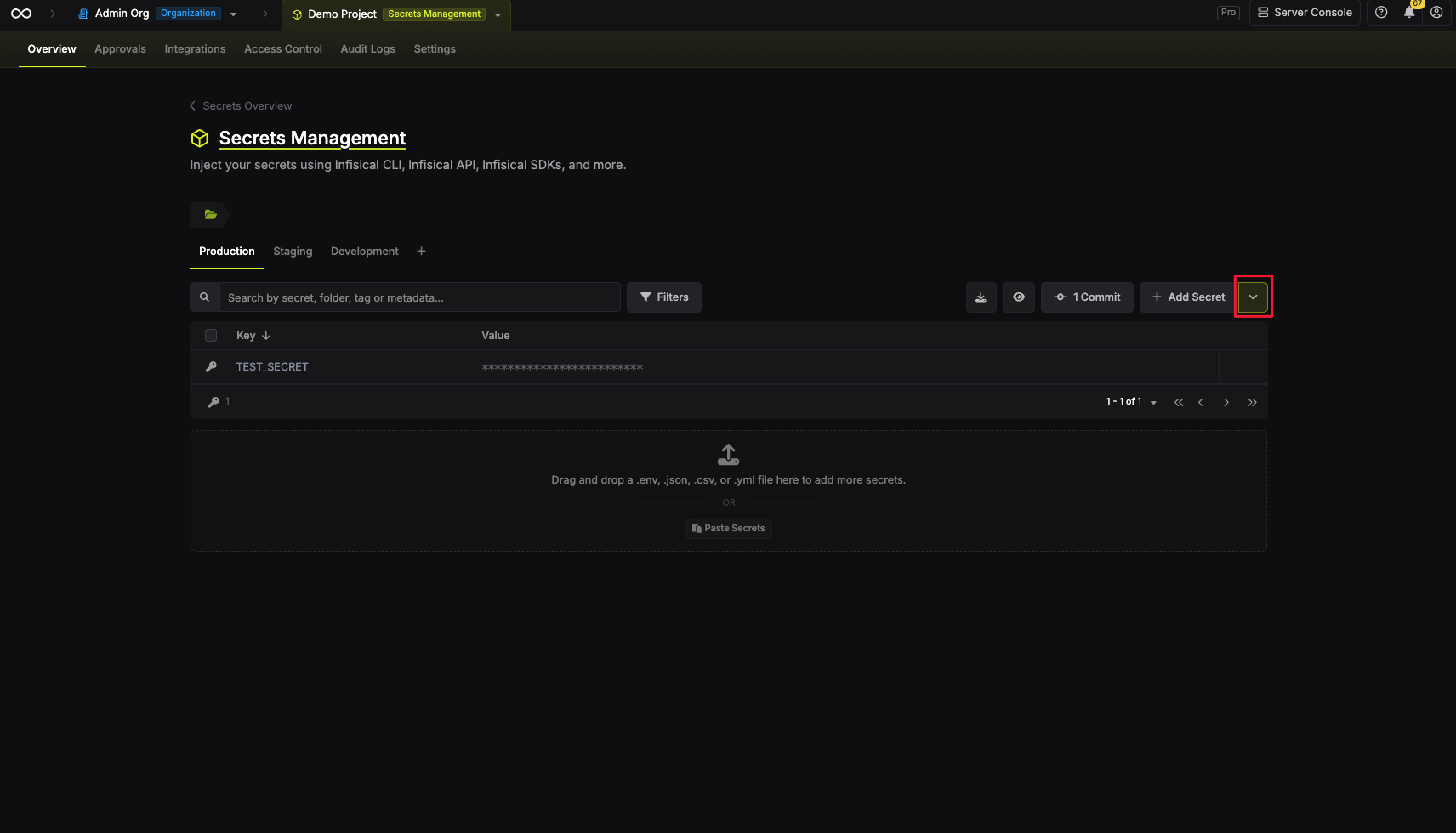
2. In the secrets view, click the dropdown icon (caret) next to the **"+ Add Secret"** button
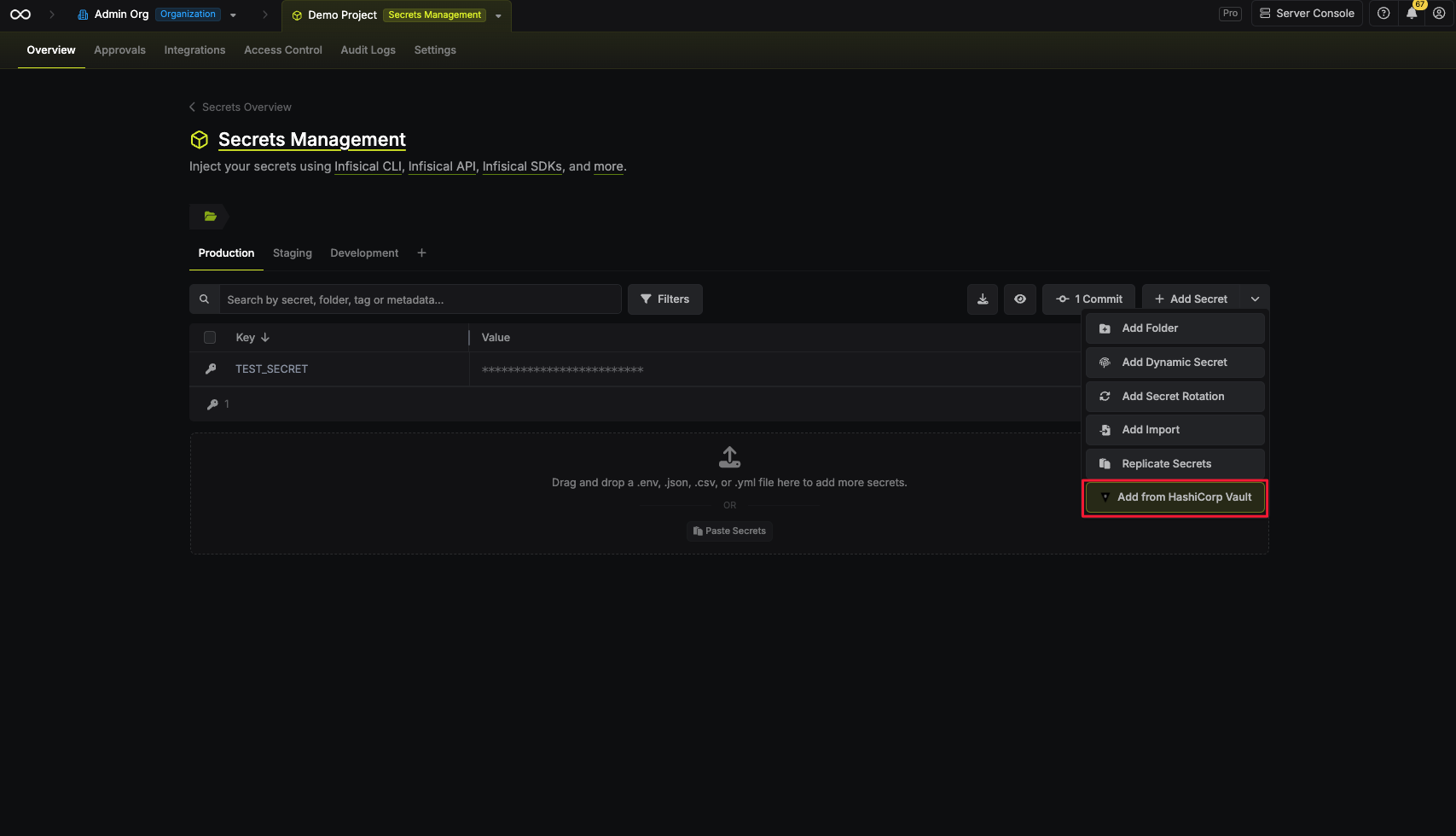
 3. Select **"Add from HashiCorp Vault"**
 4. In the modal, pick the **App Connection** (project- or organization-scoped Vault connections both appear here), then the **Vault namespace**, then the **Secrets Engine** (KV mount), and finally one or more **Vault secret paths** to import (for example, `secret/app/prod`). Keys are copied using their names from Vault.
If you select multiple paths and the same key name exists in more than one of them, the import aborts and no secrets are saved.
5. Click **"Import Secrets"**
4. In the modal, pick the **App Connection** (project- or organization-scoped Vault connections both appear here), then the **Vault namespace**, then the **Secrets Engine** (KV mount), and finally one or more **Vault secret paths** to import (for example, `secret/app/prod`). Keys are copied using their names from Vault.
If you select multiple paths and the same key name exists in more than one of them, the import aborts and no secrets are saved.
5. Click **"Import Secrets"**
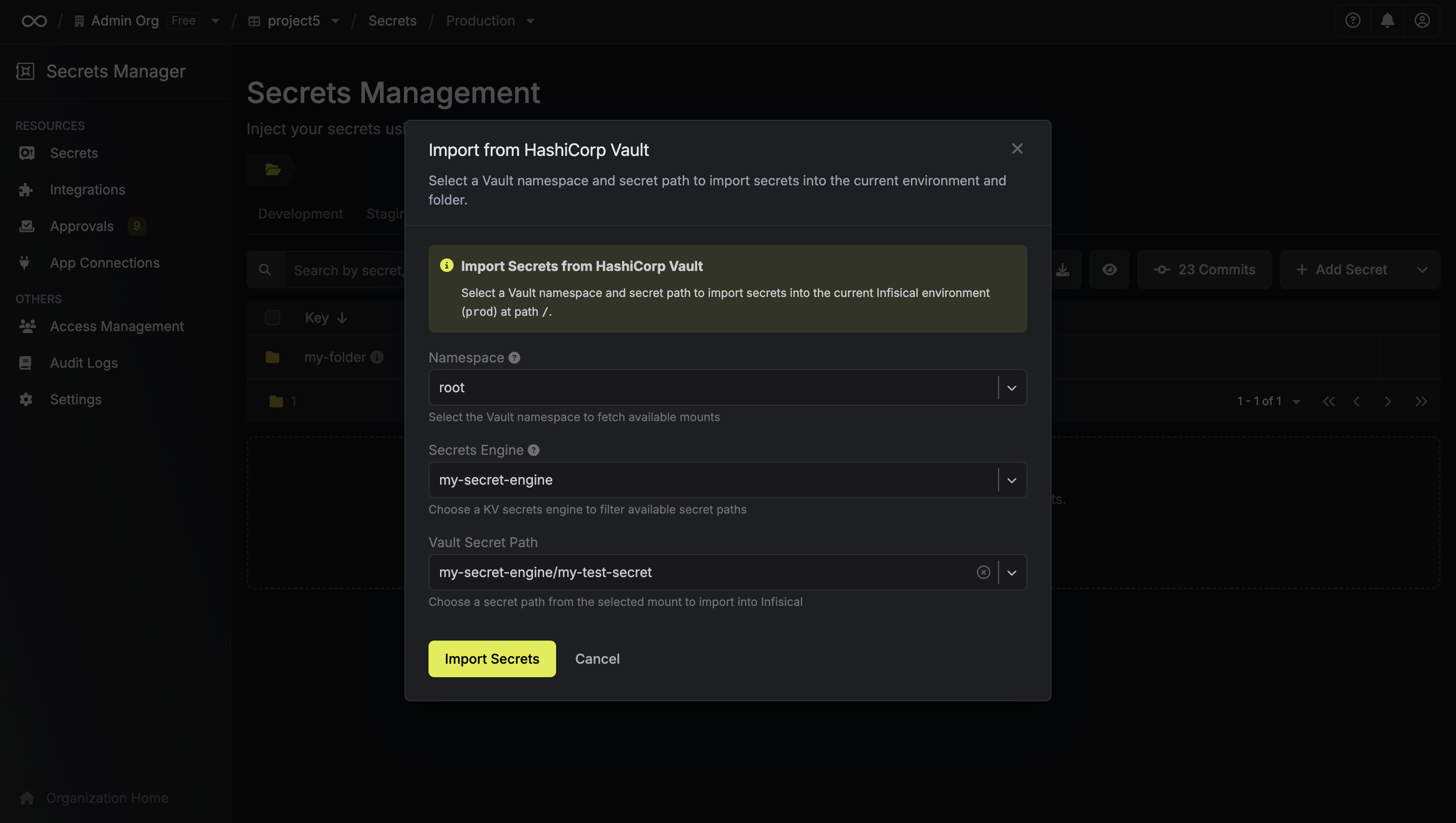 The secrets will be imported into your current environment and folder path. If your Vault path has nested paths, you can create [folders](/documentation/platform/folder) in Infisical to maintain a similar structure.
### Migrating Kubernetes Auth Method
If you're using Vault's Kubernetes auth method to authenticate your pods, you can migrate this configuration to Infisical's [Machine Identities](/documentation/platform/identities/machine-identities). In Vault, you define Kubernetes roles that specify which service accounts can authenticate. In Infisical, this maps to a Machine Identity with Kubernetes authentication enabled.
**To import Kubernetes auth configuration:**
1. First, [create a Machine Identity](/documentation/platform/identities/machine-identities) in Infisical
2. Navigate to **Access Control > Machine Identities** and select the identity
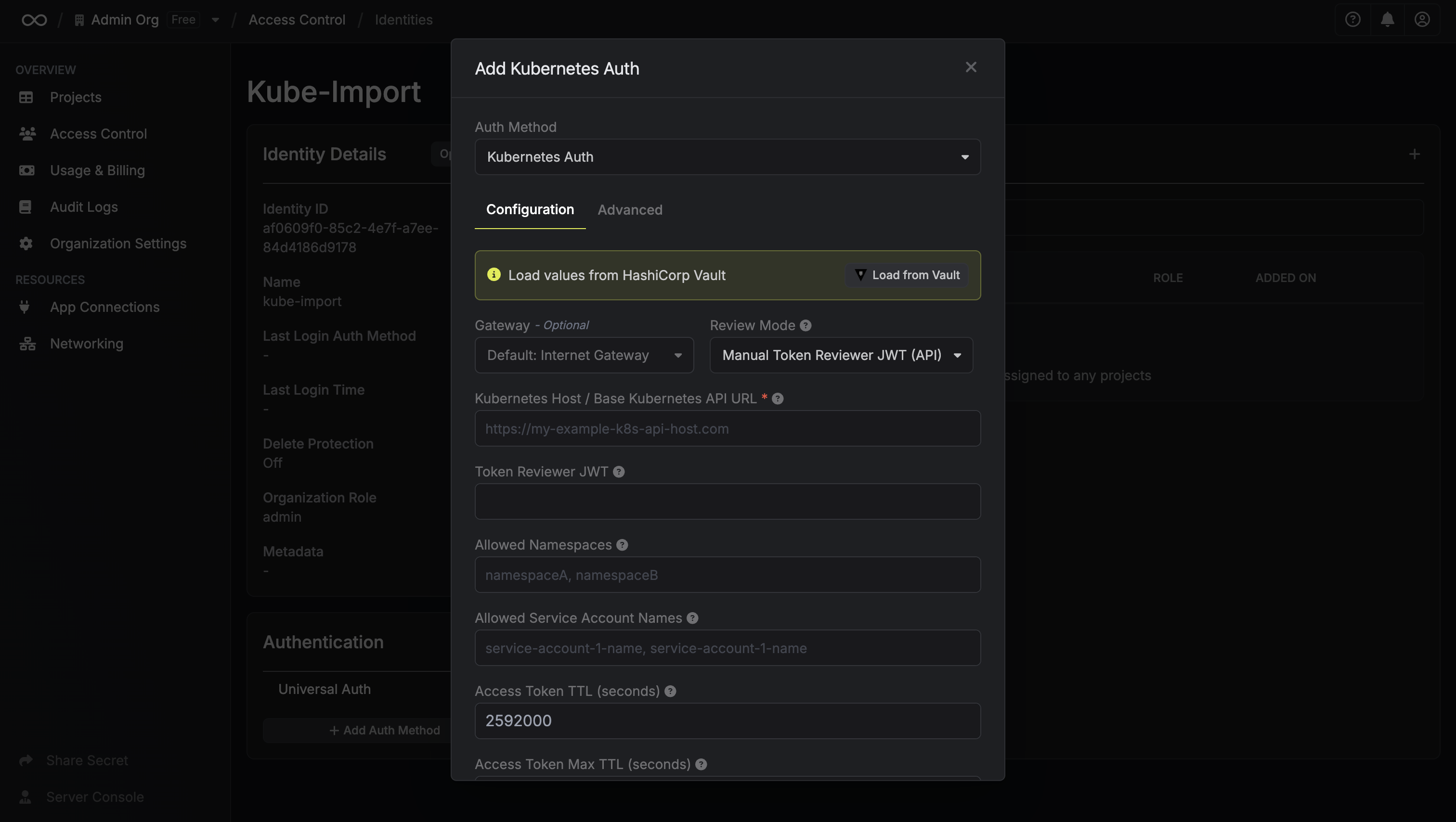
3. Click **"Add Authentication Method"** and choose **Kubernetes Auth**
4. In the configuration modal, click **"Load from Vault"**
The secrets will be imported into your current environment and folder path. If your Vault path has nested paths, you can create [folders](/documentation/platform/folder) in Infisical to maintain a similar structure.
### Migrating Kubernetes Auth Method
If you're using Vault's Kubernetes auth method to authenticate your pods, you can migrate this configuration to Infisical's [Machine Identities](/documentation/platform/identities/machine-identities). In Vault, you define Kubernetes roles that specify which service accounts can authenticate. In Infisical, this maps to a Machine Identity with Kubernetes authentication enabled.
**To import Kubernetes auth configuration:**
1. First, [create a Machine Identity](/documentation/platform/identities/machine-identities) in Infisical
2. Navigate to **Access Control > Machine Identities** and select the identity
3. Click **"Add Authentication Method"** and choose **Kubernetes Auth**
4. In the configuration modal, click **"Load from Vault"**
 5. In the load modal, pick the **App Connection**, the **Vault namespace**, and the Kubernetes role
6. Click **"Load"**
5. In the load modal, pick the **App Connection**, the **Vault namespace**, and the Kubernetes role
6. Click **"Load"**
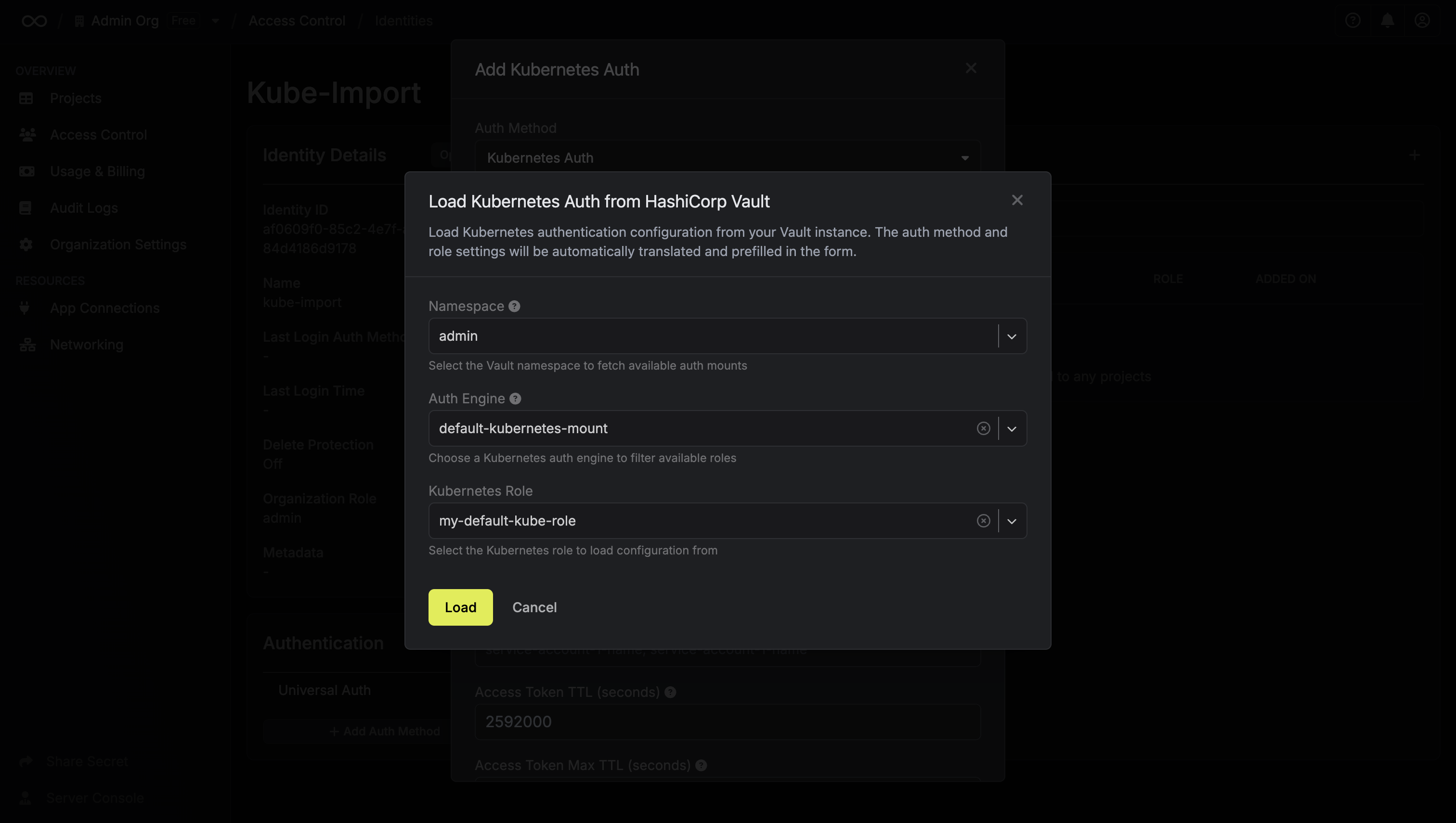 The authentication settings (allowed service accounts, namespaces, TTL, etc.) will be automatically populated from your Vault configuration.
Sensitive values like service account JWTs cannot be retrieved from Vault and
must be manually provided in the form after importing the configuration.
**After importing:** You'll need to update your Kubernetes deployments to use the [Infisical Kubernetes Operator](/integrations/platforms/kubernetes/overview) or [Infisical SDK](/sdks/overview) instead of the Vault agent/sidecar.
### Migrating Kubernetes Secrets Engine Roles
If you're using Vault's Kubernetes secrets engine to generate short-lived Kubernetes credentials, you can migrate these roles to Infisical's [Dynamic Secrets](/documentation/platform/dynamic-secrets/kubernetes). Both platforms support generating temporary Kubernetes service account tokens or creating temporary service accounts, so the configuration is similar.
**To import a Kubernetes dynamic secret configuration:**
1. Navigate to your project and select an environment
2. Click **"+ Add Secret"** dropdown and choose **"Dynamic Secret"**
3. Select **Kubernetes** as the provider
4. Click **"Load from Vault"** at the top of the form
The authentication settings (allowed service accounts, namespaces, TTL, etc.) will be automatically populated from your Vault configuration.
Sensitive values like service account JWTs cannot be retrieved from Vault and
must be manually provided in the form after importing the configuration.
**After importing:** You'll need to update your Kubernetes deployments to use the [Infisical Kubernetes Operator](/integrations/platforms/kubernetes/overview) or [Infisical SDK](/sdks/overview) instead of the Vault agent/sidecar.
### Migrating Kubernetes Secrets Engine Roles
If you're using Vault's Kubernetes secrets engine to generate short-lived Kubernetes credentials, you can migrate these roles to Infisical's [Dynamic Secrets](/documentation/platform/dynamic-secrets/kubernetes). Both platforms support generating temporary Kubernetes service account tokens or creating temporary service accounts, so the configuration is similar.
**To import a Kubernetes dynamic secret configuration:**
1. Navigate to your project and select an environment
2. Click **"+ Add Secret"** dropdown and choose **"Dynamic Secret"**
3. Select **Kubernetes** as the provider
4. Click **"Load from Vault"** at the top of the form
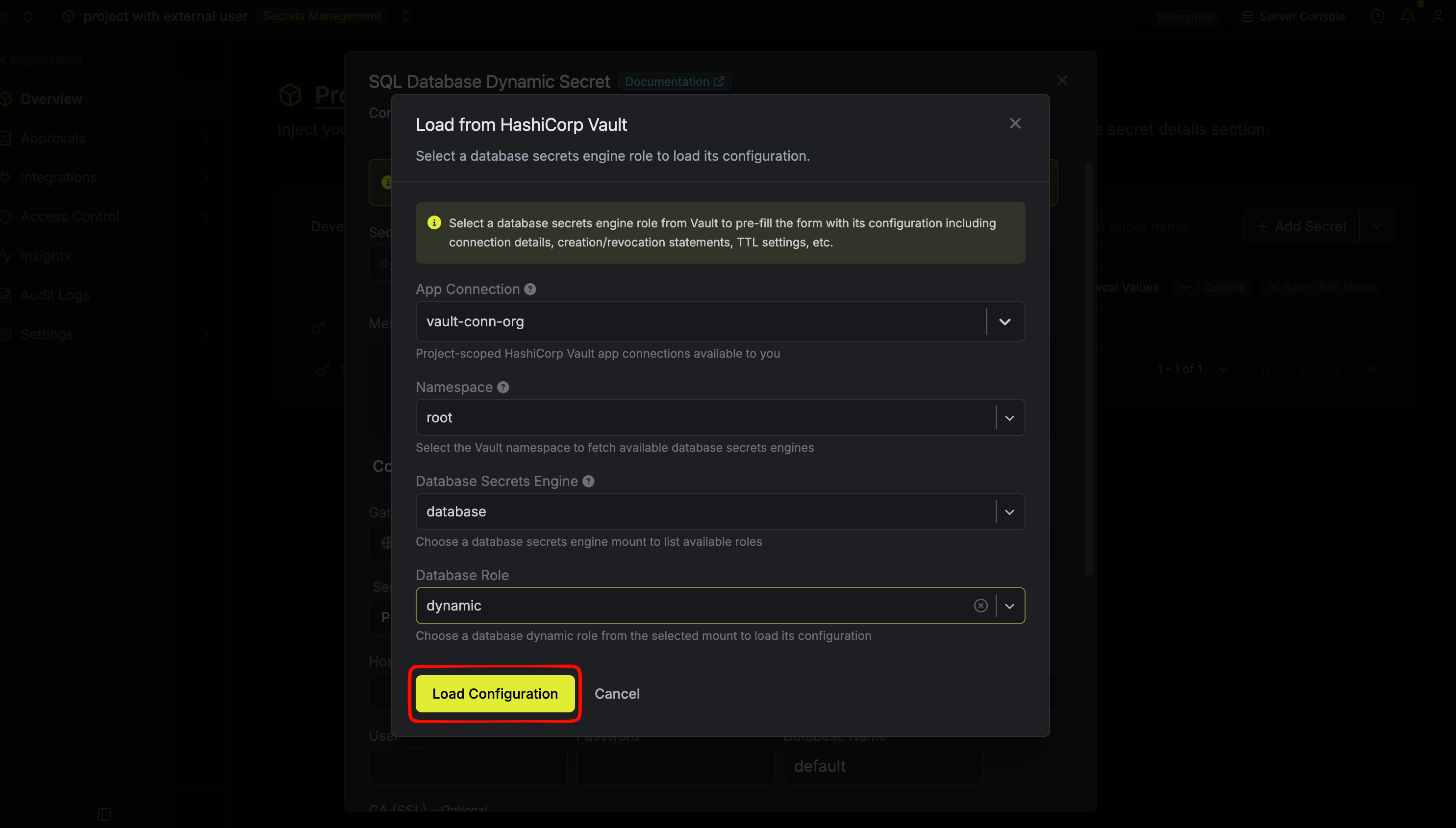 5. In the load modal, pick the **App Connection**, the **Vault namespace**, the Kubernetes secrets engine mount, and the role
6. Click **"Load Configuration"**
The form will be automatically populated with the role's configuration including:
* Cluster URL and CA certificate
* Credential type (Static or Dynamic)
* Service account name or Kubernetes role settings
* Allowed namespaces
* Token TTL values
* Token audiences
Sensitive values like cluster tokens cannot be retrieved from Vault and must
be manually provided in the form after loading the configuration.
The same **Load from Vault** flow is also available on **Cassandra**, **LDAP**, and **SQL Database** dynamic secrets — pick the App Connection, Vault namespace, mount, and role to pre-fill the form.
Learn more about how Dynamic Secrets work in Infisical in the [Dynamic Secrets documentation](/documentation/platform/dynamic-secrets/overview).
### Migrating Vault Policies
Infisical can translate your Vault HCL policies into [Infisical project roles](/documentation/platform/access-controls/role-based-access-controls). The table below shows how Vault capabilities map to Infisical permissions:
| Vault Capability | Infisical Permission |
| ---------------- | ----------------------------------------- |
| `read` | Read secrets |
| `list` | Read secrets (list is implicit with read) |
| `create` | Create secrets |
| `update` | Edit secrets |
| `delete` | Delete secrets |
Policy translation is best-effort and provides a starting point based on your
Vault configuration. The translated permissions should be reviewed and
adjusted as needed since Vault and Infisical have different access control
models.
**To import and translate a policy:**
1. Navigate to your project, then go to **Access Control > Roles** and create or edit a role
2. In the policy configuration, click **"Add from HashiCorp Vault"**
5. In the load modal, pick the **App Connection**, the **Vault namespace**, the Kubernetes secrets engine mount, and the role
6. Click **"Load Configuration"**
The form will be automatically populated with the role's configuration including:
* Cluster URL and CA certificate
* Credential type (Static or Dynamic)
* Service account name or Kubernetes role settings
* Allowed namespaces
* Token TTL values
* Token audiences
Sensitive values like cluster tokens cannot be retrieved from Vault and must
be manually provided in the form after loading the configuration.
The same **Load from Vault** flow is also available on **Cassandra**, **LDAP**, and **SQL Database** dynamic secrets — pick the App Connection, Vault namespace, mount, and role to pre-fill the form.
Learn more about how Dynamic Secrets work in Infisical in the [Dynamic Secrets documentation](/documentation/platform/dynamic-secrets/overview).
### Migrating Vault Policies
Infisical can translate your Vault HCL policies into [Infisical project roles](/documentation/platform/access-controls/role-based-access-controls). The table below shows how Vault capabilities map to Infisical permissions:
| Vault Capability | Infisical Permission |
| ---------------- | ----------------------------------------- |
| `read` | Read secrets |
| `list` | Read secrets (list is implicit with read) |
| `create` | Create secrets |
| `update` | Edit secrets |
| `delete` | Delete secrets |
Policy translation is best-effort and provides a starting point based on your
Vault configuration. The translated permissions should be reviewed and
adjusted as needed since Vault and Infisical have different access control
models.
**To import and translate a policy:**
1. Navigate to your project, then go to **Access Control > Roles** and create or edit a role
2. In the policy configuration, click **"Add from HashiCorp Vault"**
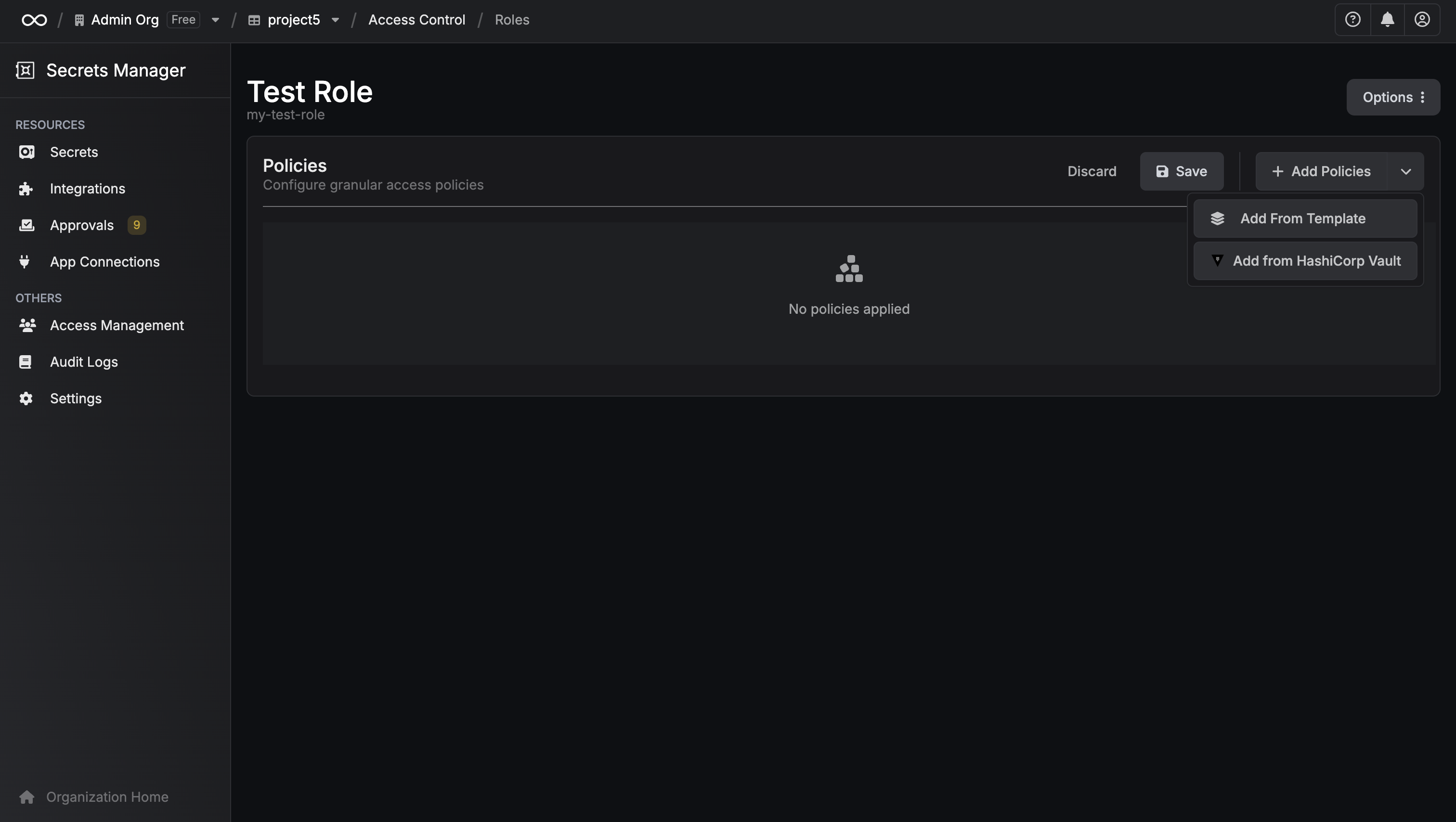 3. In the modal, pick the **App Connection** and the **Vault namespace**
4. Either choose an existing policy from the dropdown or paste your own HCL policy
3. In the modal, pick the **App Connection** and the **Vault namespace**
4. Either choose an existing policy from the dropdown or paste your own HCL policy
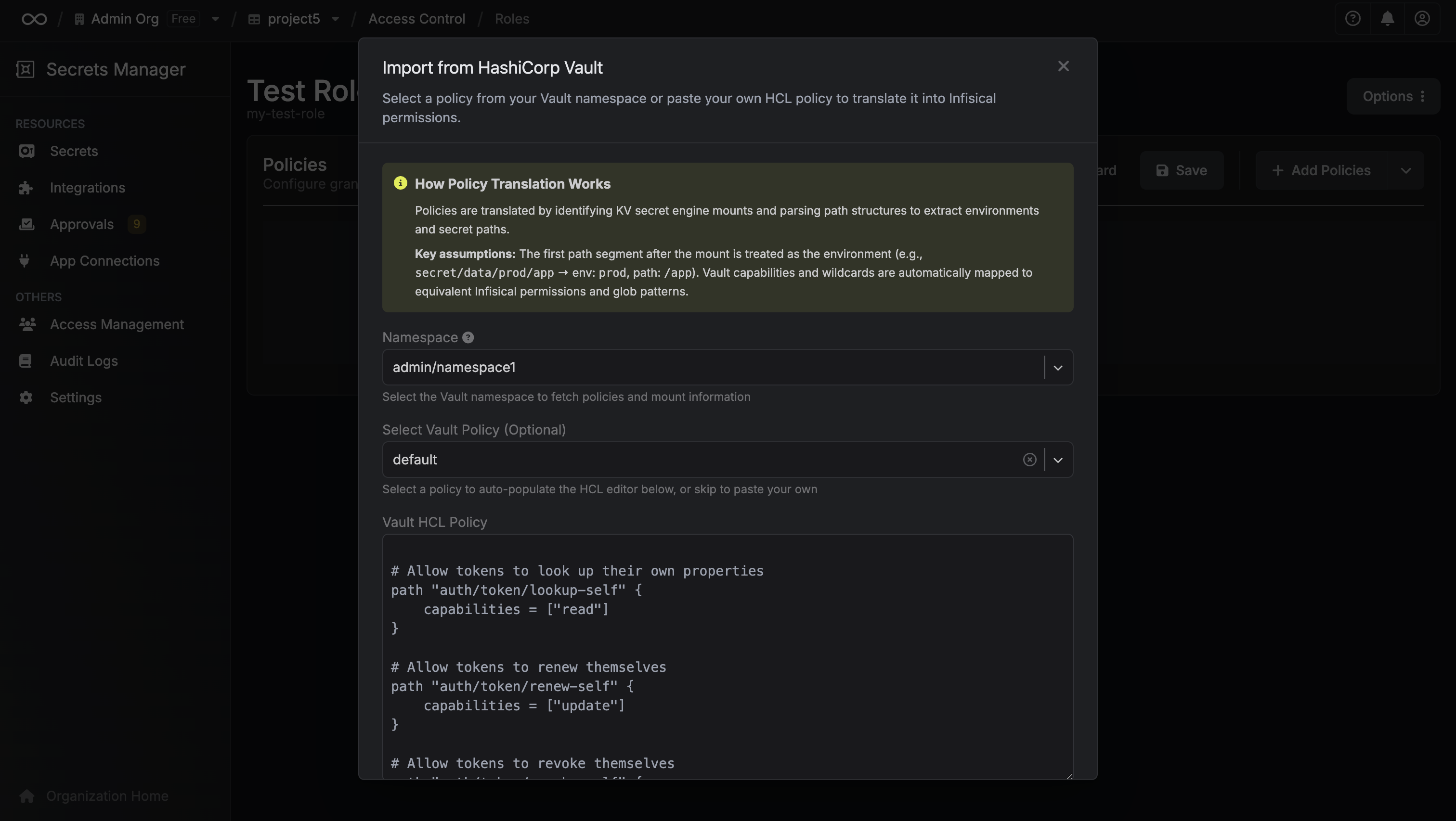 5. Review the automatically translated Infisical permissions
6. Make any adjustments and save
**How policy translation works:**
* Vault path patterns are analyzed to identify KV secret engines and environments
* Vault capabilities (`read`, `list`, `create`, etc.) are mapped to Infisical permissions
* Wildcards in paths are converted to glob patterns
* Secret paths are preserved for granular access control
**Example translation:**
```hcl theme={"dark"}
# Vault policy
path "secret/data/app/*" {
capabilities = ["read", "list"]
}
```
Becomes an Infisical role with **read** permission on secrets in the corresponding environment/folder path.
## One-time Bulk Import from Vault
If you want to move an entire Vault organization into Infisical in a single shot — rather than importing resources piecemeal from inside each project — use the **Bulk Data Import** flow. It does not require an App Connection and is intended for initial migrations only. KV Secret Engine is the only supported resource type for bulk import; other resource types (Kubernetes auth, dynamic secrets, policies) must use the per-resource flows described above.
Bulk Data Import is restricted to **organization admins**.
**To run a bulk import:**
1. Navigate to **Organization Settings > External Migrations**
2. Click **Import** and choose **HCP Vault**
3. Fill in the import form:
* **Gateway** (optional) — route the import through a [gateway](/documentation/platform/gateways/overview) if your Vault instance is private
* **Vault URL** — your Vault address (e.g. `https://vault.example.com`)
* **Vault Namespace** (optional) — leave blank for the root namespace
* **Vault Access Token** — a token with read access to the KV mounts you want to import
* **Project Mapping** — how Vault resources map onto Infisical projects:
* **Key Vaults** — each KV mount becomes an Infisical project. A default `Production` environment is created per project; secret paths become folders.
* **Namespaces** — each Vault namespace becomes a project; each KV mount inside it becomes an environment; secret paths become folders.
* **Custom Migration** — available on request; [contact sales](https://infisical.com/talk-to-us) to discuss tailored mappings.
4. Submit the form. Infisical will run the import asynchronously and email you when it finishes (or if it fails). This may take up to 10 minutes.
## Next Steps After Migration
Once you've imported your secrets and configurations, here's how to start using them in your applications:
Replace Vault client libraries with Infisical SDKs in your application code
Use the Infisical Kubernetes Operator to inject secrets into your pods
5. Review the automatically translated Infisical permissions
6. Make any adjustments and save
**How policy translation works:**
* Vault path patterns are analyzed to identify KV secret engines and environments
* Vault capabilities (`read`, `list`, `create`, etc.) are mapped to Infisical permissions
* Wildcards in paths are converted to glob patterns
* Secret paths are preserved for granular access control
**Example translation:**
```hcl theme={"dark"}
# Vault policy
path "secret/data/app/*" {
capabilities = ["read", "list"]
}
```
Becomes an Infisical role with **read** permission on secrets in the corresponding environment/folder path.
## One-time Bulk Import from Vault
If you want to move an entire Vault organization into Infisical in a single shot — rather than importing resources piecemeal from inside each project — use the **Bulk Data Import** flow. It does not require an App Connection and is intended for initial migrations only. KV Secret Engine is the only supported resource type for bulk import; other resource types (Kubernetes auth, dynamic secrets, policies) must use the per-resource flows described above.
Bulk Data Import is restricted to **organization admins**.
**To run a bulk import:**
1. Navigate to **Organization Settings > External Migrations**
2. Click **Import** and choose **HCP Vault**
3. Fill in the import form:
* **Gateway** (optional) — route the import through a [gateway](/documentation/platform/gateways/overview) if your Vault instance is private
* **Vault URL** — your Vault address (e.g. `https://vault.example.com`)
* **Vault Namespace** (optional) — leave blank for the root namespace
* **Vault Access Token** — a token with read access to the KV mounts you want to import
* **Project Mapping** — how Vault resources map onto Infisical projects:
* **Key Vaults** — each KV mount becomes an Infisical project. A default `Production` environment is created per project; secret paths become folders.
* **Namespaces** — each Vault namespace becomes a project; each KV mount inside it becomes an environment; secret paths become folders.
* **Custom Migration** — available on request; [contact sales](https://infisical.com/talk-to-us) to discuss tailored mappings.
4. Submit the form. Infisical will run the import asynchronously and email you when it finishes (or if it fails). This may take up to 10 minutes.
## Next Steps After Migration
Once you've imported your secrets and configurations, here's how to start using them in your applications:
Replace Vault client libraries with Infisical SDKs in your application code
Use the Infisical Kubernetes Operator to inject secrets into your pods