> ## Documentation Index
> Fetch the complete documentation index at: https://infisical.com/docs/llms.txt
> Use this file to discover all available pages before exploring further.
# Migrating from Doppler to Infisical
> Learn how to migrate secrets from Doppler to Infisical using in-platform migration.
This guide helps you bring secrets from **Doppler** into Infisical. Register a Doppler **App Connection** in Infisical, then import secrets from any Doppler project and config into the Infisical project, environment, and folder of your choice.
**What you can migrate:**
* **Secrets** — Key/value pairs from a Doppler **project** and **config** (root or branch) are imported into a chosen Infisical **project**, **environment**, and **secret path** (folder). Both root configs and branch configs are supported.
Importing from Doppler requires the `Connect` action on `App Connections` and the `Create` action on the `Secrets` subject at the target environment and folder path.
## Set Up Your Doppler Connection
In **Doppler**, create an API token that can read the projects and configs you plan to import (for example a **Personal** or **Service** token with access to the right projects).
Store the token securely; you will paste it into Infisical in the next step.
In Infisical, create a new App Connection of type **Doppler** in one of two places:
* **Project > Integrations > App Connections** — the connection is only visible inside that project.
* **Organization Settings > App Connections** — the connection is visible across every project in the organization.
Provide the Doppler token and complete the connection flow. If you want a single shared connection across many projects, create it at the organization level.
## Migrating Secrets from Doppler to Infisical
When you are inside a **Secret Manager** project and have **one** environment selected (not "all environments"):
1. Open the **Secret overview** for the folder path where you want the secrets.
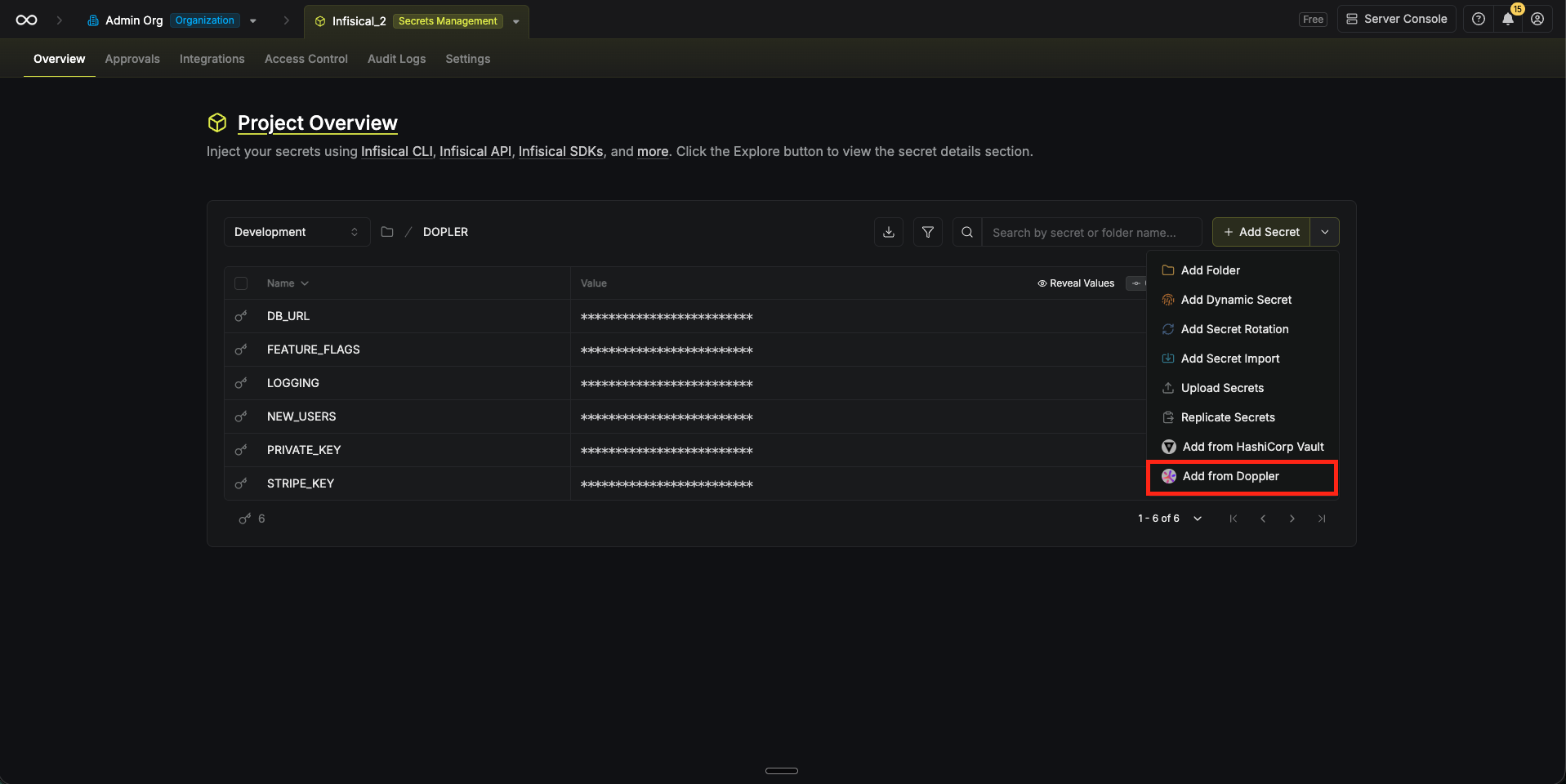
2. Open the **Add Secret** split button (caret next to **Add Secret**).
3. Choose **Add from Doppler**.
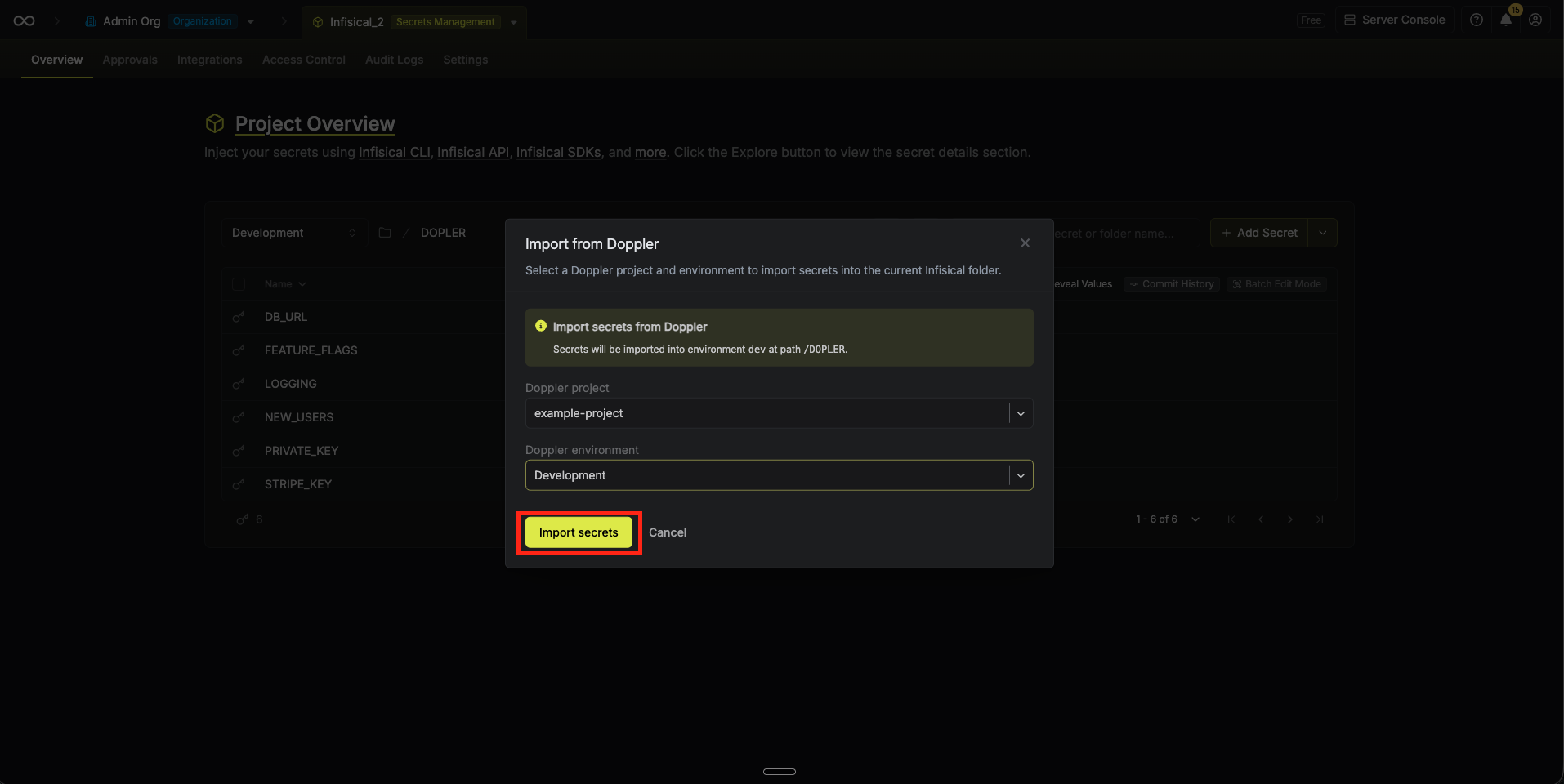
 4. If more than one Doppler App Connection is available to you (project- or organization-scoped), pick the **Doppler Connection** in the modal. With a single connection available, it is selected for you.
5. Select the **Doppler project** and **config**. Infisical lists every config in the project; root configs are labeled with **Root** for clarity, and branch configs are grouped under their environment.
6. Click **Import Secrets**. Infisical imports the selected Doppler config's secrets into the **current** Infisical environment and folder path.
4. If more than one Doppler App Connection is available to you (project- or organization-scoped), pick the **Doppler Connection** in the modal. With a single connection available, it is selected for you.
5. Select the **Doppler project** and **config**. Infisical lists every config in the project; root configs are labeled with **Root** for clarity, and branch configs are grouped under their environment.
6. Click **Import Secrets**. Infisical imports the selected Doppler config's secrets into the **current** Infisical environment and folder path.
 ## Next Steps
Structure Infisical projects to mirror how you used Doppler projects and configs
Read imported secrets from applications using Infisical clients
## Next Steps
Structure Infisical projects to mirror how you used Doppler projects and configs
Read imported secrets from applications using Infisical clients