> ## Documentation Index
> Fetch the complete documentation index at: https://infisical.com/docs/llms.txt
> Use this file to discover all available pages before exploring further.
# Tailscale
> Learn how to dynamically generate Tailscale auth keys, OAuth clients, and federated identities.
The Infisical Tailscale dynamic secret allows you to generate short-lived Tailscale auth keys, OAuth clients, and federated identities on demand. Each lease creates a new credential in your tailnet, and Infisical automatically revokes it when the lease expires.
## Prerequisites
Infisical needs a credential that is allowed to create and revoke keys in your tailnet. You can authenticate with either **API access token** or **OAuth client**.
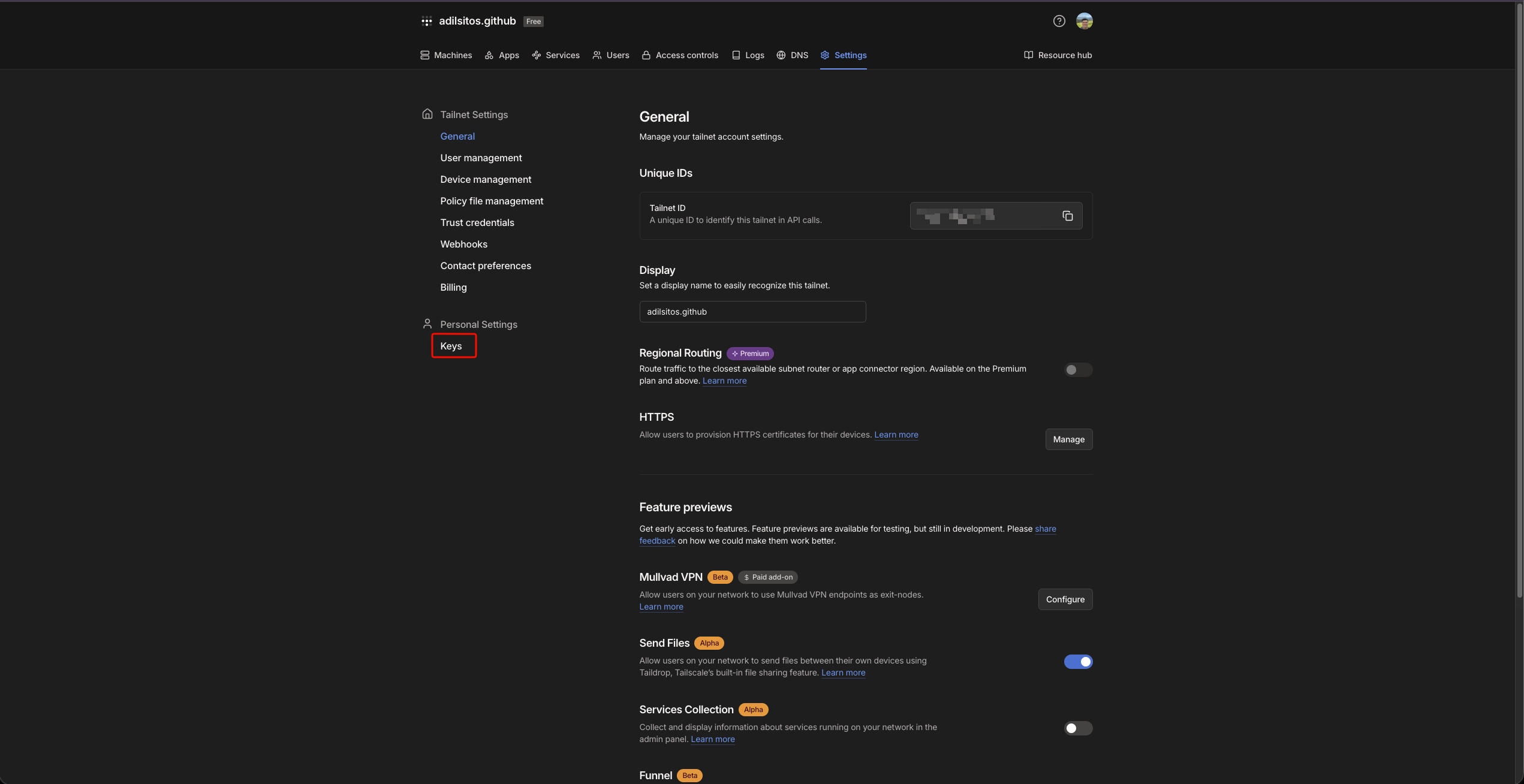
Open the Tailscale admin console and select **Settings** in the top navigation, then open [Settings → Keys](https://login.tailscale.com/admin/settings/keys).

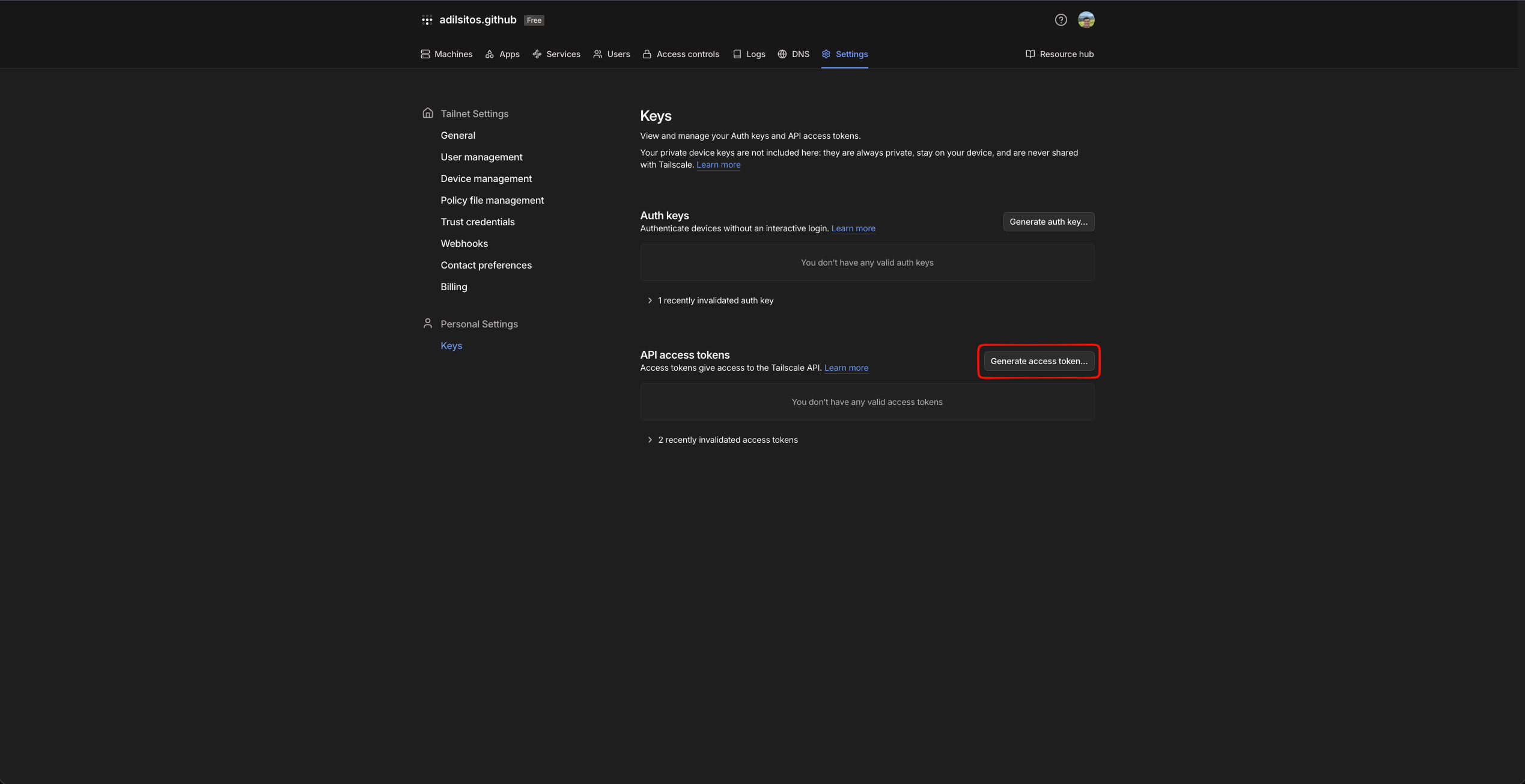
 In the **API access tokens** section, click **Generate access token…**, give it a description, set an expiration (up to 90 days), and create the token.
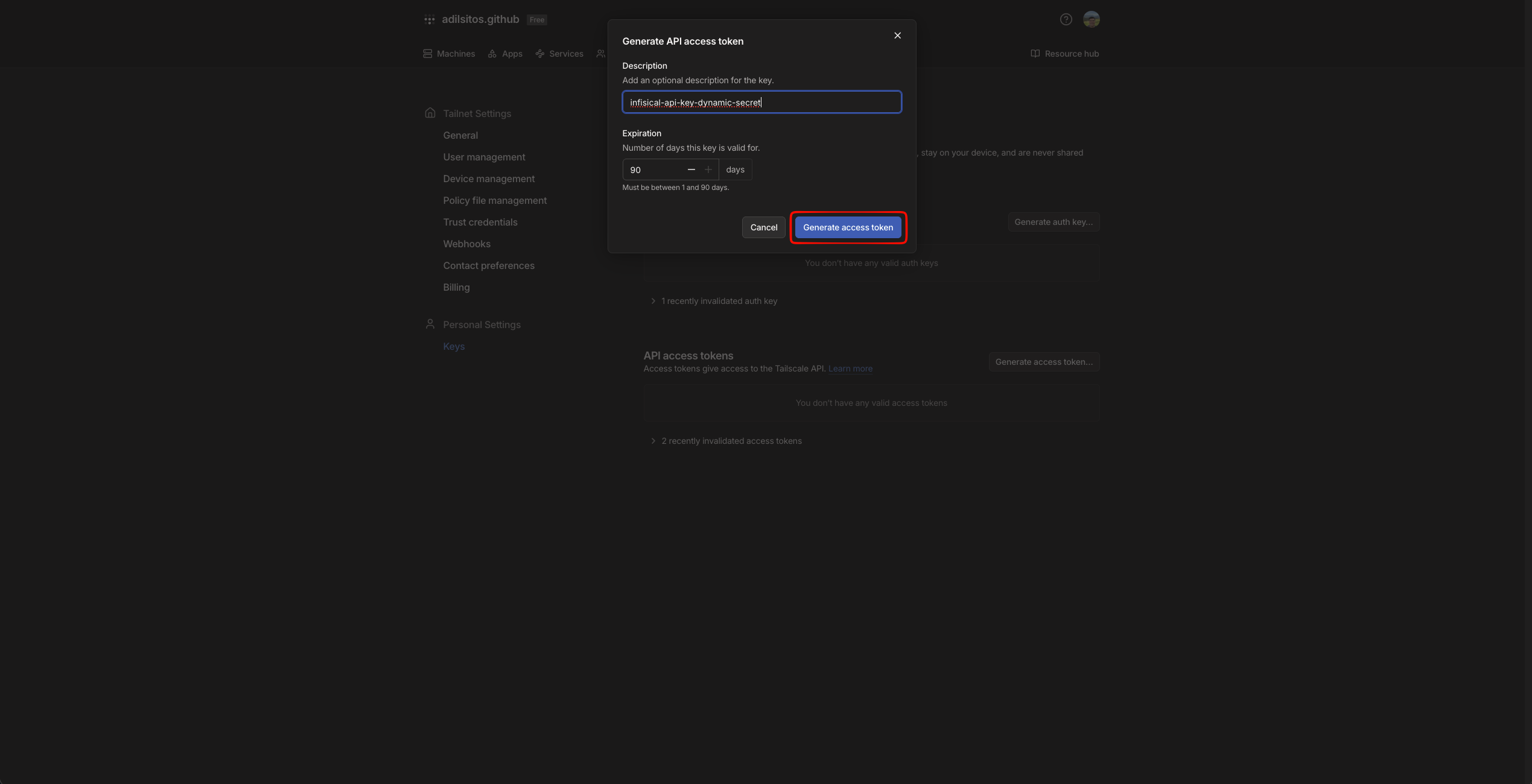 Copy the token and save it for later steps. This token is used by Infisical to create and revoke keys.
Open the Tailscale admin console and select **Settings** in the top navigation, then open **Trust credentials** in the sidebar.
Copy the token and save it for later steps. This token is used by Infisical to create and revoke keys.
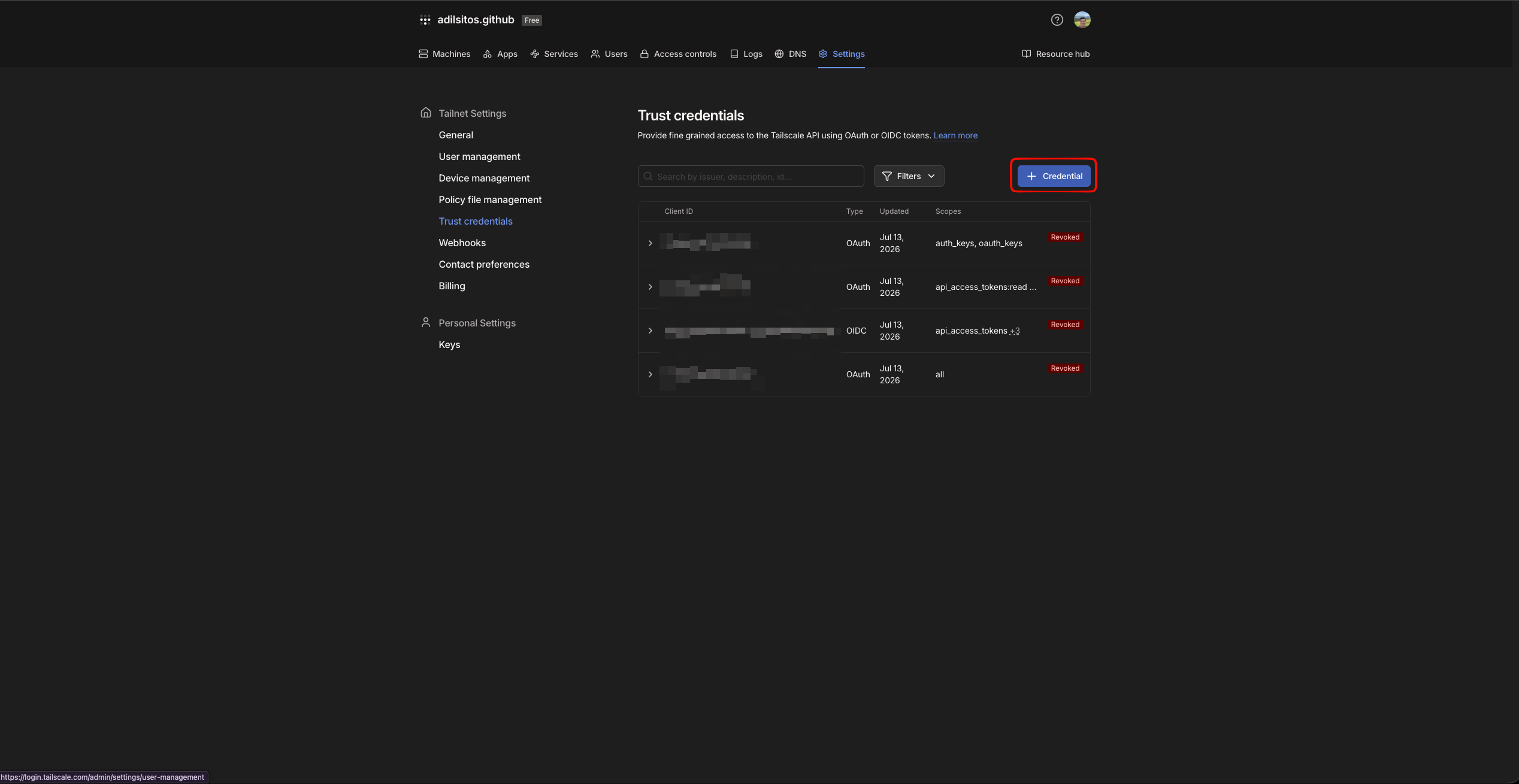
Open the Tailscale admin console and select **Settings** in the top navigation, then open **Trust credentials** in the sidebar.
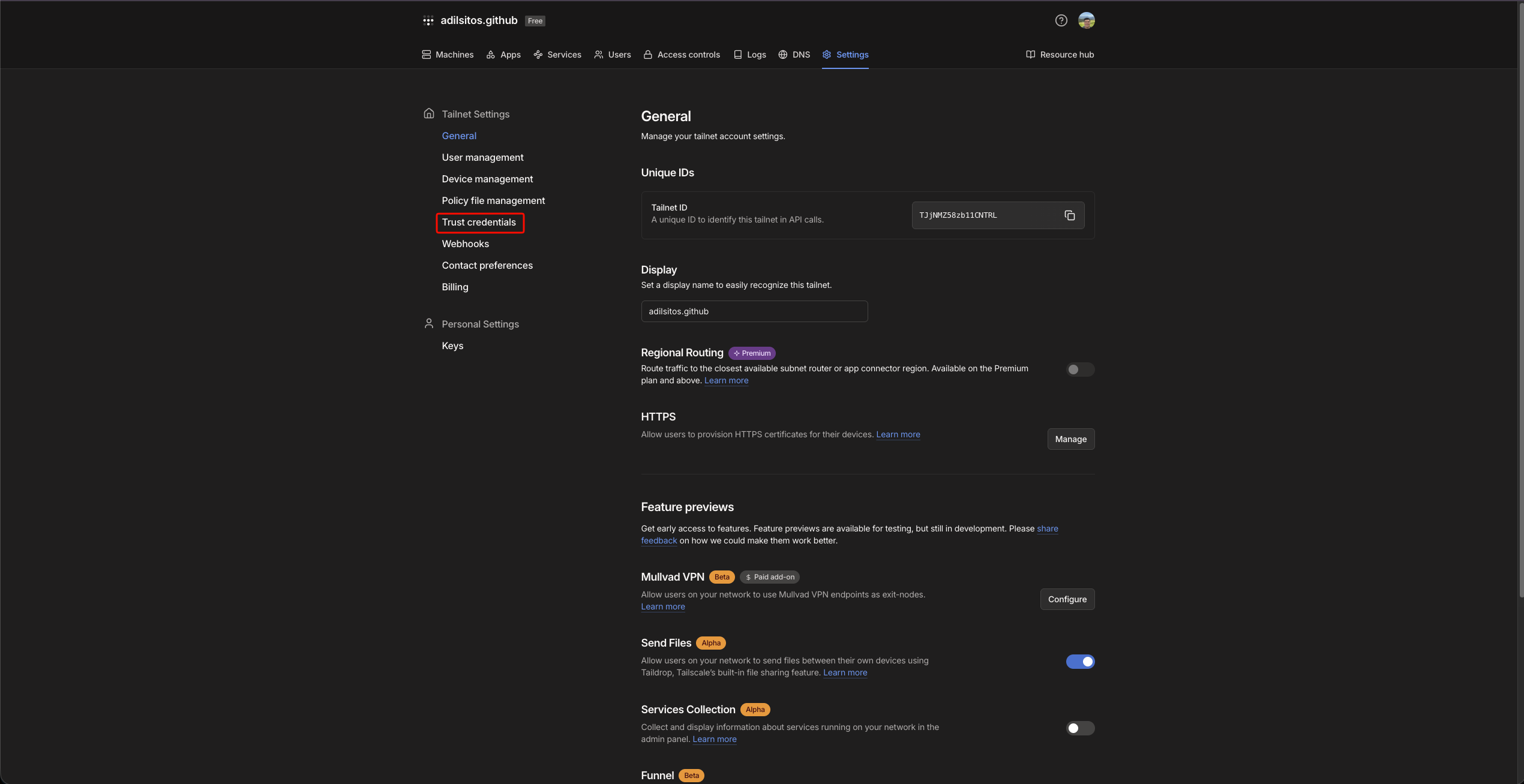 Click **+ Credential** to start the new credential wizard.
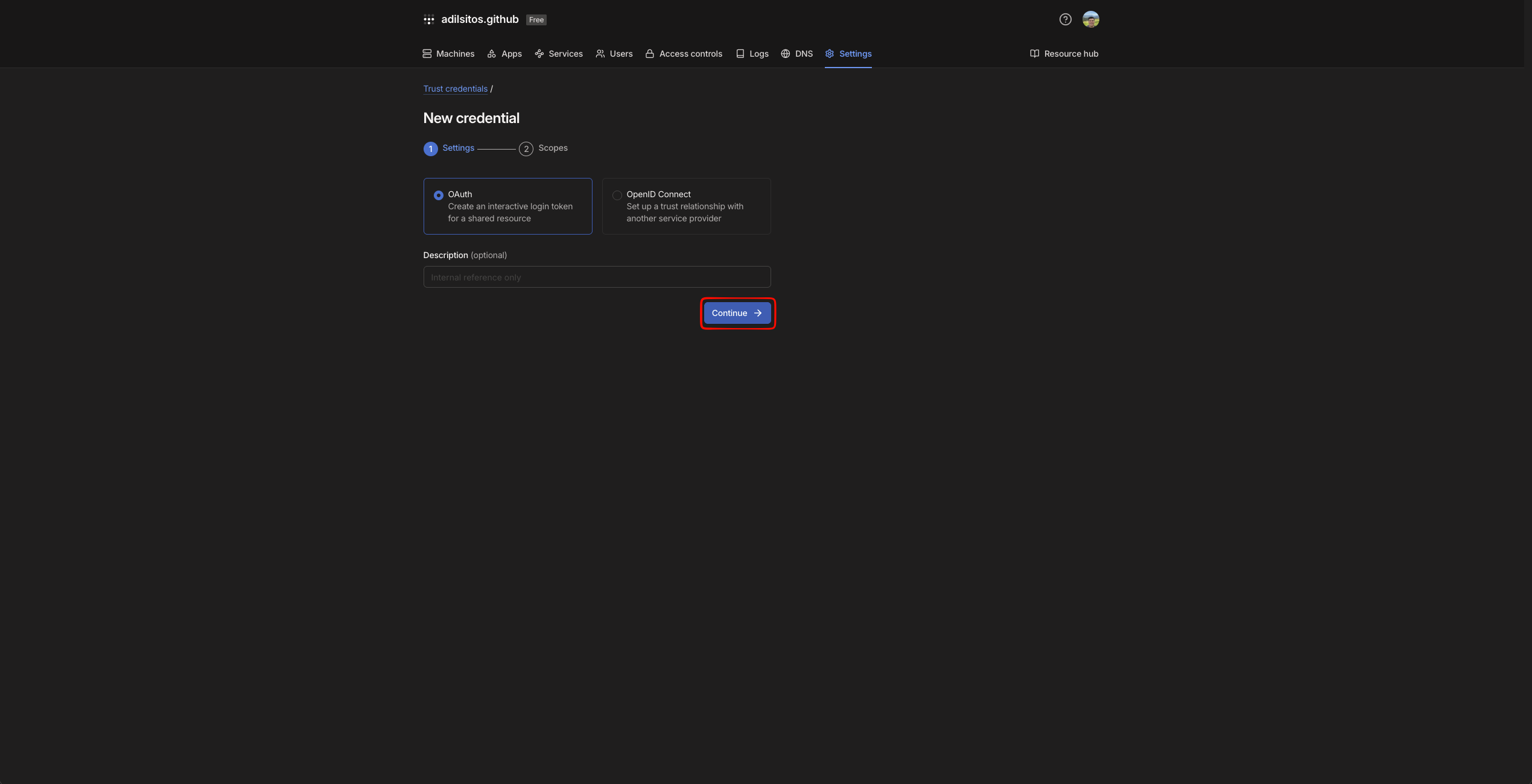
 Choose **OAuth**, then click **Continue**.
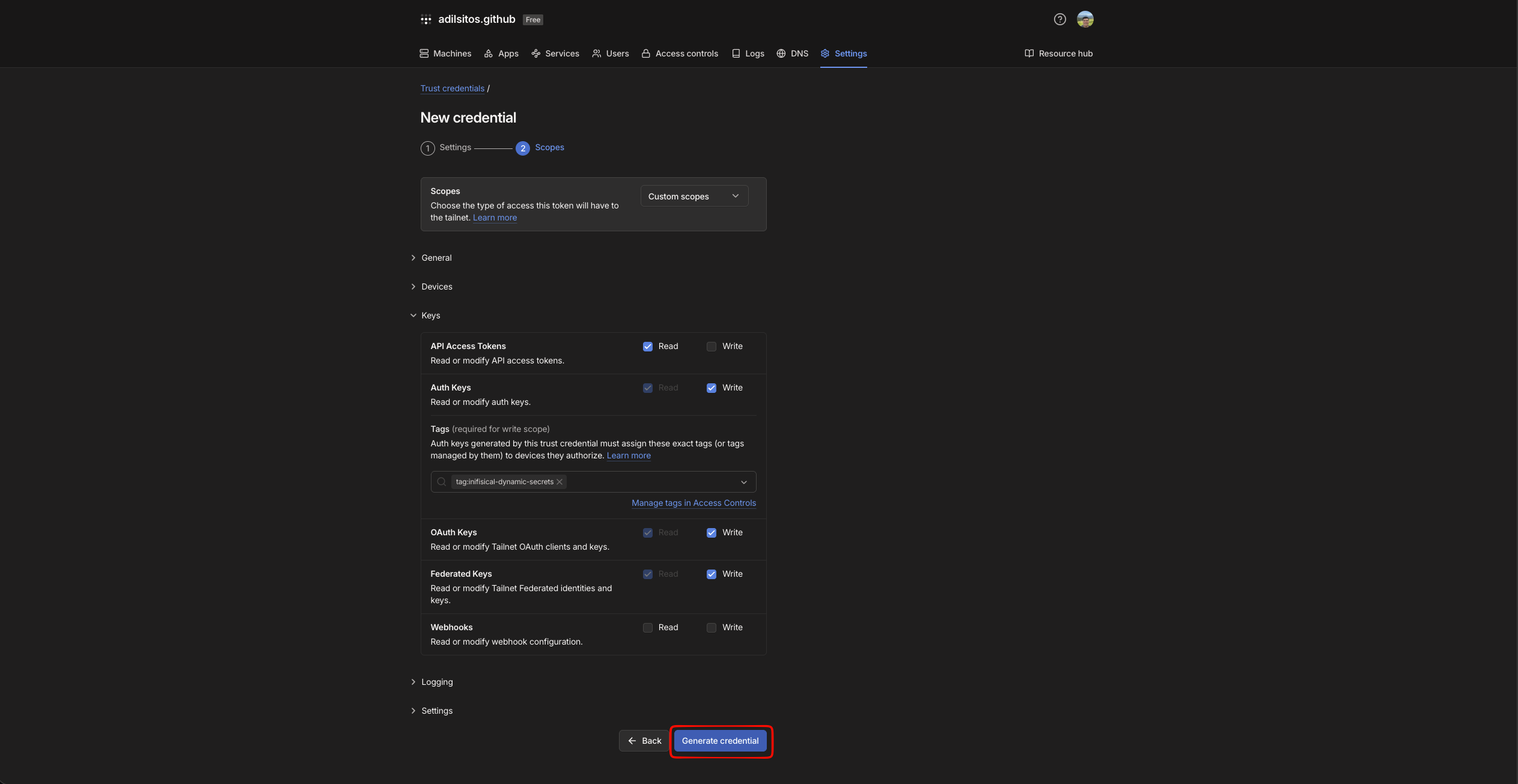
 Under **Keys**, grant **write** access to the scopes for the credentials you plan to mint (for example, `auth_keys`, `oauth_keys`, and/or `federated_keys`). Attach any ACL tags the credential must be allowed to assign (for example, `tag:infisical-dynamic-secrets`), then click **Generate credential**.
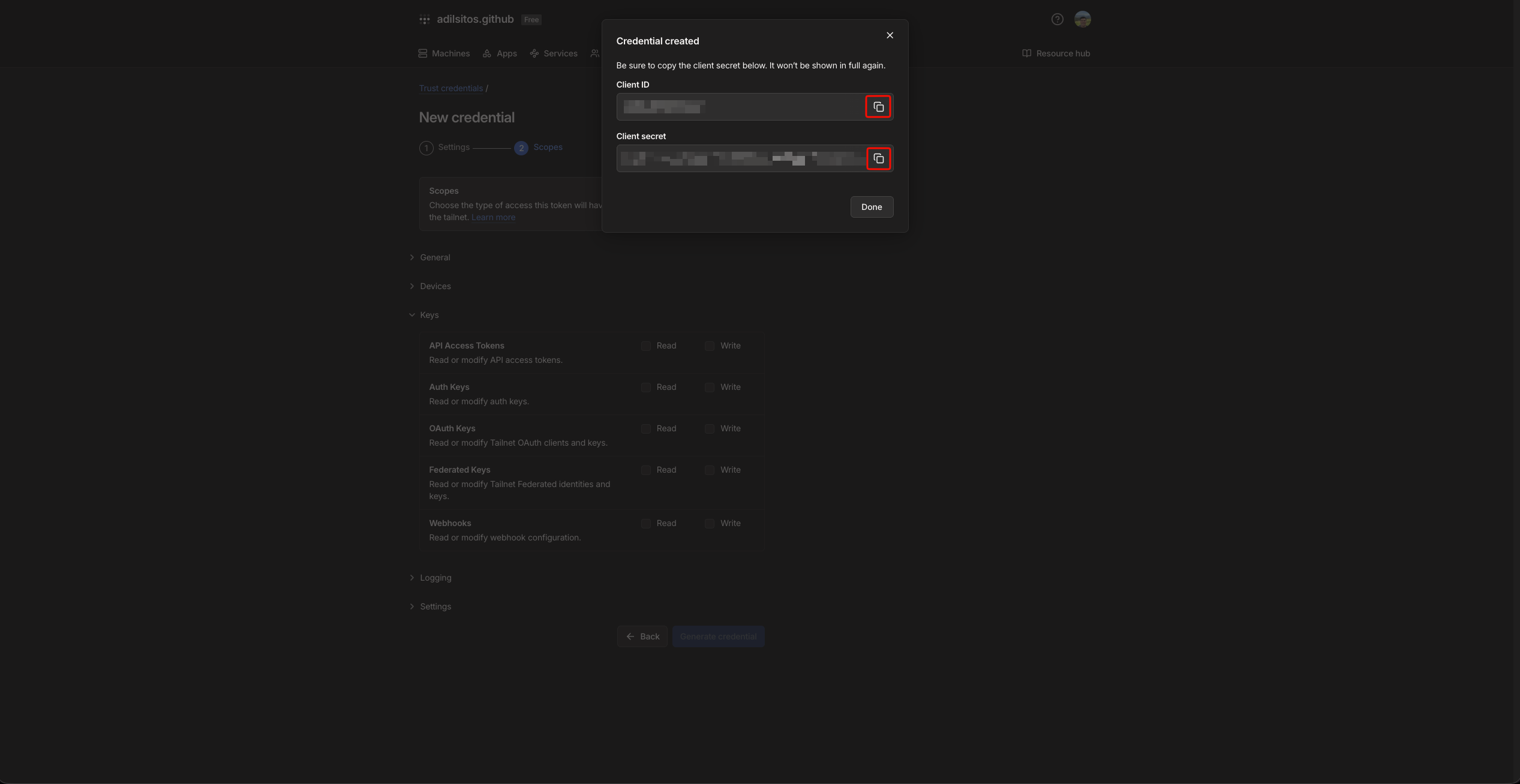
 Copy the **Client ID** and **Client Secret** and save them for later steps. The client secret is shown only once.
 Tailscale requires ACL tags on tailnet-owned auth keys created through OAuth. Make sure the tags you plan to use are owned by the trust credential in your tailnet policy file.
## Set up Dynamic Secrets with Tailscale
Open the Secret Overview dashboard and select the environment in which you would like to add a dynamic secret.
Tailscale requires ACL tags on tailnet-owned auth keys created through OAuth. Make sure the tags you plan to use are owned by the trust credential in your tailnet policy file.
## Set up Dynamic Secrets with Tailscale
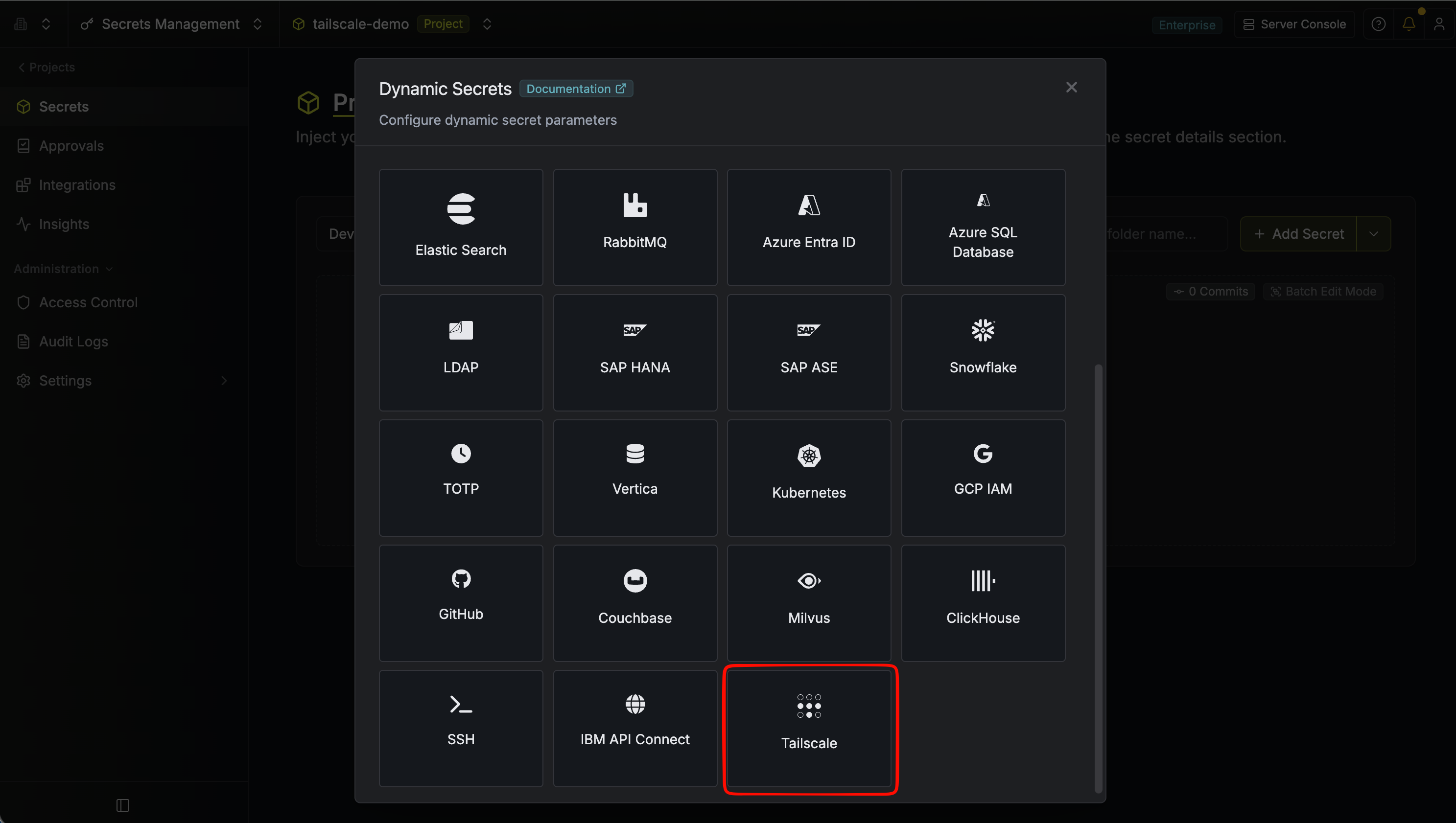
Open the Secret Overview dashboard and select the environment in which you would like to add a dynamic secret.

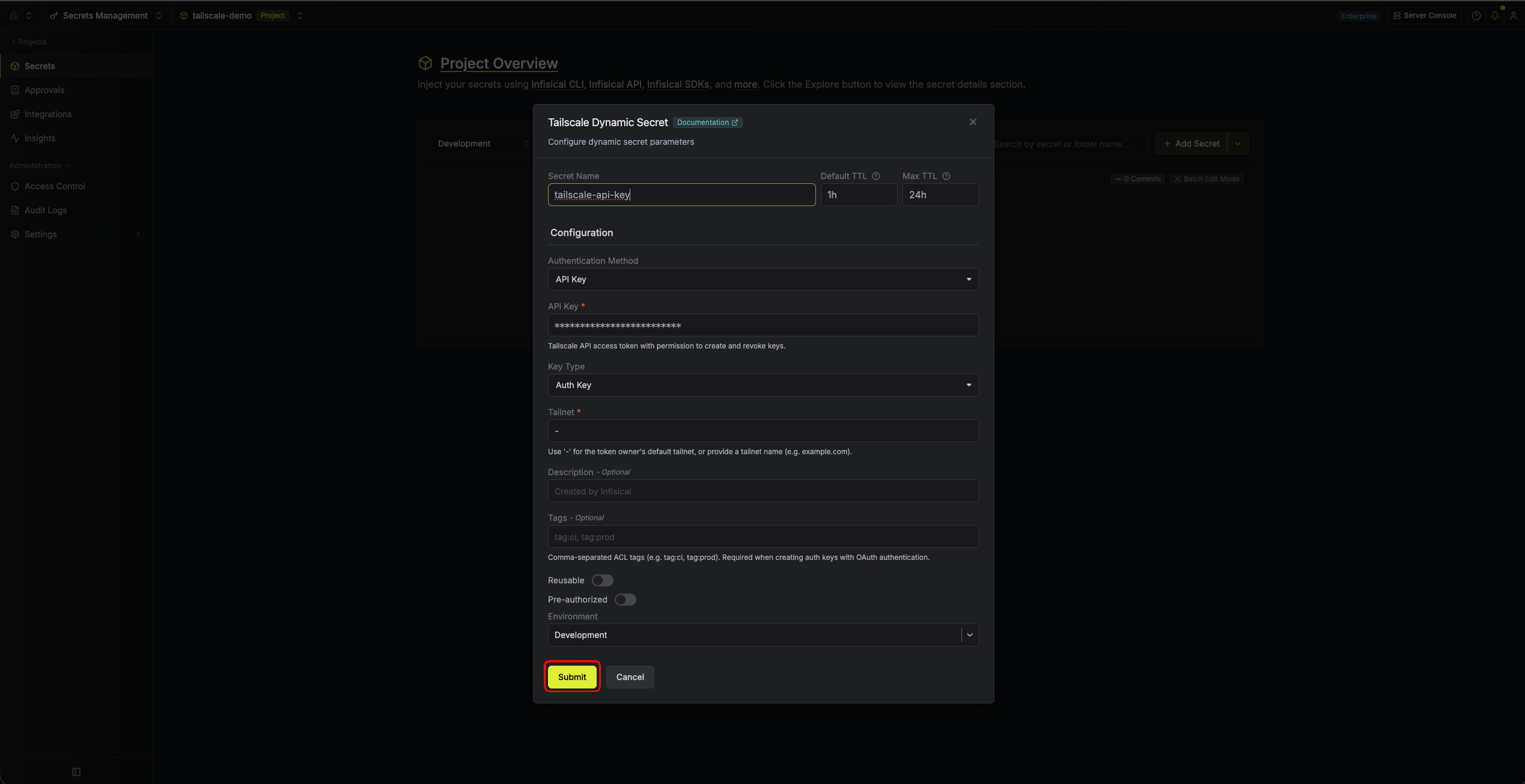
 Name by which you want the secret to be referenced.
Default time-to-live for a generated lease (e.g. `1h`). Must be between 1 minute and 90 days.
Maximum time-to-live for a generated lease (e.g. `24h`). Must be between 1 minute and 90 days.
How Infisical authenticates to the Tailscale API. Choose **API Key** to use a Tailscale API access token, or **OAuth** to use an OAuth client's credentials.
The type of credential to mint on each lease. Choose **Auth Key** to generate a device auth key, **OAuth Client** to generate a tailnet OAuth client, or **Federated Identity** to create a workload identity federation trust. A federated identity returns an identifier and audience rather than a secret. The additional parameters below depend on the key type you select.
Required when the authentication method is **API Key**. The Tailscale API access token with permission to create and revoke keys.
Required when the authentication method is **OAuth**. The Tailscale OAuth client ID.
Required when the authentication method is **OAuth**. The Tailscale OAuth client secret with permission to create and revoke keys.
The tailnet identifier. Use `-` for the token owner's default tailnet, or provide a tailnet name (e.g. `example.com`).
Optional description applied to the created key or OAuth client (max 50 characters).
Comma-separated ACL tags to attach (e.g. `tag:ci, tag:prod`). **Required** when the key type is **Auth Key** and the authentication method is **OAuth**; optional otherwise.
Whether the auth key can register multiple devices.
Whether devices registered with the key are pre-authorized.
Auth keys are always created as `ephemeral`. Revoking a lease deletes the corresponding credential in your tailnet, but Tailscale does not remove the devices that already registered with it. Marking the devices ephemeral ensures Tailscale automatically removes them from the tailnet shortly after they go offline, so devices provisioned through a lease are cleaned up without manual intervention.
Comma-separated OAuth scopes granted to the credential (e.g. `devices:core, users:read`).
OAuth clients cannot be created with the `auth_keys`, `oauth_keys`, `federated_keys`, `api_access_tokens`, and `all` scopes. Those scopes can create or modify other credentials in your tailnet, so Infisical blocks them to prevent leases from changing existing Tailscale credentials.
Comma-separated OAuth scopes granted to the credential (e.g. `devices:core, users:read`).
HTTPS URL of the OIDC issuer trusted for token exchange (e.g. `https://token.actions.githubusercontent.com`).
Pattern matched against the `sub` claim of the OIDC identity token; supports wildcards (e.g. `repo:my-org/my-repo:*`).
Audience for the OIDC token exchange. Leave blank to let Tailscale auto-generate one, which is then returned in the lease output.
OAuth clients cannot be created with the `auth-keys` or `oauth` scopes. Those scopes can create or modify other credentials in your tailnet, so Infisical blocks them to prevent leases from changing existing Tailscale credentials.
After submitting the form, you will see a dynamic secret created in the dashboard.
Once you've successfully configured the dynamic secret, you're ready to generate on-demand credentials.
To do this, simply click on the 'Generate' button which appears when hovering over the dynamic secret item.
Alternatively, you can initiate the creation of a new lease by selecting 'New Lease' from the dynamic secret lease list section.
Name by which you want the secret to be referenced.
Default time-to-live for a generated lease (e.g. `1h`). Must be between 1 minute and 90 days.
Maximum time-to-live for a generated lease (e.g. `24h`). Must be between 1 minute and 90 days.
How Infisical authenticates to the Tailscale API. Choose **API Key** to use a Tailscale API access token, or **OAuth** to use an OAuth client's credentials.
The type of credential to mint on each lease. Choose **Auth Key** to generate a device auth key, **OAuth Client** to generate a tailnet OAuth client, or **Federated Identity** to create a workload identity federation trust. A federated identity returns an identifier and audience rather than a secret. The additional parameters below depend on the key type you select.
Required when the authentication method is **API Key**. The Tailscale API access token with permission to create and revoke keys.
Required when the authentication method is **OAuth**. The Tailscale OAuth client ID.
Required when the authentication method is **OAuth**. The Tailscale OAuth client secret with permission to create and revoke keys.
The tailnet identifier. Use `-` for the token owner's default tailnet, or provide a tailnet name (e.g. `example.com`).
Optional description applied to the created key or OAuth client (max 50 characters).
Comma-separated ACL tags to attach (e.g. `tag:ci, tag:prod`). **Required** when the key type is **Auth Key** and the authentication method is **OAuth**; optional otherwise.
Whether the auth key can register multiple devices.
Whether devices registered with the key are pre-authorized.
Auth keys are always created as `ephemeral`. Revoking a lease deletes the corresponding credential in your tailnet, but Tailscale does not remove the devices that already registered with it. Marking the devices ephemeral ensures Tailscale automatically removes them from the tailnet shortly after they go offline, so devices provisioned through a lease are cleaned up without manual intervention.
Comma-separated OAuth scopes granted to the credential (e.g. `devices:core, users:read`).
OAuth clients cannot be created with the `auth_keys`, `oauth_keys`, `federated_keys`, `api_access_tokens`, and `all` scopes. Those scopes can create or modify other credentials in your tailnet, so Infisical blocks them to prevent leases from changing existing Tailscale credentials.
Comma-separated OAuth scopes granted to the credential (e.g. `devices:core, users:read`).
HTTPS URL of the OIDC issuer trusted for token exchange (e.g. `https://token.actions.githubusercontent.com`).
Pattern matched against the `sub` claim of the OIDC identity token; supports wildcards (e.g. `repo:my-org/my-repo:*`).
Audience for the OIDC token exchange. Leave blank to let Tailscale auto-generate one, which is then returned in the lease output.
OAuth clients cannot be created with the `auth-keys` or `oauth` scopes. Those scopes can create or modify other credentials in your tailnet, so Infisical blocks them to prevent leases from changing existing Tailscale credentials.
After submitting the form, you will see a dynamic secret created in the dashboard.
Once you've successfully configured the dynamic secret, you're ready to generate on-demand credentials.
To do this, simply click on the 'Generate' button which appears when hovering over the dynamic secret item.
Alternatively, you can initiate the creation of a new lease by selecting 'New Lease' from the dynamic secret lease list section.

 Specify the Time to Live (TTL) for the lease, then click the `Submit` button.
 Once you click the `Submit` button, a new lease will be generated and its values will be shown to you. The values returned depend on the key type:
* **Auth Key**: an `AUTH_KEY` and its `KEY_ID`.
* **OAuth Client**: a `CLIENT_ID` and `CLIENT_SECRET`.
* **Federated Identity**: a `FEDERATED_CREDENTIAL_ID` and an `AUDIENCE`. No secret is issued; the workload authenticates by exchanging its own OIDC token for a short-lived Tailscale token.
Once you click the `Submit` button, a new lease will be generated and its values will be shown to you. The values returned depend on the key type:
* **Auth Key**: an `AUTH_KEY` and its `KEY_ID`.
* **OAuth Client**: a `CLIENT_ID` and `CLIENT_SECRET`.
* **Federated Identity**: a `FEDERATED_CREDENTIAL_ID` and an `AUDIENCE`. No secret is issued; the workload authenticates by exchanging its own OIDC token for a short-lived Tailscale token.
 Copy these values right away. For security reasons, secret values (auth keys and client secrets) are shown only once at creation time and cannot be retrieved again. If the issued credential is a federated identity, you can view its values again in the Tailscale dashboard.
## Audit or Revoke Leases
Once you have created one or more leases, you will be able to access them by clicking on the respective dynamic secret item on the dashboard.
This will allow you to see the expiration time of the lease or delete a lease before its set time to live. Revoking a lease deletes the corresponding credential in your tailnet.
Copy these values right away. For security reasons, secret values (auth keys and client secrets) are shown only once at creation time and cannot be retrieved again. If the issued credential is a federated identity, you can view its values again in the Tailscale dashboard.
## Audit or Revoke Leases
Once you have created one or more leases, you will be able to access them by clicking on the respective dynamic secret item on the dashboard.
This will allow you to see the expiration time of the lease or delete a lease before its set time to live. Revoking a lease deletes the corresponding credential in your tailnet.
 ## Renew Leases
Tailscale credentials are immutable once created and cannot be renewed. To obtain a fresh credential, generate a new lease instead.
## Renew Leases
Tailscale credentials are immutable once created and cannot be renewed. To obtain a fresh credential, generate a new lease instead.