> ## Documentation Index
> Fetch the complete documentation index at: https://infisical.com/docs/llms.txt
> Use this file to discover all available pages before exploring further.
# Folder-level access controls
> Grant users and machine identities a specific role inside a single folder.
Folder-level access controls assign a role to a user or machine identity on a single [folder](/docs/documentation/platform/folder). Inside that folder, the grant **replaces** whatever their project roles would otherwise allow, so it can **widen** access or **narrow** it.
Folder-level access controls are a paid feature.
If you're using Infisical Cloud, then they are available under the **Pro plan**.
If you're self-hosting Infisical, then you should contact [sales@infisical.com](mailto:sales@infisical.com) to purchase a license to use them.
## How folder access works
Access in a project normally comes from [role-based access controls](./role-based-access-controls). A role is assigned at the project level and applies everywhere the actor can reach, so treating one folder differently would mean creating a role for a single exception.
A folder grant expresses that exception directly. It pairs one actor with one folder and one role, and inside that folder it **takes precedence** over every role they hold. Use a folder grant when you need to:
* Give someone access to a single folder when their project role grants them none.
* Hold someone to a lower role inside a sensitive folder than their project role would otherwise allow.
* Hand out short-lived access to one folder for an incident or a one-off task.
Grants apply to the **exact folder** you set them on, and nowhere else.
Folder access is **not recursive**. A grant on `/payments` says nothing about
`/payments/keys`. Inside a subfolder, the actor falls back to whatever their
project roles allow.
## Folder access roles
Five roles are available, listed here from least to most privileged. Each role includes everything the roles before it allow.
| Role | What it allows |
| --------------- | --------------------------------------------------------------------------------------------------------------------------------------------------------------------- |
| **List** | See secret names and metadata without their values. Read secret imports, tags, and the configuration of secret syncs, secret rotations, and honey tokens. |
| **Read** | Everything in List, plus reading secret values, viewing commit history, generating dynamic secret leases, and subscribing to secret events. |
| **Edit** | Everything in Read, plus creating, editing, and deleting secrets and secret imports. |
| **Manage** | Everything in Edit, plus managing secret rotations, dynamic secret root credentials, honey tokens, and secret syncs, including reading the credentials they generate. |
| **Full Access** | Everything in Manage, plus deleting subfolders of this folder and granting or revoking access to it. |
Full Access is scoped to the folder it is granted on. It lets the holder delete subfolders of that folder and manage who else has access to it. It does not let them delete the granted folder itself, because deleting a folder is authorized on its parent.
Grants **stay with the folder**. Moving or renaming it carries them to the new
path, and deleting it removes them permanently, with no restore if the folder
is recreated.
## Granting folder access
Navigate to your project's **Secrets** page and select an environment. There are two ways in.
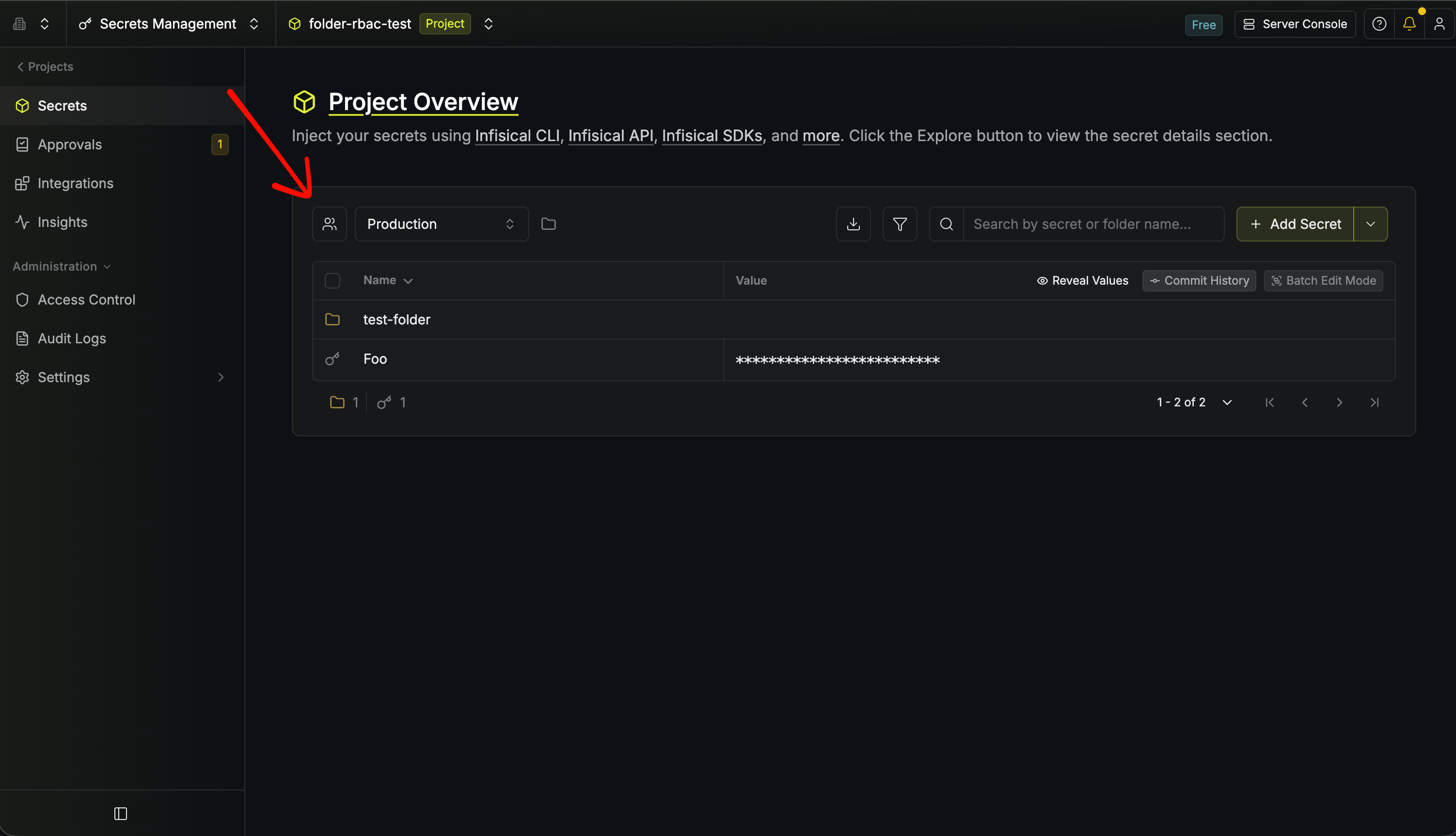
To set access on the folder you are currently viewing, click the members icon next to the environment selector.
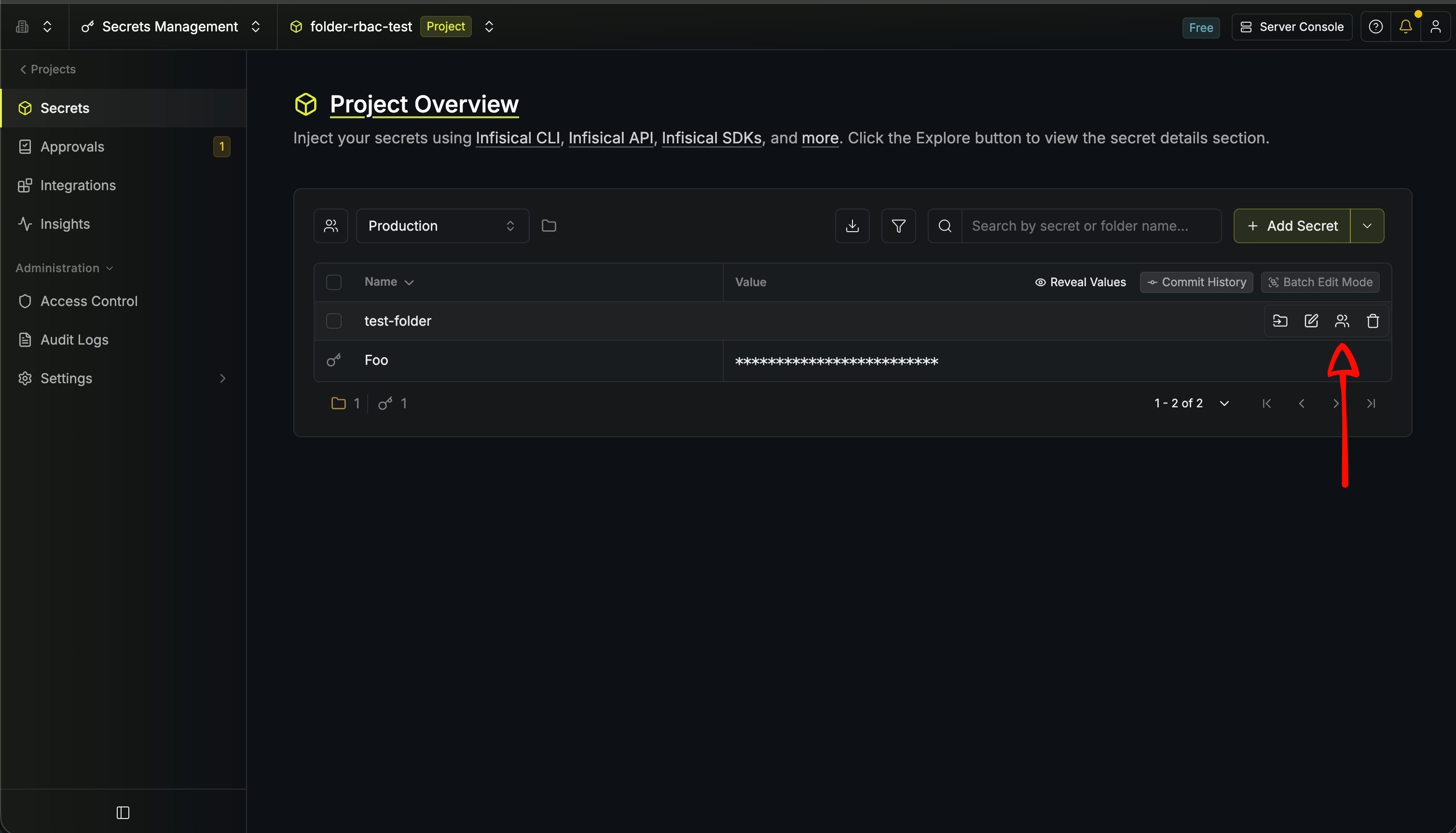
 To set access on a folder in the list, hover over its row and click the members icon that appears.
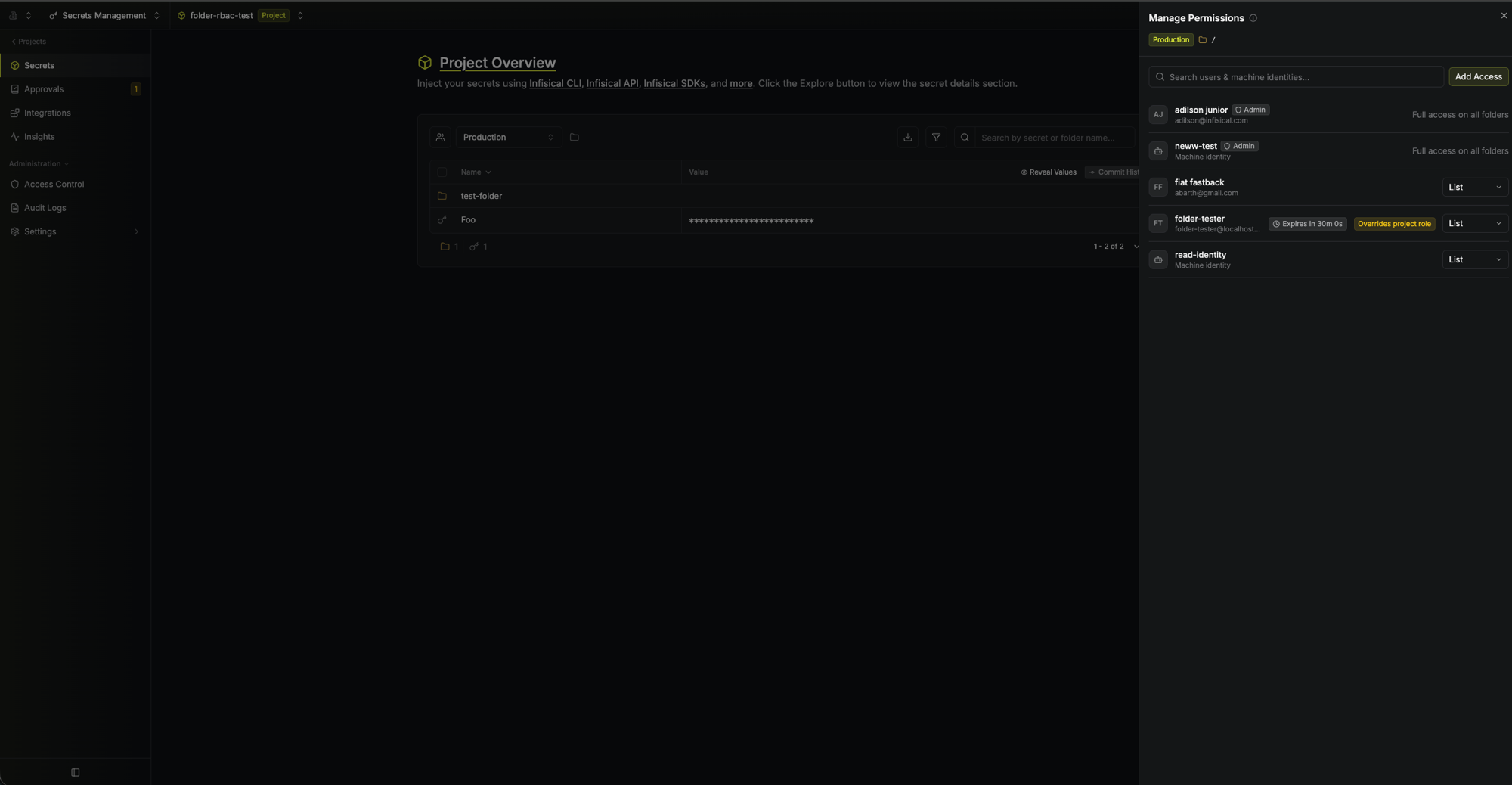
 The **Manage Permissions** sheet lists everyone who can already reach this folder through their project roles, along with the access each one has. Anyone whose access comes from a project role rather than a grant shows an **Access from project role** button, and hovering over it names the roles responsible.
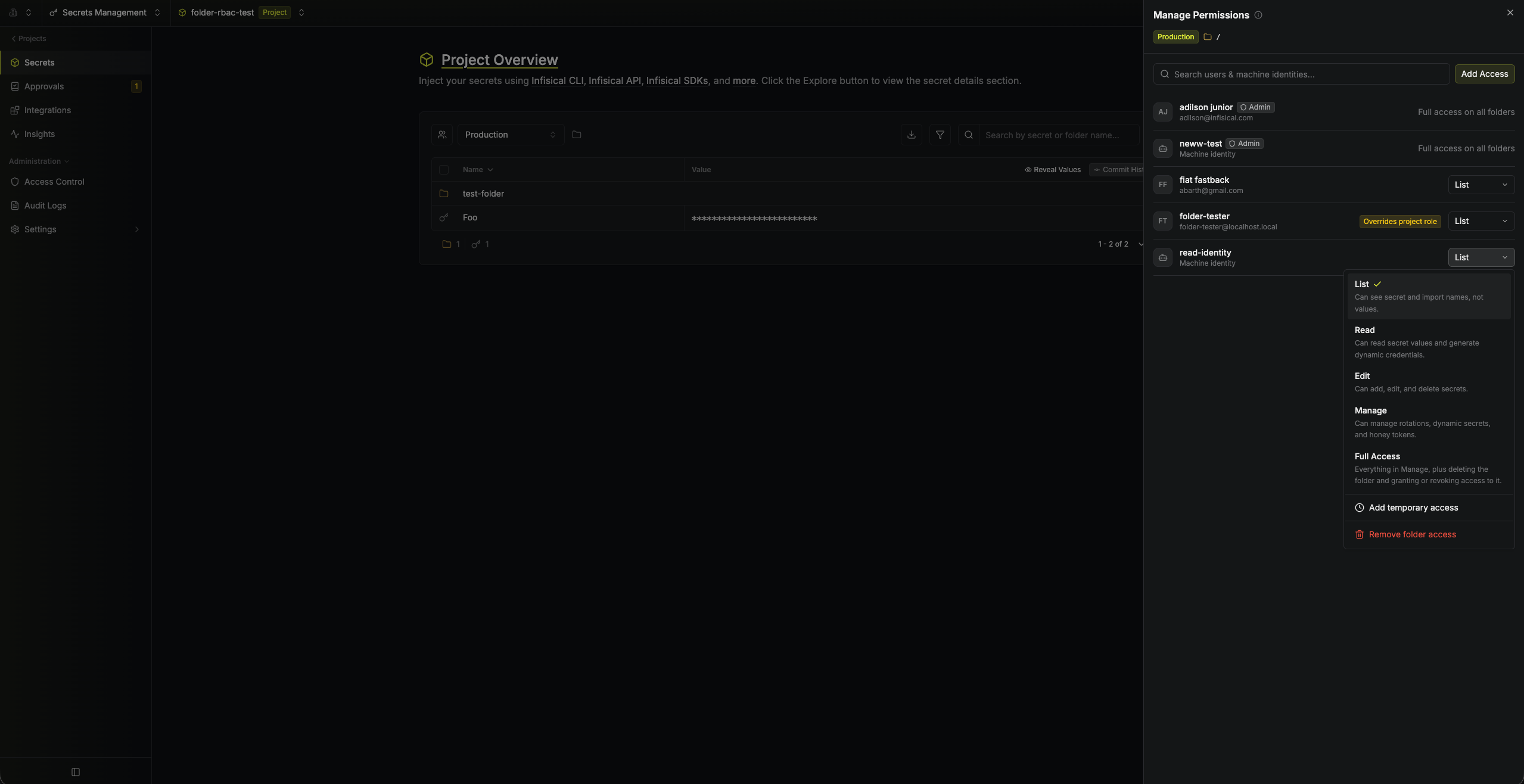
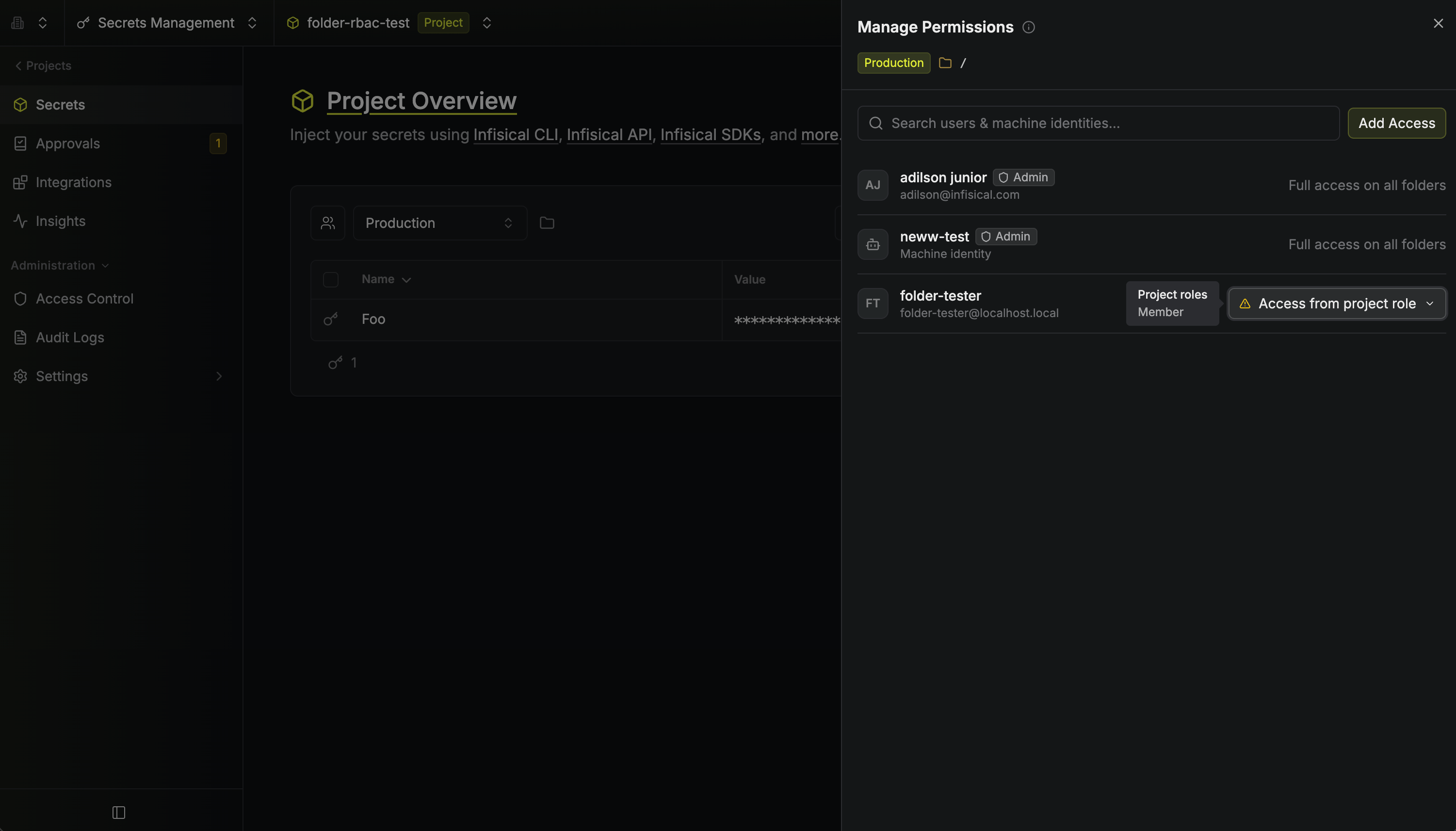 Use the dropdown on any row to set that person's folder role. The same menu carries **Add temporary access** and, once a grant exists, **Remove folder access**. Project admins appear as **Full access on all folders** and cannot be given a folder grant.
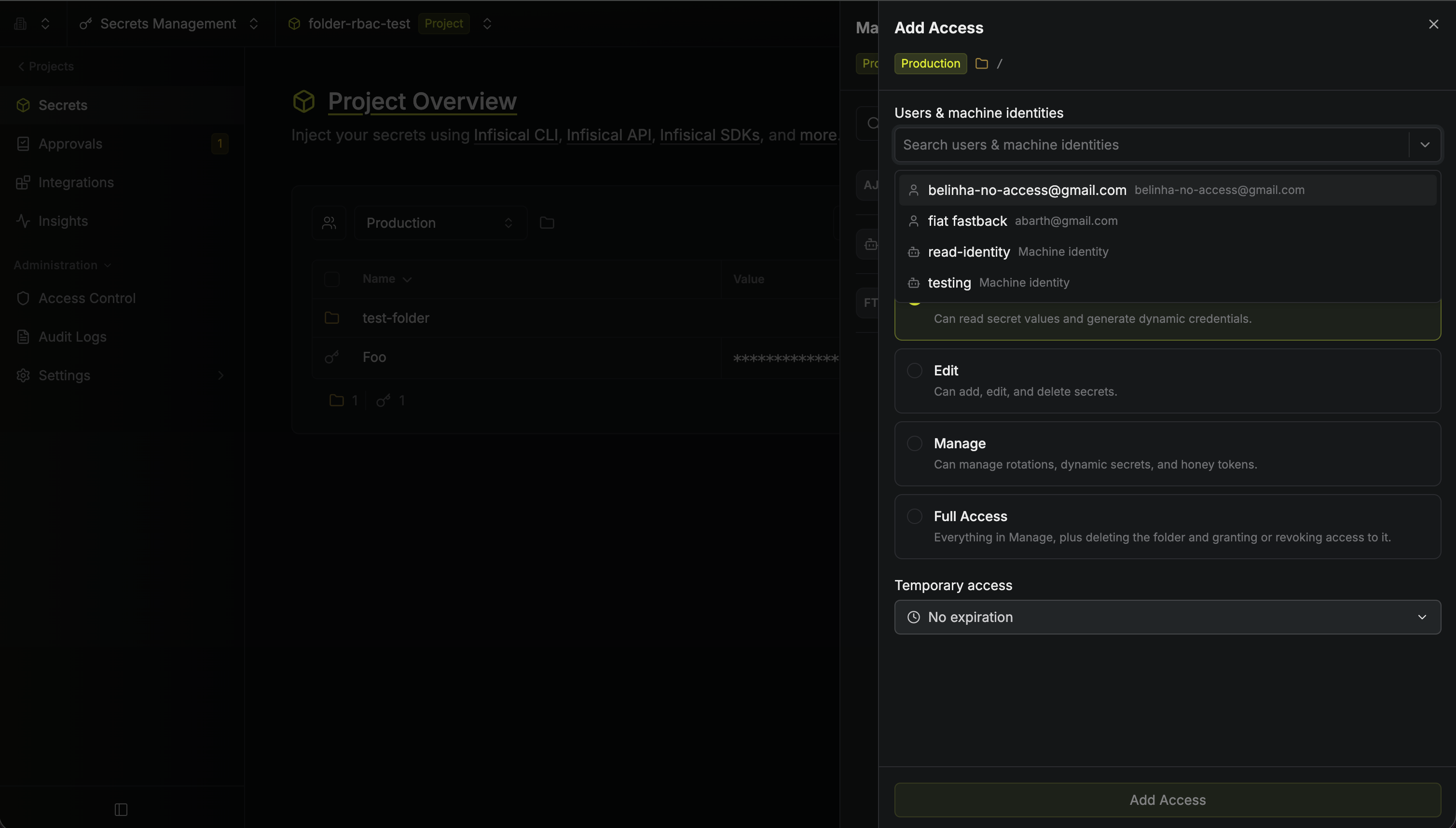
 Click **Add Access** and pick the user or machine identity. This list includes project members who have no access to this folder at all, which is how you give access to someone whose project role grants them none. Choose a role, and optionally set a duration under **Temporary access**, which defaults to **No expiration**.
Click **Add Access** to save it.
Click **Add Access** and pick the user or machine identity. This list includes project members who have no access to this folder at all, which is how you give access to someone whose project role grants them none. Choose a role, and optionally set a duration under **Temporary access**, which defaults to **No expiration**.
Click **Add Access** to save it.
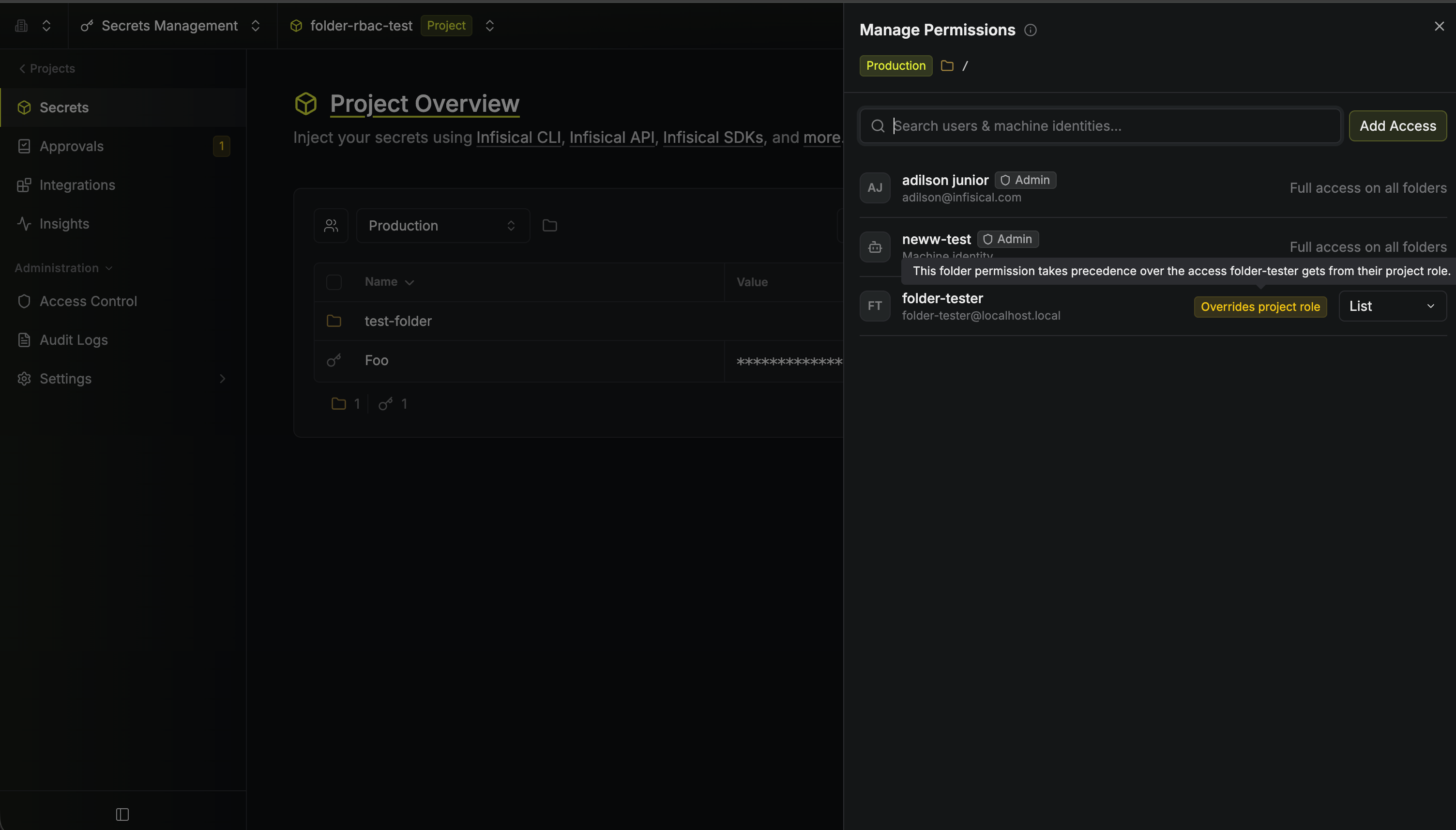
 An actor whose grant changes what their project role would allow is marked **Overrides project role**.
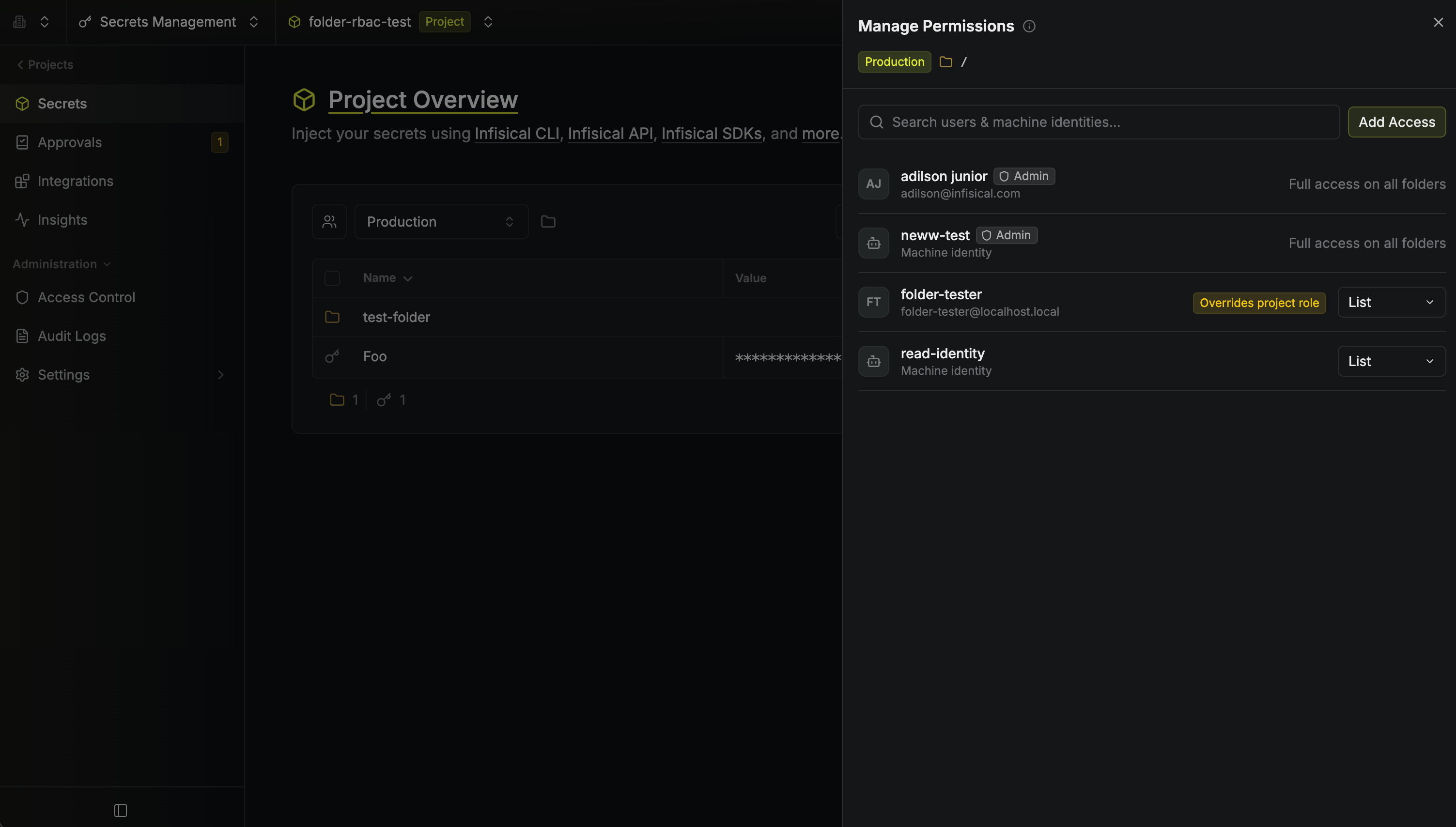
 Each row now shows that actor's role in a dropdown, which you can use to change or remove it later.
 ## Setting temporary access
Grants can be time-bound. Choose a duration when you add the access, or open the role dropdown on an existing row and set one there.
A row with a time-bound grant shows how long is left. Once the window elapses the grant stops applying immediately, and the actor falls back to their project roles.
## Setting temporary access
Grants can be time-bound. Choose a duration when you add the access, or open the role dropdown on an existing row and set one there.
A row with a time-bound grant shows how long is left. Once the window elapses the grant stops applying immediately, and the actor falls back to their project roles.
 Full Access **cannot** be temporary. A Full Access holder can grant folder
access to other people, and those grants would outlive their own expiration.
Grant Full Access permanently, or use Manage for time-bound access.
For time-bound access to a whole project or environment rather than one folder, see [temporary access](./temporary-access).
## Reviewing folder access
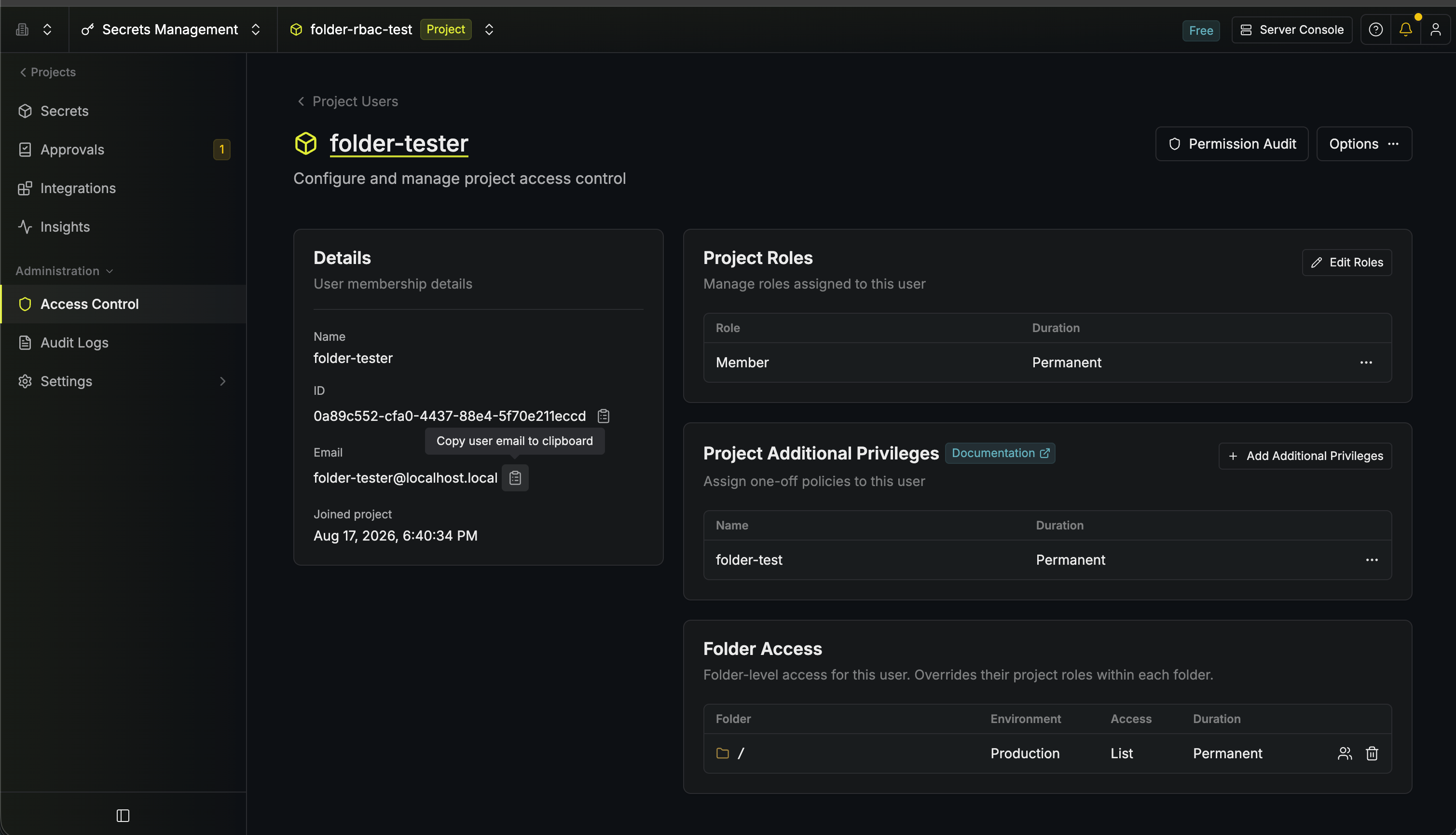
To see every folder a user or machine identity has been granted access to, go to your project's **Access Control** page and open them. The **Folder Access** card lists each grant with its folder, environment, role, and duration, and lets you change or revoke it.
Full Access **cannot** be temporary. A Full Access holder can grant folder
access to other people, and those grants would outlive their own expiration.
Grant Full Access permanently, or use Manage for time-bound access.
For time-bound access to a whole project or environment rather than one folder, see [temporary access](./temporary-access).
## Reviewing folder access
To see every folder a user or machine identity has been granted access to, go to your project's **Access Control** page and open them. The **Folder Access** card lists each grant with its folder, environment, role, and duration, and lets you change or revoke it.